Is Mac drag and drop not working, even though your mouse or trackpad seems fine? You try moving a file into a folder, dragging an image into an application, or rearranging items on your desktop, but nothing happens.
Sometimes the file follows your cursor but returns to its original location when you release it. In other cases, clicking works normally, but dragging doesn’t respond at all.
These problems can happen because of Finder issues, trackpad gestures, file permissions, incompatible external drives, or software conflicts.
Fortunately, you don’t need to reinstall macOS or reset your Mac immediately.
In this guide, we’ll explain 10 practical fixes for Mac drag and drop not working, starting with simple checks and moving to more advanced troubleshooting.
Table of Contents
Quick Answer: How to Fix Mac Drag and Drop Not Working
If you suddenly can’t drag files on your Mac, try these steps:
- Test dragging a harmless file between two Finder folders.
- Relaunch Finder using Option + Command + Escape.
- Restart your Mac.
- Check the mouse or trackpad settings.
- Enable three-finger drag if your trackpad supports it.
- Check whether the file is locked or restricted.
- Verify the destination folder or external drive allows writing.
- Check desktop sorting and application-specific limitations.
- Test dragging in Safe Mode.
- Install available macOS updates.
For most troubleshooting, start by determining whether dragging fails everywhere or only in a particular application.
Important: Don’t delete Finder preference files, run unknown Terminal commands, or reset your Mac until you’ve ruled out the simpler causes.
Why Is Mac Drag and Drop Not Working?
Apple’s Finder allows users to move files and folders by selecting an item, holding the mouse or trackpad button, and dragging it to another location.
You can also drag text, images, and other supported content between applications.
According to Apple’s official drag-and-drop documentation, holding the Option key while dragging allows you to copy an item rather than simply move it.
However, several problems can interfere with dragging:
- Finder temporarily stops responding.
- A trackpad doesn’t register a click-and-hold gesture correctly.
- A connected mouse has a faulty button or connection.
- The file is locked or being used by another application.
- The destination folder has restricted permissions.
- An external drive doesn’t support writing from macOS.
- Desktop sorting makes icons return to their original positions.
- A third-party utility interferes with pointer input.
- A macOS update introduces unexpected behavior.
The cause depends on where the problem happens.
If you can drag windows but not files, investigate Finder and file permissions.
If you cannot drag anything, including windows, focus on the input device and system-level behavior.
If dragging works in Finder but not in a particular app, investigate that application’s permissions and supported actions.
1. Test Dragging a File in Finder
First, determine whether the problem affects the entire Mac or only one application.
Use Finder to perform a controlled test with a harmless sample file.
Follow these steps:
- Open Finder.
- Create a new folder called “Drag Test.”
- Create or copy a small test file that contains no important information.
- Place the test file in a different local folder.
- Select the file.
- Press and hold your mouse button or trackpad click.
- Move the pointer toward the Drag Test folder while holding the item.
- Release the button to drop the file.
If dragging works between these two locations, the basic drag gesture is functioning.
The original problem may involve a specific application, folder, drive, or file.
If the file won’t move at all, try the same action with a different file.
Try copying instead of moving
Hold the Option key while dragging the file.
This requests a copy rather than the usual move behavior.
If dragging works when copying but not when moving, investigate permissions and destination restrictions.
You can also use keyboard shortcuts as a temporary workaround:
- Select the file and press Command + C.
- Open the destination folder.
- Press Command + Option + V to move the copied file there, where supported.
This helps you continue working while investigating the underlying issue.
2. Relaunch Finder
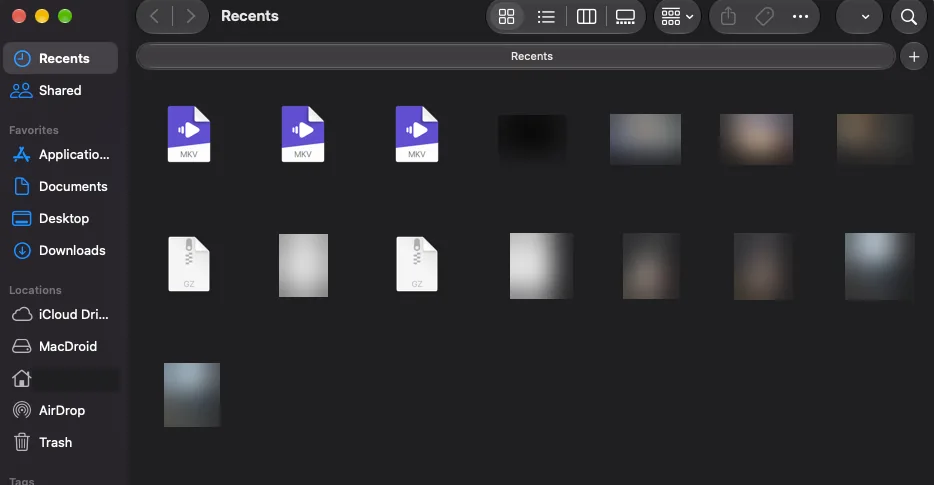
Finder is responsible for much of the Mac’s file-management interface.
If it becomes unresponsive, file dragging may stop working correctly.
Apple provides a built-in way to relaunch Finder without restarting the entire computer.
Here’s how:
- Press Option + Command + Escape.
- Wait for the Force Quit Applications window.
- Select Finder.
- Click Relaunch.
- Confirm if prompted.
- Wait for Finder to reopen.
- Try dragging a test file again.
Your open Finder windows may briefly disappear and reopen.
Relaunching Finder doesn’t normally delete your files or folders.
If the problem disappears, a temporary Finder issue may have been responsible.
However, if Finder repeatedly freezes or stops responding, the underlying problem may require further investigation.
We have a separate troubleshooting guide covering this specific problem:
MacBook Finder Not Responding? 12 Fixes (2026)
If Finder is working normally but dragging remains broken, continue with the next step.
3. Restart Your Mac
A normal restart can clear temporary issues affecting Finder, pointer input, or other macOS processes.
This is one of the simplest things to try when dragging suddenly stops working across multiple apps.
To restart:
- Save your open documents.
- Click the Apple menu.
- Select Restart.
- Allow your Mac to restart normally.
- Sign in again.
- Open Finder.
- Test dragging a file.
If the issue started after using sleep mode or disconnecting an external device, a restart may help restore normal behavior.
Try not to force your Mac to shut down unless it is completely unresponsive.
A normal restart is preferable because applications can close properly.
If the problem continues, investigate the trackpad or mouse.
4. Check Your Trackpad or Mouse Settings
If dragging doesn’t work anywhere, the input device should be one of your main suspects.
The pointer may move normally while the click-and-hold action fails.
This can happen with a faulty mouse button, an unreliable wireless connection, or trackpad behavior that makes dragging difficult.
Check your Mac trackpad
- Open System Settings.
- Click Trackpad.
- Select Point & Click.
- Review the Click setting.
- Check your preferred tracking speed.
- Test dragging again.
If files open instead of moving, try using lighter pressure.
Apple notes that a Force Touch trackpad can interpret a firmer press differently from an ordinary click.
Don’t assume that turning on Tap to Click automatically enables dragging without holding an item.
These are different interactions.
Test a different input device
If possible, connect another mouse or use the built-in MacBook trackpad.
Then repeat the Finder drag-and-drop test.
If dragging works with one input device but not another, the problem may involve that device or its configuration.
For a wireless mouse, also check its battery and connection.
If other trackpad actions are failing too, read our related guide:
MacBook Trackpad Not Working? 12 Easy Fixes (2026)
If your Bluetooth mouse frequently disconnects, our MacBook Bluetooth troubleshooting guide covers relevant connection checks.
5. Enable Three-Finger Drag
Apple provides an alternative dragging gesture called Three Finger Drag on supported Mac trackpads.
Instead of pressing down on the trackpad while moving an item, you can use three fingers to drag it.
This can be useful when the normal click-and-drag gesture is uncomfortable or unreliable.
To enable it:
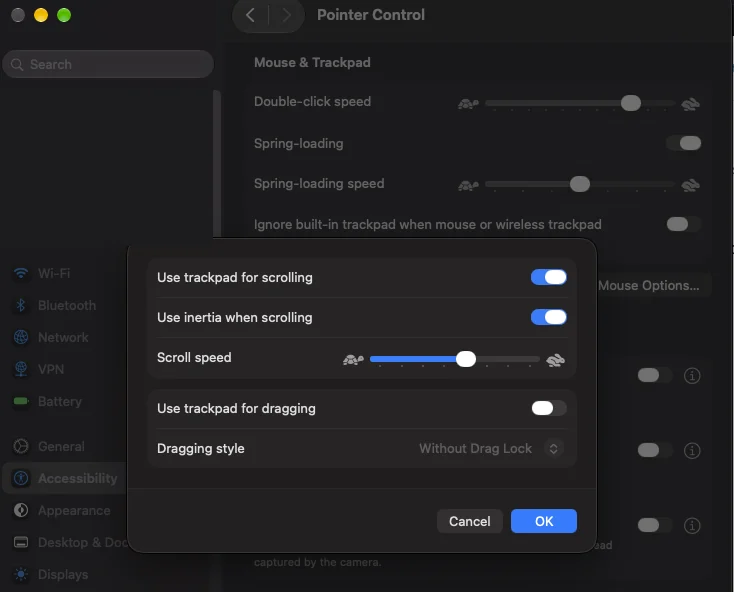
- Open System Settings.
- Select Accessibility.
- Click Pointer Control.
- Open Trackpad Options.
- Turn on Use trackpad for dragging.
- Open the dragging-style menu.
- Select Three Finger Drag.
- Click OK or Done, depending on your macOS version.
Now return to Finder.
Place three fingers on a file and move them together to drag it.
Tap or click to complete the drop if required by the gesture.
Apple documents this setting in its official three-finger drag instructions.
Important: This feature is available only on supported trackpads. The wording and position of its controls can vary with macOS version and hardware.
What if three-finger drag is missing?
First check that your Mac has a compatible trackpad.
Then check the Accessibility settings again.
Don’t download third-party gesture software solely because the option isn’t available.
If your device doesn’t support the gesture, continue using the standard mouse or trackpad dragging method while troubleshooting.
Enabling three-finger drag may provide an alternative way to move files, but it doesn’t necessarily repair a hardware fault.
6. Check Whether the File Is Locked or Restricted
Sometimes drag and drop works normally, but one particular file refuses to move.
This may happen because the file is locked, still in use, or located in a folder with restricted permissions.
Apple recommends checking these conditions when a file cannot be moved or copied.
Check whether a file is locked
- Open Finder.
- Select the problematic file.
- Press Command + I to open Get Info.
- Expand the General section.
- Look for the Locked checkbox.
- If you own the file and it is appropriate to modify it, deselect Locked.
- Close Get Info.
- Test moving the file again.
Also check whether the file is currently open in another application.
If it is, save your work and close the application before retrying.
Review file and folder permissions
- Select the destination folder.
- Press Command + I.
- Expand Sharing & Permissions.
- Find your user account.
- Check whether it has Read & Write access.
If the folder is read-only, macOS may prevent you from adding or moving files into it.
Only change permissions when you own or administer the folder and understand the consequences.
For shared, work, or school folders, contact the administrator instead of attempting to bypass restrictions.
You can learn more from Apple’s file permissions documentation.
7. Check External Drive Compatibility and Storage Space
If you can’t drag files to a USB drive, external SSD, or hard drive, the problem may not involve Finder at all.
The destination drive might be read-only or lack sufficient free space.
Check the drive format
- Connect the external drive.
- Open Finder.
- Select the drive.
- Press Command + I.
- Look for the file system format.
- Review Sharing & Permissions if available.
macOS generally supports writing to drives formatted as APFS, Mac OS Extended, or exFAT.
However, NTFS drives are typically read-only on macOS without additional compatible software.
This means you may be able to open files from an NTFS drive but not drag new files onto it.
Apple explains this limitation in its guide to moving or copying items.
Check available space
In Finder, select the destination drive and open Get Info to review available storage.
If the drive is full, free up space safely before trying to transfer additional files.
Never format a drive merely to test drag and drop. Reformatting can erase its contents.
If you need a different file system, back up the drive and choose an appropriate format first.
If the drive isn’t appearing in Finder at all, investigate the connection and detection problem before attempting file transfers.
8. Check Desktop Sorting and App-Specific Restrictions
Sometimes dragging appears broken because an item moves and then returns to its original position.
This may be expected behavior rather than a malfunction.
Files return to their original positions
If you’re rearranging Desktop icons, check Finder’s sorting options.
- Click an empty area of the Desktop.
- Open the View menu.
- Find Sort By.
- Select None, if available.
- Try moving an icon again.
If Use Stacks is enabled, it may affect the available arrangement options.
Automatic sorting can cause icons to return to positions determined by Finder.
This is different from being unable to drag files between folders.
Dragging works in Finder but not in one app
Some applications only accept particular kinds of dropped content.
For example, an application may accept an image file but not a folder.
Test a supported file type before concluding that dragging is broken.
If the application requires access to protected locations, check:
System Settings → Privacy & Security → Files & Folders
Review only the permissions relevant to the affected app.
Do not grant Full Disk Access indiscriminately. Only provide access that is necessary and appropriate.
If the app continues to reject drops while Finder works normally, check that application’s documentation or updates.
9. Test Drag and Drop in Safe Mode
If dragging fails across Finder and other applications, a background utility or startup component may be involved.
Safe Mode helps determine whether software loaded during normal startup contributes to a problem.
Apple provides different instructions depending on whether your Mac uses Apple silicon or an Intel processor.
For a Mac with Apple silicon
- Shut down your Mac completely.
- Press and hold the power button.
- Release it when startup options appear.
- Select your startup disk.
- Press and hold Shift.
- Click Continue in Safe Mode.
- Sign in.
- Test dragging a harmless file in Finder.
For an Intel-based Mac
- Shut down or restart the Mac.
- Immediately press and hold Shift during startup.
- Release Shift when the login window appears.
- Sign in.
- Test dragging in Finder.
Safe Mode may behave differently from a normal macOS session.
If drag and drop works in Safe Mode but fails after restarting normally, a login item, extension, or third-party utility may be contributing.
Consider reviewing recently installed pointer utilities, window managers, clipboard tools, and login items.
Don’t disable essential work or security software without understanding its purpose.
For details, see Apple’s official Safe Mode instructions.
To return to normal mode, restart your Mac normally.
10. Update macOS and Check Third-Party Utilities
If the problem continues after the earlier fixes, check whether your Mac has an available software update.
Software updates can include compatibility improvements and fixes for system behavior.
Check for updates:
- Open the Apple menu.
- Select System Settings.
- Click General.
- Open Software Update.
- Check for a compatible update.
- Back up important data.
- Install the update if appropriate.
- Restart the Mac if required.
- Test drag and drop again.
Don’t assume that every new update specifically fixes drag-and-drop behavior unless Apple confirms it.
What if the problem began after installing an app?
Consider whether you recently installed software that modifies mouse gestures, keyboard shortcuts, window management, or Finder behavior.
Such utilities may affect how input is handled.
Try temporarily disabling a suspected utility using its own settings, then test Finder.
If the problem disappears, check for an updated or compatible version of that application.
Avoid manually deleting system extensions or running unverified Terminal commands.
If drag and drop still fails across the entire Mac, even in Safe Mode, consider contacting Apple Support.
The next troubleshooting step may depend on whether the problem involves hardware, your macOS user account, or the operating system.
Mac Drag and Drop Not Working After a macOS Update
If the issue started immediately after a macOS update, first determine whether Finder works normally.
Then check:
- Does dragging fail everywhere or only in one app?
- Can you drag a window using its title bar?
- Does dragging work with another mouse or trackpad?
- Are specific files or folders affected?
- Does the problem continue in Safe Mode?
If the problem affects only one application, look for an update to that application.
If all dragging fails but pointer movement still works, investigate the click-and-hold behavior of your input device.
If Finder file dragging works but an external drive rejects drops, check its format and permissions.
These checks provide more useful information than immediately resetting macOS.
Mac Drag and Drop Not Working With a Mouse but Working With a Trackpad
If your MacBook trackpad works but an external mouse cannot drag files, focus on that mouse first.
Possible explanations include an unreliable button, a connection problem, or third-party mouse customization software.
Try these checks:
- Disconnect and reconnect the mouse.
- Check its battery or charging status.
- Test a different USB port or receiver, if applicable.
- Open System Settings → Mouse.
- Check whether normal clicking works.
- Test with another mouse if available.
If the problem happens only with one mouse, reinstalling macOS is unlikely to be the appropriate first action.
Consider the device manufacturer’s support instructions.
Mac Drag and Drop Not Working Only in Finder
If dragging works in other applications but not Finder, try relaunching Finder.
Then test moving an ordinary file between local folders.
If dragging fails only in a specific folder, inspect its permissions.
If files snap back on the Desktop, check sorting and Stacks.
If Finder itself freezes, investigate that issue separately instead of repeatedly changing trackpad settings.
Our dedicated Finder Not Responding troubleshooting guide covers additional Finder-specific problems.
Frequently Asked Questions
Why can’t I drag and drop on my Mac anymore?
Possible causes include Finder glitches, trackpad or mouse problems, locked files, restricted folder permissions, and third-party software conflicts. Start by testing a harmless file between two Finder folders.
How do I reset drag and drop on a Mac?
There is no single universal reset button for macOS drag and drop. Try relaunching Finder, restarting your Mac, checking input settings, and identifying whether one application or the entire system is affected.
Does three-finger drag work on every Mac?
No. Three-finger drag depends on compatible trackpad hardware and the macOS options available on that device.
Why does my Mac open a file instead of dragging it?
You may be pressing too firmly on a Force Touch trackpad, or the click-and-drag gesture may not be registering as expected. Try a lighter press and review Trackpad settings.
Why do files return to their original position after dragging?
If this happens on the Desktop, automatic sorting or Stacks may be responsible. If it happens when moving files into a folder, check permissions, available storage, and file locks.
Why can’t I drag files onto my external hard drive?
The drive might be read-only, full, or formatted with a file system that macOS cannot write to normally, such as NTFS. Check the drive format and available space before changing anything.
Can I move files without drag and drop?
Yes. In Finder, you can copy a file using Command + C and use Command + Option + V in the destination folder to move it, where supported.
Can a macOS update cause drag-and-drop problems?
Software changes may coincide with unexpected behavior, but timing alone doesn’t prove the update is responsible. Check affected apps, input devices, and available software updates.
Will relaunching Finder delete my files?
No. Relaunching Finder normally closes and restarts the Finder interface without deleting your files.
Should I reinstall macOS if drag and drop is not working?
Not as an early troubleshooting step. Test Finder, input devices, permissions, external drives, and Safe Mode first. Contact Apple Support if the issue remains unresolved.
Final Thoughts
If Mac drag and drop is not working, start with a simple Finder test to identify whether the problem affects the entire Mac or only a particular file, folder, or application.
Relaunch Finder, restart your Mac, and check the mouse or trackpad before trying more advanced changes.
If the problem involves a particular file, inspect its lock status and permissions. If you can’t copy files to an external drive, review its file system and available storage.
Three-finger drag can also provide an alternative way to move items on supported trackpads.
Most importantly, avoid unnecessary system resets or risky file changes.
By narrowing down the exact symptom, you can choose a more appropriate fix and get back to moving files normally.