Are your Android notifications not showing, even though you’re receiving messages, emails, or app updates?
Maybe WhatsApp messages appear only after you open the app. Gmail notifications arrive late, or your phone stops displaying alerts on the Lock Screen.
Missing notifications can be frustrating, especially when you depend on your phone for important messages and reminders.
Fortunately, most Android notification problems are caused by settings you can check without resetting your phone.
This guide covers 10 practical fixes for Android notifications not showing on Samsung Galaxy, Google Pixel, OnePlus, Motorola, and other Android phones.
Quick answer: Start by checking app notification permissions, turning off Do Not Disturb, and reviewing Battery Saver settings. If notifications arrive only when you open an app, investigate its background battery and data permissions.
Table of Contents
Why Are Android Notifications Not Showing?
Android notifications can disappear, arrive late, or stop making sounds for different reasons.
The most common causes include:
- App notifications are disabled.
- Do Not Disturb or another notification-filtering mode is active.
- Battery Saver is restricting background activity.
- An app’s notification categories are turned off.
- Background data is restricted.
- Lock Screen notifications are hidden.
- An app’s internal notification settings are disabled.
- A temporary software or app problem is preventing alerts.
The first step is identifying whether the problem affects every app or only one.
If you’re not receiving notifications from any app, focus on system-wide settings. If only WhatsApp, Gmail, or another app is affected, start with that app’s permissions.
Google also identifies Do Not Disturb, Battery Saver, and Adaptive Battery as settings that can silence or delay notifications.
For reference, see Google’s official notification troubleshooting guide.
Fix 1: Turn On App Notification Permissions
One of the most common reasons for Android notifications not showing is that notification permission has been disabled for the affected app.
On many Android phones, you can restore notification permissions through Settings.
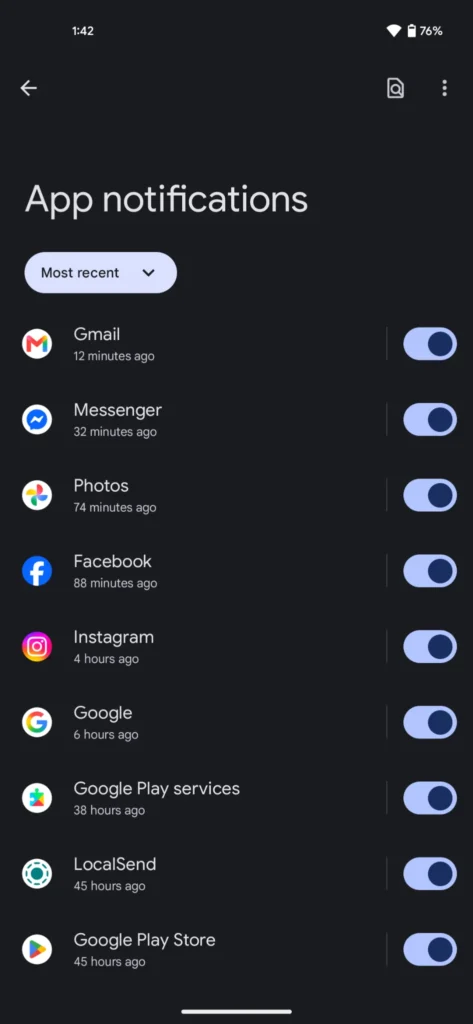
- Open Settings.
- Tap Notifications.
- Select App notifications.
- Find the app that isn’t sending alerts.
- Make sure notifications are enabled.
- Open the app’s notification settings and review any individual categories.
On some Samsung Galaxy and other Android phones, the menu names may be slightly different.
You can also open Settings → Apps → [App name] → Notifications on supported devices.
If you recently installed an app, check whether you accidentally denied notification permission during setup.
Tip: If notifications are already enabled, turn your attention to individual notification categories before changing unrelated settings.
Fix 2: Turn Off Do Not Disturb
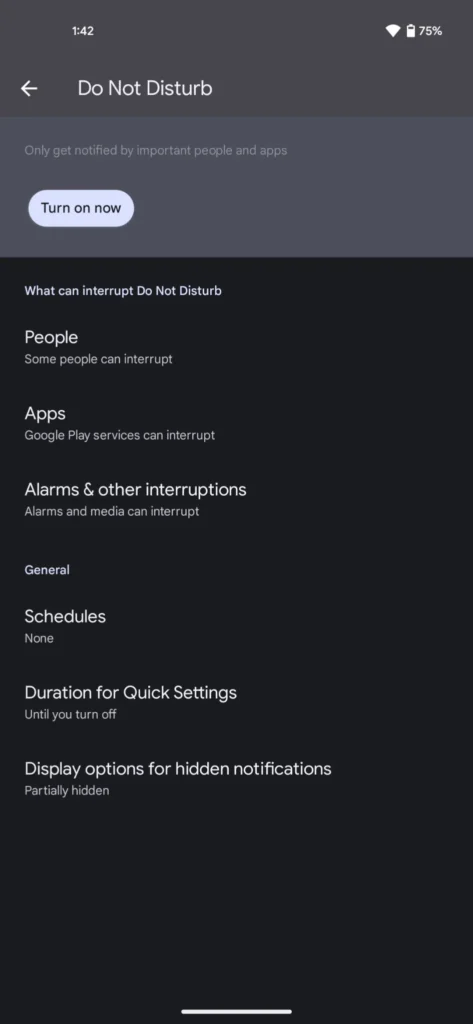
Do Not Disturb can silence many alerts, calls, and notifications.
Depending on your settings, it may also hide notifications from the screen.
To check:
- Swipe down from the top of your screen to open Quick Settings.
- Find Do Not Disturb or Modes.
- Check whether a notification-filtering mode is active.
- Turn it off temporarily.
- Ask someone to send you a test message.
On recent Pixel phones, you can also open Settings → Modes → Do Not Disturb.
Some Samsung phones use Settings → Modes and Routines for related controls.
If Do Not Disturb turns itself on again, check whether you’ve configured an automatic schedule, bedtime routine, or other mode.
Google explains these settings in its official Android Do Not Disturb guide.
If your Android notifications are not showing only at night, an automatically scheduled mode is worth investigating.
Fix 3: Disable Battery Saver Temporarily
Battery-saving features help extend battery life, but they can also affect how applications work in the background.
On Google Pixel phones, Battery Saver can delay lower-priority notifications. Extreme Battery Saver can pause many apps, preventing them from sending notifications while paused.
Try this:
- Open Settings.
- Tap Battery.
- Open Battery Saver or your phone’s equivalent.
- Check whether the feature is enabled.
- Turn it off temporarily.
- Lock your phone and test notifications again.
Some Android brands use names such as Power saving or Ultra power saving.
If notifications return after disabling the feature, you’ve identified a possible cause.
You can then adjust the battery settings for important apps instead of permanently disabling every power-saving feature.
See Google’s Battery Saver documentation for details about how power-saving modes affect alerts.
Fix 4: Allow Background Activity for Important Apps
Are your Android notifications not showing until you open the app?
This symptom can indicate that background activity is restricted.
For example, an app may receive new information when you open it but fail to update promptly while your phone is locked.
On a Google Pixel:
- Open Settings.
- Tap Apps.
- Select the affected app.
- Tap App battery usage.
- Check whether Allow background usage is enabled.
- Review its battery optimization settings.
On some Android versions, you may see options such as Unrestricted, Optimized, or Restricted.
Samsung and other Android manufacturers may arrange these settings differently.
If a specific messaging app consistently receives delayed notifications, you can consider allowing less-restricted background activity for that app.
However, less-restricted battery settings may increase power consumption.
Important: You don’t need to disable battery optimization for every app. Change settings only for apps with persistent notification problems.
Google recommends keeping normal optimization enabled for most applications. See its Adaptive Battery and battery optimization guide.
Fix 5: Check Background Data and Data Saver
Some apps depend on internet connectivity to receive updates and notifications.
If background data is restricted, alerts may be delayed until you open the app or reconnect to a suitable network.
To investigate:
- Open Settings.
- Tap Apps.
- Select the affected application.
- Open Mobile data & Wi-Fi, Mobile data, or the equivalent option.
- Check whether background data is allowed.
- Review any Data Saver restrictions.
The exact menu varies by Android manufacturer.
If Data Saver is enabled, check whether the affected app is allowed to use background data.
You can also test the app on Wi-Fi and then on cellular data.
If notifications work on one connection but not the other, investigate the network rather than immediately resetting your phone.
Note: Allowing unrestricted background data can increase mobile data usage. Change these permissions selectively.
Fix 6: Enable Lock Screen Notifications
If notifications arrive normally while your phone is unlocked but disappear from the Lock Screen, check your privacy and display settings.
On many Android devices:
- Open Settings.
- Tap Notifications.
- Look for Notifications on lock screen or Lock screen notifications.
- Select an option that allows notifications to appear.
- Review whether sensitive content is hidden.
- Lock your phone and test again.
Depending on your phone, you may choose to show full notifications, hide sensitive details, or hide notifications entirely.
Samsung Galaxy phones may offer additional notification style and Lock Screen options.
If Android notifications are not showing on your Lock Screen, check these settings before troubleshooting background activity.
Privacy reminder: Showing notification content on the Lock Screen can expose personal messages to anyone who can see your phone. Choose the level of detail you’re comfortable displaying.
Fix 7: Check Silent Notifications and App Categories
Sometimes notifications aren’t actually missing.
They may be delivered silently without a sound, vibration, or prominent alert.
To check:
- Open Settings → Notifications → App notifications.
- Select the affected app.
- Review its notification categories, if available.
- Look for settings such as Alerting, Default, or Silent.
- Enable the appropriate alert behavior.
- Test with a new notification.
On supported Android versions, you can also touch and hold an existing notification to change its alert behavior.
If you only see notifications after swiping down, silent delivery may explain why you didn’t notice them earlier.
Check the app’s notification sound and vibration settings as well.
Do not assume an application is broken simply because it no longer plays a sound.
Fix 8: Restart Your Android Phone
A temporary Android or application problem can sometimes affect notifications.
Restarting your phone is a useful diagnostic step that doesn’t delete your personal data.
- Save any unfinished work.
- Open your phone’s power menu.
- Tap Restart.
- Wait for the phone to start again.
- Unlock it and connect to the internet.
- Test notifications from the affected app.
The method for opening the power menu varies between Android models.
On some devices, you can hold the power button. On others, you may need to press the power and volume-up buttons together or use the Quick Settings power icon.
If notifications begin working after a restart, the problem may have been temporary.
If they fail again shortly afterward, continue investigating app permissions, background restrictions, and notification schedules.
Fix 9: Update the App and Android System
Outdated applications or system software can sometimes have bugs that affect notification behavior.
If Android notifications are not showing after an app update or system change, check whether a newer compatible update is available.
Update the affected app
- Open Google Play Store.
- Tap your profile icon.
- Select Manage apps & device.
- Review available updates.
- Update the affected app if an update is available.
Update Android
- Open Settings.
- Select System.
- Tap Software updates or System update.
- Check for an available update.
- Install an appropriate update after backing up important data.
Samsung and other manufacturers may use different software-update menus.
Updates aren’t guaranteed to fix every notification issue, but they can address software bugs and compatibility problems.
If only one app is affected and no update is available, you can also try clearing its cache through Settings → Apps → [App name] → Storage & cache → Clear cache, where supported.
Avoid Clear storage or Clear data unless you understand the consequences. These options may erase local app data or sign you out.
Fix 10: Check the App’s Own Notification Settings
Some apps have notification controls inside the app itself.
Even if Android allows notifications, the app may have its own muted conversations, email categories, or notification preferences.
For example:
WhatsApp: Open WhatsApp → Settings → Notifications. Check message and group notification settings, and review muted chats.
Gmail: Open Gmail → Settings → Select your account → Notifications or Email notifications. Review the available choices and account sync settings.
Telegram: Open Telegram → Settings → Notifications and Sounds. Check private chats, groups, channels, and muted conversations.
These menus can change between app versions.
If only one conversation or email account is affected, investigate its settings before changing system-wide notification options.
For persistent app-specific issues, visit the developer’s official support page.
Android Notifications Not Showing Until You Open the App?
This problem deserves special attention because it often has a different cause from completely disabled notifications.
If WhatsApp, Gmail, or other apps receive new messages only after being opened, test these settings in order:
- Confirm the app has notification permission.
- Check whether Battery Saver is active.
- Allow the app to run in the background.
- Review background data restrictions.
- Check the app’s internal notification and sync settings.
- Restart the phone and test again.
You can also compare behavior on Wi-Fi and cellular data.
If notifications work normally when the app is open but consistently stop when your phone is locked, background restrictions are a stronger possibility than a missing notification sound.
Avoid immediately factory resetting your Android phone. A full reset is rarely the right first response to a single app’s delayed alerts.
Android Notifications Not Showing: Samsung vs. Pixel
Samsung Galaxy and Google Pixel phones share many Android features, but their settings menus are not identical.
On Samsung Galaxy
Look for:
- Settings → Notifications → App notifications.
- Settings → Battery → Background usage limits, where available.
- Settings → Modes and Routines.
- Settings → Lock screen or Lock screen and AOD.
Review whether the affected app has been placed into a sleeping or deeply sleeping category.
On Google Pixel
Look for:
- Settings → Notifications → App notifications.
- Settings → Apps → Select app → App battery usage.
- Settings → Battery → Battery Saver.
- Settings → Modes → Do Not Disturb.
These paths are examples for recent versions, and exact menu labels can vary.
If you’re also having trouble connecting your Android device to your computer, our Android Phone Not Showing Up on Mac troubleshooting guide covers a separate connection problem, including missing USB connection notifications.
Frequently Asked Questions
Why are my Android notifications not showing?
Check app notification permissions, Do Not Disturb, Battery Saver, background restrictions, and Lock Screen notification settings. If only one app is affected, review its own notification preferences.
Why do notifications appear only when I open an app?
The app may be restricted from using background battery or mobile data. Check its background usage permissions and internal sync settings.
Why are Android notifications not showing on the Lock Screen?
Your Lock Screen notification settings may be configured to hide alerts. Open Settings → Notifications and review the Lock Screen options for your device.
Can Battery Saver stop Android notifications?
Yes. Battery-saving modes may delay notifications, and aggressive power-saving modes can pause applications entirely. Check your battery settings if notifications are consistently late.
Why am I not getting WhatsApp notifications on Android?
Check Android’s notification permission for WhatsApp, muted conversations, WhatsApp’s notification settings, background battery activity, and your internet connection.
How do I fix notifications without resetting my phone?
Start with notification permissions, Do Not Disturb, battery restrictions, Lock Screen settings, app updates, and a normal restart. Most notification problems don’t require a factory reset.
Final Thoughts
If your Android notifications are not showing, start by checking notification permissions and Do Not Disturb settings.
Next, investigate Battery Saver, background activity restrictions, and Lock Screen permissions.
If notifications appear only when you open an app, pay particular attention to its background battery, data, and sync settings.
Try the simplest fixes first, change only the settings related to your symptoms, and avoid unnecessary device resets.
With a few targeted checks, you can usually identify why notifications are missing or delayed and restore the alerts that matter most.