Your Android phone is not showing up on your Mac, even though you’ve connected it with a USB cable. The phone might charge normally, but you can’t browse its files, copy photos, or transfer documents.
This problem can affect Samsung Galaxy, Google Pixel, OnePlus, Motorola, and other Android phones connected to a MacBook Air, MacBook Pro, iMac, or Mac mini.
Sometimes, the problem is as simple as a charging-only USB cable or the wrong USB connection mode. In other cases, your Mac detects the phone, but you don’t have a compatible Android file transfer application.
Quick answer: Unlock your Android phone, connect it directly to your Mac with a USB cable that supports data transfer, and select File Transfer / MTP in the phone’s USB settings. Then open a compatible MTP file-transfer application on your Mac. If the phone still isn’t detected, try another cable or USB port.
This guide explains 10 practical fixes, how to identify where the connection is failing, and what to do if Android file transfer is not working on your Mac.
Table of Contents
Why Is My Android Phone Not Showing Up on Mac?
Android phones and Macs use different methods for accessing connected devices.
Most Android phones transfer files over USB using Media Transfer Protocol (MTP). Unlike a typical USB flash drive, an Android phone usually does not appear as a normal mounted disk in macOS Finder.
That’s why a successful USB connection doesn’t always mean you can immediately browse the phone’s files.
Here are the most common reasons for this problem:
- The USB cable supports charging but not data transfer.
- The Android phone is locked.
- USB preferences are set to charging only.
- The phone is connected through an incompatible USB hub.
- No compatible MTP application is installed on the Mac.
- Another application is interfering with the file-transfer connection.
- The cable, USB port, or phone’s charging connector has a hardware problem.
The first step is identifying whether the problem is with the USB connection itself or the software used to transfer files.
1. Use a USB Cable That Supports Data Transfer
Not every USB cable can transfer files.
Some inexpensive cables are designed primarily for charging. Your phone can receive power through these cables even when your Mac cannot establish a usable data connection.
Try the following:
- Disconnect the Android phone from your Mac.
- Use the original USB cable supplied with the phone, if available and known to support data.
- Otherwise, use a reputable USB-C cable that explicitly supports data transfer.
- Connect the phone directly to the Mac.
- Unlock the phone and check whether a USB notification appears.
If the phone begins showing USB connection options after you change the cable, the original cable may have been the problem.
Tip: A cable that successfully charges your phone does not necessarily support transferring photos, videos, and documents.
2. Unlock Your Android Phone and Select File Transfer
Android phones often default to charging mode when connected to a computer.
In that mode, the phone may receive power without making its files available.
To change the connection mode:
- Connect your Android phone to your Mac using a data-capable USB cable.
- Unlock the phone.
- Swipe down from the top of the screen to open notifications.
- Look for a notification such as Charging this device via USB.
- Tap the notification.
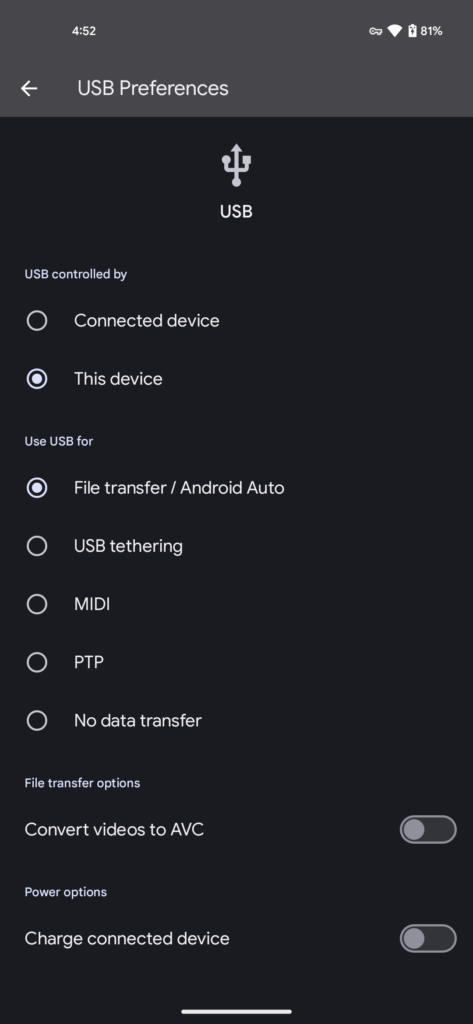
- Under Use USB for, select File Transfer or File Transfer / Android Auto, depending on your phone.
The exact wording varies between Pixel, Samsung Galaxy, and other Android models.
Keep the phone unlocked while establishing the connection.
If you don’t see a USB notification, try reconnecting the cable or opening Settings and searching for USB preferences.
Important: Selecting File Transfer enables the phone’s MTP connection. You’ll still generally need a compatible application on your Mac to browse the files.
3. Connect the Phone Directly to Your Mac
USB hubs and adapters can sometimes interfere with device connections.
If you’re using a multiport USB-C hub, docking station, or extension cable, remove it temporarily.
Then:
- Disconnect your phone and any unnecessary USB accessories.
- Connect the Android phone directly to a USB port on your Mac.
- If possible, try another port.
- Unlock the phone.
- Select File Transfer in its USB settings again.
If the connection works directly but fails through your hub, the hub or adapter may be responsible.
Apple also recommends testing problematic USB accessories using a direct connection when possible.
See Apple’s USB connection troubleshooting guidance.
4. Check Whether Your Mac Detects the Android Phone
Before assuming your file-transfer application is broken, find out whether macOS detects the USB device at all.
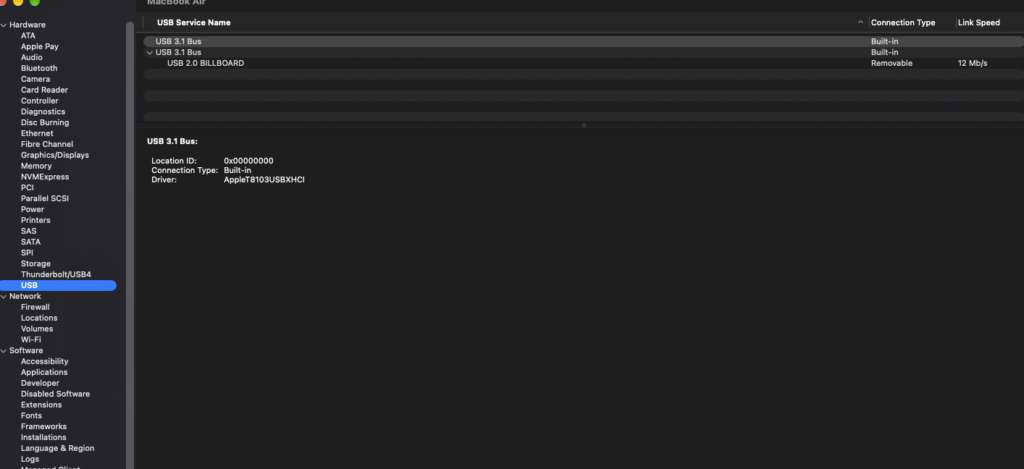
You can check this using System Information.
- Connect your Android phone to the Mac.
- Unlock the phone.
- Hold the Option key and open the Apple menu.
- Select System Information.
- Under Hardware, select USB.
- Look for the Android device or a relevant USB device entry.
You may see the phone manufacturer’s name, a product identifier, or a generic USB device description.
If the Android phone appears
Your Mac is detecting a device over USB. The remaining problem may involve its USB mode, the MTP application, or communication between them.
If the Android phone does not appear
Focus on the physical connection first. Try another cable, port, and computer before changing software settings.
A missing device in System Information is a stronger indication of a USB connection problem than simply not seeing the phone in Finder.
5. Install a Compatible Android File Transfer App for Mac
One reason Android file transfer is not working on Mac is the absence of a compatible MTP application.
macOS Finder doesn’t normally provide direct browsing of an Android phone’s MTP storage.
For years, Google’s Android File Transfer application provided this functionality. However, Google removed the original official Mac download, and the older application is no longer a dependable choice for a new installation.
An alternative is OpenMTP, an open-source MTP file-transfer application for macOS.
To try it:
- Visit the OpenMTP developer website.
- Download the version compatible with your Mac, choosing Apple Silicon or Intel as appropriate.
- Install and open the application.
- Connect your unlocked Android phone using a data-capable cable.
- Select File Transfer / MTP on the phone.
- Follow the application’s instructions to access the phone’s files.
If the connection succeeds, you should be able to browse supported folders and transfer files between your Android phone and Mac.
Only download applications from trusted developer sources. Avoid unofficial download mirrors offering old Android File Transfer installers.
6. Close Other Applications That May Be Using the Phone
Sometimes, multiple applications attempt to communicate with the same connected phone.
For example, an old Android File Transfer process, another MTP utility, or a device-management application may interfere with the connection.
Try this:
- Disconnect the Android phone.
- Quit any open Android file-transfer applications.
- Close other applications that may be accessing the phone.
- Open Activity Monitor on your Mac.
- Check whether an old transfer application remains running.
- Quit only the identifiable application processes you no longer need.
- Reconnect the phone and open one file-transfer application.
Don’t terminate unfamiliar system processes.
If your phone now appears, an application conflict may have prevented the connection.
7. Switch USB Modes and Reconnect the Phone
Sometimes the phone doesn’t establish a usable MTP connection on its first attempt.
Changing the USB mode can trigger a new connection.
- Leave the phone connected to your Mac.
- Unlock the Android phone.
- Open its USB preferences.
- Select No data transfer or Charging only.
- Disconnect and reconnect the USB cable.
- Return to USB preferences.
- Select File Transfer / MTP.
- Reopen your MTP application on the Mac.
This is particularly useful when the phone charges, but your file-transfer app displays a message such as No device found.
If the USB options are unavailable or greyed out, check the cable and the physical connection before trying advanced settings.
8. Restart Both Your Android Phone and Mac
Temporary software problems can interrupt USB communication.
A restart clears many short-lived connection states without deleting personal data.
Start by disconnecting the phone.
Restart your Android phone using its normal power menu, then restart the Mac from Apple menu → Restart.
After both devices have restarted:
- Connect them with a data-capable USB cable.
- Unlock the Android phone.
- Select File Transfer.
- Open your file-transfer application.
If the connection works after restarting, the problem may have been temporary.
There’s no need to reset your entire Android phone or reinstall macOS just because a USB file-transfer connection failed.
9. Check for Android, macOS, and File Transfer App Updates
Software compatibility can affect communication between an Android phone and a Mac.
For example, a file-transfer application may need an update to work properly with a newer macOS release.
Update your Android phone
Open Settings → System → Software updates on a Pixel or the equivalent software-update menu on your device.
Check for available updates and follow the manufacturer’s instructions.
Update your Mac
Open System Settings → General → Software Update and check whether a compatible update is available.
Update the file-transfer application
Visit the application’s official website and check for a version compatible with your Mac and Android device.
Before performing updates, back up important files and check the release information.
Updating may fix known compatibility issues, but it isn’t guaranteed to resolve a damaged USB cable, faulty port, or unsupported application.
10. Test Another Connection or Transfer Files Wirelessly
If your Android phone still isn’t showing up on your Mac, isolate the problem.
Try connecting the phone to a different computer using the same data cable.
If the phone works on another computer, investigate the original Mac’s USB port, adapters, or file-transfer software.
If it fails on multiple computers, try a different cable and check the phone’s USB port for visible damage or debris.
Don’t insert metal objects into a charging port or attempt repairs that could damage the connectors.
Use Google Drive as a temporary alternative
If you need to transfer files urgently, you may not need to solve the USB problem first.
On your Android phone:
- Open Google Drive.
- Tap New → Upload.
- Select the files you want to transfer.
- Allow the upload to finish.
On your Mac:
- Open Google Drive.
- Sign in to the same Google Account.
- Find your uploaded files.
- Download the files you need.
This works without a USB cable, provided your devices have internet access and you have sufficient cloud storage.
Avoid uploading sensitive files to shared accounts or locations you don’t control.
For additional help, see Google’s file-transfer guidance.
Android Phone Not Showing Up on Mac: Quick Troubleshooting Table
| Problem | What to check first |
|---|---|
| Android phone charges but doesn’t transfer files | USB cable and File Transfer mode |
| Android phone doesn’t appear in Finder | Use a compatible MTP application |
| USB notification doesn’t appear | Unlock phone, change cable, reconnect |
| MTP app says no device found | USB mode, other transfer apps, cable |
| Phone works on another computer | Mac USB port, hub, or software |
| Phone works with a different cable | Original cable may be defective |
| USB transfer still fails | Try another computer or Google Drive |
Do You Need to Enable USB Debugging?
Usually, no.
USB debugging is a developer feature that allows tools such as Android Debug Bridge (ADB) to communicate with an Android device.
Normal MTP file transfer generally does not require USB debugging.
You should first try the regular USB File Transfer setting before enabling developer features.
If a specialist application explicitly requires USB debugging, review its documentation and understand the access you’re granting. Avoid authorizing unknown computers for debugging.
Can You Transfer Files Between Android and Mac Without a USB Cable?
Yes.
Google Drive is one of the simplest methods for transferring documents, photos, and other supported files between Android and macOS.
You can also use other trusted cloud services or compatible local-network transfer tools.
However, don’t assume Google’s Quick Share for Windows is a native Mac file-transfer solution. Its officially documented desktop integration is for Windows.
For large folders or frequent transfers, a working USB connection with a compatible MTP application may be more convenient.
Android File Transfer Not Working on Mac? Try These Checks
If Android File Transfer is not working on your Mac, the problem may involve an outdated application rather than the Android phone itself.
Google’s older Android File Transfer application is no longer available through its original official download page.
Before switching applications:
- Unlock your Android phone and select File Transfer / MTP in USB preferences.
- Try a USB cable that supports data transfer.
- Close other applications that may be accessing the connected device, including Photos, Preview, and older file-transfer utilities.
- Check System Information → USB to confirm whether macOS detects your Android device.
- Try a currently maintained MTP application such as OpenMTP.
If your Mac detects the Android phone but the file-transfer application cannot connect, focus on application compatibility and software conflicts.
If the phone doesn’t appear in System Information, investigate the USB cable, port, or phone connection first.
Frequently Asked Questions
Why is my Android phone charging but not showing up on Mac?
The most common possibilities are a charging-only USB cable, the phone being set to charging mode, or a missing MTP file-transfer application. Start by checking the cable and selecting File Transfer on your unlocked phone.
Does an Android phone appear in Mac Finder?
Not normally as a standard mounted drive when using MTP. Use a compatible Android file-transfer application to browse the phone’s accessible storage.
Why is Android File Transfer not working on my Mac?
The older Android File Transfer application is no longer maintained as a normal official Mac download. Compatibility and application conflicts may cause problems. Consider a currently maintained MTP utility from its verified developer website.
Can I connect a Samsung Galaxy phone to a MacBook?
Yes. A Samsung Galaxy phone can connect to a Mac using a suitable USB cable and compatible transfer software. Select File Transfer on the phone and follow the transfer application’s instructions.
Why does my Google Pixel not appear on my Mac?
Check that your Pixel is unlocked, the cable supports data transfer, and the USB setting is File Transfer. Then use an MTP-compatible application on the Mac. If it still doesn’t appear, check macOS System Information.
Does Android file transfer require USB debugging?
No, standard MTP file transfer generally works without USB debugging. Developer options should not be the first troubleshooting step.
What if my Android phone is not detected by any computer?
Test another data cable, inspect the USB connector for damage, and try a different computer. If the problem persists across multiple combinations, professional inspection may be appropriate.
Final Thoughts
If your Android phone is not showing up on Mac, start with the basics: use a proper data cable, unlock your phone, and select File Transfer / MTP.
Next, check whether macOS detects the device through System Information and use a compatible Android file-transfer application.
Most importantly, remember that not seeing an Android phone in Finder does not automatically mean the USB connection is broken.
If wired transfers remain unavailable, Google Drive provides a practical alternative for moving files.
For other Mac troubleshooting problems, see our guides to MacBook Finder Not Responding and MacBook Wi-Fi Not Working.