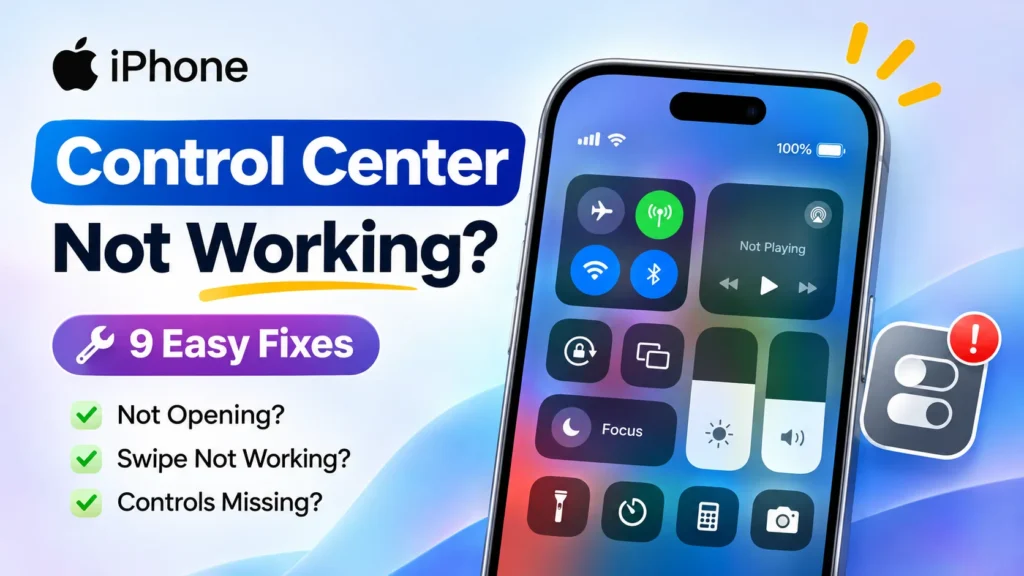
Is your iPhone Control Center not working, refusing to open, or failing to respond when you swipe down?
You might notice that Control Center works on the Home Screen but not inside apps. Sometimes it refuses to open from the Lock Screen, or individual buttons stop responding.
Fortunately, most Control Center problems can be fixed without resetting your entire iPhone.
This guide explains nine practical fixes for Control Center problems on iPhones running recent versions of iOS, including iOS 26 and iOS 27.
Table of Contents
Why Is My iPhone Control Center Not Working?
Control Center may stop working because of incorrect access settings, temporary iOS glitches, touchscreen problems, or changes to its layout.
Common causes include:
- Access Within Apps is disabled.
- Control Center access is restricted on the Lock Screen.
- You’re swiping from the wrong part of the display.
- A temporary software glitch is affecting gestures.
- A Control Center button was accidentally removed.
- The touchscreen isn’t registering gestures correctly.
Start with the simplest fixes below.
Fix 1: Swipe From the Correct Corner
Before changing any settings, make sure you’re using the correct gesture.
On iPhones with Face ID:
- Return to your Home Screen.
- Place your finger at the top-right corner near the battery indicator.
- Swipe downward.
- Check whether Control Center opens.
On an iPhone SE or older model with a Home button, swipe upward from the bottom edge.
If you swipe too close to the top-center of the display, you may open Notification Center instead.
Tip: Try the gesture slowly, starting directly from the screen edge.
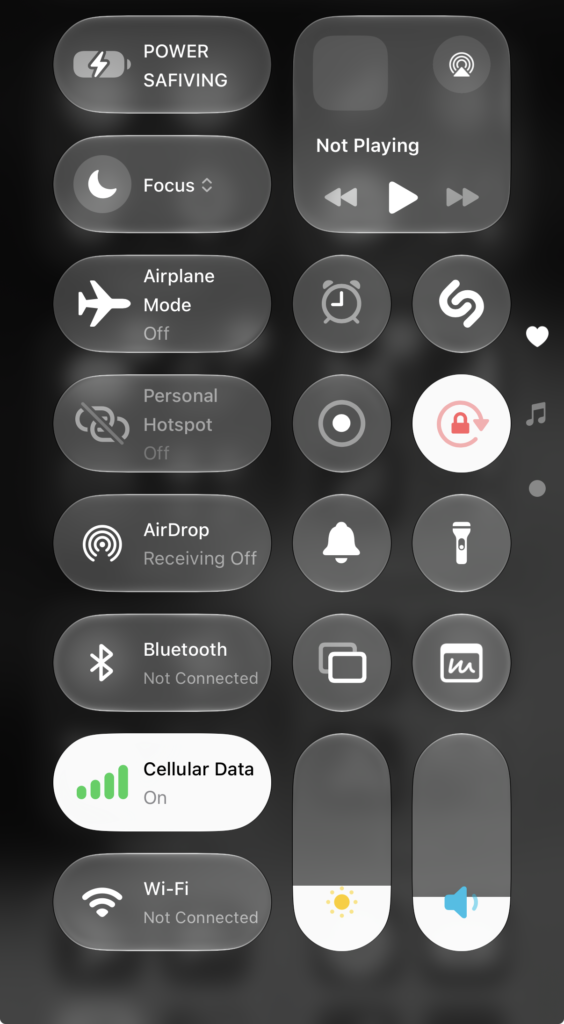
For more information about accessing and customizing these controls, see Apple’s official Control Center guide.
Fix 2: Enable Control Center Access Within Apps
If Control Center opens on your Home Screen but not inside Safari, YouTube, or other apps, check this setting.
- Open Settings.
- Scroll down and tap Control Center.
- Find Access Within Apps.
- Turn the switch on.
- Open an app and try accessing Control Center again.
When this setting is disabled, Control Center may be unavailable while you’re using apps.
This is one of the first settings worth checking if Control Center works only on your Home Screen.
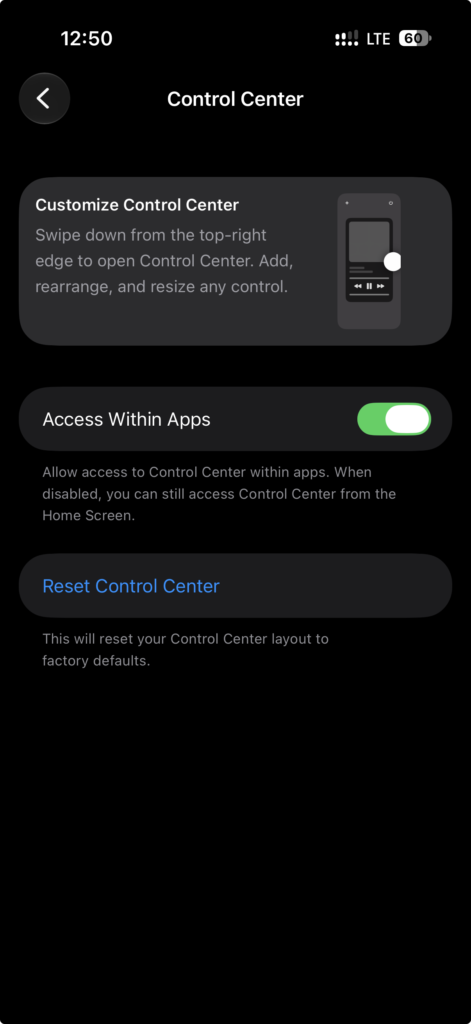
If your iPhone Control Center is not working inside apps, the Access Within Apps setting is one of the first things to check.
Fix 3: Allow Control Center on the Lock Screen
Does Control Center work when your iPhone is unlocked but not when it’s locked?
Your Lock Screen permissions may be preventing access.
- Open Settings.
- Tap Face ID & Passcode or Touch ID & Passcode.
- Enter your passcode.
- Scroll to Allow Access When Locked.
- Turn on Control Center.
- Lock your iPhone and test the gesture.
Note: Enabling this setting allows access to Control Center from the Lock Screen. Consider your privacy preferences before enabling it.
Fix 4: Restart Your iPhone
A temporary iOS problem can sometimes interfere with Control Center gestures or buttons.
Restarting your iPhone is a simple way to check for this.
For iPhones with Face ID:
- Press and hold the side button and either volume button.
- Wait for the power-off slider.
- Drag the slider to turn off your iPhone.
- Wait approximately 30 seconds.
- Hold the side button until the Apple logo appears.
After restarting, unlock your iPhone and try opening Control Center again.
If your iPhone is completely frozen, you may need to force restart it instead.
If your iPhone Control Center is not working after an iOS update, a restart may resolve temporary system glitches.
Fix 5: Reset Your Control Center Layout
If Control Center opens but some controls are missing, misplaced, or difficult to find, resetting its layout may help.
On supported recent iOS versions:
- Open Settings.
- Tap Control Center.
- Select Reset Control Center, if available.
- Confirm the reset.
- Open Control Center and check its layout.
This restores the default Control Center arrangement.
If your iOS version does not offer that option, you can manually customize the controls.
Open Control Center, tap the plus button, and use Add a Control to restore missing buttons.
Important: Resetting the Control Center layout is different from resetting all iPhone settings.
Fix 6: Check Whether Your Touchscreen Is Responding
Sometimes the problem isn’t Control Center itself.
If the top-right area of your iPhone screen doesn’t register touches correctly, the swipe gesture might fail.
Try these checks:
- Open another app.
- Test touch gestures near the top-right corner.
- Clean your screen using a soft, lint-free cloth.
- Remove a damaged or poorly fitted screen protector temporarily.
- Try opening Control Center again.
If gestures fail in the same part of the display across multiple apps, your iPhone may have a touchscreen issue.
You can also temporarily access Control Center using AssistiveTouch.
Go to Settings → Accessibility → Touch → AssistiveTouch and enable it.
Then use the AssistiveTouch menu to open Control Center without relying on the normal swipe gesture.
Fix 7: Update iOS
Apple releases software updates that may include fixes for system bugs and performance problems.
If Control Center started behaving strangely after an iOS update, check whether another update is available.
- Open Settings.
- Tap General.
- Select Software Update.
- Wait while your iPhone checks for updates.
- Install an available compatible update.
Back up your iPhone before installing a major software update.
After installation, test Control Center again.
An update isn’t guaranteed to fix every Control Center issue, but keeping iOS current helps rule out software problems that have already been addressed.
Keeping iOS updated can help eliminate software bugs that interfere with Control Center gestures.
Fix 8: Check Individual Control Center Buttons
Sometimes Control Center opens normally, but a specific button doesn’t work as expected.
For example, tapping Wi-Fi or Bluetooth may appear to turn the feature off, even though some connections remain active.
This isn’t necessarily a problem.
Apple designed the Wi-Fi and Bluetooth buttons in Control Center to disconnect certain connections without completely disabling the wireless features.
To turn Wi-Fi off completely:
- Open Settings.
- Tap Wi-Fi.
- Turn off Wi-Fi.
To turn Bluetooth off completely:
- Open Settings.
- Tap Bluetooth.
- Turn off Bluetooth.
If a different control is missing or unresponsive, remove it from Control Center and add it again if the option is available.
Also check whether the feature works through its dedicated Settings page or app.
This helps determine whether the issue affects Control Center or the underlying feature itself.
Fix 9: Reset All Settings as a Last Resort
If none of the previous fixes works and you’ve ruled out touchscreen damage, consider resetting your iPhone’s settings.
This is more disruptive than the earlier fixes, so use it only after trying everything else.
- Open Settings.
- Tap General.
- Select Transfer or Reset iPhone.
- Tap Reset.
- Choose Reset All Settings.
- Enter your passcode if requested.
- Confirm your choice.
Reset All Settings doesn’t erase your photos, apps, or other personal content.
However, it resets system preferences, including network settings, privacy settings, and other configurations. You may need to configure those settings again afterward.
Warning: Do not choose Erase All Content and Settings unless you intentionally want to erase your iPhone.
What If Control Center Still Won’t Open?
If Control Center continues to fail, determine whether the issue is software-related or hardware-related.
Try opening Control Center through AssistiveTouch.
If AssistiveTouch works but swiping doesn’t, the issue may involve gesture recognition, touchscreen responsiveness, or system settings.
If other screen gestures also fail, consider contacting Apple Support or an authorized service provider.
Avoid repeatedly resetting your iPhone if the same part of the touchscreen consistently stops responding.
If the flashlight button appears but the light doesn’t turn on, follow our Flashlight on iPhone Not Working guide to check the LED, camera, and Control Center settings.
Frequently Asked Questions
Why is my iPhone Control Center not swiping down?
You may be swiping from the wrong location, Access Within Apps may be disabled, or a temporary software issue may be affecting the gesture. Try swiping from the top-right corner on a Face ID iPhone.
Why does Control Center work on the Home Screen but not in apps?
The most likely setting to check is Settings → Control Center → Access Within Apps. Enable it and test Control Center inside an app.
How do I reset Control Center on my iPhone?
On supported recent iOS versions, go to Settings → Control Center → Reset Control Center. You can also manually add, remove, and rearrange controls.
Why is Control Center not working on my iPhone Lock Screen?
Go to Settings → Face ID & Passcode, enter your passcode, and check whether Control Center is enabled under Allow Access When Locked.
Will resetting Control Center delete my data?
Resetting the Control Center layout doesn’t delete personal content. Reset All Settings also preserves personal content, but it resets numerous device preferences.
Final Thoughts
When iPhone Control Center is not working, start by checking the correct swipe gesture, enabling Access Within Apps, and reviewing Lock Screen permissions.
If Control Center opens but certain buttons are missing, try restoring the layout. Restarting or updating your iPhone may also help with temporary software problems.
For persistent issues, test the touchscreen and try AssistiveTouch before considering a broader settings reset.
Most importantly, don’t erase your iPhone just to fix a Control Center problem without first ruling out the simpler causes.