Windows 11 File Explorer not responding when you open a folder, click Home, or right-click a file? Explorer might freeze, turn white, show “Not Responding,†or disappear and restart. In some cases, the taskbar also briefly vanishes because Windows Explorer manages parts of the Windows desktop.
You do not need to reset Windows just because a File Explorer window hangs. Start with the quick, low-risk checks below. We’ll explain how to restart Explorer safely, isolate a troublesome folder or drive, and repair Windows components only when necessary.
Quick distinction: If only one folder stops responding, investigate that folder, its file previews, or a connected drive first. If File Explorer and the taskbar repeatedly freeze everywhere, check system updates, resource usage, and damaged system files.
Quick Answer: Fix File Explorer Without Restarting Your PC
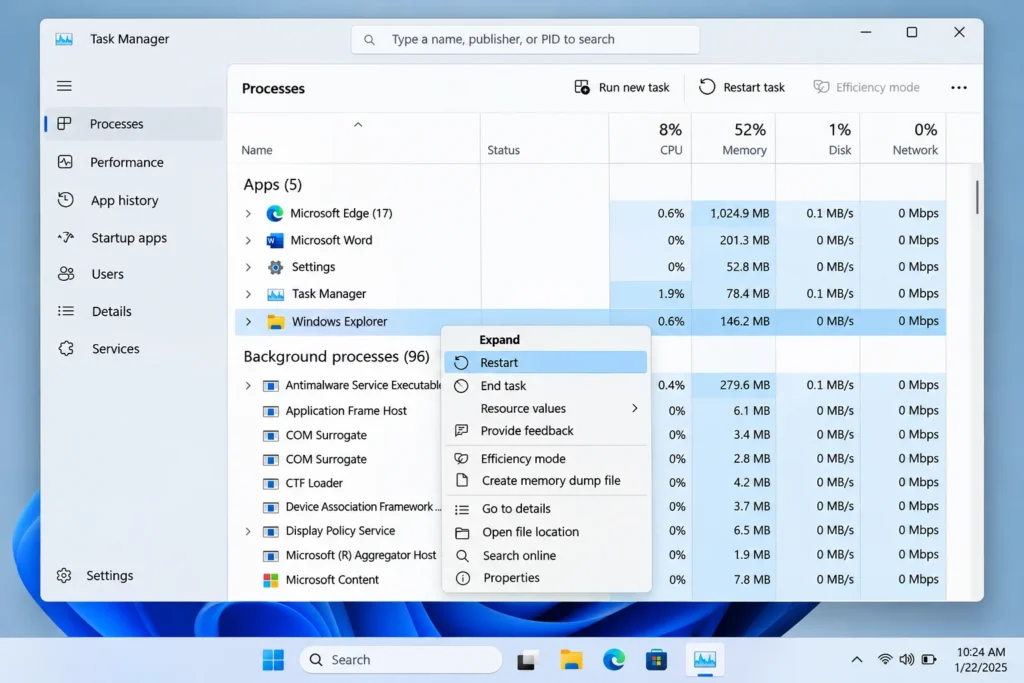
- Press Ctrl + Shift + Esc to open Task Manager.
- Locate Windows Explorer under Processes (you may need to expand the Task Manager window).
- Select it and choose Restart task or right-click and select Restart.
- Wait for the taskbar and desktop to refresh.
- Press Windows + E and check whether File Explorer opens normally.
If Windows Explorer is missing from the list, choose Run new task in Task Manager, enter explorer.exe, and run it. Restarting Explorer usually closes open Explorer windows, so save active file operations before doing it when possible.
Note: Restarting Windows Explorer is a troubleshooting step, not a permanent cure if the same folder, extension, or drive keeps triggering a freeze.
Table of Contents
- Quick Answer: Fix File Explorer Without Restarting Your PC
- Why Does Windows 11 File Explorer Keep Freezing?
- 1. Restart Windows Explorer in Task Manager
- 2. Restart Windows 11 Completely
- 3. Change File Explorer From Home to This PC
- 4. Clear File Explorer History and Review Pinned Locations
- 5. Disable Preview and Details Panes for Problem Folders
- 6. Disconnect a Problem USB Drive or Network Location
- 7. Install Pending Windows 11 Updates
- 8. Check Disk Space, Memory, and CPU Usage
- 9. Repair Windows System Files With DISM and SFC
- 10. Test for Conflicting Third-Party Software
- 11. Test a Different Windows User Profile
- 12. Use Windows Recovery Options Only If the Problem Persists
- Special Cases: Home, Right-Click, and Network Folders
- Frequently Asked Questions
- Final Thoughts
- Official Microsoft References
Why Does Windows 11 File Explorer Keep Freezing?
“Not Responding†means a program isn’t processing Windows messages promptly. The underlying reason varies. A slow drive, an inaccessible network folder, large thumbnails, a third-party right-click menu extension, or a temporarily overloaded PC can all make Explorer appear stuck.
| What happens | Where to start |
|---|---|
| Explorer window freezes once, then recovers | Fix 1: Restart Windows Explorer |
| Home or Recent files won’t load | Fix 3 and Fix 4: Change startup location and clear history |
| Only Pictures, Videos, or a large folder hangs | Fix 5: Disable preview panes and test thumbnails |
| Freezing begins after connecting a drive | Fix 6: Isolate drives and network locations |
| Freezes after a recent update or app install | Fix 7 or Fix 10: Updates and third-party conflicts |
| Explorer, taskbar, and other apps freeze often | Fix 8 and Fix 9: Resources and system file repair |
1. Restart Windows Explorer in Task Manager
The Windows Explorer process powers the desktop shell and File Explorer windows. Restarting it can clear a temporary hang without requiring a full reboot.
- Press Ctrl + Shift + Esc.
- In Task Manager, choose Processes.
- Find Windows Explorer in the list.
- Right-click it and select Restart (or choose the restart action in the toolbar).
- Give the desktop a few seconds to redraw.
- Open File Explorer again using Windows + E.
If no Windows Explorer process appears, in Task Manager choose Run new task, type explorer.exe, and select OK. Microsoft recommends restarting Explorer in Task Manager in certain Windows troubleshooting situations.
Expected result: The taskbar may briefly disappear and return. Your desktop files remain intact, although open Explorer windows may close.
2. Restart Windows 11 Completely
If Explorer freezes again immediately, a full restart is more useful than repeating the Explorer restart. Windows updates, driver changes, and background components sometimes require a restart to finish initializing.
- Save work in apps that are still responding.
- Select Start > Power > Restart.
- Sign in again and open File Explorer.
- Test the same folder or action that originally caused the problem.
Use Restart, not merely closing the laptop lid. If Windows is totally unresponsive, a forced power-off may be unavoidable, but only use that as a last resort because unsaved changes could be lost.
3. Change File Explorer From Home to This PC
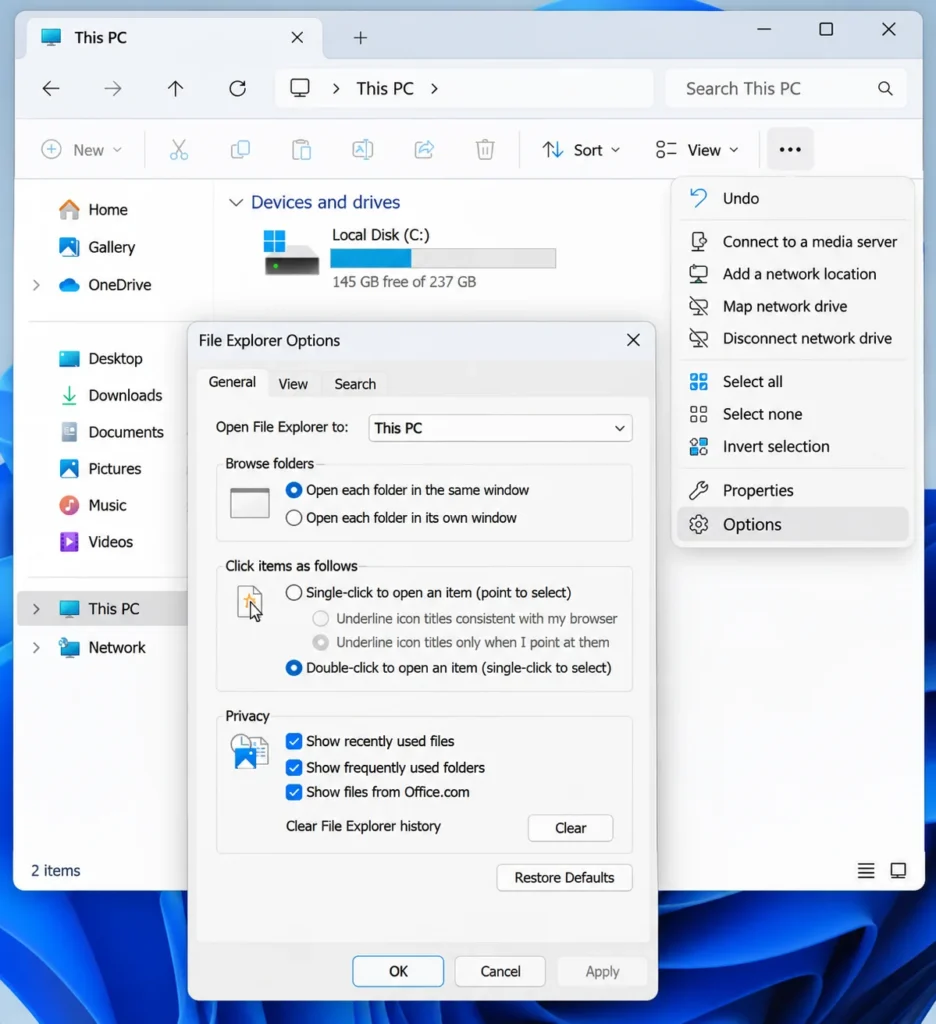
When File Explorer freezes as soon as it launches but specific folders open normally, its Home view is worth testing. Home can display pinned locations, recent files, and cloud-related content. An inaccessible item may delay loading.
- Open File Explorer if it stays responsive long enough.
- Select the three-dot menu (See more) near the toolbar and choose Options.
- Under General, find Open File Explorer to.
- Change it from Home to This PC.
- Select Apply, then OK.
- Close and reopen File Explorer.
You can also try Windows + R, enter C:\, and press Enter to test whether opening a known local location works. If This PC loads but Home hangs, focus on Home or pinned recent items rather than reinstalling Windows.
Microsoft documents the This PC startup option in its File Explorer guidance.
4. Clear File Explorer History and Review Pinned Locations
Recent file shortcuts can point to renamed, disconnected, or unavailable locations. Clearing File Explorer history removes its history list; it does not delete your actual documents, photos, or downloads.
- Open File Explorer Options using the three-dot menu.
- Remain on the General tab.
- Find the Privacy section.
- Use Clear, if that control is available, to clear File Explorer history.
- Temporarily turn off displaying recently used files if you need to isolate the Home view.
- Unpin any folder that points to a disconnected network share or external drive.
The exact Privacy controls may vary across Windows 11 builds. If the option isn’t present, don’t download a third-party “Explorer cache cleaner.†Just continue to the next fix.
5. Disable Preview and Details Panes for Problem Folders
If File Explorer stops responding only when you open a folder filled with large photos, videos, PDFs, or unfamiliar file formats, the preview mechanism is a useful thing to test.
- Open a folder that still works.
- Select View > Show.
- If Preview pane is enabled, turn it off.
- If Details pane is enabled, turn it off for this test.
- Return to the folder that was freezing.
If previews appear to be the trigger, try changing the folder layout to List or Details rather than large icons. This won’t prove a particular file is corrupt, but it helps narrow the problem to rendering or file handlers.
Extra check: When a freeze begins as soon as you right-click a file, a third-party context-menu extension may be involved. Don’t remove Windows components based on a guess; use the clean-boot test in Fix 10 first.
6. Disconnect a Problem USB Drive or Network Location
Sometimes Explorer waits on an external hard drive, USB stick, phone, network share, or cloud-synced directory that is no longer responding. If you notice a pause only when expanding This PC, opening a shared folder, or viewing removable storage, test those connections separately.
- Stop any active copy or backup jobs first.
- If possible, safely eject external USB drives or disconnect their cables after writes have finished.
- Temporarily disconnect an inaccessible network location.
- Open a local folder such as Documents.
- Reconnect one device or location at a time to identify which one triggers the freeze.
Do not unplug a drive while files are being copied or updated. If a drive makes unusual noises, disconnects repeatedly, or asks to be formatted unexpectedly, preserve data and investigate drive health rather than repeatedly retrying.
7. Install Pending Windows 11 Updates
Microsoft lists Windows Update among the first checks when File Explorer will not open or start. Updates can include reliability fixes, but an update is not a guarantee that every Explorer freeze will be resolved.
- Open Start > Settings > Windows Update.
- Select Check for updates.
- Review available updates and install applicable stable updates.
- Restart if prompted.
- Test File Explorer again.
If the problem began immediately after installing an update, record the update date and check Windows release health information for your version. Avoid removing security updates simply because the timing is suspicious.
8. Check Disk Space, Memory, and CPU Usage
Explorer can become sluggish when Windows is running very low on free space or memory, or when a process is saturating the disk. These are indicators to investigate, not proof of a specific fault.
- Press Ctrl + Shift + Esc for Task Manager.
- Check the Processes page and sort by CPU, Memory, and Disk usage.
- Notice if one application consistently spikes when you open Explorer.
- Open Settings > System > Storage to check free space.
- Remove only files you know you no longer need, or use Windows Storage cleanup tools after reviewing the selections.
Do not end unfamiliar system processes at random, and do not delete files from system folders to create space. Close a resource-heavy app normally first, then retry Explorer.
9. Repair Windows System Files With DISM and SFC
If Explorer and other Windows features keep malfunctioning, Windows system file corruption is one possible cause. Microsoft recommends using DISM to repair the Windows component store and then System File Checker to scan protected system files.
Before you start, save your work and make sure you can sign in with an administrator account.
- Search for Command Prompt in Start.
- Right-click it and choose Run as administrator.
- Run the DISM command below and wait until it completes.
- Then run the SFC command below.
- Read the resulting messages before deciding whether further repairs are needed.
- Restart Windows and test File Explorer again.
DISM.exe /Online /Cleanup-image /Restorehealthsfc /scannowDISM may take several minutes and can appear to pause. Do not close the window midway through a scan. If the commands report that repairs failed, follow Microsoft’s specific instructions instead of repeatedly running unverified “repair scripts.â€
10. Test for Conflicting Third-Party Software
Cloud synchronization utilities, shell extensions, archive managers, security tools, and apps that add right-click options may contribute to Explorer hangs. A clean boot helps distinguish Windows itself from non-Microsoft services or startup apps.
- Search for System Configuration and open it.
- On Services, select Hide all Microsoft services before disabling anything.
- Disable non-Microsoft services only for this troubleshooting session as described in Microsoft’s clean-boot guide.
- Open Task Manager’s Startup apps page and disable selected nonessential startup items for the test.
- Restart and check whether Explorer still freezes.
- Re-enable services and startup items afterward, narrowing down one culprit at a time if the issue disappears.
Important: A clean boot is an advanced diagnostic step. It can temporarily affect security, backup, and synchronization utilities. On a work-managed PC, ask IT first; never disable Microsoft services or enterprise protections casually.
11. Test a Different Windows User Profile
If File Explorer is stable for another user but freezes every time under your regular account, the issue might involve per-user settings, startup programs, or profile-specific configurations.
- Sign in to another existing Windows account if one is available.
- Try opening File Explorer and the same local folders.
- If the issue is isolated to one account, review that account’s pinned folders and startup apps.
- If necessary, ask an administrator to create a temporary local test account through Windows account settings.
Don’t delete or migrate your primary Windows profile solely because the test account works. Back up your data and identify the relevant setting first. Managed devices may restrict account creation.
12. Use Windows Recovery Options Only If the Problem Persists
If Explorer still fails after all the targeted checks, consider the recovery options Windows offers. The correct choice depends on whether the issue began recently and whether your PC has working restore points or supported repair-install options.
- Back up important personal files and confirm your recovery information is available.
- Check whether System Restore has a suitable restore point from before the problem began.
- Review Settings > System > Recovery for supported repair options.
- Use Microsoft’s recovery documentation or professional support before resetting or reinstalling Windows.
Do not choose Reset this PC as the first fix. It can remove installed applications and change settings, and certain choices can erase user files. If Windows doesn’t boot at all, that is a separate startup problem and may require Startup Repair instead.
Special Cases: Home, Right-Click, and Network Folders
File Explorer Freezes Only on Home
Open directly to This PC and clear recent history. If one pinned or cloud-linked location causes a pause, unpin it temporarily and confirm that the target is accessible. The fix is often narrower than resetting the entire PC.
File Explorer Stops Responding When Right-Clicking
Try the same file type in another folder, then compare what happens in a clean boot. If the right-click issue began immediately after installing a compression, cloud-sync, or file-management tool, check that application’s updates or support documentation. Avoid untrusted utilities that claim to fix the registry automatically.
Explorer Freezes When Opening a Network Folder
Check whether the network share is reachable from another device, whether the VPN is connected if required, and whether the host computer is online. If local folders open normally but a network share hangs, focus on connectivity and permissions rather than changing core Explorer settings.
Frequently Asked Questions
Why is Windows 11 File Explorer not responding repeatedly?
Common possibilities include a problematic Home or recent-files item, a disconnected drive, thumbnail or preview handling, third-party extensions, high resource usage, or damaged system files. The symptom alone can’t identify which cause applies; test each category systematically.
Is it safe to restart Windows Explorer from Task Manager?
Generally yes. Restarting the Explorer process refreshes the desktop shell and File Explorer windows. It normally does not delete your files. However, active file operations may be interrupted, so avoid restarting during a copy or move if you can.
What if File Explorer does not open at all?
Press Ctrl + Shift + Esc, select Run new task, and enter explorer.exe. If that fails, restart your PC, check Windows updates, and follow Microsoft’s official “Fix File Explorer if it won’t open or start†troubleshooting guide.
Will clearing File Explorer history delete my files?
No. Clearing recent-file history or adjusting Home privacy settings removes or hides file-history entries, not the underlying documents. Always read a cleanup tool’s selections before confirming, since other tools may behave differently.
Why did File Explorer start freezing after a Windows update?
Updates can coincide with unrelated app conflicts, but they may also introduce a specific regression. Record the Windows version, update number, and date, then compare with Microsoft’s release-health notes before changing or uninstalling any update.
Should I run SFC or DISM first?
Microsoft’s current system-file repair instructions run DISM /RestoreHealth first, followed by sfc /scannow. Both commands should be run in an elevated Command Prompt, and you should allow each to finish.
Should I reset Windows if File Explorer keeps crashing?
Not as a first step. Try Explorer restart, startup view, external-drive isolation, Windows updates, system file repairs, and conflict testing before considering recovery options. Back up your data and understand the consequences of any reset.
Final Thoughts
When Windows 11 File Explorer is not responding, start by restarting Windows Explorer, then determine whether the freeze affects every folder or just Home, previews, or a connected drive. Those quick checks often tell you where to investigate without risking your files.
For recurring system-wide hangs, check updates, disk and memory usage, and run Microsoft’s DISM and SFC tools. Leave clean boot and recovery options until the basic checks have failed.
For other Windows connectivity issues, see our guides to Windows 11 Ethernet connected but no internet, Windows 11 Bluetooth toggle missing, and Bluetooth headphones connected but no sound.
Last reviewed: November 9, 2026. Menu wording can vary by Windows build.