Are your iPhone Live Activities not working, even though you’ve enabled them in Settings?
Maybe live sports scores aren’t appearing on your Lock Screen, a delivery tracking card has stopped updating, or an activity isn’t showing in the Dynamic Island.
Live Activities are designed to display ongoing information without requiring you to keep opening an app. When they stop updating, it can be frustrating.
Fortunately, many Live Activities problems are caused by app permissions, connectivity issues, temporary software glitches, or unsupported features.
In this guide, we’ll walk through nine practical fixes for missing, frozen, or delayed Live Activities on iPhone.
Quick answer: Check whether the app supports Live Activities, enable the feature in the app’s iPhone settings, and make sure the activity has actually started. Then check your internet connection, Low Power Mode, and iOS updates.
Table of Contents
Why Are My iPhone Live Activities Not Working?
If your iPhone Live Activities are not working correctly, several factors could be responsible.
Common causes include:
- Live Activities are disabled for the affected app.
- The app doesn’t support Live Activities for the event you’re tracking.
- The activity hasn’t been started inside the app.
- Your internet connection is unstable.
- Low Power Mode is limiting background activity.
- A temporary iOS or app problem is affecting updates.
- The activity has already ended or expired.
- You’re expecting an activity in the Dynamic Island on an unsupported iPhone.
Remember that not every regular notification is a Live Activity.
For example, a messaging notification is different from an ongoing delivery tracking card or live sports score.
Apple explains how these features work in its official Live Activities design guide.
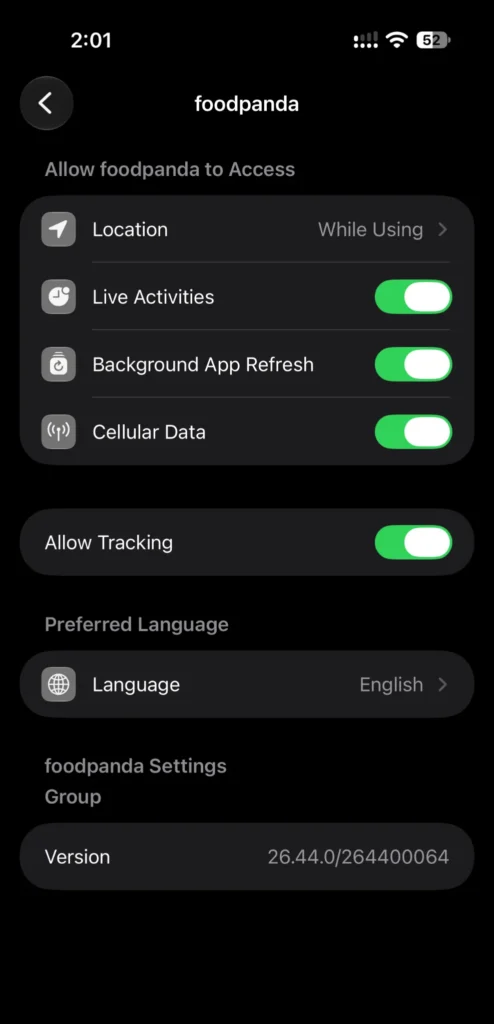
Fix 1: Enable Live Activities for the App
The first thing to check is whether Live Activities are allowed for the specific app.
On recent versions of iOS:
- Open Settings.
- Tap Apps.
- Select the app whose Live Activities aren’t appearing.
- Look for Live Activities.
- Enable Allow Live Activities, if available.
- Open the app and start a supported activity again.
Some apps also provide a More Frequent Updates option.
If you see it, enabling it may allow the app to request more frequent updates, although it can increase battery usage.
Important: Not all apps have a Live Activities setting. If the option is missing, the app may not support the feature or may not expose a separate setting.
Apple confirms these app-specific controls in its iPhone Lock Screen user guide.
If your iPhone Live Activities are not working only for one app, this is one of the most useful settings to inspect.
Fix 2: Check Lock Screen Access Permissions
If Live Activities appear while your iPhone is unlocked but not on the Lock Screen, review your Lock Screen permissions.
Depending on your iOS version:
- Open Settings.
- Tap Face ID & Passcode or Touch ID & Passcode.
- Enter your passcode.
- Scroll to Allow Access When Locked.
- Look for Live Activities, if your version provides that control.
- Enable it if necessary, then test again.
The available controls vary between iOS versions.
If you don’t see a separate Live Activities switch here, check the app-specific setting described in Fix 1 instead.
You can also review Settings → Notifications for the affected app, particularly if its regular alerts are missing too.
However, regular notification permissions and Live Activities permissions are not always the same thing.
If you’re having difficulty locating a setting after an iOS update, our iPhone Settings Search Not Working guideexplains how to troubleshoot Settings search.
Fix 3: Make Sure the App Actually Supports Live Activities
One important detail is that Live Activities don’t appear automatically for every app or event.
The developer must support the feature, and the app generally needs to start an eligible activity.
For example, a sports app may support Live Activities only for certain leagues, competitions, or matches.
Similarly, a food delivery app might show a Live Activity only after your order enters a particular stage.
Try this:
- Open the affected app.
- Check whether it supports Live Activities.
- Look for an option such as Follow, Track, or Start Live Activity.
- Start an eligible event or task.
- Lock your iPhone.
- Check whether a Live Activity appears.
If the app has its own Live Activities preferences, make sure those are enabled as well.
Tip: Test with an activity the app officially supports, rather than assuming every event should appear.
If the app doesn’t support Live Activities for a particular task, changing iPhone settings won’t create that functionality.
Fix 4: Check Your Internet Connection
Many Live Activities depend on information provided by an app or its servers.
For example, a food delivery tracker may need fresh location information, while a sports app may need new scores.
If your iPhone Live Activities are not working or updating, test your connection.
- Open Safari.
- Load a website.
- Check whether Wi-Fi or cellular data is working.
- Switch between Wi-Fi and cellular data if appropriate.
- Open the affected app.
- Refresh or restart the activity if the app allows it.
Also check whether cellular data is enabled for the affected app under Settings → Cellular, where applicable.
If the app itself can’t retrieve updated information, its Live Activity may also show outdated data.
Remember that some Live Activities update locally. For example, certain timer-related information may continue without an internet connection.
A working internet connection is therefore particularly important for activities receiving remote updates.
Fix 5: Turn Off Low Power Mode Temporarily
Low Power Mode reduces background activity to conserve battery.
Although it doesn’t automatically disable every Live Activity, it can affect how some apps refresh information.
If Live Activities have started updating slowly, it’s worth testing whether Low Power Mode is contributing.
On recent iPhones:
- Open Settings.
- Tap Battery.
- Open Power Mode, if available.
- Turn off Low Power Mode.
- Reopen the affected app.
- Start a new supported Live Activity and test it.
On older versions of iOS, the Low Power Mode switch may appear directly under Battery settings.
Apple confirms that Low Power Mode reduces or disables certain background features in its official battery guidance.
Note: This is a troubleshooting test, not a guarantee that Low Power Mode caused the issue.
If disabling it makes no difference, you can turn it back on when you need to save battery.
Fix 6: Check Background App Refresh
If an app isn’t updating as expected, check whether its background activity is restricted.
Background App Refresh helps certain apps retrieve updated content while they’re not open.
However, Live Activities can also receive updates through other mechanisms, so Background App Refresh isn’t a universal requirement for every Live Activity.
To review the setting:
- Open Settings.
- Tap General.
- Select Background App Refresh.
- Check whether the feature is enabled.
- Find the affected app if it’s listed.
- Allow background refresh if appropriate and test again.
If the app isn’t listed, that doesn’t necessarily mean something is wrong.
Some apps use their own notification and Live Activity update systems.
Avoid changing background settings for every app unnecessarily.
If your iPhone Live Activities are not working even with background refresh enabled, continue with the remaining fixes.
Fix 7: Restart the App and Your iPhone
Temporary software problems can sometimes interrupt Live Activities.
Try reopening the affected app first.
- Open the App Switcher.
- Find the affected application.
- Swipe up on its preview to close it.
- Open the application again.
- Start a new supported activity.
If the problem continues, restart your iPhone.
For an iPhone with Face ID:
- Hold the side button and either volume button.
- Drag the power-off slider.
- Wait approximately 30 seconds.
- Hold the side button until the Apple logo appears.
After your iPhone restarts, test Live Activities again.
Important: Closing or restarting an app doesn’t guarantee that an existing Live Activity will continue. Some apps require you to start a new activity.
If the feature works after restarting, the problem may have involved a temporary software issue.
Fix 8: Update the App and iOS
If your iPhone Live Activities are not working after a recent software update, check for newer app and iOS updates.
An app may need an update to work properly with changes to iOS.
Update the affected app
- Open the App Store.
- Tap your profile picture.
- Review available app updates.
- Update the affected app if a newer version is available.
- Reopen it and test Live Activities.
Update iOS
- Open Settings.
- Tap General.
- Select Software Update.
- Check for a compatible update.
- Back up important data before a major update.
- Install the update if appropriate.
Software updates can resolve bugs, but they aren’t guaranteed to fix every third-party Live Activity.
If only one app is affected, contact the app developer or check its support information.
Fix 9: Check Dynamic Island Support and Activity Duration
If an activity appears on your Lock Screen but not in the Dynamic Island, your iPhone model may be the reason.
Live Activities can appear on the Lock Screen on supported iPhones, but the Dynamic Island requires a compatible model.
To check an ongoing activity:
- Start a supported Live Activity.
- Lock your iPhone and check the Lock Screen.
- Unlock your iPhone.
- Look at the Dynamic Island if your model supports it.
- Touch and hold the activity to expand it.
Apple describes these interactions in its Dynamic Island user guide.
Also remember that Live Activities aren’t designed to remain active indefinitely.
Apple’s ActivityKit documentation describes an ordinary Live Activity duration limit of up to eight hours, with a finished activity potentially remaining on the Lock Screen for up to four additional hours.
An activity that has already ended may disappear normally rather than because of a software problem.
You can read more in Apple’s Live Activities developer documentation.
iPhone Live Activities Not Working on the Lock Screen?
If an activity isn’t showing on your Lock Screen, use this checklist:
- Verify that the app supports Live Activities.
- Enable the app’s Live Activities permission.
- Review applicable Lock Screen access settings.
- Start an eligible activity inside the app.
- Check whether the event or task is still active.
- Restart the app if the activity is missing.
- Update the app if the feature recently stopped working.
If ordinary notifications are missing too, review the app’s notification permissions separately.
Live Activities and standard Lock Screen notifications serve different purposes, so troubleshooting should focus on the specific feature that is failing.
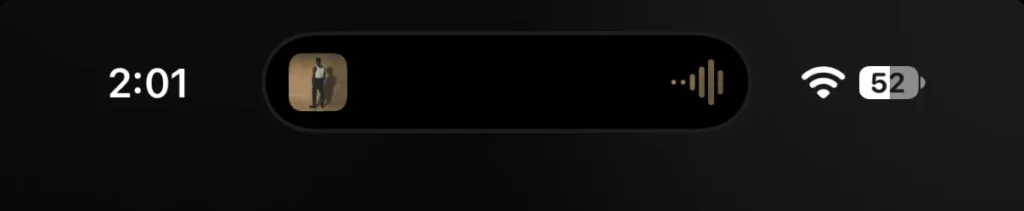
Live Activities Not Showing in Dynamic Island?
When an activity shows on the Lock Screen but not in the Dynamic Island, check your iPhone model and whether the activity is still active.
The Dynamic Island is available on compatible models, including recent Pro and standard iPhones.
Even on a supported model, not every running app displays a Live Activity.
The app must actively provide the feature.
If you’re using an older iPhone without the Dynamic Island, you may still be able to see supported Live Activities on the Lock Screen.
This is expected behavior, not a malfunction.
Frequently Asked Questions
Why are my iPhone Live Activities not working?
The app may not support the feature, its Live Activities permission may be disabled, or the activity may not have started. Connectivity problems, temporary bugs, and expired activities can also affect behavior.
How do I enable Live Activities on iPhone?
On recent iOS versions, open Settings → Apps → Select the app → Live Activities, if available. Enable Allow Live Activities and check any additional settings inside the app.
Why aren’t Live Activities showing on my Lock Screen?
Check app permissions, supported events, Lock Screen access settings, and whether the activity is still running. Restarting the app may also help.
Do Live Activities work without Dynamic Island?
Yes. Compatible iPhones without a Dynamic Island can still display supported Live Activities on the Lock Screen.
Does Low Power Mode stop Live Activities?
Not necessarily. Low Power Mode reduces background activity, which may affect updates for some apps. Temporarily disabling it can help identify whether power-saving behavior contributes to the problem.
Why did my Live Activity suddenly disappear?
The associated task may have finished, the activity may have expired, or the app may have ended it. Live Activities aren’t intended to remain visible indefinitely.
Final Thoughts
If your iPhone Live Activities are not working, start with the app-specific Live Activities setting and confirm that the app supports the activity you want to follow.
Next, check your internet connection, power-saving settings, and available updates.
If Live Activities work on the Lock Screen but not in the Dynamic Island, confirm that your iPhone supports Dynamic Island and the activity is still running.
Most importantly, don’t reset your entire iPhone before checking these simpler possibilities.
With a few targeted checks, you can usually identify why Live Activities are missing, frozen, or failing to update.