Is your iPhone Settings search not working, even though the setting you’re looking for exists? You open the Settings app, type something like “Bluetooth,” “Wi-Fi,” or “Reduce White Point,” but nothing appears in the search results.
Some iPhone users experience this after updating iOS or setting up a new device. Others find that Settings search works for certain options but fails to locate others.
Fortunately, a missing search result doesn’t necessarily mean the setting has been removed. The problem could involve a temporary Settings app issue, search-related software behavior, or differences in how iOS organizes and displays settings.
In this guide, we’ll walk through nine troubleshooting steps, starting with simple checks and leaving disruptive options until the end.
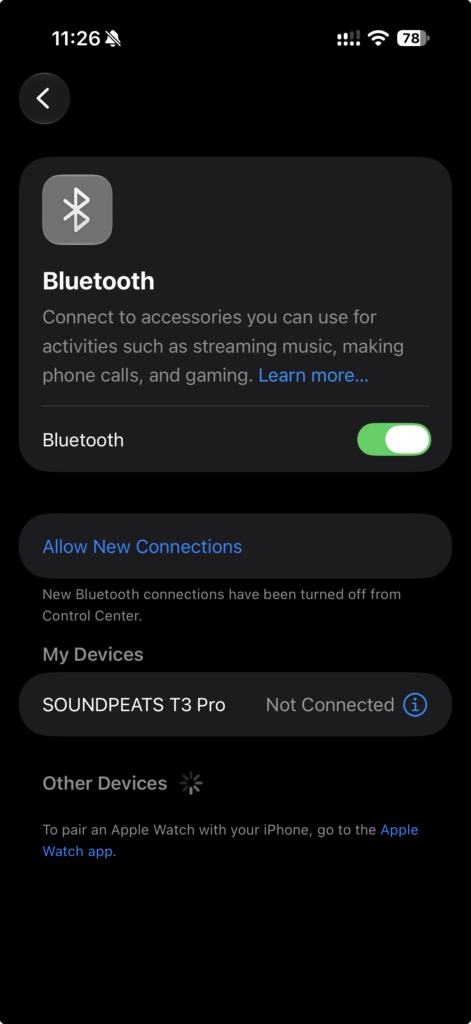
Table of Contents
Quick Answer: How to Fix iPhone Settings Search Not Working
If your iPhone Settings search shows no results, try these steps in order:
- Open Settings and search for a common term such as “Bluetooth.”
- Clear the search field and try “Wi-Fi” or “Display.”
- Close the Settings app and reopen it.
- Restart your iPhone.
- Review Settings → Search → Settings if the app appears in the list.
- Check for restrictions if only certain settings are missing.
- If the problem began after an update, test again after background activity has settled.
- Install any available iOS update.
If none of these helps, you can consider more advanced troubleshooting, but don’t immediately erase or reset your iPhone.
Important: The search field inside the Settings app and the iPhone’s general Spotlight Search feature are not identical. We’ll explain why that matters below.
Why Is iPhone Settings Search Not Working?
Apple provides a built-in search feature to help you locate settings without navigating through multiple menus.
For example, you can search for “volume” instead of manually opening Sounds & Haptics.
According to Apple’s official iPhone Settings guide, users can enter a search term and select a matching setting directly.
However, there are several different symptoms:
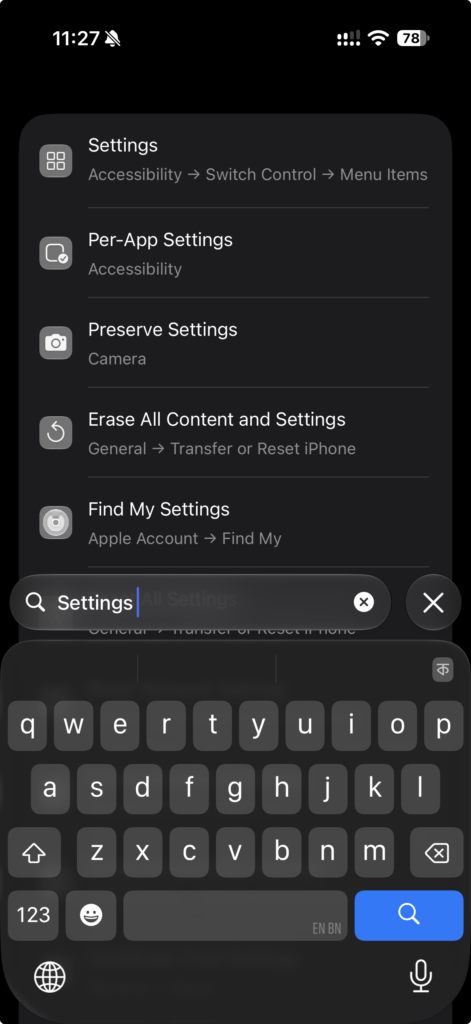
- The Settings search field returns no results.
- Search works for some settings but not others.
- The search field appears, but typing produces no suggestions.
- Settings search stopped working after an iOS update.
- Certain settings are missing or greyed out.
- Spotlight Search works, but the search field inside Settings does not.
These problems shouldn’t automatically be treated as the same issue.
A greyed-out Apple Account option, for example, can involve restrictions rather than a malfunctioning search feature.
Similarly, an unavailable setting may simply be unsupported on your iPhone model or current iOS version.
Start by determining whether search is failing completely or only certain results are missing.
1. Test Settings Search With a Common Search Term
First, check whether the search feature fails for every setting.
On recent versions of iOS, including iOS 27, the search field may appear in a different position than on older versions.
Follow these steps:
- Open the Settings app.
- Locate the search field.
- If necessary, scroll to reveal it.
- Tap the search field.
- Type Bluetooth.
- Check whether Bluetooth settings appear.
- Clear the search field.
- Search for Wi-Fi or Display.
These are common settings available on most iPhones.
If all three searches return nothing, the problem is more likely to involve the search interface itself.
If Bluetooth works but another term doesn’t, check whether that particular setting has a different name or location.
For example, some settings change names or move between sections following major iOS updates.
What this test tells you: A complete search failure is different from a single missing result.
Avoid resetting your device until you know which problem you’re experiencing.
2. Check Whether Your Keyboard and Search Input Are Working
Sometimes a search problem looks like a missing-results issue when the text input isn’t behaving normally.
Before making software changes, test whether your keyboard works elsewhere.
Try this:
- Open Notes.
- Create a temporary note.
- Type “Bluetooth settings test.”
- Check whether every character appears normally.
- Return to the Settings app.
- Tap the search field again.
- Enter a short search term.
If typing works in Notes but Settings search remains empty, the problem is unlikely to be a complete keyboard failure.
If characters aren’t appearing correctly in either app, investigate the keyboard separately.
You can also try searching using the language in which your iPhone’s settings are displayed.
For example, if your system language isn’t English, the setting you’re searching for may have a localized name.
Don’t reset the keyboard dictionary simply because Settings search returns no results. There’s no reason to assume the keyboard dictionary is responsible unless you’re also experiencing keyboard-related problems.
3. Close and Reopen the Settings App
If the Settings search field is temporarily unresponsive, closing and reopening the app is a sensible next step.
Apple recommends this general troubleshooting method when an iPhone app doesn’t behave as expected.
On an iPhone with Face ID:
- Swipe upward from the bottom of the screen.
- Pause in the middle to open the App Switcher.
- Find the Settings app.
- Swipe the Settings preview upward to close it.
- Return to the Home Screen.
- Reopen Settings.
- Search for “Bluetooth” again.
If the search results return, the issue may have been temporary.
Closing the app doesn’t delete your preferences, Wi-Fi passwords, Apple Account information, or saved data.
However, this isn’t guaranteed to resolve problems caused by an iOS software defect.
If the results remain empty, restart your iPhone.
4. Restart Your iPhone
Restarting the device can help resolve temporary software or application problems.
It’s also less disruptive than resetting system preferences.
For an iPhone with Face ID:
- Press and hold the Side button and either Volume button.
- Wait for the power-off slider.
- Drag the slider to turn off your iPhone.
- Wait around 30 seconds.
- Press and hold the Side button until the Apple logo appears.
- Unlock your phone.
- Open Settings.
- Search for a familiar setting.
If you use an older iPhone with a Home button, follow the appropriate restart procedure for that model.
A normal restart won’t erase your photos, messages, contacts, or apps.
Did restarting solve the problem?
If Settings search works again, you probably don’t need additional troubleshooting.
If it still shows no results, move on to checking the available search preferences.
Some users have reported that restarting alone didn’t help, particularly when the issue began after a software update or device migration.
That doesn’t necessarily mean the hardware is defective.
5. Review the Settings App’s Search Permissions
Your iPhone allows you to control which apps appear in system-wide Search.
On recent iOS versions, these settings are generally available under Settings → Search.
Try this:
- Open Settings.
- Tap Search.
- Scroll through the list of apps.
- Select Settings, if it appears.
- Review Show App in Search.
- Review Show Content in Search, if that option is available.
- Enable the relevant options if you want Settings to appear in system-wide search results.
Now return to the Home Screen.
Swipe downward to open Spotlight Search and search for an iPhone setting.
If that search works but the Settings app’s internal search still fails, you’ve identified an important difference.
Can toggling these options fix Settings search?
Some iPhone users have reported success after turning Settings search permissions off, restarting, and turning them back on.
If you want to test that workaround:
- Note the current search preferences.
- Turn off the relevant Settings search options.
- Restart the iPhone.
- Return to the same menu.
- Restore the original preferences.
- Test Settings search again.
This is a community-reported workaround, not an Apple-confirmed fix for the internal Settings search field.
Apple documents these controls primarily as ways to manage app visibility in system-wide Search.
They should not be presented as a guaranteed way to rebuild the Settings app’s search data.
If the workaround doesn’t help, restore your preferred settings and continue.
6. Check Screen Time Restrictions if Specific Settings Are Missing
Sometimes the Settings app works normally, but particular options are unavailable, hidden, or greyed out.
This isn’t necessarily a search problem.
Screen Time restrictions can prevent changes to certain iPhone settings.
For example, Apple documents circumstances where an Apple Account appears greyed out because account changes are restricted.
To investigate:
- Open Settings.
- Tap Screen Time.
- Select Content & Privacy Restrictions.
- Review any active restrictions.
- Look for settings controlling whether changes are allowed.
- If appropriate, review the specific setting you’re trying to access.
Don’t disable parental controls or device restrictions without the permission of the person responsible for them.
If the iPhone belongs to your employer or school, also check whether it’s managed.
You can review installed management profiles under:
Settings → General → VPN & Device Management
A managed iPhone may have organization-enforced restrictions.
If you suspect that’s the cause, contact the administrator rather than removing profiles.
For more about an Apple Account option that cannot be selected, read our guide:
Apple ID Greyed Out in Settings? 10 Best Fixes (2026)
We also have a separate guide covering iPhone Screen Time App Limits Not Working.
Important: Screen Time restrictions can explain certain unavailable settings, but they’re not an established general cause of an empty Settings search result list.
If every search returns nothing, continue with the next troubleshooting steps.
7. Check Whether the Problem Started After an iOS Update
Several iPhone users have reported Settings search problems following software updates or device changes.
If search worked previously and stopped immediately after updating, timing may help identify a software-related issue.
Try to determine:
- Did the problem begin immediately after installing iOS?
- Did you recently restore an iPhone backup?
- Does Spotlight Search also show missing results?
- Do other apps behave unusually?
- Can you still locate the affected settings manually?
If the problem began shortly after a major update, consider allowing normal background activity to settle before making disruptive changes.
You can keep your iPhone connected to power and a reliable Wi-Fi network while testing again later.
Some users believe temporary search-indexing activity contributes to these symptoms. However, Apple does not provide a guaranteed waiting period or confirm that waiting repairs every Settings search problem.
If Settings search remains unavailable, don’t assume it will resolve automatically.
Also, avoid repeatedly changing system languages, resetting keyboard data, or toggling unrelated services just to force a supposed search-index rebuild.
Those workarounds are not consistently verified.
If your iPhone also experiences unusual battery usage following an update, see our separate iOS 27.0.1 Battery Drain troubleshooting guide.
That guide covers a different symptom, but it explains how to evaluate post-update activity without immediately resetting your device.
8. Update iOS to the Latest Compatible Version
If Settings search continues to return no results, check for a newer iOS update.
Software updates can include fixes for stability, security, and compatibility problems.
Apple recommends updating iOS when built-in applications don’t behave as expected.
Check for an update:
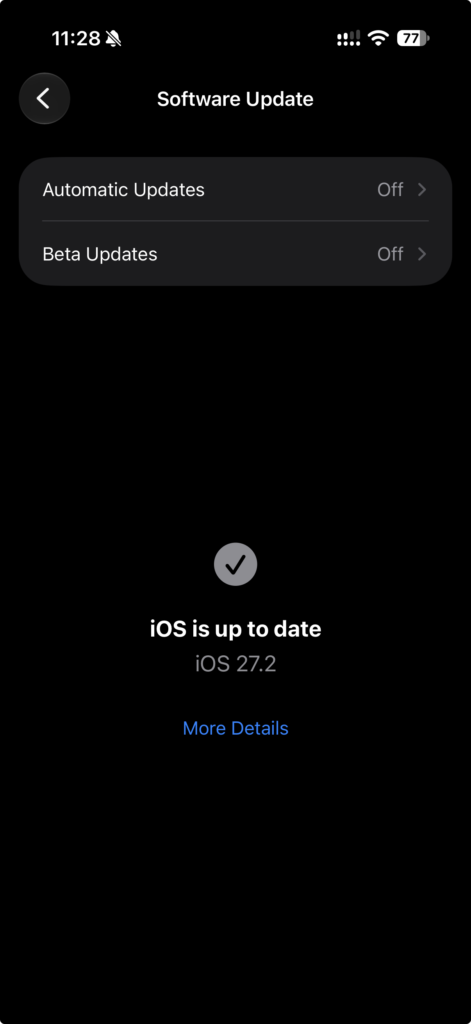
- Open Settings.
- Tap General.
- Select Software Update.
- Allow your iPhone to check for available updates.
- Review the version offered for your device.
- Back up important information.
- If an appropriate update is available, tap Download and Install.
- Follow the on-screen instructions.
After updating, reopen Settings and search for Bluetooth or Wi-Fi.
If no update is available, don’t try to install an unsupported iOS version.
And don’t assume that every new update includes a specific Settings search repair unless Apple’s release notes confirm it.
If the problem continues on a fully updated iPhone, consider reporting it to Apple.
9. Consider Reset All Settings Only as a Last Resort
If Settings search fails consistently, you’ve completed the safer checks, and the issue significantly affects everyday use, you may consider resetting system settings.
But this option is more disruptive than the previous steps.
Apple provides Reset All Settings, which resets system preferences without deleting personal media and content.
It isn’t the same as erasing the entire iPhone.
Before using it:
- Make a backup.
- Review your saved Wi-Fi and network configurations.
- Be prepared to reconfigure privacy and location preferences.
- Understand that Apple Pay cards are removed.
- Record important custom settings you may need afterward.
If you decide to proceed:
- Open Settings.
- Tap General.
- Select Transfer or Reset iPhone.
- Tap Reset.
- Choose Reset All Settings.
- Follow the on-screen instructions.
Do not choose Erase All Content and Settings.
According to Apple’s Reset All Settings documentation, this option doesn’t delete your personal data or media, but it does reset numerous preferences and remove Apple Pay cards.
Also, there is no guarantee that Reset All Settings will repair an internal search bug.
If you’re uncomfortable with the changes, contact Apple Support before proceeding.
For a search problem alone, a full device erase is generally an unnecessarily aggressive first step.
iPhone Settings Search Not Working After iOS 27
If you’ve noticed the issue after installing iOS 27, first verify that the Settings app itself opens normally.
Then check three things:
1. Can you search for common settings?
Try Bluetooth, Wi-Fi, or Display.
2. Can you open those settings manually?
For example, open Settings and tap Bluetooth directly.
3. Does the problem affect Spotlight too?
Use the Search feature on the Home Screen and compare the results.
If Settings search fails but manual navigation works, you may be experiencing a search-specific software problem.
If multiple search features fail, mention that when contacting Apple Support.
If only a particular setting is unavailable, check whether its name, availability, or location changed in the new iOS version.
You don’t need to erase your iPhone simply because search is temporarily unreliable.
How to Find iPhone Settings Without Using Settings Search
Until the search feature works again, you can still access most common settings manually.
| Setting | Where to find it |
|---|---|
| Wi-Fi | Settings → Wi-Fi |
| Bluetooth | Settings → Bluetooth |
| Display brightness | Settings → Display & Brightness |
| Notifications | Settings → Notifications |
| Privacy permissions | Settings → Privacy & Security |
| Keyboard | Settings → General → Keyboard |
| Software Update | Settings → General → Software Update |
| Screen Time | Settings → Screen Time |
| App-specific settings | Settings → Apps |
Some menu names or positions may differ depending on your iOS version, iPhone model, region, or organization policies.
You can also try searching for the setting from the Home Screen. Apple documents this as an alternative way to locate certain settings.
This provides a practical workaround while you investigate the Settings app’s internal search behavior.
Frequently Asked Questions
Why is my iPhone Settings search showing no results?
It may involve a temporary application issue, iOS software behavior, or differences in how settings are named and displayed. First test familiar terms such as Bluetooth and Wi-Fi to determine whether all searches fail.
Why is Settings search not working after an iOS update?
Some users report the problem after installing updates. A temporary software issue is possible, but the exact cause can’t be determined from timing alone. Restart the phone, check for newer updates, and compare Settings search with Spotlight Search.
Does restarting an iPhone fix Settings search?
It can help with temporary application problems. However, restarting doesn’t guarantee that a persistent search problem will disappear.
Can Spotlight settings affect the search inside Settings?
Spotlight preferences mainly control what appears in system-wide Search. Some users report improvements after toggling search permissions, but this isn’t an Apple-confirmed repair for the Settings app’s internal search interface.
Why can I find Bluetooth manually but not through Settings search?
That suggests Bluetooth settings are available but the search feature isn’t returning the expected result. Try another common term and compare Home Screen Search with the Settings app’s search field.
Will Reset All Settings delete my photos?
No. Apple’s Reset All Settings option does not erase personal photos or media. However, it resets system preferences and removes Apple Pay cards, among other changes. Back up important information before using it.
Do I need to reset my iPhone if Settings search is broken?
Usually not as a first step. Try searching for different terms, reopening Settings, restarting, checking for updates, and using manual navigation first.
Can a new iPhone have Settings search problems?
Yes, users have reported missing Settings search results on newly configured iPhones. However, that doesn’t mean the issue affects every new device or that it necessarily requires hardware service.
Should I contact Apple Support?
If Settings search remains unavailable after basic troubleshooting, especially when other system search features are affected, contact Apple Support. Include your iPhone model, iOS version, when the problem began, and examples of search terms that fail.
Final Thoughts
If your iPhone Settings search is not working, the best approach is to determine whether the entire search feature fails or only specific settings are missing.
Start with a familiar search term, close and reopen Settings, and restart your iPhone.
If Spotlight behaves differently, review the relevant search preferences without assuming they directly control Settings search.
For problems beginning after an iOS update, check for a newer compatible release and report persistent failures to Apple.
Most importantly, avoid changing unrelated settings or erasing your device before you’ve tried the safer troubleshooting steps.
Settings search is convenient, but you can still navigate to most iPhone options manually while investigating the problem.