Noticing iOS 27.2.1 battery drain after updating your iPhone? Maybe your battery percentage is dropping faster than usual, your phone feels warmer, or it no longer lasts as long between charges.
Apple released iOS 27.2.1 on November 9, 2026, with bug fixes and security improvements. However, Apple hasn’t confirmed that this particular update introduces a widespread battery-drain problem.
What Apple does confirm is that an iPhone can temporarily use more power while finishing background tasks after a software update.
Before resetting your phone or turning off useful features, it’s worth checking whether the increased battery consumption is temporary or whether an app, network connection, or battery-health issue needs attention.
This guide explains nine practical fixes for battery problems noticed after installing iOS 27.2.1.
Quick answer: Open Settings → Battery and check for the Ongoing iOS Update insight. Compare your Daily Usage with previous days, investigate unusually active apps, and consider Low Power Mode temporarily. If you updated only recently, allow a few days before judging whether battery life has permanently changed.
Table of Contents
Is iOS 27.2.1 Causing Battery Drain?
The timing of a battery problem doesn’t always prove its cause.
An iPhone may perform additional system tasks after installing an update. Apple notes that these tasks can temporarily affect battery life and thermal performance.
Other possible explanations include:
- Background activity from recently updated apps.
- Higher screen brightness or longer screen-on time.
- Poor cellular reception.
- Location tracking and frequent notifications.
- iCloud synchronization or other ongoing app tasks.
- An aging battery with reduced maximum capacity.
- Charging limits that make the available battery percentage seem lower than expected.
It’s important to distinguish between temporary post-update processing and a persistent battery problem.
You can find Apple’s explanation in its official iPhone battery troubleshooting guide.
Fix 1: Check for the Ongoing iOS Update Insight
If you installed iOS 27.2.1 within the last few days, start here.
Apple explains that some update-related processes continue after your iPhone becomes usable again.
These tasks can consume additional energy and temporarily raise the device’s temperature.
To check:
- Open Settings.
- Tap Battery.
- Look above the Daily Usage chart.
- Check whether an Ongoing iOS Update insight appears.
- If the insight is visible, allow the background processing to complete.
- Compare battery performance again after a few days.
Not every iPhone will display this insight.
If you don’t see it, that doesn’t automatically mean something is wrong.
What to do now: Continue using your iPhone normally. You can charge it as needed and use reliable Wi-Fi while update-related tasks finish.
Avoid factory resetting your device simply because battery life is temporarily worse during the first day.
Fix 2: Compare Battery Usage Instead of Guessing
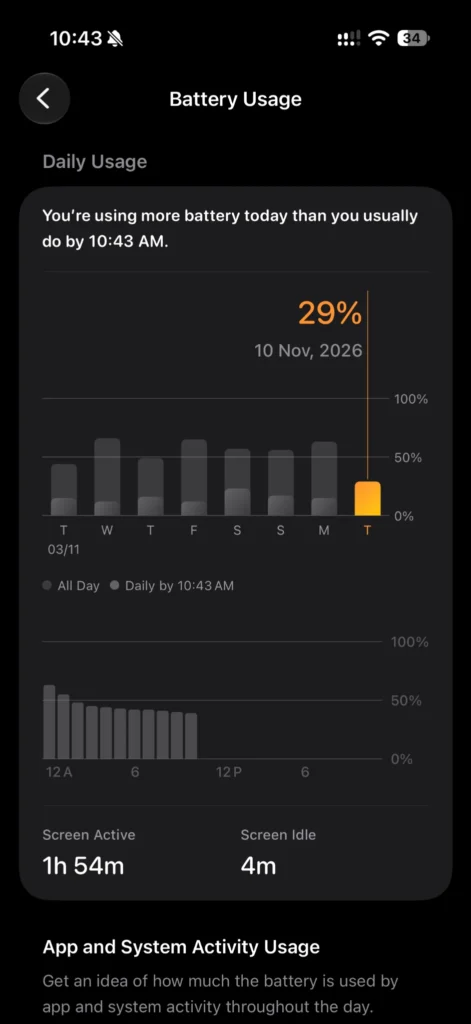
If you’re experiencing iOS 27.2.1 battery drain, the most useful evidence is inside your iPhone’s Battery settings.
Recent versions of iOS provide a Daily Usage chart that compares today’s battery consumption with your recent usage.
Here’s how to check:
- Open Settings → Battery.
- Find the Daily Usage chart.
- Check whether today’s usage is higher than normal.
- Tap View All Battery Usage.
- Select individual days to compare usage.
- Review the apps and system activities consuming power.
- Check whether the battery was used while the screen was on or during background activity.
For example, heavy video streaming, navigation, or gaming naturally consumes more battery than light messaging.
A high battery percentage attributed to an app isn’t automatically a fault. That percentage represents its share of recorded battery use, not necessarily the number of percentage points it drained from your battery.
Helpful test: Compare two days with similar screen time, connectivity, and app usage.
If the battery drains faster under similar conditions, investigate further.
Apple provides additional explanations in its iPhone Battery Usage and Health guide.
Fix 3: Identify Apps Running Too Much in the Background
Sometimes the problem isn’t iOS itself. A particular application may be using more power than expected.
Look for unusually high background activity in Settings → Battery.
If you notice an app consuming substantial battery power while you aren’t actively using it, try these steps:
- Open the App Store.
- Tap your profile picture.
- Check for available app updates.
- Update the affected application.
- Return to Settings → Battery.
- Review whether the app’s background activity remains unusually high.
You can also check:
Settings → General → Background App Refresh
Review the applications permitted to refresh in the background.
If an app doesn’t need regular background updates, consider disabling Background App Refresh specifically for that app.
Avoid switching off background activity for everything. Some applications rely on it for important functions.
Remember that turning off Background App Refresh doesn’t stop every type of background activity, including certain notifications or system-managed tasks.
If battery consumption improves after adjusting a particular app, that provides a useful clue about the cause.
Fix 4: Check Overnight Battery Drain and Charging Limits
If your iPhone loses a noticeable amount of battery overnight, investigate what happened while the screen was off.
Begin by opening Settings → Battery and checking the relevant time period.
Look for background activity, poor cellular coverage, or applications that continued running.
Also consider whether a scheduled backup, photo synchronization, or other task was taking place.
Check your Charge Limit
On iPhone 15 and later:
- Open Settings.
- Tap Battery.
- Select Charging.
- Review the configured Charge Limit.
- Check whether the phone is intentionally stopping below 100%.
For example, if you’ve configured your iPhone to stop charging at 90%, beginning the day at 90% is expected behavior.
That doesn’t mean the update has damaged your battery.
Changing your charge limit may provide more battery capacity for a particular day, but it won’t necessarily fix abnormal power consumption.
If your device refuses to charge or the battery percentage doesn’t increase while plugged in, follow our iPhone Not Charging troubleshooting guide instead.
Battery drain and charging failure are different problems.
Fix 5: Check Weak Cellular Signal and 5G Settings
Poor cellular reception can make your iPhone consume more battery because it needs additional power to maintain a connection.
This can be especially noticeable while traveling or spending time in buildings with weak reception.
To investigate:
- Open Settings → Battery.
- Select View All Battery Usage.
- Look for cellular coverage or low-signal activity.
- Compare battery behavior on reliable Wi-Fi and cellular data.
- Check whether the problem occurs mainly in areas with weak signal.
On a compatible iPhone with 5G:
- Open Settings.
- Tap Cellular or Mobile Service.
- Select Cellular Data Options.
- Tap Voice & Data.
- Choose 5G Auto, if available and appropriate.
5G Auto lets your iPhone make network-mode adjustments to balance performance and energy consumption.
Don’t disable essential connectivity settings merely to chase a higher battery percentage.
If battery life improves when your phone has a stronger connection, reception may be contributing to the problem.
Fix 6: Use Low Power Mode or Adaptive Power
Apple provides built-in tools to reduce power consumption without deleting apps or resetting your phone.
If iOS 27.2.1 battery drain is affecting your daily use, Low Power Mode can help extend battery life while you investigate.
On iPhone 15 and later:
- Open Settings.
- Tap Battery.
- Select Power Mode.
- Enable Low Power Mode.
On iPhone 14 and earlier, the Low Power Mode setting usually appears directly under Battery.
Low Power Mode reduces certain background activities, visual effects, and automatic operations. Some features may run more slowly while it’s enabled.
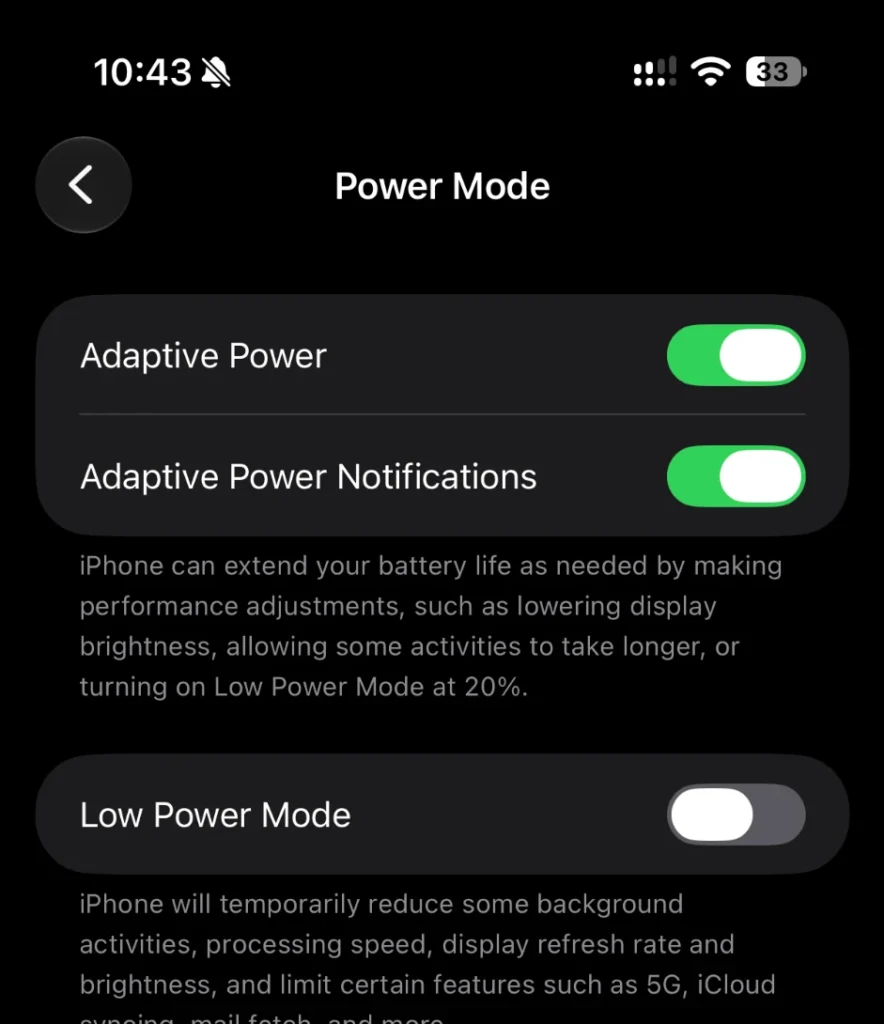
What about Adaptive Power?
Compatible iPhones also support Adaptive Power, which adjusts certain settings when the phone predicts unusually high power consumption.
To review it:
- Open Settings → Battery.
- Tap Power Mode.
- Find Adaptive Power, if available.
- Enable it if you want automatic battery-saving adjustments.
Not every iPhone supports Adaptive Power.
On compatible devices, it can reduce some background activity and make other adjustments when additional battery life is needed.
See Apple’s official Low Power Mode guide and Adaptive Power documentation.
These features can help conserve energy, but they don’t prove whether iOS 27.2.1 itself caused the increased consumption.
Fix 7: Reduce Unnecessary Display Power Consumption
Your iPhone display can be one of its largest power consumers.
If the Battery chart shows a lot of screen-on activity, adjusting display settings may help.
Start with brightness.
- Open Settings.
- Select Accessibility.
- Tap Display & Text Size.
- Enable Auto-Brightness.
You can also reduce brightness manually using Control Center.
Next, review:
Settings → Display & Brightness → Auto-Lock
Choose a shorter interval if your screen frequently stays on after you stop using it.
On supported Pro models, you can also test whether disabling Always On Display makes a meaningful difference for your usage.
Don’t disable useful display features unnecessarily. Start with the settings most relevant to your Battery Usage results.
Fix 8: Restart Your iPhone and Update Problematic Apps
A normal restart can help when an app or system process is temporarily behaving unexpectedly.
For an iPhone with Face ID:
- Press and hold the side button and either volume button.
- Wait for the power-off slider.
- Drag the slider to shut down.
- Wait approximately 30 seconds.
- Hold the side button until the Apple logo appears.
- Unlock your iPhone and check its behavior.
After restarting, open the App Store and check whether applications have received updates.
If battery problems began immediately after installing iOS 27.2.1, updating apps can be particularly useful when one application is showing unusual activity.
However, an app update isn’t guaranteed to fix an issue that originates elsewhere.
If your iPhone keeps restarting unexpectedly rather than merely losing charge, see our iPhone Keeps Restarting guidefor troubleshooting that specific symptom.
Avoid: Repeatedly force-restarting your phone, deleting unrelated apps, or performing a factory reset before identifying the likely cause.
Fix 9: Check Battery Health if the Drain Continues
If battery life remains unusually poor after several days, review the battery’s condition.
On iPhone 15 and later:
Settings → Battery → Battery Health
On iPhone 14 and earlier:
Settings → Battery → Battery Health & Charging
Look for:
- Maximum battery capacity.
- Battery condition or service recommendations.
- Any warnings indicating that the battery requires attention.
Rechargeable batteries naturally lose capacity over time.
A software update doesn’t restore physical battery capacity, and ordinary settings adjustments cannot repair a worn-out battery.
Battery Health also isn’t a complete diagnostic tool. A battery can show reasonable capacity while other problems affect performance.
If your phone becomes excessively hot during light use, shuts down unexpectedly, or continues losing charge rapidly without a clear explanation, contact Apple Support or an authorized service provider.
If your device’s battery is swollen, leaking, or showing signs of physical damage, stop using or charging it and seek professional assistance.
iOS 27.2.1 Battery Drain During the First 72 Hours: What to Expect
Because iOS 27.2.1 was released on November 9, many users are still within the first few days of installing it.
That matters when interpreting battery performance.
First day after updating
Look for the Ongoing iOS Update insight and check whether background tasks are still active.
Avoid drawing conclusions from a single charging cycle.
Second and third days
Compare Battery Usage with previous days, especially under similar conditions.
Check whether unusual app activity or high power consumption is declining.
After several days
If the device continues draining substantially faster despite similar usage, investigate battery condition, network reception, and persistent app activity.
Apple recommends waiting a few days after updating before reassessing battery life. There isn’t a universal recovery time for every iPhone.
iPhone Battery Draining Fast While Idle After iOS 27.2.1
If your iPhone loses charge while the screen is off, check the Battery Usage details for that time period.
Focus on:
- Background app activity.
- Cellular coverage problems.
- Location-dependent applications.
- Notifications and background synchronization.
- Post-update processing.
Try comparing two similar periods of light use.
If idle battery drain remains unusually high, don’t assume that one particular system component is responsible without supporting evidence.
If you’ve experienced similar behavior on an older iOS version, our iOS 27.0.1 Battery Drain guide explains broader battery troubleshooting steps that also apply to other versions.
Does iOS 27.2.1 Fix Battery Problems From Earlier iOS Versions?
Apple released iOS 27.2.1 with bug fixes and security improvements.
However, Apple hasn’t publicly identified a specific battery-drain fix in the release information reviewed for this article.
Therefore, it would be inaccurate to promise that installing iOS 27.2.1 will fix every battery problem experienced on earlier versions.
For security information, see Apple’s iOS 27.2.1 security release documentation.
If you’re already running iOS 27.2.1, focus on identifying the actual cause of the battery drain rather than repeatedly searching for the same update.
Frequently Asked Questions
Is iOS 27.2.1 causing battery drain?
Apple hasn’t confirmed a widespread battery-drain defect specific to iOS 27.2.1. Some users may notice reduced battery life after updating because background processing continues temporarily.
How long does battery drain last after iOS 27.2.1?
There is no fixed duration. Apple recommends waiting a few days after installing an update and then checking battery performance again.
Why is my iPhone hot after updating to iOS 27.2.1?
Background processing, demanding apps, charging, and environmental temperature can all contribute to warmth. If your iPhone becomes excessively hot during light use or displays temperature warnings, stop demanding tasks and let it cool in a safe environment.
Should I turn off Background App Refresh?
Only if it’s appropriate for your usage. Check Battery Usage first and consider restricting individual apps that don’t need background updates.
Does Low Power Mode fix iOS 27.2.1 battery drain?
Low Power Mode reduces power consumption and may extend battery life, but it doesn’t necessarily resolve the underlying cause of abnormal drain.
Should I reset my iPhone after updating?
Not as an initial step. Check Battery Insights, app activity, connectivity, and Battery Health before considering disruptive troubleshooting.
Is it normal for an iPhone battery to drain overnight?
Some battery use while idle is expected. The amount depends on background activity, notifications, network reception, and battery condition. An unusually large or persistent overnight loss deserves investigation.
Final Thoughts
If you’re experiencing iOS 27.2.1 battery drain, begin with Settings → Battery rather than immediately changing every power-related setting.
Check for ongoing update processing, compare usage across similar days, and identify any apps consuming unusually high amounts of energy.
Next, review connectivity, display settings, and Apple’s built-in power-saving features.
If battery performance remains poor after several days, investigate Battery Health and seek professional assistance when appropriate.
The most useful approach is to diagnose the cause rather than assume every battery problem is an iOS bug.
Last reviewed: November 10, 2026. This guide addresses battery behavior after the iOS 27.2.1 release. It does not claim that Apple has confirmed a widespread battery-drain defect in this update.