Is macOS 27.2.1 Spotlight high CPU usage making your MacBook Air, MacBook Pro, or iMac unusually slow?
Maybe Activity Monitor shows mds, mds_stores, or mdworker using a large amount of CPU. Your Mac may also feel warmer, lose battery faster, or become less responsive after installing the latest macOS update.
These processes are associated with Spotlight, Apple’s built-in search and indexing system.
The good news is that high Spotlight CPU usage doesn’t automatically mean something is broken. Your Mac may simply be updating its search index following a software installation.
However, if indexing continues unusually long, restarts repeatedly, or causes persistent performance problems, several checks can help identify the cause.
In this guide, we’ll cover nine practical fixes for Spotlight-related CPU activity after updating to macOS 27.2.1.
Quick answer: Open Activity Monitor and check whether mds, mds_stores, or mdworker are consuming CPU. If you recently updated, allow Spotlight time to finish indexing. If the problem persists, inspect external drives, background applications, Spotlight privacy settings, and the health of your storage.
Table of Contents
Why Is Spotlight Using High CPU After macOS 27.2.1?
Spotlight maintains a searchable index of files and other information stored on your Mac.
This allows you to locate applications, documents, messages, settings, and other content quickly.
Apple confirms that indexing can occur after installing a software update or when the data on a device changes.
When Spotlight processes a large amount of information, certain background services may use more CPU than usual.
Common explanations include:
- A recent macOS update triggering index maintenance.
- Many new or modified files.
- Connecting an external storage device containing large amounts of data.
- Cloud services synchronizing numerous files.
- Applications repeatedly changing searchable content.
- Corrupted files or file system problems.
- An indexing process that repeatedly restarts or fails to finish.
The release of macOS 27.2.1 does not itself prove a widespread Spotlight bug.
According to Apple’s official Spotlight indexing guidance, indexing is a normal part of maintaining search results.
The most important question is whether Spotlight is actively doing useful work or repeatedly processing the same information without completing.
What Are mds, mds_stores, and mdworker?
Before attempting fixes, it helps to understand the process names you may encounter in Activity Monitor.
mds: A macOS metadata service associated with Spotlight indexing and search.
mds_stores: A service involved in storing and managing Spotlight metadata.
mdworker and mdworker_shared: Processes involved in extracting and processing searchable metadata from files.
corespotlightd: A macOS process associated with the Core Spotlight framework, including searchable content supplied by applications.
These processes are legitimate macOS components.
They may become active when indexing changes are needed.
For example, copying thousands of files to your Mac can cause Spotlight to examine the new content.
A process temporarily using a high percentage of CPU isn’t necessarily malfunctioning.
Avoid deleting, disabling, or force-quitting these services simply because their names appear near the top of Activity Monitor.
Fix 1: Check Whether Spotlight Is Still Indexing
If macOS 27.2.1 Spotlight high CPU usage began immediately after updating, start by checking whether indexing is currently underway.
Apple notes that an indexing indicator may appear when Spotlight is rebuilding or updating its search index.
Try these steps:
- Press Command + Space to open Spotlight.
- Look for an indexing status or progress indicator.
- Open Finder → Applications → Utilities.
- Launch Activity Monitor.
- Select the CPU tab.
- Look for Spotlight-related processes.
- Observe whether their CPU usage changes over time.
An indexing indicator isn’t guaranteed to appear during every background update.
If you don’t see one, Activity Monitor may still show indexing-related work.
On Macs containing many files, indexing can take hours or even days.
What to do: If the update was recent and your Mac remains usable, allow indexing to continue instead of immediately interrupting it.
For more information, see Apple’s explanation of Spotlight indexing.
Fix 2: Identify Which Spotlight Process Is Using CPU
If your Mac feels sluggish, Activity Monitor helps determine whether Spotlight is actually responsible.
To investigate:
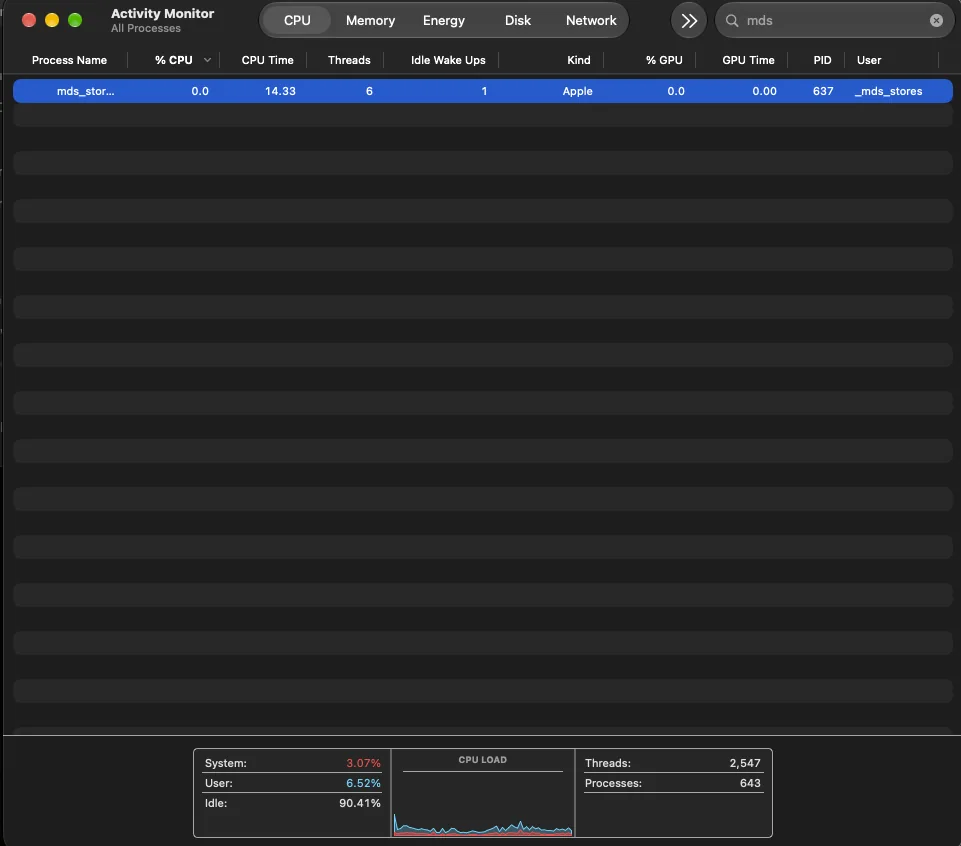
- Open Activity Monitor.
- Click the CPU tab.
- Click the % CPU column to sort processes.
- Type
mdsinto the search field. - Check whether
mdsormds_storesappears. - Clear the search and check for
mdworker. - Observe the results over several minutes.
You can also review the System, User, and Idle percentages at the bottom of the window.
What does 100% CPU mean on a Mac?
In Activity Monitor, a process showing 100% CPU generally indicates the equivalent of one logical CPU core being fully occupied.
It doesn’t necessarily mean your entire Mac’s processor capacity is exhausted.
On a multicore Mac, total CPU availability depends on the number of cores and other active processes.
For example, if a Spotlight process briefly reaches 100% while the system remains mostly idle overall, the situation may not require intervention.
What’s more concerning is sustained heavy usage accompanied by freezing, overheating, or significant slowdowns.
Apple explains these measurements in its Activity Monitor CPU guide.
Tip: If Spotlight processes are barely active, investigate other applications before assuming Spotlight is causing the slowdown.
If your problem is broader than indexing, review CPU, memory, and login-item usage rather than changing Spotlight settings unnecessarily.
Fix 3: Allow Normal Indexing to Finish
Spotlight may need additional processing time after macOS updates.
Trying to stop indexing prematurely can create more interruptions rather than improve performance.
If the workload appears normal:
- Connect your MacBook to power.
- Keep it in a properly ventilated location.
- Save and close demanding applications you don’t need.
- Avoid repeatedly restarting or force-quitting Spotlight services.
- Allow the Mac to remain available for background indexing.
- Recheck Activity Monitor later.
You don’t need to keep every application running.
It’s also unnecessary to prevent your Mac from sleeping indefinitely.
Normal power-management behavior can remain enabled.
If you have many files, Spotlight may require more time than on a nearly empty Mac.
Important: There isn’t a guaranteed indexing completion time. The duration depends on the size and condition of the searchable data.
If indexing-related CPU usage gradually declines, that is generally a more reassuring sign than a process that repeatedly restarts without improvement.
If Spotlight has already finished but search results are incomplete, our Mac Spotlight Search Not Working guidefocuses on missing or incorrect search results.
Fix 4: Check Recently Connected External Drives
Spotlight can index searchable information on connected storage devices.
If you recently attached an external SSD, USB drive, or another disk containing many files, indexing activity may increase.
To investigate:
- Open Finder.
- Check the drives listed under Locations.
- Identify any recently connected storage devices.
- Open Activity Monitor.
- Check whether Spotlight processes are active.
- If appropriate, eject a nonessential external drive safely.
- Observe whether the CPU activity changes.
Don’t disconnect a drive while files are being copied or written.
Always eject it properly before unplugging it.
What about Time Machine drives?
Time Machine backup disks may require indexing for backup functionality.
Apple notes that excluding a Time Machine backup disk from Spotlight search does not necessarily prevent Time Machine-related indexing.
Don’t interfere with a working backup merely to reduce Spotlight CPU usage.
Helpful distinction: If CPU usage increases only when a particular removable drive is attached, investigate that disk’s contents and health before rebuilding your entire Spotlight index.
Fix 5: Review Spotlight Search Privacy Settings
Spotlight allows you to exclude selected folders or disks from search results.
This can be useful when a large folder contains information you don’t need indexed.
Examples might include temporary project files, generated build output, or large archives that aren’t useful to search.
To review the settings:
- Open System Settings.
- Select Spotlight from the sidebar.
- Scroll down to Search Privacy.
- Review the existing excluded locations.
- Click Add (+) if you want to exclude a specific nonessential folder.
- Select that folder.
- Confirm the change.
Menu names may differ slightly across macOS versions.
Excluding a folder means its contents won’t appear in normal Spotlight search results while the exclusion applies.
Should you exclude Macintosh HD?
No, not as a routine performance fix.
Excluding the entire startup disk can interfere with normal search functionality and certain application-related behaviors.
Apple also warns that excluding some locations may affect the discovery of application updates.
Prefer small, carefully chosen exclusions rather than disabling indexing across the whole computer.
Read Apple’s official Search Privacy instructions before changing these settings.
If your Mac performs normally, there’s no need to create exclusions just for optimization.
Fix 6: Restart Your Mac and Check App Updates
If Spotlight activity remains unexpectedly high after normal indexing should have settled, a restart can help rule out a temporary software problem.
First, save your work.
Then:
- Click the Apple menu.
- Select Restart.
- Allow your Mac to start normally.
- Open Activity Monitor.
- Review Spotlight-related processes again.
- Observe whether the CPU activity settles.
After restarting, check for available application updates.
Certain applications supply searchable content to Spotlight through macOS indexing mechanisms.
If an app repeatedly changes or imports a large amount of content, that activity may contribute to indexing work.
Check third-party applications
- Open the App Store.
- Review available updates.
- Update compatible applications you regularly use.
- Check any apps installed directly from developers using their official update controls.
- Observe whether Spotlight activity changes.
If you’ve recently installed a new file-management or cloud-storage application, consider whether its activity coincides with the CPU increase.
Don’t uninstall applications without evidence that they are contributing.
Fix 7: Investigate Cloud Syncing and Repeated File Changes
Spotlight may need to update searchable information when files change.
If iCloud Drive or a third-party cloud-storage service is processing many files, the indexing workload may increase.
To investigate:
- Open Finder.
- Check whether a large cloud synchronization operation is underway.
- Review any cloud-storage application’s sync status.
- Open Activity Monitor → CPU.
- Check the Disk tab for significant read or write activity.
- Allow legitimate synchronization to finish where practical.
- Recheck Spotlight CPU activity.
A folder containing constantly changing files may create repeated indexing work.
Examples include development build folders, temporary exports, large project directories, or applications that frequently rewrite searchable data.
If you identify a nonessential folder with excessive file changes, consider whether excluding only that folder from Spotlight search is appropriate.
Avoid excluding documents that you regularly need to find.
Important: Cloud syncing and Spotlight indexing are distinct activities. Seeing them run at the same time doesn’t prove one is causing the other.
If your MacBook’s battery is also draining faster, our MacBook Battery Draining Fast guide explains how to investigate energy consumption separately.
Fix 8: Rebuild the Spotlight Index Only if Necessary
If Spotlight indexing appears stuck for an extended period, repeatedly restarts, or search results remain incorrect, rebuilding the relevant index may help.
Apple provides an official method using Search Privacy.
However, this shouldn’t be your first step when CPU usage rises immediately after an update.
Rebuilding an index intentionally starts more indexing work, so CPU usage may temporarily increase.
How to rebuild the Spotlight index
- Open System Settings.
- Click Spotlight.
- Scroll down and select Search Privacy.
- Click Add (+).
- Select the specific disk or folder you want to reindex.
- Add it to the privacy list.
- Wait a few seconds.
- Select the same disk or folder in the list.
- Click Remove (–).
- Click Done.
Spotlight will begin reindexing the selected location.
If the problem affects only one folder, start with that folder rather than the entire startup disk.
Will rebuilding Spotlight delete my files?
No. Rebuilding Spotlight’s search index is not intended to delete your documents, photos, or applications.
It changes the searchable metadata used by Spotlight.
However, search results may be incomplete until reindexing finishes.
Apple documents this procedure in its official Spotlight reindexing guide.
Avoid: Deleting hidden Spotlight database files manually or running unfamiliar Terminal commands found online. Apple’s supported Settings method is safer for ordinary troubleshooting.

Fix 9: Use Safe Mode or Check Disk Health for Persistent Problems
If macOS 27.2.1 Spotlight high CPU usage continues for days, repeatedly returns, and significantly affects performance, investigate possible software and storage issues.
Test in Safe Mode
Safe Mode helps identify whether software loaded during startup contributes to a problem.
For Apple silicon Macs:
- Shut down your Mac.
- Press and hold the power button until startup options appear.
- Select your startup disk.
- Hold Shift.
- Click Continue in Safe Mode.
- Log in and test the behavior.
For Intel-based Macs, hold Shift immediately after starting or restarting until the login screen appears.
Safe Mode can behave differently from a normal startup, so it isn’t a perfect benchmark for CPU performance.
Instead, check whether the same unexplained behavior persists.
If the issue changes significantly in Safe Mode, investigate third-party software and background services.
Apple provides complete instructions in its Safe Mode troubleshooting guide.
Check disk health if other symptoms suggest a storage problem
Persistent file errors, unexpected app crashes, or repeated indexing failures may warrant a file system check.
Use Disk Utility First Aid, but back up important data first.
For startup disk repairs, Apple’s recommended procedure uses macOS Recovery.
Do not erase or reformat your Mac simply because Spotlight is busy.
See Apple’s Disk Utility First Aid guide.
If the problem continues after appropriate diagnostics, contact Apple Support or an authorized service provider.
Is mds_stores High CPU Normal After macOS 27.2.1?
A temporarily high mds_stores CPU percentage can be consistent with normal Spotlight indexing.
This is particularly plausible shortly after a software update or when many files have changed.
The most useful things to check are:
- Whether the Mac was updated recently.
- Whether Spotlight is actively indexing.
- Whether CPU usage decreases over time.
- Whether the whole Mac remains responsive.
- Whether indexing repeatedly starts again without completing.
A single Activity Monitor screenshot cannot establish a persistent indexing problem.
Consider the pattern of activity rather than one momentary reading.
What if Spotlight High CPU Usage Never Stops?
If Spotlight appears to run heavily for several days without improvement, examine possible causes one at a time.
Start by identifying the exact process in Activity Monitor.
Next, check whether a particular external disk, cloud-storage application, or frequently modified folder coincides with the behavior.
If search results are also broken, rebuilding the affected index may be justified.
If the issue persists alongside file errors, crashes, or other system problems, investigate disk health.
Remember that Spotlight isn’t responsible for every Mac slowdown. High memory pressure, unrelated applications, or storage limitations may produce similar symptoms.
If Finder itself is unresponsive, see our MacBook Finder Not Responding troubleshooting guide.
Frequently Asked Questions
Why is Spotlight using so much CPU on macOS 27.2.1?
Spotlight may be indexing information after a software update or processing new and changed files. Persistent high usage can also warrant checking external storage, applications, and file system health.
What is mds_stores on Mac?
mds_stores is a macOS process associated with Spotlight metadata storage and indexing. It is a legitimate system process and shouldn’t be deleted.
Is mdworker high CPU usage dangerous?
Not necessarily. mdworker processes can use substantial CPU while processing file metadata. Sustained activity accompanied by problems deserves investigation, but a brief spike is not automatically a fault.
How long does Spotlight indexing take after an update?
Apple says indexing can take hours or even days depending on the amount of information. There is no fixed timeline for every Mac.
Should I force quit mds or mds_stores?
Generally, no. These are system processes, and interrupting them may delay necessary indexing work. Identify whether they’re functioning normally before attempting changes.
Does rebuilding Spotlight improve Mac performance?
Rebuilding can help resolve certain persistent indexing or search problems. It also triggers new indexing activity, so CPU usage may rise temporarily during the rebuild.
Does Spotlight high CPU usage drain MacBook battery?
Increased CPU activity can increase energy consumption. However, battery performance also depends on display brightness, wireless connectivity, applications, and battery condition.
Will excluding folders from Spotlight stop all indexing?
No. Excluding specific folders changes what Spotlight searches and indexes in those locations. Other system and application indexing processes may continue. Some Time Machine-related indexing also continues independently.
Final Thoughts
If you’re experiencing macOS 27.2.1 Spotlight high CPU usage, don’t assume the indexing processes are malfunctioning.
Start by checking Activity Monitor and determining whether Spotlight is performing normal post-update indexing.
Next, investigate external disks, cloud synchronization, frequently changing files, and unnecessary searchable folders.
Only consider rebuilding the Spotlight index if the behavior remains persistent or search functionality is genuinely affected.
Most importantly, avoid disabling essential macOS services or deleting system files without identifying the real cause.
The goal is to determine whether Spotlight is still working or genuinely stuck, not simply to force its CPU percentage to zero.
Last reviewed: November 10, 2026. Apple has not confirmed a widespread Spotlight high-CPU defect specific to macOS Golden Gate 27.2.1.