
Mac Spotlight Search not working? If Spotlight won’t open, stops showing apps, or cannot find files you know are saved on your Mac, the problem may involve search settings, keyboard shortcuts, excluded folders, or an incomplete Spotlight index.
You don’t need to reinstall macOS just because Spotlight isn’t finding something. Most problems are worth investigating through System Settings first.
This guide covers nine troubleshooting steps for MacBook Air, MacBook Pro, iMac, Mac mini, and other compatible Macs running recent versions of macOS, including macOS 27.
Table of Contents
Quick Answer: How to Fix Spotlight Search on Mac
If Spotlight Search isn’t working, try these fixes in order:
- Open Spotlight directly and test a known app.
- Restart your Mac.
- Check Spotlight search result settings.
- Remove accidentally excluded folders from Search Privacy.
- Check whether Spotlight is still indexing.
- Rebuild the Spotlight index.
- Check the Command-Space keyboard shortcut.
- Update macOS.
- Check whether the problem affects Finder, iCloud files, or a particular app.
The most useful fix for missing local files is often rebuilding the Spotlight index. However, you should first check whether the files are excluded from search or indexing is still in progress.
Why Is Mac Spotlight Search Not Working?
Spotlight uses an index to locate apps, documents, emails, messages, settings, and other searchable content.
According to Apple, the index is updated as information changes on your Mac. Indexing can also occur after setting up a device or installing a software update.
When Spotlight behaves unexpectedly, these are some possible explanations:
| Symptom | Possible cause |
|---|---|
| Spotlight won’t open | Keyboard shortcut conflict |
| Spotlight opens but shows no files | Indexing or search configuration |
| Certain apps are missing | Search result categories disabled |
| Files from one folder are missing | Folder excluded in Search Privacy |
| Searches are slow after updating macOS | Indexing may still be running |
| Only cloud files are missing | Files may not be available locally |
| Search works in some locations but not others | Different search scopes or app-specific indexing |
The right solution depends on which symptom you’re experiencing.
1. Test Whether Spotlight Opens Normally
First, determine whether Spotlight itself is failing or only its search results.
Open Spotlight
- Press Command (⌘) + Space.
- Alternatively, click the Spotlight icon in your Mac’s menu bar if it is displayed.
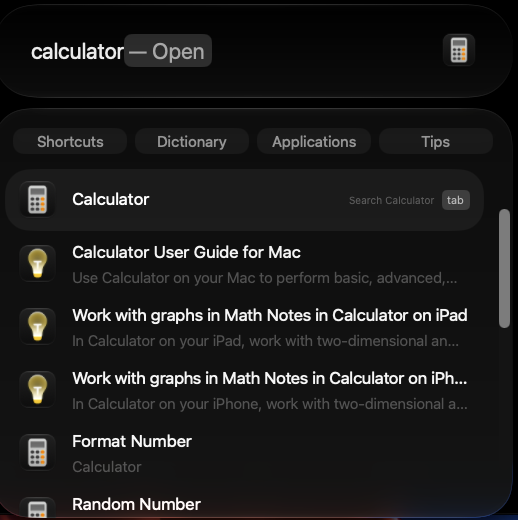
- Type the name of an installed app, such as Calculator.
- Check whether Spotlight displays the matching result.
If Calculator appears, Spotlight is functioning at least partially.
Next, search for a document that you know exists on your Mac.
Try searching by its filename rather than a general description.
What the results tell you
- Spotlight doesn’t open: Check the keyboard shortcut in Fix 7.
- Apps appear but files don’t: Check search categories, privacy exclusions, and indexing.
- Spotlight displays an indexing indicator: Continue to Fix 5.
- Only one particular file is missing: Check where the file is stored before rebuilding the entire index.
Apple confirms that pressing Command-Space is the standard way to open Spotlight on Mac.
2. Restart Your Mac
A restart is a reasonable early troubleshooting step when Spotlight becomes temporarily unresponsive.
To restart:
- Save your open documents.
- Click the Apple menu in the top-left corner.
- Select Restart.
- Allow your Mac to start normally.
- Open Spotlight and search again.
A restart doesn’t erase your files or intentionally reset your Spotlight settings.
If the keyboard or other parts of macOS are also unresponsive, investigate those symptoms separately. Our MacBook Keyboard Not Working guide covers keyboard-specific problems.
If Spotlight still fails after restarting, continue with the settings checks.
3. Check Spotlight Search Result Settings
Spotlight lets you choose which apps and categories can appear in its results.
If a category is disabled, Spotlight might appear to be malfunctioning even though its indexing system is working.
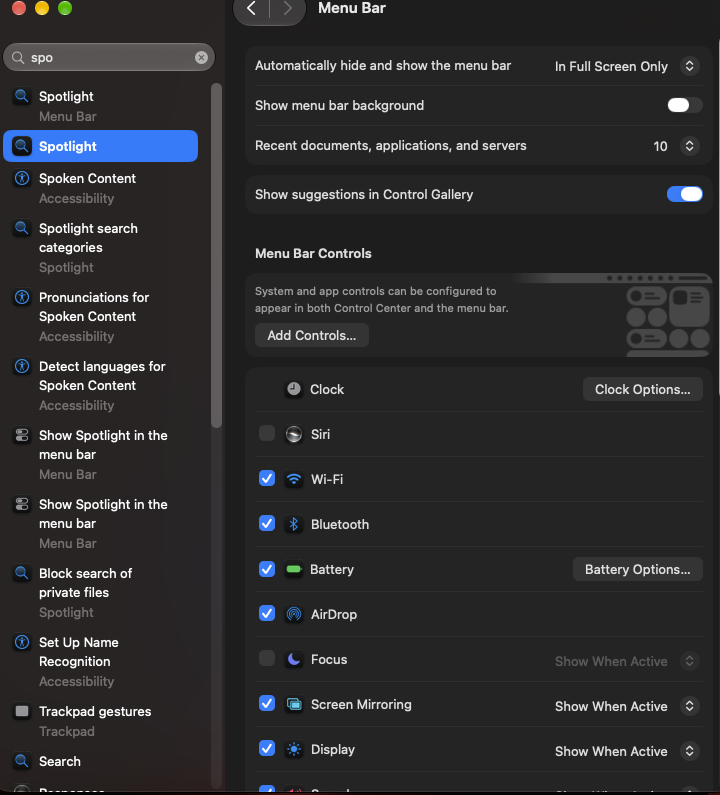
On macOS 27 and recent versions
- Click the Apple menu.
- Open System Settings.
- Select Spotlight from the sidebar.
- Review the available search result settings.
- Enable the relevant apps or system categories you want to search.
Recent macOS versions group search settings under headings such as Results from Apps and Results from System.
Older versions may use the label Siri & Spotlight or display a different arrangement of search categories.
For example, if you’re unable to find applications in Spotlight, check whether the corresponding app results are enabled.
If you cannot find documents, review the settings for relevant file-related search results.
After making a change, close System Settings and test Spotlight again.
Don’t enable every category merely to fix one missing item. Enable the categories you actually want Spotlight to display.
4. Check Whether Your Files Are Excluded from Spotlight
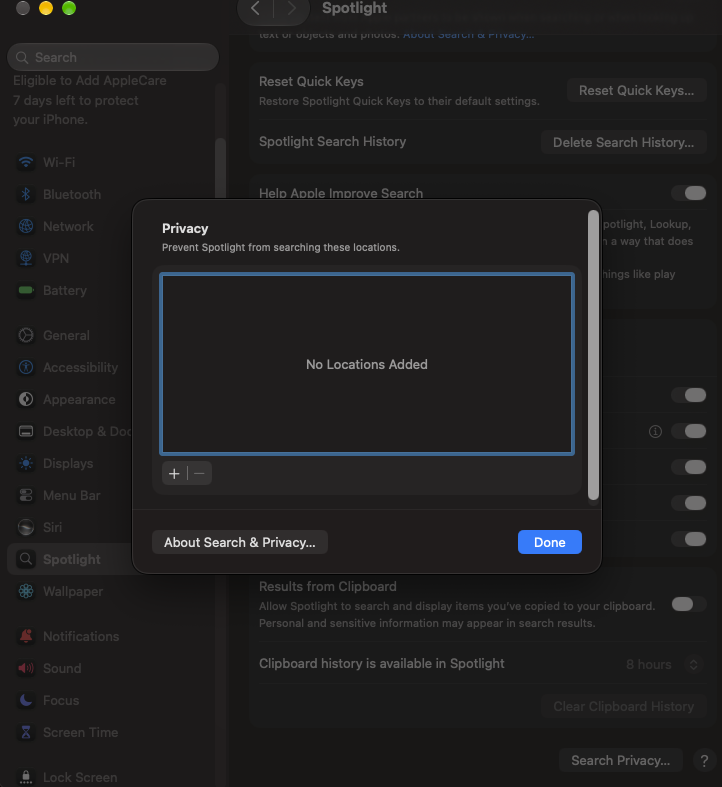
Spotlight’s Search Privacy feature allows users to prevent selected folders or disks from appearing in search results.
If you’ve accidentally excluded a folder, its files may not appear even though they still exist on your Mac.
How to check Search Privacy
- Open System Settings.
- Select Spotlight.
- Scroll down and click Search Privacy.
- Review the listed folders and disks.
- If a folder containing your missing files is listed, select it.
- Click the minus (–) button to remove that exclusion.
- Click Done.
Removing a folder from Search Privacy allows Spotlight to index it again. It does not delete the folder.
Check Spotlight after giving macOS an opportunity to update its index.
Important: Don’t remove privacy exclusions that you intentionally created. Some folders may contain information you prefer not to include in Spotlight results.
Apple explains these controls in its guide to excluding folders and disks from Spotlight.
5. Check Whether Spotlight Is Still Indexing
Spotlight can temporarily deliver incomplete results while its index is being built or updated.
This is particularly relevant after:
- Setting up a new Mac.
- Upgrading macOS.
- Moving a large collection of files.
- Adding substantial new content to the Mac.
- Installing applications that provide searchable content.
How to check indexing
- Press Command + Space.
- Look near the top of the Spotlight window.
- Check whether macOS displays an indexing progress indicator.
Apple says initial indexing can take hours or even days, depending on the amount of data.
For the best conditions, connect your Mac to power and leave it idle when practical.
An internet connection may also be helpful when Spotlight needs content supplied by connected services or apps.
If Spotlight is clearly indexing, don’t immediately rebuild the index again.
Allow the current indexing process to complete and test your missing files afterward.
If indexing has apparently finished but results remain incomplete, try the next fix.
6. Rebuild the Spotlight Index on Your Mac
Rebuilding Spotlight’s search index is one of Apple’s recommended solutions for persistent problems involving missing local files.
The procedure removes the chosen folder or disk from Spotlight indexing temporarily, then allows macOS to index it again.
You do not need to delete documents, reinstall macOS, or run Terminal commands for this method.
How to rebuild Spotlight
- Open System Settings.
- Select Spotlight from the sidebar.
- Scroll down and open Search Privacy.
- Click the plus (+) button.
- Select the folder or disk you want Spotlight to index again.
- Click the appropriate confirmation button to add it to the exclusion list.
- Wait a few seconds.
- Select the same folder or disk in the list.
- Click the minus (–) button.
- Click Done and quit System Settings.
Spotlight should now begin reindexing that location.
Should you rebuild the entire disk?
If only one folder is affected, start with that folder.
If Spotlight cannot find files across your entire internal drive, you can consider reindexing the startup disk, commonly named Macintosh HD.
Rebuilding a large index can take considerable time. Search results may remain incomplete until the process finishes.
Also, do not leave the internal drive in Search Privacy after completing the procedure. That would keep it excluded from normal Spotlight search results.
If macOS reports an ownership or permissions error, Apple recommends checking the disk or folder permissions rather than repeatedly attempting the same procedure.
You can follow Apple’s official instructions here: About Spotlight Indexing and Search Results.
7. Fix the Command-Space Shortcut Not Working
Sometimes Spotlight works normally, but Command + Space doesn’t open it.
This can happen when the shortcut is disabled, reassigned, or conflicts with another app.
Check the Spotlight shortcut
- Open System Settings.
- Select Keyboard.
- Click Keyboard Shortcuts.
- Choose Spotlight from the categories.
- Check whether the shortcut for showing Spotlight is enabled.
- Review its assigned key combination.
If another app is using the same shortcut, macOS may display a warning icon.
You can restore or change the shortcut as needed.
After making changes, close and reopen any affected apps.
Test again
Press Command + Space.
If Spotlight now opens, the problem was probably related to the shortcut rather than search indexing.
If several keyboard shortcuts are failing, our MacBook Keyboard Not Working guide may help you investigate the broader issue.
Apple provides further guidance on conflicting keyboard shortcuts.
8. Check for macOS Updates
Software updates can include improvements and fixes for built-in system features.
If Spotlight stopped behaving normally after a recent software change, check whether Apple has released an update compatible with your Mac.
How to update macOS
- Open System Settings.
- Click General.
- Select Software Update.
- Allow macOS to check for available updates.
- Review and install any suitable update.
Back up your important files before installing major updates.
After updating and restarting, allow Spotlight time to index any content that needs updating.
Don’t assume every Spotlight problem is caused by the latest macOS version. A missing app category or excluded folder can cause similar symptoms without any operating system defect.
For official instructions, see Apple’s macOS update guide.
9. Check Finder, iCloud Files, and App-Specific Search
If Spotlight works for most content but fails to find certain files, the problem may not affect Spotlight globally.
Different search interfaces and storage locations can produce different results.
Check Finder search
- Open Finder.
- Navigate to the folder where you expect the file to exist.
- Press Command + F.
- Search for the filename.
- Review the selected search location and available filters.
Finder search and Spotlight do not always show identical results, because their search scopes can differ.
If you search from a particular Finder location, pay attention to whether you’re searching the current folder or a broader location.
Check iCloud Drive files
If the missing document is stored in iCloud Drive, confirm that it’s visible and available through Finder.
A document that hasn’t finished syncing or downloading may require attention to its cloud availability rather than a full Spotlight rebuild.
Similarly, missing email or notes may involve indexing or syncing within the corresponding app.
If Wi-Fi or network connectivity is preventing cloud content from becoming available, our MacBook Wi-Fi Not Working guide covers that separate problem.
When to contact Apple Support
If Spotlight still doesn’t open or find local files after checking settings, waiting for indexing, and rebuilding the relevant index, consider contacting Apple Support.
Explain whether the issue affects all searches or only specific applications and folders. Include your macOS version and any error messages.
Does Rebuilding Spotlight Delete Files?
No. Apple’s Search Privacy reindexing procedure changes how the selected location is indexed for search. It doesn’t intentionally delete the files inside that folder or disk.
However, Spotlight may temporarily stop showing those items while indexing is underway.
You should still maintain regular backups of your Mac.
How Long Does Spotlight Reindexing Take?
There’s no universal duration.
The time depends on the amount of content, the storage device, system activity, and other factors.
Apple notes that a full indexing process can take hours or even days in some situations.
For that reason, repeatedly resetting the index before it has finished may be counterproductive.
If Spotlight shows an indexing progress indicator, allow the process to finish before judging the results.
Frequently Asked Questions
Why is Spotlight not finding files on my Mac?
The files may be excluded from Search Privacy, a relevant search category may be disabled, or Spotlight may still be indexing. Check those possibilities before rebuilding the index.
Why is Command-Space not opening Spotlight?
The keyboard shortcut may be disabled or assigned to another application. Open System Settings → Keyboard → Keyboard Shortcuts → Spotlight to review it.
Does Spotlight need the internet?
Spotlight can search indexed local content without an active internet connection. However, some online suggestions and content from connected services require internet access.
Can Spotlight fail after a macOS update?
Search results may be temporarily incomplete while indexing runs after an update. If the issue persists, check your Spotlight settings and consider rebuilding the affected index.
Why does Finder find a file that Spotlight doesn’t?
Finder and Spotlight can use different search locations and filters. Also, Spotlight may exclude the file’s folder or may not have finished indexing it.
Is it safe to rebuild the Spotlight index?
Apple documents the Search Privacy method for reindexing folders and disks. Follow that procedure and ensure you remove the location from the exclusion list afterward.
Final Thoughts
If Mac Spotlight Search isn’t working, begin with the simple checks: test a known app, restart your Mac, review Spotlight result settings, and inspect Search Privacy.
If local files remain missing after indexing is complete, rebuild the affected folder’s or disk’s Spotlight index using Apple’s documented procedure.
A broken Command-Space shortcut, an unavailable iCloud file, and a damaged search index are different problems. Identifying the symptom first will help you avoid unnecessary troubleshooting.
For more Mac troubleshooting, explore our MacBook Keeps Restarting guide and MacBook Battery Draining Fast guide.