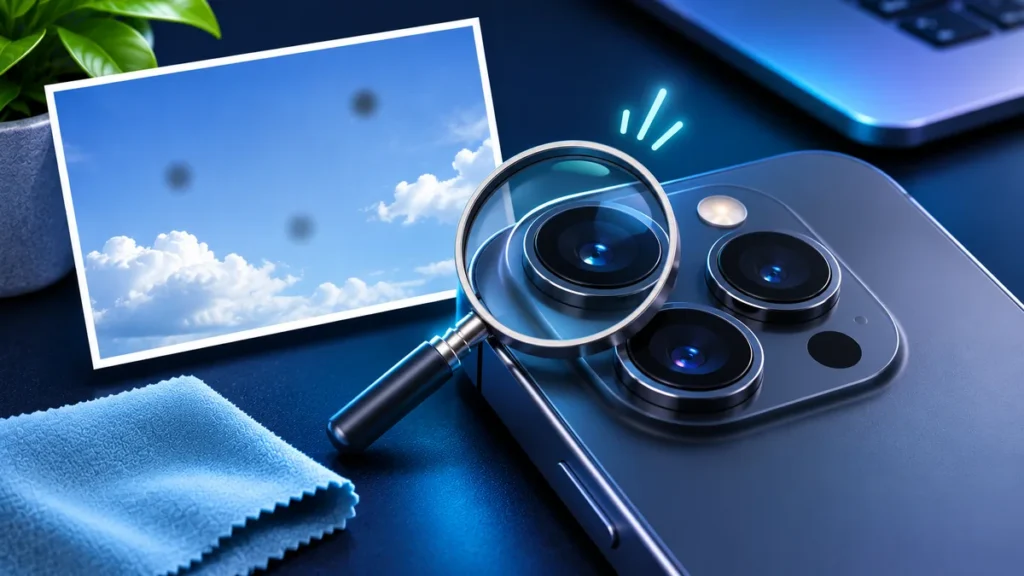
Noticed strange black dots, gray circles, or blurry dark patches in your iPhone photos? Maybe they appear whenever you photograph the sky, a white wall, or another bright surface.
If you’re seeing dark spots on iPhone camera photos, the cause may involve dirt on the camera glass, an accessory covering part of a lens, or contamination inside a camera module.
However, not every black dot means your camera sensor is damaged.
Sometimes the problem is as simple as a dirty lens protector. In other cases, dark marks that repeatedly appear in exactly the same position may require further inspection.
The important thing is to identify where the spots originate before attempting repairs.
In this guide, we’ll explain 7 practical ways to investigate and fix dark spots on your iPhone camera, including how to clean the lenses safely, compare different cameras, identify possible internal dust, and determine when Apple service may be necessary.
These steps apply to recent iPhones, including the iPhone 17 Pro, although the available lenses and camera controls vary by model.
Quick Answer: How to Fix Dark Spots on iPhone Camera
If your iPhone photos contain dark spots, follow these steps:
- Remove camera lens protectors, obstructive cases, and external camera accessories.
- Clean the front and rear camera glass using a soft microfiber cloth.
- Compare photos captured with different camera lenses.
- Test different camera modes and compatible applications.
- Restart the Camera app and your iPhone.
- Install an available compatible iOS update.
- Contact Apple Support if the spots remain fixed after testing and cleaning.
The most important clue is whether the spots appear in the same position across multiple photographs.
Persistent spots that are visible in new photos after external cleaning can indicate a problem inside a particular camera module.
However, their position alone doesn’t prove that the sensor is dirty or damaged.
For Apple’s official recommendations, see If the camera or flash on your iPhone isn’t working.
Table of Contents
Why Are There Dark Spots on My iPhone Camera?
Several different problems can produce marks in photographs.
Understanding the possibilities will help you avoid unnecessary repairs.
1. Dirt or Fingerprints on the Camera Glass
Your iPhone camera glass is exposed whenever you handle the device.
Dust, skin oils, fingerprints, and other residue can accumulate on the exterior.
This contamination often reduces contrast or creates blurry, hazy areas rather than sharply defined black dots.
Depending on the lighting and the contamination, photographs may show unwanted shadows or other artifacts.
External cleaning is the safest place to start.
2. Dust Inside the Camera Module
iPhone cameras use compact, integrated camera assemblies.
Although these assemblies are designed to protect their internal optical components, internal contamination can sometimes occur.
Dust or other particles near an image sensor or optical component may produce persistent marks in photographs.
Unlike interchangeable-lens cameras, iPhones aren’t designed for routine user-accessible sensor cleaning.
If contamination is inside the camera module, wiping the exterior glass won’t remove it.
3. Dirty or Damaged Camera Lens Protectors
Some iPhone cases and aftermarket accessories include protective covers over the camera lenses.
These may introduce:
- Dust trapped between the protector and camera glass
- Smudges or adhesive residue
- Scratches
- Reflections
- Partial obstructions
A damaged protector can affect image quality even when the underlying camera is working normally.
4. Internal Moisture or Physical Damage
If your iPhone was recently dropped, exposed to liquid, or repaired, a persistent camera artifact deserves additional attention.
Damage affecting the lens assembly or other camera components can cause abnormal photographs.
Moisture inside the camera area may also produce fogging, haze, or other visual problems.
Avoid attempting to open the camera assembly yourself.
5. Software or Image Processing Problems
Occasionally, image artifacts can result from a software problem or an issue with a particular camera application.
However, a fixed dark spot appearing repeatedly in original photographs is generally more suggestive of an optical or imaging-path issue than a simple app malfunction.
Testing another app and camera mode can help distinguish these possibilities.
How to Diagnose Dark Spots on iPhone Camera
Before trying the fixes, perform a simple photography test.
This can help determine whether you’re seeing a genuine camera artifact.
Step 1: Find a Plain Background
Choose a clean, evenly lit surface.
Good options include:
- A white wall
- A large white sheet of paper
- A clear blue sky
Avoid pointing the camera directly at the sun.
Bright, relatively uniform backgrounds make unwanted marks easier to see.
Step 2: Take Several Photos
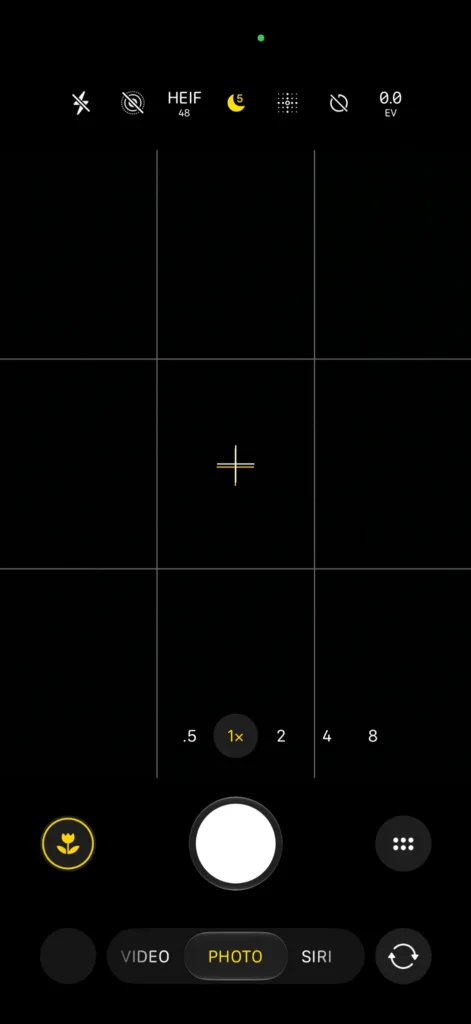
Open Camera → Photo.
Take two or three photographs of the same plain background.
Keep the lighting and zoom setting consistent.
Try slightly changing the phone’s orientation between photographs.
Step 3: Inspect the Results
Open the photographs in Photos.
Zoom in and look for dark circles, blurry spots, or unusual patches.
Compare the images.
Ask yourself:
- Does the spot appear in every photograph?
- Is it located in approximately the same area of the image?
- Does it remain when the phone points toward a different scene?
- Does it appear only with one camera lens?
- Does cleaning the exterior change the result?
What Do the Results Mean?
If a mark appears only in one photograph, it could be something in the scene, a temporary reflection, or another incidental artifact.
If a similar mark repeatedly appears in the same image coordinates, the issue may be associated with the camera’s optical or imaging system.
This is a useful diagnostic clue, not a definitive diagnosis.
Fix 1: Remove Camera Lens Protectors and Accessories
Apple recommends removing cases, films, and camera accessories that may obstruct the lens before further troubleshooting.
This is especially useful if the spots appeared after installing a new case or lens protector.
Steps
- Inspect the accessories surrounding your camera.
- Remove the phone case if it covers or closely surrounds the lens area.
- If a removable lens protector is installed, follow its manufacturer’s safe removal instructions.
- Check for dust or adhesive residue on the exterior.
- Open Camera and take another test photograph.
If the spots disappear after removing an accessory, the accessory was likely contributing to the problem.
What If the Protector Is Difficult to Remove?
Don’t force it.
Avoid inserting sharp objects under the protector or scratching the camera glass.
If the accessory is firmly attached, follow its removal guidance or seek assistance.
Tip: Test your camera without external optical accessories before changing software settings.
Fix 2: Clean the Camera Lenses Safely
Camera glass can collect fingerprints and fine dust during everyday use.
Apple recommends cleaning iPhone camera lenses with a microfiber cloth.
How to Clean Your iPhone Camera
- Disconnect charging cables and accessories.
- Turn off your iPhone before cleaning.
- Use a clean, soft microfiber or lens cloth.
- Gently wipe the exterior camera glass.
- If necessary, use a slightly water-dampened lint-free cloth, avoiding openings.
- Allow the exterior to dry.
- Turn on your iPhone and take a new test photo.
What Should You Avoid?
Don’t use:
- Compressed air
- Sharp tools
- Abrasive cloths
- Household glass cleaners
- Excessive liquid
- Unapproved cleaning chemicals
Don’t attempt to clean inside the camera module.
For full cleaning guidance, see Apple’s official iPhone cleaning instructions.
What If Cleaning Doesn’t Remove the Spots?
If the same marks remain after careful exterior cleaning, avoid repeatedly rubbing the glass.
The problem may not be on the exterior surface.
Continue with the lens comparison test.
Fix 3: Compare Different iPhone Camera Lenses
Many modern iPhones have more than one rear camera.
The iPhone 17 Pro, for example, provides multiple camera options for different fields of view.
Comparing these cameras can help identify whether the problem is associated with a particular imaging path.
How to Compare Camera Lenses
- Open the Camera app.
- Select Photo mode.
- Point the phone toward the same evenly lit plain background.
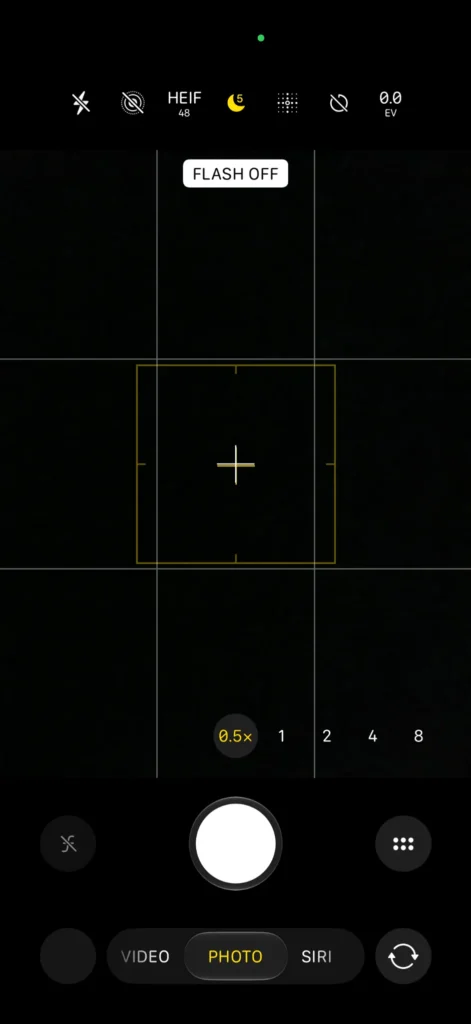
- Take a photograph at 0.5×.
- Take another photograph at 1×.
- Repeat using an available telephoto camera option.
- Review the photos in the Photos app.
Why This Test Matters
Suppose a dark spot appears repeatedly in photographs taken using one camera but not another.
That suggests the problem could be associated with a particular lens or camera module.
However, remember that zoom settings do not always correspond to a separate physical lens.
Some zoom levels use sensor cropping or computational processing, and the iPhone may switch cameras automatically under certain conditions.
For that reason, treat the results as clues rather than proof of a faulty component.
What If Every Lens Shows Dark Spots?
First confirm that you’re examining separate original photographs rather than repeatedly viewing the same saved image.
Check the front camera too.
If the same issue appears across multiple cameras, broader software or image-processing problems are worth investigating.
However, multiple affected cameras don’t automatically prove a software fault.
Fix 4: Test Different Camera Modes and Apps
You can also determine whether the problem occurs only under certain recording conditions.
Compare Photo and Video
- Open the Camera app.
- Select Photo.
- Take a photograph of a plain background.
- Switch to Video.
- Record several seconds of the same background.
- Review both results.
If the spots appear in both still photographs and video, that suggests a persistent issue affecting the camera’s output.
Compare With Another Camera App
If you have a trusted camera application already installed, capture the same scene using that app.
Compare the results.
If the problem appears across multiple apps using the same camera, an app-specific bug becomes less likely.
If it happens only in one app, review that app’s settings and updates.
What About Portrait and Night Modes?
These modes use additional processing that may affect the appearance of photographs.
For an initial diagnosis, standard Photo mode in good lighting is generally the easiest reference.
You can test other modes afterward if needed.
Fix 5: Restart the Camera App and Your iPhone
A temporary application or system problem may affect camera behavior.
Restarting is a safe troubleshooting step before considering more disruptive actions.
Restart the Camera App
- Close the Camera app.
- Reopen it.
- Take a new photograph.
- Compare the result with your earlier tests.
If the same mark remains, restart the iPhone.
Restart an iPhone 17 Pro
- Press and hold the Side button and either Volume button.
- Drag the power-off slider.
- Wait approximately 30 seconds.
- Press and hold the Side button to turn the phone on again.
- Open Camera and repeat your test.
If the camera is otherwise working normally but continues struggling to focus, see our iPhone Camera Not Focusing troubleshooting guide.
That guide covers autofocus, close-up photography, and blurry images.
A focus problem is different from a fixed dark spot, but the symptoms can sometimes be confused.
Fix 6: Update iOS and Test Again
Apple recommends updating iOS as part of troubleshooting persistent camera problems.
An update may contain improvements or fixes affecting the camera or image processing.
How to Check for Updates
- Open Settings.
- Tap General.
- Select Software Update.
- Check for an available compatible iOS update.
- Back up important data before updating.
- Follow the official installation instructions.
- Test your camera again afterward.
An update isn’t guaranteed to remove dark spots.
If the problem is caused by physical contamination or hardware damage, software changes won’t clean or repair the affected component.
Should You Reset Your iPhone?
A factory reset is not an appropriate first response to dark spots in photographs.
It erases data and won’t repair contamination inside a camera module.
If you’ve already isolated the problem to a particular camera and basic troubleshooting hasn’t helped, consider professional diagnosis before attempting disruptive resets.
Fix 7: Contact Apple Support for Persistent Dark Spots
If you’ve removed accessories, cleaned the exterior, compared the cameras, and tested updated software but still see the same fixed spots, it may be time to seek service.
An Apple-authorized technician can inspect the device and determine whether a camera component requires repair or replacement.
Signs That Professional Service May Be Necessary
Consider contacting Apple if:
- The spots remain in the same location after exterior cleaning.
- One camera consistently produces abnormal images.
- You can see contamination behind the exterior camera glass.
- The camera glass is cracked or misaligned.
- Fogging or moisture appears within the camera area.
- The problem began after a drop or physical impact.
- The camera produces repeated artifacts across multiple apps.
Can You Clean the iPhone Camera Sensor Yourself?
Unlike many interchangeable-lens cameras, iPhones don’t provide a user-accessible camera sensor for routine cleaning.
Don’t open your phone to wipe the sensor.
Disassembly can introduce more contamination, damage components, compromise seals, and complicate future service.
If internal contamination is suspected, professional inspection is safer.
Does Apple Replace the Whole Camera?
The appropriate repair depends on the model, the diagnosed fault, parts availability, and service options.
A technician may determine that a camera assembly needs replacement.
Don’t assume that every dark spot requires a replacement sensor or entire iPhone.
You can begin with Apple Support’s camera troubleshooting page.
Dark Spots in Photos vs Dark Spots on the iPhone Screen
These are different problems, and the distinction can save time.
Dark Spots in Photographs
If the marks appear in saved photographs and remain visible when those photos are opened on another device, the issue is associated with the image itself.
The source may involve the camera optics, imaging hardware, or processing.
Dark Spots Only on the Display
If the spots appear on the iPhone screen but not in exported photographs, you may be looking at a display problem.
For example, damaged display pixels or other screen defects may create visible marks independent of the camera.
How to Check
- Take a test photograph.
- Open it in Photos.
- Transfer it to another device, such as a computer.
- View the photograph there.
If the dark mark appears in the actual image on both devices, investigate the camera.
If the mark is visible only on your iPhone’s display, investigate the display instead.
Dark Spots vs Lens Flare: What’s the Difference?
Not every unusual mark in an iPhone photograph comes from dust.
Lens flare occurs when strong light sources create unwanted reflections or artifacts within the camera’s optical system.
For example, taking a photograph with bright streetlights at night may create ghost images or bright spots.
Typical Lens Flare
Lens flare can appear as bright or colored dots, streaks, or a loss of contrast.
Its position and appearance often depend on the location of bright lights within or near the frame.
Persistent Dark Spots
Dark spots caused by contamination or defects may appear repeatedly against uniform backgrounds, even when the scene changes.
The exact appearance depends on the position and nature of the problem.
If the artifact changes when you move the camera relative to a strong light source, investigate reflections or accessories before assuming internal sensor dust.
Can Dark Spots Be Removed from Existing iPhone Photos?
Sometimes you can remove visible blemishes from photographs using editing tools.
However, editing an image doesn’t repair the underlying camera.
Use Photo Editing Tools
Some photo editors include tools for removing small distractions or blemishes.
If your editor supports object removal or healing, you can try it on a copy of the affected photograph.
Results depend on the image and editing capabilities.
Will Editing Prevent New Spots?
No.
If a camera component causes dark spots, new photographs may continue to contain the same artifacts.
For a persistent problem, investigate the camera rather than relying only on editing.
How to Prevent Dark Spots in iPhone Photos
A few habits can reduce the likelihood of preventable camera contamination.
Keep the Camera Glass Clean
Wipe the lenses gently with a clean microfiber cloth when they become visibly dirty.
Avoid abrasive cleaning materials.
Inspect Camera Accessories
Check whether cases and aftermarket lens protectors are clean, correctly fitted, and free from damage.
Avoid accessories that obstruct or contaminate the optical surfaces.
Avoid Dusty or Wet Environments When Possible
Keep your iPhone away from unnecessary exposure to sand, fine dust, and liquids.
If the phone becomes dirty, clean its exterior using Apple’s recommended methods.
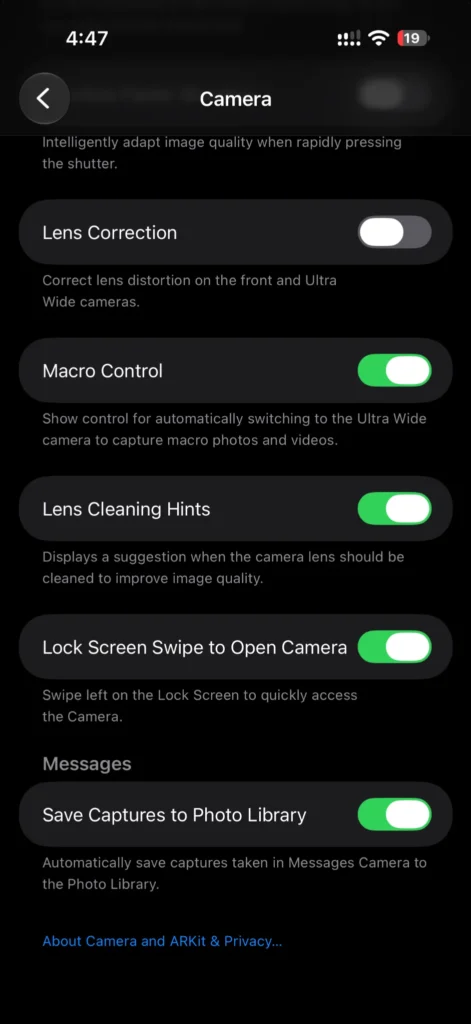
Review Lens Cleaning Hints
On supported iPhone models and iOS versions, Apple provides Lens Cleaning Hints.
The feature can alert you when the device detects a smudged lens.
Check Settings → Camera for the option if available.
This is a cleanliness suggestion, not a diagnostic test for internal sensor damage.
Seek Help After Physical Damage
If you notice cracked camera glass, moisture inside a lens, or damage around the camera assembly, don’t attempt home disassembly.
Professional inspection may help prevent further problems.
Frequently Asked Questions
Why are there dark spots on my iPhone camera?
Possible causes include dirt on the camera glass, a dirty lens protector, internal contamination, physical damage, or an image-processing problem. Testing several photographs helps narrow down the cause.
How do I remove black dots from iPhone camera photos?
Start by removing external lens accessories and cleaning the camera glass with a microfiber cloth. If the dots remain in the same location across new photographs, further diagnosis may be necessary.
Can dust get inside an iPhone camera?
Yes, internal contamination is possible, although iPhone camera assemblies are not designed to be routinely opened for sensor cleaning. Suspected internal dust should be assessed professionally.
Why do black spots appear when I photograph the sky?
A plain, bright sky makes dark imaging artifacts easier to notice. Repeated spots may indicate contamination or another optical problem, but a photograph alone cannot establish the exact cause.
Does cleaning the iPhone lens fix dark spots?
It can help when the problem involves exterior dirt or residue. It won’t remove contamination sealed inside a camera module.
Why are dark spots visible only on the 0.5× camera?
The artifact may be associated with the ultra-wide camera or its optical path. Compare other cameras under similar conditions to investigate further.
Can a scratched iPhone camera lens cause dark spots?
Damage to the exterior optical surface can affect image quality. However, scratches often cause reflections, haze, or other artifacts rather than distinct fixed black dots.
Will an iOS update remove camera dark spots?
An update may resolve certain software-related image problems, but it cannot clean dirty camera glass or repair hardware damage.
Does iPhone 17 Pro have Lens Cleaning Hints?
Lens Cleaning Hints is available on supported iPhone and iOS configurations. Check Settings → Camera to see whether it is offered on your device.
Should I use compressed air to clean my iPhone camera?
No. Apple advises against using compressed air when cleaning an iPhone.
Do dark spots mean the camera sensor is broken?
Not necessarily. Persistent spots can have several causes, including internal contamination. Professional diagnostics are appropriate when basic troubleshooting doesn’t resolve the issue.
Can I fix internal camera dust at home?
Opening the camera assembly isn’t recommended. iPhones aren’t designed for user-accessible sensor cleaning, and disassembly can damage components or introduce more contamination.
Final Thoughts
If you’re seeing dark spots on iPhone camera photos, start with the easiest and safest checks.
Remove external accessories, clean the camera glass, and take several photographs against a plain background.
Next, compare different camera lenses and test whether the spots appear across apps and recording modes.
If the marks disappear after cleaning or removing a lens protector, you’ve likely identified the cause.
However, persistent spots that remain in the same position after careful testing may indicate an internal optical or imaging problem.
Avoid opening the camera assembly or attempting aggressive cleaning.
When external cleaning and basic software checks don’t help, Apple Support can help determine whether professional camera service is needed.