Recorded an important video on your iPhone, only to discover that there’s no sound when you play it back? Maybe your video looks completely normal, but you can’t hear your voice, background sounds, or anything else.
The iPhone video no sound problem can happen for several different reasons.
Sometimes the video contains audio, but playback is muted or routed through connected headphones. In other cases, the iPhone didn’t capture usable sound during recording, or an editing feature changed how the audio plays.
The distinction matters because the fixes are different.
Fortunately, you can identify many of these problems without resetting your iPhone, deleting recordings, or installing third-party repair software.
In this guide, we’ll explain 9 practical fixes for iPhone videos with no sound, including microphone tests, Photos playback controls, Camera sound settings, Audio Mix, Bluetooth accessories, and screen recording audio.
These steps apply to recent iPhones, including the iPhone 17 Pro, although certain features vary by model and iOS version.
Quick Answer: How to Fix iPhone Video No Sound
If your iPhone video has no sound, start with these checks:
- Open the video in Photos, unmute playback if necessary, and increase the media volume.
- Disconnect Bluetooth headphones or other audio-output devices.
- Compare the silent video with another recording.
- Test your microphones using Voice Memos and the Camera app.
- Remove microphone-obstructing cases or accessories.
- Review Settings → Camera → Record Sound and any Audio Mix edits.
- Check microphone permissions if the problem affects a third-party recording app.
- If it’s a screen recording, check the microphone setting in Control Center.
- Restart your iPhone, check for iOS updates, and seek service if microphone tests continue failing.
Important: A video that contains an audio track but isn’t playing sound is different from a recording that never captured audio.
If the recording has no usable audio track, increasing the volume or changing an iPhone setting cannot recreate the original sound.
For official microphone troubleshooting, see Apple’s guide to fixing iPhone microphone problems.
Table of Contents
Why Does My iPhone Video Have No Sound?
Before trying every fix, identify where the problem occurs.
There are four common situations.
1. The Video Plays Silently in Photos
If the video looks normal but makes no sound, the problem may involve playback volume, mute controls, or audio routing.
Start with the first three fixes.
2. Newly Recorded Videos Have No Audio
If videos recorded today are silent while older videos play normally, focus on recording rather than playback.
Check your microphones, accessories, and Camera settings.
3. Only Screen Recordings Have No Sound
Screen recording uses different controls from ordinary Camera video recording.
You may need to enable microphone capture, or the application you’re recording may restrict audio capture.
4. Only One Shared or Downloaded Video Is Silent
If your own recordings work but one downloaded video has no sound, the file or receiving application may be responsible.
The original might contain no audio, or the receiving app may have muted playback.
Test that file separately before changing your iPhone’s system settings.
Fix 1: Check the Video’s Playback Volume and Mute Setting
The first fix is also the simplest.
Sometimes sound is present in the recording but isn’t being played through your iPhone.
How to Check Playback Audio
- Open the Photos app.
- Select the video that has no sound.
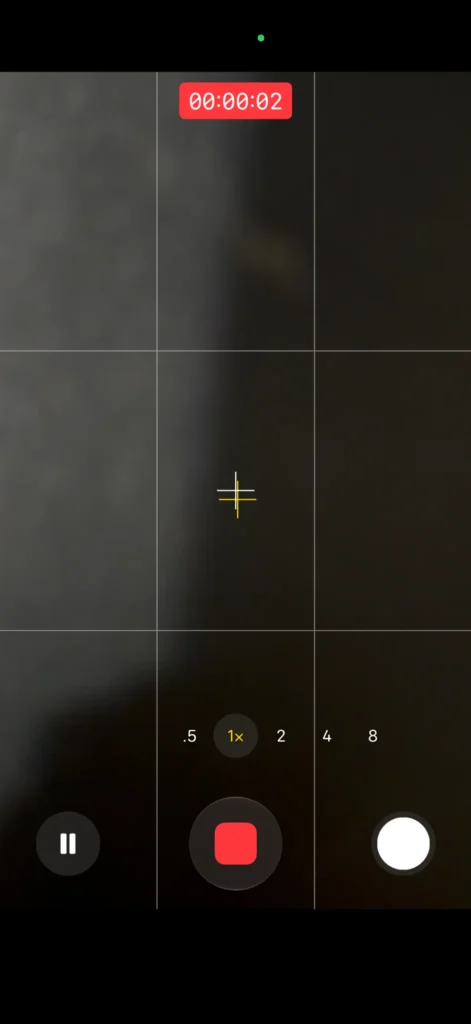
- Tap the video to reveal its playback controls.
- Look for a speaker or mute control, if shown.
- Unmute the video if necessary.
- Play the video.
- Press Volume Up while it is playing.
Why This Can Help
The volume buttons adjust different types of audio depending on what you’re doing.
When media is playing, pressing Volume Up generally adjusts the media volume.
That is more relevant to video playback than the ringtone volume setting.
Does Silent Mode Mute iPhone Videos?
Not ordinarily.
Silent Mode primarily affects ringtones, alerts, and certain system sounds.
It doesn’t automatically mute all music or video playback.
If your iPhone is in Silent Mode and a video plays without sound, investigate the media volume and audio output instead of assuming Silent Mode is responsible.
If no apps are producing sound, our iPhone Speaker Not Working troubleshooting guide provides additional checks.
Fix 2: Disconnect Bluetooth Headphones and Check Audio Output
Your iPhone may be playing sound through a connected accessory instead of its built-in speakers.
For example, the video could be sending audio to Bluetooth headphones, a compatible speaker, or another available device.
Check Your Audio Output
- Start playing the affected video.
- Open Control Center.
- Find the media playback controls.
- Tap the audio-output or AirPlay control.
- Review the selected audio device.
- Choose iPhone if you want sound from the built-in speaker.
- Return to Photos and test the recording.
You can also temporarily disconnect Bluetooth headphones.
What If the Video Works After Disconnecting?
The issue was likely related to audio routing or the connected accessory rather than the video recording itself.
If your headphones reconnect automatically, verify the selected playback device again.
What About AirPods?
On supported iPhones, connected AirPods can affect both playback and recording input.
For example, an external microphone may be available during certain camera recording experiences.
If the problem happens only with AirPods connected, check the accessory’s settings and connection.
Our AirPods Microphone Not Working guide explains how to test microphone selection and troubleshoot accessory audio problems.
Fix 3: Check Whether the Original Video Contains Sound
Before making changes to your iPhone, determine whether the problem affects every video or just one recording.
This helps distinguish playback problems from recording problems.
Compare Different Videos
- Open Photos.
- Play a video you know previously contained sound.
- Confirm whether you can hear its audio.
- Open the affected video.
- Compare the results.
- Record a new five-second test video with your iPhone.
- Check whether the new video captures your voice.
What Do the Results Mean?
All videos are silent: Focus on playback volume, connected audio devices, speaker functionality, or system-wide audio problems.
Only one video is silent: The recording may have been captured without audio, modified during editing, or affected during sharing or export.
Only new Camera videos are silent: Investigate the microphone and recording configuration.
Test the File on Another Device
If you have access to a computer, transfer a copy of the affected video and play it there.
For example, you can use your Mac and a compatible media player.
If the same file has no sound on another device, the problem may be within the file rather than your iPhone speaker.
However, the result doesn’t prove that the audio track is absent. The file may also have an encoding or compatibility issue.
What If the Video Lost Sound After Editing?
Check whether the original video still exists.
If the editing was performed in Photos, review the available editing and revert options before changing anything further.
Be careful not to overwrite a valuable original recording.
Fix 4: Test Your iPhone Microphones
If newly recorded videos have no sound, one possible cause is a microphone problem.
Modern iPhones have multiple microphones, and different recording situations can use different combinations.
A microphone working during a phone call doesn’t necessarily prove that every camera-recording input is functioning correctly.
Apple recommends testing microphone performance with Voice Memos and video recordings.
Test 1: Record a Voice Memo
- Open Voice Memos.
- Tap Record.
- Speak clearly near the bottom of your iPhone.
- Stop the recording.
- Play it back.
- Listen for your voice.
If your voice sounds clear, at least the recording path used by that test is working.
If the recording is silent, quiet, or distorted, investigate microphone obstructions or hardware problems.
Test 2: Record a Rear Camera Video
- Open Camera.
- Select Video mode.
- Start recording.
- Speak while facing the top of your iPhone.
- Stop the recording.
- Open the video in Photos.
- Play it back.
Test 3: Record a Front Camera Video
- Return to Camera.
- Switch to the front-facing camera.
- Record another short video while speaking.
- Stop recording.
- Play the video.
Compare the front and rear camera recordings.
Why Test Both Cameras?
Apple specifically recommends recording video with both camera orientations when checking certain microphone problems.
The comparison can help identify whether an issue is limited to particular recording conditions or input paths.
However, the test doesn’t conclusively identify a specific damaged microphone.
Modern iPhones may combine input from multiple microphones during recording.
For more troubleshooting, read our iPhone Microphone Not Working on Calls guide.
Fix 5: Remove Cases and Clean Microphone Openings Safely
An iPhone microphone can become partially obstructed by a phone case, protective film, dust, or other debris.
This can cause recordings to sound quiet, muffled, distorted, or occasionally unusable.
Check for Obstructions
- Remove your iPhone case temporarily.
- Inspect the external microphone openings.
- Check whether a protective accessory is covering an opening.
- Look for visible debris.
- Clean only according to Apple’s recommended procedures.
- Record another short test video.
How Should You Clean the iPhone?
Use a soft, lint-free cloth for exterior cleaning.
Avoid inserting sharp objects into microphone openings.
Don’t spray liquid directly into openings or use compressed air.
Apple specifically recommends removing cases, protective films, and debris as part of microphone troubleshooting.
For proper cleaning precautions, see Apple’s official iPhone cleaning instructions.
What If Both Microphone Tests Still Fail?
If Voice Memos and Camera recordings remain silent after removing obstructions, the problem may require professional diagnosis.
Don’t repeatedly insert tools into microphone holes or attempt to dismantle the phone.
Fix 6: Review Camera Sound Settings and Audio Mix
On newer iPhones, Apple provides additional options for how video sound is recorded and processed.
These features are useful, but it’s important to understand what they actually do.
Check Camera Record Sound Settings
On an iPhone 16 or later:
- Open Settings.
- Tap Camera.
- Select Record Sound.
- Review the available options.
- Choose an appropriate mode.
- Record a short test video.
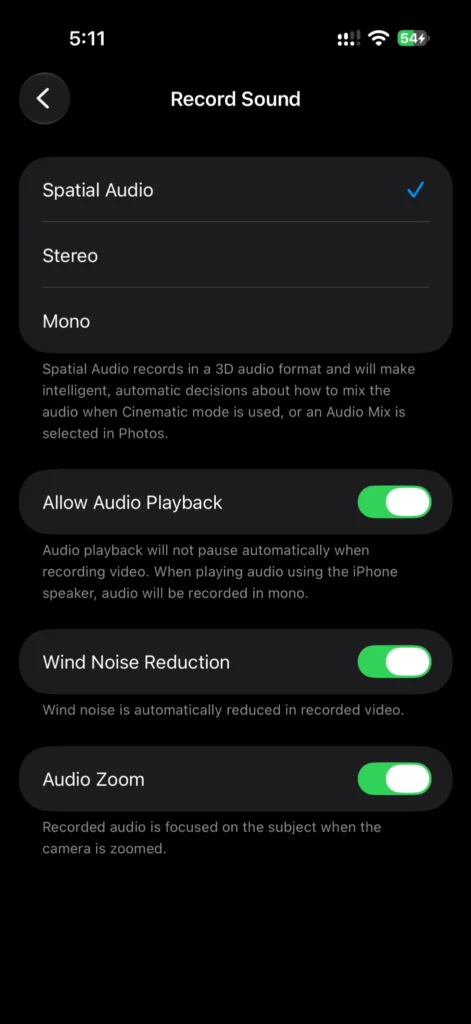
Apple documents three main recording modes:
Spatial Audio: Captures sound with spatial information for supported playback and editing experiences.
Stereo: Records audio with separate left and right channels.
Mono: Records audio into a single-channel presentation.
These options affect the recording format and audio characteristics.
They are not ordinary microphone On/Off switches.
Changing Spatial Audio to Stereo or Mono isn’t guaranteed to fix a completely silent microphone.
Check Whether Audio Mix Is Suppressing the Sound
On supported iPhone models, videos recorded with Spatial Audio can be edited using Audio Mix.
Audio Mix lets you alter how prominently different sounds appear.
For example, it can reduce sounds from outside the video frame or emphasize voices.
If an edited video sounds unusually quiet or certain voices are missing, review its Audio Mix settings.
How to Check Audio Mix
- Open Photos.
- Select an affected video that supports Audio Mix.
- Tap Edit.
- Select Audio Mix.
- Review the current processing mode.
- Choose Standard to compare with the original recorded audio.
- Listen before deciding whether to save any changes.
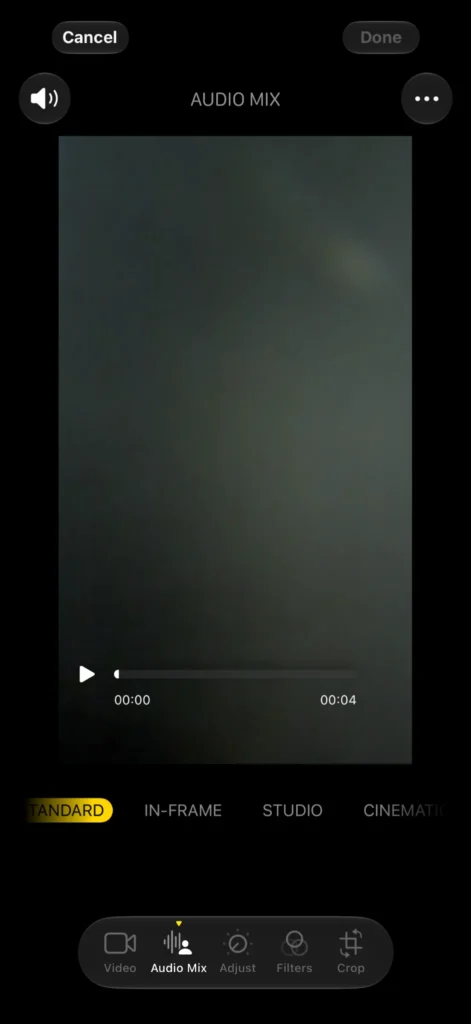
Available modes can include:
- Standard: Plays the original recorded audio.
- In-Frame: Reduces sounds from sources outside the video frame.
- Studio: Reduces background noise and reverberation.
- Cinematic: Creates a more cinematic spatial arrangement of voices and environmental sounds.
If Audio Mix was heavily reducing an important sound, changing the mode may help.
But Audio Mix cannot recover sound that was never recorded.
For full instructions, see Apple’s guide to editing video audio in Photos.
Fix 7: Check Microphone Permissions for Recording Apps
If videos recorded using the built-in Camera app have sound but recordings from another app are silent, check that application’s microphone permission.
This can apply to certain social-media, messaging, conferencing, and camera applications.
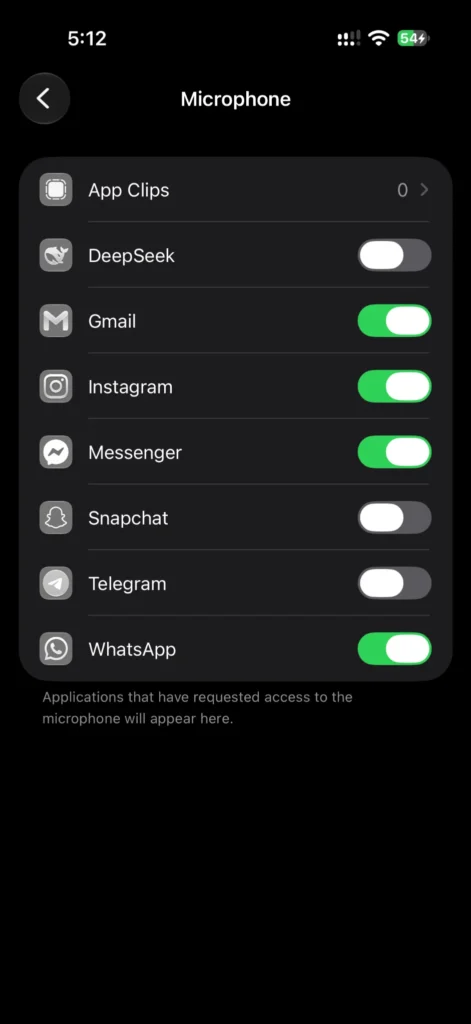
Review Microphone Permissions
- Open Settings.
- Tap Privacy & Security.
- Select Microphone.
- Find the affected application.
- Make sure microphone access is enabled when appropriate.
- Reopen the application.
- Record a short test video.
What If the App Doesn’t Appear?
Not every app appears in the permission list until it requests microphone access.
If the app isn’t listed, review its own settings and ensure it supports audio recording.
You can also contact the app developer if permission is enabled but the problem persists.
What About Apple’s Camera App?
Don’t expect the built-in Camera app to use the same permission switch as an unrelated third-party application.
The Microphone privacy list is primarily relevant when diagnosing app-specific access.
If Apple’s Camera app records silent videos, focus on the earlier microphone and recording tests.
Fix 8: Check Screen Recording Microphone Settings
If the problem occurs specifically with screen recordings, the solution is different.
Apple’s Screen Recording feature can capture screen content and, when enabled, microphone audio.
How to Record Your Voice With Screen Recording
- Open Control Center.
- Find Screen Recording.
- Touch and hold its control.
- Tap Microphone to turn it on.
- Select Start Recording.
- Wait for the countdown.
- Record a short test.
- Stop the recording.
- Open Photos and review the result.
Why Is the Screen Recording Still Silent?
There are two different possibilities.
Your voice is missing: Check whether the screen recording microphone is enabled.
An app’s internal audio is missing: Some applications restrict the recording of their content or audio.
Turning on the microphone doesn’t guarantee that every application will allow its audio to be captured.
Apple also notes that screen recording and screen mirroring cannot be used simultaneously in the normal supported workflow.
For complete instructions, see our iPhone Screen Recording Not Working guide.
That article covers missing controls, silent screen recordings, restricted content, and other screen-capture problems.
Fix 9: Restart, Update iOS, and Seek Service If Necessary
If simpler checks haven’t helped, try the normal software troubleshooting steps.
Restart Your iPhone
On an iPhone with Face ID:
- Press and hold the Side button and either Volume button.
- Drag the power-off slider.
- Wait approximately 30 seconds.
- Turn your iPhone back on.
- Record another short test video.
Restarting can resolve some temporary software problems.
It won’t repair a damaged microphone.
Check for an iOS Update
- Open Settings.
- Tap General.
- Select Software Update.
- Review any compatible update.
- Back up important information before installing.
- Update if appropriate.
- Test video recording again.
An update may resolve certain software issues, but isn’t guaranteed to restore missing sound.
When Should You Contact Apple Support?
Consider professional assistance when:
- Voice Memos records no usable sound.
- Front and rear Camera video tests repeatedly fail.
- Removing accessories doesn’t help.
- The microphones appear physically damaged.
- The problem began after a drop or liquid exposure.
- Multiple recording applications fail despite having appropriate permissions.
Apple recommends service when microphone problems remain after the basic checks.
Start with Apple’s official microphone troubleshooting guide.
Why Does My iPhone Video Have No Sound After Sharing?
Sometimes a video plays normally in Photos but becomes silent after you send it to someone.
That doesn’t necessarily mean your iPhone microphone stopped working.
Check the Original Recording
Play the original video in Photos.
If its audio works, the original contains usable sound.
Check the Received Copy
Ask the recipient to play the received video with their volume enabled.
If necessary, compare the original file with the transferred copy.
Review the Sharing Application
Some applications mute video previews by default.
For example, a video may appear silent while browsing a social-media feed but play sound after opening it and enabling audio.
A video editor or export process can also affect the audio included in the final file.
Try Another Sharing Method
If possible, send an original copy through another compatible transfer method.
For example, use AirDrop between compatible Apple devices or save the original file to a supported storage service.
Don’t repeatedly compress or re-export the only copy of an important video.
Keep the original file until you’ve confirmed the transferred version plays correctly.
Why Does Music Stop When I Start Recording Video?
This is a separate issue from the microphone failing to capture sound.
Some iPhone users want music or other audio to continue playing through the speaker while recording a video.
On supported iOS versions, Apple provides an Allow Audio Playback option.
How to Check
- Open Settings.
- Tap Camera.
- Select Record Sound.
- Look for Allow Audio Playback.
- Review whether it is enabled.
This setting controls whether currently playing audio can continue during video recording.
It doesn’t turn the video microphone on or off.
Music played through the iPhone speaker may be captured by the microphone. Audio played through headphones won’t necessarily be captured the same way.
If your goal is to create a polished video with background music, adding an authorized audio track during editing may provide better control.
Can You Restore Sound to a Video Recorded Without Audio?
This depends on what happened to the sound.
If the Video Was Muted During Playback
You may be able to hear the original recording simply by unmuting it or selecting the correct audio device.
If Audio Was Suppressed During Editing
You may be able to restore the original audio settings or revert an edit, depending on the application and whether the original data remains available.
If the Recording Never Captured Audio
Changing the volume or microphone settings afterward cannot recreate the missing original sound.
Some editing tools may generate substitute narration or other audio, but that is not recovery of the actual original recording.
For important personal or professional recordings, avoid uploading private videos to unfamiliar online repair services.
How to Prevent Silent iPhone Videos
A few simple checks can reduce the chance of losing sound in future recordings.
Record a Short Test First
Before recording an important interview, meeting, or event, capture a brief sample.
Play it back and confirm the microphone is working.
Inspect the Microphone Areas
Make sure cases, accessories, and your hands aren’t obstructing the microphone openings.
Review Connected Accessories
Confirm whether your iPhone is using its built-in microphones or a compatible external audio input.
Check Recording Settings
If you use an iPhone 16 or later, review the available Camera sound modes.
Remember that these modes change how audio is recorded, not whether every recording will contain sound.
Keep Your Original Files
Before editing or sharing an important video, preserve the original recording when possible.
This makes it easier to compare edited and unedited versions if sound unexpectedly disappears.
Frequently Asked Questions
Why does my iPhone video have no sound?
Possible causes include muted playback, low media volume, Bluetooth audio routing, microphone obstruction, app permissions, editing changes, or a recording that never captured usable sound.
How do I unmute a video on iPhone?
Open the video in Photos, reveal the playback controls, use the unmute option if available, and increase the media volume.
Why is my iPhone camera recording video without audio?
The microphone may be obstructed, an accessory may be affecting the input, or another recording problem may exist. Test Voice Memos and both Camera orientations to narrow down the cause.
Does Silent Mode turn off video sound?
Not ordinarily. Silent Mode doesn’t automatically mute normal media playback. Check the video’s audio controls and playback volume.
Why does my iPhone screen recording have no sound?
If your voice is missing, enable Microphone in the Screen Recording menu. Audio from certain apps may be restricted independently.
Does iPhone 17 Pro record video with Spatial Audio?
Yes, the iPhone 17 Pro supports Spatial Audio video recording and compatible Audio Mix editing. You can review the recording mode under Settings → Camera → Record Sound.
Can Audio Mix fix a video with no sound?
It may help when editing has reduced or suppressed existing recorded audio. It cannot recreate audio that was never captured.
Why does video sound work through headphones but not the iPhone speaker?
That suggests investigating the built-in speaker, playback volume, or audio routing rather than assuming the video file itself is silent.
Can a phone case block video recording sound?
Yes. A poorly fitted case or accessory may obstruct microphone openings and affect recording quality.
Why do my videos have sound in Photos but not after uploading?
The receiving platform may mute playback, process the uploaded file differently, or have a problem with the transferred copy. Compare it with the original recording.
Can I recover the audio from an iPhone video that was recorded silently?
If the file never contained usable audio, changing settings cannot recover the original sound. If audio still exists but was muted or altered during editing, restoring those settings may help.
Should I reset my iPhone to fix video sound?
A factory reset isn’t an appropriate first step. Start with playback, microphone, accessory, and app tests. Seek support if the problem persists.
Final Thoughts
If you’re facing the iPhone video no sound problem, the best solution depends on whether the sound is missing during playback or was never recorded.
Start by checking the video’s volume and audio output.
If the original recording is silent, test your microphones with Voice Memos and short videos using both cameras.
On newer iPhones, review the Camera recording mode and Audio Mix settings, especially if the issue began after editing.
For silent screen recordings, check the Screen Recording microphone setting and application restrictions.
Most importantly, protect your original videos and avoid unnecessary resets.
Once you identify whether the problem is playback, microphone input, editing, or file-specific, you can troubleshoot it without changing unrelated iPhone settings.