Google Play Store not opening on your Android phone? Maybe the app closes immediately, gets stuck on the loading screen, displays a blank page, or repeatedly shows a message saying it has stopped working.
This problem can affect Google Pixel, Samsung Galaxy, Motorola, OnePlus, and other Android devices.
When the Play Store won’t open, you may be unable to install new apps, update existing ones, or access your purchases.
Fortunately, a broken Play Store doesn’t automatically mean your Android phone needs a factory reset.
In this guide, we’ll explain 10 practical ways to fix Google Play Store not opening, starting with simple checks and gradually moving to more advanced troubleshooting.
Most of these steps can be performed without deleting your installed apps or personal files.
Google Play Store Not Opening: Quick Answer
If Google Play Store won’t open on your Android phone, try these fixes first:
- Check whether your internet connection works.
- Force stop Google Play Store and reopen it.
- Restart your Android phone.
- Make sure your date and time settings are correct.
- Check your available storage space.
- Clear Google Play Store’s cache.
- Clear its app storage if the problem continues.
- Uninstall problematic Play Store updates.
- Install available Android system updates.
- Review your Google Account connection as an advanced step.
Start with the first three fixes. They are quick, reversible, and don’t require deleting your Google Account or resetting your device.
Google recommends checking the internet connection, restarting the app and device, and reviewing basic system settings before attempting advanced troubleshooting.
You can compare these steps with Google’s official Google Play troubleshooting instructions.
Table of Contents
Why Is Google Play Store Not Opening?
Google Play Store may fail to open for several reasons.
The most common possibilities include:
- Temporary app problems: The Play Store process may have become unresponsive.
- Internet connection issues: The app may open but fail to load online content.
- Corrupted temporary files: Cached information may interfere with normal operation.
- App update problems: A recent update may not be working correctly on your device.
- Incorrect system time: Incorrect date or time settings can interfere with online services.
- Low storage space: Limited storage may affect downloads, updates, and some app operations.
- Google Account problems: Authentication or synchronization issues can prevent some Play Store features from working.
- Broader Android software problems: A device-level issue may affect the Play Store and other Google apps.
These causes can produce similar symptoms, but the appropriate fix depends on what you’re experiencing.
Identify Your Play Store Problem First
Before changing settings, observe what happens when you tap the Play Store icon.
The app opens and immediately closes: Focus on force stopping the app, clearing its cache, and checking updates.
The Play Store opens to a blank screen: Check your connection, date and time, and app data.
The app remains stuck on its logo: Restart the phone and investigate the Play Store’s stored files.
The Play Store works but downloads fail: That’s a different problem involving downloads, app compatibility, or storage. Use Google’s app download troubleshooting guide.
The Play Store icon is missing entirely: Check whether the application is disabled or hidden rather than assuming it is crashing.
Now let’s work through the fixes.
1. Check Your Internet Connection
If Google Play Store is not opening properly or remains stuck loading, check whether your Android phone can reach the internet.
The Play Store depends on Google’s online services to display apps, account information, and updates.
A weak or interrupted connection can prevent those features from loading.
How to Test Your Connection
- Close Google Play Store.
- Open Chrome or another web browser.
- Visit a website you haven’t recently opened.
- Check whether the page loads normally.
- If you’re using Wi-Fi, try switching to mobile data.
- If you’re using mobile data, try a reliable Wi-Fi network.
- Reopen Google Play Store.
If the app works on one network but not another, investigate the connection rather than immediately clearing app data.
What if Other Apps Also Have Internet Problems?
Try restarting your router or briefly toggling Airplane Mode off and on.
If your phone uses a VPN, you can temporarily disconnect it for testing, provided doing so is appropriate for your security requirements.
If your Android phone also cannot share its mobile connection with another device, our Android Hotspot Not Working guide explains how to troubleshoot that separate connection problem.
Expected result: Google Play Store should be able to communicate with Google’s servers when your connection is working normally.
2. Force Stop Google Play Store and Reopen It
Sometimes the Play Store becomes temporarily unresponsive.
Closing its window doesn’t always resolve a problem with the underlying app process.
You can use Android’s Force stop option to stop the application before reopening it.
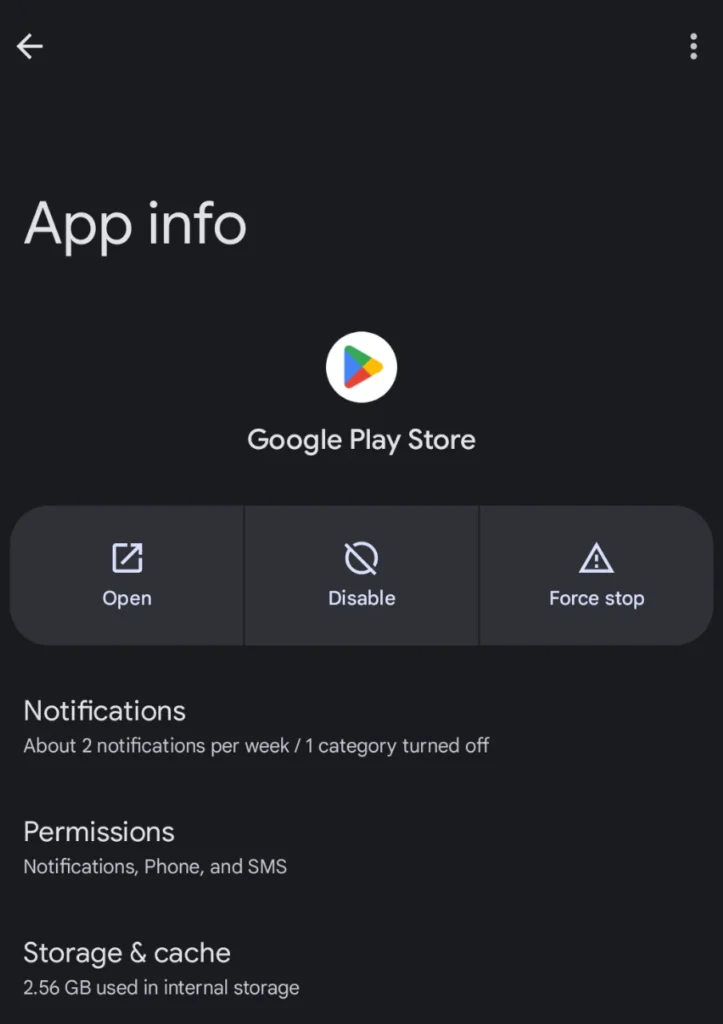
How to Force Stop Google Play Store
- Open your Android phone’s Settings.
- Tap Apps.
- Select See all apps if necessary.
- Find and tap Google Play Store.
- Tap Force stop.
- Confirm the action if prompted.
- Return to your Home Screen.
- Open Google Play Store again.
On many Android phones, you can reach the same screen by pressing and holding the Play Store icon and selecting App info.
This method closes the running Play Store application without uninstalling it.
It does not normally delete your downloaded apps, photos, or other personal files.
What if Force Stop Is Greyed Out?
The app may not currently be running.
Try opening Google Play Store again and move to the next fix if the problem continues.
3. Restart Your Android Phone
If Google Play Store still won’t open after force stopping it, restart your device.
A normal restart can clear temporary problems affecting Android apps and background services.
Steps
- Save any work in other applications.
- Open your phone’s power menu.
- Select Restart.
- Wait for your phone to restart completely.
- Unlock the device.
- Open Google Play Store.
The button combination for opening the power menu varies by manufacturer.
On many newer Pixel phones, you can press Power + Volume Up or use the power control in Quick Settings.
On Samsung Galaxy phones, use the power icon in Quick Settings or the supported side-button combination.
Why This Can Help
Restarting creates a fresh session for system processes and running applications.
If the Play Store failure was caused by a temporary software problem, a restart may resolve it.
Expected result: The Play Store opens normally after the phone restarts.
If it fails again immediately, continue checking your device settings.
4. Correct Your Android Date and Time Settings
Incorrect date and time settings can interfere with Android’s online services.
If your phone displays the wrong time or uses an incorrect time zone, Google Play may have difficulty communicating with its servers.
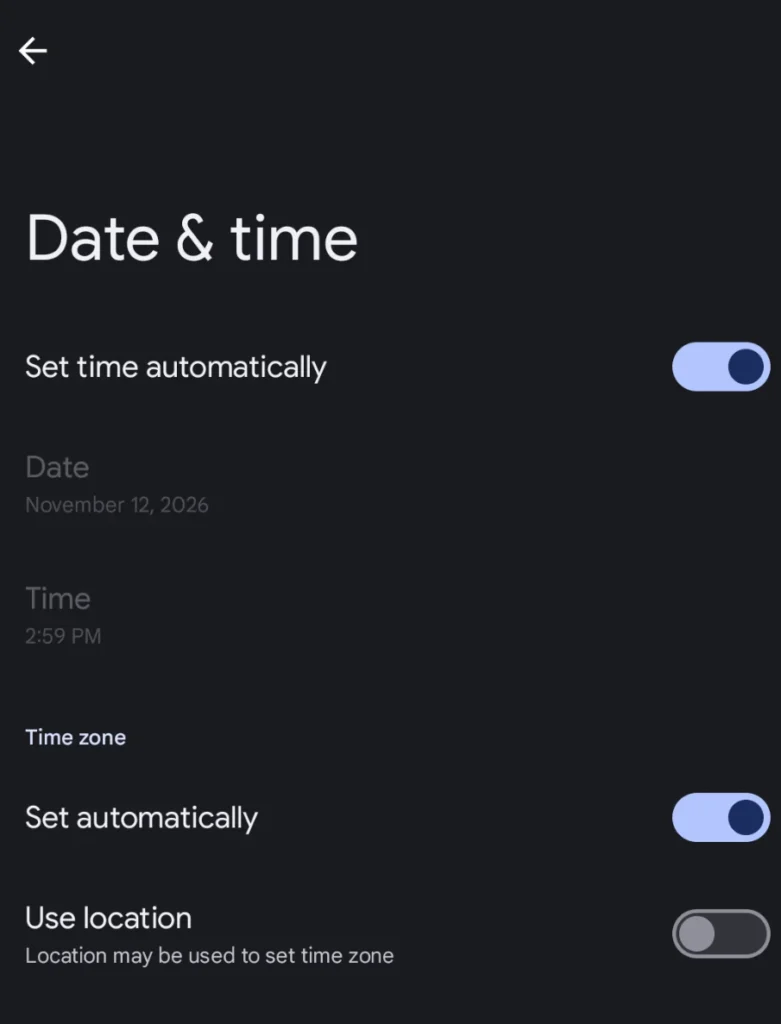
On Google Pixel and Many Android Phones
- Open Settings.
- Tap System.
- Select Date & time.
- Enable Set time automatically.
- Enable automatic time-zone detection if available.
- Wait briefly.
- Reopen Google Play Store.
On Samsung Galaxy phones, the equivalent options are generally under Settings → General management → Date and time.
Menu names can vary depending on Android version and manufacturer.
What if Automatic Time Is Already Enabled?
If the displayed date, time, and time zone are correct, this probably isn’t the cause.
Continue to the next fix rather than repeatedly changing your clock settings.
Google includes date and time checks in its basic Play Store troubleshooting guidance.
5. Check Your Phone’s Available Storage
Google Play Store not opening can sometimes occur alongside broader device performance or storage problems.
Although limited storage is more commonly associated with unsuccessful app downloads and installations, it is still worth checking.
Check Storage on Android
- Open Settings.
- Tap Storage.
- Review your available space.
- Check whether your device reports a low-storage warning.
- Remove unnecessary downloads or unused files if you’re running out of space.
- Restart the Play Store and test again.
Google identifies less than approximately 1 GB of available storage as a potential problem for downloading and installing apps.
This is not a guaranteed explanation for every Play Store startup failure.
What Should You Delete?
Start with files you recognize and no longer need.
For example, review old downloads, duplicate videos, and unused apps.
Avoid deleting unfamiliar system files or important app data simply to make room.
Expected result: If insufficient storage was contributing to the problem, freeing space may help the Play Store operate normally.
6. Clear Google Play Store Cache
Clearing the Play Store cache is a useful next step when the application crashes, remains stuck loading, or behaves unpredictably.
The cache contains temporary files that an app uses to improve performance.
Occasionally, those files may become outdated or problematic.
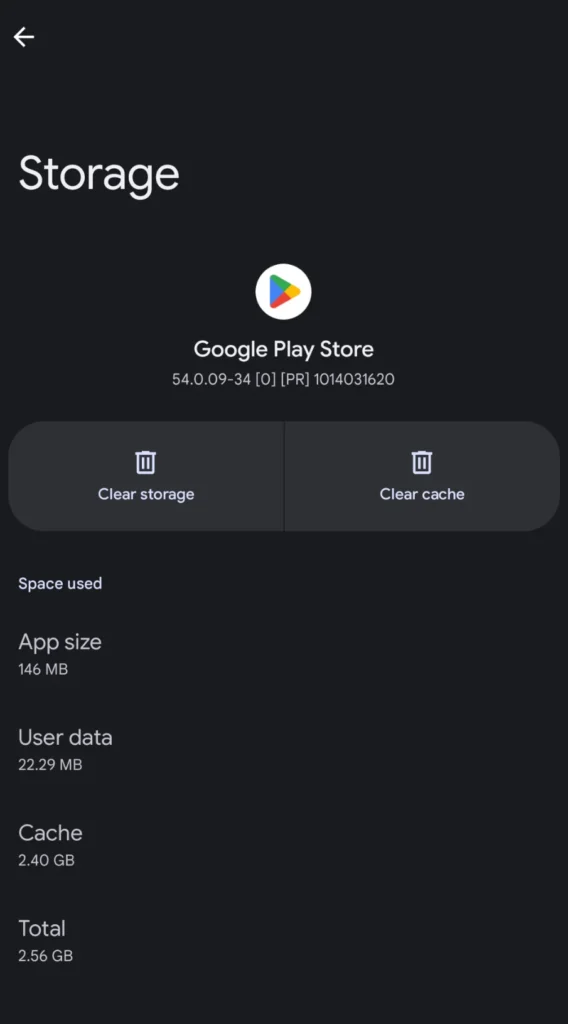
How to Clear Google Play Store Cache
- Open Settings.
- Tap Apps.
- Find Google Play Store.
- Select Storage & cache.
- Tap Clear cache.
- Reopen Google Play Store.
On some Samsung devices, the menu may be called Storage, and the option may appear as Clear cache at the bottom of the screen.
Does Clearing Cache Delete Installed Apps?
No.
Clearing the Play Store’s cache does not normally uninstall apps you’ve already downloaded.
It also does not erase your photos or other personal files.
This is different from clearing the app’s complete storage, which we’ll discuss next.
Google recommends clearing Play Store cache and data as troubleshooting steps in its advanced Play Store support guide.
7. Clear Google Play Store App Storage
If clearing the cache doesn’t work, you can consider clearing Google Play Store’s stored app data.
This is more disruptive than clearing the cache alone.
It resets certain local Play Store information and preferences.
Before You Continue
Google warns that clearing Play Store storage may remove settings related to:
- Parental controls.
- Purchase authentication or password protection.
- Other locally stored Play Store preferences.
You may also need to agree to the Play Store’s Terms of Service again.
Make sure you’re prepared to review those settings afterward.
How to Clear Play Store Storage
- Open Settings.
- Select Apps → Google Play Store.
- Tap Storage & cache.
- Select Clear storage, Clear data, or the equivalent option.
- Review the confirmation message.
- Confirm if you want to proceed.
- Reopen Google Play Store.
Clearing its storage does not normally delete the separate applications installed on your phone.
However, it can reset local settings within the Play Store itself.
After Clearing Storage
If Google Play Store starts working, check its security settings before installing or purchasing anything.
Re-enable parental controls or purchase authentication if you previously used them.
Expected result: The Play Store rebuilds its local information and may open normally again.
8. Uninstall Google Play Store Updates
If the Play Store stopped opening after an application update, reverting its updates is another supported troubleshooting option.
Many Google-certified Android phones include the Play Store as a preinstalled system app.
On those devices, you may be able to uninstall Play Store updates without removing the underlying application.
How to Uninstall Play Store Updates
- Find the Google Play Store icon.
- Press and hold the icon.
- Select App info.
- Tap the three-dot menu in the top-right corner, if available.
- Select Uninstall updates.
- Read the confirmation message.
- Tap OK if you want to proceed.
- Open Google Play Store again.
The option may not appear on every device or configuration.
How to Update Google Play Store Again
If the Play Store successfully opens:
- Tap your profile icon.
- Select Settings.
- Expand About.
- Find Play Store version.
- Tap Update Play Store.
Google provides these instructions in its official Play Store troubleshooting guide.
Important: Uninstalling updates is not the same as removing all installed apps. Don’t download unofficial Play Store APK files from unknown websites as an alternative.
9. Check for Android System Updates
If Google Play Store is still not opening, check whether your phone has a pending Android system update.
System updates may contain security patches, compatibility changes, and software fixes.
An update is not guaranteed to solve a Play Store problem, but it is worth reviewing if your device has been running older software.
On Google Pixel
- Open Settings.
- Tap System.
- Select Software updates or System update, depending on your version.
- Check for available updates.
- Review the update details.
- Back up important information before a significant update.
- Install a compatible update if appropriate.
On Samsung Galaxy
- Open Settings.
- Select Software update.
- Tap Download and install.
- Follow the instructions if an update is available.
After updating, restart your phone if necessary and test Google Play Store again.
What if the Play Store Works but Another App Still Doesn’t?
Treat the remaining app problem separately.
For example, if the Play Store now opens but your messages and other application alerts aren’t appearing, see our Android Notifications Not Showing guide.
This helps avoid repeatedly resetting the Play Store when the actual problem involves a different app or device setting.
10. Remove and Re-add Your Google Account as an Advanced Fix
If none of the earlier steps works, Google also lists removing and re-adding your Google Account as an advanced troubleshooting option.
However, this should not be your first solution.
Removing a Google Account from an Android phone removes associated account information from that device, including some locally available email, contacts, and settings.
It can also interrupt synchronization until the account is added again.
Before Removing Your Account
Make sure that:
- Your important information has been backed up or synchronized.
- You know your Google Account password.
- You can complete any required two-step verification.
- You understand which account you’re removing.
- Your phone is not restricted by work or school management policies.
If you aren’t confident about any of these points, skip account removal and seek device-specific help instead.
How to Remove and Re-add a Google Account
On many Android phones:
- Open Settings.
- Go to Passwords & accounts, Manage accounts, or the equivalent menu.
- Select the relevant Google Account.
- Tap Remove account.
- Review the warning carefully.
- Confirm only if you’ve backed up important information.
- Restart the phone.
- Return to the account settings.
- Select Add account → Google.
- Sign in and allow synchronization to complete.
The exact menus depend on the Android version and manufacturer.
Google explains the implications in its Add or remove an account on Android guide.
Expected result: Reconnecting the account may resolve an authentication-related Play Store problem, but it will not fix every application crash.
Google Play Store Not Opening After an Update
If the Play Store stopped opening immediately after a Google Play update, the most relevant troubleshooting steps are:
- Force stop Google Play Store.
- Restart the phone.
- Clear the Play Store cache.
- Consider clearing Play Store storage if necessary.
- Uninstall Play Store updates using the supported App info option.
- Reopen the app and update it again once it works.
You don’t need to perform every step if an earlier one resolves the issue.
Also, avoid assuming that the latest update is definitely responsible just because the problem appeared afterward.
A connection problem, low-storage condition, or unrelated software issue may have occurred at the same time.
Google Play Store Opens but Shows a Blank Screen
A blank or continuously loading Play Store screen is different from an application that instantly crashes.
If you can open the app but nothing loads, prioritize your internet connection.
Switch between Wi-Fi and mobile data to see whether the problem changes.
Then check your automatic date and time settings.
If other online apps work normally, try force stopping Google Play Store and clearing its cache.
If the blank screen continues, proceed to the more advanced Play Store troubleshooting steps.
Avoid performing a factory reset merely because the app displays a blank page.
Google Play Store Keeps Stopping on Android
If you repeatedly see a message such as Google Play Store keeps stopping, the Play Store process is likely crashing.
Start by restarting the phone, force stopping Google Play Store, and clearing its cache.
If the error continues, consider resetting the Play Store’s local data or uninstalling its updates.
Pay attention to whether other Google applications also stop responding.
If several unrelated apps crash, the issue may involve broader Android software behavior rather than the Play Store alone.
What if Google Play Store Is Missing Instead of Not Opening?
If you cannot find the Play Store icon anywhere, confirm whether the app is disabled or hidden.
On supported Android devices:
- Open Settings.
- Go to Apps.
- Look for Google Play Store.
- If it is disabled, check whether an Enable option is available.
- Enable the app if appropriate.
Not all Android devices include Google Play Store, especially certain non-Google-certified devices.
A device without Google’s services cannot necessarily gain official Play Store support by downloading an APK.
If you’re using a managed work or school phone, app availability may be controlled by your administrator.
Advanced Troubleshooting: Google Play Services
Google Play services is a separate Android component that supports important functionality used by Google apps and other software.
Google lists clearing Play services cache and data among its advanced troubleshooting options.
However, Google specifically warns against clearing Google Play services data unless other options have failed.
That operation may affect saved information such as payment methods, transit cards, and credentials. It may also require additional account authentication.
For that reason, do not clear Play services storage casually.
If your Play Store remains unusable after the previous fixes, consult Google’s advanced troubleshooting guidance or contact your phone manufacturer before proceeding.
A factory reset should be reserved for genuinely persistent problems after backup and appropriate troubleshooting. It erases personal data and is not a routine first-line fix.
When the Problem Is Not Actually Google Play Store
Sometimes an app update problem is mistaken for a Play Store problem.
If the Play Store itself opens normally, but only one app refuses to install or update, investigate that individual app’s compatibility, permissions, and available storage.
Similarly, if you can update Android Auto through the Play Store but it still won’t connect to your vehicle, that’s a different troubleshooting issue.
Our Android Auto Not Connecting guide explains how to investigate vehicle connections, wireless compatibility, cables, and related settings.
The key is to determine whether the Play Store application is failing or whether another app is experiencing its own problem.
Frequently Asked Questions
Why is Google Play Store not opening on my Android phone?
Possible reasons include a temporary app problem, an internet connection issue, incorrect time settings, problematic cached data, or a software update problem.
Start by force stopping the Play Store, restarting your phone, and checking connectivity.
Does clearing Google Play Store cache delete apps?
No. Clearing Google Play Store’s cache does not normally uninstall apps or delete personal files.
Clearing its complete app storage is different and may reset Play Store preferences.
How do I fix Google Play Store when it keeps stopping?
Try restarting your phone and clearing the Play Store cache. If the crashes continue, review app storage, uninstall Play Store updates if supported, and check for Android updates.
Can I uninstall and reinstall Google Play Store?
On many Google-certified Android devices, the Play Store is a preinstalled system application. You may be able to uninstall its updates, but removing the underlying app is not generally the recommended troubleshooting method.
Why won’t Google Play Store open on Samsung Galaxy?
The same basic troubleshooting principles apply to Samsung devices: check the internet connection, force stop the app, restart the phone, clear cached data, and review updates.
The exact Settings menu names may differ from those on Google Pixel phones.
Why won’t Google Play Store open even though the internet works?
If other online apps work normally, investigate the Play Store’s own process, cached files, stored data, and installed updates.
However, an otherwise working connection doesn’t guarantee that every Google service is reachable.
Should I factory reset my phone to fix Google Play Store?
Not initially.
Google lists factory resetting as a last-resort option after other troubleshooting steps have failed. Back up important information and consider device-specific support before taking that step.
Final Thoughts
If Google Play Store is not opening on your Android phone, start with the simplest fixes before changing account or system settings.
Check your internet connection, force stop the Play Store, and restart your device.
If the problem continues, review your date and time, available storage, and Play Store cache.
Clearing the app’s storage or uninstalling its updates may help when simpler options fail, but those steps deserve additional care.
Finally, remember that Google Account removal, Google Play services data deletion, and factory resets are considerably more disruptive.
A systematic approach gives you the best chance of restoring the Play Store while protecting your data and avoiding unnecessary changes.