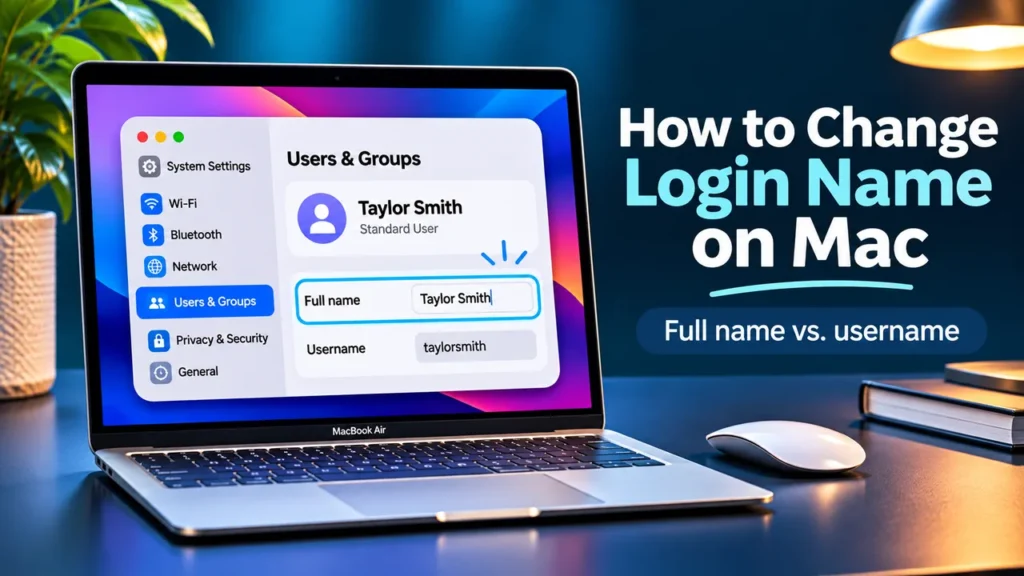
Want to update the name shown when signing in to your MacBook Air, MacBook Pro, or iMac? Learning how to change login name on Mac is possible, but there’s an important distinction between changing your displayed full name and changing your actual macOS username.
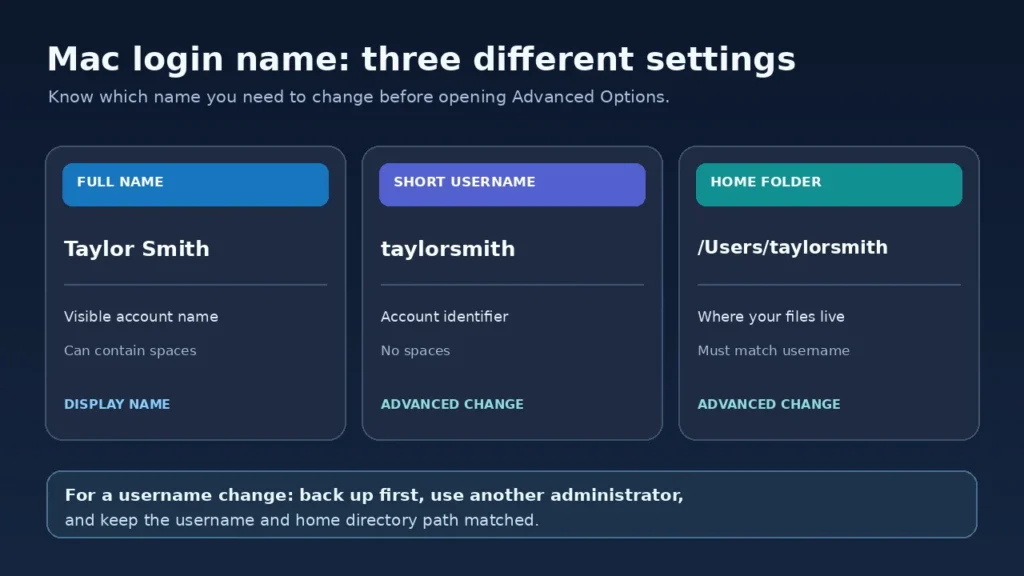
Your Mac uses a full name, a short username, and a home folder to identify your account. These are related, but they serve different purposes.
If you simply want a different name displayed on the login screen, updating the account’s Full name may be enough.
If you want to change the short username used by macOS, the process is more involved. Apple requires the account name and home folder to be renamed carefully, using another administrator account.
In this guide, we’ll explain both approaches, including 8 steps to safely change your Mac login username, the precautions you should take, and how to avoid problems with your files or account.
These instructions cover recent macOS releases, including macOS 27, Tahoe, Sequoia, Sonoma, and Ventura, with notes for older Macs.
Important: Changing your short username incorrectly can prevent you from signing in. Back up your Mac and follow Apple’s official procedure before making advanced changes.
Quick Answer: How to Change Login Name on Mac
First, decide what you want to change.
If you want to change the name displayed at login:
- Make sure another administrator account is available.
- Sign out of the account you want to rename.
- Sign in to the other administrator account.
- Open System Settings → Users & Groups.
- Control-click the account you want to rename.
- Select Advanced Options.
- Change only Full name.
- Save the change and restart if prompted.
Do not change the User name, User ID, or Home directory fields when you only want a different display name.
If you want to change the short username: You must also rename the home folder and update the corresponding account settings. Follow the complete advanced procedure later in this guide.
Apple documents the account-renaming process in its official macOS user account and home folder guide.
Table of Contents
Mac Full Name vs. Username vs. Home Folder
Before changing your Mac login name, it’s useful to understand the three main account identifiers.
1. Full Name
The Full name is the human-readable name associated with your Mac user account.
For example:
Taylor Smith
It can appear in account information and login-related interfaces.
This name can contain spaces and doesn’t need to match your short username.
2. Username or Short Account Name
The short username is an account identifier used internally by macOS.
For example:
taylorsmith
It is also called the account name or short name.
It is normally established when the user account is created.
Unlike the full name, changing an existing short username requires special care.
3. Home Folder Name
The home folder contains your account’s personal files and user-specific data.
For example:
/Users/taylorsmith
When using Apple’s advanced account-renaming procedure, the short username and home folder name must match.
If you change one without correctly updating the other, macOS may no longer locate the expected user environment.
What About the Computer Name?
Your Mac also has a separate computer name, which identifies the device on a network.
That isn’t your account username.
If you only want to rename the device, follow our How to Change Mac Computer Name guide.
For account names, continue below.
How to Change Only the Full Login Name on Mac
If your goal is to display a different name without changing your home folder, concentrate on the Full name field.
Apple’s documented procedure accesses this field through the account’s Advanced Options.
Although changing the Full name is less disruptive than renaming the account’s short username, you should still work carefully.
Step 1: Check That You Have Another Administrator
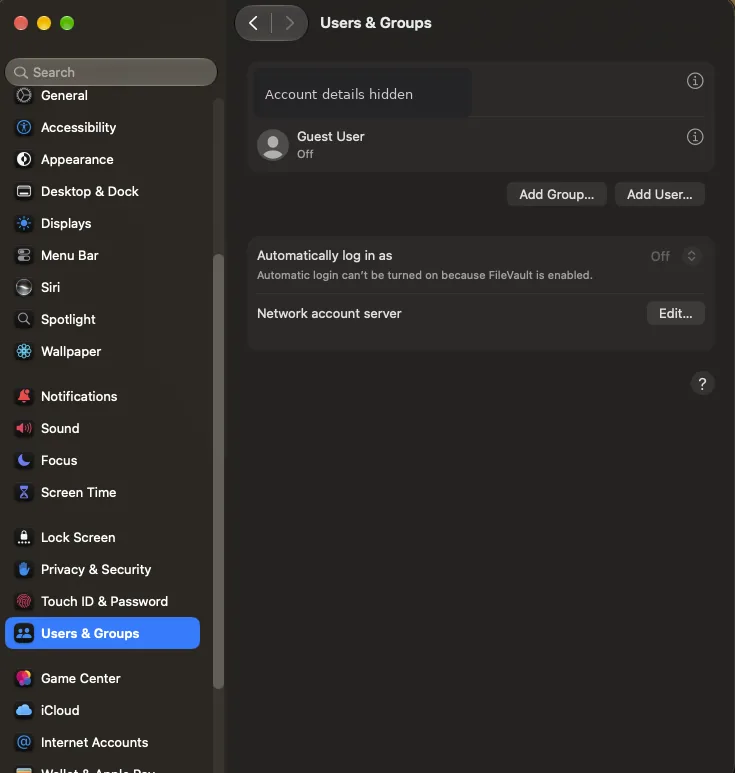
Open System Settings → Users & Groups.
Check whether another administrator account is available.
If necessary, an existing administrator can create a separate administrator account.
Don’t remove or downgrade your current administrator account.
Step 2: Sign Out of the Account
Save your work.
Open the Apple menu and choose Log Out.
Step 3: Sign In to the Other Administrator Account
Use the separate administrator account to sign in.
Apple’s supported account-renaming procedure requires working from another administrator account rather than the account being renamed.
Step 4: Open Users & Groups
Open System Settings → Users & Groups.
Locate the account whose displayed name you want to change.
Step 5: Open Advanced Options
Hold the Control key and click the account.
Choose Advanced Options, then authenticate if prompted.
Do not open or change other advanced fields unnecessarily.
Step 6: Update Full Name
Find Full name.
Enter the new display name.
For example, change:
Taylor Smith
to:
Taylor A. Smith
Leave the short username, home directory, User ID, group, and login shell unchanged.
Step 7: Save the Change
Click OK.
Follow any instructions macOS displays.
Step 8: Verify Your Login Name
Restart if necessary, then sign in to the renamed account and verify that the intended name appears.
The short username and home folder should remain unchanged.
Important: If you cannot access Advanced Options, don’t attempt to force the change through unknown Terminal commands or third-party account utilities.
How to Change Mac Username and Home Folder Safely
This section is for users who need to change the actual short username, not just the full name displayed at login.
Apple provides a specific advanced procedure, but it warns that mistakes can damage the account or prevent login.
Step 1: Back Up Your Mac
Before changing the username, create a current backup.
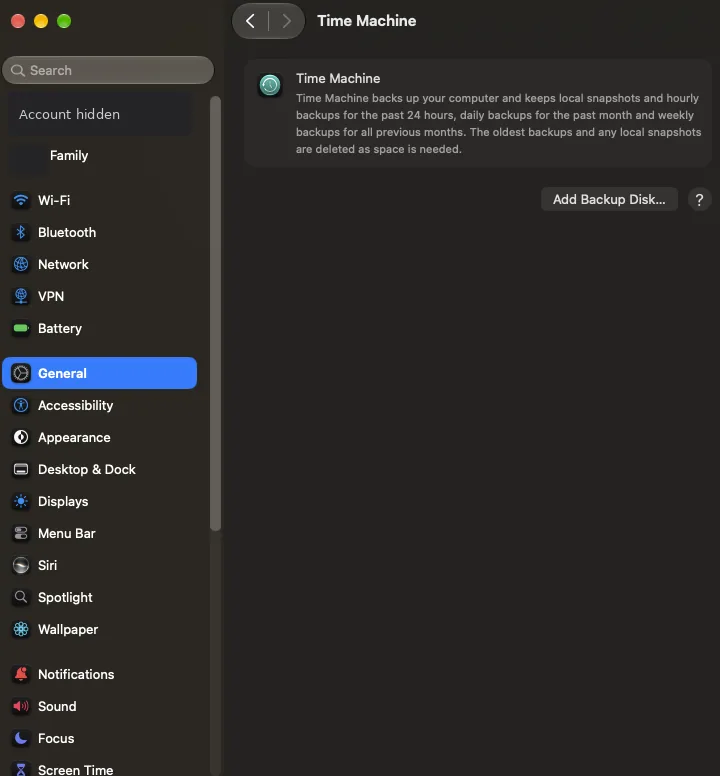
One option is Time Machine.
- Connect an appropriate external storage device.
- Open System Settings → General → Time Machine.
- Configure the backup destination if necessary.
- Run a backup.
- Confirm that the backup completed successfully.
For details, see Apple’s official Time Machine backup instructions.
Don’t rely on an unverified or incomplete backup for a potentially disruptive account modification.
Step 2: Create Another Administrator Account
You cannot use Apple’s normal rename procedure while signed in to the account being renamed.
If your Mac has no other administrator account, create one first.
- Open System Settings.
- Select Users & Groups.
- Click Add User.
- Authenticate if requested.
- Choose Administrator as the account type.
- Enter the new account details.
- Create the account.
Make sure you can actually sign in to this administrator account before proceeding.
Apple explains the process in its guide to adding users on Mac.
Step 3: Sign Out of the Account You Want to Rename
Save all work and close your applications.
Open the Apple menu and choose Log Out.
Don’t attempt to rename the currently active account’s home folder.
Step 4: Sign In to the Separate Administrator
Sign in using the other administrator account.
Keep the original account signed out during the entire renaming procedure.
Step 5: Rename the Home Folder
This step must be completed carefully.
- Open Finder.
- Select Go → Go to Folder from the menu bar.
- Enter:
/Users
- Press Return.
- Locate the home folder belonging to the account you’re renaming.
- Select the folder and press Return to rename it.
- Enter the intended new short username without spaces.
- Authenticate using the separate administrator account if requested.
For example:
Old home folder: /Users/taylorsmith
New home folder: /Users/taylora
The new name must be suitable for the account and must not conflict with an existing user folder.
If you’re sharing the home folder through File Sharing, Apple says you must stop sharing that folder before renaming it.
Warning: Do not rename another user’s folder, move the contents into a different location, or delete the original home folder.
Step 6: Open Users & Groups Advanced Options
While still logged in to the separate administrator account:
- Open System Settings.
- Select Users & Groups.
- Find the original user account.
- Hold Control and click the account.
- Select Advanced Options.
- Authenticate when prompted.
You’ll see several account configuration fields.
Only change those specifically required by Apple’s rename procedure.
Step 7: Change the Username and Home Directory
In macOS Ventura 13 and later, Apple instructs users to update the User name field, not the separate User field.
Enter the exact new short username used for the home folder.
Then locate Home directory.
Update the path to match the new folder.
For example:
User name: taylora
Home directory: /Users/taylora
Don’t remove /Users/ from the path.
You may optionally update Full name if you also want a different display name.
Do not modify User ID, Group, Login shell, or other advanced settings.
Step 8: Save, Restart, and Verify
Click OK.
Restart your Mac.
Then try signing in to the renamed account.
Once signed in:
- Open Finder.
- Confirm that your usual personal files are accessible.
- Open your Documents and Downloads folders.
- Check that your applications and important settings are available.
- Verify the home folder and username are correct.
If login fails or the account appears empty, don’t create or delete folders randomly. Stop and consult Apple’s account-renaming instructions or Apple Support.
Key point: The username, home folder name, and Home directory path must agree.
How to Change Login Name on Older macOS Versions
Older Macs using macOS Monterey or earlier have a different settings interface.
Instead of System Settings, you’ll generally use System Preferences → Users & Groups.
The supported procedure still involves working from a separate administrator account.
First, back up the Mac, sign out of the account being renamed, and rename its home folder from the other administrator account.
Then:
- Open System Preferences → Users & Groups.
- Unlock the settings if required.
- Control-click the account being renamed.
- Select Advanced Options.
- Update Account name to match the renamed home folder.
- Update the Home directory path.
- Optionally update Full name.
- Save and restart.
The field may be labeled Account name rather than User name.
Follow the terminology shown by your macOS version.
Why Can’t I Change My Mac Username?
Apple’s normal account-creation instructions explain that the short account name is established when the account is created and cannot simply be edited later.
That doesn’t contradict Apple’s separate advanced account-renaming procedure.
It means the short username isn’t an ordinary personalization setting.
You generally cannot rename it the same way you change your wallpaper, computer name, or account picture.
Changing it requires coordinated changes to the home folder and account settings.
If your Mac is managed by an employer or school, additional restrictions may apply.
Contact the administrator instead of bypassing device-management controls.
Mac Login Name Not Changing After Restart
If you updated the Full name but still see the previous text somewhere, first identify which name macOS is displaying.
It may be showing the account’s short username, the computer name, or a different identifier.
Open System Settings → Users & Groups and confirm the intended account information.
If the issue involves the device name rather than the user account, changing the login Full name won’t resolve it.
If you’ve attempted the advanced short-username rename and the account doesn’t load correctly, don’t keep changing the directory path without checking Apple’s procedure.
You may need assistance to restore the correct account configuration.
What If Your Mac Shows an Empty Desktop After Renaming?
If you sign in after a short-username change and your normal files appear missing, don’t assume they’re permanently deleted.
The account may not be accessing the intended home directory.
However, this can be a serious account configuration problem.
Avoid moving files, deleting user folders, or creating replacement accounts without a recovery plan.
Check whether the original files are accessible through the separate administrator account, and consult Apple Support before making further modifications.
If Finder itself becomes unresponsive, our MacBook Finder Not Responding guide covers general Finder troubleshooting, although it won’t repair a wrongly configured account path.
Does Changing Your Mac Login Name Change the Password?
No.
Apple states that its macOS account-renaming procedure does not change or reset the account’s login password.
Your existing login password remains separate.
If you want to change the password, use the appropriate password setting rather than modifying account names.
Our How to Change Password on Mac guide explains that process.
Likewise, changing your Mac login name doesn’t automatically rename your Apple Account or change its email address.
Mac Login Name vs. Computer Name vs. Apple Account
These are three different concepts.
Mac login name: Identifies a user account and may include a full name and short username.
Computer name: Identifies the Mac itself, including for local network discovery.
Apple Account: Used for Apple services such as iCloud, the App Store, and other supported features.
If you want another device to recognize your Mac by a different name, change the computer name.
If you want to update the name associated with your macOS login, use Users & Groups.
If you want to change your Apple Account information, use Apple’s account management settings.
Changing one doesn’t automatically change the others.
Should You Create a New Mac User Instead?
If you want a completely new short username but don’t feel comfortable performing the advanced rename, creating a new account may be worth considering.
A new user account receives its own home folder and configuration.
However, it doesn’t automatically inherit every file, setting, password, or application preference from your existing account.
You’ll need to plan the migration of any necessary personal data.
Don’t delete your old account until you’ve verified that important files and settings have been transferred successfully.
If you’re unsure whether to rename the existing account or create a new one, Apple Support can help determine the more appropriate method.
Frequently Asked Questions
How do I change the login name on my Mac?
If you only want a different displayed full name, use the Full name field in the account’s Advanced Options while logged in through another administrator account. Changing the short username requires the separate home-folder rename procedure.
Can I change my Mac username without changing the home folder?
Apple’s supported short-username rename procedure requires the username and home folder to match. Changing only the username can prevent the account from accessing its expected files.
Can I change the full name without changing the short username?
Yes. The Full name and short username are separate account fields. A full name can contain spaces and doesn’t need to match the short username.
Will changing my Mac login name delete files?
Changing the Full name doesn’t normally delete files. However, an incorrectly performed short-username or home-folder rename can cause account access problems, so backing up first is essential.
Do I need another administrator account?
Yes, for Apple’s documented account-renaming procedure, you must be logged in to a different administrator account from the one being renamed.
Why is Advanced Options missing on my Mac?
The available controls can depend on your permissions, macOS version, and whether the device is managed. Confirm that you’re using an administrator account and follow Apple’s instructions for your version.
Can I rename my MacBook Air login account?
Yes. The supported macOS account-renaming procedure applies to MacBook Air as well as other compatible Mac models. The relevant distinction is the macOS version, not whether the Mac has an M-series or Intel processor.
Will my Mac login password change after renaming?
No. Renaming the macOS account doesn’t automatically change the password.
Can I use spaces in my new username?
Apple instructs users not to use spaces when renaming the home folder. The new short username must match that folder. Your Full name can contain spaces.
How do I find my current Mac username?
Open Finder and select Go → Home. The home folder name can help identify your short username. You can also inspect account settings through Users & Groups.
Does changing login name affect AirDrop?
The Mac’s computer name and AirDrop identification are separate from the account’s short username. If your goal is to change the device’s displayed identity, review the computer-name settings.
Should I use Terminal to change my Mac login name?
For most users, no. Use Apple’s documented Users & Groups procedure. Unknown Terminal commands affecting account records, permissions, or home directories can create additional login problems.
Final Thoughts
Understanding how to change login name on Mac starts with identifying which name you actually want to update.
For a different name displayed at login, changing the Full name may be sufficient.
For a different short username, the process is more complex and requires a backup, a separate administrator account, and matching changes to the home folder and account settings.
Don’t confuse the Mac login name with the computer name, Apple Account, or login password.
Most importantly, follow Apple’s official instructions rather than making random changes to advanced account fields.
If you’re unsure about the home-folder procedure, seek help before changing anything that could affect your access to personal files.
Last reviewed: November 13, 2026.