If you’re wondering how to change password on Mac, you can usually do it in just a few minutes using System Settings. Whether you have a MacBook Air, MacBook Pro, iMac, or Mac mini, you don’t need to reinstall macOS or erase your files.
However, the exact menu depends on your macOS version. Newer Macs running macOS 27 may display Touch ID & Password or Login Password, while older versions use Users & Groups.
This guide covers both methods, explains what to do if you’ve forgotten your current password, and shows you how to avoid common login and keychain problems.
Quick Answer: How to Change Password on Mac
To change your Mac login password:
- Click the Apple menu in the top-left corner.
- Open System Settings.
- Select Touch ID & Password or Login Password if available.
- Click Change next to your login password.
- Enter your current password.
- Create and confirm your new password.
- Add an optional password hint and click Change Password.
If those options aren’t visible, open System Settings → Users & Groups, select the information button beside your account, and choose Change.
This changes your Mac’s local login password, not your Apple Account password.
Table of Contents
Before You Change Your Mac Password
Your Mac login password protects access to your personal user account. You may need it when starting your computer, unlocking certain settings, installing software, or authorizing administrative changes.
Before proceeding, check three things.
Know your current password. A normal password change generally requires you to enter the existing password. If you’ve forgotten it, use Apple’s password-reset process instead.
Choose a strong replacement. Use a long, unique password that isn’t reused for your Apple Account, email, or banking services.
Make sure you’re changing the correct password. Your Mac login password is different from a Wi-Fi password, an Apple Account password, and passwords stored in the Passwords app.
You don’t need to sign out of iCloud or reset your Mac to perform an ordinary login-password change.
How to Change Password on Mac in macOS 27
Apple’s newer macOS settings offer a dedicated place to manage your login password.
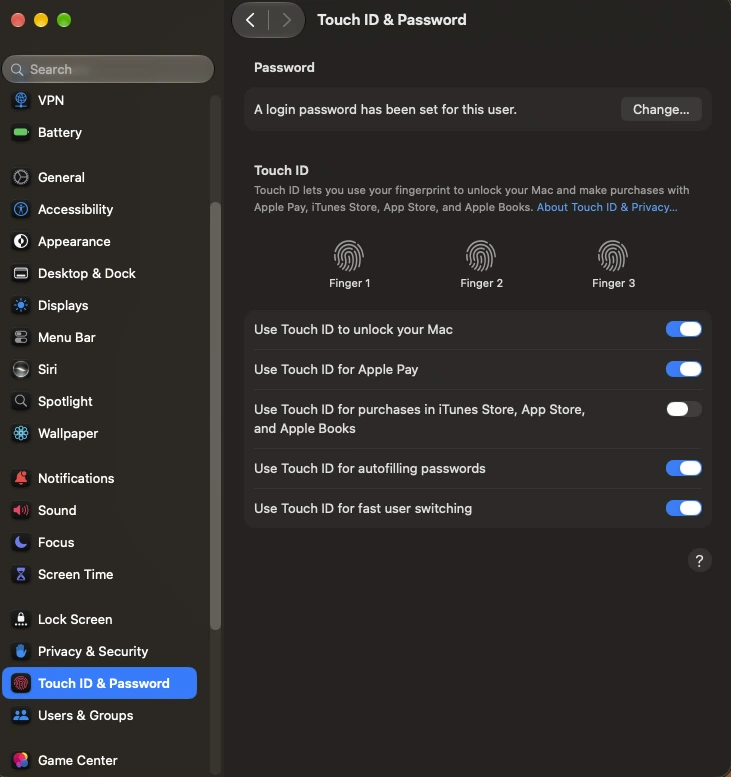
On compatible Macs with Touch ID, you’ll generally find the relevant option under Touch ID & Password.
Follow These 7 Steps
- Click the Apple menu ().
- Choose System Settings.
- Scroll through the sidebar and click Touch ID & Password. On Macs without Touch ID, look for Login Password.
- Find your current login-password setting and click Change.
- Enter your existing Mac password when prompted.
- Type your new password, then enter it again in the verification field.
- Add a password hint if desired, then select Change Password to finish.
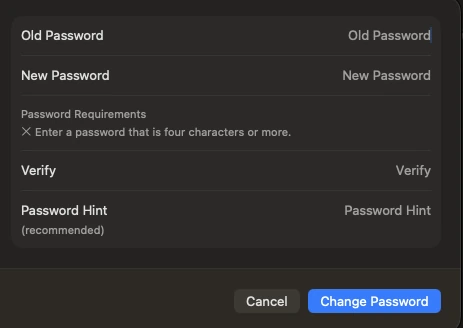
The exact button labels and order may vary slightly depending on the Mac model and macOS release.
If you can’t find these settings, use the search field in System Settings or follow the Users & Groups method in the next section.
For Apple’s latest instructions, see the official Touch ID & Password settings guide.
Verify That Your New Password Works
After completing the change, save any open documents.
Choose Apple menu → Lock Screen, then unlock your Mac with the new password.
This is a safer first test than immediately restarting your computer because it allows you to confirm that you’ve remembered the replacement correctly.
If you normally unlock your Mac using Touch ID, select the password-entry option to test the new password directly.
How to Change Mac Password Using Users & Groups
Many Macs running macOS Tahoe 26, Sequoia, Sonoma, Ventura, and other versions provide password management through Users & Groups.
This method is also useful when the dedicated password setting isn’t available.
Steps
- Open Apple menu → System Settings.
- Select Users & Groups.
- Find your user account.
- Click the Info (ⓘ) button beside your username.
- Click Change next to the password setting.
- Enter your existing password.
- Enter and verify your replacement password.
- Add an optional hint.
- Click Change Password.
Your new password should now be associated with that Mac user account.
Apple documents this method in its guide to changing a Mac login password.
Tip: If you have multiple accounts on your Mac, check that you’re changing the password for the correct user.
How to Change Password on Older Macs
If you’re using macOS Monterey 12 or an earlier version, your Mac may have System Preferences instead of System Settings.
The interface looks different, but the process is similar.
- Open the Apple menu.
- Select System Preferences.
- Click Users & Groups.
- Select your account.
- Unlock the relevant settings if prompted.
- Choose Change Password.
- Enter your old password and your new one.
- Confirm the change.
You don’t need to upgrade macOS just to change an existing login password.
However, using an actively supported macOS version is important for receiving security updates when your hardware is eligible.
How to Reset Your Mac Password If You Forgot It
What if you don’t remember your current Mac login password?
In that situation, changing the password normally may not be possible. You need to reset it using a supported recovery method.
Option 1: Reset From the Login Screen
- Restart your Mac normally.
- At the login screen, check that you’re entering your Mac login password rather than your Apple Account password.
- Check Caps Lock and your keyboard input language.
- If the password is still incorrect, look for the question mark or a password-reset message.
- Follow the available reset instructions.
Your Mac might allow you to reset the password using your Apple Account or a FileVault recovery key, depending on its configuration.
Apple notes that the available recovery steps vary between Macs.
Option 2: Use macOS Recovery
If the login-screen options don’t work, you may need to use macOS Recovery.
The process can require additional verification, including an Apple Account or recovery key.
Follow Apple’s official forgotten Mac login password instructions rather than downloading third-party password-reset software.
Important: Resetting a forgotten login password can affect access to an existing login keychain. If you don’t know the old password, certain locally stored keychain credentials may not be recoverable.
Don’t erase your Mac as a first step.
Can You Change Another User’s Password on Mac?
If your Mac has multiple accounts, an administrator can manage another user’s password through Users & Groups.
- Open System Settings → Users & Groups.
- Find the account you need to manage.
- Click the information button beside that user.
- Select Reset if available.
- Authenticate as an administrator if requested.
- Follow the instructions to set a replacement password.
You should only do this for accounts you’re authorized to administer.
Also remember that resetting someone else’s password is different from that person changing their own password. The reset may affect access to credentials stored in their existing login keychain.
On a work or school Mac, account-management settings may be restricted by an administrator.
What to Do if You Cannot Change Your Mac Password
Occasionally, the password-change option is unavailable, or macOS refuses to accept the replacement.
Try the following checks before attempting more advanced recovery methods.
1. Confirm Your Current Password
Make sure you’re entering the password used to sign in to your Mac.
Your Apple Account password might be different, even when both accounts use the same email address or username.
2. Check Your Keyboard
Passwords are case-sensitive.
Verify Caps Lock and the active keyboard language. If you’re using an external keyboard, try the Mac’s built-in keyboard when available.
3. Check Account Permissions
A standard user can normally change their own password, but resetting another person’s password requires the appropriate administrative permissions.
Organization-managed accounts may follow different rules.
4. Restart System Settings
If System Settings becomes unresponsive, quit and reopen the application.
Our guide on how to close an app that won’t close on Mac explains the normal Quit and Force Quit options.
If the entire Mac is unusually sluggish, our macOS 27.2.1 running slow troubleshooting guide covers related performance problems.
5. Look for the Correct Settings Page
On some macOS versions, the relevant controls are under Users & Groups rather than a dedicated password section.
If you’re having trouble locating System Settings because your Dock has disappeared, see our guide to restoring a missing Mac Dock.
Avoid installing third-party tools that claim to bypass macOS login protection.
Will Changing Your Mac Password Affect Keychain?
Your Mac uses a login keychain to help protect stored credentials, certificates, and other sensitive information.
Normally, the login keychain password is synchronized with your Mac user-account password when you change the password using the supported settings.
However, if your login password is reset without the previous password, your old keychain may not unlock automatically.
You might see a prompt asking for your previous keychain password.
If you remember that password, try entering it when requested.
If you don’t remember it, consult Apple’s keychain password guidance before resetting the default keychain.
Warning: Resetting a keychain can remove access to passwords stored in the previous keychain. It should not be treated as a routine cleanup step.
How to Choose a Strong New Mac Password
Changing your Mac password is an opportunity to improve account security.
A good password should be long, unique, and difficult for someone else to predict.
Avoid using your name, birthday, phone number, or commonly guessed sequences.
A memorable passphrase made from several unrelated words can be easier to remember than a short password with obvious substitutions.
If you’re using a password manager, create a unique password and make sure you have a reliable way to retrieve it before locking your Mac.
A password hint can help you remember your password, but don’t write the actual password in the hint.
Frequently Asked Questions
How do I change the login password on my MacBook Air?
Open System Settings, select Touch ID & Password or Users & Groups depending on your macOS version, choose Change, and enter your existing and replacement passwords.
How do I change my Mac password without knowing the old one?
You generally need to reset the password through an available login-screen or macOS Recovery option. The process can require Apple Account verification or a recovery key.
Does changing my Mac password change my Apple Account password?
No. Your Mac login password and Apple Account password are separate credentials, even if you’ve previously chosen identical passwords.
Will changing my Mac password delete files?
An ordinary password change does not erase your documents or installed applications. However, resetting a forgotten password may affect access to previously stored keychain credentials.
Can I change my Mac password using Touch ID?
Touch ID helps authenticate supported actions, but changing your login password still involves setting a new password. Touch ID does not replace the need to know your login password for certain security operations.
Why is Change Password greyed out on my Mac?
The option may be unavailable because of account permissions, device-management restrictions, or differences in the settings interface. Check the correct macOS settings page and contact your administrator if the Mac is managed.
Is my Mac password the same as my iCloud password?
Not necessarily. Your Mac login password protects your local user account, while your Apple Account password is used for iCloud and other Apple services.
Final Thoughts
Learning how to change password on Mac is straightforward once you know where macOS stores the relevant setting.
For newer Macs, start with System Settings → Touch ID & Password or Login Password. On other versions, use Users & Groups.
If you know your existing password, the regular change process should be quick and shouldn’t affect your personal files.
If you’ve forgotten your password, use Apple’s supported recovery options instead of attempting an unofficial workaround.
After changing the password, lock your Mac and verify that the replacement works before continuing with your normal work.