Want to know how to update Google Play Store on your Android phone? Whether you’re using a Google Pixel, Samsung Galaxy, Motorola, or OnePlus, the process is simple and usually takes only a few minutes.
Google Play Store normally updates itself automatically in the background. However, you can also check for updates manually from its settings.
This is useful when you’re trying to access a newer Play Store feature, check whether your version is current, or troubleshoot an outdated Play Store installation.
You don’t need to download an APK from an unfamiliar website, reset your phone, or reinstall Android.
In this guide, you’ll learn how to update Google Play Store, check your installed version, enable automatic updates for other applications, and troubleshoot a Play Store update that won’t complete.
How to Update Google Play Store in 5 Easy Steps
The official way to update the Play Store is through its own settings.
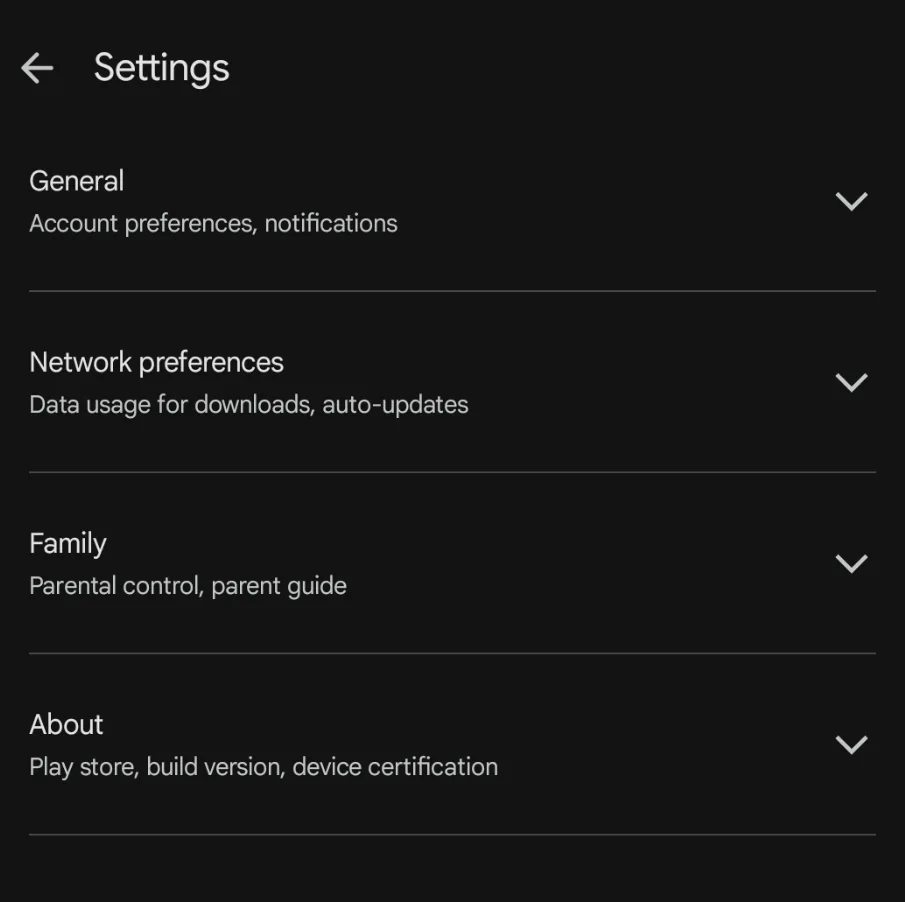
Follow these five steps:
- Open Google Play Store on your Android phone.
- Tap your profile picture in the upper-right corner.
- Select Settings.
- Expand About, then find Play Store version.
- Tap Update Play Store.
Google Play will check whether a newer version is available.
If your Play Store is already current, you’ll receive a message confirming that it is up to date.
If an update is available, Google says it will automatically download and install, usually within a few minutes.
Tap Got it if prompted.
That’s all you need to do.
Google confirms this method in its official Update the Google Play app guide.
Table of Contents
What Happens After You Tap Update Play Store?
The Play Store checks for an available update.
Depending on the result, it may:
- Confirm that Google Play Store is already up to date.
- Download and install a newer version automatically.
- Take some time to finish updating in the background.
An update may not immediately change how the Play Store looks. Some updates focus on reliability, security, or background functionality.
You also don’t need to repeatedly press the update button if Google is already processing an update.
How to Check Your Google Play Store Version
You can check your installed Play Store version without downloading anything.
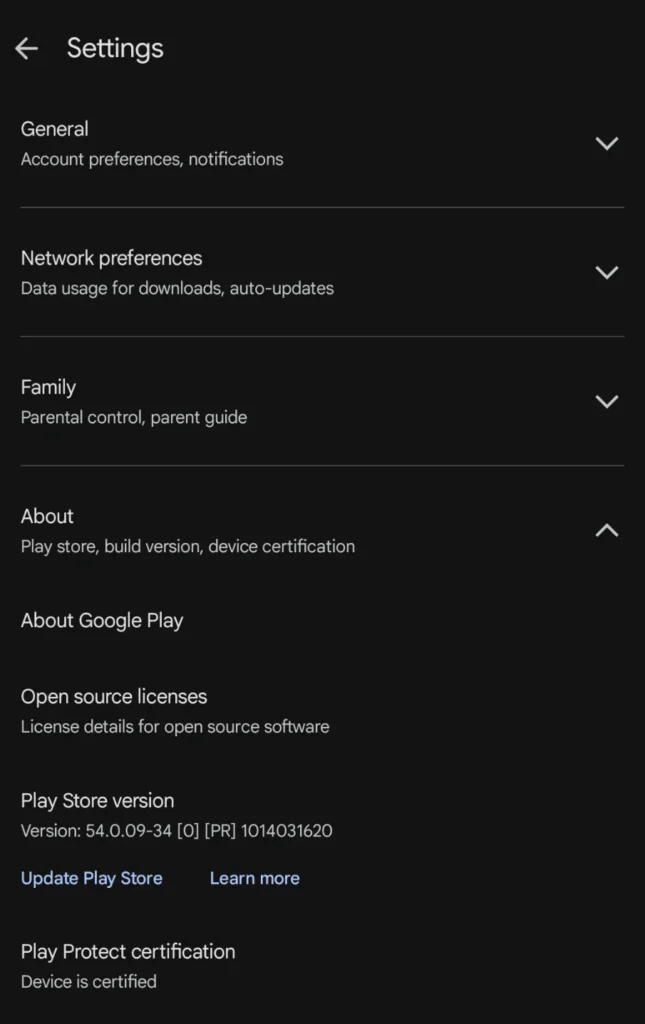
Steps
- Open Google Play Store.
- Tap your profile icon.
- Select Settings.
- Expand About.
- Find Play Store version.
The version information identifies the installed Play Store release.
You can use the Update Play Store option in the same section to check whether a newer release is available.
What’s the Latest Google Play Store Version?
There isn’t one universal version number that every Android user must have at the same time.
Google Play updates may reach devices at different times, depending on rollout and device conditions.
A version number shown on another website may not be the version currently available to your phone.
Instead of searching for an unofficial APK with a higher number, use the built-in Update Play Store button.
If Google confirms that your Play Store is up to date, there’s normally no reason to force a different version onto the device.
Does Google Play Store Update Automatically?
Yes. Google Play Store generally updates itself in the background.
For most users, this means manually checking for Play Store updates is unnecessary during normal use.
However, if you’re troubleshooting an issue or want to verify your version, you can use the manual method above.
Do You Need to Turn On Automatic Updates for Play Store Itself?
Don’t confuse Play Store application updates with automatic updates for apps downloaded through Google Play.
Google Play Store has its own update mechanism.
The Auto-update apps setting primarily controls how your downloaded Android applications receive updates.
Changing this option is not the same as manually updating the Play Store application.
This distinction matters because the two settings appear in different parts of Google Play.
How to Update Android Apps Through Google Play Store
If your goal is to update apps such as WhatsApp, Instagram, Gmail, or YouTube, follow these instructions instead.
Update Individual Apps
- Open Google Play Store.
- Tap your profile icon.
- Select Manage apps & device.
- Under Updates available, tap See details.
- Find the application you want to update.
- Tap Update beside it.
If several updates are available, you can select Update all instead.
The number of available updates depends on your currently installed apps.
Enable Automatic App Updates
You can also allow Android apps to update automatically.
- Open Google Play Store.
- Tap your profile picture.
- Select Settings.
- Expand Network preferences.
- Tap Auto-update apps.
- Choose your preferred network option.
Depending on your device and Play Store version, the options may include updating over Wi-Fi, using Wi-Fi or mobile data, or not automatically updating apps.
If you have a limited mobile data plan, review your preferred setting carefully.
Google explains these options in How to update apps on Android.
What if an App Update Doesn’t Install?
A Play Store that opens successfully but cannot install an application may be experiencing a different problem from an outdated Play Store version.
Check the app’s compatibility, your internet connection, and your available storage.
Don’t repeatedly uninstall Play Store updates when only one specific application fails.
Google Play Store Update vs Google Play System Update
These two updates are often confused, but they are not identical.
Google Play Store update: Updates the Google Play Store application, which you use to find, download, and manage apps.
Google Play system update: Updates supported Android system components and services delivered through Google’s system update mechanism.
Android system update: Updates the Android operating system and other device software supported by the manufacturer.
How to Check Google Play System Updates
On many Google Pixel phones:
- Open Settings.
- Select Security & privacy.
- Open System & updates, if available.
- Tap Google Play system update.
- Follow the onscreen instructions.
On some devices, you can also inspect your Google Play system update information through Settings → About phone → Android version.
Menu names vary by Android version and manufacturer.
For more details, see Google’s guide to checking and updating Android.
Important: Updating the Play Store app doesn’t automatically mean your Android operating system has received its latest security update.
Google Play Store Won’t Update? Try These Fixes
If the Update Play Store button doesn’t work or the update repeatedly fails, try the following troubleshooting steps in order.
Fix 1: Check Your Internet Connection
Google Play needs a working internet connection to check for and download updates.
Open a website in your browser to confirm your connection is functioning.
If you’re using Wi-Fi, try moving closer to your router.
If you’re using cellular data, check whether other apps can connect normally.
If you have broader network problems, investigate those separately. For example, our Android Hotspot Not Working guide covers problems sharing a phone’s mobile connection.
Fix 2: Restart Your Android Phone
A temporary software problem may prevent an update from completing.
Save any unfinished work, restart your phone normally, and reopen the Play Store.
Then return to Settings → About → Update Play Store.
Restarting doesn’t normally delete your apps or personal files.
Fix 3: Check Available Storage
Limited storage can interfere with app downloads and updates.
Open Settings → Storage to check your remaining capacity.
If your device is almost full, review files and unused apps you can safely remove.
Avoid deleting important photos or documents without confirming that they are backed up.
Fix 4: Clear Google Play Store Cache
If the Play Store continues behaving unexpectedly, clearing its temporary cache may help.
- Open Settings.
- Tap Apps.
- Select Google Play Store.
- Open Storage & cache.
- Tap Clear cache.
- Reopen Google Play Store.
Clearing the cache does not normally uninstall your other Android apps.
Don’t select Clear storage unless necessary. That option can reset Play Store preferences, including certain parental control and purchase-authentication settings.
Google explains these differences in its Play Store troubleshooting guide.
Fix 5: Uninstall and Reinstall Play Store Updates
If the Play Store remains outdated and simpler troubleshooting hasn’t helped, Google supports uninstalling its updates on compatible devices.
This resets the installed Play Store application updates rather than removing the entire system application.
Steps
- Press and hold the Google Play Store icon.
- Tap App info.
- Open the three-dot menu, if available.
- Select Uninstall updates.
- Review the confirmation message.
- Confirm if you’re prepared to proceed.
- Reopen Google Play Store.
- Return to Settings → About → Update Play Store.
The available options vary by manufacturer and device configuration.
Use this method only when necessary.
If the Play Store won’t open in the first place, follow our dedicated Google Play Store Not Opening troubleshooting guide, which focuses on crashes, blank screens, and launch failures.
Can You Update Google Play Store on Samsung Galaxy?
Yes.
The process is generally the same on Google-certified Samsung Galaxy phones.
Open Play Store → Profile → Settings → About → Update Play Store.
This is different from updating Samsung’s Galaxy Store, which is a separate application and service.
If you’re trying to update the Android operating system itself, use Samsung’s supported software-update settings instead.
Can You Update Google Play Store on Google Pixel?
Yes.
Google Pixel phones that include Google Play Store can use the same update procedure.
Open Google Play Store, select your profile, expand Settings → About, and tap Update Play Store.
Your Pixel’s Android version and Google Play system update status are separate from the Play Store application version.
Older Pixel devices may no longer receive new Android operating system or security updates, even though some Google apps and services can still update.
Why Is the Update Play Store Button Missing?
First, confirm you’re looking in the correct menu.
The button is normally located under Google Play Store → Settings → About, rather than the phone’s main Settings application.
If you cannot find the option:
- Confirm you’re using the Google Play Store application.
- Expand the About section completely.
- Check whether the app opens and responds normally.
- Restart your phone and check again.
- Review whether your device is managed by an organization.
The interface can differ between Play Store versions.
Avoid assuming that a missing button means your phone is infected or damaged.
If the feature remains unavailable, consult the device manufacturer or Google Play Help.
Do You Need to Download a Google Play Store APK?
Generally, no.
On supported Google-certified Android devices, Google provides a built-in update mechanism.
Downloading an APK from an unknown website is unnecessary for ordinary Play Store updates and introduces avoidable security risks.
If your phone doesn’t have Google Play Store installed, the situation may be different.
Some devices don’t officially support Google’s services, and manually installing an APK does not guarantee compatibility.
For routine maintenance, use Google’s official update process.
How to Know If Your Play Store Update Worked
After allowing the update to finish:
- Open Google Play Store.
- Tap your profile picture.
- Select Settings → About.
- Review Play Store version.
- Tap Update Play Store again if you want to check for another available update.
If Google confirms the app is up to date, no additional action is normally required.
You don’t need to reset the Play Store simply because the interface looks unchanged.
An update doesn’t always introduce a visible design change.
Common Mistakes to Avoid
When updating Google Play Store, avoid these common mistakes:
- Confusing Update all apps with Update Play Store.
- Installing unverified APK files to obtain a newer version number.
- Clearing all Play Store data before trying the normal update method.
- Assuming Google Play system updates and Play Store updates are identical.
- Repeatedly restarting a phone while an update is still progressing.
- Factory resetting a working Android phone simply to update the Play Store.
If applications update normally but their notifications are missing afterward, review notification permissions and background settings rather than blaming the Play Store.
Our Android Notifications Not Showing guide explains those separate problems.
Frequently Asked Questions
How do I manually update Google Play Store?
Open Google Play Store, tap your profile picture, select Settings → About, and tap Update Play Store. Google will check for an available update.
Does Google Play Store update automatically?
Yes. Google Play Store generally updates automatically in the background on supported devices.
How long does a Google Play Store update take?
Google says an available update normally downloads and installs within a few minutes. The actual time depends on the device, connection, and update conditions.
How can I check my Google Play Store version?
Open Google Play Store → Profile → Settings → About, then look for Play Store version.
Is Google Play Store the same as Google Play services?
No. Google Play Store is the application used to access Google Play content. Google Play services supports various features used by Android applications and Google services.
Is updating Google Play Store free?
The official Play Store application update process does not require purchasing an update.
Will updating Google Play Store delete my apps?
A normal Play Store update does not ordinarily uninstall the other apps on your phone.
Can I update Google Play Store without Wi-Fi?
A working mobile data connection may be sufficient for Play Store updates. Make sure you understand any data charges or restrictions on your cellular plan.
Why does my phone say Google Play Store is already up to date?
It means Google Play currently reports no newer Play Store app update available for your device through its built-in update mechanism.
Final Thoughts
Learning how to update Google Play Store is straightforward once you know where to find the correct setting.
Open Google Play Store, tap your profile picture, go to Settings → About, and select Update Play Store.
The Play Store will check whether an update is available and install it if appropriate.
For most Android users, the application updates automatically, so manual checks are needed only occasionally.
Remember that updating Google Play Store, updating your installed apps, and installing Google Play system updates are different tasks.
Use the built-in update options whenever possible, and avoid unnecessary downloads or resets.