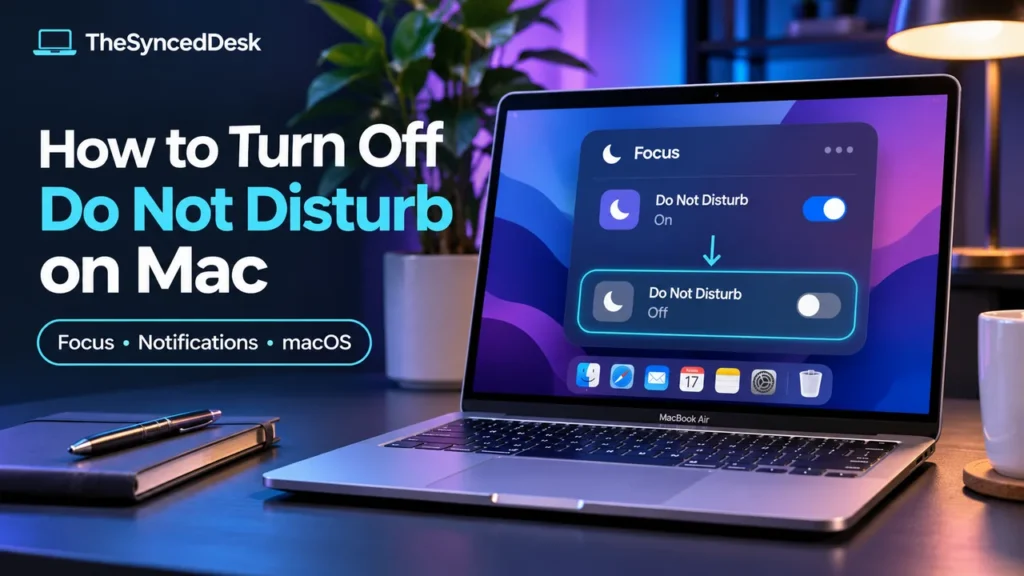
Want to receive notifications again, but your Mac seems to be stuck in Do Not Disturb? Learning how to turn off Do Not Disturb on Mac is straightforward, whether you’re using a MacBook Air, MacBook Pro, iMac, or Mac mini.
Sometimes you enable Do Not Disturb for a meeting and forget to turn it off. Other times, the mode switches itself back on because of a schedule or another Apple device sharing Focus settings.
When Do Not Disturb is active, macOS can silence notifications from apps and people, although you may have exceptions configured.
Fortunately, you don’t need to reset your Mac or reinstall macOS.
In this guide, we’ll explain five easy ways to turn off Do Not Disturb on Mac, including Control Center, keyboard shortcuts, scheduled Focus settings, and synchronization with your iPhone.
The instructions apply to recent macOS versions, including macOS 27, Tahoe, Sequoia, Sonoma, and Ventura. Some menu details differ on older versions.
Quick Answer: How to Turn Off Do Not Disturb on Mac
The fastest method is through Control Center.
- Click Control Center in the upper-right corner of your Mac’s menu bar.
- Click the Focus section.
- Find Do Not Disturb.
- If Do Not Disturb is active or highlighted, click it to turn it off.
- Close Control Center.
Your Mac should stop using that Do Not Disturb Focus immediately.
You can also hold Option and click the date and time in the menu bar to toggle Do Not Disturb.
Important: If Do Not Disturb keeps turning itself back on, check your Focus schedule and the Share across devicessetting.
Apple confirms these controls in its official guide to turning Focus on or off on Mac.
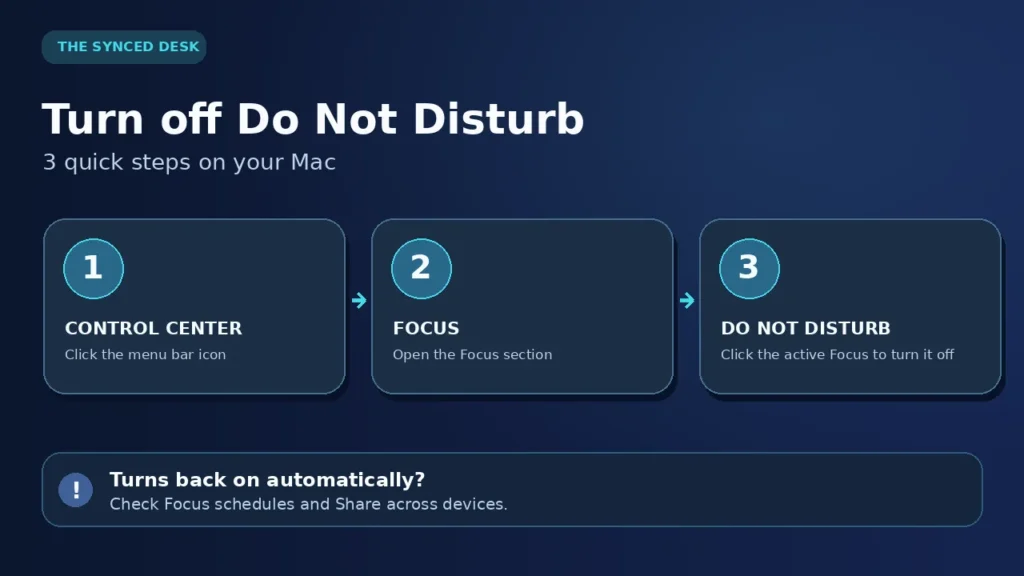
Table of Contents
What Does Do Not Disturb Do on Mac?
Do Not Disturb is part of Apple’s Focus feature.
Focus lets you reduce distractions by controlling which notifications can interrupt you.
When Do Not Disturb is active, your Mac generally silences ordinary notifications, while still allowing exceptions that you’ve configured.
For example, you may allow notifications from certain people or applications.
What Happens When You Turn Off Do Not Disturb?
When you disable Do Not Disturb:
- Apps can resume delivering notifications according to their individual settings.
- Allowed notification sounds and banners can appear normally.
- Do Not Disturb no longer silences new alerts through that Focus.
- Other active Focus modes or notification restrictions may still affect alerts.
Turning off Do Not Disturb doesn’t guarantee that every previously silenced notification will suddenly play a sound.
You may need to review Notification Center for earlier alerts.
Also, Do Not Disturb doesn’t generally mute all audio from music, videos, or other media applications.
If you can’t hear any sound at all, check the relevant audio and application settings rather than assuming Do Not Disturb is responsible.
Fix 1: Turn Off Do Not Disturb From Mac Control Center
Control Center is Apple’s main quick-access location for Do Not Disturb.
This is the recommended method when you want to disable the mode immediately.
Steps
- Move your pointer to the upper-right corner of the screen.
- Click the Control Center icon in the menu bar.
- Find the Focus section.
- Click anywhere in that section to expand its options.
- Locate Do Not Disturb.
- If it is highlighted, click it.
- Check that it is no longer active.
- Close Control Center.
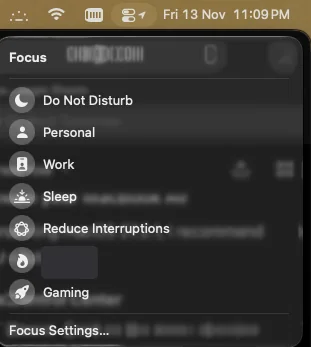
How Do You Know It Worked?
The active Focus indicator should no longer show Do Not Disturb as enabled.
Depending on your macOS version and menu bar configuration, a dimmed moon icon may briefly appear when the mode is turned off.
You can open Control Center again to verify the current Focus status.
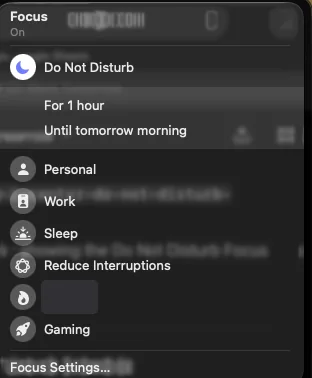
What if Do Not Disturb Isn’t Listed as Active?
Another Focus may be running instead, such as Work, Personal, Sleep, or another custom mode.
Check the currently highlighted Focus.
Turning off Do Not Disturb won’t automatically disable every other Focus you have configured.
You can inspect the available Focus modes through Control Center or System Settings.
Tip: If you regularly turn Do Not Disturb on and off, you can add the Focus control to your menu bar for easier access on supported macOS versions.
Fix 2: Use the Option-Click Shortcut
Apple provides a convenient shortcut that many Mac users don’t know about.
You can toggle Do Not Disturb by holding Option while clicking the date and time in the menu bar.
This avoids opening the full Focus menu.
Steps
- Look at the date and time in the upper-right corner of your Mac.
- Press and hold the Option (⌥) key.
- While holding Option, click the date and time.
- Release the key.
- Check whether Do Not Disturb is now off.
This is especially useful when you’re switching between focused work and normal notification delivery.
What Happens if Do Not Disturb Is Already Off?
The same shortcut can turn it on.
That means you should verify its current status before repeatedly using the shortcut.
If you’re unsure whether the mode is enabled, open Control Center and inspect Focus directly.
Does This Shortcut Work on Every Mac?
Apple documents it as a macOS shortcut for Do Not Disturb.
However, keyboard configuration and system behavior may vary between macOS releases.
If the shortcut doesn’t behave as expected, use Control Center instead.
It’s a safer option than trying unknown Terminal commands.
Fix 3: Turn Off Do Not Disturb Using the Keyboard
Some Mac keyboards have a dedicated Do Not Disturb key.
It may display a crescent moon symbol in the function-key row.
On supported models, this key provides another convenient way to toggle the Focus.
Steps
- Look along your keyboard’s top function-key row.
- Find the Do Not Disturb key, if present.
- Press the key once.
- Check whether Do Not Disturb turns off.
- Verify the result in Control Center.
Some keyboard configurations require the Fn or Globe key to access a secondary function.
Check your Mac’s keyboard settings if the expected action doesn’t occur.
What If Your Keyboard Has No Moon Key?
Skip this method.
Not every Apple or third-party keyboard provides a dedicated Focus control.
You can still turn off Do Not Disturb through Control Center or use the Option-click shortcut.
MacBook Air and MacBook Pro Differences
The availability of a Do Not Disturb key depends on your particular model and keyboard.
It isn’t necessary to change keyboard settings just to disable the mode.
On both MacBook Air and MacBook Pro, Control Center remains an available way to manage supported Focus modes.
Fix 4: Stop Do Not Disturb From Turning On Automatically
Sometimes you turn Do Not Disturb off, but it activates again later.
This doesn’t necessarily mean your Mac is malfunctioning.
Apple allows you to schedule Focus modes to turn on automatically.
For example, you might configure Do Not Disturb to start every evening or whenever you open a particular application.
How to Check Your Do Not Disturb Schedule
- Click the Apple menu ().
- Open System Settings.
- Select Focus from the sidebar.
- Click Do Not Disturb.
- Scroll to Set a Schedule.
- Review any configured schedules.
- Select a schedule you no longer want.
- Turn off or remove it using the available controls.
- Return to Control Center and turn off Do Not Disturb if it’s still active.
What Types of Schedules Can Activate Focus?
Apple supports several automatic triggers.
Time: Do Not Disturb can start on selected days or at specified hours.
Location: A Focus can activate when you arrive at or leave a configured place.
App: A Focus may switch on when you open or use a selected app.
Depending on your configuration, you may have more than one schedule.
Review each schedule if the mode repeatedly turns on without you deliberately enabling it.
Should You Delete the Schedule?
You don’t necessarily need to delete it.
Apple provides options to disable certain schedules temporarily.
If you want to use Do Not Disturb during work hours but not on weekends, editing the schedule may be more convenient.
For an unwanted automatic schedule, turning it off is usually sufficient.
Follow Apple’s official guide to setting up and scheduling Focus on Mac.
Important: Do Not Disturb itself is a built-in Focus and remains available even after you remove its schedules.
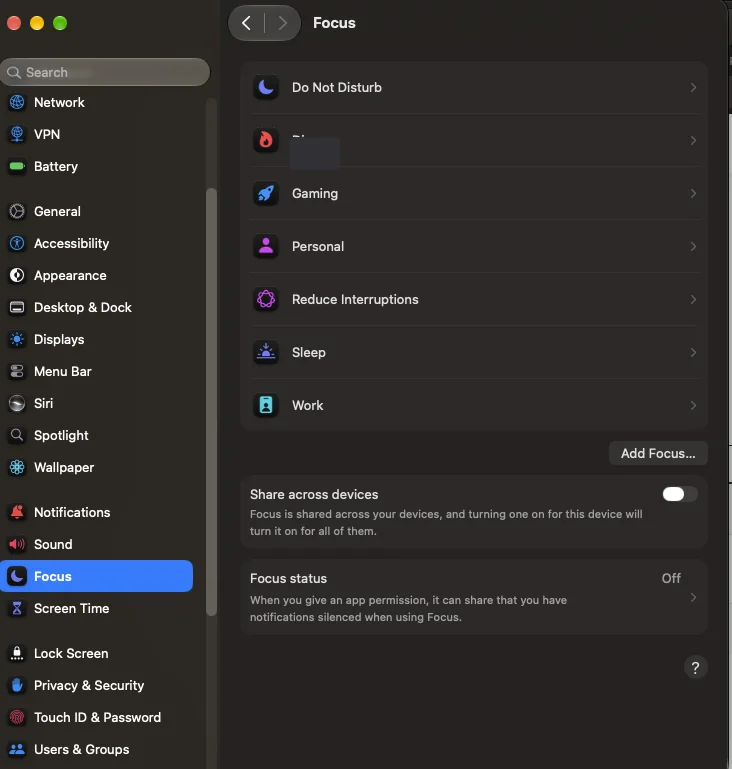
Fix 5: Disable Focus Sharing Across Your Apple Devices
If Do Not Disturb keeps reappearing after you turn it off on your Mac, another Apple device may be involved.
Apple provides a setting called Share across devices.
When this setting is enabled on compatible devices signed in to the same Apple Account, Focus changes can be shared between them.
For example, enabling Do Not Disturb on your iPhone may also activate it on your Mac.
How to Turn Off Focus Sharing on Mac
- Open System Settings.
- Click Focus.
- Find Share across devices.
- Turn it off if you want to manage Focus on your Mac independently.
- Return to Control Center.
- Turn off Do Not Disturb.
- Check whether the mode remains off.
What Does Share Across Devices Actually Do?
When enabled, compatible Apple devices can keep Focus settings and status synchronized.
That can be useful if you want a consistent quiet period across your iPhone, iPad, and Mac.
However, it can be inconvenient when you want to silence one device without affecting the others.
Should You Disable It Permanently?
That depends on how you use your devices.
If you prefer independent notification settings, turning it off may be appropriate.
If you intentionally want Focus to follow you across devices, leave it enabled and adjust the schedules instead.
Apple documents the option in its official Mac Focus settings reference.
If you’re also missing alerts on your iPhone, read our iPhone Notifications Not Working troubleshooting guide to check the iPhone’s notification settings separately.
How to Turn Off Do Not Disturb on MacBook Air
If you’re using a MacBook Air, the process is the same as on other modern Macs.
Open Control Center, click Focus, and turn off the active Do Not Disturb mode.
On supported MacBook Air keyboards, you may also have a dedicated Do Not Disturb key.
If Your MacBook Air Keeps Going Into Do Not Disturb
Check:
- System Settings → Focus → Do Not Disturb for scheduled triggers.
- System Settings → Focus → Share across devices for synchronization.
- Control Center to see whether another Focus is actually active.
These checks don’t require a restart or account changes.
How to Turn Off Do Not Disturb on MacBook Pro
MacBook Pro uses the same general macOS Focus controls.
The quickest method is:
Control Center → Focus → Do Not Disturb → Off
If you have a supported keyboard shortcut, you can use it instead.
However, not every MacBook Pro keyboard has the same function-key arrangement.
If the mode keeps returning, review the schedule and Apple device synchronization settings rather than repeatedly toggling it off.
Do Not Disturb Won’t Turn Off on Mac: What to Check
If Do Not Disturb appears stuck, first verify the actual problem.
There are several possible situations.
The Focus Appears to Be On After You Click It
Reopen Control Center and check which Focus is highlighted.
If a different Focus is active, turn that off separately when appropriate.
Do Not Disturb Turns Off but Comes Back Later
Review scheduled triggers and Share across devices.
Pay attention to whether the change happens at the same time every day or after you use another Apple device.
The Focus Controls Don’t Respond
Close Control Center and reopen it.
If macOS appears temporarily unresponsive, a normal restart may help.
Don’t reinstall macOS or modify system files merely because a Focus control didn’t respond once.
The Mac Is Managed by Work or School
Organization-managed Macs may use specific restrictions or configurations.
Contact the administrator if you cannot change a setting that appears to be managed.
Don’t attempt to bypass organizational policies.
Mac Notifications Still Not Showing After Turning Off Do Not Disturb
Turning off Do Not Disturb doesn’t automatically fix every notification problem.
An individual application may have its notifications disabled, or another Focus mode may still be active.
Check App Notifications
- Open System Settings.
- Select Notifications.
- Find the affected application.
- Open its notification settings.
- Check whether Allow notifications is enabled.
- Review the available alert style and sound settings.
- Test a new notification.
If the application doesn’t have permission to send alerts, disabling Do Not Disturb won’t override that restriction.
Check Focus Exceptions
Under System Settings → Focus, review any active Focus.
Apple allows users to select which people and apps can send notifications while a Focus is on.
If you intentionally keep Focus enabled, configuring an appropriate exception may be better than disabling the mode altogether.
Check Notification Center
Some notifications delivered while Focus was active may still be available for review in Notification Center.
Click the date and time in the menu bar to inspect available notifications.
However, not every application stores or displays its previous alerts identically.
Do Not Disturb vs. Silent Notifications on Mac
Do Not Disturb is intended to manage interruptions.
It isn’t the same as turning off your speakers.
For example, disabling Do Not Disturb won’t necessarily fix a video that has no audio or a Bluetooth headset that isn’t producing sound.
Likewise, you can choose to disable notification sounds for an individual app while leaving Do Not Disturb turned off.
If you’re troubleshooting sound on another Apple device, our iPhone Speaker Not Working guide explains the distinction between notification silencing and audio playback problems.
How to Allow Important Notifications Without Disabling Do Not Disturb
You don’t always need to turn Do Not Disturb off completely.
If you want to remain focused while allowing certain alerts, configure exceptions.
Steps
- Open System Settings → Focus.
- Select Do Not Disturb.
- Find Allowed People.
- Choose the people whose notifications you want to allow.
- Review Allowed Apps.
- Add supported apps that may interrupt you.
- Save your changes.
Apple also provides additional Focus options on supported macOS versions.
For example, some Apple Intelligence features can prioritize certain notifications, but availability depends on your hardware, software, language, and region.
A basic Allowed People or Allowed Apps configuration doesn’t require Apple Intelligence.
Why Use Exceptions?
This can help when you want fewer distractions but still need to receive important work or family notifications.
Remember that notification exceptions must be configured carefully according to your preferences.
An allowed app can still have its own notification settings.
Does Do Not Disturb on Mac Affect iPhone Alarms?
Do Not Disturb on your Mac can synchronize Focus status with your iPhone when Share across devices is enabled.
However, a synchronized Focus is different from turning off the iPhone’s alarm system.
Apple’s built-in iPhone Clock alarms should continue to sound even when Do Not Disturb is active.
If an iPhone alarm fails to sound, check the alarm’s configured time, tone, and volume rather than assuming your Mac’s Focus setting caused it.
See our iPhone Alarm Not Going Off guide for that separate problem.
Frequently Asked Questions
How do I turn off Do Not Disturb on Mac?
Click Control Center in the menu bar, open Focus, and click the active Do Not Disturb option to turn it off.
What is the shortcut to turn off Do Not Disturb on Mac?
Hold Option and click the date and time in the menu bar. Apple also supports a dedicated Do Not Disturb function key on certain keyboards.
Why does Do Not Disturb keep turning on on my Mac?
A scheduled Focus or the Share across devices setting may be responsible. Check System Settings → Focus → Do Not Disturb and review your schedules.
How do I permanently stop Do Not Disturb from turning on?
Disable any unwanted schedules and review Focus sharing across devices. You don’t need to remove the built-in Do Not Disturb Focus itself.
Can I turn off Do Not Disturb on Mac without using Control Center?
Yes. Apple documents the Option-click date-and-time shortcut, and some Mac keyboards include a dedicated Do Not Disturb key.
Does Do Not Disturb mute all sound on Mac?
No. It primarily controls notification interruptions. Ordinary music, video, and application audio are managed separately.
How do I turn off Do Not Disturb on MacBook Air?
Open Control Center → Focus, then click the active Do Not Disturb Focus. Check your Focus schedules if it turns itself back on.
Why is my Mac still not showing notifications after DND is off?
Individual app notifications may be disabled, or another Focus may be active. Review System Settings → Notifications and Focus settings.
Does turning off Mac Do Not Disturb also turn it off on iPhone?
It can when Share across devices is enabled on compatible Apple devices using the same Apple Account. With sharing disabled, you can manage the devices more independently.
Can I allow notifications from certain people while Do Not Disturb is on?
Yes. Open System Settings → Focus → Do Not Disturb and review Allowed People and Allowed Apps.
Does restarting my Mac disable Do Not Disturb permanently?
No. A restart may help with temporary unresponsiveness, but it doesn’t remove a scheduled Focus or change synchronized settings.
Can I delete Do Not Disturb from my Mac?
Do Not Disturb is a built-in Focus that remains available in macOS. You can disable it and remove its schedules instead of trying to delete it.
Final Thoughts
Learning how to turn off Do Not Disturb on Mac is simple once you know where the Focus controls are located.
For a quick fix, open Control Center and disable Do Not Disturb.
The Option-click shortcut is another convenient way to toggle the mode.
If Do Not Disturb keeps activating again, check its schedule and the Share across devices setting.
If notifications remain silent after the mode is off, review individual app notification permissions and any other active Focus.
You usually don’t need to reset your Mac, change accounts, or reinstall macOS to resolve a Focus-related problem.
Last reviewed: November 13, 2026.