iPhone notifications not working? Maybe you’re missing important WhatsApp messages, Gmail alerts, text messages, or notifications from other apps. Sometimes notifications arrive without sound, appear only after you unlock your iPhone, or stop appearing altogether.
Missing notifications can be frustrating, especially when you’re waiting for an important message, delivery update, or work-related alert.
Fortunately, the problem doesn’t always mean something is wrong with your iPhone. Disabled notification permissions, Focus modes, Scheduled Summary, app-specific settings, and Apple Watch notification routing can all affect when and where alerts appear.
In this guide, we’ll explain 12 practical fixes for iPhone notifications not working, starting with simple settings and moving toward more advanced troubleshooting.
Quick Answer: How to Fix iPhone Notifications Not Working
If your iPhone isn’t showing notifications, try these quick checks first:
- Open Settings → Notifications and select the affected app.
- Turn on Allow Notifications.
- Enable Lock Screen, Notification Center, and Banners where appropriate.
- Open Control Center and turn off Do Not Disturb or another active Focus for testing.
- Check whether the app is included in Scheduled Summary.
- Review your iPhone’s Silent Mode and alert volume.
- Restart your iPhone.
If notifications still don’t appear, continue with the detailed fixes below.
Table of Contents
Why Are My iPhone Notifications Not Working?
Before changing settings, identify exactly what is happening.
Notifications are completely missing: You receive messages inside an app, but no notification appears. App permissions, notification delivery settings, or the app itself may be responsible.
Notifications appear without sound: You can see the alert, but your phone doesn’t ring or vibrate. Silent Mode, alert sounds, haptic settings, or an active Focus may explain this.
Notifications arrive late: Alerts appear much later than expected, possibly because of Scheduled Summary, connectivity problems, or app-specific delivery issues.
Notifications appear on Apple Watch instead: Your iPhone may be routing alerts to your paired Apple Watch when the phone is locked.
Identifying the symptom helps you choose the correct troubleshooting method.
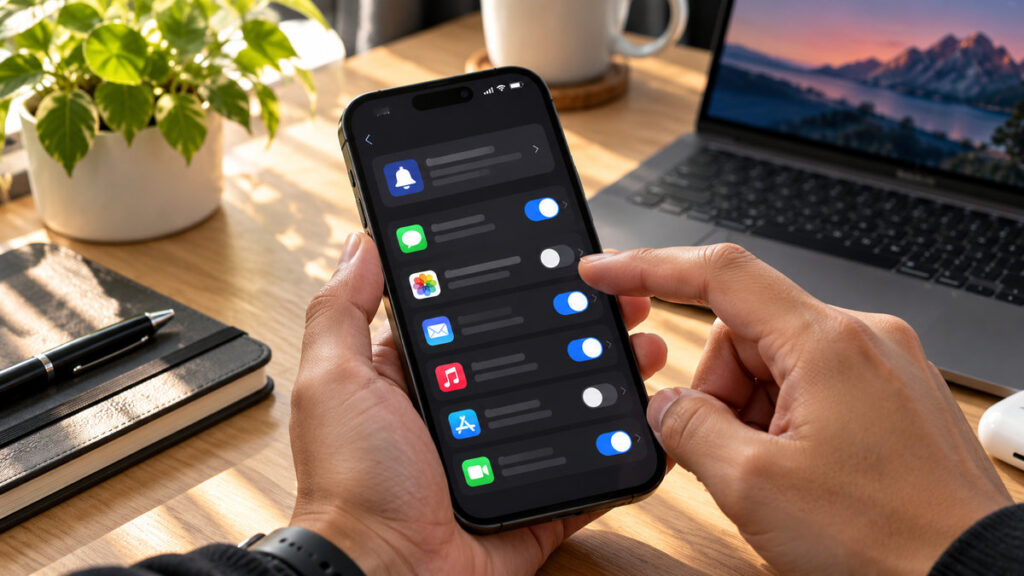
1. Enable Notifications for the Affected App
The first thing to check is whether the application is allowed to send notifications.
An app may have had notification permission denied when it was first installed, or its settings may have been changed later.
To check:
- Open Settings.
- Tap Notifications.
- Scroll down and select the affected app.
- Turn on Allow Notifications.
- Review the available alert settings.
For example, if WhatsApp messages aren’t appearing, locate WhatsApp in the notification settings.
If you cannot find the application, check whether it is installed and whether it has requested permission to send notifications. Some app settings may become available only after initial setup.
After enabling notifications, ask someone to send a test message or trigger a notification from the affected app.
If notifications arrive normally, you’ve found the problem.
If they’re still missing, continue to the next fix.
If emails arrive only when you open Apple Mail, our Mail App Not Working on iPhone guide explains notification and mail-fetch settings.
2. Check Lock Screen, Notification Center, and Banner Alerts
Sometimes an app is allowed to send notifications, but its alerts aren’t displayed where you expect them.
Your iPhone lets you control how notifications appear.
Open Settings → Notifications → [Affected App].
Under Alerts, review these options:
- Lock Screen: Displays alerts when the iPhone is locked.
- Notification Center: Keeps notifications available in Notification Center.
- Banners: Shows alerts while you’re using your phone.
Enable the options you need.
For example, if you receive messages but never see banners while using another app, make sure Banners is enabled.
You should also check Show Previews.
Go to Settings → Notifications → Show Previews.
You may see the following choices:
- Always
- When Unlocked
- Never
Choosing When Unlocked can protect the privacy of message contents while still allowing notifications to appear.
Important: Hiding notification previews doesn’t necessarily stop the notifications themselves. It may simply conceal their contents.
You can also change the Lock Screen notification display between Count, Stack, and List.
If Count is selected, notifications may be less obvious because the Lock Screen primarily displays their number.
3. Turn Off Do Not Disturb and Check Focus Modes
An active Focus is one of the most important settings to investigate when notifications seem to disappear.
Focus modes help reduce interruptions by controlling which apps and people can alert you.
However, a Focus may silence notifications you actually want to receive.
To check:
- Swipe down from the top-right corner to open Control Center on an iPhone with Face ID.
- Find Focus.
- Check whether Do Not Disturb, Sleep, Work, or another Focus is active.
- Temporarily turn it off.
- Test notifications again.
If alerts start working normally, review your Focus configuration.
Open Settings → Focus.
Select the Focus you usually use and check its People and Apps settings.
You can allow important contacts and applications to notify you while that Focus is active.
Also check whether the Focus is scheduled to activate automatically.
On supported iPhones, Apple Intelligence features such as Reduce Interruptions or Intelligent Breakthrough & Silencing may affect which notifications interrupt you.
For troubleshooting, temporarily disable the relevant Focus and compare the results.
You don’t need to permanently turn off Focus. The goal is to configure it correctly.
If your iPhone notifications are working but your morning alarm isn’t ringing, the issue may involve different sound settings. Apple’s built-in alarms should still work in Silent Mode and Do Not Disturb. Read our guide, iPhone Alarm Not Going Off? 12 Fixes to Try (2026), for detailed troubleshooting steps.
4. Check Scheduled Summary and Delayed Notifications
If notifications eventually arrive but not immediately, Apple’s Scheduled Summary may be involved.
Scheduled Summary groups selected notifications and delivers them at scheduled times.
This feature is useful for reducing interruptions, but it may not be appropriate for apps where you need immediate updates.
To check:
- Open Settings.
- Select Notifications.
- Open Scheduled Summary, if available.
- Review whether it is enabled.
- Check which apps are included.
For testing, remove the affected app from Scheduled Summary or temporarily disable the summary.
Then trigger a new notification.
If the alert arrives immediately, your delivery schedule was likely responsible for the delay.
Keep in mind that not all alerts are treated identically. Some notifications may still arrive immediately based on their type and the app’s settings.
Apple Intelligence notification summaries are also different from Scheduled Summary. A notification can be summarized without necessarily being delayed.
5. Check Silent Mode, Notification Sounds, and Haptics
If notifications appear on your iPhone but make no sound, investigate the sound settings before changing anything else.
First, check whether your iPhone is in Silent Mode.
Depending on your model, you may have a Ring/Silent switch or an Action button configured to control Silent Mode.
Next, open Settings → Sounds & Haptics.
Review the available alert-volume controls, notification tones, and haptic settings.
Make sure your alert volume is audible and that an appropriate sound is selected for the alert type you want to hear.
For apps that support their own notification sounds:
- Open Settings → Notifications.
- Select the app.
- Tap Sounds, if the option appears.
- Choose an available sound.
Some applications don’t offer customizable notification tones through this menu.
If you expect vibration, review your Haptics settings as well.
Remember that Silent Mode usually affects notification sounds, not whether an alert can appear visually.
If notifications are completely missing, continue investigating notification delivery rather than only adjusting volume.
6. Check Whether Notifications Are Going to Your Apple Watch
If you use an Apple Watch, your iPhone may be functioning correctly even when notifications don’t appear where you expect them.
Apple normally routes notifications to either the iPhone or the Apple Watch, rather than alerting both devices simultaneously.
Generally:
- When your iPhone is unlocked, notifications appear on your iPhone.
- When your iPhone is locked or asleep, notifications may appear on your unlocked Apple Watch.
- Notification behavior also depends on your Watch settings.
To review these settings:
- Open the Watch app on your iPhone.
- Tap My Watch.
- Select Notifications.
- Choose the affected app.
- Review its available notification options.
Depending on the application, you may be able to mirror your iPhone’s settings or configure notifications separately.
You can temporarily remove the Apple Watch from your testing setup by taking it off and locking it, then checking how notifications arrive on your iPhone.
If the issue only occurs when your Watch is in use, its notification routing may explain the behavior.
7. Review Notification Settings Inside the App
Some applications have their own notification controls that operate separately from iOS notification permissions.
For example, messaging applications may let you mute individual conversations, disable group notifications, or change alert preferences.
Email applications may offer notifications for selected accounts or message categories.
To investigate:
- Open the affected app.
- Locate its Settings or Preferences section.
- Find Notifications.
- Review the relevant notification options.
- Make any appropriate changes.
If the app requires you to sign in, verify that you’re using the correct account.
For email, check whether the correct inbox or account is selected.
For messaging applications, check whether the affected conversation is muted.
App-specific notification settings vary, so consult the developer’s official guidance if you cannot find a particular option.
Don’t assume that enabling Allow Notifications in iOS overrides every setting inside the app.
8. Unmute Conversations and Check Filtered Messages
If notifications work for most contacts but not for one person or conversation, check whether that conversation has been muted.
In Apple’s Messages app:
- Open Messages.
- Select the affected conversation.
- Tap the contact or conversation details at the top.
- Check whether Hide Alerts is enabled.
- Turn it off if you want notifications from that conversation.
Also check message filtering.
On supported iOS versions, messages from unknown senders may be separated into different folders and notification behavior can depend on filtering settings.
Open Messages and review the available Filters or message-filtering controls.
If you’re missing verification codes or messages from unfamiliar contacts, check whether those messages were filtered.
You can also review Notification Center for alerts that were previously delivered without banners or sound.
On the Lock Screen, swipe up from the middle of the screen to view older notifications.
If you previously muted an app’s notifications, review its notification settings to restore normal alerts.
9. Check Your Wi-Fi and Cellular Connection
Many applications require an internet connection to receive new information and deliver push notifications.
If your iPhone has an unstable connection, some notifications may be delayed.
Start with a simple test:
- Open Safari.
- Visit a website.
- Check whether the page loads normally.
- Switch between Wi-Fi and cellular data if available.
- Test the affected application again.
If notifications begin arriving when you switch networks, investigate the original connection.
You can also try restarting your router if you control it and other devices are having similar problems.
For apps that rely on cellular data, review their cellular-data access in Settings.
Remember that some notifications, such as certain cellular messaging alerts, don’t depend on Wi-Fi in the same way as internet-based apps.
Related Reading: iPhone Wi-Fi Keeps Disconnecting? 12 Fixes to Try (2026).
If your iPhone frequently loses its Wi-Fi connection, that guide explains how to troubleshoot the network before making more changes to notification settings.
10. Restart Your iPhone
A temporary software problem may sometimes affect how an application behaves.
Restarting your iPhone is a low-risk troubleshooting step.
For iPhones with Face ID:
- Press and hold the Side button and either Volume button.
- Wait for the power-off slider.
- Slide to power off.
- Wait approximately 30 seconds.
- Turn your iPhone back on.
After restarting, unlock the phone and allow it to reconnect to the network.
Then open the affected app and trigger another test notification.
If the issue affects only one application, you can also close and reopen that app if it is unresponsive.
If notifications continue to fail, move on to software updates.
11. Update iOS and the Affected App
An outdated app or operating system can sometimes cause compatibility issues.
Check whether updates are available.
To update iOS:
- Open Settings.
- Tap General.
- Select Software Update.
- Install an appropriate available update after backing up important data.
To check an app update:
- Open the App Store.
- Tap your account photo.
- Review available app updates.
- Update the affected application.
Restart the app after the update and test notifications again.
If the issue began immediately after an app update, check the developer’s support page for known problems.
An update may fix a software issue, but it won’t necessarily resolve disabled permissions, muted conversations, or a misconfigured Focus.
For that reason, checking the earlier settings remains important.
12. Reinstall the Problematic App as a Last Resort
If notifications fail in only one application and the previous fixes haven’t helped, reinstalling that app may be worth considering.
However, this shouldn’t be your first step.
Deleting an app can remove locally stored data, downloaded files, and settings. Some applications may also require additional verification before you can sign in again.
Before reinstalling:
- Make sure you know your account credentials.
- Confirm any important data is backed up or synchronized.
- Check whether the developer recommends reinstalling.
- Verify that you can complete any required account recovery.
If it’s safe to proceed, delete the application and install it again from the App Store.
Open the app, sign in, and allow notifications when prompted.
Then test whether notifications arrive normally.
Important: Avoid deleting authenticator apps, banking apps, or applications containing important unsynchronized data without confirming how their information can be recovered.
If multiple unrelated apps still fail to deliver notifications, the problem may require broader iOS troubleshooting or assistance from Apple Support.
iPhone Notifications Not Working After an iOS Update?
If notifications stopped working after installing an iOS update, begin with the same basic checks.
Confirm that the affected app is allowed to send notifications, that Focus isn’t silencing it, and that its alert presentation settings are correct.
Then check for additional app or iOS updates.
If the issue occurs only in one application, contact its developer and provide the iOS version, app version, and a description of the problem.
If notifications fail across several unrelated apps, document which alerts are affected and whether they work on different network connections.
This information can help Apple Support investigate the issue more efficiently.
Frequently Asked Questions
Why is my iPhone not showing notifications even though they are enabled?
Other settings may still affect notification delivery. Check Focus, Scheduled Summary, individual alert locations, app-specific settings, and Apple Watch notification routing.
Why are my iPhone notifications silent?
Your iPhone may be in Silent Mode, have its alert volume reduced, or have notification sounds disabled for the affected app. A Focus may also be silencing alerts.
Why do notifications appear only when I open an app?
The app may have a connectivity or delivery problem, or its own notification settings may need attention. Check your connection, permissions, updates, and the developer’s support guidance.
Does Low Power Mode stop all iPhone notifications?
No. Low Power Mode isn’t a universal notification-off switch. It can reduce certain background activities, but missing push notifications should be investigated using the app’s delivery settings and connectivity.
Why do notifications appear on my Apple Watch but not my iPhone?
Apple normally directs alerts to either the iPhone or the Apple Watch, depending on whether the iPhone is unlocked and the Watch is available. This can be expected behavior.
Does Do Not Disturb block all notifications?
Do Not Disturb is designed to reduce interruptions, but you can configure exceptions for particular people and apps. Some time-sensitive alerts may be allowed depending on your settings.
Why are my notifications delayed?
Scheduled Summary, Focus settings, unstable internet connectivity, or app-specific issues can delay certain alerts.
Will resetting notification settings delete my photos?
Changing notification permissions and alert settings does not delete your photos. More extensive reset options have different effects, so check their consequences before using them.
Final Thoughts
If iPhone notifications are not working, the best approach is to start with the settings most likely to affect the type of problem you’re experiencing.
For completely missing notifications, check app permissions and alert delivery options.
For silent notifications, review Silent Mode, sounds, haptics, and Focus.
For delayed alerts, investigate Scheduled Summary and your internet connection.
If you use an Apple Watch, remember that notifications may be delivered to the Watch instead of your locked iPhone.
Most notification problems can be investigated without resetting the entire device or deleting important data.
For additional information, see Apple’s official guides:
- Change notification settings on iPhone
- Set up and manage Focus on iPhone
- How to get notifications on your iPhone and Apple Watch
The Synced Desk | Practical solutions for everyday technology problems.