Why is Windows 11 so slow, even when your computer was working perfectly before? Maybe your laptop takes forever to start, applications freeze when opening, or everything feels sluggish after a Windows update.
A slow Windows 11 PC doesn’t necessarily mean you need a new computer.
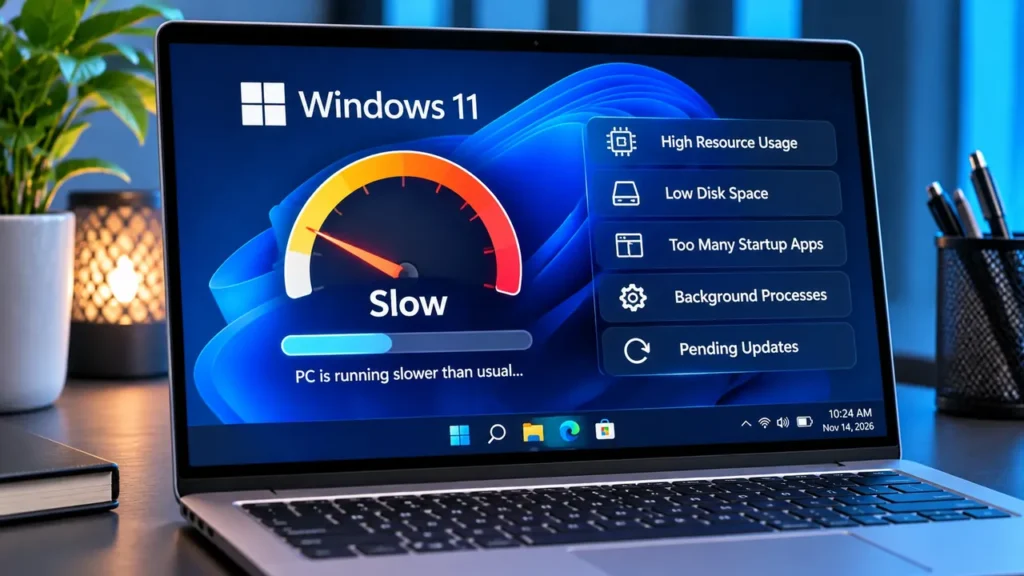
Too many startup programs, background processes, low storage space, outdated drivers, and high CPU or memory usage can all affect performance.
The important thing is to identify what’s slowing your PC down instead of randomly changing settings.
In this guide, we’ll explain 12 practical ways to make Windows 11 faster, including simple adjustments and advanced troubleshooting methods. Most don’t require special software or a Windows reset.
Quick Answer: Why Is Windows 11 So Slow?
If Windows 11 is running slowly, start with these checks:
- Restart your computer to clear temporary problems.
- Open Task Manager and check CPU, memory, and disk usage.
- Disable unnecessary startup applications.
- Free up storage using Windows Storage Sense.
- Install available Windows and driver updates.
- Run a malware scan using Windows Security.
- Close unnecessary background programs.
- Check your power mode.
If performance remains poor, continue with the additional fixes below.
Important: Avoid third-party registry cleaners, unknown driver boosters, and applications promising instant performance improvements. Windows already includes useful diagnostic and maintenance tools.
Why Is Windows 11 So Slow?
Windows 11 uses system resources to run applications, maintain security, install updates, synchronize files, and manage background services.
When your computer has limited resources, these activities can compete with whatever you’re trying to do.
Here are some common causes.
Too many startup apps: Several applications may launch automatically when Windows starts, increasing boot time and memory usage.
High CPU usage: An application or background process may be consuming too much processing power.
Insufficient RAM: When physical memory is nearly full, Windows may rely more heavily on storage, resulting in slower performance.
Low storage space: A nearly full system drive can make updates, temporary-file operations, and general maintenance more difficult.
Outdated drivers: Graphics, chipset, storage, or other hardware drivers may contribute to performance problems.
Background activity: File synchronization, antivirus scans, software installation, and updates can temporarily use significant resources.
Hardware limitations: An older processor, limited RAM, or traditional hard drive may struggle with demanding software.
Possible overheating: A computer may reduce performance when temperatures become too high.
Before changing anything, consider whether Windows is always slow or only becomes slow during particular activities.
That distinction can help identify the actual problem.
Fix 1: Restart Windows 11 Completely
Restarting is one of the easiest ways to troubleshoot a suddenly slow Windows 11 computer.
It closes active applications, starts Windows services again, and clears certain temporary states.
How to Restart
- Save any open documents.
- Click the Start button.
- Select the Power icon.
- Click Restart.
- Wait for Windows to load.
- Open only the applications you need.
Use Restart rather than simply closing your laptop lid.
If the computer performs normally immediately after restarting but gradually becomes slow again, background processes or application resource usage may be involved.
Continue with Task Manager to investigate.
Fix 2: Check CPU, Memory, and Disk Usage in Task Manager
If you’re wondering why Windows 11 is so slow, Task Manager is one of the most useful places to start.
It shows which applications and processes are consuming system resources.
Steps
- Press Ctrl + Shift + Esc.
- Select Processes.
- Click the CPU column to sort processes by processor usage.
- Check the Memory column.
- Review the Disk column.
- Identify applications consistently using unusually high resources.
What the Results Mean
CPU usage near 100%: One or more processes may be keeping the processor extremely busy.
Memory usage consistently near capacity: Your PC may not have enough available RAM for its current workload.
Disk usage constantly near 100%: Windows may be waiting on intensive storage operations or a slow drive.
A temporary spike is normal during updates, scans, or demanding applications. Sustained high usage is more useful diagnostic information.
What Should You Do?
If an application you recognize is consuming excessive resources, save your work and close it normally.
You can also reduce the number of open browser tabs or applications.
Don’t randomly terminate unfamiliar Windows processes. Some are essential for system stability.
Open Task Manager’s Performance tab for additional information about CPU, RAM, and drive activity.
If your computer becomes unresponsive mainly when opening folders, read our guide to Windows 11 File Explorer not responding.
Fix 3: Disable Unnecessary Startup Apps
Startup applications are a common reason why Windows 11 takes a long time to become responsive after signing in.
Programs such as communication tools, game launchers, and third-party utilities can start automatically.
Some continue using system resources in the background.
How to Disable Startup Apps
- Open Settings.
- Select Apps.
- Click Startup.
- Review the available applications.
- Turn off automatic startup for programs you don’t need immediately.
Alternatively:
- Press Ctrl + Shift + Esc.
- Select Startup apps.
- Review the enabled applications.
- Select a nonessential application.
- Click Disable.
Disabling startup doesn’t uninstall the application. You can still open it manually.
Avoid disabling security software, essential device utilities, or applications required by your workplace.
For further details, see Microsoft’s startup application guide.
Expected result: Windows may start faster and have more resources available after login, particularly if many applications previously launched automatically.
Fix 4: Free Up Storage Space Using Storage Sense
When your Windows 11 system drive becomes nearly full, the computer may struggle with temporary files, updates, and other storage-intensive tasks.
Windows includes Storage Sense to help remove certain unnecessary files.
Steps
- Press Windows + I.
- Select System → Storage.
- Review your available storage.
- Open Temporary files.
- Select the categories you want to remove.
- Click Remove files.
- Return to Storage and open Storage Sense.
- Configure or run Storage Sense if appropriate.
Carefully review each selected category before deleting anything.
Don’t select personal downloads, previous Windows installations, or Recycle Bin contents unless you’re sure you no longer need them.
How Much Free Storage Do You Need?
There’s no single amount that guarantees better performance on every computer.
However, maintaining a reasonable amount of free space is beneficial for Windows updates, temporary files, and ordinary system operations.
If your drive is almost full, try removing unused applications and moving large personal files to another suitable storage location.
Avoid deleting unfamiliar folders inside the Windows directory.
Fix 5: Update Windows 11 and Hardware Drivers
Outdated software and certain driver problems can contribute to slow performance, freezes, or unstable applications.
Microsoft regularly distributes security, reliability, and compatibility improvements through Windows Update.
Check for Windows Updates
- Open Settings.
- Select Windows Update.
- Click Check for updates.
- Review available updates.
- Install applicable updates.
- Restart when required.
Check Optional Driver Updates
- Open Settings → Windows Update.
- Select Advanced options.
- Open Optional updates, if available.
- Review relevant driver updates.
- Install appropriate updates when they address a known issue.
If performance became worse after a particular driver update, consult your computer manufacturer’s support information before installing another version.
Use official driver downloads from your PC or component manufacturer. Don’t rely on random driver-updater programs.
If Windows 11 also loses its wireless connection, our Windows 11 Wi-Fi option missing troubleshooting guide explains related adapter and driver checks.
Tip: When the computer becomes slower immediately after an update, check Task Manager for ongoing update activity before assuming the update itself is defective.
Fix 6: Scan for Malware Using Windows Security
Malware and unwanted applications can consume resources, affect browser performance, and cause unusual background activity.
Windows 11 includes Microsoft Defender Antivirus through Windows Security.
Run a Quick Scan
- Open Settings.
- Select Privacy & security.
- Click Windows Security.
- Select Virus & threat protection.
- Click Quick scan.
- Allow the scan to finish.
- Review any detected threats.
If you suspect an infection despite a clean quick scan, review the additional scan options provided by Windows Security.
A full scan can take longer, especially on computers with large amounts of stored data.
Don’t install several antivirus programs simultaneously just to speed up Windows. Multiple security programs running together can sometimes create additional resource usage or compatibility problems.
Microsoft includes malware scanning among its recommended Windows performance checks.
Fix 7: Reduce Background Activity and Uninstall Unused Apps
Some applications continue running in the background even when their windows are closed.
They may synchronize files, check messages, download updates, or perform other tasks.
These activities can contribute to high CPU, memory, network, or disk usage.
Limit Background Activity
- Open Settings → Apps → Installed apps.
- Find the application you want to manage.
- Click the three-dot menu.
- Select Advanced options, if available.
- Find Background app permissions.
- Choose Never if you don’t need background functionality.
These controls aren’t available for every Windows application.
Desktop software may have its own settings for background services or automatic launching.
Remove Unnecessary Programs
- Open Settings → Apps → Installed apps.
- Find an application you no longer use.
- Select the three-dot menu.
- Click Uninstall.
- Follow the instructions.
Avoid uninstalling drivers, security components, or unfamiliar system utilities without identifying their purpose.
Removing unused applications can free storage and may reduce background activity.
It won’t necessarily improve performance if those applications weren’t consuming resources.
Fix 8: Change Windows 11 Power Mode
Windows 11 offers different power modes that balance performance with energy consumption.
If your computer feels sluggish during demanding tasks, power settings are worth checking.
Steps
- Open Settings.
- Select System.
- Click Power & battery, or the relevant Power settings page on your device.
- Find Power mode.
- Select Best performance when appropriate.
- Test whether the affected application responds better.
Best performance can help the system prioritize performance when needed, but it won’t overcome every CPU, memory, or storage limitation.
On laptops, it may increase battery consumption, heat, and fan activity.
Use Balanced for everyday tasks if you prefer an appropriate compromise between responsiveness and battery life.
If the power-mode control is unavailable or greyed out, check your available power plan and device manufacturer’s settings rather than forcing an unsupported modification.
See Microsoft’s power mode instructions.
Fix 9: Reduce Unnecessary Windows Visual Effects
Windows 11 uses animations, transparency, shadows, and other visual effects.
These features improve the appearance of the interface but can consume additional resources.
Reducing some visual effects may improve responsiveness on older or resource-limited hardware.
Steps
- Click Start.
- Search for Adjust the appearance and performance of Windows.
- Open the matching result.
- Select the Visual Effects tab.
- Choose Adjust for best performance.
- Click Apply.
- Select OK.
This setting disables various visual enhancements.
If you prefer the appearance of Windows 11, select Custom and enable the individual effects you want.
For example, you may prefer to retain smooth font display while reducing animations.
The benefit depends on your hardware and workload.
Modern computers with sufficient resources may notice little difference.
Fix 10: Optimize Your Storage Drive
Storage performance can have a significant effect on how quickly applications load.
This is especially noticeable on computers using older mechanical hard drives.
Windows includes a built-in drive optimization tool.
Steps
- Open Start.
- Search for Defragment and Optimize Drives.
- Open the application.
- Select your system drive.
- Check the drive’s media type and optimization status.
- Click Optimize if appropriate.
Windows normally performs scheduled drive optimization automatically.
SSD vs HDD: What’s Different?
A traditional hard disk drive may benefit from file defragmentation.
A solid-state drive uses different optimization methods, including TRIM.
Windows recognizes supported drive types and performs appropriate maintenance.
You should not manually force traditional hard-drive defragmentation techniques on an SSD using third-party utilities.
Microsoft explains these distinctions in its official drive optimization guide.
If your computer still uses a traditional HDD as its main system drive, upgrading to a compatible SSD can provide a much larger improvement than repeatedly changing Windows settings.
Fix 11: Repair Windows System Files With DISM and SFC
If Windows 11 remains slow while also freezing, displaying errors, or experiencing application crashes, corrupted system files may be worth investigating.
Microsoft provides two built-in tools for checking and repairing Windows components.
These are DISM and System File Checker.
Step 1: Open Command Prompt as Administrator
- Open the Start menu.
- Search for Command Prompt.
- Right-click the result.
- Choose Run as administrator.
- Approve the prompt.
Step 2: Run DISM
Enter this command:
DISM.exe /Online /Cleanup-Image /RestoreHealthPress Enter.
Wait for DISM to finish before proceeding.
It checks the Windows component store and attempts to repair problems. The process may require access to Windows Update.
Step 3: Run System File Checker
After DISM finishes, enter:
sfc /scannowPress Enter.
Allow the verification process to reach 100%.
SFC checks protected Windows system files and attempts to repair corrupted files.
Step 4: Restart
Once the scans finish, review their messages and restart the computer.
Check whether the original performance problem has improved.
Important: DISM and SFC repair certain system-file issues. They won’t directly resolve insufficient RAM, outdated hardware, or every third-party application problem.
Follow Microsoft’s official DISM and SFC guide if either tool reports that a repair could not be completed.
Fix 12: Identify Conflicting Software With a Clean Boot
If Windows 11 is still unusually slow after the earlier checks, a background software conflict may be responsible.
A clean boot starts Windows with a limited set of services and startup programs.
This helps determine whether third-party software is causing the problem.
Before Starting
Save your work and back up important information.
A clean boot is more advanced than changing startup settings.
It may temporarily disable important third-party services, including synchronization, security, or device utilities.
If your computer belongs to your employer or school, contact the administrator before proceeding.
Clean Boot Overview
- Sign in using an administrator account.
- Search for System Configuration and open it.
- Select the Services tab.
- Check Hide all Microsoft services.
- Follow Microsoft’s clean-boot procedure for temporarily disabling non-Microsoft services.
- Open Task Manager’s Startup apps section.
- Disable the relevant startup programs for the test.
- Restart and compare performance.
If performance improves during a clean boot, re-enable the disabled services and programs systematically to identify the conflicting software.
Never leave the PC in a diagnostic configuration indefinitely without understanding what’s disabled.
After troubleshooting, restore normal startup using Microsoft’s instructions.
Read the complete Microsoft clean-boot guide before attempting this procedure.
Why Is Windows 11 So Slow After an Update?
If your computer became slow immediately after a Windows update, there are several possibilities.
Windows may be completing background tasks, a driver may be behaving differently, or an application may be experiencing a compatibility problem.
Start with these checks:
- Restart Windows if the update requires it.
- Open Task Manager and examine resource usage.
- Check Windows Update for additional fixes.
- Review the update date and your installed Windows version.
- Check the manufacturer’s website for relevant driver updates.
- Review Microsoft’s Windows release-health information for known issues.
Don’t automatically uninstall the latest security update without investigating the problem.
If the computer is responsive and update-related processes are still active, allow them to finish normally.
If performance remains poor, isolate the application or component involved before changing additional settings.
Why Is Windows 11 So Slow on Startup?
Slow startup usually requires a slightly different approach from general Windows lag.
Common possibilities include excessive startup applications, slow storage, updates waiting to finish, and third-party services.
Start with the Startup apps section in Task Manager.
Disable nonessential programs, restart, and compare the time required for the desktop to become usable.
If the computer has a traditional HDD, its storage performance may also be a major limiting factor.
An SSD upgrade can help on compatible computers, particularly when other hardware is still adequate.
Avoid changing BIOS settings or disabling Windows security features solely to reduce startup time.
Why Is Windows 11 So Slow With 100% Disk Usage?
If Task Manager shows disk activity at or near 100% for extended periods, Windows may be waiting on storage operations.
Possible contributors include:
- Large file transfers.
- Windows Update activity.
- Antivirus scans.
- Insufficient physical memory.
- Background synchronization.
- Slow or malfunctioning storage hardware.
Check which processes are using the disk before trying a fix.
A high disk percentage does not necessarily mean the storage capacity is full. It indicates activity or utilization, which is different from available storage space.
If the disk remains busy with no clear explanation, check the drive’s health using reputable manufacturer diagnostics or seek professional assistance.
Back up important files if you suspect storage failure.
Why Is Windows 11 So Slow Even With 16GB RAM?
Having 16GB of RAM doesn’t guarantee that every Windows 11 system will run quickly.
Performance also depends on the processor, storage speed, graphics hardware, software workload, and device condition.
For example, a computer may have enough RAM but still experience high CPU usage from a demanding application.
Similarly, a failing or unusually slow storage device can affect responsiveness even when plenty of memory is available.
Use Task Manager to identify which resource is actually under pressure.
Don’t buy more RAM until you’ve confirmed that memory capacity is a meaningful limitation for your workload.
When Should You Consider a Hardware Upgrade?
If Windows remains slow after reasonable software troubleshooting, the computer’s hardware may be the limiting factor.
Possible improvements include:
SSD upgrade: Often helpful when the system still runs Windows from a mechanical hard drive.
Additional RAM: May help when memory usage repeatedly reaches its limit during normal workloads, provided the device supports upgrades.
Cooling maintenance: Appropriate when the device overheats, frequently throttles performance, or has obstructed ventilation.
Replacement computer: May be the most practical option if the processor is outdated, hardware is failing, or the system cannot support current software efficiently.
Not every laptop allows memory or storage upgrades.
Check the manufacturer’s service documentation before purchasing components or opening the device.
Frequently Asked Questions
Why is Windows 11 so slow all of a sudden?
A sudden slowdown can result from a problematic application, excessive background activity, a recent update, malware, or a hardware issue. Restart your PC, then use Task Manager to check CPU, memory, and disk usage.
How can I make Windows 11 run faster?
Start by disabling unnecessary startup applications, removing unused software, freeing storage, installing relevant updates, and checking for excessive resource usage. Avoid unverified optimization tools.
Why is Windows 11 slow even with an SSD?
An SSD improves storage performance but doesn’t solve every bottleneck. High CPU usage, insufficient RAM, background applications, overheating, and software conflicts can still cause slow performance.
Does Windows 11 become slower over time?
It can feel slower as workloads become more demanding, applications accumulate, or hardware ages. However, Windows 11 isn’t guaranteed to slow down simply because it has been installed for a long time.
Will disabling startup apps improve Windows 11 speed?
It may improve boot time and reduce background resource usage. The improvement depends on how many applications were starting automatically and how much memory or processing power they consumed.
Should I disable Windows Defender to make Windows 11 faster?
No. Disabling essential security protection is not a recommended performance fix. If security software appears to consume excessive resources, investigate the cause rather than leaving the computer unprotected.
Will resetting Windows 11 make my PC faster?
A reset may resolve certain software problems, but it can remove installed applications and, depending on the option selected, personal files. It should not be the first troubleshooting step.
Is 8GB RAM enough for Windows 11?
It can be adequate for lighter everyday tasks, but running many applications or browser tabs simultaneously may cause memory pressure. Actual requirements depend on your workload.
Why is Windows 11 slow after waking from sleep?
Possible causes include a background application, driver issue, or an unusually busy system after resuming. Check Task Manager and install relevant driver updates if the problem repeats.
Does changing Windows 11 to Best performance mode help?
It may help with demanding tasks, depending on the device. However, it can also increase heat and battery usage, and it won’t overcome major hardware limitations.
Final Thoughts
If you’re asking why is Windows 11 so slow, the best approach is to identify the bottleneck rather than change every setting at once.
Start with a restart and Task Manager. Then check startup applications, storage space, updates, and background activity.
If the computer remains slow, examine power settings, storage performance, system files, and potential software conflicts.
Most importantly, avoid risky shortcuts such as registry-cleaning utilities, random driver downloads, or disabling security protections.
With the right troubleshooting steps, you can often improve Windows 11 responsiveness without reinstalling the operating system or losing personal files.