Want to know how to turn off TalkBack on Android? Maybe your phone suddenly started reading everything aloud, a green or colored outline appears around selected items, or tapping the screen no longer works the way you’re used to.
This usually happens when TalkBack, Android’s built-in screen reader, has been enabled.
TalkBack is an important accessibility tool that helps people who are blind or have low vision use their phones through spoken feedback and touch gestures. However, if you activated it accidentally or no longer need it, you can disable it.
The tricky part is that TalkBack changes how touchscreen navigation works. A normal tap may only select an item, while a double-tap activates it.
Fortunately, you don’t need to reset your phone or delete any applications.
In this guide, you’ll learn three easy methods to disable TalkBack on Google Pixel, Samsung Galaxy, Motorola, OnePlus, and other Android devices.
Quick Answer: How to Turn Off TalkBack on Android
The fastest method is to try the volume-button shortcut.
- Locate the Volume Up and Volume Down buttons on your phone.
- Press and hold both buttons simultaneously for approximately three seconds.
- Listen for a spoken confirmation that TalkBack has been turned off.
- Try tapping the screen normally.
Important: This method works when the volume-button accessibility shortcut is configured to control TalkBack. It may not work on every phone.
If the shortcut doesn’t respond, try saying “Hey Google, turn off TalkBack” when Google Assistant is configured, or navigate to Settings → Accessibility → TalkBack and turn it off manually.
Google documents these options in its official Turn off TalkBack guide.
Table of Contents
What Is TalkBack on Android?
TalkBack is Android’s screen reader.
It provides spoken feedback about selected buttons, text, notifications, and other elements of the phone’s interface.
For example, when TalkBack is enabled, touching an application icon may cause the phone to announce its name rather than opening it immediately.
To activate the selected application, you generally need to double-tap.
TalkBack also changes some scrolling and navigation gestures.
This behavior is intentional. It allows people who use screen readers to navigate Android devices through audio feedback and accessible gestures.
How to Tell If TalkBack Is Enabled
Common signs include:
- Your phone reads buttons, labels, or other screen content aloud.
- A colored focus outline appears around selected elements.
- One tap highlights an item instead of activating it.
- You need to double-tap to open applications.
- Scrolling with one finger doesn’t work as expected.
- Your phone announces the selected item when you swipe across the screen.
If these symptoms appear together, TalkBack may be active.
However, hearing spoken feedback alone doesn’t always mean TalkBack is enabled. Other accessibility or text-to-speech features can also produce audio.
Method 1: Turn Off TalkBack Using Volume Buttons
This is the first method to try because it may work without navigating through Android Settings.
Google and Samsung both support volume-button accessibility shortcuts on compatible devices.
Steps to Disable TalkBack
- Locate your phone’s Volume Up and Volume Down buttons.
- Press both buttons at the same time.
- Keep holding them for a few seconds, usually around three seconds.
- Listen for an announcement confirming whether TalkBack has been disabled.
- Release the buttons.
- Try tapping an application normally.
If the shortcut is assigned to TalkBack, the phone should return to normal touch navigation.
You shouldn’t need to restart your device.
What If the Volume Shortcut Doesn’t Work?
The shortcut might not be enabled or could be assigned to another accessibility service.
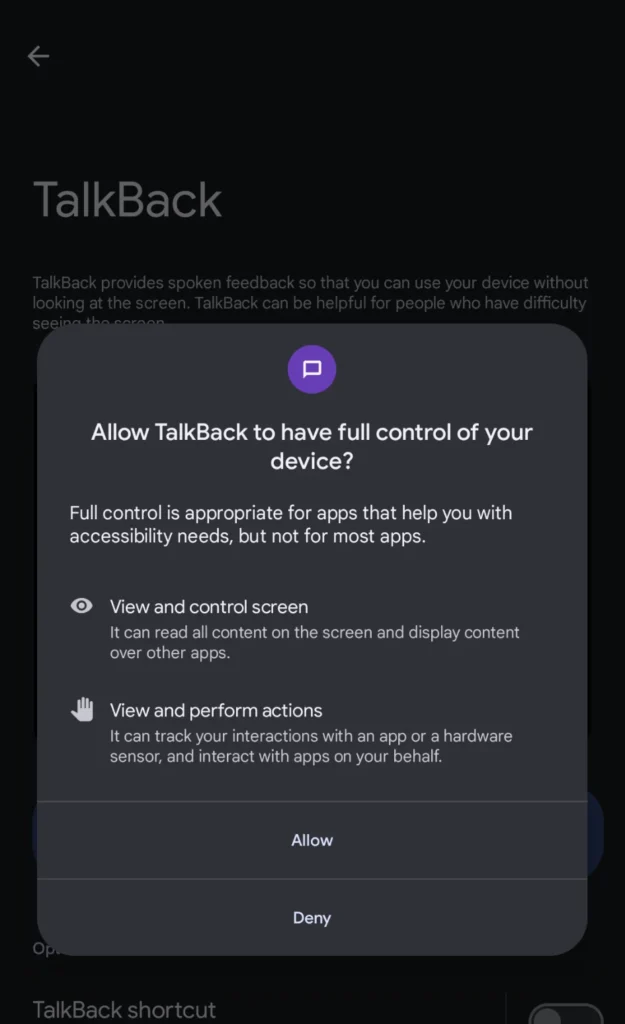
Some phones display a shortcut confirmation or selection dialog instead of disabling TalkBack immediately.
If that happens, follow the onscreen instructions using TalkBack gestures.
For example, touch an option once to focus it, then double-tap to activate it.
If pressing both volume buttons does nothing, don’t repeatedly hold them indefinitely.
Try the Google Assistant method or disable TalkBack through Settings instead.
Can the Volume Buttons Accidentally Enable TalkBack?
Yes.
If the shortcut is configured for TalkBack, holding both volume buttons can toggle the feature.
This can explain why TalkBack seemingly activated without anyone opening Accessibility settings.
Later in this guide, we’ll explain how to disable the shortcut if you don’t want to use it.
Best for: Anyone who accidentally activated TalkBack and wants a quick way to disable it.
Method 2: Turn Off TalkBack With Google Assistant
If navigating the phone is difficult, voice commands may offer another solution.
Google’s official Android Accessibility documentation includes a command for disabling TalkBack through Google Assistant.
Steps
- Make sure your phone is powered on and able to respond to Google Assistant.
- Say, “Hey Google, turn off TalkBack.”
- Allow the assistant to process the request.
- Listen for confirmation.
- Test whether regular touchscreen navigation has returned.
If Google Assistant is correctly configured and supports the command on your device, TalkBack should turn off.
Why Isn’t the Voice Command Working?
Several things can affect the result.
Your phone might not have voice activation enabled, the assistant may be unavailable, or your device might be using a different assistant configuration.
For example, Google Assistant and Gemini don’t necessarily handle every device-control request in the same way.
If the command isn’t recognized, try opening Google Assistant using your phone’s configured activation method.
If that still doesn’t work, use Android Accessibility settings.
Avoid repeatedly changing assistant permissions solely to solve a TalkBack navigation problem.
Can You Disable TalkBack Without Touching the Screen?
Yes, potentially.
The volume-button shortcut and Google Assistant command can both work without navigating the touchscreen, provided the relevant feature has been configured.
This is particularly helpful when TalkBack gestures are unfamiliar.
Best for: Users whose volume-button shortcut doesn’t work but whose phone supports Google Assistant voice commands.
Method 3: Turn Off TalkBack Through Android Settings
If the previous methods haven’t worked, you can disable TalkBack manually.
This method is available on supported Android phones, including Google Pixel and Samsung Galaxy devices.
The challenge is navigating Settings while TalkBack is active.
Before starting, learn the three basic gestures below.
Essential TalkBack Gestures
1. Select an item
Touch the item once with one finger.
TalkBack moves focus to the selected item and announces it.
2. Open an item
After focusing the item, double-tap anywhere on the screen with one finger.
This activates the selected item.
3. Scroll
Place two fingers on the screen and swipe up or down together.
This scrolls through lists and settings.
Remember these gestures because a regular tap or one-finger swipe may not behave normally while TalkBack is active.
Step 1: Open Android Settings
Unlock your phone if necessary.
Next, swipe down from the top of the screen using two fingers.
If needed, swipe down with two fingers again to expand Quick Settings.
Locate the Settings gear icon.
Touch it once to select it.
Then double-tap anywhere on the screen to open Settings.
You can also use the app drawer to find Settings, although the exact navigation gestures depend on your device.
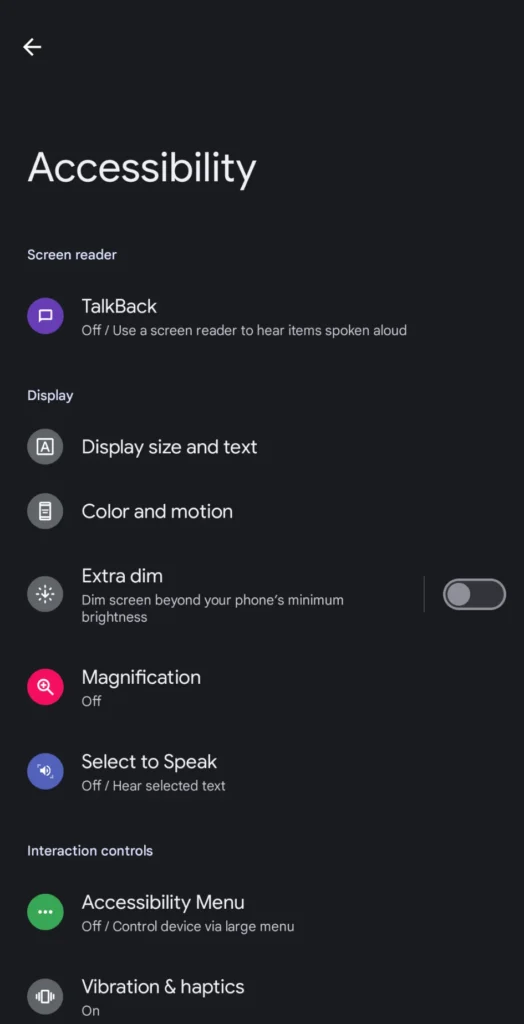
Step 2: Open Accessibility
Once you’re inside Settings:
- Scroll with two fingers until you locate Accessibility.
- Tap Accessibility once to move the focus to it.
- Double-tap to open the menu.
- Locate TalkBack in the list.
Some devices place TalkBack under a slightly different menu depending on their software version.
Step 3: Open TalkBack Settings
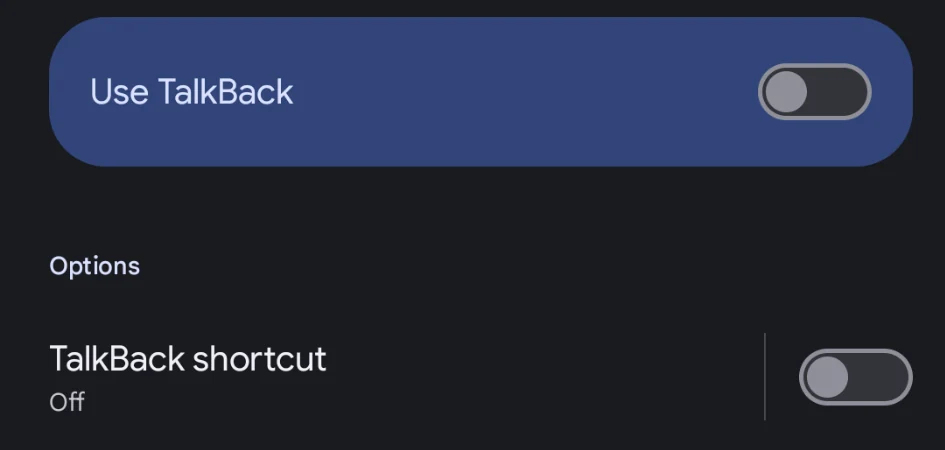
Touch TalkBack once.
Double-tap to open its settings.
On many Google Pixel phones, you’ll see an option named Use TalkBack.
Samsung devices may display a TalkBack switch near the top of the screen.
Step 4: Disable TalkBack
- Touch the Use TalkBack switch once to focus it.
- Double-tap to activate the switch.
- If a confirmation dialog appears, select Turn off.
- Double-tap to confirm.
- Wait for spoken feedback to stop.
Your Android phone should now respond to ordinary touch gestures again.
A single tap should open applications normally.
You should no longer need two fingers to scroll through standard menus.
Best for: Users who cannot disable TalkBack through the volume shortcut or a voice command.
How to Turn Off TalkBack on Samsung Galaxy
If you’re using a Samsung Galaxy phone, the overall process is similar.
On recent Galaxy models:
- Open Settings.
- Select Accessibility.
- Choose TalkBack.
- Turn off the TalkBack switch.
- Confirm the action if prompted.
If TalkBack is currently enabled, remember to use one tap to focus and a double-tap to activate each item.
You may also try holding Volume Up and Volume Down simultaneously for approximately three seconds if the TalkBack shortcut has been configured.
What About Older Samsung Phones?
Some older Samsung devices call this feature Voice Assistant or place it under Screen reader.
In that case, open Settings → Accessibility and look for Screen reader or Voice Assistant.
Turn off the corresponding screen reader using its switch.
The exact menu depends on your version of Samsung One UI or older Samsung software.
Samsung explains these differences in its official TalkBack and Voice Assistant guide.
How to Turn Off TalkBack on Google Pixel
On a Google Pixel, the normal settings path is:
Settings → Accessibility → TalkBack → Use TalkBack.
If TalkBack is already active, use the special gestures described earlier.
Steps
- Open Settings using TalkBack gestures.
- Scroll to Accessibility using two fingers.
- Select Accessibility, then double-tap.
- Find TalkBack.
- Select and open it.
- Focus the Use TalkBack switch.
- Double-tap to turn it off.
- Confirm the action if required.
Once TalkBack is disabled, your Pixel should return to normal touchscreen interactions.
You don’t need to uninstall Google’s accessibility applications.
If you’re setting up your Pixel afterward, our Google Pixel Home Screen Setup guide explains how to customize your Home Screen and navigation experience.
How to Stop TalkBack in Android When You Can’t Scroll
One of the most confusing parts of TalkBack is that scrolling behaves differently.
You might try swiping up through Settings using one finger, only to hear another item being announced.
This is normal TalkBack behavior.
Use Two Fingers to Scroll
- Place two fingers on the touchscreen.
- Move both fingers upward or downward together.
- Continue until the desired menu is visible.
- Touch the menu item once to focus it.
- Double-tap to open it.
If two-finger scrolling doesn’t work immediately, try moving both fingers smoothly at the same time.
If you need to move through individual controls, swipe left or right using one finger to change the focused item.
TalkBack’s screen navigation is designed to remain accessible through these gestures.
Avoid performing a factory reset simply because scrolling seems different.
How to Turn Off TalkBack When Your Phone Is Locked
You might notice TalkBack is active before you can unlock your phone.
You can still attempt to disable it.
First, try the configured volume-button shortcut.
Press and hold both volume buttons simultaneously for a few seconds.
If the shortcut works, the phone should return to normal navigation.
If it doesn’t, unlock the device using TalkBack gestures.
Unlocking With a PIN
- Wake the screen.
- Use a two-finger upward swipe from the bottom when necessary to display the unlock interface.
- Locate the PIN keypad.
- Follow TalkBack’s spoken feedback as you enter your PIN.
- Activate the confirmation control when needed.
The exact keypad interaction can vary with Android and your keyboard configuration.
Once the device is unlocked, open Settings → Accessibility → TalkBack.
If you have trouble navigating, Google’s official TalkBack instructions provide additional guidance for locked devices.
Important: You still need the correct PIN, password, pattern, or other authorized unlock method. TalkBack doesn’t bypass device security.
How to Stop TalkBack From Turning On Again
After successfully disabling TalkBack, you may want to prevent accidental activation.
Android lets you configure accessibility shortcuts.
If TalkBack was turned on by holding the volume buttons, removing its shortcut can prevent that specific action from enabling it again.
Disable the TalkBack Shortcut on Google Pixel
- Open Settings.
- Tap Accessibility.
- Select TalkBack.
- Find TalkBack shortcut.
- Turn off the shortcut or remove its assigned activation method.
- Confirm any changes if prompted.
The exact shortcut screen may vary by Android version.
Disable the TalkBack Shortcut on Samsung Galaxy
Samsung Galaxy devices include accessibility shortcut settings.
On supported recent versions:
- Open Settings.
- Select Accessibility.
- Look for Accessibility shortcuts or Advanced settings.
- Review the volume-button and other shortcut assignments.
- Remove TalkBack from shortcuts you don’t want to use.
Some older Galaxy phones organize these controls differently.
Don’t disable unrelated accessibility shortcuts that you still use.
Google explains shortcut configuration in its Android Accessibility Shortcuts guide.
TalkBack Won’t Turn Off? Try These Checks
If you’ve tried the three methods but TalkBack remains enabled, work through the following checks.
1. Make Sure You’re Double-Tapping the Selected Item
With TalkBack active, a single tap generally moves focus.
It doesn’t necessarily activate the selected control.
After selecting the TalkBack switch, double-tap anywhere on the screen.
Do the same when confirming Turn off.
2. Verify the Volume Shortcut Is Assigned to TalkBack
Holding both volume buttons only toggles TalkBack when the relevant shortcut has been configured.
If nothing happens, it may not be assigned to TalkBack.
Use the manual Settings method instead.
3. Check for Another Screen Reader or Accessibility Service
If TalkBack appears disabled but the phone still speaks, another accessibility service might be running.
Open Settings → Accessibility and review enabled services.
Only change the service responsible for the behavior.
4. Restart Your Phone If It Is Unresponsive
If the entire phone is frozen rather than simply using TalkBack gestures, a normal restart may help.
Use your device manufacturer’s supported restart procedure.
After restarting, check whether TalkBack is still active and use the appropriate disabling method.
Restarting the phone by itself does not guarantee TalkBack will be disabled.
5. Contact Your Device Manufacturer
If none of the documented methods works, consult Google Pixel support, Samsung support, or your phone manufacturer’s accessibility documentation.
Do not factory reset the device as an early troubleshooting step.
A factory reset can erase personal information and is unnecessary for most situations involving TalkBack navigation.
Is TalkBack Different From Select to Speak?
Yes.
Both are Android accessibility features, but they serve different purposes.
TalkBack is a screen reader that provides spoken feedback and changes how the touchscreen is navigated.
Select to Speak is designed to read selected onscreen content aloud when you activate the feature.
If your phone only reads selected text but otherwise responds to normal taps, check whether Select to Speak or another reading feature is enabled.
You can review these options under Android Accessibility settings.
Disabling TalkBack won’t necessarily turn off a different accessibility service.
Does Turning Off TalkBack Delete Anything?
No.
Disabling TalkBack does not normally delete:
- Photos or videos.
- Contacts or messages.
- Installed applications.
- Google Account information.
- Files stored on your phone.
It changes how the phone provides spoken feedback and how certain touch gestures operate.
You can enable TalkBack again later if you need it.
For people who depend on a screen reader, keeping TalkBack enabled may be essential for navigating the device independently.
Frequently Asked Questions
How do I turn off TalkBack on Android without going into Settings?
Try pressing and holding Volume Up and Volume Down simultaneously for a few seconds. This works if the relevant accessibility shortcut is configured. You can also ask Google Assistant to turn off TalkBack on supported configurations.
Why is my Android phone talking when I touch the screen?
TalkBack or another accessibility reading feature may be enabled. If the phone also highlights items and requires double-tapping, TalkBack is a likely explanation.
How do I turn off TalkBack without using the volume buttons?
Open Settings → Accessibility → TalkBack and disable Use TalkBack. While TalkBack is active, touch an item once to focus it, double-tap to activate it, and scroll using two fingers.
Why do I have to double-tap everything on Android?
TalkBack changes standard touchscreen navigation to support accessible interaction. A single tap generally selects an item, while a double-tap activates it.
How do I turn off TalkBack on a Samsung phone?
Go to Settings → Accessibility → TalkBack and disable the feature. On some older Samsung devices, it may appear as Voice Assistant under Screen reader.
Will restarting my phone turn off TalkBack?
Not necessarily. Restarting Android generally doesn’t disable an accessibility feature that remains enabled in Settings. Use a supported shortcut or turn it off manually.
Can TalkBack turn on by itself?
TalkBack can appear to turn on unexpectedly when an assigned accessibility shortcut is activated accidentally. Check whether the volume-button shortcut or another accessibility shortcut is configured.
Can I use TalkBack again after turning it off?
Yes. You can re-enable it from Settings → Accessibility → TalkBack whenever needed. Its availability doesn’t depend on leaving it enabled permanently.
Final Thoughts
Learning how to turn off TalkBack on Android is easier once you understand that TalkBack changes normal touch gestures.
Start with the volume-button shortcut because it’s usually the quickest option when configured.
If that doesn’t work, try the Google Assistant voice command or navigate through Settings → Accessibility → TalkBack.
Remember to use one finger to select, double-tap to activate, and two fingers to scroll while TalkBack is enabled.
Finally, review your accessibility shortcuts if you want to prevent the feature from being activated unintentionally.
These steps can help restore standard Android navigation without deleting personal files, uninstalling applications, or resetting your phone.