Wondering how to find IP address on Mac? Whether you’re connecting a printer, troubleshooting Wi-Fi, accessing a local device, or configuring a network, knowing where to find your IP address can be useful.
The good news is that macOS makes this straightforward. You don’t need to install additional applications or change advanced network settings.
However, your Mac can have more than one IP address. The local IP address identifies your device on a network, while your public IP address is associated with the internet connection seen by websites and online services.
In this guide, you’ll learn five easy ways to find your IP address on a Mac, including methods using Wi-Fi settings, Ethernet settings, Terminal, and your web browser.
These instructions work with modern versions of macOS on MacBook Air, MacBook Pro, iMac, Mac mini, and other supported Macs.
Quick Answer: How to Find IP Address on Mac
The easiest way to find your Mac’s local IP address is through System Settings.
- Click the Apple menu in the upper-left corner.
- Select System Settings.
- Click Wi-Fi.
- Find your connected Wi-Fi network.
- Click Details beside the network.
- Look for the IP address displayed in the connection information.
You’ll typically see an address resembling 192.168.1.105 or 10.0.0.25.
That is your local network IP address.
If you want your public IP address instead, open a web browser and search Google for “what is my IP address.”
Let’s explore each method and when to use it.
What Is an IP Address on a Mac?
An IP address, short for Internet Protocol address, helps identify a device or network connection so data can be delivered correctly.
Your Mac uses IP addresses when communicating with devices on your local network and services across the internet.
Two common types are local IP addresses and public IP addresses.
Local IP Address
A local IP address identifies your Mac on a local network, such as your home or office Wi-Fi.
For example:
192.168.1.105
Other devices connected to the same network can use a suitable local IP address to communicate with your Mac, provided the network and sharing permissions allow it.
You may need this address when:
- Setting up a network printer.
- Connecting to another computer.
- Configuring local file sharing.
- Accessing a development server.
- Troubleshooting router or network problems.
Your local IP address may change when you reconnect to a network, restart your router, or receive a new address from DHCP.
Public IP Address
Your public IP address is the address an external internet service may see when you connect.
For example:
203.0.113.25
This is a documentation-only example, not a real assigned address.
Most home networks use a router that allows multiple devices to share a public IPv4 connection.
Consequently, your Mac, smartphone, and other devices may use different local IP addresses while sharing the same public IPv4 address.
A VPN or Apple’s iCloud Private Relay may change the public-facing address that certain websites see.
Understanding this distinction prevents confusion when two IP address checkers display different results.
Method 1: Find Your Mac IP Address in Wi-Fi Settings
For most MacBook users, this is the simplest method.
Apple includes IP information directly in the Wi-Fi settings on modern macOS versions.
Steps to find your IP address
- Click the Apple menu in the top-left corner of your screen.
- Select System Settings.
- Click Wi-Fi in the sidebar.
- Confirm that your Mac is connected to a Wi-Fi network.
- Locate your connected network.
- Click Details next to its name.
- Find the IP address in the network information.
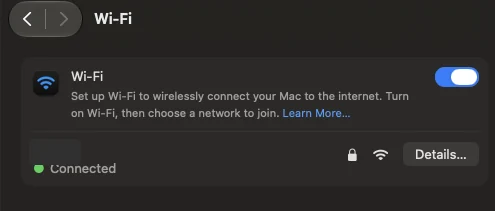
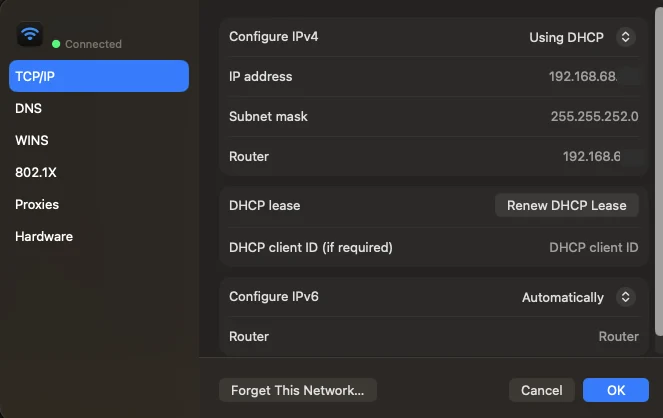
You may also see your router address and other network details.
For a more detailed view, select TCP/IP within the Details window.
Look for the IP address listed under IPv4 information.
For example, you may see:
IP Address: 192.168.1.105
Router: 192.168.1.1
The first address identifies your Mac on that network. The second identifies the local router or gateway.
These values are examples. Your actual addresses will depend on your network.
Apple explains these settings in its official Wi-Fi settings documentation.
Best for: People using Wi-Fi who want to find their Mac’s local IP without opening Terminal.
Method 2: Find Your IP Address Through Ethernet Settings
If your Mac connects to the internet using an Ethernet cable or USB-C Ethernet adapter, you should check the Ethernet connection instead.
Wi-Fi and Ethernet are separate network interfaces, and each can have its own IP address.
Steps
- Click the Apple menu.
- Open System Settings.
- Select Network in the sidebar.
- Find your active Ethernet connection.
- Click the Ethernet service.
- Select Details.
- Open the TCP/IP tab.
- Look for the IP address.
If your Mac uses automatic network configuration, you may also see Configure IPv4 set to Using DHCP.
You do not need to change these settings just to find your address.
Be careful not to switch from DHCP to manual configuration unless your internet provider or network administrator has instructed you to do so.
What if Ethernet is missing?
If you don’t see an Ethernet service, your Mac may not have an active Ethernet interface.
Many MacBook Air models require a compatible USB-C or Thunderbolt Ethernet adapter for wired networking.
If you’re connected through Wi-Fi, use Method 1 instead.
Best for: Desktop Macs, MacBooks with Ethernet adapters, and users troubleshooting wired network connections.
Method 3: Find Your IP Address Using Terminal
Terminal offers a quick way to check network information without navigating through System Settings.
This method is useful for developers, network administrators, and anyone who prefers keyboard commands.
You can use the built-in macOS ipconfig command to display a local IPv4 address.
Step 1: Open Terminal
Press Command + Space to open Spotlight.
Type Terminal and press Return.
Alternatively, open Finder → Applications → Utilities → Terminal.
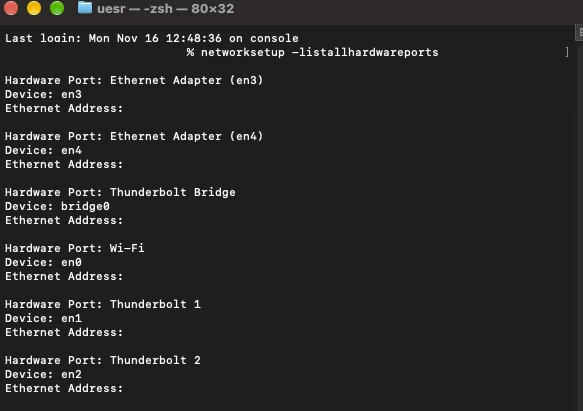
Step 2: Identify your network interface
Enter this command:
networksetup -listallhardwareports
Press Return.
Terminal displays available hardware ports and their associated device identifiers.
For example, you might see:
Hardware Port: Wi-Fi
Device: en0
On many MacBooks, the Wi-Fi interface is named en0, but this isn’t guaranteed on every Mac.
Check the actual device identifier before proceeding.
Step 3: Display the IP address
If your Wi-Fi interface is en0, enter:
ipconfig getifaddr en0
Press Return.
Terminal may display an address such as:
192.168.1.105
This is the IPv4 address assigned to that interface.
If the Wi-Fi device is listed as en1 or another identifier, replace en0 with the correct value.
What if Terminal shows nothing?
A blank result can mean that the specified interface does not currently have an IPv4 address.
It can also mean that you entered the wrong interface name.
Run networksetup -listallhardwareports again and verify which interface belongs to your active connection.
For additional details about an interface, use:
ifconfig en0
This displays network information, including IPv4 addresses marked inet and IPv6 addresses marked inet6, when present.
Avoid confusing your local interface address with a loopback address such as 127.0.0.1.
Best for: Advanced users, developers, and anyone who needs to check an address quickly from Terminal.
Method 4: Find Your Public IP Address Using a Web Browser
The previous methods identify your Mac’s local network address.
However, you may occasionally need to determine which public IP address websites see when you browse the internet.
You can check this without changing any settings.
Steps
- Open Safari, Chrome, or another web browser.
- Visit Google.
- Search for “what is my IP address.”
- Review the result if Google displays your public address.
- Alternatively, open a reputable IP address checking website.
For example, you can visit WhatIsMyIPAddress.com to see the public-facing IP address detected for your browser connection.
Depending on your network, you may see an IPv4 address, an IPv6 address, or both.
Why is my public IP different from my local IP?
This is normal.
Your router commonly assigns private addresses to local devices and uses network address translation when they communicate over a shared public IPv4 connection.
For example:
- Mac’s local IP: 192.168.1.105
- Router’s local IP: 192.168.1.1
- Public-facing IP: An address assigned or presented through your internet connection
These addresses have different purposes.
What if I use a VPN?
When you’re connected to a VPN, an IP checking website may display an address associated with the VPN service.
This is not necessarily the public address assigned directly to your home internet connection.
Similarly, Apple’s iCloud Private Relay can hide your original IP address from websites in Safari.
Apple’s iCloud Private Relay documentation explains how the service uses temporary IP addresses to protect browsing privacy.
Best for: Checking the internet-facing address used by a browser, troubleshooting website access, or understanding a VPN connection.
Method 5: Find Your Public IP Address Using Terminal
You can also retrieve a public-facing IP address directly from Terminal.
This is especially useful if you prefer command-line tools or need to check your network connection while working on a Mac.
Steps
- Open Terminal.
- Enter the following command:
curl -4 https://api.ipify.org
- Press Return.
Terminal requests your public-facing IPv4 address from the external IP detection service.
The result should appear as a numeric address.
For example:
203.0.113.25
This example is not your actual IP address.
What does the command do?
curl is a built-in command-line tool that can request information from websites and online services.
The -4 option requests an IPv4 connection.
The ipify service returns the address it sees for your request.
The command does not change your network configuration.
However, it does contact a third-party service, which can observe the connection’s public-facing IP address.
If your network does not support an IPv4 route, this command may fail.
Also, a browser using Private Relay or a separate proxy might show a different public-facing address than Terminal.
Best for: Developers, networking enthusiasts, and people who want a quick public IPv4 check without opening a browser.
How to Find Your Mac IP Address on Older macOS Versions
If you’re using an older Mac, the settings interface may look different.
For example, macOS Monterey and earlier commonly use System Preferences rather than System Settings.
To find your IP address:
- Click the Apple menu.
- Select System Preferences.
- Open Network.
- Select your connected Wi-Fi or Ethernet service.
- Look for its connection information.
- Click Advanced and open TCP/IP if you need more details.
The IP address should appear in the network information or TCP/IP section.
The appearance and exact labels can vary between macOS versions.
On newer macOS releases, use System Settings instead.
How to Tell Whether an IP Address Is Local or Public
Understanding the address format can help you identify what you’re looking at.
Common private IPv4 ranges include:
- 10.0.0.0 through 10.255.255.255
- 172.16.0.0 through 172.31.255.255
- 192.168.0.0 through 192.168.255.255
If your Mac displays an address such as 192.168.0.20, it is a private IPv4 address.
You may also encounter 169.254.x.x addresses, which can indicate that your Mac has assigned itself an IPv4 link-local address because normal address assignment wasn’t available.
An IPv6 address looks different. It contains hexadecimal characters separated by colons.
For example:
2001:db8::1234
This is a documentation-only IPv6 example.
Importantly, not every IPv6 address is private or public simply because of its length or appearance.
To distinguish an address accurately, consider its assigned range and the network interface where you found it.
Why Can’t I Find My IP Address on Mac?
If your Mac isn’t displaying the address you expect, there are several possible explanations.
1. Your Mac isn’t connected to Wi-Fi
Check the Wi-Fi icon in the menu bar.
Open System Settings → Wi-Fi and confirm that your Mac is connected to the correct network.
A disconnected interface might not have a usable IPv4 address.
2. You’re checking the wrong interface
A Mac can have separate Wi-Fi, Ethernet, VPN, and virtual network interfaces.
Each interface can have a different address.
Make sure you’re viewing the connection you actually use.
3. Your Mac has a self-assigned IP address
An address beginning with 169.254 can indicate an automatic link-local IPv4 assignment.
This can happen when the Mac cannot obtain an address from a DHCP server.
If you suspect a DHCP issue, check your router and network connection.
Apple provides an option to renew a DHCP lease through System Settings → Network → your connection → Details → TCP/IP.
Don’t change a managed or manually configured network without consulting its administrator.
4. Your VPN is changing the reported public address
A VPN may route some or all of your internet traffic through a remote server.
That can make your public IP appear different from the one associated with your normal internet connection.
If the VPN is required for your workplace, leave it enabled and contact your network administrator if necessary.
5. Your internet connection isn’t working
If a public IP lookup fails, verify that your Mac can access websites.
Try loading another site and check the connection status in System Settings.
For more detailed troubleshooting, see our MacBook Wi-Fi Not Working guide.
You can also follow Apple’s official Mac Wi-Fi troubleshooting instructions.
Is an IP Address the Same as a MAC Address?
No. Despite the similar names, an IP address and a MAC address are different things.
An IP address is a network-layer address used to route traffic between networks or identify a device within an IP network.
A MAC address is a link-layer hardware or interface identifier used in technologies such as Ethernet and Wi-Fi.
For example:
IP address: 192.168.1.105
MAC address: A1:B2:C3:D4:E5:F6
These are illustrative examples.
Your IP address can change when your network changes.
A hardware MAC address is associated with a network interface, although modern devices may also use private or randomized Wi-Fi addresses.
If someone asks for your Mac’s IP address, don’t automatically provide the Wi-Fi hardware address instead.
Can You Change Your Mac’s IP Address?
Yes, but the appropriate method depends on the type of address.
Your local IP address may change automatically when your router assigns a different address through DHCP.
You can also configure a manual IP address when necessary.
However, incorrectly assigning a manual address can interrupt your connection or create conflicts with other devices.
Your public IP address is usually determined by your internet provider, VPN, or other network service.
Changing your Mac’s local IP address does not necessarily change your public IP address.
If you simply want to identify your existing address, there is no reason to modify any network settings.
Frequently Asked Questions
Where do I find my IP address on a MacBook Air?
Open System Settings → Wi-Fi → Details beside your connected network. Look for the IP address in the connection information, or open TCP/IP for more details.
What is the fastest way to find IP address on Mac?
For a local IP, open Wi-Fi Details in System Settings. For a public IP, open your browser and search “what is my IP address.”
How do I find my Mac’s IP address in Terminal?
Open Terminal, identify the correct network interface using networksetup -listallhardwareports, then run ipconfig getifaddr en0 if your active interface is en0.
Why does my Mac have two different IP addresses?
Your Mac may have a private address for its local network and a different public-facing address for internet access. Separate interfaces, IPv4 and IPv6, VPNs, and privacy services can also produce different addresses.
Is my Mac’s IP address the same as my router’s?
Usually not. On a typical home network, your Mac has its own local IP address, while the router has a separate local gateway address. Multiple devices may share the router’s internet-facing public IPv4 address.
Can someone find my exact location from my IP address?
An IP address can sometimes reveal an approximate geographic location or internet provider, but it generally does not disclose a precise home address by itself. Location estimates can also be inaccurate.
Does restarting a Mac change its IP address?
It might, but it isn’t guaranteed. A DHCP server can assign the same address again, and manually configured addresses normally remain unchanged.
Final Thoughts
Learning how to find IP address on Mac is straightforward once you understand the difference between local and public IP addresses.
For most people, the quickest method is System Settings → Wi-Fi → Details.
If you’re using a wired connection, check Ethernet settings instead.
Terminal provides another option for checking local and public network addresses, while an online IP checker is useful for identifying the address seen by websites.
Whichever method you choose, remember that simply viewing your IP address does not require changing your network configuration.
And if your Mac cannot connect to the network or obtain a normal address, troubleshoot the connection before attempting advanced settings changes.