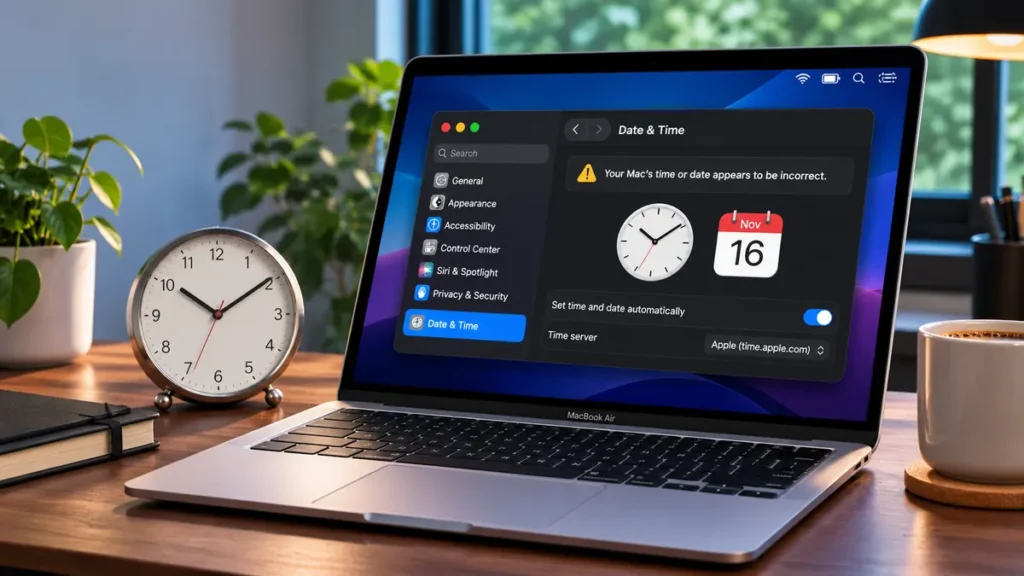
Mac clock is wrong? Maybe your MacBook displays the wrong time, the date keeps changing, or the clock is stuck in a different time zone. You might also notice that Calendar events appear at unexpected times or that websites and applications have trouble connecting.
An incorrect system clock can affect more than the time displayed in your menu bar. It can also cause problems with scheduled events, file timestamps, authentication, and certain secure internet connections.
Fortunately, most Mac date and time problems can be resolved without reinstalling macOS or resetting your computer.
In this guide, you’ll learn nine practical ways to fix a Mac showing the wrong time or date. We’ll cover automatic time synchronization, time zone settings, Location Services, network time servers, and manual adjustments.
These instructions apply to MacBook Air, MacBook Pro, iMac, Mac mini, and other supported Macs running modern macOS versions.
Quick Answer: Mac Clock Is Wrong? Start Here
If your Mac displays the incorrect date or time, start by checking its automatic settings.
- Click the Apple menu in the upper-left corner.
- Open System Settings.
- Select General.
- Click Date & Time.
- Enable Set time and date automatically.
- Enable Set time zone automatically using your current location.
- Confirm that your Mac is connected to the internet.
- Check whether the clock updates correctly.
On most Macs, these settings are enough to maintain the correct local time.
If the clock remains wrong, review Location Services and the network time server.
Apple recommends using automatic date and time settings where possible. Its official date and time troubleshooting guide also explains how to correct problems involving time zones and automatic synchronization.
Why Is My Mac Showing the Wrong Time or Date?
A Mac can display incorrect time information for several reasons.
Common causes include:
- Automatic date and time synchronization is disabled.
- Your Mac cannot reach its network time server.
- The selected time zone is incorrect.
- Location Services isn’t available for automatic time zone detection.
- Your internet connection is temporarily unavailable.
- The Mac hasn’t updated its time after traveling.
- A temporary macOS issue is preventing synchronization.
- The system is using outdated or manually entered settings.
- A workplace or school management policy restricts time settings.
The symptoms can provide useful clues.
For example, if your Mac is exactly one hour ahead or behind, the problem may involve the selected time zone or daylight saving time.
If the displayed date is several days or years wrong, investigate time synchronization before assuming the time zone is responsible.
Let’s go through the fixes in order.
Fix 1: Check Your Mac’s Internet Connection
Before changing date and time settings, confirm that your Mac has a working internet connection.
macOS can use a network time server to synchronize its clock automatically.
If your Mac cannot communicate with the server, automatic synchronization may fail.
How to Check the Connection
- Open Safari or another web browser.
- Visit a familiar website.
- Confirm that the page loads normally.
- Open another website to compare.
- If neither site loads, check your Wi-Fi connection.
- Reconnect to your network if necessary.
You can also open System Settings → Wi-Fi and verify that your Mac is connected.
A strong Wi-Fi signal doesn’t always guarantee working internet access.
For example, you may be connected to a router that has temporarily lost its internet connection.
If you’re using a public or hotel Wi-Fi network, check whether a sign-in page or captive portal requires attention.
Once the internet connection is working, return to Date & Time settings and check whether synchronization succeeds.
Tip: If you’re troubleshooting several Mac problems at once, visit our Mac and Apple troubleshooting guide collectionfor additional help.
Fix 2: Enable Automatic Date and Time on Mac
This is one of the most important fixes when your Mac clock is wrong.
Modern versions of macOS allow your computer to obtain accurate time information from a network time server.
Automatic synchronization is generally preferable to entering the time manually because your Mac can maintain its clock without regular adjustments.
How to Enable Automatic Date and Time
- Click the Apple menu.
- Select System Settings.
- Click General in the sidebar.
- Select Date & Time.
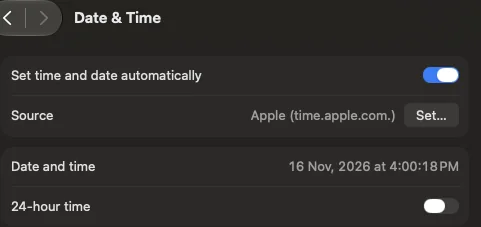
- Locate Set time and date automatically.
- Turn on the switch if it’s disabled.
- Check whether the date and time update.
Depending on your macOS version, you may also see a Set button associated with the network time server.
Leave the automatic setting enabled while you test the result.
What If Automatic Time Is Already Enabled?
If the switch is already on but your Mac still displays an incorrect time, don’t immediately change several settings.
First, confirm that the displayed time zone is correct.
Then review the configured network time server.
Sometimes the underlying problem isn’t the clock itself but the time zone used to display the local time.
Apple provides these instructions in its Set the Date and Time Automatically on Mac guide.
Fix 3: Check Your Mac’s Network Time Server
When automatic time synchronization is enabled, your Mac communicates with a network time server.
This server provides time information that macOS can use to maintain the system clock.
If the configured server is unavailable or your network blocks access, automatic synchronization may not work properly.
How to Check the Time Server
- Open System Settings.
- Select General.
- Click Date & Time.
- Find Set time and date automatically.
- Click the associated Set button when available.
- Review the configured network time server.
- Confirm that it is a valid, trusted time server.
- Save the setting if you’ve made an authorized change.
For most home users, retaining the Mac’s default time server configuration is the safest choice.
You generally don’t need to enter a custom server.
Should You Change the Time Server?
Only change it if you have a specific reason.
For example, an organization might use an internal time server that computers must contact.
If your Mac belongs to a workplace or educational institution, consult your administrator before modifying the server address.
Changing the server repeatedly without understanding the network configuration can complicate troubleshooting.
After verifying the setting, check whether the clock corrects itself.
Fix 4: Correct the Time Zone on Your Mac
Sometimes the Mac clock isn’t losing time at all.
Instead, your computer is displaying the correct clock information for the wrong time zone.
For example, if you recently traveled from New York to Los Angeles, your Mac may continue displaying time according to its previous location if automatic time zone adjustment isn’t working.
A wrong time zone can make the clock appear several hours ahead or behind.
How to Set the Time Zone Automatically
- Click the Apple menu.
- Open System Settings.
- Select General.
- Click Date & Time.
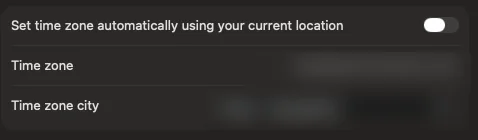
- Find Set time zone automatically using your current location.
- Enable the setting.
- Check whether the displayed city or time zone is correct.
Automatic time zone detection uses location-related information.
Therefore, this feature may not work properly if the necessary Location Services settings are disabled.
What If the Time Zone Is Still Wrong?
Check whether Location Services is enabled for system time zone functions.
We’ll cover that in the next fix.
If automatic detection remains unreliable, you can manually select the appropriate time zone.
Best for: Macs showing an hour or several hours of difference from the correct local time.
Fix 5: Enable Location Services for Time Zone Detection
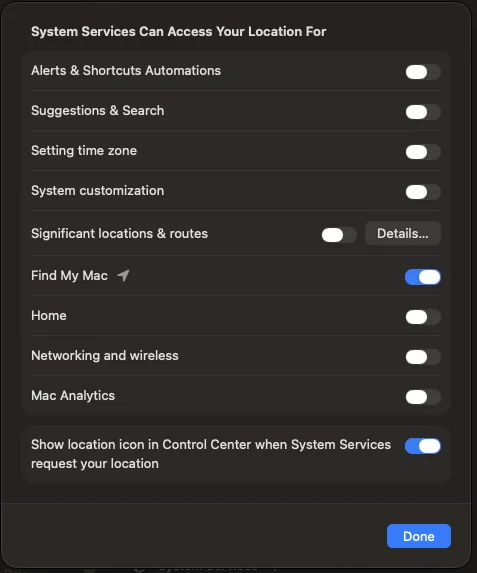
Your Mac uses Location Services to help determine the appropriate time zone.
If the related system services are disabled, automatic time zone detection may not update correctly.
This is especially relevant if your Mac started displaying the wrong time after you traveled.
How to Check Location Services on Mac
- Open System Settings.
- Click Privacy & Security.
- Select Location Services.
- Confirm that Location Services is enabled.
- Scroll to the bottom of the application and service list.
- Click Details beside System Services.
- Review the settings related to time zone and system customization.
- Enable the relevant options if you want automatic time zone detection.
The exact names and layout can differ between macOS releases.
After making the appropriate changes, return to System Settings → General → Date & Time.
Enable automatic time zone detection and check whether the correct location appears.
What If You Prefer Not to Enable Location Services?
You don’t necessarily have to enable location-based time zone detection.
You can configure your time zone manually instead.
This may be preferable for someone who uses their Mac in one location and wants to limit location access.
However, if you frequently travel, manual settings won’t automatically adjust your time zone when you move.
Apple specifically recommends reviewing Location Services and System Services when Mac time zone adjustments fail.
Fix 6: Manually Select the Correct Time Zone
If your Mac cannot determine your location correctly, manually selecting your time zone is a reasonable alternative.
This can be useful when you travel, use a managed network, or intentionally disable Location Services.
How to Change Time Zone Manually
- Open System Settings.
- Select General.
- Click Date & Time.
- Turn off Set time zone automatically using your current location.
- Find the time zone or closest city selection.
- Enter an appropriate city for your intended time zone.
- Press Return or confirm the selection.
- Check the time shown in the menu bar.
For example, someone living in New York would ordinarily select a time zone associated with New York.
Someone in Los Angeles would select the corresponding Pacific Time zone.
Choose the time zone for your actual intended local time rather than selecting a city merely because its current clock looks convenient.
Does Changing the Time Zone Affect Calendar Events?
It can affect how scheduled events are displayed.
Calendar applications may convert events to the Mac’s local time zone.
For example, an event originally scheduled in New York might appear at a different clock time when viewed in California.
That doesn’t necessarily mean the event has been changed or deleted.
If your calendar events look incorrect after changing time zones, verify their original time zone and account settings.
Our iPhone Calendar Not Syncing guide also discusses how incorrect time zones can make appointments appear at unexpected times across Apple devices.
Fix 7: Restart Your Mac and Check the Clock Again
If the automatic time and time zone settings look correct but the displayed clock remains inaccurate, try restarting your Mac.
A restart can resolve some temporary system problems.
Steps
- Save any unfinished documents.
- Close applications that contain unsaved work.
- Click the Apple menu.
- Select Restart.
- Allow your Mac to restart normally.
- Sign in to your account.
- Check the date and time in the menu bar.
If your Mac is connected to the internet, automatic synchronization should be available again.
Open Date & Time settings to confirm the configuration hasn’t changed.
Why Might Restarting Help?
System services occasionally encounter temporary errors.
Restarting gives macOS an opportunity to restart these services and re-establish network connections.
However, restarting doesn’t guarantee that an incorrect time zone or invalid network time server will be fixed.
If the time is still wrong, continue troubleshooting the underlying configuration.
Fix 8: Check for macOS Updates
An outdated macOS installation may contain known software problems or lack current system updates.
Checking for updates is a reasonable step when the date and time problem continues after verifying the connection and settings.
How to Update macOS
- Open the Apple menu.
- Select System Settings.
- Click General.
- Open Software Update.
- Allow your Mac to check for available updates.
- Review any updates offered for your device.
- Install an appropriate update if necessary.
Before installing a major macOS upgrade, create a backup of important files.
Connect your MacBook to power when appropriate and avoid interrupting an active software installation.
Will Updating macOS Fix the Clock?
Not always.
An update can resolve certain software issues, but an incorrect time zone or blocked time server may remain a problem after updating.
That’s why you should check basic date and time settings first.
Apple explains available update controls in its macOS Software Update guide.
Fix 9: Set the Date and Time Manually as a Last Resort
If automatic synchronization continues to fail, you can temporarily enter the correct date and time yourself.
This approach is useful when you’re troubleshooting an internet connection or need to correct a noticeably inaccurate clock.
However, automatic synchronization is usually preferable for long-term accuracy.
How to Change the Date and Time Manually
- Click the Apple menu.
- Open System Settings.
- Select General.
- Click Date & Time.
- Disable Set time and date automatically.
- Click Set beside the date and time controls.
- Enter the correct local date and time.
- Confirm the adjustment.
- Check the clock in the menu bar.
Make sure you enter the correct year, month, day, hour, and minute.
Important Precautions
Manually entering an incorrect date can cause problems with websites, application authentication, reminders, and file timestamps.
Don’t change the system clock simply to bypass application restrictions, manipulate timers, or alter software behavior.
If you use a workplace-managed Mac, automatic time settings may be required by your organization.
In that situation, contact the administrator rather than forcing a manual configuration.
Apple provides official steps in its Set the Date and Time Manually on Mac guide.
What If Mac Date and Time Settings Are Greyed Out?
Sometimes the automatic date and time controls are unavailable.
You may find that the switches are disabled or cannot be changed.
This can happen when a Mac is managed by an organization or subject to certain device restrictions.
What to Check
First, confirm that you’re signed into an account with appropriate permissions.
Next, consider whether your Mac is managed by a workplace or educational institution.
Managed devices may have configuration policies that restrict system settings.
If the options are unavailable because of management restrictions, contact your IT administrator.
Avoid removing unknown configuration profiles or using undocumented Terminal commands to override organization policies.
For a personally owned Mac, you can also check whether macOS displays an explanation when you try to change the setting.
If you cannot identify why the controls are unavailable, Apple Support can help you investigate.
Mac Clock Is Wrong After Sleep or Restart
A Mac may sometimes display an incorrect time after waking from sleep or restarting.
Start by checking whether it reconnects to the internet.
Then verify that automatic date and time synchronization is enabled.
If the problem happens only after waking:
- Open Date & Time settings.
- Confirm the automatic time settings.
- Check the active network connection.
- Restart your Mac if the clock remains wrong.
- Note whether the problem occurs after every sleep cycle.
If the clock becomes incorrect repeatedly despite working synchronization settings and a stable connection, the problem may require deeper software or hardware diagnosis.
Don’t assume that an inaccurate clock means your MacBook battery needs replacing.
Seek professional advice if the issue persists alongside startup errors or other unusual behavior.
Mac Time Is Off by Exactly One Hour
If your Mac consistently displays a time that is one hour ahead or behind, investigate the time zone and daylight saving time.
Many regions adjust clocks seasonally, although not every country or region observes daylight saving time.
What to Do
- Open System Settings → General → Date & Time.
- Check your selected time zone.
- Enable automatic time zone detection if appropriate.
- Review Location Services settings.
- Confirm the correct city or region is selected.
- Restart if the displayed time doesn’t update.
Avoid simply adjusting the clock by one hour while leaving an incorrect time zone selected.
That may temporarily make the displayed time look correct but can create further problems when daylight saving rules change.
Mac Date Is Correct but the Time Is Wrong
If your Mac displays the right date but an incorrect time, start with the time zone.
For example, a Mac can show the correct calendar date while being several hours ahead because the selected time zone is wrong.
Check these settings:
- Automatic time synchronization.
- Automatic or manually selected time zone.
- Location Services for time zone detection.
- Internet connectivity.
- Network time server configuration.
If everything looks correct, restart and recheck.
A difference of several hours is often more suggestive of a time zone problem than a completely incorrect year or date.
Mac Clock Displays AM Instead of PM
Sometimes the actual time is correct, but the way it appears in the menu bar causes confusion.
For example, your Mac may show time using a 12-hour clock with AM and PM, or a 24-hour clock without these labels.
You can change the format without changing the underlying system time.
How to Use 24-Hour Time
- Open System Settings.
- Select General.
- Click Date & Time.
- Find the 24-hour time option.
- Enable it if you prefer that format.
A time such as 3:30 PM will be displayed as 15:30 in 24-hour format.
Changing the format doesn’t alter the actual time or time zone.
If the date or hour remains incorrect after switching formats, return to the earlier troubleshooting steps.
Can the Wrong Mac Time Cause Internet Problems?
Yes, an incorrectly configured system clock can sometimes interfere with secure internet connections.
Secure websites and services use digital certificates with validity periods.
If your Mac’s date is significantly wrong, some certificates may appear not yet valid or expired.
As a result, you may encounter connection warnings or problems signing into certain services.
Other applications can also depend on accurate time for authentication.
What Should You Do?
If websites suddenly show certificate-related errors, check the Mac’s date and time before changing browser security settings.
Correcting the clock can resolve problems caused by an incorrect system date.
However, certificate warnings can have other causes.
Never ignore a security warning simply because you suspect the clock is responsible.
If the warning persists after correcting the date and time, investigate the website, network, or certificate issue separately.
Frequently Asked Questions
Why is my Mac clock wrong?
Your Mac may have automatic synchronization disabled, an incorrect time zone, unavailable network access, or a time server problem. Start with System Settings → General → Date & Time.
How do I fix the wrong time on MacBook Air?
Open System Settings → General → Date & Time and enable Set time and date automatically. Also check the time zone and Location Services settings.
Why does my Mac keep changing the time?
Your Mac may be switching time zones automatically or receiving time information from its configured server. Check both settings and confirm that your selected time zone is appropriate.
How do I make my Mac update its clock automatically?
Open System Settings → General → Date & Time, enable automatic date and time, and ensure the network time server configuration and internet connection are working.
Why is my Mac one hour ahead?
An incorrect time zone or daylight saving time configuration may explain a one-hour difference. Verify the selected region and enable automatic time zone detection if appropriate.
How do I manually correct the date on my Mac?
Open System Settings → General → Date & Time, turn off automatic date and time, click Set, enter the correct information, and confirm. Automatic synchronization is normally preferable.
Can an incorrect Mac clock affect Safari?
Yes. A significantly incorrect system date can make some website certificates appear invalid. Correct the time, then check whether the browser warning disappears.
Why is the automatic date and time option greyed out?
Some managed Macs have restrictions that prevent users from changing system time settings. Check whether your device is managed or contact the appropriate administrator.
Does restarting a Mac reset the date and time?
A normal restart shouldn’t intentionally reset the date and time to an incorrect value. A Mac using automatic synchronization can obtain updated time information when the required network connection is available.
Should I reset my Mac to fix the clock?
No. A factory reset is not an appropriate first step for a date and time problem. Check automatic synchronization, the time zone, Location Services, connectivity, and macOS updates first.
Final Thoughts
If your Mac clock is wrong, the most effective starting point is to check the automatic date and time settings in macOS.
Enable network time synchronization, verify that the correct time zone is selected, and make sure Location Services can support automatic time zone detection when you want to use that feature.
If the problem continues, review the time server, restart your Mac, and check for appropriate macOS updates.
Manual date and time settings are available when automatic synchronization isn’t working, but they are best used carefully.
In most cases, you can restore the correct date and time without deleting files, reinstalling macOS, or resetting your MacBook.