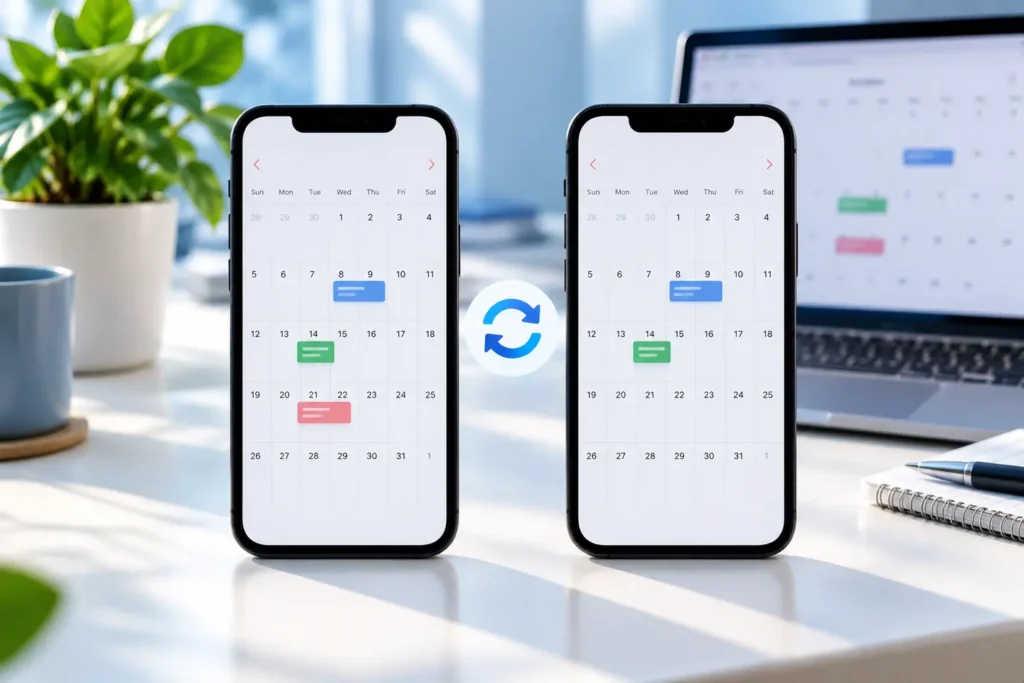
Is your iPhone Calendar not syncing with iCloud, Google Calendar, Outlook, or another Apple device? Maybe a meeting you created on your iPhone isn’t appearing on your Mac, your Google Calendar events have disappeared, or appointments added on your computer never show up on your phone.
Calendar synchronization problems can be particularly frustrating when you depend on your schedule for meetings, reminders, classes, or appointments.
Fortunately, missing events don’t always mean they’ve been deleted. Sometimes the wrong calendar is selected, an account’s Calendar switch is turned off, or your iPhone hasn’t downloaded the latest changes.
In this guide, we’ll explain 12 practical fixes for iPhone Calendar sync problems, including the correct settings for iCloud, Google Calendar, and Microsoft Outlook.
Table of Contents
Quick Answer: How to Fix iPhone Calendar Not Syncing
If your iPhone Calendar isn’t updating, try these steps first:
- Make sure your iPhone has a working internet connection.
- Open the Calendar app.
- Tap Calendars at the bottom.
- Make sure the calendars you want to see are selected.
- Swipe down on the calendar list to refresh it.
- Open Settings → Apps → Calendar → Calendar Accounts.
- Select your Google, Outlook, or other account and check that Calendars is enabled.
- For iCloud, open Settings → [your name] → iCloud and confirm iCloud Calendar is enabled.
- Restart your iPhone if the events still aren’t updating.
On iOS 17 and earlier, some Calendar settings appear directly under Settings → Calendar rather than Settings → Apps → Calendar.
Important: Before removing accounts or changing synchronization settings, check where your existing events are stored. Removing the wrong account can make events disappear from your device.
Why Is My iPhone Calendar Not Syncing?
Calendar events can be stored in several different accounts.
Your iPhone’s Calendar app can display events from iCloud, Google, Microsoft Exchange, Outlook.com, and other compatible calendar services.
These accounts don’t automatically combine into one online calendar. Instead, Apple’s Calendar app displays their events together.
That distinction explains many apparent synchronization failures.
Common causes include:
- The wrong calendar is selected or hidden.
- iCloud Calendar is disabled.
- Google or Outlook Calendar syncing is switched off.
- Your iPhone is signed in to a different account.
- An event was created in the wrong default calendar.
- The event falls outside the selected calendar history range.
- A connection or calendar service is temporarily unavailable.
- The device’s date and time are incorrect.
- A third-party calendar account needs authentication.
- A temporary app or iOS problem is preventing updates.
The most useful first step is to find out whether an event is missing from the actual online account or simply isn’t appearing on your iPhone.
1. Check Where the Missing Calendar Event Is Stored
Before changing anything, identify the account that owns the missing event.
This is especially important if you use several calendars for work, personal appointments, and family events.
For example, an event created in Google Calendar won’t automatically appear on iCloud.com unless the relevant Google calendar is connected and visible on your Apple devices.
Check the source calendar
- Open Calendar on your iPhone.
- Find an event that isn’t appearing on another device.
- Tap the event to view its details.
- Check the Calendar field.
- Note which calendar or account contains it.
- Compare that calendar with the accounts connected to your other device.
You can also check the online service directly:
Sign in to the relevant account and find the event.
If the event appears online but not on your iPhone, investigate the iPhone’s account and display settings.
If the event is missing online too, it may have been saved in a different calendar or may not have synchronized from the device where it was created.
Don’t delete or recreate the event yet. Doing so prematurely can lead to duplicates or lost details.
2. Show Hidden Calendars and Refresh the App
One of the simplest explanations for an iPhone Calendar not syncing problem is that the event’s calendar is hidden.
The Calendar app allows you to choose which calendars appear.
A hidden calendar can make existing appointments seem missing even though the account is working correctly.
Show your calendars
- Open the Calendar app.
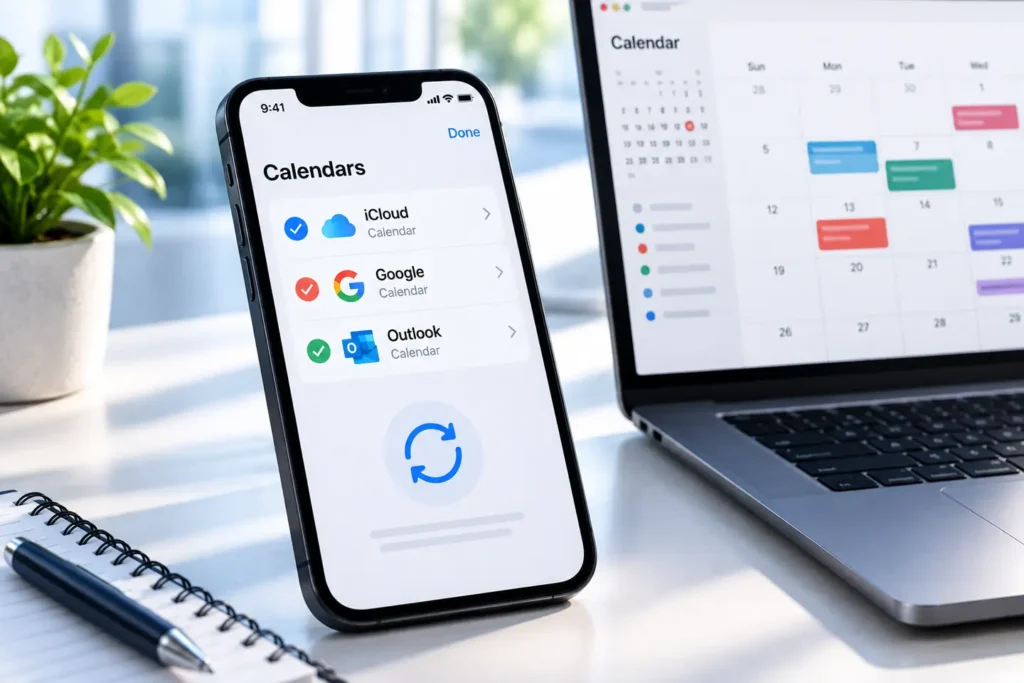
- Tap Calendars at the bottom.
- Review the calendars listed under iCloud, Google, Outlook, or other accounts.
- Select the calendars you want to display.
- Tap Done.
- Check whether your missing appointments appear.
Refresh Calendar manually
Apple recommends refreshing the calendar list when iCloud events aren’t updating.
- Open the Calendar app.
- Tap Calendars.
- Swipe down on the list.
- Allow the refresh to finish.
- Return to your calendar view.
If your events appear after refreshing, the problem may have been a temporary delay rather than a broken account.
If nothing changes, continue by checking the calendar provider and account settings.
3. Check Internet Connection and iCloud System Status
Calendar synchronization generally needs a connection to the account’s online service.
If your iPhone has no working internet connection, new events may not upload or download until connectivity returns.
To test:
- Open Safari.
- Visit a trusted website.
- Check whether the page loads normally.
- If you’re using Wi-Fi, try another reliable network if available.
- If appropriate, compare the result using cellular data.
- Return to Calendar and refresh your events.
If Safari cannot load websites either, fix the connection first.
Our separate guide, iPhone Connected to Wi-Fi but No Internet, explains how to troubleshoot that problem.
Check for an iCloud outage
If your missing events belong to iCloud, visit:
Look for iCloud Calendar service problems.
If Apple reports an active service interruption, changing your account settings may not help. The appropriate response is to check again after the service recovers.
For Google Calendar or Outlook, check the provider’s service information or test whether the same calendar works through its website.
4. Enable iCloud Calendar and Verify Your Apple Account
If your iPhone Calendar isn’t syncing with your Mac, iPad, or iCloud.com, check your iCloud settings.
Apple requires the relevant devices to use the correct Apple Account with iCloud Calendar enabled.
Enable iCloud Calendar
- Open Settings.
- Tap your name at the top.
- Select iCloud.
- Tap See All or Show All if needed.
- Find iCloud Calendar.
- Turn on Use on this iPhone, if it’s disabled.
- Open Calendar and check your iCloud events.
The exact labels can vary slightly by iOS version.
Check the Apple Account
Make sure your other Apple devices are using the same Apple Account for the iCloud calendars you expect to share.
For example, if your iPhone is signed in to one Apple Account and your Mac is signed in to another, the calendars won’t automatically synchronize between those separate accounts.
You can also open iCloud.com/calendar using the intended account to compare its events.
Important: Turning on iCloud Calendar doesn’t automatically move appointments stored in Google, Outlook, or another account into iCloud.
If your events belong to another service, troubleshoot that account instead.
If you’re also having trouble with photos stored in iCloud, our separate iCloud Photos Not Syncing guide covers that different synchronization feature.
5. Fix Google Calendar Not Syncing With iPhone
If your Google Calendar events appear on the web but not in Apple’s Calendar app, check the Google account connected to your iPhone.
Google supports displaying Google Calendar events directly inside Apple Calendar.
Check your Google account
- Open Settings.
- Tap Apps → Calendar.
- Select Calendar Accounts.
- Tap your Google account.
- Check that Calendars is enabled.
- Open Apple’s Calendar app.
- Tap Calendars.
- Make sure the relevant Google calendars are selected.
If your Google account isn’t listed:
- Return to Calendar Accounts.
- Tap Add Account.
- Select Google.
- Sign in to the correct Google Account.
- Enable calendar synchronization.
- Open Calendar and check your events.
Compare with the Google Calendar app
You can also install or open Google’s official Calendar app and sign in using the same Google Account.
If appointments appear in Google’s app but not Apple’s Calendar app, the problem is likely related to account integration, calendar visibility, or refresh behavior on your iPhone.
If events don’t appear in either app, check the Google Account and calendar where those events were originally created.
Note: Certain Google Calendar features, such as creating new Google calendars or some specialized scheduling functions, aren’t fully supported through Apple’s Calendar app. That doesn’t necessarily mean normal event synchronization is broken.
6. Fix Outlook or Microsoft 365 Calendar Sync
If your Outlook appointments aren’t appearing on your iPhone, check whether the account was added using a calendar-compatible account type.
Microsoft supports Outlook.com, Exchange, and Microsoft 365 calendar synchronization with Apple’s Calendar app.
However, IMAP and POP email accounts don’t synchronize calendars. They are designed for email access.
Check Outlook in Apple Calendar
- Open Settings → Apps → Calendar.
- Tap Calendar Accounts.
- Select your Microsoft account.
- Make sure Calendars is enabled, if available.
- Open Calendar and tap Calendars.
- Select the Outlook or Exchange calendar you want to display.
If the Microsoft account is missing, add it through Calendar Accounts.
For a personal Outlook.com account, choose Outlook.com.
For an organization-managed Microsoft 365 or Exchange account, use the appropriate Exchange sign-in method specified by your administrator.
If you use the Outlook app
Open Outlook and switch to its Calendar view.
Check that the relevant calendar is selected in Outlook’s calendar list.
If the account’s calendar isn’t updating within the Outlook app itself, Microsoft recommends reviewing the account’s sync settings and, in supported versions, using its Reset Account option.
Before deleting or re-adding an organization-managed account, contact your IT administrator.
If Outlook email is also failing, see our separate Mail App Not Working on iPhone troubleshooting guide for related email-account checks.
7. Set the Correct Default Calendar
Sometimes calendar events seem to stop syncing because your iPhone is saving new appointments to a different account than expected.
For example, you may think a new meeting is being saved to iCloud while your iPhone is actually adding it to Google Calendar.
You can check the default calendar used for new events.
Change the default calendar
- Open Settings.
- Tap Apps → Calendar.
- Select Default Calendar.
- Review the available calendars.
- Select your preferred iCloud, Google, or Outlook calendar.
- Create a new test event.
- Check whether it appears in the corresponding online service.
The correct choice depends on where you want new appointments to be stored.
If you rely on Google Calendar across several devices, for example, choose your preferred Google calendar as the default.
If you want events to sync through iCloud, choose an iCloud calendar.
Important: Changing the default calendar affects where new events are saved. It doesn’t automatically move existing events from one account to another.
For an older event, open it and inspect its Calendar field before deciding whether it needs to be moved.
8. Change the Calendar Sync History Range
If recent appointments appear but older events are missing, check the Calendar Sync setting.
Apple allows you to choose how much historical calendar data is displayed.
A limited synchronization range can make older appointments seem missing.
To check:
- Open Settings.
- Tap Apps → Calendar.
- Select Sync.
- Review the available options.
- If a limited range is selected, choose All Events for testing.
- Return to the Home Screen.
- Wait a few minutes.
- Open Calendar, tap Calendars, and swipe down to refresh.
Apple also recommends trying a limited period if All Events is already selected, then checking the results after refreshing.
This setting is especially useful when your online calendar contains older appointments that aren’t showing on your iPhone.
If the missing event still isn’t visible, confirm that it actually exists in the relevant online account.
Calendar history settings can’t recover events that have been deleted from the source.
9. Check Date, Time, and Time Zone
An incorrect date, time, or time zone can make calendar appointments appear at unexpected times.
Sometimes an event isn’t truly missing. It may appear on a different day or at a different hour.
Apple recommends checking date and time settings when iCloud Calendar isn’t synchronizing correctly.
Check your device settings
- Open Settings.
- Select General.
- Tap Date & Time.
- Check your current time zone.
- Enable Set Automatically when appropriate and available.
- Return to Calendar.
Also inspect the details of a missing appointment.
If you created it while traveling or collaborating with someone in another country, confirm the event’s intended time zone.
For example, a meeting scheduled at 9:00 AM in New York won’t appear at 9:00 AM on a device displaying another time zone.
Changing the device’s time zone doesn’t necessarily indicate a synchronization problem.
If the event exists in the correct calendar but appears at the wrong time, investigate time zone configuration before deleting or recreating it.
10. Review Fetch Settings and Account Authentication
Some calendar accounts retrieve new events according to a fetch schedule.
Apple explains that accounts without Push support can use Fetch New Data settings to control how frequently updates are retrieved.
To investigate:
- Open Settings.
- Select Apps → Calendar.
- Tap Calendar Accounts.
- Look for Fetch New Data, if available.
- Review the supported update options.
- Select an appropriate schedule for your needs.
Apple notes that when the Fetch schedule is set to Automatically, new data is downloaded when the iPhone is charging and connected to Wi-Fi.
This means automatic fetching isn’t necessarily equivalent to instant synchronization.
Not every calendar provider or account uses the same delivery method.
Check for a sign-in problem
If your Google, Outlook, or other calendar account shows an authentication warning, you may need to sign in again.
Open the account settings and follow any legitimate sign-in prompts.
If the account belongs to your workplace or school, authentication may be controlled by your organization.
Don’t enter your password into unexpected links or unofficial websites claiming to repair synchronization.
If the account is working on the provider’s website but the iPhone repeatedly rejects your login, contact the provider or administrator before deleting the account.
11. Restart Calendar, Restart Your iPhone, and Update iOS
If your accounts are configured correctly but the Calendar app isn’t updating, restart the application.
Apple recommends this as part of its official iCloud Calendar troubleshooting process.
Restart Calendar
- Open the App Switcher.
- Find the Calendar app.
- Swipe its preview upward to close it.
- Return to the Home Screen.
- Wait about one minute.
- Open Calendar again.
- Refresh the calendar list.
Restart your iPhone
On an iPhone with Face ID:
- Press and hold the Side button and either Volume button.
- Drag the power-off slider.
- Wait approximately 30 seconds.
- Press and hold the Side button until the Apple logo appears.
- Unlock your iPhone and open Calendar again.
For older models, follow Apple’s restart instructions for your specific iPhone.
Check for an iOS update
Open Settings → General → Software Update.
If an appropriate update is available, back up important information and follow the installation instructions.
A software update may resolve an app or compatibility issue, but it won’t correct events stored in the wrong account or a calendar that has been intentionally hidden.
12. Reconnect the Account Only as a Last Resort
If your iPhone Calendar is not syncing after all the previous steps, the account may need to be reauthenticated or reconfigured.
However, removing an account is more disruptive than refreshing the calendar.
Do not delete an account until you’ve confirmed that its important events are safely stored with the provider.
Start with these precautions:
- Sign in to the calendar provider’s website.
- Confirm that your important events appear there.
- Check for events that exist only on your iPhone.
- Back up or export any irreplaceable information where possible.
- Verify that you know your account’s login credentials.
- If it is a work account, contact the administrator first.
For a personal Google or Outlook account, you can then review the account settings under:
Settings → Apps → Calendar → Calendar Accounts
If the account supports it, complete any reauthentication prompts.
Only remove and add the account again after confirming the data is available online.
When re-adding, choose the correct provider and enable Calendars.
For iCloud synchronization, don’t sign out of your entire Apple Account as a routine first-line repair. That can affect other iCloud services and locally stored information.
If the issue persists, contact Apple Support or the relevant calendar provider.
iPhone Calendar Not Syncing With Mac or iPad
If an appointment appears on your iPhone but not your Mac or iPad, start by confirming which calendar contains it.
An iCloud event can synchronize across your Apple devices when the same Apple Account is configured and iCloud Calendar is enabled.
But a Google or Outlook event depends on the corresponding account being connected to each device.
Try this comparison:
- Open the event on your iPhone.
- Check its calendar name.
- Verify that the same account is connected on your Mac or iPad.
- Ensure that the relevant calendar is visible.
- Refresh the calendar on both devices.
- Check the online calendar service if the event is still missing.
On a Mac, you can use Calendar → View → Refresh Calendars to request an update.
If the event appears online but not on one device, focus on the settings of that device.
Google Calendar Showing Events Online but Not on iPhone
If your Google events appear at calendar.google.com but not in Apple’s Calendar app, that usually points toward the iPhone’s Google account integration or visibility settings.
Confirm that the correct Google Account is added under Calendar Accounts.
Then check that Calendars is switched on and that the appropriate Google calendars are selected inside Apple’s Calendar app.
If necessary, test the official Google Calendar app.
If Google’s app displays everything correctly while Apple’s app doesn’t, avoid recreating your missing events. They are already stored in Google.
Investigate the account connection or calendar visibility instead.
iPhone Calendar Not Syncing New Events
If older appointments appear correctly but new ones never reach another device, check the default calendar.
Open one of the recently created events and inspect its Calendar field.
You may discover that the event was saved to a different account.
Also check whether the event appears on the calendar provider’s website.
If it does, the destination device may simply need to refresh.
If it doesn’t, verify that the source device has internet access and the account is functioning.
Create a clearly named test appointment in the intended calendar, then check whether it appears online and on your other devices.
Delete the test event after completing your comparison.
iPhone Calendar Events Disappeared After Removing an Account
Removing a calendar account from your iPhone can remove its synchronized events from the device’s Calendar view.
That doesn’t necessarily mean the events were permanently deleted from the online provider.
If you removed a Google, Outlook, or Exchange account, sign in to the provider’s website and check whether the events still exist.
If they do, you may be able to restore their appearance by adding the account back correctly.
However, events stored only locally or not successfully uploaded can be at risk.
That’s why confirming your online data before removing accounts is essential.
For deleted iCloud calendar data, check Apple’s supported recovery options through iCloud.com rather than repeatedly removing accounts.
Frequently Asked Questions
Why is my iPhone Calendar not syncing?
Common causes include hidden calendars, disabled account synchronization, incorrect default calendars, connectivity problems, or a temporary delay with iCloud, Google, or Outlook.
How do I refresh Calendar on my iPhone?
Open the Calendar app, tap Calendars, and swipe down on the calendar list. Apple recommends this procedure for refreshing iCloud calendar events.
Why is iCloud Calendar not syncing between iPhone and Mac?
Make sure both devices use the correct Apple Account and have iCloud Calendar enabled. Also confirm that the appointments actually belong to an iCloud calendar.
Why is Google Calendar not syncing with Apple Calendar?
Your Google account may not be connected correctly, the Calendars switch may be disabled, or the relevant Google calendar may be hidden. Check Settings → Apps → Calendar → Calendar Accounts.
Why isn’t Outlook Calendar updating on my iPhone?
Check that your Microsoft account supports calendar synchronization and is configured correctly. Outlook.com and Exchange accounts can sync calendars, but basic IMAP or POP email configurations do not.
How do I sync all past calendar events?
Open Settings → Apps → Calendar → Sync and choose All Events where available. Then refresh the calendar list and compare with the online account.
Why do new events appear on my iPhone but not on other devices?
They may have been saved to a different calendar than you expected. Check the event’s Calendar field and review your Default Calendar setting.
Does Low Power Mode stop Calendar syncing?
Low Power Mode can reduce background activity, but it doesn’t necessarily disable Calendar synchronization. Check connectivity, the calendar provider, and fetch settings before assuming Low Power Mode is responsible.
Why do my calendar events have the wrong times?
Check Settings → General → Date & Time and review the event’s time zone. Events created in other time zones may appear at different local times.
Will removing my Google account delete my calendar events?
Removing a properly synchronized Google account generally removes its data from the iPhone’s local view without deleting the events stored in Google. However, verify your important events online before removing an account because unsynced information can be lost.
Can Apple Calendar sync with Google Calendar and Outlook together?
Yes. Apple’s Calendar app can show calendars from multiple supported accounts at the same time. Each account remains a separate source of events.
Should I reset my iPhone to fix Calendar synchronization?
A factory reset is not an appropriate first-line solution. Start with calendar visibility, account settings, network access, refresh options, and provider troubleshooting.
Final Thoughts
If your iPhone Calendar is not syncing, start by checking which account stores your events and whether that calendar is visible.
Then refresh the Calendar app and verify that the correct iCloud, Google, or Outlook account has synchronization enabled.
If only older events are missing, review the Calendar Sync history range. If new appointments aren’t appearing on other devices, check the default calendar and confirm where those events were saved.
Avoid removing accounts or resetting your iPhone until you’ve verified that your important calendar data exists online.
By identifying the source of the missing events first, you can usually troubleshoot the problem without creating duplicates or risking unnecessary data loss.
Official Support Resources
- Apple: If Your iCloud Contacts, Calendars, or Reminders Won’t Sync
- Apple: Set Up iCloud for Calendar
- Apple: Change Calendar Settings on iPhone
- Google: Sync Calendar With iPhone or iPad
- Google: Add Google Calendar Events to Apple Calendar
- Microsoft: Connect Outlook and Apple iPhone Calendars
- Microsoft: Calendar and Contacts Sync Troubleshooting