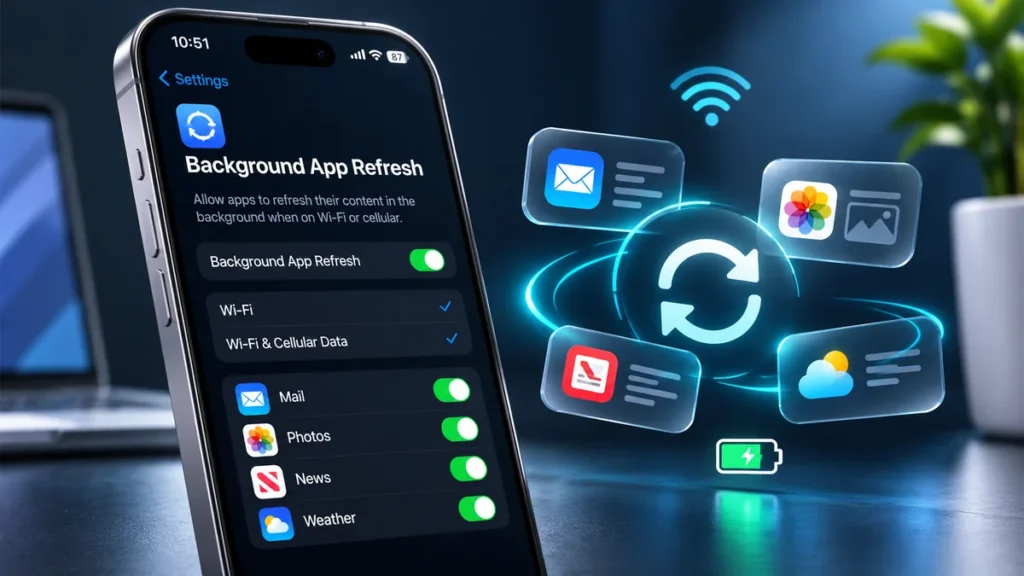
Searching for background app refresh iphone because you’re unsure whether to leave it enabled? You’re not alone. Background App Refresh is one of those iPhone settings that sounds technical but can make a noticeable difference to how apps prepare content before you open them.
It can be useful for frequently used apps, but not every application needs permission to refresh in the background.
Quick answer: Background App Refresh lets supported iPhone apps check for updated content while you’re using other apps or while they’re suspended. You can turn it off, allow it over Wi-Fi only, or permit both Wi-Fi and cellular data.
The best setting depends on your data plan, battery usage, and which apps you actually use.
This guide explains what Background App Refresh does, how to control it on iOS 27 and other recent iOS versions, and seven practical ways to configure it.
Table of Contents
What Is Background App Refresh on iPhone?
Background App Refresh is an iOS feature that allows supported applications to check for updated content when they’re not actively displayed on your screen.
When you switch away from an app, iOS may briefly allow it to perform work before suspending it.
A suspended app isn’t continuously running as though you were still using it. Instead, iOS manages when background activity is permitted.
With Background App Refresh enabled, eligible apps can periodically retrieve new information.
For example:
- A news app may prepare updated headlines.
- A weather app may retrieve newer forecast information.
- A content app may prepare information for the next time you open it.
- A supported productivity app may update certain information in the background.
However, enabling Background App Refresh does not guarantee that every app will update instantly or continuously.
iOS decides when background work can occur based on system conditions and other factors.
Apple explains this behavior in its official guide to switching apps and Background App Refresh.
Where Is Background App Refresh on iPhone?
On supported iPhone models, including recent devices running iOS 27, you can find the setting in the General menu.
Follow these steps:
- Open Settings on your iPhone.
- Scroll down and tap General.
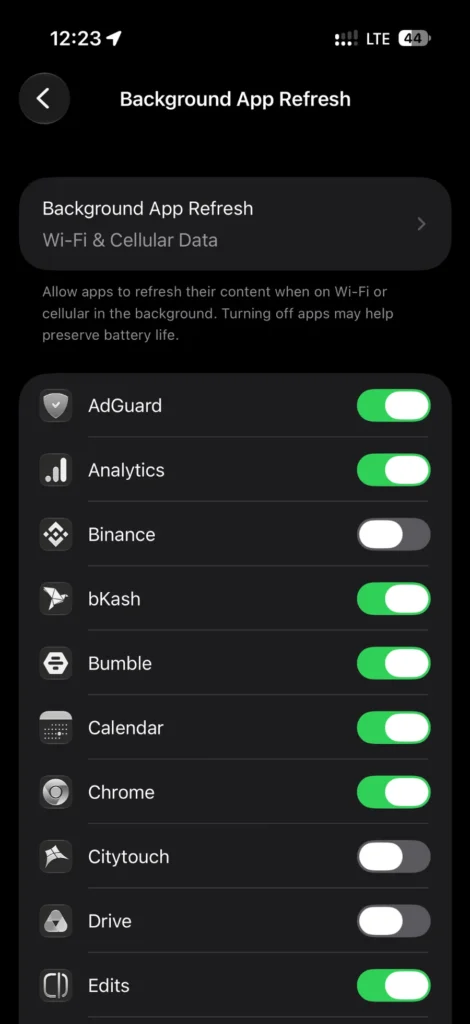
- Select Background App Refresh.
- Tap Background App Refresh again at the top.
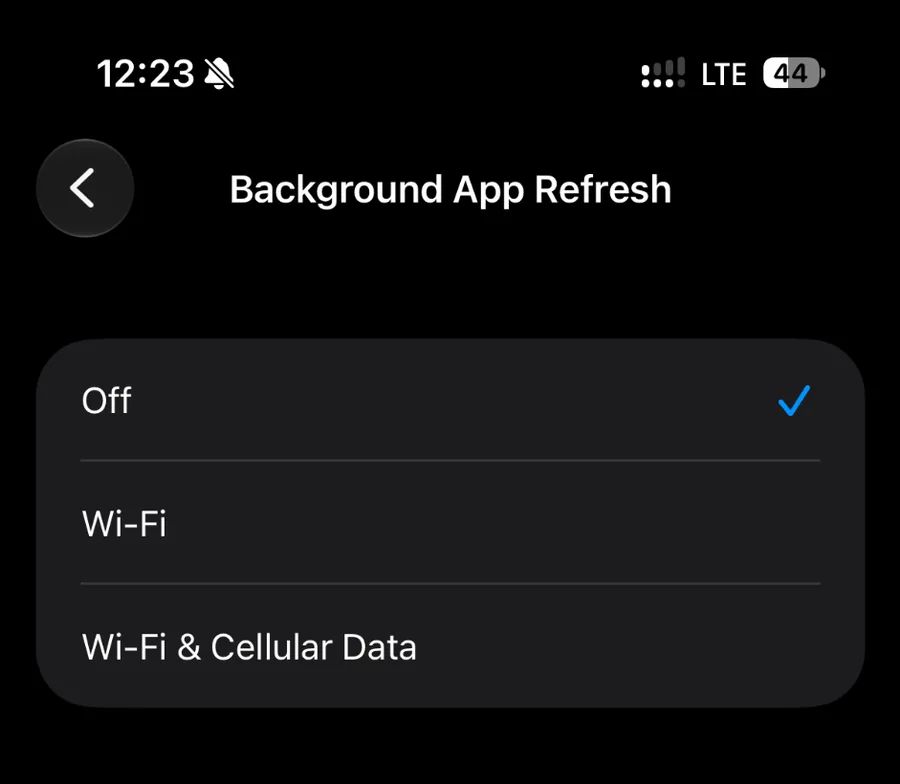
- Choose Off, Wi-Fi, or Wi-Fi & Cellular Data.
Return to the previous screen to view the individual application controls.
If the feature is enabled globally, supported apps may appear with individual switches beside their names.
You can turn specific applications on or off without disabling the feature for every app.
This gives you more control than using the global switch alone.
Background App Refresh iPhone: 7 Best Settings and Tips
Here are seven practical ways to decide how Background App Refresh should work on your iPhone.
1. Use Wi-Fi Only if You Want to Reduce Cellular Data Usage
For many users with limited cellular data, Wi-Fi is a sensible starting point.
When this option is selected, Background App Refresh uses Wi-Fi rather than allowing the feature to refresh apps through cellular data.
To select it:
- Open Settings → General.
- Tap Background App Refresh.
- Tap Background App Refresh again.
- Select Wi-Fi.
This can help reduce unnecessary cellular data usage from apps refreshing while you’re away from Wi-Fi.
However, it does not disable all mobile data activity.
An app you actively open may still use cellular data, and other supported background services operate under separate rules.
If you are experiencing broader mobile internet problems, read our iPhone Cellular Data Not Working troubleshooting guide.
2. Disable Background App Refresh for Apps You Rarely Use
Not every app needs to retrieve information before you open it.
If you rarely use an application, allowing background refreshing may provide little benefit.
For example, you might disable the feature for:
- Games that don’t need updated content in advance.
- Shopping apps you open occasionally.
- Travel apps you only use for specific trips.
- Entertainment apps that work normally when launched.
To turn it off for an individual app, go to Settings → General → Background App Refresh and switch off that application.
The app remains installed, and you can still open and use it.
It may simply need to load new information after launch.
Best practice: Start with apps you use infrequently instead of switching off every application at once.
3. Keep Background App Refresh Enabled Where It Is Helpful
Some applications benefit from preparing updated information before you open them.
A news reader, for example, may display recently fetched headlines more quickly when Background App Refresh is enabled.
Other apps may use it to prepare certain updates.
But there is an important distinction: Background App Refresh is not the master switch for all background activities.
For example, navigation, audio playback, certain communication functions, and push notifications can involve mechanisms separate from ordinary Background App Refresh.
You should not assume an app requires Background App Refresh simply because it sends notifications or performs background tasks.
A sensible approach is to keep the setting enabled for apps where you notice a genuine benefit.
4. Check Battery Usage Before Disabling Everything
Background App Refresh can contribute to battery usage because refreshing content requires device resources.
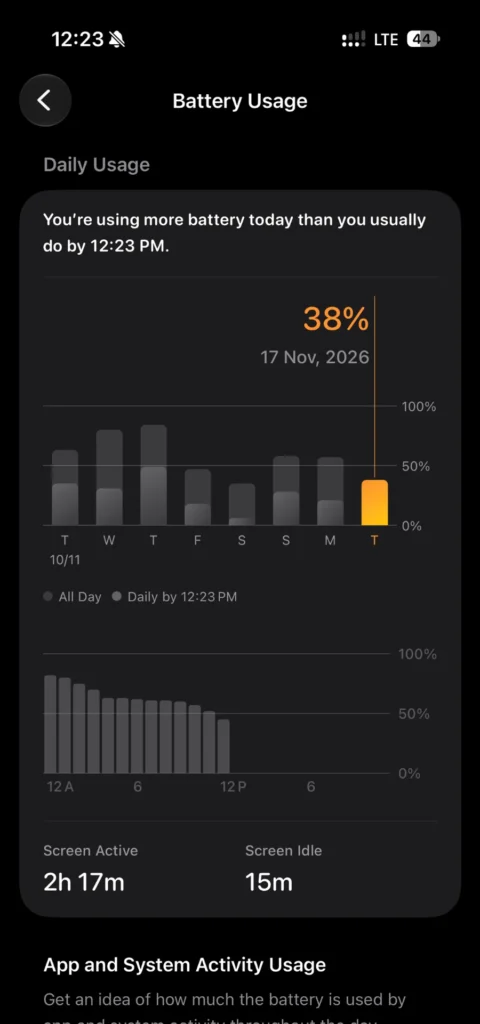
But disabling it does not automatically produce a dramatic improvement in battery life.
The impact depends on app behavior and how often background work occurs.
To investigate:
- Open Settings.
- Tap Battery.
- Open the available battery usage details.
- Review the applications using the most power.
- Check whether an app shows substantial background activity.
On recent iOS versions, the battery information can distinguish onscreen activity from background activity.
However, background activity does not always mean Background App Refresh.
Apple’s battery usage documentation explains that background activity can also include navigation, playing audio, syncing content, and other tasks.
If you identify an app showing unusually high background usage, consider whether it needs Background App Refresh and investigate its other settings.
For a broader battery troubleshooting process, see our iOS 27.0.1 Battery Drain guide.
5. Understand How Low Power Mode Affects Background App Refresh
Low Power Mode is designed to reduce your iPhone’s power consumption.
One of the features it turns off is Background App Refresh.
This means that if your iPhone is using Low Power Mode, changing the Background App Refresh setting may not have the effect you expect until Low Power Mode is disabled.
On iPhone 15 and newer models, check the setting here:
Settings → Battery → Power Mode → Low Power Mode
On older supported iPhones, the Low Power Mode switch is generally directly inside Battery settings.
When Low Power Mode is active, your battery icon appears yellow.
According to Apple’s Low Power Mode guide, this mode also changes other activities to conserve power.
If Background App Refresh appears unavailable, check Low Power Mode before attempting more complicated troubleshooting.
6. Review Low Data Mode When Apps Are Not Refreshing
Low Data Mode helps reduce network data usage.
Apple confirms that it turns off Background App Refresh, along with restricting certain automatic downloads and other data-consuming activities.
If an app isn’t refreshing as expected, check whether Low Data Mode is enabled.
For Wi-Fi:
- Open Settings → Wi-Fi.
- Tap the information button beside your connected network.
- Find Low Data Mode.
- Review whether it is enabled.
For cellular connections, the setting may be available under Settings → Cellular → Cellular Data Options → Data Mode, depending on the device and carrier configuration.
Low Data Mode is useful when working with a limited data allowance.
However, if you want apps to refresh normally, its restrictions may explain why they aren’t updating in the background.
See Apple’s Low Data Mode documentation for more details.
7. Avoid Force-Closing Every App to Save Battery
One common misconception is that swiping every app away from the App Switcher will automatically improve battery life.
Apple explains that iOS manages suspended apps automatically and that routinely closing apps doesn’t improve overall device performance.
Force-closing an app can also prevent it from refreshing or checking for new content until you open it again.
For this reason, use the App Switcher primarily to close an application that is frozen or not responding.
Don’t rely on repeatedly force-closing apps as a replacement for appropriate Background App Refresh settings.
Apple provides additional details in its guide to quitting and reopening iPhone apps.
Should Background App Refresh Be On or Off?
There isn’t one correct setting for every iPhone user.
The choice depends on what you want from your applications.
Leave It On When:
- Frequently used apps benefit from preparing updated content.
- You want supported apps to check for new information before launch.
- Background activity isn’t causing a noticeable problem.
- Your data plan and battery life meet your needs.
Turn It Off When:
- You rarely use an application.
- You want to reduce unnecessary background data activity.
- You’re investigating an app with unusually high battery usage.
- You don’t need that app to prepare new content until you open it.
Choose Wi-Fi When:
- Your cellular data allowance is limited.
- You’re comfortable with supported apps refreshing on Wi-Fi.
- You want more control over how apps use mobile data.
Our recommendation: Keep Background App Refresh available over Wi-Fi, then review the individual app switches. This offers a reasonable balance between convenience and data usage for many users.
It isn’t a universal battery-saving setting, so adjust it according to your actual needs.
Does Background App Refresh Drain iPhone Battery?
Background App Refresh can use battery power, but the amount varies.
An app that refreshes occasionally may have little impact on your daily battery life.
An app performing frequent or intensive work may use more resources.
Before assuming Background App Refresh is responsible for battery drain, check the Battery section in Settings.
Look for unusual activity and compare your usage across similar days.
Remember that the Battery screen’s Background category can include activities other than Background App Refresh.
For example, listening to music with your screen off is background activity, but it’s not the same as a suspended news app checking for fresh headlines.
If an app uses significant battery power, try reviewing its background-refresh permission and observing whether its behavior changes.
Avoid disabling important features without understanding what they do.
Does Turning Off Background App Refresh Stop Notifications?
Not necessarily.
Many iPhone notifications are delivered using Apple’s push notification system, which is separate from Background App Refresh.
That means you may continue receiving notifications from supported apps even when Background App Refresh is disabled.
However, the way an app retrieves information and updates its interface depends on its design.
For example, an app might still display a push notification while needing to fetch updated content after you open it.
Turning off Background App Refresh also does not guarantee that every form of background network or location activity will stop.
If notifications are delayed or missing, investigate the app’s notification permissions, internet connectivity, Focus settings, and app-specific behavior separately.
Why Is Background App Refresh Greyed Out on iPhone?
If Background App Refresh is greyed out or its controls appear unavailable, start with the settings most likely to affect it.
Check Low Power Mode
Low Power Mode turns off Background App Refresh while active.
If it is enabled, review whether you want to turn it off temporarily.
Check the Main Background App Refresh Setting
If the global option is set to Off, the individual application controls may be unavailable.
Return to the main Background App Refresh menu and select Wi-Fi or Wi-Fi & Cellular Data if you want to manage apps individually.
Review Low Data Mode
Low Data Mode restricts background data activity and turns off Background App Refresh.
Check whether it is enabled for your current network.
Check Device Restrictions
On a supervised or organization-managed iPhone, certain settings may be controlled by administrative policies.
If the phone belongs to your workplace or school, contact the administrator rather than attempting to bypass restrictions.
Restart and Check for Software Updates
If the setting behaves unexpectedly and none of the above applies, restart your iPhone.
You can also check for available iOS updates under Settings → General → Software Update.
These steps may resolve temporary software issues, although they won’t override intentional system or administrator restrictions.
Background App Refresh vs. Other iPhone Settings
Background App Refresh is often confused with several other iOS features.
Background App Refresh: Allows eligible apps to check for new content while not actively displayed.
Cellular Data: Controls whether apps and services can use your mobile network for internet access.
Low Data Mode: Reduces certain data-consuming activities, including Background App Refresh.
Low Power Mode: Reduces device power consumption by limiting selected activities and features.
Notifications: Controls alert presentation and permissions. Push notification delivery is not determined solely by Background App Refresh.
App Updates: Controls installing newer versions of applications, rather than refreshing their existing content.
These functions are related but shouldn’t be treated as identical.
Frequently Asked Questions
Is Background App Refresh necessary on iPhone?
No. Your iPhone can function normally with Background App Refresh turned off. Some apps may take longer to show updated information after you open them.
Does Background App Refresh use mobile data?
It can. When Wi-Fi & Cellular Data is selected, supported apps may use cellular data for background refreshing. Choose Wi-Fi to restrict that particular feature to Wi-Fi connections.
Should I turn off Background App Refresh to save battery?
You can disable it for apps that don’t need it, especially if battery usage reports show unusual background activity. However, the improvement varies, and turning it off doesn’t eliminate every form of background activity.
Will WhatsApp or other messaging apps still receive notifications?
Messaging apps can receive push notifications independently of ordinary Background App Refresh, but delivery depends on notification permissions, connectivity, app behavior, and other settings.
Why does Background App Refresh keep turning off?
Low Power Mode and Low Data Mode can disable Background App Refresh while those modes are active. Check these settings before assuming there is an app or iOS problem.
Is Background App Refresh safe to leave on?
Yes. Background App Refresh is a normal feature managed by iOS. You can leave it enabled when it provides useful app behavior and disable individual apps when it doesn’t.
Does turning off Background App Refresh stop location tracking?
No. Location Services and some supported background-location behaviors are controlled separately. Review an app’s location permissions under Settings → Privacy & Security → Location Services.
Final Thoughts
Understanding background app refresh iphone settings makes it easier to control what your apps do when you’re not using them.
You don’t need to disable everything to manage battery or data usage.
Start by selecting the connection option that matches your needs, then turn off Background App Refresh for applications that provide little benefit from it.
If you notice unusual background battery activity, investigate that specific app instead of assuming the entire feature is responsible.
For most users, Wi-Fi with carefully selected app permissions is a practical starting point.
The goal is to keep useful features available while avoiding unnecessary background activity.