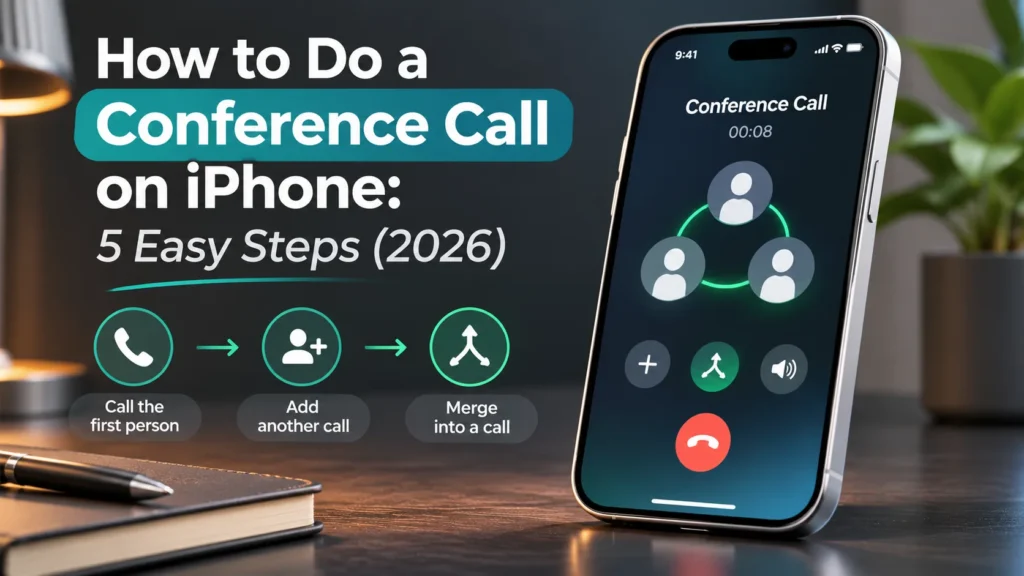
Need to speak with several people at once but don’t want to download another app? Your iPhone can combine regular phone calls into a conference call using the built-in Phone app, provided your cellular carrier supports the feature.
Learning how to do a conference call on iPhone is straightforward. Call the first person, add a second caller, and use the Merge option to bring everyone into the same conversation.
You can also add additional participants, accept incoming calls, and manage individual callers when your carrier supports those features.
This guide explains the exact steps for iPhones running recent versions of iOS, including iOS 27, and what to do if the Merge Calls option is missing.
Table of Contents
Quick Answer: How to Do a Conference Call on iPhone
Follow these five steps:
- Open the Phone app and call the first person.
- When the call connects, tap More.
- Select Add People.
- Choose or dial the second person and wait for them to answer.
- Tap Merge or Merge Calls to combine both calls.
You’re now speaking with both participants in the same conversation.
To add another person, repeat the process if your carrier supports additional participants.
Apple supports conference calls with up to five people on compatible carrier services. The actual limit and available controls depend on your carrier.
See Apple’s official conference calling instructions.
What Is a Conference Call on iPhone?
A conference call is a phone conversation involving more than two people at the same time.
Instead of calling each participant separately and switching between conversations, you combine the calls so everyone can hear and speak to one another.
For example, you might use a conference call to:
- Discuss work with several colleagues.
- Coordinate family plans.
- Speak with two customer-service representatives.
- Organize a group discussion.
- Include another person in an ongoing phone conversation.
The iPhone Phone app can create a conference call using your cellular calling service.
Unlike FaceTime, Zoom, or other internet-based calling apps, a standard cellular conference call does not require every participant to install the same application.
However, your carrier must support the required calling features.
Before You Start: Check Conference Call Requirements
Before attempting to merge calls, confirm the following.
An active cellular line: Your iPhone needs an active calling service with a carrier that supports conference calling.
A connected first call: The Add People option is available during an active phone call, subject to your service and interface.
Carrier support: Your wireless carrier determines how many calls you can merge and whether certain participant-management options are available.
Compatible calling conditions: Apple notes that conference calling or some of its features may not work with certain VoLTE or Wi-Fi Calling configurations.
A stable connection: A weak cellular signal may affect the reliability of a conference call.
You do not normally need a separate conference calling application when your cellular carrier provides the feature.
Step 1: Open the Phone App and Call the First Person
Start with a normal cellular phone call.
- Open the Phone app.
- Select a contact or use the keypad to enter a phone number.
- Tap the Call button.
- Wait for the person to answer.
Once connected, your iPhone displays the active calling interface.
Make sure the call is established before trying to add another participant.
You cannot merge an unanswered call into a conversation.
If ordinary calls fail before you begin, investigate cellular reception and service first.
Our related guide, iPhone No Service? 12 Easy Fixes, may help if your device cannot connect to the carrier network.
Step 2: Tap More During the Active Call
While speaking with the first person, look for the More button on the calling screen.
On current iPhone interfaces, additional call controls may be grouped under this menu.
- Keep the first call connected.
- Tap More.
- Review the available call options.
Depending on your iOS version and calling configuration, you may see an option to add another person.
Older iPhone interfaces may display Add Call directly on the calling screen instead.
Both approaches serve a similar purpose: starting a second call while keeping the original conversation available.
If you cannot find the option, do not end the first call immediately. Review the troubleshooting section later in this guide.
Step 3: Select Add People
After opening the More menu:
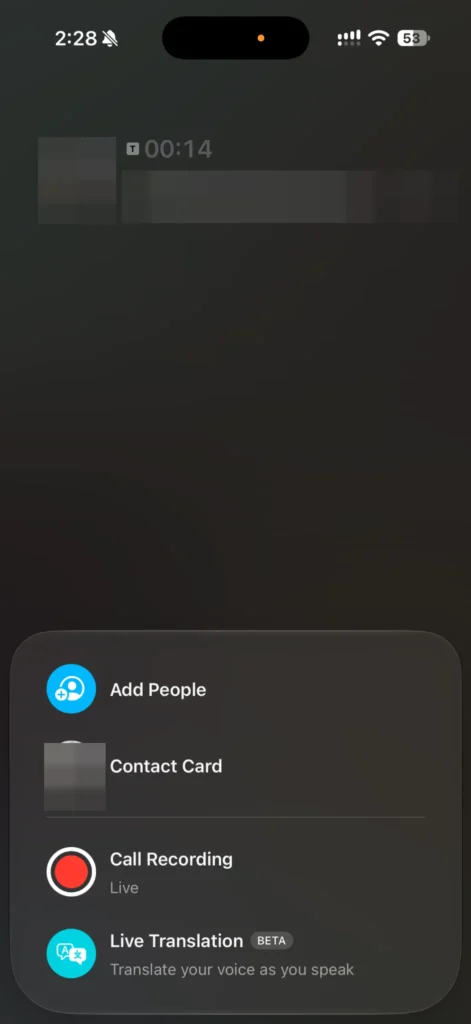
- Tap Add People.
- Open Contacts or use the available dialing controls.
- Choose the second participant.
- Start the new call.
Your first caller may be placed on hold while the second call connects.
That is normal during the process.
You are not yet in a merged conference call.
At this point, the calls remain separate until you select Merge.
Tip: If you’re unfamiliar with the process, practice with two people who agree to participate in a short test call.
Step 4: Wait for the Second Person to Answer
Allow the second call to connect.
If the person answers, you should see the appropriate call controls for managing both conversations.
Depending on the interface, you may see Swap, Merge, or Merge Calls.
These options have different functions.
Swap: Switches between two separate calls, where supported.
Merge Calls: Combines the calls into a single conference conversation.
If the second person does not answer, you won’t have two connected conversations to merge.
You can return to the original caller and try again when the second participant is available.
Step 5: Tap Merge Calls to Start the Conference
Once both calls are connected:
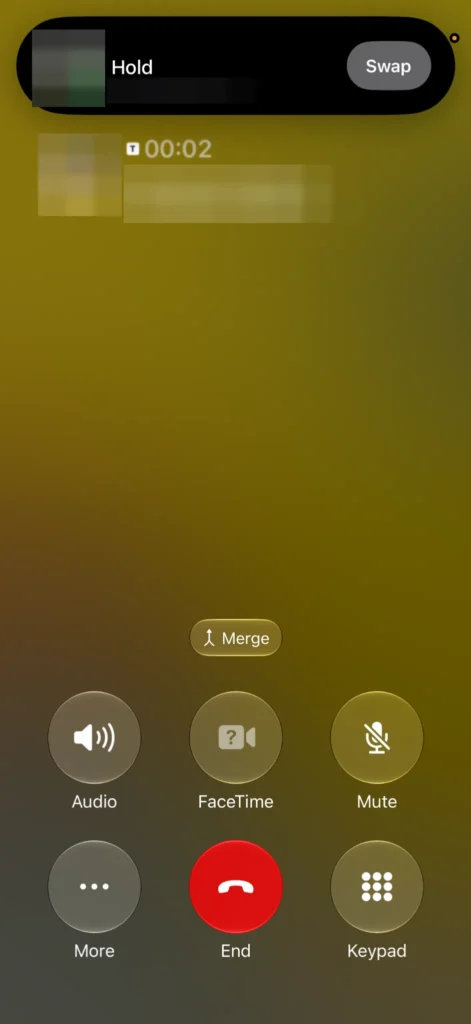
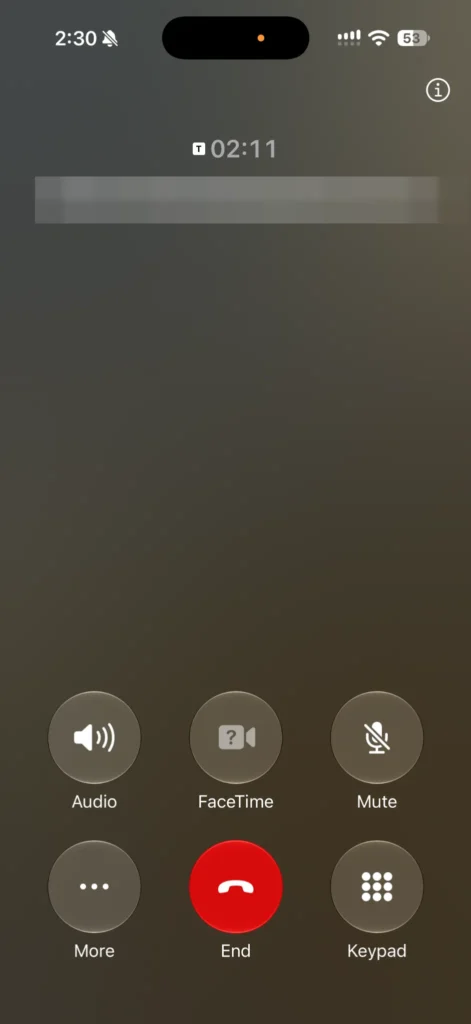
- Find Merge or Merge Calls on the calling screen.
- Tap the option.
- Wait for the calls to combine.
- Confirm that everyone can hear one another.
That’s it. You have created a conference call.
Everyone should now be able to participate in the same conversation.
For a quick test, ask the participants to confirm that they can hear one another.
If only one person can hear you, review the call status and whether the calls were successfully merged.
Apple explains this procedure in its conference and three-way calling documentation.
How to Add More People to an iPhone Conference Call
What if you need to include a third or fourth participant after the conference has already started?
You can repeat the Add People process if your carrier supports additional callers.
- Keep the existing conference call active.
- Tap More.
- Select Add People.
- Choose the next participant.
- Wait for the call to connect.
- Tap Merge Calls again.
Continue until you reach the participant limit permitted by your carrier.
Apple describes support for up to five people with compatible GSM carrier services.
However, this is not a universal guarantee for every iPhone, SIM, or mobile plan.
If you cannot add another participant, the call may already have reached your carrier’s limit.
How to Add an Incoming Caller to a Conference Call
You might already be in a conversation when another person calls your iPhone.
On compatible networks, you can answer that call and merge the caller into your existing conversation.
Add Someone Who Calls You
- Stay on your current call.
- When the new call arrives, select Hold Call & Answer or the equivalent option.
- Wait for the new call to connect.
- Tap Merge Calls if available.
- Confirm that everyone is connected.
The exact button names may vary slightly depending on your iOS version and carrier.
Some carrier configurations do not support merging an incoming call.
If Merge is missing, you may need to start a new outgoing call instead or contact your carrier to confirm support.
How to Manage Participants During a Conference Call
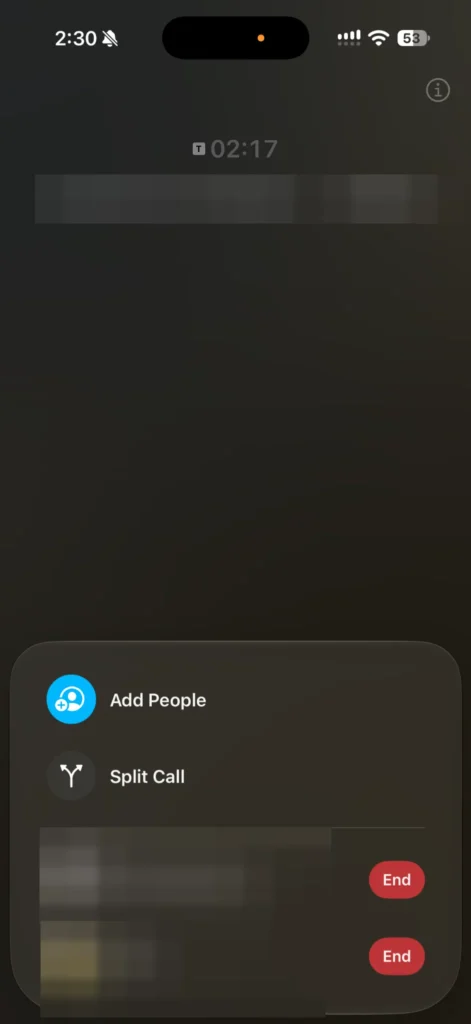
Starting the call is only part of the process.
You may also want to speak privately with someone, remove one participant, or change your audio settings.
Availability varies by carrier.
Talk Privately With One Participant
On supported networks:
- Open the conference call’s participant information.
- Find the person you want to speak with.
- Tap Private, if available.
- Speak to that participant separately.
- Select Merge Calls to rejoin the group.
This feature is useful when you need a short private conversation without starting a separate call.
Not all carriers make it available.
Remove One Person From a Conference Call
If your carrier supports individual participant management:
- Open the conference participant information.
- Find the participant you want to disconnect.
- Tap End next to that participant.
- Verify that the remaining participants stay connected.
Be careful to select the individual participant’s End control rather than the main end-call button.
Use Speakerphone
If you don’t want to hold your iPhone throughout a long call, use the Speaker control.
- Open the active call screen.
- Tap Speaker or the audio routing button.
- Select the desired audio output.
You can also use compatible Bluetooth audio devices.
If others cannot hear you clearly, check your microphone and audio connection.
For related troubleshooting, see iPhone Microphone Not Working on Calls.
Merge Calls Not Showing on iPhone? 7 Things to Check
Sometimes the Add People or Merge Calls option is missing, disabled, or unresponsive.
Here are seven practical things to investigate.
1. Check Whether Your Carrier Supports Conference Calling
This should be your first step.
Not every mobile carrier supports the same conference calling features.
Your carrier may limit the number of participants or restrict the ability to merge or manage calls.
Contact customer support and ask:
“Does my current mobile plan support cellular conference calling and merging calls on iPhone?”
Also ask about limitations involving Wi-Fi Calling and VoLTE.
There is no universal iPhone setting that can enable a feature your carrier doesn’t offer.
2. Make Sure Both Calls Are Connected
The Merge option may not be available until the second person answers.
Check that:
- The first caller remains connected or on hold.
- The second caller has answered.
- Neither call has unexpectedly disconnected.
If the second call fails, retry after verifying your cellular service.
3. Check Wi-Fi Calling and VoLTE Compatibility
Apple notes that conference calling, or certain conference features, may be unavailable with some VoLTE or Wi-Fi Calling configurations.
That doesn’t mean these technologies always prevent conference calling.
Compatibility depends on the carrier and calling conditions.
If Merge Calls disappears only while using Wi-Fi Calling, contact your carrier for guidance.
You can also review our iPhone Wi-Fi Calling Not Working guide if the underlying problem is with Wi-Fi Calling itself.
Don’t randomly disable network features or change cellular settings without understanding their effect.
4. Restart Your iPhone
A restart may resolve a temporary problem with the calling interface.
After ending your current conversation:
- Press and hold the Side button and either Volume button.
- Drag the power-off slider.
- Wait for the iPhone to shut down.
- Press and hold the Side button to turn it back on.
- Try a new test call.
Restarting cannot add carrier features that your plan doesn’t support, but it may help with temporary device issues.
5. Check for iOS and Carrier Settings Updates
Apple periodically releases iOS updates, while carriers provide settings updates for network compatibility.
To check iOS:
- Open Settings.
- Tap General.
- Select Software Update.
- Install an available compatible update after backing up important data.
To check for a carrier settings update:
- Connect to Wi-Fi or cellular data.
- Open Settings.
- Tap General.
- Tap About.
- Follow any carrier update prompt that appears.
See Apple’s carrier settings update instructions.
6. Check Your Cellular Connection
An unstable cellular connection can interrupt calls or prevent the second caller from connecting.
Check whether your iPhone displays usable cellular service.
If the signal is unreliable, try another location.
Also check for known service outages with your carrier.
For more detailed troubleshooting, see iPhone Cellular Data Not Working.
Remember that working mobile data alone does not prove your carrier supports conference calling.
7. Contact Your Carrier Before Resetting Network Settings
If regular calling works but Merge Calls never appears, carrier feature support is a more relevant starting point than resetting your entire network configuration.
Ask your carrier to verify whether conference calling is enabled for your number and plan.
If they confirm support but the feature still fails, follow their troubleshooting instructions or contact Apple Support.
Reset Network Settings should be a later troubleshooting option, not the first solution.
It removes saved network preferences, including Wi-Fi passwords and certain VPN and cellular settings.
For an explanation, see our What Does Reset Network Settings Do on iPhone? guide.
iPhone Conference Call vs. Group FaceTime: What’s the Difference?
These two features are often confused, but they work differently.
Standard iPhone Conference Call
A standard conference call uses regular phone calling through your carrier.
Participants join through phone calls.
It is useful when everyone needs to communicate by voice, including people who don’t use Apple devices.
Conference calling availability and participant limits depend on the cellular carrier.
Group FaceTime
Group FaceTime is Apple’s internet-based communication feature for supported devices.
It supports audio and video conversations with up to 32 participants, subject to availability.
Participants need a compatible way to join, and internet connectivity is required.
To create a Group FaceTime call:
- Open FaceTime.
- Tap New Call.
- Enter the people you want to contact.
- Choose a FaceTime audio or video call.
- Start the conversation.
See Apple’s Group FaceTime guide.
If Group FaceTime fails to connect, see our FaceTime Call Failed troubleshooting guide.
The best choice depends on whether participants are using ordinary phone numbers or joining an internet-based call.
Can You Make a Conference Call on iPhone Without an App?
Yes.
If your carrier supports conference calling, you can use the built-in Phone app without installing a separate service.
Simply call the first person, add another caller, and merge the conversations.
You don’t need a paid conference application just to use this supported feature.
However, your carrier’s normal calling charges or plan restrictions may apply.
If you need a larger meeting, scheduled access links, screen sharing, or video, a dedicated meeting service may be more suitable.
Frequently Asked Questions
How many people can join an iPhone conference call?
Apple describes support for up to five people with compatible carrier services. Your actual limit depends on your carrier and plan.
Why can’t I merge calls on my iPhone?
The most common things to investigate are whether your carrier supports call merging, whether the second caller has answered, and whether your current VoLTE or Wi-Fi Calling configuration permits it.
Can I conference call between iPhone and Android?
Yes, when the cellular conference feature is supported. Participants can join through ordinary phone calls, so they don’t all need iPhones.
Is conference calling free on iPhone?
Apple’s Phone app does not require a separate conference calling subscription. However, your carrier may apply ordinary voice charges, international rates, or other plan-specific fees.
Check your mobile plan for accurate billing information.
Can I add someone while I’m already on a call?
Yes, if your carrier supports the feature. Tap More, choose Add People, call the second person, and merge the calls after the connection is established.
Why is Add People missing on my iPhone?
The option may be unavailable because of carrier support, the type of call you’re using, or your current calling configuration.
Make sure you’re using a supported cellular phone call rather than a different communication app.
Can I remove someone without ending the conference?
On supported carrier services, you can open the conference participant information and select End next to the relevant person. This option is not available on every network.
Does conference calling work with Wi-Fi Calling?
It may, but compatibility varies by carrier. Apple warns that some conference features can be unavailable while using Wi-Fi Calling or certain VoLTE configurations.
Can I make a video conference call using the Phone app?
Standard cellular conference calling is an audio feature.
For video, use Group FaceTime or another supported video-calling application.
Final Thoughts
Knowing how to do a conference call on iPhone makes it easier to speak with multiple people without switching between separate conversations.
The process is simple: call the first person, tap More, add another person, and select Merge Calls once both calls are connected.
You can repeat the process to include additional participants when your carrier allows it.
If the Merge option is missing, check carrier support and calling compatibility before attempting advanced troubleshooting.
For larger group conversations or video meetings, Group FaceTime may be a better alternative.
Last reviewed: November 18, 2026.