Quick Answer: What Does Emergency Override Mean on iPhone Charging?
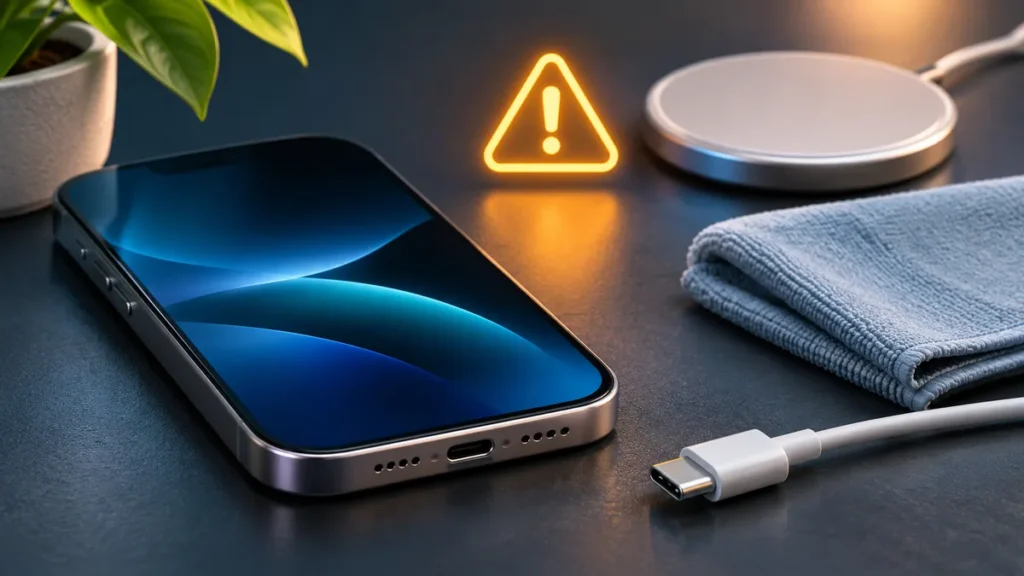
Emergency Override iPhone charging is an option that may appear when your iPhone detects possible liquid in its USB-C or Lightning connector. Normally, iOS temporarily blocks wired charging to protect the connector. Emergency Override allows you to bypass that protection in an urgent situation, but charging while the connector is wet can cause corrosion or permanent damage.
The safest choice is to disconnect the cable and let the connector dry. If you need power before wired charging is safe, a compatible wireless charger may work, provided the back of your iPhone is completely dry.
Apple recommends waiting until the connector and cable are dry before reconnecting them. Depending on the situation, the drying process can take up to 24 hours.
This guide explains when the warning appears, what Emergency Override actually does, whether it can damage your iPhone, and what to do next.
Table of Contents
What Is Emergency Override on iPhone?
Emergency Override is a charging-related option associated with Apple’s liquid-detection protection.
Supported iPhones can detect possible liquid in the charging connector or connected accessory.
When a moisture warning appears, the iPhone temporarily restricts wired charging or accessory connections.
This helps reduce the risk of damage to the small electrical contacts.
Why does Apple block charging when liquid is detected?
Moisture and electrical connections are a potentially damaging combination.
Apple explains that charging through a wet USB-C or Lightning connector can cause the contacts in the cable or port to corrode.
Corrosion may eventually lead to unreliable charging, failed connections, or permanent damage.
Rather than continuing to supply power through a potentially wet connector, iOS displays a warning.
The purpose is to give you time to disconnect the cable and allow the hardware to dry.
What does Emergency Override do?
Emergency Override lets you bypass the liquid-detection charging restriction in an emergency.
It does not:
- Remove water from the charging port
- Dry the iPhone
- Repair corroded contacts
- Confirm that charging is safe
- Guarantee that the cable will charge successfully
- Increase the iPhone’s water resistance
The button simply provides an emergency exception to a protective charging restriction.
It should not be treated as a normal charging setting.
Why Does My iPhone Say Liquid Detected?
The alert means the iPhone has detected a condition consistent with liquid in the connector, cable, or accessory.
This can happen after exposure to:
- Rain
- Water splashes
- A wet charging cable
- Other accidental liquid contact
- Moisture around the charging connector
Apple does not say that every liquid-detection alert proves the entire phone has suffered internal water damage.
The alert concerns the charging connection.
Common liquid-detection warning messages
The message depends partly on your iPhone and connector type.
Liquid Detected in USB-C Connector
This can appear on a compatible USB-C iPhone when liquid is detected in the charging connection.
Charging Not Available
This can appear on a Lightning-equipped iPhone when a charger is connected and liquid is detected.
Liquid Detected in Lightning Connector
This can appear when a Lightning accessory is connected and liquid is detected.
Liquid Detected
A shorter warning can appear with certain USB-C accessories.
The exact message and available options may differ between models and software versions.
Which iPhones support liquid-detection alerts?
Apple documents liquid-detection alerts on iPhone XS, iPhone XS Max, iPhone XR, and later supported models.
Newer iPhones with USB-C, including the iPhone 17 Pro, use the same general charging-safety principle.
You don’t need to install an application to enable this protection.
Is Emergency Override Safe on iPhone?
Emergency Override is not the recommended choice for ordinary charging.
Apple allows a charging override in an emergency, but warns that charging with a wet connector can cause corrosion or permanent damage.
The level of risk depends on the actual condition of the port, cable, and accessory. You cannot reliably determine that risk simply by looking at the warning.
What happens if you select Emergency Override?
The iPhone may allow wired charging despite the detected liquid condition.
However, bypassing the warning doesn’t prove that the connector is dry.
If moisture remains on the electrical contacts, damage may occur.
The fact that your battery percentage increases is not evidence that the charging connection is safe.
Can Emergency Override permanently damage your iPhone?
Yes, damage is possible.
Apple specifically warns that wet charging contacts can corrode and stop functioning.
Possible consequences include:
- Unreliable wired charging
- Failed USB-C or Lightning accessory connections
- Corroded charging contacts
- Permanent connector damage
- A need for professional service
Not every override results in damage, but there is no reliable guarantee that an override will be harmless.
Should you ever use it?
Apple provides the option for emergencies.
If an urgent situation makes wired charging unavoidable and safer alternatives are unavailable, you may decide whether accepting the hardware risk is justified.
That should be an exceptional decision, not a routine workaround.
If you can use a dry compatible wireless charger, another working phone, or wait for the connector to dry, those may be better alternatives.
What to Do When Emergency Override Appears: 5 Safe Steps
If your iPhone displays a liquid-detection warning, follow these steps before considering any charging override.
Step 1: Disconnect the Charging Cable
Unplug the USB-C or Lightning cable from your iPhone.
Disconnect the other end from its power source or accessory as appropriate.
Do not continue reconnecting the cable immediately after receiving repeated moisture alerts.
If the phone was exposed to liquid, stop wired charging until the relevant components are completely dry.
Step 2: Inspect the iPhone and Cable
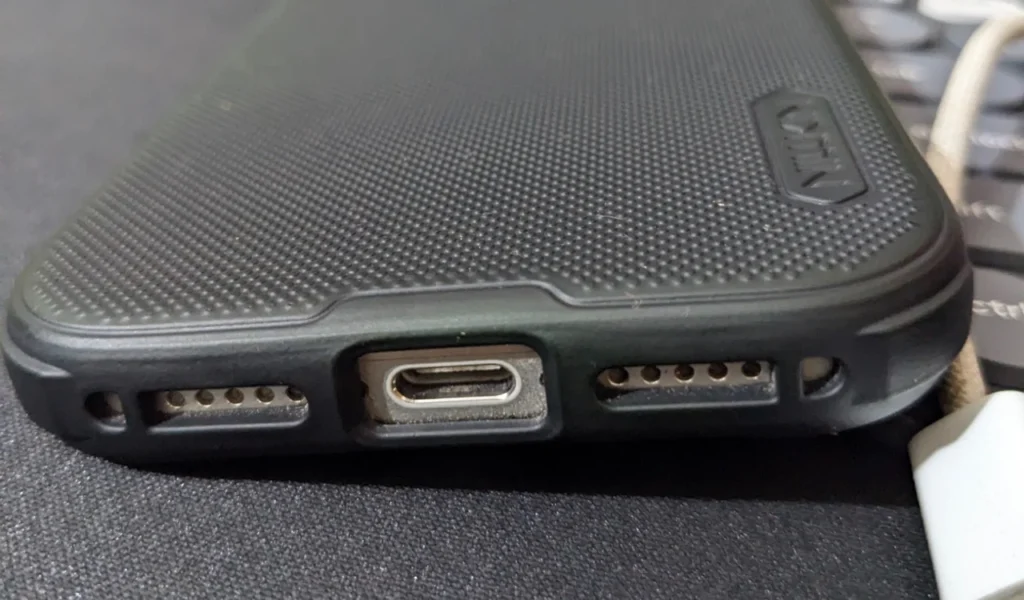
Check the outside of the charging connector and cable for visible moisture or physical damage.
Pay attention to:
- Water around the connector opening
- A visibly wet cable tip
- Damaged connectors
- Dirt or unusual discoloration
- Signs of corrosion or overheating
Do not insert anything into the charging port to inspect it.
An ordinary flashlight can help you examine the opening without touching the internal contacts.
If the connector looks damaged, avoid using it until it has been assessed.
Step 3: Gently Remove Excess Liquid
Apple recommends holding the iPhone with the charging connector facing downward and gently tapping it against your hand.
This may help excess liquid escape from the connector opening.
Do not shake the iPhone violently or hit it against a hard surface.
Keep the charging cable disconnected.
If the exterior is wet, use a clean, soft, lint-free cloth to dry the outside of the device.
Step 4: Allow the Charging Port to Air-Dry
Place your iPhone in a dry area with some airflow.
Keep the connector unobstructed.
Apple’s general water-exposure guidance says that cool airflow from a fan may help the drying process.
Avoid external heat.
Do not place the phone in direct sunlight to speed up drying.
The connector and cable ends need to be completely dry before normal wired charging resumes.
Step 5: Reconnect Only When It Is Safe
After an appropriate drying period, inspect the cable and device again.
When the connector is dry, use a compatible cable and charger to test the connection.
If the warning appears again, disconnect the cable.
Do not repeatedly force charging through a wet connector.
Allow additional drying time or seek service if the problem continues.
How Long Should You Wait Before Charging Again?
Apple publishes two related recommendations that apply to different situations.
If you received a liquid-detection alert
Apple’s specific liquid-alert instructions allow an initial charging attempt after at least 30 minutes of drying.
If the alert returns, additional moisture may remain.
Full drying can take up to 24 hours.
If your iPhone was exposed to liquid
Apple’s broader water-exposure guidance recommends allowing at least five hours before reconnecting a Lightning or USB-C cable or accessory.
The phone must still be completely dry, regardless of how much time has passed.
Which recommendation should you follow?
If your iPhone was actually exposed to water or another liquid, use the more cautious approach.
Do not interpret the 30-minute initial retry mentioned in the alert guidance as proof that a recently wet phone is safe to charge.
If the port or cable still appears wet, don’t connect it.
If warnings continue after adequate drying, contact Apple Support rather than repeatedly attempting to bypass the protection.
Key takeaway: The drying time is not a guaranteed countdown. The condition of the connector matters more than the clock.
Can You Use Wireless Charging Instead of Emergency Override?
Yes, on a compatible iPhone.
Apple says wireless charging can still be used when the charging connector is wet, provided the back of the iPhone is dry and the charging setup is otherwise safe.
This can be a useful alternative while the wired connector dries.
How to charge wirelessly
- Disconnect the wired charging cable.
- Check the back of your iPhone for moisture.
- Wipe the exterior dry with a soft, lint-free cloth if necessary.
- Make sure the wireless charging pad is dry.
- Connect the wireless charger to an appropriate power source.
- Position your compatible iPhone on the charger.
- Confirm that wireless charging begins.
Depending on your iPhone and charger, you may use a compatible Qi or MagSafe charger.
Can wireless charging damage a wet iPhone?
You should not place a visibly wet iPhone on a charging pad.
Apple specifically advises ensuring the back of the device is dry before wireless charging.
If the iPhone has suffered substantial liquid exposure, visible damage, overheating, or abnormal behavior, stop using it and seek professional assessment.
Does wireless charging fix the liquid-detection problem?
No.
Wireless charging bypasses the need to use the wired connector.
It does not remove moisture from the USB-C or Lightning port.
The connector still needs to dry before normal wired charging should resume.
How Does Emergency Override Work During a Real Emergency?
Apple explains that reconnecting the charging cable after a liquid-detection warning may provide an option to override the protection and charge in an emergency.
The exact alert buttons and workflow can vary.
This is not a feature you need to activate in Settings beforehand.
If you urgently need your phone
First, determine whether you can continue using the battery power already available.
If you need to contact emergency services, make the call while your phone is still operational.
If possible, use another working phone or a safe charging method rather than risking a wet wired connector.
If you face a genuine emergency, cannot use an alternative, and decide that charging is necessary despite Apple’s warning, review the Emergency Override option shown by iOS and understand the risk before selecting it.
Do not repeatedly test or trigger the override for curiosity.
Is Emergency Override the same as Emergency SOS?
No.
Emergency Override concerns an iPhone’s charging protection.
Emergency SOS is a separate emergency communication feature.
They serve completely different purposes.
You do not need to select Emergency Override merely to use Emergency SOS when the phone already has enough power to operate.
Emergency Override vs. Other iPhone Charging Warnings
Not every charging message indicates liquid.
Liquid Detected
This concerns possible moisture in the connector, cable, or accessory.
Disconnect the cable and follow drying guidance.
Accessory Not Supported
This may involve an incompatible, damaged, or improperly connected accessory.
It isn’t automatically a liquid-detection problem.
Slow Charger
This indicates that the current charging setup provides limited charging performance.
It doesn’t mean the charging port is wet.
Charging On Hold
An iPhone may temporarily pause charging because of temperature conditions.
This is different from the liquid-detection alert.
Charge Limit Reached
Modern iPhones can intentionally stop charging at a selected percentage.
For example, an iPhone configured with a 90% charge limit may stop charging near that level.
That does not require Emergency Override.
If your iPhone won’t charge and no moisture warning appears, read our iPhone Not Charging: 12 Fixes to Try guide for general charging troubleshooting.
What If Liquid Detected Keeps Appearing After the Port Is Dry?
If the warning continues after adequate drying, the charging cable or accessory may be responsible.
Apple explains that a damaged third-party accessory can repeatedly trigger an alert.
Persistent alerts with Apple cables or accessories may indicate that the iPhone needs service.
1. Stop using a visibly damaged cable
Check the cable connector for bending, discoloration, corrosion, or other damage.
Do not reuse a damaged cable.
2. Try a different known-working cable after everything is dry
Use a compatible cable that is dry and undamaged.
If one particular cable consistently produces the warning, the cable may be defective.
3. Avoid manually scraping the connector
Do not insert toothpicks, needles, paper clips, or other objects to investigate the alert.
These can damage the internal contacts.
If you suspect debris rather than liquid, use the safe inspection principles described in our dedicated iPhone charging-port cleaning guide.
4. Seek professional service if the alert persists
If repeated warnings occur despite adequate drying and a known-working cable, contact Apple Support or an authorized service provider.
Persistent warnings, visible corrosion, heat, or physical damage deserve professional attention.
Do not try a factory reset as your first response to a suspected hardware moisture issue.
What Should You Never Do When Liquid Is Detected?
Several common internet suggestions can create additional problems.
Don’t use a hair dryer
Hot air can damage the device and isn’t an Apple-recommended drying method.
Don’t use compressed air
Apple specifically warns against compressed air for this situation.
Don’t insert cotton swabs or paper towels
These can leave fibers behind or cause physical damage inside the connector.
Don’t put your iPhone in rice
Apple advises against rice because small particles can enter and damage the device.
Don’t pour alcohol or other cleaning liquids into the connector
Adding liquid is not a reliable solution to a liquid-detection alert.
Don’t repeatedly select Emergency Override
Repeatedly bypassing the protection while moisture remains increases unnecessary exposure to charging risks.
Don’t assume water resistance means waterproof charging
A water-resistant iPhone can still be damaged by charging through a wet connector.
Does Emergency Override Void Your iPhone Warranty?
Selecting Emergency Override should not be described as automatically voiding every form of warranty or consumer protection.
However, Apple states that liquid damage is generally not covered by its standard One-Year Limited Warranty, although applicable consumer laws may provide additional rights.
The important concern is the condition of the hardware.
If charging with a wet connector results in corrosion or other liquid-related damage, service may involve costs that are not covered by the standard warranty.
Avoid using Emergency Override when safer alternatives are available.
Is Emergency Override Different on USB-C and Lightning iPhones?
The underlying safety principle is similar.
Supported iPhones detect possible moisture in the charging connection and temporarily restrict certain functions.
USB-C iPhones
iPhone 15 and later models use USB-C.
These devices can display liquid-detection alerts associated with USB-C accessories and charging connections.
For example, the iPhone 17 Pro has a USB-C port.
Lightning iPhones
Many earlier iPhones use Apple’s Lightning connector.
These devices may show warnings such as Charging Not Available or Liquid Detected in Lightning Connector.
Although the physical connector designs differ, both can suffer corrosion or damage when used while wet.
Follow the warning shown by your device rather than assuming one connector type is immune to moisture.
Frequently Asked Questions
What does Emergency Override mean when charging an iPhone?
Emergency Override is an option to bypass Apple’s liquid-detection charging restriction during an emergency. It does not dry the port or guarantee that charging is safe.
Is it safe to press Emergency Override on iPhone?
Not for routine charging when the connector may be wet. Apple warns that charging through a wet port can cause corrosion and permanent damage.
Will Emergency Override damage my iPhone?
Damage is possible, particularly if moisture remains in the connector or cable. An override does not automatically cause damage, but there is no guarantee that it will be harmless.
How long should I wait after seeing a liquid-detection warning?
Apple’s alert guidance permits an initial retry after at least 30 minutes, but complete drying may take up to 24 hours. For actual liquid exposure, Apple’s broader guidance advises at least five hours and a completely dry connector.
Can I charge my iPhone wirelessly while the USB-C port is wet?
Apple allows compatible wireless charging when the back of the iPhone is dry and the charging setup is safe. The wired connector still needs to dry before normal cable charging.
Why does Emergency Override appear when my iPhone isn’t wet?
The cable or accessory may be damaged, or moisture may not be immediately visible. Allow appropriate drying time and check whether the warning recurs with a different known-working accessory.
Can I turn off liquid detection permanently?
Apple doesn’t provide an ordinary Settings switch for permanently disabling the liquid-detection charging protection. Emergency Override is intended as an emergency exception.
Does Emergency Override make an iPhone charge faster?
No. It bypasses a charging restriction associated with liquid detection. It does not increase the charging speed supported by your iPhone or charger.
Can I use Emergency Override on iPhone 17 Pro?
Compatible recent iPhones, including USB-C models such as the iPhone 17 Pro, support liquid-detection protection. Available alert options depend on the specific charging situation.
Will my iPhone be permanently damaged if I already pressed Emergency Override?
Not necessarily. However, if the connector was wet, corrosion or damage is possible. Disconnect the cable, let everything dry, and seek service if problems appear.
Is Emergency Override the same as Emergency SOS?
No. Emergency Override concerns charging protection. Emergency SOS is used to contact emergency services.
Why is my iPhone still not charging after the liquid warning disappears?
The charger, cable, power source, or connector may have another problem. Try ordinary charging troubleshooting only after everything is completely dry. Persistent charging failure may require service.
Final Thoughts
Emergency Override iPhone charging is a feature intended for exceptional circumstances, not an everyday charging solution.
When your iPhone detects possible liquid in the USB-C or Lightning connector, the safest response is to disconnect the cable, allow the hardware to dry, and avoid forcing a wired connection.
Apple allows emergency charging overrides, but warns that wet connector contacts can corrode or suffer permanent damage.
If you need power while the connector dries, a compatible wireless charger may provide a safer alternative when the back of the phone is dry.
If the warning persists after adequate drying, inspect the accessory and contact Apple Support rather than repeatedly bypassing the warning.
Protecting the connector now may prevent a much more expensive charging problem later.
Official Apple References
- Apple Support: If you see a liquid-detection alert on your iPhone
- Apple Support: About splash, water, and dust resistance
- Apple Support: If your iPhone won’t charge
- Apple Support: How to clean your Apple products
Last reviewed: November 20, 2026. This guide is based on Apple’s published instructions and is not a substitute for professional hardware diagnosis. No actual liquid-detection alert was deliberately triggered to create this article.