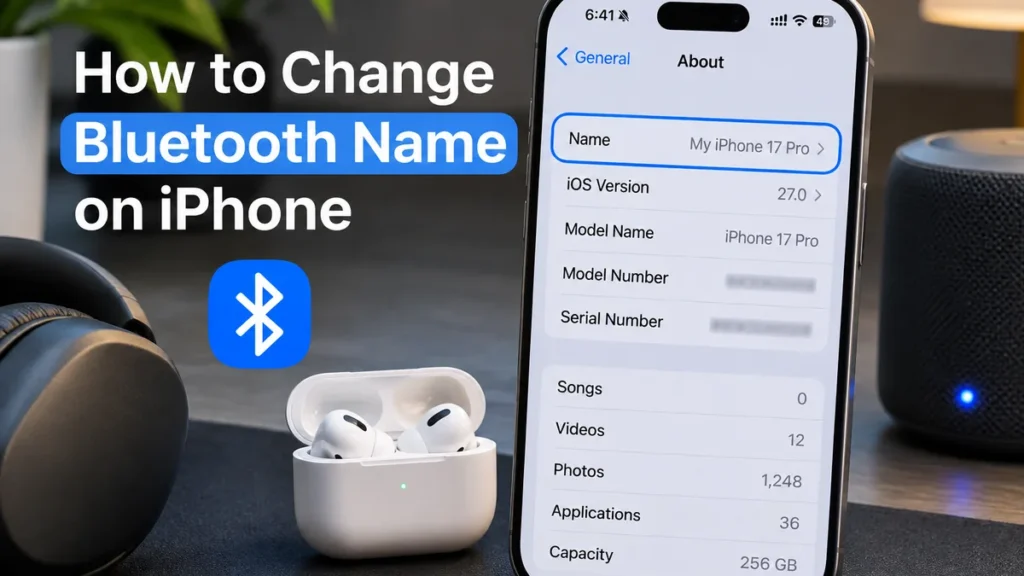
Quick Answer: How to Change Bluetooth Name on iPhone
If you’re wondering how to change bluetooth name on iphone, open Settings > General > About > Name, delete the current device name, enter a new one, and tap Done. Your new iPhone name is also used for Bluetooth, AirDrop, Personal Hotspot, iCloud, and computer connections.
If you want to rename connected Bluetooth headphones or speakers instead, open Settings > Bluetooth, tap the information (i) button next to the connected accessory, and select Name, if available.
You don’t need a third-party app or a factory reset for either method.
This guide explains both options, how to rename AirPods, why the Name option sometimes disappears, and what to do when another device still shows the old name.
Can You Change the Bluetooth Name on an iPhone?
Yes. Apple lets you change your iPhone’s device name directly from Settings.
However, there is an important distinction:
Your iPhone’s Bluetooth name: The name used to identify your iPhone to other devices and Apple services.
A paired Bluetooth accessory’s name: The name displayed for compatible headphones, speakers, or other Bluetooth accessories connected to your iPhone.
These names are managed differently.
For example, changing the name of your iPhone does not automatically rename your Bluetooth headphones.
Likewise, renaming a supported Bluetooth speaker does not change the name of your iPhone.
Understanding this difference helps you find the correct setting without unnecessarily resetting Bluetooth or forgetting paired devices.
Method 1: How to Change Your iPhone’s Bluetooth Name
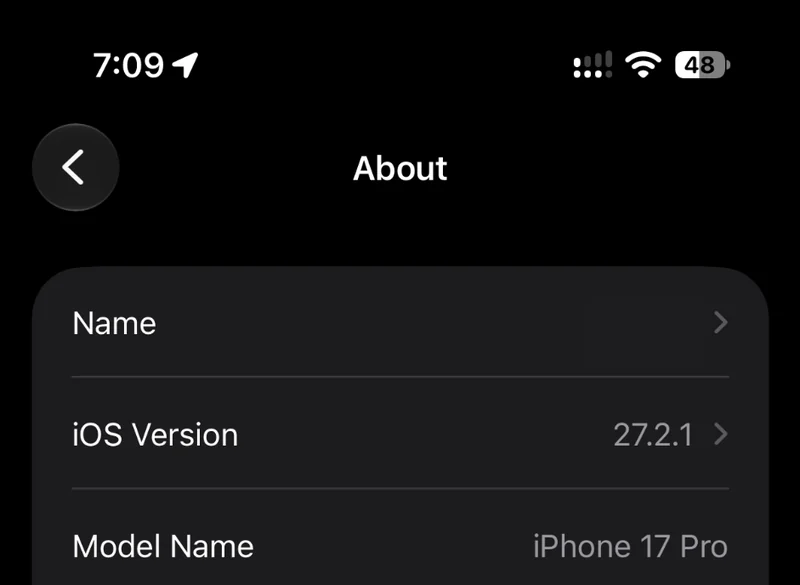
The simplest method is to rename your iPhone through the About screen.
Apple confirms that the iPhone device name is used for Bluetooth and several other services.
Step-by-step instructions
- Unlock your iPhone.
- Open the Settings app.
- Tap General.
- Select About.
- Tap Name.
- Delete the existing name.
- Enter your preferred new name.
- Tap Done on the keyboard.
Your new device name is now saved.
You do not need to restart your iPhone simply to complete the change.
Example
Suppose your iPhone currently appears as:
iPhone
You could rename it to:
Home iPhone
or
Work iPhone
This can make it easier to recognize your device when connecting accessories or managing multiple Apple products.
Where does the new name appear?
According to Apple, your iPhone’s device name is used by:
- Bluetooth
- AirDrop
- Personal Hotspot
- iCloud
- Your computer
The exact place where the name appears depends on the feature and the device you’re using.
For example, when you connect your iPhone to a Mac, the new name may be displayed in Finder.
When sharing files through AirDrop, the device name can also help distinguish your iPhone from other nearby Apple devices.
Does changing the iPhone name affect Bluetooth pairing?
Normally, renaming the iPhone does not require you to delete existing Bluetooth pairings.
The change updates the device’s displayed name rather than deliberately removing its saved Bluetooth connections.
However, another device may temporarily display a previously stored name.
If that happens, allow the connected device to refresh or reconnect before attempting more disruptive troubleshooting.
Method 2: How to Rename Bluetooth Devices Connected to iPhone
You can also rename certain Bluetooth accessories directly from your iPhone.
This is useful if you own multiple similar accessories or want a clearer way to distinguish them.
For example, you might have:
- Two wireless speakers
- Multiple Bluetooth headphones
- Separate work and personal audio devices
- More than one compatible keyboard
Instead of leaving generic accessory names, you may be able to assign recognizable names.
Step-by-step instructions
- Turn on the Bluetooth accessory.
- Make sure it is paired and connected to your iPhone.
- Open Settings.
- Tap Bluetooth.
- Find the accessory under My Devices.
- Tap the information (i) button beside its name.
- Select Name, if the option appears.
- Enter the new name.
- Tap Done.
The accessory should now display its new name in supported interfaces.
Important: Not every Bluetooth device supports renaming
Apple specifically notes that some Bluetooth accessories cannot be renamed from an iPhone.
If you open the accessory’s information screen and don’t see Name, the accessory might not support this feature.
The option can also be unavailable when the accessory isn’t currently connected.
Some manufacturers provide their own companion apps for changing supported device settings.
Check the accessory’s official documentation before attempting another method.
Can you rename someone else’s Bluetooth device?
You cannot generally rename another person’s phone or change its permanent device name merely because it appears in your Bluetooth list.
The other device’s owner normally needs to change its name through its own settings.
A connected accessory is different because some accessories explicitly support user-configurable names through iOS.
How to Change AirPods Name on iPhone
AirPods have a dedicated naming feature that makes them easier to identify.
This is particularly helpful when several people use AirPods nearby.
Method 1: Rename AirPods through Settings
On supported iOS versions:
- Put your AirPods in your ears.
- Connect them to your iPhone.
- Open Settings.
- Tap the name of your AirPods near the top.
- Tap their current name.
- Enter the new name.
- Save the change.
Apple documents this method for compatible AirPods and iOS versions.
Method 2: Use Bluetooth Settings
You can also use Bluetooth settings on supported devices.
- Open Settings > Bluetooth.
- Connect your AirPods.
- Find their name.
- Tap the information (i) button.
- Tap Name.
- Enter the new name.
- Tap Done.
Will the new AirPods name appear on your other Apple devices?
Apple explains that when you’re signed in to the same Apple Account on multiple devices, the updated AirPods name can synchronize across those devices.
This means you don’t normally need to rename the same AirPods separately on each compatible Apple device.
However, allow the devices time to synchronize.
If one device continues showing an older name, reconnecting the AirPods may help refresh the displayed information.
What if your AirPods won’t connect?
You need a working connection for many accessory-management settings.
If connection problems prevent you from accessing AirPods settings, address the Bluetooth connection issue first.
For microphone-related connection symptoms, see our AirPods Microphone Not Working guide.
Renaming AirPods does not itself repair a faulty Bluetooth connection or microphone.
How to Change Bluetooth Headphones or Speaker Name on iPhone
The procedure for compatible third-party headphones and speakers is similar.
Example: Renaming wireless headphones
- Turn on the headphones.
- Connect them to your iPhone.
- Open Settings > Bluetooth.
- Tap the information button beside the headphones.
- Look for Name.
- Enter a recognizable name if the setting is available.
- Tap Done.
For instance, you might change a generic accessory name to Office Headphones.
Example: Renaming a Bluetooth speaker
- Connect the speaker to your iPhone.
- Open Bluetooth settings.
- Select the information button beside the speaker.
- Tap Name, if supported.
- Enter a new name.
- Save the change.
If there is no Name option, consult the speaker manufacturer’s instructions.
Some accessories use a fixed Bluetooth name, while others support customization through a companion app.
Does changing the name improve sound quality?
No.
Renaming an accessory is an organizational feature. It does not increase Bluetooth range, improve audio quality, or repair a speaker.
If an accessory connects but the iPhone produces no sound, the problem may involve audio routing instead.
Our iPhone Speaker Not Working guide explains how to check Bluetooth audio output and speaker settings.
How to Change the iPhone Name Used for Personal Hotspot
Your iPhone’s device name is also associated with Personal Hotspot.
If you want another person to recognize your hotspot more easily, change the iPhone name.
Steps
- Open Settings.
- Tap General.
- Select About.
- Tap Name.
- Enter a new device name.
- Tap Done.
Then check your Personal Hotspot settings.
On supported carriers, the hotspot can use the updated iPhone name for identification.
Does changing the iPhone name change the hotspot password?
No.
Your iPhone’s device name and its Personal Hotspot Wi-Fi password are separate settings.
You can review the hotspot password through:
Settings > Personal Hotspot > Wi-Fi Password
Depending on the iPhone’s configuration, Personal Hotspot may also be available under Cellular settings.
Changing the device name should not be confused with changing the password.
A privacy reminder
Avoid including your full legal name, home address, phone number, or other sensitive details in a device name that might appear to nearby users.
A simple name such as Personal iPhone can be easier to recognize without revealing unnecessary information.
Why Is There No Name Option in Bluetooth Settings?
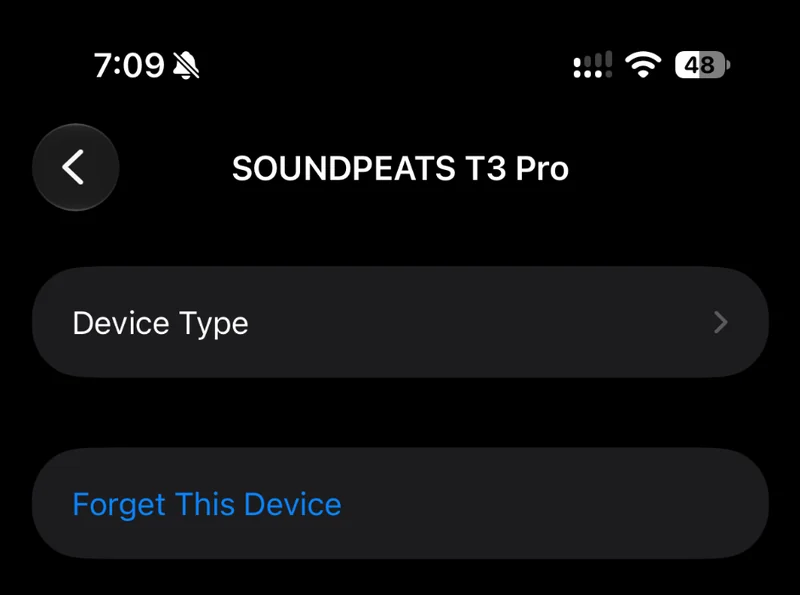
This is one of the most common sources of confusion.
The answer depends on whether you’re trying to rename the iPhone itself or a connected accessory.
Reason 1: You’re trying to rename the iPhone in the wrong menu
If you want to rename your iPhone, don’t look for a separate device-name setting under Settings > Bluetooth.
Instead, open:
Settings > General > About > Name
This is the correct Apple-documented path.
Reason 2: The accessory isn’t connected
If you’re renaming wireless headphones or a speaker, check whether the accessory is currently connected.
Open Settings > Bluetooth and look at its connection status.
Reconnect the accessory if necessary, then open its information screen again.
Reason 3: The accessory doesn’t support custom names
Not every Bluetooth product exposes a rename function.
If the accessory is connected but Name is missing, this may be expected behavior rather than an iPhone software problem.
Some devices provide their own settings application.
Others cannot be renamed by the user.
Reason 4: The accessory needs a temporary reconnection
If the accessory normally supports renaming but the option is unavailable, disconnect it and reconnect it.
Then check the information screen again.
If the issue continues, consult the accessory manufacturer’s support information.
Don’t factory-reset your iPhone because a Bluetooth accessory lacks a Name field.
Why Is My Old Bluetooth Name Still Showing?
Sometimes the new name is saved successfully on your iPhone, but another device continues showing the previous name.
This doesn’t necessarily mean the rename failed.
The other device may still be displaying previously stored information.
1. Confirm the new name was saved
Open Settings > General > About > Name.
Check whether the new iPhone name appears.
If it does, the setting was saved on the iPhone.
2. Refresh the other device’s Bluetooth list
Open Bluetooth settings on the other device.
Close and reopen the list of available or paired devices.
Allow time for it to refresh.
3. Disconnect and reconnect
If the other device remains connected, disconnect it normally and reconnect.
Then check whether the new name appears.
Avoid forgetting the pairing as your first step.
4. Restart the devices if necessary
A normal restart may help clear temporary device-discovery or display problems.
Restart the iPhone and the other device, then inspect the name again.
5. Check for a manually saved label
Some devices or systems may retain their own label for a paired accessory.
In that case, the other device’s displayed name might not immediately match the iPhone’s current name.
Check the manufacturer’s documentation for device-name management.
6. Re-pair only if needed
If the name remains outdated and the other device has no way to refresh it, forgetting and re-pairing may be an option.
However, this removes the existing pairing relationship and requires setting up the connection again.
Use it only when necessary.
You do not need to erase your entire iPhone or reset all network settings merely because another device displays an old label.
How to Choose a Good Bluetooth Device Name
A clear name makes it easier to identify devices, especially when you own multiple accessories.
Consider names based on:
- Purpose: Office iPhone
- Location: Living Room Speaker
- Device type: Travel Headphones
- Ownership context: Personal Phone
- Device model: iPhone Pro
Keep names reasonably short and easy to recognize.
Avoid sensitive details
Your device name may be visible in certain discovery, sharing, or connection interfaces.
Avoid using passwords, complete addresses, or private identifiers.
Also remember that a recognizable name is not a security feature.
Renaming a device doesn’t prevent unauthorized access or replace Bluetooth pairing protections.
Does Changing Bluetooth Name Affect AirDrop, iCloud, or Wi-Fi?
Changing the iPhone’s name can affect how it is identified across several Apple services.
| Feature | What changes? |
|---|---|
| Bluetooth | The iPhone’s device name is updated |
| AirDrop | The device name used for identification can change |
| Personal Hotspot | The iPhone name used for hotspot identification can change |
| iCloud | The device name associated with your iPhone can change |
| Computer connection | Finder or other device-management interfaces can show the new name |
| Wi-Fi network | Your router’s SSID does not change |
| Bluetooth accessories | Their individual names do not automatically change |
The last two distinctions are especially important.
Renaming your iPhone does not rename your home Wi-Fi network.
Similarly, it doesn’t automatically rename AirPods, headphones, or speakers you’ve paired with the iPhone.
Those are separate devices with separate naming behavior.
Can You Change Bluetooth Name on iPhone 17 Pro or iOS 27?
Yes.
Apple’s iOS 27 instructions still provide the device-naming option through:
Settings > General > About > Name
The procedure applies to compatible modern iPhones, including the iPhone 17 Pro.
The general device-naming process is also available on many earlier iOS versions.
You don’t need special hardware or an additional application.
If your intention is to rename a Bluetooth accessory rather than the iPhone, use its information screen under Bluetooth settings, provided it supports the feature.
Frequently Asked Questions
How do I change my iPhone’s Bluetooth name?
Open Settings > General > About > Name, enter the new device name, and tap Done. Apple uses this name for Bluetooth and other services.
Can I change Bluetooth name directly in Bluetooth settings?
You can rename compatible connected Bluetooth accessories from Settings > Bluetooth. To rename the iPhone itself, use Settings > General > About > Name.
How do I rename Bluetooth headphones on iPhone?
Connect the headphones, open Settings > Bluetooth, tap the information button beside the accessory, and select Name if available. Not all headphones support custom names.
How do I change my AirPods name?
Connect your AirPods, open Settings, tap their name near the top, and edit it. On supported versions, you can also use Settings > Bluetooth > information button > Name.
Why can’t I change my Bluetooth device name?
The device may not be connected, or the accessory might not support renaming. If you’re renaming the iPhone itself, use the About screen instead of Bluetooth settings.
Does changing my iPhone’s Bluetooth name change its AirDrop name?
Apple uses the iPhone device name for AirDrop identification. Changing the device name can therefore change how the iPhone is identified in AirDrop.
Does changing Bluetooth name disconnect accessories?
Changing the iPhone’s device name normally does not require deleting Bluetooth pairings. Another device may temporarily retain an older displayed name.
Can I change my iPhone Bluetooth name without changing its hotspot name?
Apple uses the iPhone device name for both Bluetooth and Personal Hotspot identification. There isn’t a separate general setting for assigning the iPhone one device name exclusively for Bluetooth.
Can I rename a Bluetooth speaker from my iPhone?
Yes, if the speaker supports renaming through iOS. Connect it, open Bluetooth settings, tap the information button, and look for Name.
Will changing the Bluetooth name improve the connection?
No. Renaming changes a displayed device identifier; it does not increase signal strength or fix faulty Bluetooth hardware.
Does changing my Bluetooth name delete data?
Changing the device name through Settings does not normally erase photos, applications, messages, or other personal information.
Why does another device still show my iPhone’s old name?
It may be using a previously stored name. Confirm the new name on your iPhone, refresh the other device’s Bluetooth list, and reconnect if needed.
Final Thoughts
Learning how to change bluetooth name on iphone is straightforward once you understand which device you’re renaming.
For the iPhone itself, open Settings > General > About > Name.
For supported Bluetooth accessories, open Settings > Bluetooth, select the connected accessory’s information button, and look for the Name option.
AirPods also offer dedicated naming settings.
Remember that not every Bluetooth accessory supports renaming and that changing a device’s name is different from fixing a connection problem.
Choose a clear, privacy-conscious name that makes your devices easy to recognize.
Official Apple References
- Apple: Change the name of your iPhone
- Apple: Change the name of a Bluetooth accessory
- Apple: Connect iPhone to Bluetooth accessories
- Apple: Rename your AirPods
- Apple: Share your internet connection from iPhone
Last reviewed: November 20, 2026. The instructions follow Apple’s iOS 27 documentation. Some Bluetooth accessories do not support custom names, and available settings may vary by model and software version.