Quick Answer: Can You Add More Storage to an iPhone?
If you’re wondering how to add more storage to iphone, you have five practical options: use iCloud+, connect an external USB drive or SSD, transfer files to a computer, optimize your existing storage, or upgrade to an iPhone with more built-in capacity.
However, you cannot officially increase an existing iPhone’s internal storage by inserting a memory card or purchasing more iCloud space.
An iPhone with 256 GB of built-in storage still has 256 GB of internal capacity after you buy a 1 TB external SSD or upgrade your cloud storage plan.
The benefit is that these options can help you store more photos, videos, and documents while reducing the amount of space needed on your phone.
This guide explains what each method actually does, what it costs in general, which iPhones support external storage, and how to avoid losing important files.
Can You Increase an iPhone’s Internal Storage?
No. Apple does not offer an official storage upgrade for an iPhone you already own.
Unlike some computers, an iPhone does not have a user-accessible internal storage slot.
Its built-in flash storage is integrated into the device’s hardware.
You cannot simply install a larger storage module through iOS Settings.
Can you add an SD card to an iPhone?
An iPhone does not have a built-in microSD card slot.
However, compatible SD cards can be accessed through an external card reader connected to the iPhone’s USB-C or Lightning port.
The card remains separate from the device’s internal storage.
Can an app increase iPhone storage?
No legitimate app can turn a 128 GB iPhone into a 256 GB device by changing software settings.
Storage-management apps may help organize files or identify unnecessary content, but they cannot physically expand the phone’s memory.
Avoid services that promise to unlock hidden storage or increase the iPhone’s internal capacity through a configuration profile.
Five Ways to Get More Storage for Your iPhone
The best option depends on what you need to store.
For photos and cloud files: Consider iCloud+ and optimized storage.
For large videos or offline archives: Use a compatible external SSD or USB flash drive.
For long-term backups: Transfer files to a Mac or Windows computer.
For additional free space: Remove unused local content.
For permanently larger built-in storage: Choose a higher-capacity iPhone when upgrading your device.
Let’s examine each option.
1. Buy More iCloud Storage With iCloud+
iCloud+ is one of the most convenient ways to expand the amount of information you can store in Apple’s cloud services.
It provides additional cloud capacity for compatible content such as photos, device backups, and iCloud Drive files.
Does iCloud+ increase iPhone storage?
No. iCloud+ increases your cloud storage allowance, not your iPhone’s physical capacity.
However, it can help reduce local storage requirements when you use supported features such as iCloud Photos with Optimize iPhone Storage.
How to get more iCloud storage on iOS 27
Apple’s iOS 27 instructions differ depending on whether you already subscribe to iCloud+.
If you do not have an iCloud+ subscription:
- Open Settings.
- Tap your name or Apple Account.
- Select iCloud.
- Tap Storage or Almost Full, depending on the screen.
- Choose Get More Storage if available.
- Review the offered plans.
- Select an appropriate plan and follow the purchase instructions.
If you already have an iCloud+ subscription:
- Open Settings.
- Tap your name.
- Select iCloud.
- Under iCloud+ Features, tap Manage Plan.
- Review the available storage plans.
- Choose a new plan if needed.
- Follow the confirmation steps.
The available plans and prices depend on your region.
How much iCloud storage should you buy?
Start by checking how much cloud storage you actually use.
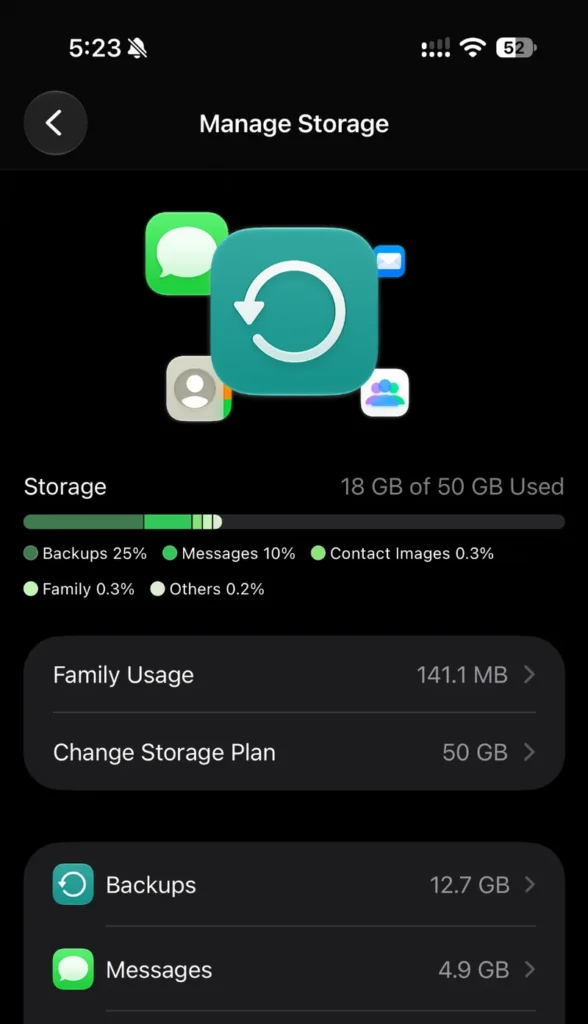
Open Settings > Your Name > iCloud and review the storage breakdown.
If your cloud usage is relatively small, you may not need the largest available plan.
If you store extensive photo libraries, videos, or backups for multiple devices, a larger plan may be appropriate.
Avoid purchasing additional cloud capacity merely because your iPhone’s internal storage is almost full.
First determine whether the problem is local device storage or cloud storage.
How to use iCloud Photos to save iPhone space
When iCloud Photos is enabled, your full-resolution photos and videos can be stored in iCloud.
With Optimize iPhone Storage, your phone can retain smaller, space-saving versions locally.
On iOS 27:
- Open Settings.
- Tap your name.
- Select iCloud.
- Open Photos.
- Enable Sync this iPhone if you intend to use iCloud Photos.
- Tap iPhone Storage.
- Make sure Optimize iPhone Storage is selected.
Only enable synchronization after understanding how it affects your photo library.
Important: iCloud Photos is a synchronized library, not an independent backup of deleted photos. Deleting a synced photo on one device generally removes it from other devices using the same library.
Keep separate copies of irreplaceable photos.
Pros and limitations of iCloud+
iCloud+ is convenient for syncing and accessing files across supported devices.
However, additional cloud storage generally requires a recurring subscription.
Uploading and retrieving cloud-only content also depends on an internet connection.
And although iCloud+ can make more room available locally, it does not increase the physical storage available for installing iPhone apps.
2. Connect an External USB Drive or SSD to Your iPhone
An external drive is one of the most practical ways to store large files without relying exclusively on cloud services.
Depending on your iPhone model, you can connect a compatible USB flash drive, portable SSD, or external storage device.
Apple supports access to compatible drives through the Files app.
Which iPhones support USB-C external storage?
iPhone 15 and later models use USB-C.
These include the iPhone 15, iPhone 16, iPhone 17, and supported newer models.
The iPhone 17 Pro, for example, can connect to compatible USB-C storage devices.
Not every drive is guaranteed to work. Compatibility depends on the connector, file system, power requirements, and supported accessories.
How to connect a USB-C drive to iPhone
- Unlock your iPhone.
- Connect a compatible USB-C flash drive or SSD.
- Open the Files app.
- Tap Browse.
- Look under Locations.
- Select the connected storage device.
- Browse its folders and files.
If the drive does not appear, check the cable, adapter, file system, and power requirements.
Some external SSDs need more power than the iPhone can provide directly.
A compatible powered USB hub may be necessary.
What format should the drive use?
Apple supports several external storage file systems, including APFS, exFAT, and FAT32.
Apple’s current iPhone documentation also lists certain Mac file systems.
For a drive that needs to work across both Mac and Windows, exFAT is often a practical option.
A compatible external device generally needs a single supported data partition.
Warning: Formatting or erasing a drive destroys its existing contents. Never choose Erase simply to test a drive without first backing up its files.
Can you install iPhone apps on an external SSD?
No. Connecting an external SSD does not turn it into additional built-in app storage.
The drive can hold supported files and media, but iOS does not ordinarily allow you to move the installed application library onto an external drive in the same way as some desktop computers.
That distinction is essential when choosing a storage solution.
3. Use an SD Card Reader or Lightning Storage Accessory
Older iPhones can also use certain external storage accessories.
For example, an iPhone with a Lightning connector may support a compatible Lightning-to-USB adapter or SD card reader.
How does a Lightning storage accessory work?
A compatible adapter connects the iPhone to an external storage device.
The drive or memory card can then appear in the Files app when supported.
Some combinations require additional power.
Apple documents several adapter options, including the Lightning to USB 3 Camera Adapter and Lightning to SD Card Camera Reader.
Can a microSD card increase iPhone capacity?
A microSD card in an external reader provides separate file storage.
It does not change the iPhone’s internal capacity, nor does it become permanent integrated storage.
You can use the card for supported documents, photos, and other files.
You may need to keep the reader connected whenever you want to access those files.
What should you check before choosing an accessory?
Make sure the accessory is compatible with your particular iPhone model.
Check its connector type, supported file formats, power requirements, and whether it works with Apple’s Files app.
Don’t assume that a USB accessory will work simply because its plug fits.
4. Move Photos, Videos, and Files to a Computer
If you already own a Mac or Windows computer, transferring files may be a practical alternative to buying more cloud storage.
This can be especially useful for people who record large videos or accumulate many documents.
How to transfer photos and videos to a Mac
- Connect your iPhone to your Mac using a compatible cable.
- Unlock the iPhone.
- Approve the Trust prompt if required.
- Open the Photos app on your Mac.
- Select your iPhone in the import area.
- Choose the photos and videos you want to import.
- Start the import.
- Wait until the transfer finishes.
Before deleting anything from your iPhone, open several imported files on your Mac and verify that the transfer completed successfully.
Remember that ordinary photo synchronization and an independent archival copy are different things.
If you use iCloud Photos on both devices, deleting a photo from the synchronized library can delete it from both.
How to transfer files to Windows
You can connect a compatible iPhone to a Windows computer and use supported Microsoft or Apple tools to transfer photos and files.
Depending on the type of content, you may use Windows Photos, Apple Devices, or another supported file-transfer workflow.
Unlock your iPhone and approve the Trust prompt when requested.
Always check that transferred files are readable on the destination computer.
Is a computer better than iCloud?
A computer can be useful for local archives that don’t require an ongoing cloud storage subscription.
However, a single laptop is not automatically a secure backup.
A computer can fail, be lost, or become damaged.
For important files, maintain an additional independent backup, such as a second storage device.
5. Free Up Existing Storage or Upgrade to a Larger iPhone
If your goal is to install more applications, download additional games, or keep more content directly on the iPhone, freeing existing space is often the most useful immediate step.
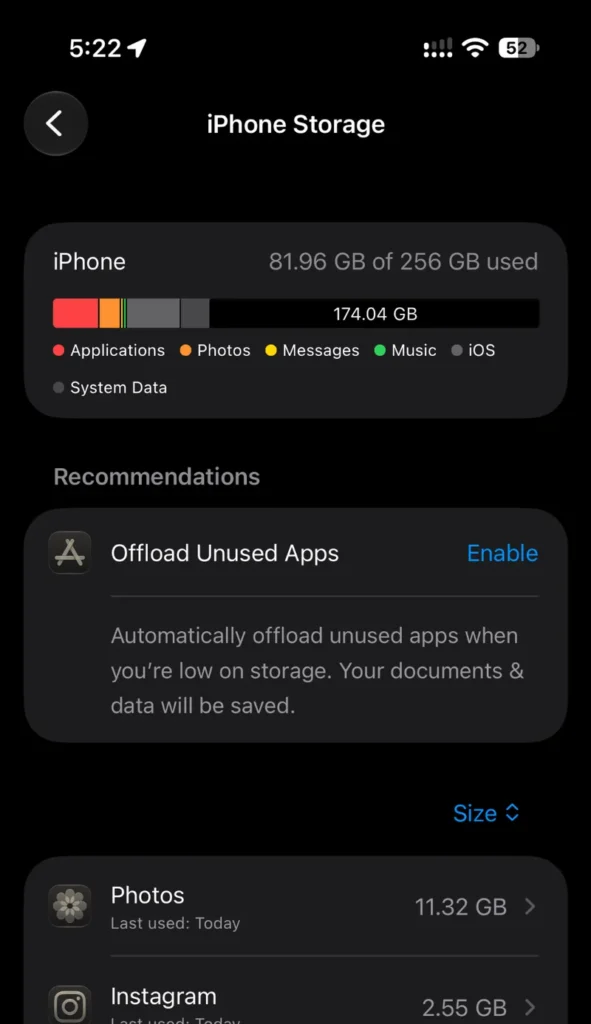
Check your available storage
- Open Settings.
- Tap General.
- Select iPhone Storage.
- Review used and available capacity.
- Identify the largest categories.
The storage chart can show categories such as Applications, Photos, Messages, iOS, and System Data.
Free space without buying anything
You can:
- Offload apps you rarely use.
- Remove offline streaming downloads.
- Delete unnecessary large videos after backing them up.
- Remove unused documents.
- Review Messages attachments.
- Remove downloaded copies of cloud files when appropriate.
For detailed instructions, use our dedicated guide, How to Free Up Storage on iPhone, rather than deleting files at random.
If System Data appears unusually large, read our iPhone System Data Taking Up Storage guide.
When should you consider buying another iPhone?
If you regularly need more built-in capacity for apps, games, offline files, or professional media, a higher-capacity iPhone may be the most practical long-term option.
For example, if you constantly fill your current device even after careful storage management, consider choosing more built-in storage when you next upgrade.
A higher-capacity model adds actual internal storage.
By contrast, external drives and cloud subscriptions provide alternative storage locations.
How to Move Files From iPhone to an External USB Drive
Once you’ve connected a compatible drive, you can use the Files app to transfer supported documents.
Steps
- Connect your external drive.
- Open Files.
- Tap Browse.
- Open On My iPhone.
- Find the file or folder you want to transfer.
- Touch and hold the item.
- Choose Copy.
- Return to Browse and open the external drive under Locations.
- Touch and hold an empty area and choose Paste, or use the available file-management controls.
The exact controls may vary by iOS version and the selected item.
Wait until copying finishes before disconnecting the drive.
Should you use Copy or Move?
Copy keeps the original on your iPhone and creates another copy on the destination drive.
Move transfers the item to another location, potentially removing it from the original location.
For important files, copying first is safer.
Verify the destination copy before considering deletion of the original.
How to Transfer iPhone Photos Directly to an External SSD
Apple provides a dedicated photo export feature.
On supported iPhones, you can export original photo and video files to an external storage device.
Step-by-step instructions
- Connect a compatible external drive or SSD.
- Open Photos.
- Select the photos or videos you want to export.
- Tap Share.
- Select Export Unmodified Original.
- Choose the connected storage device under Locations.
- Select the destination folder if needed.
- Tap Save.
- Wait for the export to finish.
Apple notes that this exports the original version of the selected media, including for photos or videos you have edited.
If you need edited versions with your adjustments applied, choose an appropriate export method for those versions instead.
Important precaution
Do not immediately delete the originals.
First reconnect the external drive if necessary and verify that the exported files open correctly.
Check several photos and videos, especially the largest recordings.
For valuable media, keep another backup separate from the external SSD.
Once you confirm your files are safe, you can decide whether to remove unnecessary local copies.
Remember that deleting media in iCloud Photos can affect all devices using that synced library.
Can an iPhone Record Video Directly to External Storage?
Some supported iPhone Pro models can record particular video formats directly to a compatible external drive.
Apple documents external Apple ProRes recording on supported iPhone Pro models, including the iPhone 15 Pro, 16 Pro, and 17 Pro families.
This can be useful because professional-quality video files can consume substantial storage.
However, not every recording format and every drive is supported.
The drive may need to meet minimum speed, file system, capacity, and power requirements.
Check Apple’s recording specifications for your model before relying on external storage for important video work.
Ordinary app downloads, the iOS operating system, and most app data still use the iPhone’s built-in storage.
Which Storage Option Should You Choose?
Choose iCloud+ if:
You want convenient cloud access to photos, backups, and files across supported devices.
You have reliable internet access and are comfortable with a recurring subscription.
Choose an external SSD if:
You regularly work with large videos, photo archives, or documents.
You want portable storage that can be used without uploading everything to the cloud.
Choose an SD card reader if:
You need to transfer files from a camera or memory card, or you have compatible removable storage already.
Choose a computer if:
You want to archive files outside the iPhone and have reliable backup storage available.
Choose a higher-capacity iPhone if:
You need more built-in room for installed apps, games, and offline content that cannot conveniently live on an external drive.
No single method is best for everyone.
Common Mistakes to Avoid
When trying to add storage to your iPhone, avoid these misunderstandings.
Mistake 1: Thinking iCloud+ increases internal storage
Cloud capacity and device capacity are separate.
Buying an iCloud+ plan does not physically enlarge your iPhone’s internal memory.
Mistake 2: Assuming every USB drive will work
External drives need compatible connectors, supported file systems, and sufficient power.
Mistake 3: Deleting photos immediately after copying them
A copy operation can fail or be incomplete.
Always verify your exported files before deleting originals.
Mistake 4: Moving files only within iCloud Drive
Moving a file from one iCloud Drive folder to another generally does not reduce iCloud storage use.
Mistake 5: Trusting apps that promise unlimited storage
An app cannot create new physical capacity inside your iPhone.
Be cautious about exaggerated claims, especially from utilities requesting unnecessary access or subscriptions.
Frequently Asked Questions
Can you add more storage to an iPhone after buying it?
You cannot officially upgrade an existing iPhone’s built-in storage. You can use iCloud+, compatible external storage devices, or a computer to store additional supported files.
Can I turn my 128 GB iPhone into a 256 GB iPhone?
No. Purchasing cloud storage or connecting a USB drive does not change the phone’s physical storage capacity. A higher-capacity iPhone is required for more built-in storage.
Does an iPhone have an SD card slot?
No. iPhones do not have an internal microSD slot. Compatible SD cards can be accessed through an external reader.
Can I connect a USB flash drive to an iPhone?
Yes, on supported iPhones using a compatible USB-C or Lightning accessory. You can generally access supported drives through the Files app.
Does iCloud+ give me more space for apps?
No. iCloud+ does not expand the space available for installing apps. It can store supported cloud content and help reduce some local storage usage.
Can I use an external SSD with an iPhone 17 Pro?
Yes, compatible external SSDs can connect through USB-C. File system, power, and cable compatibility matter. Certain supported recording formats can also use external storage.
Can iPhone apps be installed on an external drive?
Not through the ordinary iOS app-installation process. External drives are primarily for supported files, documents, and media rather than expanding the internal application storage area.
How do I add more storage to iPhone for free?
You can free space by removing unnecessary downloads, offloading unused apps, and transferring files to a computer or existing storage device. Apple’s free iCloud storage allowance is limited and does not increase device capacity.
Is it better to buy iCloud storage or an external SSD?
iCloud+ offers convenient cloud syncing and backup-related features. An external SSD is useful for local file archives and large media. Neither increases the iPhone’s internal capacity.
Will moving photos to an external drive delete them from my iPhone?
Copying or exporting files does not automatically delete the original photos. Verify your exported files before deciding whether to remove the local originals.
Can I increase storage without deleting anything?
You can store additional files in iCloud or on external storage without deleting existing content. However, to increase the available space on the iPhone itself, some local content must be removed, offloaded, or optimized.
Final Thoughts
Understanding how to add more storage to iphone begins with one important distinction: more storage for your files is not the same as more built-in device capacity.
iCloud+ provides additional cloud space. Compatible USB drives and external SSDs let you store supported files outside your phone. Computers can hold long-term archives and backups.
If you need more space for installed applications, you can reclaim existing capacity or eventually move to an iPhone with more internal storage.
Whatever you choose, verify your files before deleting them from your device.
The best solution is one that provides enough space for your needs while keeping important photos, videos, and documents safe.
Official Apple References
- Apple: Difference between iCloud storage and device storage
- Apple: Connect external storage devices to iPhone
- Apple: Import and export photos and videos on iPhone
- Apple: Transfer files from iPhone to storage devices
- Apple: Buy or upgrade iCloud+
- Apple: About Apple ProRes on iPhone
Last reviewed: November 20, 2026. The instructions are based on Apple’s published guidance. External accessory compatibility, supported formats, and menu names can vary by iPhone model and iOS version.