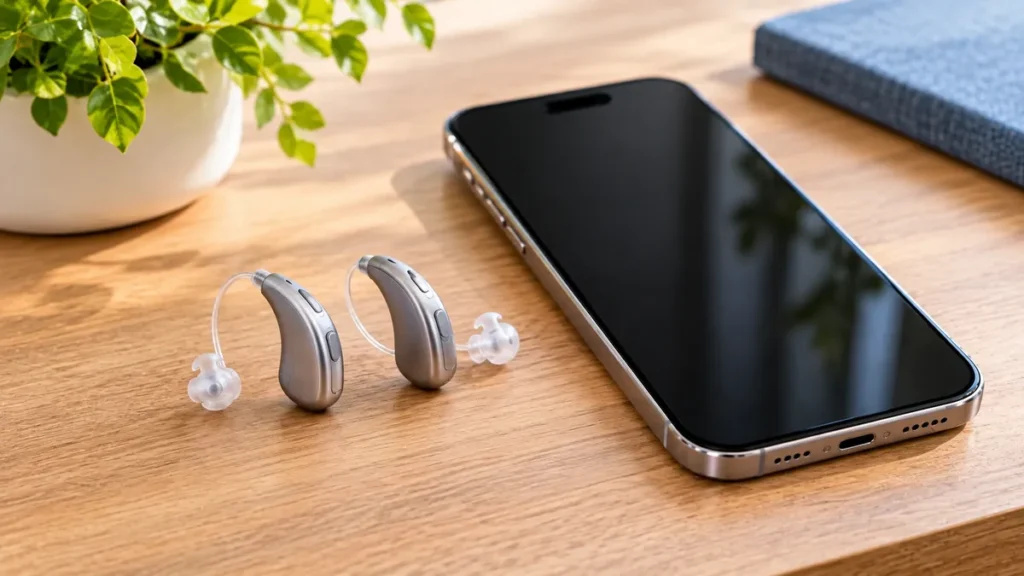
Wondering how to connect hearing aids to Bluetooth on iPhone? The process depends on the type of hearing aids you own. Some pair through Apple’s Hearing Devices settings, while others use the regular Bluetooth menu or a manufacturer’s app.
If your hearing aids aren’t showing up in Bluetooth settings, don’t assume there’s something wrong with them. You may simply be looking in the wrong place. You might open Settings > Bluetooth, wait for your hearing aids to appear, and see nothing. That doesn’t necessarily mean something is wrong with your phone or hearing aids.
Apple has a separate pairing system for compatible Made for iPhone hearing devices, and knowing which type you have makes the whole process easier.
Quick answer: To connect Made for iPhone hearing aids, turn on Bluetooth, put your hearing aids into pairing mode, and open Settings > Accessibility > Hearing Devices. Tap Pair MFi Hearing Device if the option appears, select your hearing aids, and approve the pairing requests. Other Bluetooth-enabled hearing aids may use different pairing instructions.
Here’s how to get everything connected and what to check if the process doesn’t work.
Table of Contents
First, Check Whether Your Hearing Aids Work With iPhone
Before changing any settings, check the model of your hearing aids.
Some hearing aids are designed to connect directly to Apple devices. These are commonly called Made for iPhone (MFi) hearing aids.
Others support standard Bluetooth connections, while certain hearing aids require a manufacturer-specific accessory or streaming device.
This distinction matters because having Bluetooth technology doesn’t automatically mean a hearing aid can stream audio directly from every iPhone.
The easiest way to confirm compatibility is to check your hearing aid’s user manual or the manufacturer’s website.
You can also consult Apple’s official list of Made for iPhone hearing devices.
If your hearing aids are listed as compatible, the next steps should help you get connected.
1. Turn On Bluetooth on Your iPhone
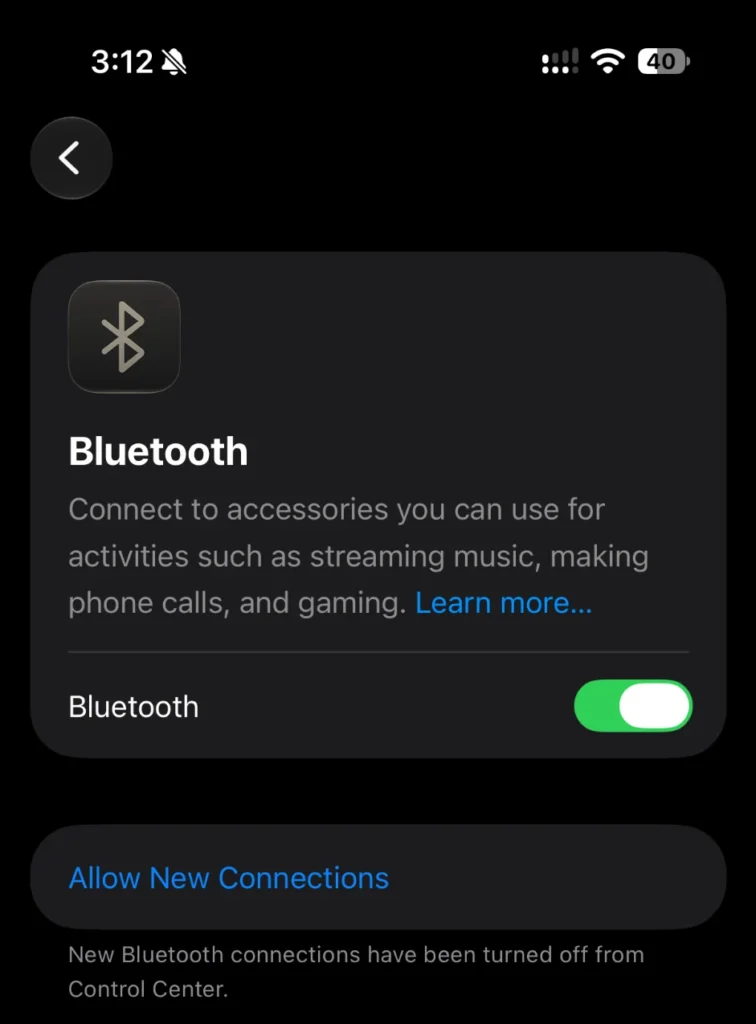
Start with the basics.
- Open Settings.
- Tap Bluetooth.
- Make sure Bluetooth is switched on.
- Keep your iPhone near your hearing aids.
There’s no need to leave the Bluetooth settings screen open after enabling the connection.
For compatible Made for iPhone hearing aids, you’ll use the Accessibility settings for the actual pairing process.
If Bluetooth is unavailable or doesn’t detect other accessories either, see our guide on iPhone Bluetooth not finding devices.
2. Put Your Hearing Aids Into Pairing Mode
This is the step people most often overlook.
Your hearing aids need to be discoverable before your iPhone can connect to them.
The correct procedure depends on the model.
For many hearing aids with disposable batteries, opening and closing the battery doors restarts them and initiates the pairing process.
For rechargeable models, you may need to place them in their charging case and remove them again.
Some devices have buttons or a separate pairing procedure.
Use the instructions provided by your hearing aid manufacturer rather than assuming every model works the same way.
A useful tip: Have the Hearing Devices settings screen ready on your iPhone before restarting the hearing aids. Some devices remain discoverable only for a limited period.
If you wear two hearing aids, make sure both are powered on and ready to pair.
If you’re trying to figure out how to connect hearing aids to Bluetooth on iPhone, the most important thing is choosing the correct pairing menu. Made for iPhone hearing aids use Accessibility settings, while other compatible models may connect through Bluetooth settings or a manufacturer’s app.
3. How to Connect Hearing Aids to Bluetooth on iPhone (MFi Method)
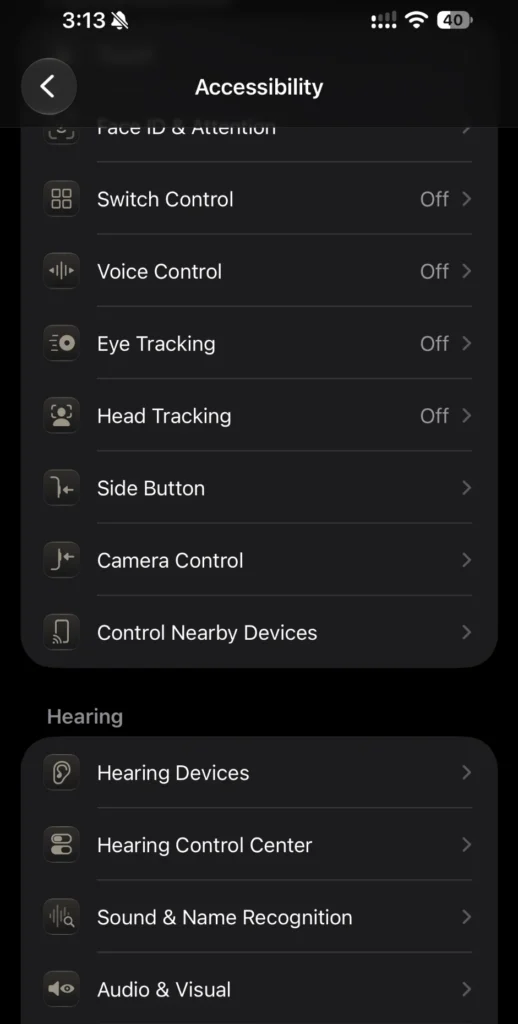
Once Bluetooth is enabled and your hearing aids are discoverable, follow these steps.
- Open Settings on your iPhone.
- Scroll down and tap Accessibility.
- Select Hearing Devices.
- Tap Pair MFi Hearing Device, if available.
- Wait for your iPhone to discover your hearing aids.
- Select the hearing aid name when it appears.
- Tap Pair when your iPhone asks for confirmation.
If the Pair MFi Hearing Device option isn’t shown, Apple says you can select your hearing device directly when its name appears in Hearing Devices settings.
If you’re connecting a pair of hearing aids, your iPhone may display more than one pairing request. Accept the requests for the devices you want to connect.
Once connected, your hearing aids should appear in the Hearing Devices section.
The process may take a short while, so allow the initial connection to finish before trying again.
These steps follow Apple’s current Made for iPhone hearing device instructions.
4. Connect Other Bluetooth Hearing Aids to iPhone
Not every hearing aid uses Apple’s MFi system.
If your hearing aids support a standard Bluetooth connection to iPhone, the manufacturer may instruct you to pair them through the regular Bluetooth menu.
In that case:
- Open Settings > Bluetooth.
- Turn Bluetooth on.
- Put the hearing aids or their streaming accessory into pairing mode.
- Look under the available devices.
- Tap the device name if it appears.
- Follow any pairing instructions shown on the screen.
Some manufacturers also provide an iPhone app to manage their hearing aids.
That app may offer settings for sound programs, volume, connection management, or other supported functions.
However, installing the app doesn’t guarantee that an incompatible hearing aid will gain direct Bluetooth audio streaming.
If your hearing aids never appear in the Bluetooth list, check the manufacturer’s instructions before repeatedly resetting your phone.
The device might require the MFi pairing method, a different connection procedure, or a compatible streaming accessory.
5. Check Whether Your Hearing Aids Are Connected
After pairing, it’s worth checking the connection before assuming everything is working.
For MFi hearing aids:
- Open Settings > Accessibility > Hearing Devices.
- Look for your hearing aids.
- Check their connection status.
- Tap the device name to see the available controls.
Depending on the hearing aid model, you may be able to adjust the microphone level, sound presets, and other supported settings.
Try playing a short audio clip or making a test call.
If audio plays through your iPhone speaker rather than your hearing aids, check the available audio output options.
Keep in mind that call audio, media streaming, and hearing aid controls can vary by model.
A successful Bluetooth connection doesn’t necessarily mean every audio feature is supported.
6. What to Do if Hearing Aids Won’t Connect to iPhone
If your hearing aids aren’t pairing, don’t start by resetting every network setting on your phone.
It’s better to work through the simpler possibilities first.
Make Sure the Hearing Aids Have Power
Low battery power can affect wireless connections.
Charge rechargeable hearing aids or check the batteries in models that use replaceable ones.
Once they’re ready, restart the pairing procedure.
Move the Devices Closer Together
Keep your iPhone close to your hearing aids during the initial pairing process.
Avoid placing the phone across the room or behind furniture.
You can test the normal connection range after pairing is complete.
Restart the Hearing Aids
Turn your hearing aids off and back on using the procedure recommended by their manufacturer.
For models with battery doors, this may involve opening and closing the doors.
For rechargeable models, it may involve returning the devices to the charger briefly before removing them.
Then try the pairing process again.
Check Whether They’re Connected to Another Device
Some hearing aids can be paired with multiple devices.
If your hearing aids were previously connected to an iPad, another phone, or a computer, that connection may affect where audio is sent.
Temporarily disabling Bluetooth on another nearby device can help determine whether the connection is being transferred.
Some compatible Apple hearing devices also support audio handoff between Apple devices.
Restart Your iPhone
If the hearing aids are powered on but your iPhone still can’t discover them, try restarting the phone.
After restarting:
- Unlock your iPhone.
- Confirm Bluetooth is enabled.
- Put the hearing aids into pairing mode again.
- Return to Settings > Accessibility > Hearing Devices.
A restart can resolve temporary connection problems without deleting your personal information.
Remove an Old Pairing and Connect Again
If your hearing aids appear as connected but aren’t functioning correctly, the saved connection may need to be recreated.
Open the appropriate Bluetooth or Hearing Devices settings, select the device, and look for an option to forget or remove the pairing.
The available controls can vary by hearing aid type.
After removing the old pairing, restart the hearing aids and follow the original setup procedure.
Important: Removing a pairing may also affect a connection used with another device. Only do this when you’re ready to set up the connection again.
Check for Software and Firmware Updates
Make sure your iPhone is running a supported iOS version.
You can check for iOS updates in Settings > General > Software Update.
If your hearing aid manufacturer offers firmware updates, check its official app or support documentation.
Some updates may require help from your hearing care professional.
Avoid installing unofficial software or attempting to modify hearing aid firmware yourself.
7. How to Control Hearing Aids After Pairing
Once compatible hearing aids are connected, your iPhone can provide more than basic audio streaming.
Open Settings > Accessibility > Hearing Devices and select your connected devices.
Depending on the model, you may see controls for volume, sound programs, microphone settings, or additional supported features.
You can also add the Hearing control to Control Center for convenient access to certain hearing-related functions.
If your hearing aids support it, Apple’s Live Listen feature can use the iPhone microphone to send nearby sound to your hearing devices.
For example, it may help you hear someone speaking when the iPhone is positioned closer to that person.
You can learn more from Apple’s Live Listen instructions.
For any hearing aid adjustments that affect your prescribed settings, follow the guidance of your hearing care professional.
8. Why Do My Hearing Aids Keep Disconnecting From iPhone?
A hearing aid that connects successfully but drops the connection later can be frustrating.
There isn’t one universal explanation.
Common possibilities include low battery power, a temporary Bluetooth issue, switching between paired devices, firmware problems, or compatibility limitations.
Start by checking battery levels and the connection status under Hearing Devices.
If your hearing aids are paired with another Apple device, see whether audio is being handed off to it.
Also check whether the disconnection happens with all audio or only within one app.
If the problem continues, contact the manufacturer or your hearing care professional for model-specific troubleshooting.
For general Bluetooth connection problems, our iPhone Bluetooth keeps disconnecting guide explains additional checks.
Frequently Asked Questions
Can I connect Bluetooth hearing aids directly to my iPhone?
Yes, if the hearing aids support a compatible connection method. Made for iPhone hearing aids generally pair through Settings > Accessibility > Hearing Devices. Other models may use standard Bluetooth, an app, or an additional streaming accessory.
Why aren’t my hearing aids showing up in iPhone Bluetooth settings?
They may not be in pairing mode, or they may use Apple’s separate MFi pairing system. Check Settings > Accessibility > Hearing Devices and follow your manufacturer’s setup instructions.
Can I connect two hearing aids to one iPhone?
Yes, compatible left and right hearing aids can generally be paired together as a set. Follow the manufacturer’s procedure and approve any pairing requests that appear for both devices.
Do I need an app to connect hearing aids to iPhone?
Not always. MFi hearing aids can pair through iPhone Accessibility settings. Some manufacturers offer separate apps for additional controls or setup requirements.
Can I make phone calls through my hearing aids?
Many compatible hearing aids support phone audio streaming, but hands-free calling features depend on the model. Some hearing aids stream incoming audio while using the iPhone’s microphone for your voice.
Will hearing aids work with iPhone 17 and iPhone 18?
Compatible hearing aids can work with supported iPhone models, including recent ones. Always check the exact hearing aid model, its required software version, and the manufacturer’s compatibility information.
Why can I hear music but not phone calls through my hearing aids?
Audio routing and call support can differ from media streaming. Check the available call audio options and your hearing aid’s supported features. If the problem occurs only during calls, consult the manufacturer’s instructions for that model.
Final Thoughts
Connecting hearing aids to an iPhone is much easier when you start with the right pairing method.
For Made for iPhone hearing aids, go to Settings > Accessibility > Hearing Devices rather than waiting for them to appear in the regular Bluetooth list.
For other Bluetooth hearing aids, follow the manufacturer’s connection instructions and check whether a separate app or streaming accessory is required.
If pairing fails, start with battery power, pairing mode, device compatibility, and existing connections before trying more disruptive fixes.
Once everything is connected, take a moment to check the sound settings and available controls. The right setup should make everyday listening more convenient without requiring you to reconnect the devices each time.
Last reviewed: November 23, 2026.