If you’ve searched for “wifi assist iphone” and can’t find the setting anymore, there’s a simple explanation. Apple renamed Wi-Fi Assist to Connectivity Assist in iOS 27 and moved it to a different place in Settings.
The feature still helps your iPhone stay connected when Wi-Fi becomes unreliable, but it can also use your cellular data. Here’s where to find it, how it works, and whether you should leave it enabled.
If that sounds familiar, you haven’t necessarily missed anything.
Apple changed the feature in iOS 27. The setting that many iPhone owners knew as Wi-Fi Assist is now called Connectivity Assist, and it has moved to a different part of Settings.
The name is different, but the idea is familiar: help your iPhone stay connected when Wi-Fi isn’t doing a good enough job.
Here’s where to find the feature, how it uses your cellular data, and whether it’s worth leaving enabled.
Quick Answer: What Is Wi-Fi Assist on iPhone?
Wi-Fi Assist is an iPhone feature that helps maintain an internet connection when Wi-Fi becomes unreliable. In iOS 27, Apple replaced it with Connectivity Assist, which can use cellular data alongside Wi-Fi to improve connectivity.
To find it on iOS 27:
- Open Settings.
- Tap Wi-Fi.
- Make sure Wi-Fi is turned on.
- Scroll down to Connectivity Assist.
- Turn the feature on or off.
If you’re using iOS 26 or earlier, the original Wi-Fi Assist setting is generally found near the bottom of Settings → Cellular, or Mobile Data in some regions.
Apple confirmed the change in its official Connectivity Assist documentation, updated September 14, 2026.
The main thing to remember is that Connectivity Assist can use your cellular data allowance, even when your iPhone is connected to Wi-Fi.
Table of Contents
1. How Does Wi-Fi Assist Work on iPhone?
Imagine you’re sitting in your backyard, trying to open a webpage.
Your iPhone is still connected to the Wi-Fi router inside your house, but the signal is weak. The webpage takes a long time to load, even though you can see the Wi-Fi symbol at the top of the screen.
This is the kind of situation Wi-Fi Assist was designed to help with.
On older versions of iOS, Wi-Fi Assist could switch certain internet activity to cellular data when the Wi-Fi connection was poor.
With iOS 27, Apple describes Connectivity Assist as using cellular data in addition to Wi-Fi when Wi-Fi is weak, busy, or unable to reach the internet.
That distinction matters.
The feature isn’t simply a button that changes your connection from Wi-Fi to cellular every time the signal drops. It can use cellular connectivity to help maintain a reliable connection while you’re on Wi-Fi.
Does Connectivity Assist make Wi-Fi faster?
Not exactly.
It doesn’t increase your router’s internet speed or improve the physical Wi-Fi signal reaching your phone.
Instead, it can use your cellular connection when Wi-Fi isn’t performing well enough.
If both your Wi-Fi and cellular connections are slow, the feature may not provide much benefit.
Likewise, a strong Wi-Fi connection doesn’t necessarily need cellular assistance.
If your Wi-Fi frequently disconnects, we have a separate guide on why an iPhone keeps disconnecting from Wi-Fi.
2. WiFi Assist iPhone Settings: Where to Find Them in iOS 27
This is probably the biggest source of confusion.
Many older guides still tell you to open Settings, select Cellular, and scroll all the way down to Wi-Fi Assist.
Those instructions were correct for older software, but they’re outdated for iOS 27.
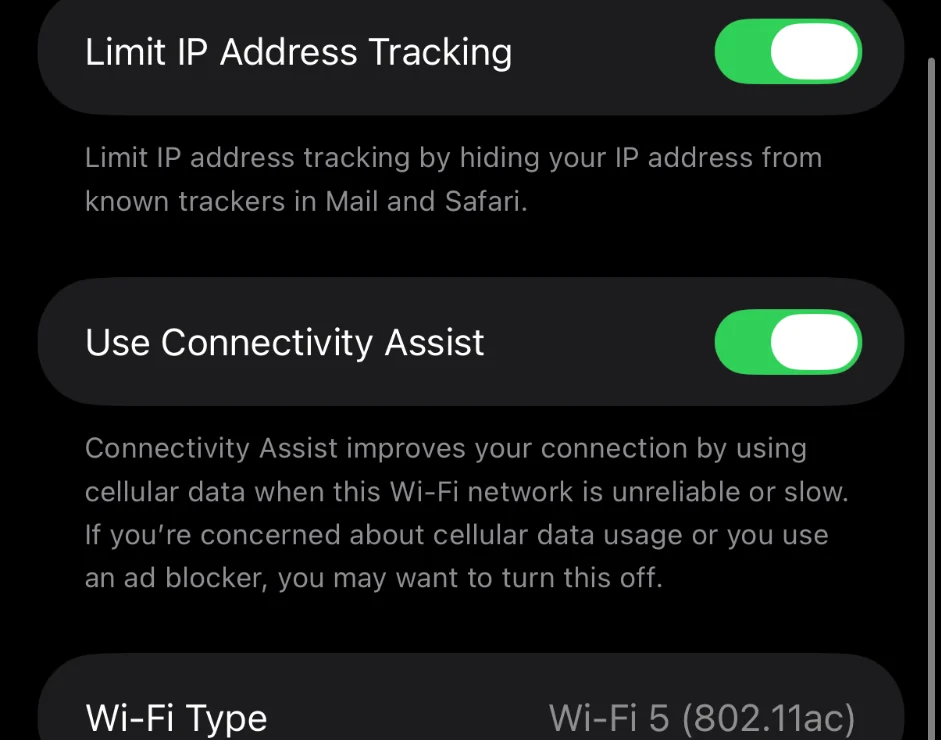
Apple moved the feature into the Wi-Fi settings and renamed it Connectivity Assist.
How to turn Connectivity Assist on or off in iOS 27
Follow these steps:
- Open the Settings app.
- Select Wi-Fi.
- Confirm that Wi-Fi is switched on.
- Scroll down through the Wi-Fi settings.
- Find Connectivity Assist.
- Tap the switch to enable or disable it.
A green switch normally indicates that the feature is enabled.
You don’t need to disconnect from your Wi-Fi network to change this preference.
What if Wi-Fi Assist was already enabled before updating?
Apple says that if Wi-Fi Assist was enabled before your software update, Connectivity Assist will be enabled afterward.
If Wi-Fi Assist was previously disabled, you can manually enable Connectivity Assist.
That means updating to iOS 27 doesn’t necessarily change a preference you’ve already made.
Still, it’s worth checking the setting if you’re concerned about unexpected cellular data use.
Where is Wi-Fi Assist on iOS 26 or earlier?
On older supported versions of iOS:
- Open Settings.
- Tap Cellular or Mobile Data.
- Scroll toward the bottom of the page.
- Find Wi-Fi Assist.
- Enable or disable the switch.
The exact appearance may vary with your software version and region.
If you cannot find Wi-Fi Assist under Cellular and you’re using iOS 27, check Wi-Fi settings for Connectivity Assist instead.
3. Can You Turn Off Connectivity Assist for Just One Wi-Fi Network?
Yes. This is particularly useful if you want cellular assistance in some places but not others.
For example, perhaps the Wi-Fi at your local coffee shop is unreliable, and you’re happy for your iPhone to use cellular data when needed.
At home, however, you might prefer to keep internet traffic on your Wi-Fi network because you use a router-based DNS filter, network monitoring, or another special configuration.
You don’t necessarily have to make the same choice for both networks.
How to change the setting for one network
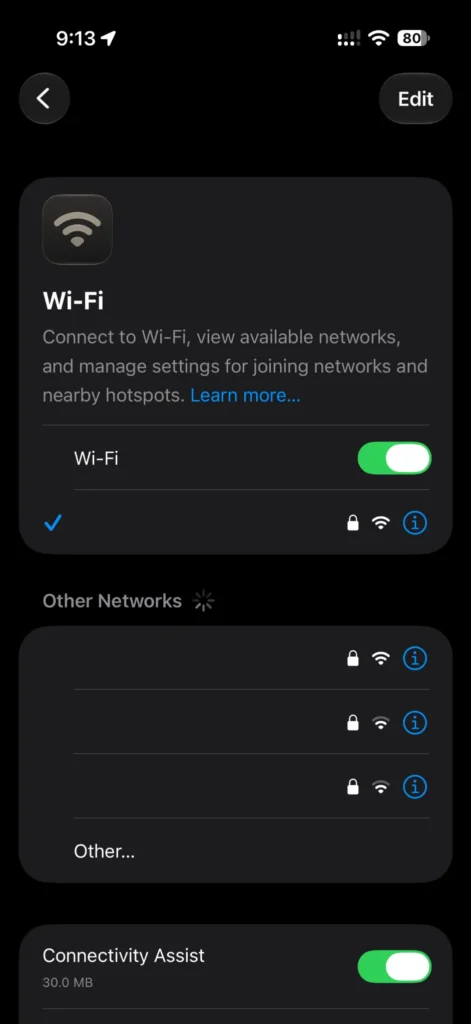
On iOS 27:
- Open Settings → Wi-Fi.
- Find the network you’re connected to.
- Tap the information (ⓘ) button beside its name.
- Look for Use Connectivity Assist.
- Turn that option off if you want to prevent cellular assistance on that network.
Apple documents this network-specific control in its iPhone Wi-Fi settings guide.
This option is useful when you want to control how your iPhone handles a particular connection without necessarily disabling the feature everywhere.
What about VPNs and network-level ad blockers?
If your home network uses a custom DNS server or network-level filtering, using cellular data may change which network path some internet requests take.
That can affect how certain router-based rules work.
It’s not something everyone needs to worry about, but it’s relevant if you’ve configured your Wi-Fi network for a specific purpose.
If you notice unexpected behavior, consider disabling Connectivity Assist for that network and checking whether it makes a difference.
Don’t assume this setting will fix every VPN or DNS issue. Those services have their own configurations.
4. Does Wi-Fi Assist Use Cellular Data?
Yes, and this is one of the most important things to understand before leaving it enabled.
When the feature uses cellular connectivity, that traffic counts toward your mobile data usage.
For someone with a large data plan, the difference might be relatively small.
For someone with a limited data allowance, even unexpected usage can be frustrating.
Imagine you have a monthly mobile data plan and usually rely on your home Wi-Fi.
If the Wi-Fi becomes unreliable, Connectivity Assist may use cellular data to keep certain internet activity working.
You might not notice the change immediately because the webpage or app continues loading normally.
That’s convenient, but the cellular data still has to come from somewhere.
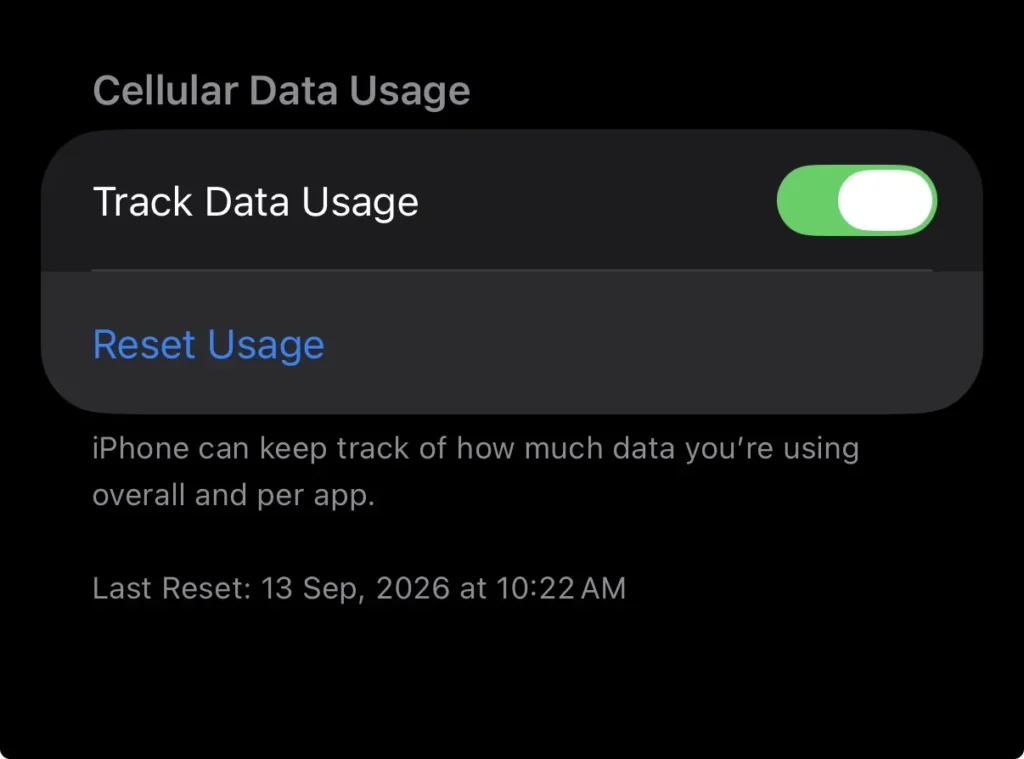
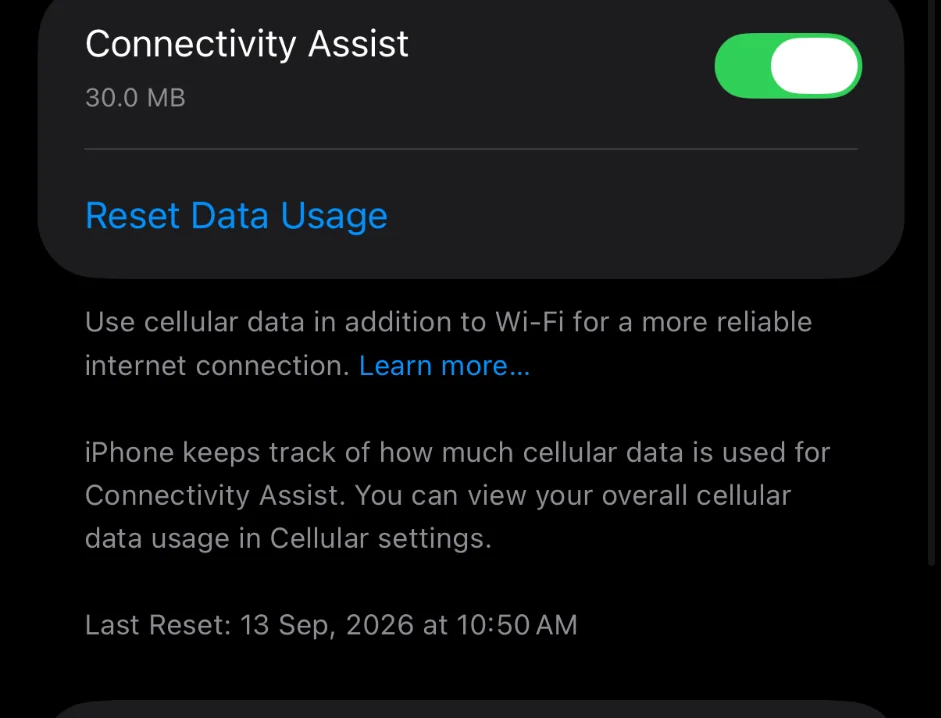
How to check Connectivity Assist data usage
On iOS 27:
- Open Settings.
- Tap Wi-Fi.
- Scroll to Connectivity Assist.
- Look for the cellular data usage information associated with the feature.
Apple says you can also use Reset Data Usage to begin a new count.
This can be helpful if you want to see how much cellular data the feature uses over a particular period.
For your overall cellular data usage, open Settings → Cellular.
You can review data usage for individual apps and reset the statistics if necessary.
Keep in mind that iPhone usage statistics aren’t necessarily synchronized with your carrier’s billing cycle.
For an accurate billing figure, check your wireless provider’s app or account.
Will Wi-Fi Assist use cellular data for everything?
No.
Apple documents several restrictions.
Connectivity Assist doesn’t operate when your iPhone is roaming internationally or when cellular Low Data Mode is enabled.
It also isn’t used with certain third-party apps that stream audio or video.
The older Wi-Fi Assist feature similarly had limitations involving background downloads and some data-intensive activities.
However, these restrictions shouldn’t be interpreted as a promise that the feature can never consume a noticeable amount of data.
The amount you use depends on your connection conditions and activity.
5. Should You Leave Wi-Fi Assist On or Off?
There’s no single correct answer for every iPhone owner.
The best setting depends on your internet connection, cellular plan, and how you use your phone.
When leaving it on makes sense
Connectivity Assist can be helpful if:
- Your Wi-Fi is sometimes weak or congested.
- You frequently move around a large home or office.
- Your cellular connection is more reliable than your Wi-Fi.
- You have sufficient mobile data available.
- You value a more consistent connection while browsing or using supported apps.
For example, if you’re moving from your living room to the far end of your garden, your iPhone may benefit from cellular assistance as Wi-Fi performance declines.
You might find the transition less noticeable.
When turning it off makes sense
Disabling the feature can be reasonable if:
- You have a limited cellular data allowance.
- You want greater control over mobile data usage.
- You prefer your iPhone to rely on Wi-Fi while connected to a network.
- You use specific router-based network settings.
- You don’t want additional cellular assistance when Wi-Fi is weak.
For someone with a small monthly data plan, turning the feature off may be a sensible precaution.
But here’s an important detail: Turning off Connectivity Assist doesn’t turn off cellular data completely.
If your iPhone disconnects from Wi-Fi entirely, it can still use cellular data through its normal connection settings.
To prevent cellular internet use altogether, you need to turn off Cellular Data separately.
Will turning it off save battery?
It might reduce some cellular activity under certain conditions, but you shouldn’t expect a guaranteed battery-life improvement.
Battery consumption depends on signal strength, network activity, apps, and other factors.
A feature that improves connection reliability in one situation may have little noticeable effect in another.
If you’re investigating battery drain, compare your actual battery usage before making several unrelated changes.
Why Can’t I Find Wi-Fi Assist or Connectivity Assist?
If you’ve checked Settings and the feature still seems missing, start with the basics.
Check which iOS version you’re using
Open Settings → General → About and look at the iOS version.
If you’re on iOS 27, search for Connectivity Assist, not the old Wi-Fi Assist name.
If you’re on an earlier version, look under Cellular or Mobile Data.
Make sure Wi-Fi is enabled
On iOS 27, Apple places Connectivity Assist within Wi-Fi settings.
Open Settings → Wi-Fi and make sure Wi-Fi itself is turned on.
Check your cellular connection
Connectivity Assist relies on cellular connectivity.
If your mobile data service isn’t working, enabling the setting won’t magically create an internet connection.
Check whether you have an active cellular plan and whether Cellular Data is enabled.
If your mobile internet isn’t working properly, follow our iPhone cellular data troubleshooting guide.
Check whether the real problem is your router
An iPhone can show a Wi-Fi connection while still being unable to access the internet.
That might happen because the router has lost its internet connection, the network requires a sign-in page, or there’s another network problem.
Connectivity Assist may help with some connection interruptions, but it doesn’t repair a malfunctioning router.
Our guide on iPhone connected to Wi-Fi but no internet covers those issues separately.
Is Wi-Fi Assist the Same as Wi-Fi Calling?
No. The names sound similar, but they’re different features.
Wi-Fi Assist / Connectivity Assist helps maintain internet connectivity by using cellular data when Wi-Fi is unreliable.
Wi-Fi Calling lets your iPhone make and receive supported phone calls over Wi-Fi through your carrier.
You might have one feature enabled and the other disabled.
Turning off Connectivity Assist doesn’t automatically turn off Wi-Fi Calling.
If you’re trying to make calls over Wi-Fi, our Wi-Fi Calling on iPhone guide explains setup and carrier requirements.
Does Wi-Fi Assist Work Without Cellular Data?
No. The feature needs usable cellular data service to provide assistance.
If Cellular Data is turned off or your iPhone has no usable cellular connection, Connectivity Assist cannot use that connection to improve internet reliability.
Your phone can still connect to Wi-Fi and use it normally.
If the Wi-Fi network itself has no internet access, however, there may be no alternative connection available.
Frequently Asked Questions
Where is Wi-Fi Assist on iPhone in iOS 27?
Apple renamed Wi-Fi Assist to Connectivity Assist and moved it to Settings → Wi-Fi. Scroll down to find the setting and turn it on or off.
Is Wi-Fi Assist turned on by default?
Apple enabled the original Wi-Fi Assist feature by default. When updating to iOS 27, the previous preference carries over: if Wi-Fi Assist was on, Connectivity Assist will be on.
Does Wi-Fi Assist use mobile data even when connected to Wi-Fi?
Yes. Connectivity Assist can use cellular data alongside Wi-Fi when the Wi-Fi connection is weak, busy, or unusable. That usage can count against your cellular plan.
How do I stop Wi-Fi Assist from using my data?
On iOS 27, turn off Connectivity Assist under Settings → Wi-Fi. To prevent all ordinary cellular internet use, turn off Cellular Data separately under Settings → Cellular.
Can I disable Connectivity Assist for my home Wi-Fi only?
Yes. On iOS 27, open the details for your connected Wi-Fi network and look for Use Connectivity Assist. You can disable it for that network.
Does Wi-Fi Assist work while roaming internationally?
Apple says Connectivity Assist isn’t used while your iPhone is roaming internationally. That doesn’t mean all other roaming data usage is blocked, so check your carrier settings when traveling.
Is Wi-Fi Assist better than using Wi-Fi alone?
It can help when Wi-Fi is unreliable and cellular connectivity is available. If your Wi-Fi is consistently strong or you have limited cellular data, you may prefer to leave it disabled.
Why is my iPhone using cellular data when the Wi-Fi icon is showing?
Connectivity Assist may be using cellular data to maintain a reliable connection. Check the feature’s usage information in Wi-Fi settings, along with your overall cellular data statistics.
Can Connectivity Assist affect my home DNS or network filtering setup?
It can change how some traffic uses Wi-Fi and cellular connectivity. If your filtering depends on traffic staying on a specific network, consider disabling Connectivity Assist for that Wi-Fi network and checking the results.
Final Thoughts
If you were searching for Wi-Fi Assist on your iPhone and couldn’t find it, the explanation is simple: Apple changed its name and location in iOS 27.
You’ll now find Connectivity Assist under Settings → Wi-Fi, rather than the old Wi-Fi Assist switch in Cellular settings.
It’s a useful feature when Wi-Fi is unreliable, but it can also use cellular data without requiring you to manually switch networks.
Whether you leave it on depends on your connection quality, data plan, and preferences.
If you have plenty of mobile data and frequently encounter weak Wi-Fi, it’s worth considering. If you want tighter control over cellular usage or need your phone to remain on a particular Wi-Fi network, turning it off may be more appropriate.
The important thing is understanding what the setting does so you can make that choice yourself.
Last reviewed: November 22, 2026