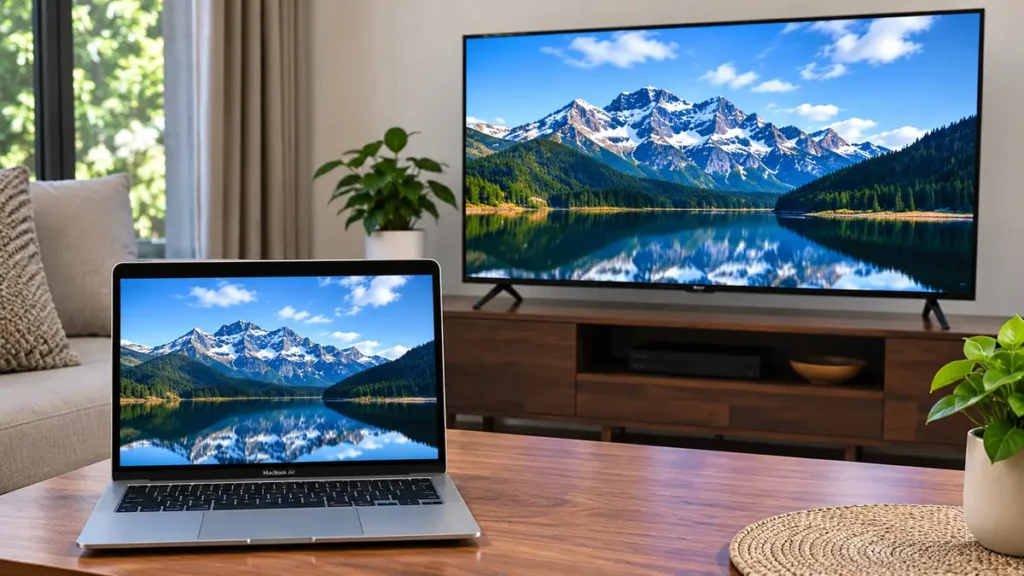
Watching a movie on a MacBook is fine when you’re alone, but things get a little awkward when several people are trying to look at the same 13-inch screen. The same problem comes up when showing family photos, sharing a presentation or working with a large spreadsheet.
Learning how to mirror MacBook to TV solves that problem, often without requiring any additional software.
The catch is that not every television supports Apple’s wireless screen mirroring technology. Some TVs work with AirPlay, others support Google Cast, and older models may need an HDMI cable.
Here’s how to identify the right method and get your MacBook’s screen onto your television.
Quick Answer: How to Mirror MacBook to TV
To mirror your MacBook wirelessly to an AirPlay-compatible television:
- Connect your MacBook and TV to the same local network.
- Enable AirPlay in your television’s settings.
- Open Control Center on your MacBook.
- Select Screen Mirroring.
- Choose your television.
- Enter the AirPlay code if one appears.
- Select the option to mirror your MacBook display.
If your television doesn’t support AirPlay, use an HDMI cable with a compatible adapter or Google Cast through Chrome.
HDMI is generally the simplest option when Wi-Fi is unavailable or wireless mirroring is unreliable.
Table of Contents
Which Method Should You Use?
Before opening any settings, check what your television actually supports.
| Connection method | What you need | Wi-Fi required? | Best for |
|---|---|---|---|
| AirPlay | Compatible smart TV or Apple TV | Usually | Everyday wireless mirroring |
| HDMI | HDMI cable and compatible MacBook port or adapter | No | Movies, presentations and low-latency use |
| Google Cast | Compatible TV or streaming device and Chrome | Usually | Browser content and screen casting |
If you already own an AirPlay-compatible television, try that first. There is no reason to purchase an adapter just to mirror your screen occasionally.
However, if you’re presenting at work or need a dependable connection for several hours, a wired HDMI connection may be the better choice.
Method 1: How to Mirror MacBook to TV Wirelessly Using AirPlay
AirPlay is Apple’s built-in technology for sharing video, audio and screen content between compatible devices.
You can use it with an Apple TV or a smart television that specifically supports AirPlay.
Step 1: Check Your TV’s AirPlay Compatibility
Many Samsung, LG, Sony and Roku TV models support AirPlay, but compatibility varies by model and release year.
Look through your television’s settings for an option called Apple AirPlay, AirPlay and HomeKit, or something similar.
If you cannot find the setting, check the manufacturer’s documentation for your exact TV model.
A television being advertised as a smart TV does not automatically mean it supports AirPlay.
Step 2: Connect Both Devices to the Same Network
Make sure your MacBook and television are connected to the same local network.
They do not necessarily need to use the same Wi-Fi frequency. For example, a MacBook connected to 5 GHz Wi-Fi can communicate with a television on 2.4 GHz if both connections belong to the same network and your router permits communication between them.
Avoid guest networks when possible. Some guest networks prevent connected devices from communicating with one another.
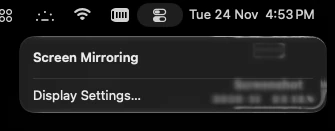
Step 3: Open Screen Mirroring on Your MacBook
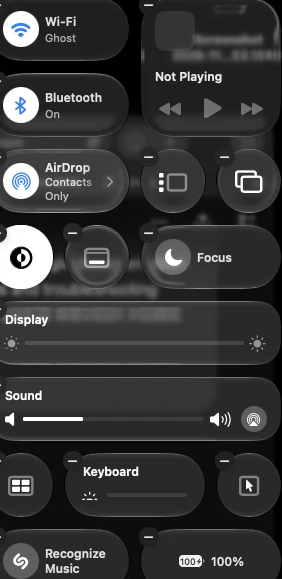
On recent versions of macOS:
- Click Control Center in the upper-right area of the menu bar.
- Select Screen Mirroring.
- Wait for compatible displays to appear.
- Choose your television from the available devices.
On older macOS versions, you may find the equivalent AirPlay controls in the menu bar or display preferences.
Step 4: Connect to Your Television
Your television may display an AirPlay verification code.
Enter that code on your MacBook if requested.
Once connected, follow the onscreen options to choose whether to mirror your desktop, extend it or share a particular window when supported.
If you want the television to display exactly what you’re seeing on your MacBook, choose the mirroring option.
For additional details, consult Apple’s official AirPlay guide for Mac.
Step 5: Disconnect When You’re Finished
Open Control Center again, select Screen Mirroring and disconnect the television.
This is particularly important when using a television in a shared office, classroom or meeting room.
Method 2: How to Mirror MacBook to TV With HDMI
Wireless mirroring is convenient, but there are situations where a cable makes more sense.
Perhaps the television doesn’t support AirPlay. Maybe the Wi-Fi connection keeps dropping, or you’re trying to connect to a display in a hotel or conference room.
An HDMI connection avoids most network-related problems.
Which HDMI Cable or Adapter Do You Need?
Check the physical ports on your MacBook before buying anything.
| MacBook connection port | What you need |
|---|---|
| Built-in HDMI | Standard compatible HDMI cable |
| USB-C or Thunderbolt | USB-C to HDMI cable or video-capable adapter |
| Older Mini DisplayPort | Mini DisplayPort to HDMI adapter or cable |
For example, the M1 MacBook Air has USB-C/Thunderbolt ports rather than a built-in HDMI port. You would need a compatible adapter or USB-C to HDMI cable.
Several MacBook Pro models include a dedicated HDMI port, allowing a direct connection.
Not every USB-C accessory supports video output. Check the product specifications rather than assuming that any USB-C hub will work.
Connect Your MacBook to the Television
- Connect your HDMI cable to an available port on the television.
- Connect the other end to your MacBook, using an appropriate adapter if necessary.
- Switch the television to the corresponding HDMI input.
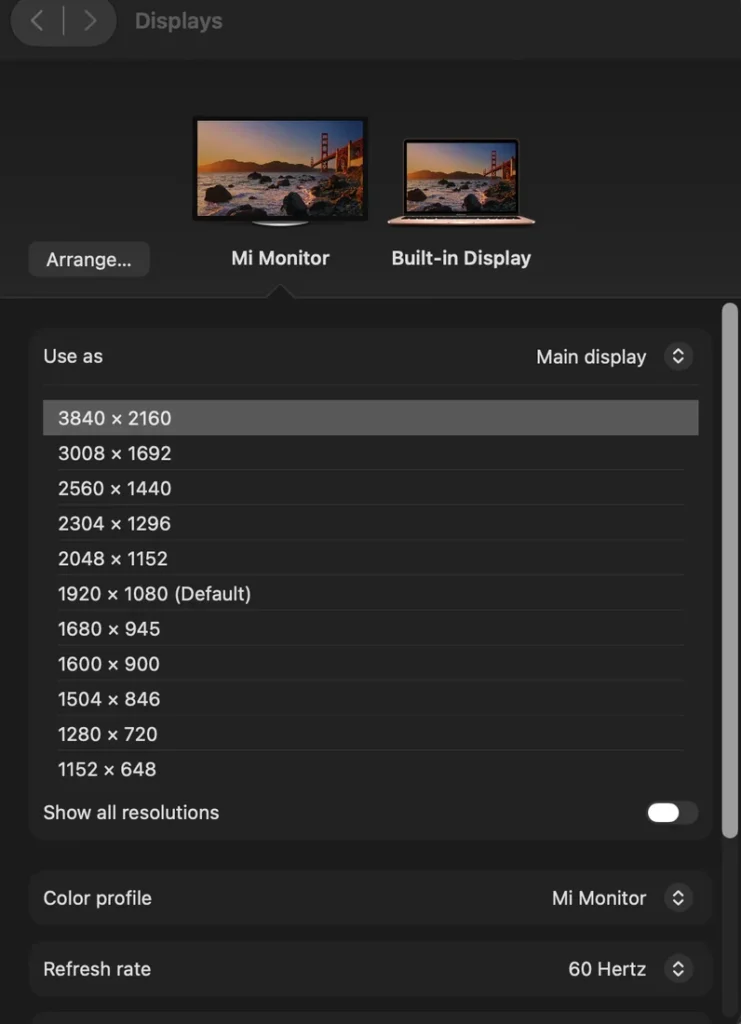
- Open System Settings on your MacBook.
- Select Displays.
- Select the television and configure it as a mirrored display.
If your television initially shows a desktop background but not the windows currently open on your laptop, macOS may be using it as an extended display.
Change the display configuration to mirroring if you want identical content on both screens.
Apple’s HDMI connection guide explains supported ports, resolutions and audio configurations.
Why HDMI Is Useful Without Wi-Fi
An HDMI cable carries the display signal directly from your computer to the television.
You don’t need a wireless network or an internet connection for the display connection itself.
However, streaming services still require internet access unless you’re playing content that has already been downloaded and is permitted for offline playback.
Method 3: Mirror MacBook to TV Using Google Cast
Some televisions support Google Cast but don’t offer AirPlay.
If you have a compatible Google streaming device or a television with Google Cast, you can use the Chrome browser to share content from your MacBook.
How to Cast Your Screen From Chrome
- Connect the MacBook and receiving device to the same network.
- Open Google Chrome.
- Click the three-dot menu.
- Open Cast, save, and share, then select Cast.
- Under Sources, select Cast screen.
- Choose your television or streaming device.
- Approve any required screen-sharing permissions.
You may need to grant Chrome additional permissions in macOS, particularly on newer versions of the operating system.
Google notes that desktop casting may leave audio playing through your computer. Casting a browser tab instead can be more suitable when watching online video.
For the latest instructions, see Google’s guide to casting from Chrome.
Google Cast and AirPlay are different technologies. A Google Cast device will not necessarily appear in your MacBook’s native Screen Mirroring menu.
Screen Mirroring vs. Extended Display
These two options are easy to confuse, particularly when connecting a television for the first time.
| Feature | Screen mirroring | Extended display |
|---|---|---|
| What the TV shows | The same content as your MacBook | A separate desktop workspace |
| Mouse movement | Shared across the mirrored view | Moves between displays |
| Best for | Presentations, photos and demonstrations | Multitasking and additional workspace |
| Privacy | Everything on the mirrored screen may be visible | You can keep some windows on your laptop |
For a family slideshow, screen mirroring is usually what you want.
For working with a spreadsheet while keeping your browser open separately, extending the display may be more useful.
If you’re presenting to other people, close sensitive windows and enable a suitable Focus mode before mirroring. Notifications and private messages can otherwise appear on the larger screen.
How to Mirror MacBook to Samsung, LG, Sony or Roku TV
The exact connection method depends on the television’s capabilities rather than just its brand.
| Television | First option to check | Alternative |
|---|---|---|
| Samsung Smart TV | Apple AirPlay settings | HDMI |
| LG Smart TV | AirPlay and HomeKit settings | HDMI |
| Sony Smart TV | AirPlay or Google Cast | HDMI |
| Roku TV | Apple AirPlay and HomeKit | HDMI |
| Older television | Available HDMI input | Compatible external streaming device |
Always confirm the capabilities of your particular model.
If AirPlay is supported and enabled, the connection process on the MacBook is generally the same regardless of the television manufacturer.
Why Is My TV Not Showing Up in MacBook Screen Mirroring?
If the television doesn’t appear in the Screen Mirroring menu, work through these checks before buying additional hardware.
1. Confirm AirPlay Is Enabled
Some compatible televisions allow AirPlay to be disabled.
Open the relevant television settings and verify that the feature is enabled.
2. Check Your Local Network
Make sure your MacBook and television can communicate over the same network.
If either device is using a guest network, switch to the main network if you have permission.
3. Restart Both Devices
Restart your MacBook and television, then try connecting again.
A temporary discovery problem can sometimes prevent an otherwise compatible device from appearing.
4. Check VPN and Network Restrictions
Some VPN configurations block access to devices on the local network.
If you’re permitted to do so, review your VPN’s local network settings or temporarily disconnect it while testing.
Do not bypass network restrictions imposed by your workplace or school.
5. Check for Software Updates
Install applicable macOS and television software updates.
Older television firmware can sometimes contribute to compatibility or connection issues.
Apple provides further AirPlay troubleshooting instructions.
If you’re experiencing the same wireless streaming problem on your phone, see our separate guide on AirPlay not working on iPhone.
How to Fix MacBook Screen Mirroring With No Sound
Getting the picture onto the television is only half the job if the audio continues playing through your laptop.
Open System Settings on your MacBook and select Sound.
Under Output, look for your television, HDMI connection or appropriate AirPlay receiver.
Select the television as the audio output when available.
Also check that the television isn’t muted and that its volume is high enough.
If you’re using HDMI, confirm that your cable or adapter supports audio transmission.
If you are casting through Chrome, try casting the browser tab rather than the entire desktop.
If the MacBook itself has audio problems, our MacBook speakers not working guide covers additional troubleshooting.
How to Fix Lag, Blurry Video or Black Borders
Wireless screen mirroring involves transmitting display information across a connection. Its responsiveness can vary depending on your equipment and network conditions.
If you notice delayed cursor movement, stuttering video or poor picture quality:
- Move the MacBook closer to the wireless router.
- Reduce unnecessary network-heavy activity.
- Check the television’s display resolution settings.
- Try a more suitable resolution or refresh rate in macOS.
- Switch to HDMI if responsiveness is particularly important.
For gaming, precise mouse movements or presentations involving animation, HDMI is often the more dependable choice.
What About Black Borders Around the Screen?
MacBook displays and televisions do not always have the same aspect ratio.
Mirroring a taller laptop display onto a widescreen television can produce borders. This does not necessarily indicate a connection problem.
Check the available display resolutions and television picture-sizing settings. Avoid stretching the image unnecessarily just to fill the entire screen.
Why Do Some Streaming Videos Show a Black Screen?
If your desktop appears normally but a particular streaming service shows a black video window, the issue may involve content protection or restrictions imposed by the application.
Try the service’s official television app or a supported playback method instead.
Do not assume that the MacBook or HDMI adapter is faulty solely because one protected video fails to display.
What If Your MacBook Doesn’t Detect the TV Through HDMI?
When a wired connection fails, start by confirming that the television is using the correct HDMI input.
Then try reseating the cable, connecting directly instead of through a dock, or testing another compatible cable or adapter.
Check the MacBook’s Displays settings to see whether the television has been recognized.
For more detailed wired-display troubleshooting, follow our MacBook external monitor not detected guide.
Frequently Asked Questions
Can I mirror my MacBook to a TV without Apple TV?
Yes. An AirPlay-compatible smart TV can receive wireless mirroring directly. Alternatively, use HDMI or Google Cast with compatible hardware.
Can I mirror my MacBook to a TV without Wi-Fi?
Yes. A compatible HDMI cable and adapter can connect your MacBook directly to a television without a wireless network. Certain Apple TV configurations also support peer-to-peer AirPlay, but compatibility varies.
How do I mirror my MacBook Air to a TV?
Use AirPlay through Control Center if the television supports it. For a wired connection, use an appropriate HDMI adapter or cable that supports your MacBook Air’s video output.
Do I need an app to mirror my MacBook to a smart TV?
Not if the television supports AirPlay or you’re using HDMI. Both methods use functionality already provided by macOS.
Can I mirror my MacBook to a TV using Bluetooth?
Bluetooth alone does not provide the normal video connection required for MacBook screen mirroring. Use AirPlay, HDMI or a supported casting technology instead.
Why does my TV show only the MacBook wallpaper?
Your television may be configured as an extended display rather than a mirrored display. Open System Settings, select Displays and change the display configuration to mirroring.
Is HDMI better than AirPlay?
HDMI is generally more predictable when network reliability and latency matter. AirPlay is more convenient when you want to connect wirelessly without running cables across the room.
Which Method Would I Recommend?
Start with what you already have.
If your television supports AirPlay, try the built-in Screen Mirroring feature before spending money on accessories.
If you need a dependable connection for work, have an older television, or frequently encounter wireless delays, HDMI is a practical alternative.
Google Cast is particularly useful when your television supports Google’s streaming ecosystem but not AirPlay.
The best method isn’t necessarily the newest one. It’s the connection that works reliably with your MacBook, your television and the type of content you want to display.
The macOS screenshots in this guide were captured on our MacBook Air M1 to verify the location of the Screen Mirroring controls. An active television connection was not independently tested.
Editorial methodology: This guide uses official Apple and Google documentation to compare connection methods, hardware requirements and troubleshooting procedures. Television compatibility varies by model. Individual television models have not been independently tested for this guide.
Last reviewed: November 24, 2026.