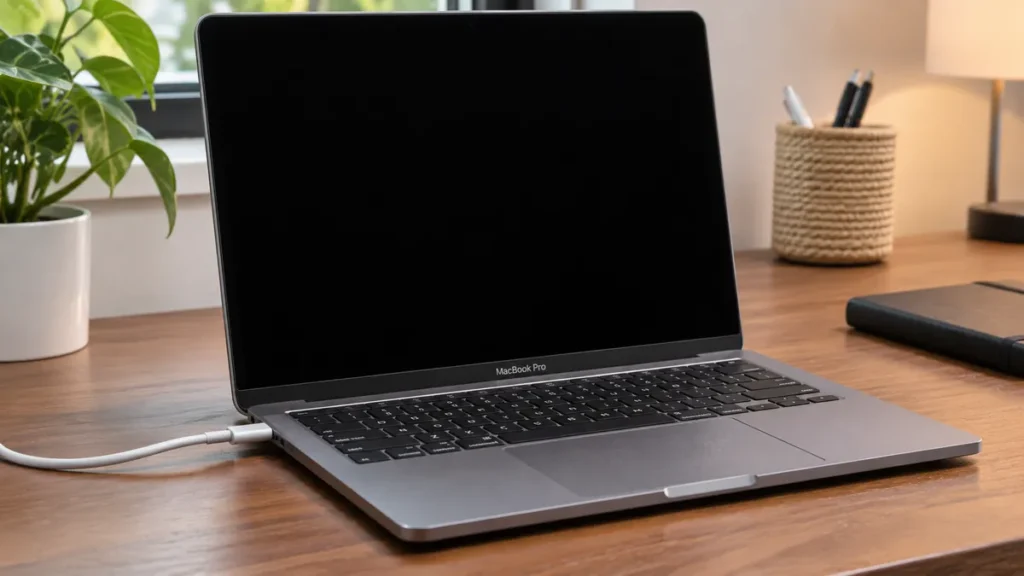
You open your MacBook, press the power button, and nothing happens. You connect the charger, wait a few minutes, and try again. The screen is still black.
It’s an unsettling situation, especially if you have important files stored on your laptop.
But when a MacBook won’t turn on, it doesn’t necessarily mean the battery is dead or the logic board has failed. Sometimes the computer is receiving power but cannot display an image. In other cases, macOS is failing to load.
The important thing is to distinguish between these problems before attempting repairs.
This guide applies to both MacBook Air and MacBook Pro, including Apple silicon and older Intel models.
Table of Contents
What to Do When Your MacBook Won’t Turn On
Start by connecting your MacBook to a working electrical outlet using a compatible charger. Disconnect external accessories, hold the power button for approximately 10 seconds, release it, and press it again normally.
If the MacBook shows signs of power but the screen remains black, investigate the display or macOS startup process. Older Intel MacBooks may also benefit from an SMC reset.
Avoid factory resetting your MacBook before identifying the problem, particularly if you haven’t backed up your files.
First, Find Out Whether Your MacBook Is Actually Off
A black screen isn’t always evidence that your MacBook has no power.
Before trying more complicated solutions, observe what happens when you connect the charger and press the power button.
| What you notice | What it may indicate |
|---|---|
| No sound, lights or response | Power delivery, battery or internal hardware problem |
| MagSafe indicator lights up | The charging connection is responding |
| Keyboard lights up but screen stays black | Possible display or startup problem |
| Startup sound plays | The Mac is receiving power |
| Apple logo appears but startup stops | Possible macOS or startup disk problem |
| Flashing folder with a question mark | Startup disk or operating system cannot be located |
| MacBook works only while plugged in | Possible battery problem |
| External monitor works but built-in screen doesn’t | Possible internal display problem |
These symptoms provide clues, not definitive diagnoses.
For example, the M1 MacBook Air has no cooling fan. Not hearing a fan on that model tells you nothing about whether the computer is receiving power.
Similarly, a silent startup does not automatically indicate a hardware failure.
1. Check Whether Power Is Reaching Your MacBook
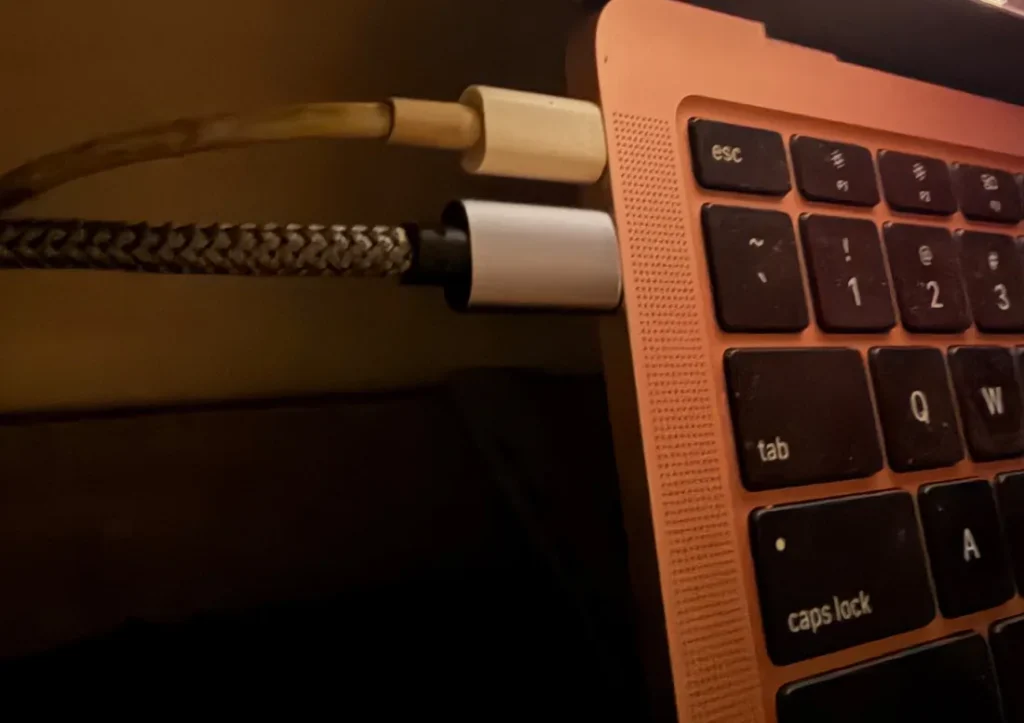
Before assuming the laptop is faulty, eliminate problems with the charger.
A damaged cable, faulty outlet, or underpowered adapter can leave a MacBook with insufficient power to start.
Try the following:
- Connect the charger directly to a working wall outlet.
- Avoid using a docking station or USB hub for charging during troubleshooting.
- Inspect the cable for visible damage.
- Try another compatible charger and cable if available.
- On USB-C models, try another charging-capable port.
- Leave a deeply discharged MacBook connected to power for a while before retrying.
A low-wattage phone charger may not provide enough power for reliable MacBook charging, especially when the battery is nearly empty.
If your MacBook uses MagSafe, observe whether its indicator responds when connected.
An amber indicator generally means charging is in progress or charging is being held, while green generally indicates a fully charged battery. Neither color guarantees that the MacBook can start successfully.
If you’re experiencing a charging-specific problem, follow our separate MacBook not charging troubleshooting guide.
For charger compatibility and adapter problems, consult Apple’s USB-C charging troubleshooting instructions.
2. Hold the Power Button for 10 Seconds

Sometimes a MacBook becomes unresponsive while entering sleep, waking up, or shutting down.
In that situation, pressing the power button briefly may not produce the expected result.
Try a forced shutdown followed by a normal startup:
- Connect your MacBook to power.
- Press and hold its power button for approximately 10 seconds.
- Release the button.
- Press it once normally to start the computer.
On MacBooks with Touch ID, the Touch ID button also functions as the power button.
This is one of the first procedures recommended in Apple’s official guidance for a Mac that doesn’t turn on.
The procedure does not intentionally erase your stored files, although any unsaved work could be lost if the computer was running but unresponsive.
If the MacBook starts successfully, back up your important files and monitor whether the problem returns.
3. Disconnect Everything Except the Charger
An external device can sometimes interfere with startup.
This possibility is particularly worth checking if the MacBook stopped responding after you connected a monitor, USB hub, docking station, or external storage device.
Disconnect:
- USB-C hubs and docking stations
- External monitors
- External hard drives and SSDs
- USB accessories
- Memory cards
- Connected mobile devices
Keep the appropriate charger connected.
Repeat the power-button procedure from the previous section.
If the MacBook starts after removing the accessories, reconnect them individually. This helps identify whether a particular accessory, cable or port is contributing to the problem.
You don’t need to replace every connected device. Identify the problem first.
4. Check for a Black Screen Instead of a Power Failure
Imagine pressing the power button and hearing the startup sound, but seeing nothing on the display.
In this situation, the MacBook may already be running.
Start with the display brightness controls. Increase the brightness using the keyboard if your model supports it.
Look for other indications of activity, such as keyboard backlighting or a response from the Caps Lock indicator.
Remember that the absence of these signs does not conclusively prove that the MacBook has no power.
Try an external monitor
If you have access to a compatible external display:
- Connect the MacBook to power.
- Connect the external display directly using a suitable cable or adapter.
- Turn on the MacBook.
- Check whether the external display shows an image.
If the external monitor works but the built-in display remains black, the internal display system deserves further investigation.
If neither display works, the problem may involve startup software, hardware or firmware.
An external monitor failing to display an image is not definitive proof of a failed logic board.
If the external display itself isn’t being recognized, see our MacBook external monitor not detected guide.
5. Reset the SMC on an Intel MacBook
The System Management Controller, or SMC, helps Intel-based Macs manage charging, power-related functions and thermal behavior.
Resetting it can help with certain unusual power problems.
However, the procedure depends on the MacBook’s processor and security hardware.
MacBook with Apple silicon
If you have an M1 or newer Apple silicon MacBook, you do not need to perform the traditional Intel SMC reset.
The standard shutdown and startup process handles this automatically.
Do not waste time trying Intel-specific keyboard combinations on an Apple silicon MacBook.
Intel MacBook with the T2 Security Chip
If you have confirmed that your Intel MacBook contains the T2 chip:
- Ensure the MacBook is switched off.
- Hold the left Control key, left Option key and right Shift key together.
- After seven seconds, also hold down the power button.
- Continue holding all four buttons for another seven seconds.
- Release them, pause briefly, then attempt a normal startup.
Older Intel MacBook without the T2 chip
For an older compatible Intel MacBook with a built-in battery:
- Switch the computer off.
- Hold the left-side Shift, Control and Option keys together with the power button.
- Maintain the combination for 10 seconds.
- Release the keys and attempt to start the MacBook.
If you are unsure which hardware your MacBook contains, identify the model before trying these procedures.
Apple maintains a list of Macs with the T2 Security Chip and a model-specific SMC reset guide.
An SMC reset is not a factory reset and does not intentionally remove your personal files.
6. Try Starting Your MacBook in macOS Recovery
If the MacBook receives power but cannot load macOS, Recovery may help determine whether the startup disk or operating system is responsible.
Recovery is particularly useful when you see an Apple logo, a startup error, or a persistent black screen despite signs of power.
On Apple silicon MacBooks
- Make sure the MacBook is off.
- Keep the power button pressed until startup options become visible.
- Select Options and continue into Recovery.
- Complete authentication if requested.
On Intel MacBooks
- Switch off the computer.
- Turn it on while immediately holding Command + R.
- Continue holding the keys until the Recovery startup screen appears.
See Apple’s macOS Recovery instructions for additional startup options.
What to do if Recovery opens
Opening Recovery is encouraging because the MacBook is functioning sufficiently to access its recovery environment.
Start with Disk Utility and its First Aid feature, which checks and attempts to repair certain disk-related errors.
Do not select Erase.
If First Aid completes successfully but macOS still fails to load, a non-erasing macOS reinstallation may be appropriate. Back up accessible data first whenever possible.
If the internal storage device is missing or disk errors cannot be repaired, prioritize data preservation and professional diagnosis before attempting destructive procedures.
7. Run Apple Diagnostics if the MacBook Can Start
If your MacBook responds to the power button but repeatedly fails during startup, Apple Diagnostics may help identify certain hardware problems.
Disconnect unnecessary peripherals and keep the computer connected to power.
Apple silicon
Start the MacBook while holding the power button. Once startup options appear, release the button and use Command + D.
Intel MacBook
Hold the D key immediately after turning the MacBook on.
If that doesn’t work, try Option + D.
Follow the displayed prompts and note any diagnostic reference codes.
Apple explains the complete process in its Apple Diagnostics guide.
If your MacBook is completely unresponsive, you may not be able to access this feature.
Also remember that a successful diagnostic test does not rule out every possible intermittent hardware or software fault.
8. Consider Firmware Recovery or Professional Repair
If the MacBook remains unresponsive after the basic checks, repeatedly attempting the same procedures is unlikely to help.
Certain Apple silicon and Intel T2 Macs can develop firmware problems, sometimes following an interrupted macOS installation.
Apple provides two firmware recovery options:
| Procedure | Effect on personal data |
|---|---|
| Firmware revive | Designed to preserve existing data |
| Firmware restore | Erases the Mac and restores its firmware |
A firmware revive should generally be considered before a restore when the circumstances are appropriate.
This procedure requires another compatible Mac and a suitable USB-C cable. The exact steps vary by model.
If you are unfamiliar with firmware recovery, consult Apple’s official revive and restore instructions or contact a qualified repair provider.
Do not perform a firmware restore without understanding its data-loss consequences.
MacBook Pro Won’t Turn On but the Screen Is Black
A MacBook Pro with a black screen may have a different problem from a completely unresponsive laptop.
If you notice keyboard activity or hear startup sounds, focus first on the display and macOS startup process.
Try brightness adjustments, an external display and macOS Recovery when appropriate.
If Recovery works, use Disk Utility First Aid before considering more invasive software repairs.
Apple also provides dedicated instructions for Mac computers starting up to a blank screen.
If the screen stopped working after a drop or physical damage, professional display assessment may be necessary.
My MacBook Won’t Turn On After an Update
A MacBook that stops starting normally after a macOS update may be experiencing an incomplete installation, startup disk issue or, less commonly, firmware trouble.
If an update is visibly progressing, avoid interrupting it unnecessarily.
If the installation appears to have failed and the MacBook no longer starts:
- Keep it connected to power.
- Attempt a normal startup after a forced shutdown.
- Check whether macOS Recovery is accessible.
- Consider firmware recovery if the hardware and symptoms match Apple’s documented conditions.
Do not assume that the update permanently damaged your MacBook.
If the device turns on but repeatedly restarts, our MacBook keeps restarting guide covers that separate symptom in more detail.
What If Your MacBook Won’t Turn On After a Liquid Spill?
If the problem began immediately after liquid entered your MacBook, stop ordinary troubleshooting.
Disconnect the charger if it is safe to do so. Do not repeatedly press the power button, reconnect the charger, or attempt to force the computer to start.
Avoid placing the MacBook in rice or using a hair dryer to accelerate drying.
Liquid contamination can cause electrical damage even when the outside of the laptop appears dry.
Arrange professional inspection, particularly if important data is stored on the device.
When Should You Stop Troubleshooting?
There is a point where further home troubleshooting offers little benefit.
Seek professional assistance if:
- Your MacBook shows no response with a known-working compatible charger.
- You notice a burning smell, smoke or battery swelling.
- The charging port or cable becomes unusually hot.
- The problem began after liquid exposure or physical damage.
- Neither Recovery nor Apple Diagnostics is accessible.
- Your internal storage contains important files that have not been backed up.
Do not charge or continue using a MacBook with a suspected damaged or swollen battery.
If your files matter more than the laptop itself, explain that to the repair provider before authorizing any procedure that could erase or replace the storage.
Frequently Asked Questions
Why won’t my MacBook turn on even when plugged in?
Possible causes include a faulty adapter, damaged charging cable, deeply discharged battery, internal power fault, display failure or startup software problem. A connected charger alone does not establish that the MacBook is receiving sufficient power.
How do I force my MacBook to turn on?
Hold the power or Touch ID button for approximately 10 seconds, release it, then press it normally. This attempts to clear an unresponsive power state but cannot overcome a physical hardware failure.
Why is my MacBook screen black but the keyboard lights up?
The computer may be receiving power while experiencing a display or startup problem. Check the brightness, try a compatible external display and investigate macOS Recovery.
Can a completely dead MacBook battery prevent startup?
Yes. A deeply discharged or failing battery can contribute to startup problems. However, charger and internal power-delivery faults can produce similar symptoms.
Will holding the MacBook power button delete my files?
A forced shutdown does not intentionally erase stored files. Unsaved work may be lost if the MacBook was running when you held the button.
Does an M1 MacBook Air need an SMC reset?
No separate Intel-style SMC reset is required on Apple silicon MacBooks.
Should I factory reset a MacBook that won’t turn on?
Not as a first troubleshooting step. A factory reset cannot repair a damaged battery, charger, display or logic board, and it can permanently erase important data.
The Bottom Line
When your MacBook won’t turn on, begin with the simplest explanation rather than the most expensive one.
Verify the charger, disconnect accessories and try the power-button procedure. Then determine whether you are dealing with a genuine power failure, a blank display or a Mac that cannot complete startup.
These distinctions matter because each problem requires a different solution.
Most importantly, protect your files. Don’t erase the MacBook or attempt an invasive repair simply because the screen remains black.
Editorial methodology: This troubleshooting guide follows Apple’s official power, charging, Recovery, SMC and diagnostics documentation. The procedures are organized by observable symptoms to help readers avoid unnecessary steps. Hardware failures and firmware recovery were not independently reproduced for this article.
Last reviewed: November 24, 2026.