Is your iPhone Live Text not working when you try to copy words from a photo, scan a document with the Camera app, or select text in a screenshot?
You might notice that the Detect Text button is missing, the yellow text-detection frame never appears, or your iPhone recognizes some words but ignores others.
Live Text is an Apple feature that recognizes text inside images, photos, and paused videos. It lets you copy words, translate supported languages, open links, call phone numbers, and perform other text-related actions without manually typing everything.
The good news is that a missing Live Text button doesn’t automatically indicate a camera problem. The feature may be disabled, the image may be difficult to read, or the language may not be supported.
The fastest way to diagnose the problem is to test a clear photo in Photos and compare that result with the Camera app. If Live Text works in Photos but not in Camera, the problem is more likely related to camera detection settings or the live camera view.
This guide explains 10 targeted fixes for supported iPhone models, including iPhone 17 Pro and recent versions of iOS.
Table of Contents
Quick Answer: How to Fix Live Text Not Working on iPhone
If Live Text isn’t recognizing text, follow these steps:
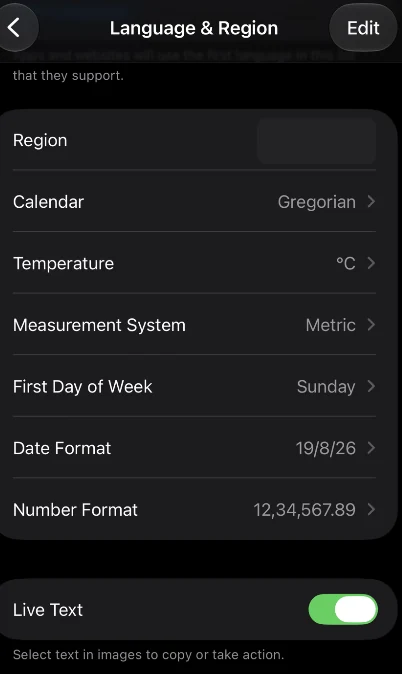
- Open Settings → General → Language & Region and make sure Live Text is enabled.
- Check Settings → Camera → Show Detected Text if the problem occurs in the Camera app.
- Open a clear photo containing printed text in Photos.
- Tap the Detect Text icon when it appears.
- Improve the lighting and focus if you’re scanning text with Camera.
- Pause a video before attempting to select text in it.
- Check whether your selected language is supported by Live Text.
- Restart your iPhone if the feature remains unresponsive.
- Check for an available compatible iOS update.
Important: Live Text and Visual Look Up are different features. Live Text recognizes written words, while Visual Look Up can identify subjects such as plants, animals, and landmarks.
Why Is Live Text Not Working on My iPhone?
The symptoms can help identify what needs attention.
| Problem | First thing to check |
|---|---|
| Detect Text icon missing everywhere | General Live Text setting |
| Live Text works in Photos but not Camera | Show Detected Text setting |
| Only certain photos fail | Image quality or supported language |
| Text in videos cannot be selected | Pause the video |
| Text is recognized incorrectly | Focus, lighting, and text clarity |
| Live Text works in Photos but not Safari | Test another image or app |
| Text is selected but won’t paste | Check the copying and pasting steps |
| Live Text option missing from Settings | Device compatibility and software |
Start with the setting most relevant to your symptom rather than changing every option at once.
1. Make Sure Your iPhone Supports Live Text
Best for: The Live Text option is missing entirely.
Apple introduced Live Text with iOS 15. According to Apple’s compatibility guidance, it requires an iPhone XS, iPhone XR, or later, running iOS 15 or later.
That means an iPhone 17 Pro supports the feature, but an older iPhone model may not.
To check your model and software:
- Open Settings.
- Select General.
- Tap About.
- Check Model Name and iOS Version.
- Confirm your device meets the compatibility requirements.
If the iPhone doesn’t support Live Text, changing camera permissions or resetting settings will not add the feature.
What the result means: If your model supports Live Text, continue with the main setting below.
2. Enable Live Text in Language & Region
Best for: Live Text not working in Photos, Camera, or other supported apps.
This is the most important setting to check.
Apple places the main Live Text switch under Language & Region in its current iPhone User Guide.
Follow These Steps
- Open Settings.
- Tap General.
- Select Language & Region.
- Scroll to the Live Text option.
- Make sure the switch is enabled.
- Open Photos and test an image containing clear printed text.
If Live Text was already enabled, you can turn the setting off and back on once before testing again.
What to expect: When you open a supported image containing recognizable text, the Detect Text control may appear. You should then be able to select words using the text-recognition interface.
What the result means: If the feature starts working in Photos, the general setting was likely responsible.
If the problem happens only when you point the camera at text, check the next setting too.
3. Enable Show Detected Text in Camera Settings
Best for: Live Text works on saved photos but not in the live Camera view.
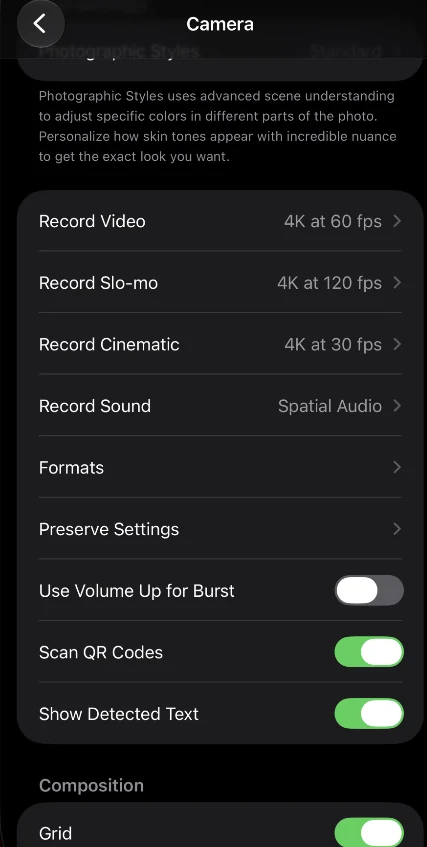
The main Live Text setting and the Camera-specific detection setting are not the same thing.
Apple documents a separate Show Detected Text option for the Camera app.
Check Camera Detection
- Open Settings.
- Select Camera.
- Find Show Detected Text.
- Make sure it is enabled.
- Open the Camera app.
- Point the camera at a page of clearly printed text.
- Wait for the yellow detection frame.
- Tap the Detect Text button when it appears.
You can then touch and hold recognized text and choose actions such as Copy, Translate, or Look Up.
What the result means: If Live Text works in Camera after this setting is enabled, you don’t need to change Photos settings or reset the device.
If the detection frame still doesn’t appear, continue by testing the same text in a saved photo.
4. Test Live Text Using a Clear Photo
Best for: You’re unsure whether the problem affects all images or only a particular document.
A controlled test helps distinguish a disabled feature from text that is simply difficult to recognize.
Try this:
- Find a book, printed document, or other object containing clear English text.
- Take a sharp, well-lit photo.
- Open the picture in Photos.
- Look for the Detect Text button.
- Tap it if necessary.
- Touch and hold a word.
- Adjust the selection handles to highlight more text.
- Select Copy.
Open Notes and paste the copied words to verify that the action worked.
If you can successfully copy text from this test photo, Live Text is functioning at least in Photos.
What the result means: If your test photo works but another image doesn’t, inspect the original image’s clarity, lettering, language, or orientation before assuming there is a software fault.
Avoid using confidential documents for demonstrations or screenshots intended for publication.
5. Improve Lighting, Focus, and Text Clarity
Best for: Live Text detects some words but makes mistakes or fails to recognize the full text.
Live Text depends on the text being sufficiently clear for recognition.
Small fonts, glare, motion blur, decorative lettering, and poor contrast can make text harder to identify.
Try a Better Camera Test
- Place the document on a stable surface.
- Use bright, even lighting without strong reflections.
- Hold the iPhone steady.
- Move closer until the text is large enough to read.
- Tap the text area to help the camera focus.
- Avoid cutting off the words at the edge of the frame.
- Wait briefly for the yellow detection frame.
If the letters appear blurry on your screen, take another photo with improved focus and test that image in Photos.
What the result means: If Live Text works on a clear photo but not a blurred one, the issue is more likely related to the source image than to the Live Text setting.
If your camera struggles to focus on ordinary subjects as well, see our separate troubleshooting guide: iPhone Camera Not Focusing? 10 Fixes.
6. Pause Videos Before Using Live Text
Best for: You can select words in photos but cannot copy text appearing in a video.
Apple supports Live Text in paused videos, including supported content in Photos.
The key difference is that you must pause the video before selecting the text.
Follow These Steps
- Open a video containing visible text in Photos.
- Play the video until the text is clearly visible.
- Pause the video on that frame.
- Look for the Detect Text button.
- Tap it if available.
- Touch and hold the recognized text.
- Select Copy, Translate, or another available action.
Try a frame where the text isn’t moving or blurred.
What the result means: If Live Text works after pausing, the feature is behaving as intended.
Remember that Live Text cannot reliably recover words from a frame where the text is too blurred or small to identify.
7. Check Supported Languages and Regions
Best for: Live Text recognizes English text but ignores text in another language.
Apple notes that Live Text is not available for every language or region.
Language support also differs across text recognition, translation, and other related features.
Before changing settings, perform a comparison:
- Test a clearly printed English sentence.
- Test the text in the language that originally failed.
- Confirm the words are sharp and fully visible in both images.
- Check Apple’s current iOS feature availability information.
- Verify whether the language and feature you’re using are supported.
You can review your current language and region under:
Settings → General → Language & Region
Important: Do not change your iPhone’s language or region merely to force an unsupported feature to appear. Region settings can affect other services, and a language change does not guarantee recognition.
What the result means: If Live Text works with supported text but not with an unsupported language, this is a feature limitation rather than necessarily an iPhone fault.
8. Compare Live Text in Photos, Camera, and Safari
Best for: Live Text works in one place but not another.
Apple supports Live Text across several apps and image contexts, including Photos, Camera, Safari, and Quick Look.
Testing more than one location helps identify whether the issue is system-wide or limited to a particular app or image.
Perform a Simple Comparison
Test A: Photos
Open a clear photograph containing text and attempt to select it.
Test B: Camera
Point the camera at a printed page and look for the detection frame.
Test C: Safari
Open a webpage containing an image with readable text. Touch and hold the text inside the image if the recognition option is available.
Compare the results.
| Test result | What to investigate |
|---|---|
| Photos works, Camera fails | Camera detection setting and focus |
| Camera works, one photo fails | Particular image quality or language |
| Photos and Camera work, one website image fails | Image or webpage behavior |
| Nothing recognizes clear supported text | Main Live Text setting and software |
Do not confuse selectable HTML webpage text with Live Text. Ordinary text on a webpage can be copied without image recognition.
What the result means: One successful Live Text test shows that the feature is available on your device, helping you narrow the remaining problem.
9. Check Whether Text Is Being Copied Correctly
Best for: Live Text highlights words, but you cannot paste them into another app.
If the text-detection interface appears and words can be selected, recognition itself is working.
The remaining issue may be related to the copying action, the app where you’re trying to paste, or the content you selected.
Verify the Copy Action
- Open a clear text-containing photo in Photos.
- Tap Detect Text if required.
- Touch and hold a recognized word.
- Drag the selection handles to include the intended text.
- Tap Copy.
- Open Notes.
- Create a new note.
- Touch and hold the blank editing area.
- Tap Paste.
If the copied text appears, Live Text successfully recognized and copied it.
If the same destination app refuses to accept other copied text as well, troubleshoot that app’s pasting behavior separately.
What the result means: A successful paste into Notes confirms that Live Text’s basic copy workflow is working.
If translation fails but copying works, investigate the translation language or service rather than disabling Live Text.
10. Restart Your iPhone and Check for iOS Updates
Best for: Live Text is enabled and supported, but consistently fails even with clear test images.
If the targeted settings and image tests don’t solve the problem, try a normal restart.
On an iPhone with Face ID:
- Press and hold the side button and either volume button.
- Drag the power-off slider.
- Wait for the iPhone to switch off.
- Press and hold the side button until the Apple logo appears.
- Unlock the phone.
- Test Live Text again in Photos.
If the issue continues, check for software updates:
- Open Settings.
- Tap General.
- Select Software Update.
- Review any compatible update that is available.
- Back up important data before installation.
- Update when convenient and retest the feature.
A software update can resolve some system problems, but it isn’t a guaranteed fix for all text-recognition failures.
Avoid factory-resetting your iPhone or deleting your photo library simply because Live Text doesn’t recognize text. These are disproportionate responses to an issue that may involve a setting or an individual image.
Live Text Not Working After an iOS Update
If the feature stopped working shortly after an iOS update, use the following sequence:
- Confirm Live Text is enabled in Language & Region.
- Check Show Detected Text in Camera settings.
- Test a sharp, newly captured photo in Photos.
- Confirm that the text is in a supported language.
- Restart the iPhone.
- Check for a newer compatible update.
An update happening before the issue doesn’t automatically prove that the update caused it.
The purpose of these checks is to identify which part of the feature no longer behaves as expected.
Live Text vs. Visual Look Up vs. Visual Intelligence
These three Apple features serve different purposes.
| Feature | Main purpose |
|---|---|
| Live Text | Recognizes and lets you select text inside images |
| Visual Look Up | Helps identify supported objects and subjects in photos |
| Visual Intelligence | Provides additional ways to learn about and interact with what’s around you on supported devices |
A working Visual Look Up feature does not automatically mean Live Text is enabled, and the absence of a Visual Intelligence option does not mean ordinary Live Text is broken.
For this guide, focus on the ability to recognize, select, and copy text from images.
Frequently Asked Questions
Why is the Live Text button missing on my iPhone?
Check device compatibility and Settings → General → Language & Region → Live Text. If the button is missing only in Camera, check Settings → Camera → Show Detected Text. The button may also be unavailable when the image doesn’t contain recognizable supported text.
Why does Live Text work in Photos but not Camera?
The Camera app has a separate Show Detected Text setting. Also check lighting and focus in the live camera view.
Does Live Text work on screenshots?
Yes, supported screenshots and other images containing recognizable text can be used with Live Text in Photos and other compatible image viewers.
Does Live Text work on iPhone 17 Pro?
Yes. The iPhone 17 Pro supports Live Text. If the feature isn’t working, check the general and camera-specific settings before considering other causes.
Why does Live Text copy the wrong words?
Text recognition can be affected by image clarity, small lettering, unusual fonts, handwriting, and language support. Try a clearer photo with better contrast and larger text.
Can Live Text recognize handwritten text?
It may recognize some handwriting, but accuracy varies. Neatly written, well-lit text is more likely to be recognized correctly than faint or highly stylized handwriting.
Why can’t I copy text from a video on iPhone?
Pause the video on a frame containing clear text before attempting to use Live Text. Moving or blurred text can be difficult to recognize.
Is Live Text the same as scanning documents?
Not exactly. Live Text recognizes and interacts with text inside images. Document scanning in supported apps is a related but separate workflow for capturing documents.
Does Live Text require Apple Intelligence?
No. Live Text existed before Apple Intelligence. You do not need the newer Visual Intelligence features to use ordinary Live Text on a compatible iPhone.
Should I reset my iPhone if Live Text isn’t working?
Not as an initial step. First check compatibility, Live Text settings, camera detection, language support, image quality, and software updates. A factory reset is not justified by a missing Detect Text button alone.
Final Thoughts
If your iPhone Live Text is not working, start with the two most important settings: the general Live Text switch under Language & Region and the Camera-specific Show Detected Text control.
Then test a clear photo containing supported text. This simple comparison helps identify whether the problem is related to a setting, camera quality, an individual image, or a particular app.
Live Text doesn’t need a full iPhone reset to be troubleshot effectively. Working through the targeted checks usually provides a much clearer answer than changing unrelated settings.
If the feature remains unavailable on a compatible, updated iPhone after these checks, contact Apple Support and describe where recognition fails and which test images you used.