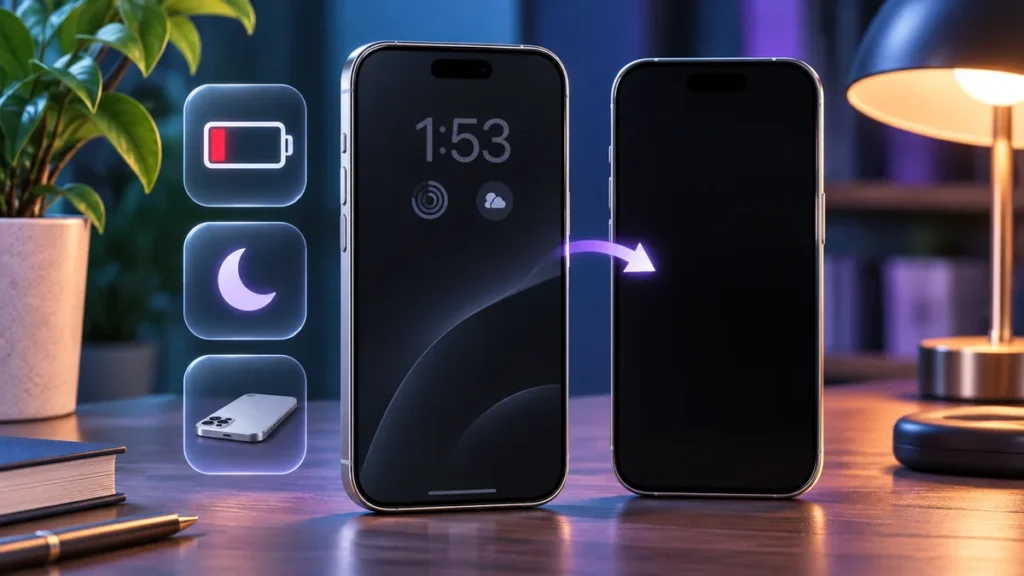
Is your iPhone Always-On Display not working, even though you’ve enabled it in Settings? Maybe the Lock Screen turns completely black when you press the side button, the clock disappears after a few minutes, or the feature works during the day but stops at night.
Before assuming something is broken, there’s an important detail to understand: Apple designed Always-On Display to turn off automatically in certain situations.
For example, your iPhone may darken its screen completely when Low Power Mode or Sleep Focus is active, when the phone is face down, or when it detects that you’re not nearby.
In this guide, we’ll help you distinguish normal battery-saving behavior from an actual display problem. The troubleshooting steps apply to supported iPhone models, including the iPhone 17 Pro, using recent versions of iOS.
Table of Contents
Quick Answer: How to Fix iPhone Always-On Display
If your Always-On Display isn’t staying visible, try these checks first:
- Confirm your iPhone supports Always-On Display.
- Open Settings → Display & Brightness → Always On Display and turn it on.
- Place your iPhone face up on a flat surface with the screen uncovered.
- Turn off Low Power Mode temporarily.
- Check whether Sleep Focus is active.
- If you use an Apple Watch, test with the devices nearby.
- Disconnect from CarPlay or stop using Continuity Camera before testing.
- Restart your iPhone if the display behaves unexpectedly.
- Check for an available compatible iOS update.
Important: Always-On Display doesn’t keep your iPhone at full brightness. It shows a dimmed version of the Lock Screen, and iOS can turn it completely off when the information isn’t needed.
Why Does iPhone Always-On Display Turn Off?
There are two main possibilities: the feature is unavailable or disabled, or iOS has temporarily turned it off to conserve power.
| What happens | What to check first |
|---|---|
| Always-On Display option is missing | iPhone model compatibility |
| Screen goes black immediately after locking | Display settings and Low Power Mode |
| Screen turns off when placed face down | Normal power-saving behavior |
| Display stops working at bedtime | Sleep Focus or bedtime behavior |
| Display goes dark when leaving your phone behind | Apple Watch proximity |
| Display turns off inside your car | CarPlay |
| Display becomes black when used with a Mac | Continuity Camera |
| Clock is visible but wallpaper is missing | Always-On customization |
| Feature stays off without an obvious reason | Restart and software updates |
The quickest test is to place a compatible iPhone face up, with Low Power Mode and Sleep Focus off, and check its Lock Screen while it is not connected to CarPlay or Continuity Camera.
1. Confirm Your iPhone Supports Always-On Display
Best for: Users who cannot find the Always-On Display option in Settings.
Not every iPhone has an Always-On display.
Apple’s supported models include:
- iPhone 14 Pro and 14 Pro Max
- iPhone 15 Pro and 15 Pro Max
- iPhone 16 Pro and 16 Pro Max
- iPhone 17, 17 Pro, and 17 Pro Max
- iPhone Air
The feature is also supported on certain newer models. Check Apple’s current model specifications when in doubt.
Apple states that Always-On Display is enabled by default on the listed iPhone 14 Pro through iPhone 17 models, but is off by default on iPhone Air.
To confirm your exact model:
- Open Settings.
- Tap General.
- Select About.
- Check Model Name.
- Compare your model with Apple’s supported device information.
If your device doesn’t support Always-On Display, changing Auto-Lock or brightness settings cannot add the feature.
What the result means: If the option is absent on an unsupported iPhone, that is a hardware compatibility limitation rather than a software error.
2. Enable Always-On Display in Settings
Best for: A supported iPhone that becomes completely black after locking.
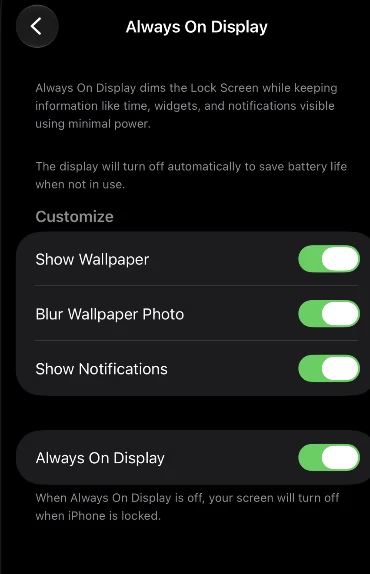
Start by checking whether the setting is actually enabled.
Follow These Steps
- Open Settings.
- Select Display & Brightness.
- Scroll down to Always On Display.
- Tap it to open the available options.
- Make sure Always On Display is turned on.
- Press the side button to lock your iPhone.
Place the phone face up with the screen visible.
If the feature is working and no automatic shutoff condition is active, the Lock Screen should dim rather than disappear completely.
If Always-On Display was already enabled, turn it off and back on once, then test again.
What the result means: If the dimmed Lock Screen appears, the core feature is working. If the screen still turns black, continue checking the conditions below.
3. Test With Your iPhone Face Up and Uncovered
Best for: Always-On Display working sometimes but turning black when the phone is placed on a table or inside a bag.
Apple confirms that Always-On Display automatically turns off when your iPhone is face down or obstructed from view.
That’s intentional.
Your iPhone doesn’t need to keep the display visible when it detects that you cannot see it.
How to Test
- Remove the iPhone from your pocket, bag, or closed case.
- Place it face up on a flat surface.
- Make sure nothing covers the screen.
- Lock the iPhone using the side button.
- Observe whether the dimmed Lock Screen remains visible.
What the result means: If the display works when uncovered but goes black when face down, it is behaving normally.
There’s no reason to reset the phone or disable display protection features.
4. Turn Off Low Power Mode Temporarily
Best for: Always-On Display stopping when the battery gets low.
This is one of the most important checks.
Apple explicitly lists Low Power Mode as a condition that turns off Always-On Display.
On an iPhone 15 or later:
- Open Settings.
- Tap Battery.
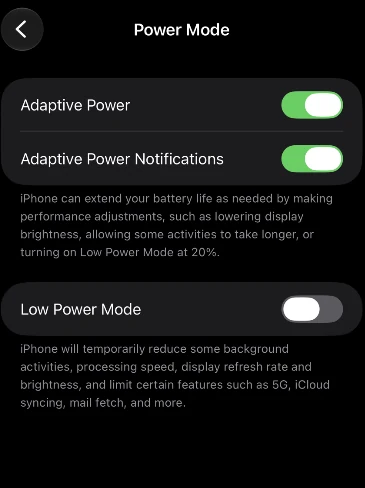
- Select Power Mode.
- Check whether Low Power Mode is enabled.
- If you have sufficient battery and want to test Always-On Display, temporarily turn Low Power Mode off.
- Return to the Lock Screen and test again.
On an iPhone 14-series model, the Low Power Mode control is found directly under Settings → Battery.
A yellow battery icon is another indication that Low Power Mode may be active.
What About Adaptive Power?
Supported iPhones can also use Adaptive Power, which adjusts performance based on usage. Apple notes that it can automatically activate Low Power Mode when battery level reaches 20%.
However, Adaptive Power itself is not the same setting as Low Power Mode. Check the actual Low Power Mode switch rather than disabling Adaptive Power unnecessarily.
What the result means: If Always-On Display returns when Low Power Mode is turned off, the feature wasn’t broken. It was suspended to reduce battery consumption.
You can turn Low Power Mode back on whenever conserving battery is more important than keeping the Lock Screen visible.
5. Check Sleep Focus and Bedtime Settings
Best for: Always-On Display working during the day but disappearing at night.
Apple says Always-On Display turns off while Sleep Focus is active and may also turn off at your usual bedtime.
This explains why the same iPhone can show the dimmed Lock Screen in the afternoon but become completely black at night.
Test Sleep Focus
- Open Control Center.
- Tap Focus.
- Check whether Sleep is active.
- Temporarily turn it off if appropriate.
- Lock your iPhone and observe the display.
If Sleep Focus frequently activates automatically, review its schedule in your Focus and Sleep settings.
What the result means: If the display reappears after Sleep Focus is disabled, the behavior is expected.
You don’t have to permanently disable Sleep Focus. Its nighttime behavior is intended to reduce distractions.
Also remember that Apple’s bedtime-based screen behavior may occur even when you’re not actively adjusting the Always-On setting.
6. Check Apple Watch Proximity
Best for: Always-On Display going black when you walk away from your iPhone.
If you use a paired Apple Watch, your iPhone may use proximity information to determine whether you’re nearby.
Apple states that the Always-On display can turn off when your iPhone is no longer near its paired Apple Watch.
How to Test
- Place your iPhone face up.
- Make sure Always-On Display is enabled.
- If you have a paired Apple Watch, keep it nearby.
- Lock your iPhone and observe the display.
- Compare that with what happens after you move away during normal use.
What the result means: If the display turns off while you’re away but returns under normal conditions, that can be expected behavior.
There’s no need to unpair your Apple Watch or reset its settings simply to troubleshoot this feature.
If you don’t use an Apple Watch, skip this check.
7. Test Outside CarPlay
Best for: Always-On Display switching off whenever you connect your iPhone to your car.
Apple lists an active CarPlay session among the situations that can turn off Always-On Display.
During CarPlay, your car’s display becomes an important place to view information. Keeping the iPhone’s dimmed Lock Screen visible is less useful.
How to Test
- Finish your CarPlay session safely.
- Disconnect your iPhone from CarPlay.
- Return to a normal environment.
- Place your iPhone face up.
- Lock the device and observe the display.
What the result means: If Always-On Display works outside CarPlay, the feature is behaving as expected.
Don’t change CarPlay settings or troubleshoot the car’s connection unless CarPlay itself has a separate problem.
8. Stop Continuity Camera Before Testing
Best for: Always-On Display becoming black while the iPhone is being used with a Mac.
Continuity Camera lets a compatible iPhone act as a camera for a Mac.
Apple confirms that the Always-On display may turn off while Continuity Camera is in use.
How to Test
- Finish the video call or app session using Continuity Camera.
- Stop using your iPhone as the Mac’s camera.
- Disconnect the mount or connection when appropriate.
- Place your iPhone face up.
- Lock the screen and check Always-On Display again.
What the result means: If the dimmed Lock Screen reappears after Continuity Camera stops, the behavior is expected.
This isn’t a reason to reset camera permissions or change unrelated Mac settings.
9. Check Wallpaper and Notification Visibility
Best for: Always-On Display showing only the clock while the wallpaper or notifications appear to be missing.
Always-On Display has customization options.
You can keep the dimmed Lock Screen active while hiding its wallpaper or notifications.
Review the Settings
- Open Settings → Display & Brightness.
- Tap Always On Display.
- Check Show Wallpaper.
- Check Show Notifications.
- Choose which elements you want visible.
- Lock the iPhone to inspect the result.
If Show Wallpaper is off, the Always-On screen may have a mostly black background while the clock and other allowed information remain visible.
If Show Notifications is off, notifications won’t appear in the same way on the dimmed Lock Screen.
What the result means: Missing wallpaper or notifications don’t necessarily mean Always-On Display itself has stopped working.
It’s more useful to check whether the clock or permitted Lock Screen information is still visible.
10. Distinguish Always-On Display from Auto-Lock and StandBy
Best for: A user expecting the Home Screen, an app, or a charging clock to remain fully illuminated.
These features are related to the iPhone screen, but they serve different purposes.
| Feature | What it does |
|---|---|
| Always-On Display | Keeps a dimmed Lock Screen visible on supported iPhones |
| Auto-Lock | Controls when the iPhone locks after inactivity |
| StandBy | Shows clocks, photos, or widgets when the iPhone is positioned appropriately during charging |
| Screen brightness | Controls how bright the active display appears |
Important Distinction
Changing Settings → Display & Brightness → Auto-Lock does not force Always-On Display to remain visible under every condition.
Similarly, Always-On Display doesn’t mean the screen will remain fully bright after locking.
If the problem happens specifically when your iPhone is charging horizontally and showing a large clock, you’re probably troubleshooting StandBy, not ordinary Always-On Display.
For that separate problem, see iPhone StandBy Mode Not Working? 12 Easy Fixes.
If your normal active screen keeps becoming unexpectedly dim, see iPhone Screen Keeps Dimming? 12 Easy Fixes.
11. Restart Your iPhone
Best for: Always-On Display remaining unavailable after the expected automatic shutoff conditions have been ruled out.
If your iPhone supports Always-On Display, the feature is enabled, and Low Power Mode and Sleep Focus are off, a normal restart is a reasonable next step.
On an iPhone with Face ID:
- Press and hold the side button and either volume button.
- Drag the power-off slider.
- Wait for the iPhone to shut down.
- Press and hold the side button until the Apple logo appears.
- Unlock your iPhone.
- Recheck Settings → Display & Brightness → Always On Display.
- Test the dimmed Lock Screen again.
A restart can resolve temporary software behavior, but it doesn’t override Apple’s built-in power-saving rules.
What the result means: If the feature returns and remains consistent, a temporary issue may have contributed. If it still fails, continue with the software check.
12. Check for Available iOS Updates
Best for: Always-On Display behaving unexpectedly after you’ve ruled out settings and normal power-saving behavior.
Apple includes system software fixes and compatibility updates in iOS releases.
To check:
- Open Settings.
- Tap General.
- Select Software Update.
- Wait for available updates to appear.
- Review the details of any compatible update.
- Back up important information before installing.
- Update when convenient, then test the display again.
There is no guarantee that an update will solve every display issue. Avoid installing beta software solely to troubleshoot Always-On Display.
If the iPhone remains unstable or the ordinary screen also fails to turn on correctly, use Apple’s support options for further diagnosis.
Always-On Display Not Working After an iOS Update
If the feature stopped behaving as expected after updating your iPhone, use this sequence:
- Confirm Always-On Display is still enabled.
- Check whether Low Power Mode became active.
- Review Sleep Focus and other automatic shutoff conditions.
- Test the iPhone face up and uncovered.
- Restart the iPhone.
- Check for a newer compatible software update.
Avoid erasing your iPhone or performing a factory reset as an early step.
An update occurring shortly before a problem doesn’t automatically prove that the update caused it.
Always-On Display Works During the Day but Not at Night
This symptom often points toward intended behavior rather than a permanent fault.
Apple lists Sleep Focus and bedtime among the situations when Always-On Display can turn off.
If your screen reliably becomes black around bedtime, review your Sleep settings and confirm whether the feature works normally during daytime testing.
You don’t need to abandon your sleep schedule just to keep the display visible.
Frequently Asked Questions
Why is my iPhone Always-On Display completely black?
The feature may be disabled, your model may not support it, or the iPhone may have temporarily turned it off. Common reasons include Low Power Mode, Sleep Focus, a covered screen, CarPlay, and Continuity Camera.
Does Low Power Mode turn off Always-On Display?
Yes. Apple identifies Low Power Mode as one of the conditions that automatically turn off the feature.
Does Sleep Focus disable Always-On Display?
Yes. Sleep Focus can turn off the dimmed Lock Screen. Apple also mentions bedtime behavior as another reason the display may become completely dark.
Why is Always-On Display not working on iPhone 17 Pro?
The iPhone 17 Pro supports Always-On Display. Check Settings → Display & Brightness → Always On Display, then verify that Low Power Mode, Sleep Focus, and other automatic shutoff conditions aren’t responsible.
Does iPhone Air support Always-On Display?
Yes. Apple states that iPhone Air supports the feature but has it turned off by default. You can enable it under Display & Brightness.
Why does Always-On Display turn off when my phone is face down?
This is normal. Apple designed the feature to stop displaying information when the screen is face down or obstructed.
Does Auto-Lock control Always-On Display?
Not directly. Auto-Lock determines when the iPhone locks, while Always-On Display determines whether a dimmed Lock Screen remains visible afterward on a supported device.
Why is my Always-On wallpaper missing?
Check Settings → Display & Brightness → Always On Display → Show Wallpaper. The wallpaper can be hidden while other permitted Lock Screen information remains visible.
Will resetting my iPhone fix Always-On Display?
A normal restart may help with temporary software behavior. A factory reset is not an appropriate first step and is unlikely to resolve conditions where iOS intentionally turns the display off.
Final Thoughts
When your iPhone Always-On Display is not working, first determine whether the feature is actually malfunctioning or is temporarily disabled by normal iOS behavior.
Start with device compatibility and Display & Brightness settings. Then check Low Power Mode, Sleep Focus, screen obstruction, Apple Watch proximity, CarPlay, and Continuity Camera.
If the feature remains unavailable under ordinary conditions, restart your iPhone and check for compatible iOS updates.
Most importantly, don’t confuse Always-On Display with StandBy, Auto-Lock, or general screen brightness. Each feature works differently, and identifying the correct one makes troubleshooting much easier.