
MacBook not sleeping when lid closed? You shut the lid, but the laptop keeps playing audio, stays warm, loses battery overnight, or wakes up inside your bag. That can be frustrating, especially when you expect closing the lid to put your MacBook to sleep.
In most cases, a MacBook Air or MacBook Pro should sleep when you close its lid. But an external display, a connected accessory, a background process, or a sleep/wake setting can change what happens. Sometimes the Mac sleeps normally and then wakes again, which looks similar but needs a different fix.
This guide walks through 10 practical fixes for a MacBook not sleeping when lid closed, starting with safe checks and ending with diagnostic steps. It covers recent macOS versions on Apple silicon (M-series) and Intel Macs. Some settings differ by model and macOS version.
Quick Answer: How to Fix a MacBook That Won’t Sleep With the Lid Closed
- Disconnect any external monitor, USB-C dock, and connected accessories, then close the lid again.
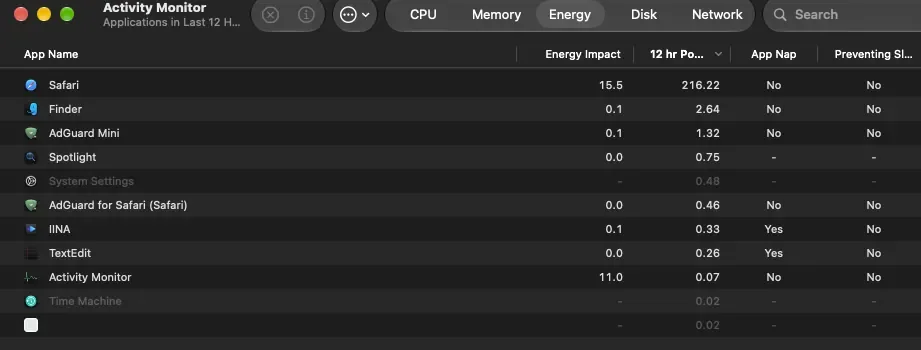
- Open Activity Monitor > Energy and check which apps show Preventing Sleep.
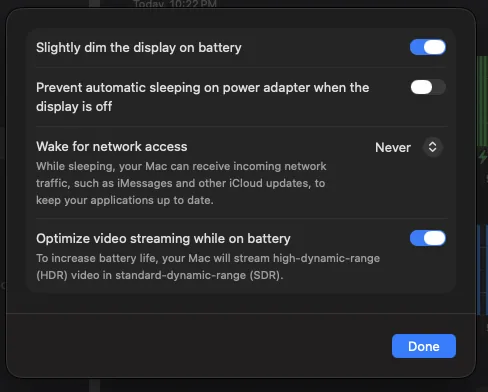
- Go to System Settings > Battery > Options and temporarily set Wake for network access to Never.
- Check whether a sleep-prevention utility, active download, or sharing service is keeping the Mac awake.
- Restart your Mac and test again. If it still fails, use Safe Mode or the diagnostic command later in this guide.
Safety note: If your MacBook gets unusually hot while the lid is shut, especially inside a bag, take it out and shut it down before carrying it. Don’t block its vents or keep testing it inside a closed bag.
Table of Contents
- Why Your MacBook Might Stay Awake With the Lid Closed
- 1. Confirm What Happens When the Lid Closes
- 2. Disconnect the External Display and Check Clamshell Mode
- 3. Find Apps Preventing Sleep in Activity Monitor
- 4. Quit Sleep-Prevention Utilities and Background Tasks
- 5. Turn Off Wake for Network Access Temporarily
- 6. Review Battery and Automatic Sleep Settings
- 7. Disable Unneeded Sharing Services
- 8. Test Without USB and Bluetooth Accessories
- 9. Restart, Update macOS, and Test in Safe Mode
- 10. Check Sleep Assertions and Possible Lid-Sensor Problems
- Frequently Asked Questions
- Final Thoughts
- Official Apple References
Why Your MacBook Might Stay Awake With the Lid Closed
Before changing settings, identify the symptom. These situations need different approaches:
| What you notice | Most useful first check |
|---|---|
| External monitor stays on after you close the lid | Check closed-display (clamshell) mode and disconnect the monitor. |
| Battery drops noticeably overnight | Check Activity Monitor, network wake, and third-party sleep utilities. |
| MacBook wakes unexpectedly after going to sleep | Disconnect Bluetooth/USB accessories and review Wake for network access. |
| Fans run or the Mac feels hot in a bag | Shut it down before travel, then isolate apps and hardware safely. |
| Sleep fails even with nothing connected | Try Safe Mode and investigate sleep assertions or a lid-sensor issue. |
A brief background wake isn’t necessarily the same as staying fully awake. Also, turning the screen off is not identical to putting the entire Mac to sleep.
1. Confirm What Happens When the Lid Closes
First, see whether the problem is specifically tied to closing the lid or whether the Mac can’t sleep even when you select Sleep manually.
- Save your open work and quit any app that is actively playing media or transferring large files.
- Disconnect the external monitor and any dock for this first test.
- From the Apple menu, choose Sleep. Wait briefly, then wake your Mac normally.
- Next, close the lid completely on a clear, flat surface. Give the Mac a short moment to transition.
- Open it again and check whether it appears to have been active the entire time.
If Sleep from the Apple menu works but closing the lid does not, focus on external-display behavior, connected devices, and possible lid detection. If neither works, background apps and power settings become more likely suspects.
Important: Don’t place magnets, magnetic accessories, or objects between the screen and keyboard while testing. They can interfere with normal closing or, on some models, lid detection.
2. Disconnect the External Display and Check Clamshell Mode
A MacBook connected to an external display can intentionally operate with its lid closed. This is called closed-display mode or clamshell mode, and it’s not necessarily a defect.
Apple’s display guidance explains that when a compatible MacBook is connected to power and an external keyboard, mouse, and display, the external screen may remain in use after the lid closes.
- Unplug the HDMI/USB-C display cable or disconnect the Thunderbolt dock.
- Temporarily unplug the charger if safe and practical for your test.
- Close the lid again without the external-display setup.
- If the Mac now sleeps, the earlier behavior was likely related to the closed-display configuration.
Do you use a dock with several monitors? Check the dock settings and attached accessories one by one. If an external screen isn’t detected at all, see our MacBook external monitor troubleshooting guide.
Tip: Don’t disable external-display features permanently if you rely on clamshell mode for work. Just understand which behavior is expected.
3. Find Apps Preventing Sleep in Activity Monitor
macOS can tell you which apps are actively requesting that the Mac stay awake. This is one of the most useful checks when a MacBook is not sleeping when the lid is closed or when it appears to wake repeatedly.
- Open Finder > Applications > Utilities > Activity Monitor.
- Choose the Energy tab.
- Find the Preventing Sleep column (scroll sideways or adjust the window if needed).
- Look for apps marked Yes. Common examples include video players, meeting apps, backup tools, and utilities designed to prevent sleep.
- Save your work in the app, quit it normally, and test lid sleep again.
Seeing a background process doesn’t automatically mean it’s malfunctioning. An active backup or file transfer can be doing legitimate work. The goal is to isolate unexpected behavior rather than force-quitting every process.
4. Quit Sleep-Prevention Utilities and Background Tasks
Some apps are built to keep your Mac awake: presentation tools, download managers, media servers, terminal tasks, and utilities such as Amphetamine or caffeinate-based scripts. A sleep-prevention session may remain active longer than intended.
- Look in the menu bar for a sleep-prevention app or a running presentation/meeting utility.
- Stop any intentional “keep awake†or “prevent sleep†session.
- Pause active uploads, downloads, and cloud synchronization long enough for a controlled test.
- Quit the app normally rather than deleting it immediately.
- Close the MacBook lid and see whether sleep behavior improves.
Large indexing operations can also affect the timing of sleep. If you’re migrating files or rebuilding Spotlight’s index, let the task finish and check again instead of repeatedly restarting it.
For battery loss even when the laptop is supposed to be asleep, our MacBook battery draining fast guide covers additional checks that are separate from lid behavior.
5. Turn Off Wake for Network Access Temporarily
When Wake for network access is enabled, your Mac can wake to make shared resources available on the network. This is useful in some setups, but it’s worth temporarily disabling when the laptop seems to wake without being touched.
- Open Apple menu > System Settings > Battery.
- Click Options.
- Find Wake for network access.
- Select Never for a test, if that option is available.
- Click Done, close the lid, and observe the result.
This changes network wake behavior, not the physical lid sensor. It is especially relevant if the Mac sleeps at first but wakes later. If you use remote file sharing, you may prefer to restore the setting after troubleshooting.
6. Review Battery and Automatic Sleep Settings
Some settings control sleep after inactivity while others relate to waking. They are useful to check, but inactivity timers do not directly prove a lid-close failure.
- Open System Settings > Battery > Options.
- If present, turn off Prevent automatic sleeping on power adapter when the display is off for troubleshooting.
- Open System Settings > Lock Screen and review the display-off timing for battery and power adapter use.
- Check whether the issue happens on battery power, with the charger connected, or both.
Apple notes that the available Battery options vary by Mac and macOS version. The “Prevent automatic sleeping†switch mostly concerns inactivity and display-off behavior, so if your lid-close problem persists, continue to the hardware and process checks below.
A consistent problem only on power adapter can be a clue about connected-display mode, network wake, or a power-specific setting.
7. Disable Unneeded Sharing Services
Shared resources can influence sleep and wake behavior. If another computer is using files or a printer hosted on your MacBook, background access may be part of the problem.
- Go to System Settings > General > Sharing.
- Review File Sharing, Screen Sharing, Media Sharing, and other enabled services.
- Temporarily turn off services you don’t need for the test.
- Close the lid again and see whether the Mac stays asleep.
Remember which services you changed so you can turn them back on if they are important to your workflow. Never turn off remote management on a work-managed Mac without your administrator’s approval.
Trying to share your display with another device? That’s a different issue, covered in our Sidecar troubleshooting guide, while macOS Sharing settings remain relevant here.
8. Test Without USB and Bluetooth Accessories
A misbehaving USB device, dock, storage drive, Bluetooth mouse, or external keyboard may repeatedly wake the computer. Apple specifically recommends disconnecting devices to see whether sleep behavior improves.
- Disconnect external drives, USB hubs, adapters, and other wired accessories.
- Turn off nearby external keyboards and mice temporarily, or disconnect them from Bluetooth.
- Test lid sleep with only the MacBook itself.
- Reconnect one accessory at a time until the issue returns.
That last step is important. It identifies the likely trigger instead of making you replace an entire collection of accessories.
If Bluetooth accessories are generally unreliable, see our MacBook Bluetooth troubleshooting guide.
9. Restart, Update macOS, and Test in Safe Mode
When the problem survives the settings and accessory checks, test whether a software extension or login item is involved.
Restart and update first
- Save your work and restart the MacBook from the Apple menu.
- Go to System Settings > General > Software Update.
- Install an available compatible update after backing up anything important.
- Test lid sleep again before making other changes.
Test in Safe Mode
On an Apple silicon MacBook, shut down, hold the power button until startup options appear, select your startup disk, hold Shift, and choose Continue in Safe Mode. On an Intel MacBook, restart while holding Shift until the login screen appears.
Once you are in Safe Mode, test the same lid-close scenario. If the issue only happens during normal startup, investigate login items or third-party software rather than assuming a faulty lid sensor. Restart normally to leave Safe Mode.
10. Check Sleep Assertions and Possible Lid-Sensor Problems
If a MacBook is still not sleeping when the lid is closed, there are two final possibilities worth exploring: a process is asking macOS to stay awake, or the hardware isn’t detecting the lid correctly.
Check power assertions without changing settings
Open Terminal and run this read-only diagnostic command:
pmset -g assertionsIt lists power-management assertions, which can help identify software requesting that the system stay awake. The output may be technical. A listed assertion isn’t definitive proof of a fault, and not every software assertion stops lid-close sleep.
Privacy note: Terminal output can contain account names, paths, or process details. Redact them before sharing a screenshot publicly. Avoid copying random sudo pmset commands from forums, as they can change power settings.
Consider the lid sensor and Mac model
Remove magnetic sleeves or accessories near the laptop, ensure the lid closes normally, and test without external peripherals. If the Mac never reacts to a fully closed lid, the lid sensor or another hardware component may need inspection.
Apple silicon models: Apple recommends restarting the Mac for certain power-management problems; there is no separate user SMC reset procedure. Intel models: an SMC reset may help some power-related issues, but the exact steps depend on your model. Use Apple’s model-specific instructions instead of a generic key combination.
If the MacBook remains hot, never enters sleep with the lid closed, or behaves abnormally even in Safe Mode with no accessories, contact Apple Support or an authorized repair provider.
Frequently Asked Questions
Should a MacBook automatically sleep when the lid is closed?
Usually, yes. A MacBook normally enters sleep when you close its lid, but supported closed-display setups may keep it working with an external monitor and input devices. Brief background activity or network wake is also different from remaining fully active.
Why does my MacBook battery drain when the lid is closed?
Apps preventing sleep, external accessories, network wake activity, and software problems are possible causes. Start with Activity Monitor’s Energy tab, disconnect the dock and peripherals, and check Battery > Options. Battery aging and normal standby consumption can also contribute, so consider how much energy is actually being lost.
Why is my MacBook hot in my bag even though the lid is closed?
The computer may have remained awake or woken unexpectedly. Remove it from the bag, allow it to cool, and shut it down before transporting it again. Then test the lid-close behavior on a desk. If overheating continues, seek technical support.
Does “Prevent automatic sleeping†stop a MacBook from sleeping when I shut its lid?
That setting primarily affects automatic sleep after inactivity when the display is off and the Mac is connected to power. It is worth reviewing, but it does not automatically explain every lid-close sleep problem. Check external monitors, background activity, and wake sources too.
Can Bluetooth mice or USB-C docks wake a MacBook?
Yes, connected devices can sometimes wake a Mac or contribute to unexpected wake behavior. Test with all accessories disconnected, then reconnect them individually to see whether one causes the issue.
Do I need to reset SMC on an M1, M2, M3, or newer MacBook?
No separate SMC key-sequence reset is recommended for Apple silicon MacBooks. Restart the Mac and follow Apple’s current troubleshooting guidance. Intel-based Macs have different model-specific SMC procedures.
Final Thoughts
If your MacBook is not sleeping when lid closed, start by disconnecting the external monitor and dock, then inspect apps that show “Preventing Sleep†in Activity Monitor. After that, check network wake, sharing services, connected peripherals, and recent software changes.
The key is distinguishing normal closed-display operation from failure to sleep and unexpected wake after sleeping. Once you know which of those is happening, the troubleshooting becomes much easier.
If the problem continues with no accessories, in Safe Mode, and after a restart, investigate possible lid-sensor trouble instead of repeatedly changing unrelated settings.