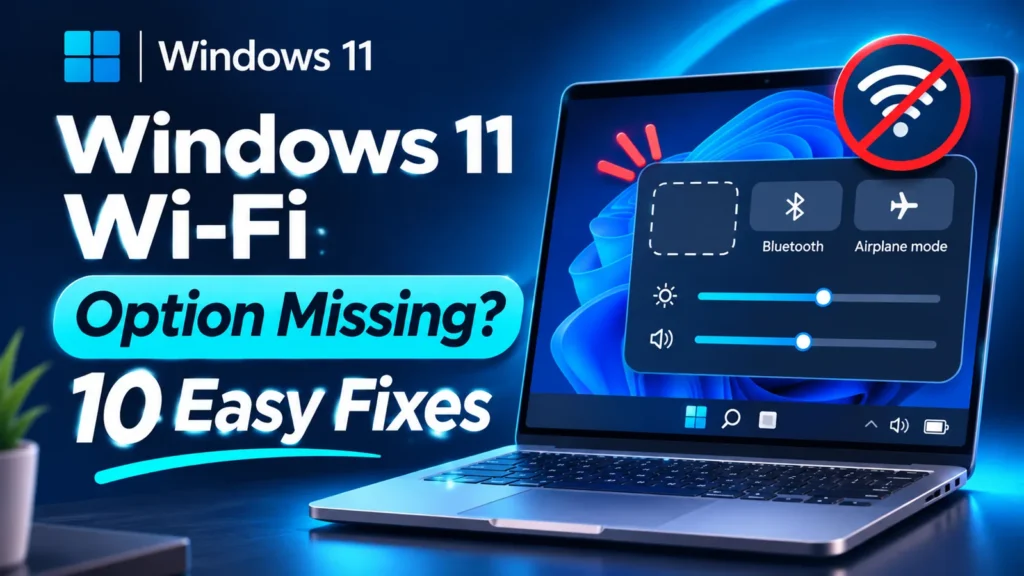
Is the Windows 11 Wi-Fi option missing from your taskbar, Quick Settings, or Network & internet settings?
Maybe your laptop suddenly shows only Bluetooth and Airplane mode, the Wi-Fi toggle has completely disappeared, or Windows no longer detects your wireless adapter.
This can happen on Dell, HP, Lenovo, ASUS, Acer, and other Windows 11 laptops and desktops.
Fortunately, a missing Wi-Fi option doesn’t automatically mean your wireless hardware is damaged. The problem may involve a disabled adapter, an incorrect driver, a stopped Windows service, or a temporary system error.
In this guide, we’ll walk through 10 practical fixes to restore the missing Wi-Fi option in Windows 11, starting with simple settings checks and moving toward more advanced troubleshooting.
Quick answer: If Wi-Fi has disappeared from Windows 11, restart your PC, check Airplane mode, and inspect the wireless adapter in Device Manager. If the adapter is disabled, enable it. If it is missing entirely, check WLAN AutoConfig, your wireless driver, and your PC manufacturer’s support resources.
Table of Contents
Why Is the Windows 11 Wi-Fi Option Missing?
Windows 11 relies on a working wireless network adapter, a compatible driver, and supporting network services to display and manage Wi-Fi connections.
If Windows cannot detect or initialize your wireless adapter, the Wi-Fi option may disappear.
Common causes include:
- A temporary Windows or wireless adapter error.
- Airplane mode or a physical wireless switch.
- A disabled Wi-Fi adapter.
- An outdated, corrupted, or missing wireless driver.
- The WLAN AutoConfig service not functioning properly.
- A problem following a Windows update.
- A hardware or firmware issue affecting the adapter.
- A desktop computer without installed Wi-Fi hardware.
Microsoft addresses these possibilities in its official Windows Wi-Fi troubleshooting guide.
Before making changes, determine whether Wi-Fi is missing only from Quick Settings or from Windows Settings entirely.
Fix 1: Check Whether Wi-Fi Is Missing From Quick Settings Only
Sometimes the Wi-Fi shortcut isn’t visible, but wireless networking still works through Windows Settings.
Start by checking the main Wi-Fi settings.
- Press Windows + I to open Settings.
- Select Network & internet.
- Look for Wi-Fi.
- If the option appears, open it.
- Turn Wi-Fi on if it’s disabled.
- Check whether available wireless networks appear.
Next, press Windows + A to open Quick Settings.
Look for the Wi-Fi control and its connection-management button.
The arrangement of Quick Settings can vary depending on your Windows 11 version.
On some versions, available controls can be customized. Newer versions may organize connectivity controls differently.
If Wi-Fi works in Settings but its shortcut is missing, focus on Quick Settings rather than reinstalling your wireless driver.
For details about the standard Wi-Fi controls, see Microsoft’s guide to connecting to Wi-Fi in Windows.
Important: If the Wi-Fi option is missing from both Settings and Quick Settings, continue with the next fixes.
Fix 2: Restart Your Windows 11 Computer
A temporary wireless adapter or driver problem can cause Wi-Fi controls to disappear.
Restarting Windows may allow the operating system to initialize the wireless adapter correctly.
- Save your work.
- Close running applications.
- Open the Start menu.
- Select Power.
- Click Restart.
- Wait for Windows to load.
- Open Settings → Network & internet.
- Check whether Wi-Fi has returned.
Use Restart rather than repeatedly putting your laptop to sleep.
If the Wi-Fi option returns after restarting, the issue may have been temporary.
If it disappears again, a driver, power-management, or hardware problem may require further investigation.
If other wireless controls have disappeared too, our Bluetooth Toggle Missing in Windows 11 guide explains related wireless adapter and driver troubleshooting.
Fix 3: Turn Off Airplane Mode and Check Wireless Controls
Airplane mode can disable wireless communication.
Some laptops also have physical wireless switches or function-key shortcuts that control Wi-Fi.
To check Airplane mode:
- Press Windows + A.
- Locate the Airplane mode button, if available.
- Make sure Airplane mode is turned off.
- Open Settings → Network & internet → Airplane mode.
- Verify that the setting is disabled.
- Check whether the Wi-Fi option returns.
Next, inspect your laptop’s keyboard for a wireless symbol.
Certain laptops use a function-key combination to enable or disable wireless communication.
The correct shortcut depends on the manufacturer and model.
Tip: Check your laptop manufacturer’s manual before repeatedly pressing unfamiliar function-key combinations.
If Wi-Fi remains completely absent, move to Device Manager.
Fix 4: Enable Your Wireless Adapter in Device Manager
A disabled wireless adapter is one of the most important things to check when the Windows 11 Wi-Fi option is missing.
Device Manager shows hardware that Windows recognizes.
Follow these steps:
- Right-click the Start button.
- Select Device Manager.
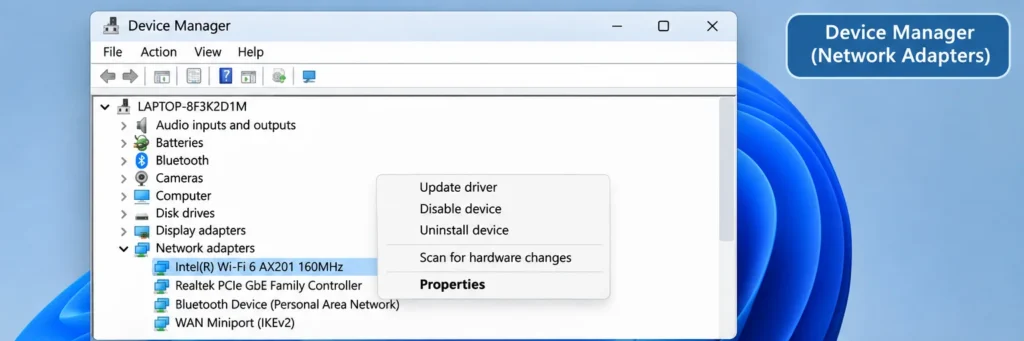
- Expand Network adapters.
- Look for a wireless adapter.
- Its name may include Intel, Realtek, Qualcomm, MediaTek, Wireless, or Wi-Fi.
- Right-click the wireless adapter.
- Select Enable device, if available.
- Check whether the Wi-Fi option returns.
If the menu displays Disable device instead, the adapter is already enabled. Don’t disable it unnecessarily.
If the wireless adapter isn’t visible, select View → Show hidden devices.
Be aware that hidden entries can represent previously installed devices rather than currently detected hardware.
You can also choose Action → Scan for hardware changes.
If Windows still doesn’t detect a wireless adapter, don’t assume it can be repaired by changing settings. A missing driver, disabled firmware setting, disconnected adapter, or hardware fault may be involved.
Microsoft documents these checks in its Windows network troubleshooting instructions.
Fix 5: Restart the WLAN AutoConfig Service
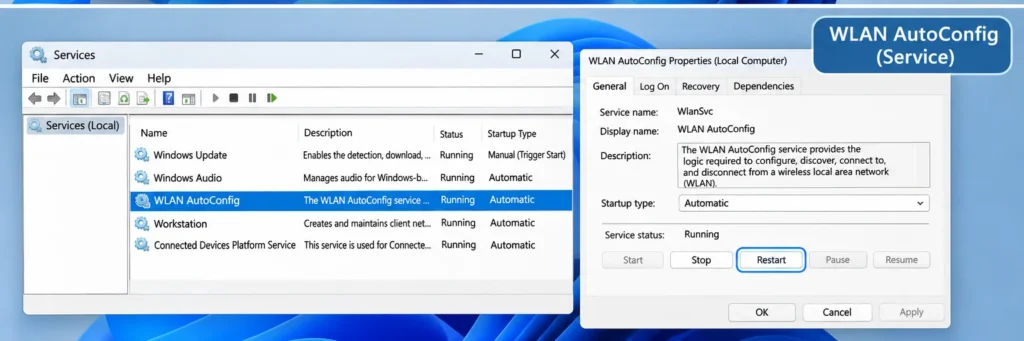
Windows uses a service called WLAN AutoConfig to manage wireless network connections.
If this service isn’t functioning correctly, Wi-Fi connectivity and management may be affected.
To inspect it:
- Press Windows + R.
- Type
services.msc. - Press Enter.
- Scroll down to WLAN AutoConfig.
- Double-click the service.
- Check whether its startup type is Automatic.
- If the service is stopped, select Start, if available.
- If it is running, select Restart, if available.
- Click Apply and OK if you changed a setting.
Return to Settings → Network & internet and check for Wi-Fi.
Avoid changing unrelated Windows services.
Restarting WLAN AutoConfig can help when the service is malfunctioning, but it cannot restore physically damaged or undetected wireless hardware.
If your Windows 11 Wi-Fi option is missing even after the service is running correctly, continue with the driver checks.
Fix 6: Update or Reinstall the Wi-Fi Driver
A missing or corrupted wireless driver can prevent Windows from detecting the Wi-Fi adapter correctly.
This is especially relevant if the problem started after a Windows update.
Update the driver
- Open Device Manager.
- Expand Network adapters.
- Right-click your wireless adapter.
- Select Update driver.
- Choose Search automatically for drivers.
- Follow the instructions.
- Restart Windows if prompted.
If Windows says the best driver is already installed, check your PC manufacturer’s official support website.
Search using your exact laptop or motherboard model.
Download a Windows 11-compatible Wi-Fi driver for your specific hardware.
Reinstall the driver if necessary
If updating doesn’t help and the adapter still appears in Device Manager:
- Download a backup copy of the correct driver first.
- Open Device Manager.
- Right-click the wireless adapter.
- Select Uninstall device.
- Confirm the uninstall.
- Restart Windows.
- Allow Windows to detect the adapter again.
- Install your saved manufacturer driver if Windows cannot reinstall it automatically.
Important: If your PC has no internet, download the correct driver using another device and transfer it using a USB drive.
Don’t uninstall the driver before obtaining a replacement if you have no other way to connect.
Avoid unofficial driver updater applications and random driver-download websites.
See Microsoft’s official Device Manager driver guide for more information.
Fix 7: Run the Windows 11 Network Troubleshooter
Windows 11 provides automated network diagnostics through Microsoft’s Get Help application.
This can identify some configuration, adapter, and connectivity problems.
To run it:
- Open the Start menu.
- Search for Get Help.
- Open the application.
- Search for network troubleshooter.
- Follow the guided troubleshooting instructions.
- Apply any relevant recommended fixes.
- Restart your computer if requested.
Depending on your Windows 11 build, additional troubleshooting options may appear under Settings → System → Troubleshoot.
The network troubleshooter isn’t guaranteed to repair every missing Wi-Fi issue.
If Windows cannot detect the wireless hardware at all, the problem may require driver or hardware troubleshooting.
Fix 8: Check Windows Update and Optional Driver Updates
Windows Update can provide compatible networking drivers and system fixes.
If Wi-Fi disappeared after an update, a newer compatible driver may resolve the issue.
To check:
- Press Windows + I.
- Select Windows Update.
- Click Check for updates.
- Review available updates.
- Install appropriate updates.
- Restart if necessary.
You can also inspect optional driver updates.
- Open Windows Update.
- Select Advanced options.
- Open Optional updates, if available.
- Review available driver updates.
- Install only updates relevant to your wireless hardware.
If the issue began immediately after a wireless driver update, check whether Device Manager offers Properties → Driver → Roll Back Driver.
Driver rollback is only available when Windows has retained an appropriate previous driver.
Caution: Firmware and BIOS updates require additional care. Follow your manufacturer’s instructions for your exact model, and don’t interrupt firmware installation.
If Windows 11 Wi-Fi is still missing, move to the final network configuration checks.
Fix 9: Perform a Network Reset as a Last Software Fix
If Windows recognizes your network hardware but the Wi-Fi option still doesn’t work, a network reset may help.
This step is more disruptive than the previous fixes.
Microsoft recommends using it only after simpler troubleshooting has failed.
To reset network settings:
- Press Windows + I.
- Select Network & internet.
- Open Advanced network settings.
- Select Network reset.
- Click Reset now.
- Confirm the action.
- Allow Windows to restart.
- Reconfigure your network connection afterward.
Network reset removes and reinstalls network adapters and resets related settings.
You may need to reconnect to Wi-Fi and reconfigure VPN clients, virtual network switches, or other networking software.
If your computer is managed by an employer or school, consult its administrator before performing a network reset.
Important: Network reset isn’t guaranteed to restore a wireless adapter that Windows cannot detect.
For the official procedure, see Microsoft’s Wi-Fi connection troubleshooting guide.
Fix 10: Check Wi-Fi Hardware and Manufacturer Support
If Windows 11 still doesn’t display Wi-Fi after driver and service troubleshooting, check the hardware.
First, determine whether your PC actually has a wireless adapter.
Not every desktop computer includes built-in Wi-Fi.
Some desktops require a PCIe wireless card or USB Wi-Fi adapter.
On a laptop, check whether the adapter appears in Device Manager or the manufacturer’s hardware diagnostics.
If the adapter has disappeared entirely, possible explanations include:
- A missing or incompatible driver.
- A firmware setting that disables wireless hardware.
- A faulty internal wireless adapter.
- A loose or damaged hardware connection.
- A manufacturer-specific wireless control.
Consult your PC manufacturer’s official support documentation before changing BIOS or UEFI settings.
If you suspect hardware damage, seek professional diagnosis rather than opening the laptop without the necessary tools or experience.
An external USB Wi-Fi adapter can sometimes provide a temporary connection, provided it’s compatible with Windows 11.
Windows 11 Wi-Fi Option Missing From Quick Settings Only
If Wi-Fi works in Settings but the button is missing from Quick Settings, your wireless adapter may still be operating normally.
Press Windows + A and review the available connectivity controls.
Then open Settings → Network & internet → Wi-Fi.
If you can turn Wi-Fi on and connect to a wireless network from Settings, prioritize restoring or understanding the Quick Settings layout.
Don’t immediately uninstall network drivers merely because one shortcut is missing.
This is different from Wi-Fi disappearing from both Settings and Device Manager.
Windows 11 Wi-Fi Option Missing From Device Manager
If you cannot find a wireless adapter under Network adapters, Windows may not currently detect the hardware.
Start with View → Show hidden devices, then scan for hardware changes.
Next, check the computer manufacturer’s official driver support page.
If the correct driver cannot detect the adapter, inspect any manufacturer wireless controls or diagnostics.
A hidden adapter entry doesn’t necessarily prove the hardware is connected and functional.
For further diagnosis, Microsoft’s wireless network report guide explains how to inspect wireless events and adapter errors.
The report is most useful when Windows can identify wireless networking components.
Windows 11 Wi-Fi Option Disappeared After an Update
Sometimes Wi-Fi controls disappear after a Windows or driver update.
If this happened recently:
- Restart Windows.
- Check whether the wireless adapter is enabled.
- Inspect Device Manager for warning symbols.
- Try an available compatible driver update.
- Consider driver rollback if the problem began immediately after updating.
- Check the PC manufacturer’s support page.
Avoid uninstalling unrelated system updates before identifying the cause.
If Wi-Fi has disappeared alongside Bluetooth, there may be a common wireless module, driver, or hardware issue.
For Bluetooth-specific symptoms, read our Bluetooth Toggle Missing in Windows 11 guide.
Wi-Fi Missing vs. Ethernet Connected but No Internet
These are two separate problems.
When the Wi-Fi option is missing, Windows may not be recognizing or exposing wireless networking correctly.
When Ethernet shows Connected but No Internet, Windows recognizes a wired connection, but internet access fails.
If you’re using a wired connection while troubleshooting Wi-Fi and Ethernet also isn’t working, see our Ethernet Connected but No Internet on Windows 11 guide.
Identifying the correct symptom helps avoid applying unrelated fixes.
Frequently Asked Questions
Why is the Windows 11 Wi-Fi option missing?
The Wi-Fi option may disappear because of a disabled wireless adapter, a missing driver, a malfunctioning WLAN AutoConfig service, a temporary Windows error, or a hardware problem.
How do I restore the Wi-Fi option in Windows 11?
Start by restarting Windows, checking Airplane mode, and opening Device Manager. Enable the wireless adapter if it’s disabled, then check drivers and WLAN AutoConfig.
Why is Wi-Fi missing from Device Manager?
Windows may not currently detect the wireless hardware. Possible causes include a missing driver, disabled firmware setting, disconnected adapter, or hardware failure.
Can a Windows update make the Wi-Fi option disappear?
A driver or compatibility problem following an update can affect wireless detection. Updating or rolling back the appropriate driver may help.
How do I restart WLAN AutoConfig?
Press Windows + R, enter services.msc, locate WLAN AutoConfig, and select Restart if the service is running. Check its startup configuration if it is stopped.
Will network reset delete my files?
No. Network reset doesn’t normally delete personal files, but it resets networking components and may require you to reconnect Wi-Fi networks or reconfigure networking software.
What if my desktop doesn’t have a Wi-Fi adapter?
A desktop without wireless hardware cannot provide Wi-Fi through settings alone. You’ll need a compatible wireless adapter, such as a PCIe card or USB Wi-Fi device.
Final Thoughts
If your Windows 11 Wi-Fi option is missing, first determine whether it has disappeared only from Quick Settings or whether Windows can’t detect your wireless adapter at all.
Start with a restart, Airplane mode, and Device Manager. Then check WLAN AutoConfig, drivers, and Windows updates.
Use network reset only after simpler fixes fail.
If your wireless adapter remains undetected, investigate your computer manufacturer’s hardware diagnostics and support options.
By identifying the specific cause, you can avoid unnecessary resets and focus on restoring your Wi-Fi connection safely.