SIM card not working on iPhone? Maybe your phone suddenly displays “No SIM,” “Invalid SIM,” or “SIM Failure,” even though you haven’t changed your mobile plan or removed the SIM card.
When your iPhone cannot recognize a SIM, you might lose access to ordinary cellular calls, text messages, and mobile data.
The problem can happen after an iOS update, switching carriers, transferring a SIM, or restarting your phone. Sometimes the cause is simply an inactive cellular line or a temporary connection issue.
In other situations, the physical SIM card, its tray, your carrier account, or the iPhone’s internal hardware may need attention.
Fortunately, you don’t have to factory-reset your iPhone or replace your SIM immediately.
This guide explains 9 safe fixes for SIM card problems on iPhone, including No SIM, Invalid SIM, and SIM Failure alerts. We’ll also cover the differences between physical SIM cards and eSIMs on newer devices, including the iPhone 17 Pro.
Quick Answer: How to Fix a SIM Card Not Working on iPhone
If your iPhone suddenly stops recognizing its SIM card, try these steps in order:
- Confirm whether your iPhone uses a physical SIM or eSIM and whether your mobile plan is active.
- Turn Airplane Mode on for at least 15 seconds, then turn it off.
- Restart your iPhone.
- Check whether your iPhone is locked to a different carrier.
- Make sure the correct cellular line is enabled.
- Check for a carrier settings update.
- Reseat the physical SIM card if your model has a SIM tray.
- Ask your carrier to test or replace a potentially faulty physical SIM.
- Check for an iOS update and contact your carrier or Apple Support if the issue persists.
Important: If your iPhone uses only eSIM, skip the physical SIM removal instructions. Never delete an existing eSIM profile simply to troubleshoot a connection problem unless your carrier has confirmed how to restore it.
For Apple’s official recommendations, see If you see Invalid SIM or No SIM on your iPhone.
Table of Contents
Why Is My SIM Card Not Working on iPhone?
A SIM card identifies your mobile subscription and helps your iPhone connect to your carrier’s cellular network.
Traditional SIM cards are small removable chips. An eSIM performs the corresponding subscriber-identification function digitally without a removable card.
If the iPhone can’t properly use the SIM or register with your carrier, cellular services may stop working.
Common causes include:
- A loose, damaged, or incorrectly seated physical SIM
- An inactive or suspended mobile subscription
- A carrier lock preventing another provider’s SIM from working
- An eSIM that hasn’t been activated correctly
- A disabled cellular line
- Outdated carrier settings
- A temporary software problem
- A hardware fault affecting SIM detection
- A problem with the cellular network
However, not every cellular problem means the SIM itself is defective.
For example, an iPhone might recognize your SIM and display full signal bars but still fail to access mobile internet.
If that’s what you’re experiencing, follow our iPhone Cellular Data Not Working troubleshooting guide instead.
No SIM vs Invalid SIM vs SIM Failure
These messages can indicate related but different problems.
No SIM: Your iPhone isn’t detecting an expected SIM or usable cellular subscription.
Invalid SIM: The installed SIM or cellular subscription isn’t being accepted. Carrier compatibility, restrictions, or provisioning may be involved.
SIM Failure: The iPhone has encountered a problem communicating with or using SIM information. The exact cause requires further diagnosis.
No Service or Searching: Your iPhone isn’t currently connected to its normal cellular network. This can happen even when the SIM is recognized.
Identifying the message helps you choose the appropriate troubleshooting steps.
Fix 1: Confirm Your SIM Type and Mobile Plan
Before changing iPhone settings, determine which type of SIM your phone uses.
This is especially important for newer iPhones.
Physical SIM vs eSIM
Some iPhone models support a removable nano-SIM card. Others rely entirely on eSIM.
For example, iPhone 17 Pro models purchased in the United States and several other markets are eSIM-only.
Models sold in many other regions support both eSIM and nano-SIM.
The exact hardware depends on the market where the iPhone was originally sold, not simply the country where you’re using it.
You can review Apple’s official SIM compatibility list for your specific model.
Check Whether Your Plan Is Active
An expired, suspended, or incorrectly provisioned cellular plan can prevent normal service.
Try these checks:
- Open your carrier’s official app or account website.
- Confirm that your mobile number or subscription is active.
- Check for service restrictions or outstanding account issues.
- Verify whether the carrier is experiencing an outage.
- Contact the carrier if the account status is unclear.
If the mobile plan is inactive, restarting your iPhone won’t necessarily restore service.
Similarly, replacing a working SIM won’t help when the underlying problem is a carrier account restriction.
Fix 2: Turn Airplane Mode On and Off
Airplane Mode is one of the simplest ways to troubleshoot temporary cellular connection problems.
When you enable Airplane Mode, the iPhone disconnects from its normal cellular radio connection.
Turning it off allows the device to attempt registration with the network again.
Steps
- Open Settings.
- Turn on Airplane Mode.
- Wait at least 15 seconds.
- Turn Airplane Mode off.
- Allow the iPhone to reconnect.
- Check whether your carrier signal returns.
You can also change Airplane Mode through Control Center.
When Can This Help?
Airplane Mode may help when:
- Your iPhone temporarily loses cellular service.
- A previously working line displays Searching.
- Your mobile connection becomes unresponsive after moving between coverage areas.
- A network registration problem appears after a software change.
However, Airplane Mode cannot repair a damaged SIM card or activate an inactive subscription.
Apple recommends this test for certain cellular network connection problems.
If your iPhone continues displaying No SIM, continue to the next fix.
Fix 3: Restart Your iPhone
Restarting can resolve temporary software processes that interfere with cellular connectivity.
It is a safe troubleshooting step that does not ordinarily erase your personal data.
Restart an iPhone With Face ID
For an iPhone 17 Pro and other Face ID models:
- Press and hold the Side button and either Volume button.
- Wait for the power-off slider.
- Drag the slider to turn off your iPhone.
- Wait approximately 30 seconds.
- Press and hold the Side button to turn it back on.
- Wait for the network indicator to appear.
After the restart, open Settings → Cellular and check the line status.
If your SIM becomes available again, make a test call and check cellular data.
What If the Error Returns?
If the SIM works temporarily after restarting but repeatedly fails later, don’t keep restarting indefinitely.
The issue may involve an unstable physical SIM connection, carrier provisioning, or another persistent fault.
Record when the problem occurs and continue with the remaining checks.
Fix 4: Check Whether Your iPhone Is Carrier-Locked
An iPhone locked to one mobile carrier generally cannot use another carrier’s SIM or eSIM until the restriction is removed.
This is particularly important when purchasing a used iPhone or changing cellular providers.
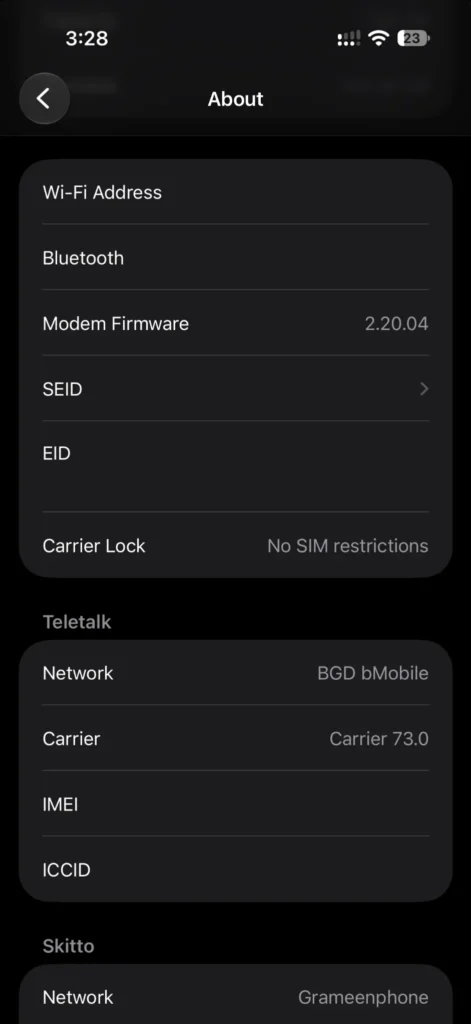
Check Carrier Lock Status
- Open Settings.
- Tap General.
- Select About.
- Scroll to Carrier Lock.
- Read the displayed status.
If your iPhone is unlocked, Apple says you should see:
No SIM restrictions
If the phone is locked, a different status may appear.
Insert genuine Screenshot 1 here: Carrier Lock status showing No SIM restrictions.
What If Your iPhone Is Carrier-Locked?
Contact the carrier to which the phone is locked.
Apple cannot independently remove a carrier lock on your behalf.
Avoid unofficial carrier-unlock websites or software claiming guaranteed removal of network restrictions.
If you’re switching carriers, confirm compatibility before purchasing or activating a new SIM.
A carrier lock is separate from Activation Lock, which is associated with your Apple Account and Find My.
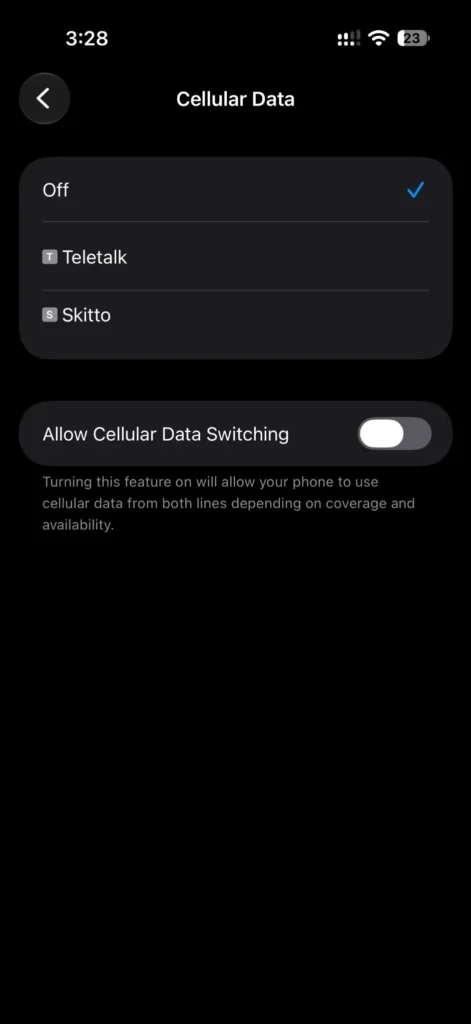
Fix 5: Check Whether Your SIM or eSIM Line Is Enabled
Modern iPhones can support multiple cellular plans.
Sometimes a plan has already been installed, but its line is disabled.
In this situation, the SIM may not actually be damaged.
Check Your Cellular Line
- Open Settings.
- Tap Cellular or Mobile Data.
- Find the installed plans under SIMs, if displayed.
- Select the affected line.
- Look for Turn On This Line.
- Make sure it is enabled if you intend to use that subscription.
Insert genuine Screenshot 2 here: Turn On This Line in Cellular settings.
If the line was disabled, enabling it may restore normal service.
What If Your Cellular Line Is Missing?
If the expected eSIM isn’t displayed, the digital SIM profile may not have been installed or provisioned correctly.
Contact the mobile carrier to check activation.
For detailed troubleshooting of QR code errors, pending activation, and mobile number transfers, see our iPhone eSIM Not Activating guide.
Do not select Delete eSIM to experiment. Removing a working profile can require your carrier to reissue or reactivate the subscription.
Fix 6: Check for a Carrier Settings Update
Your iPhone uses carrier settings to support communication with the mobile network.
These settings may include information related to network compatibility and supported cellular services.
A carrier settings update can sometimes address connection or compatibility issues.
How to Check
- Connect your iPhone to a working Wi-Fi network.
- Open Settings.
- Tap General.
- Select About.
- Wait briefly for an update prompt.
- If an update is offered, review it and choose Update or OK as appropriate.
Not every visit to the About screen produces an update prompt.
If no update appears, your iPhone may already have the carrier settings currently available to it.
Insert genuine Screenshot 3 here only if a carrier settings update prompt actually appears.
Why Is This Important After Changing SIM Cards?
A new mobile carrier may require different network settings.
Apple recommends checking carrier settings when installing a new SIM or investigating certain SIM-related errors.
However, a carrier settings update won’t repair a physically damaged SIM card.
If the error persists, continue with the appropriate hardware checks.
Fix 7: Reseat the Physical SIM Card
This step is only for iPhones equipped with a removable SIM tray.
If your iPhone is eSIM-only, skip this section.
A physical SIM may stop making reliable contact if it isn’t seated correctly or if the tray is damaged.
How to Reseat the SIM Safely
- Turn off your iPhone.
- Locate the actual SIM tray for your model.
- Insert a suitable SIM-eject tool into the tray’s eject hole.
- Apply gentle, straight pressure to open the tray.
- Remove the tray carefully.
- Inspect the SIM card for visible damage.
- Check that the card fits properly in the tray.
- Reinsert the tray fully and gently.
- Turn on the iPhone and check whether the SIM is recognized.
Never force the tray.
Do not insert an eject tool into an unfamiliar opening.
Some openings on iPhones are microphones, not SIM eject holes.
If you’re unsure where the tray is located, check Apple’s model-specific documentation before proceeding.
Insert optional genuine Screenshot 4 here: Photograph of the physical SIM tray, if your iPhone actually has one.
What Should You Look For?
Inspect the SIM card for:
- Visible cracks
- Bent or damaged surfaces
- An incorrect SIM size
- A tray that doesn’t close properly
- Signs of liquid exposure or physical damage
Avoid touching the SIM contacts unnecessarily.
Don’t cut a SIM card manually to make it fit, use adhesive to hold it in place, or force an incompatible tray into the phone.
If the tray is damaged, seek professional assistance.
Fix 8: Test Another SIM Card or Request a Replacement
If your iPhone still displays No SIM or Invalid SIM after reseating the physical card, the SIM itself may be faulty.
Apple recommends testing with another SIM when appropriate.
How to Test Safely
- Confirm that your iPhone supports a physical SIM.
- Check that the test card is the correct size.
- Make sure the test carrier is compatible with your iPhone.
- Ask your carrier to test the existing SIM or provide a replacement.
- Check whether the replacement is recognized.
A carrier store can often help distinguish a defective SIM card from another issue.
What Do the Results Mean?
Replacement SIM works: Your original SIM card may have been faulty or improperly provisioned.
Neither SIM works: The problem may involve carrier compatibility, the SIM reader, device hardware, or another configuration issue.
The original SIM works in another phone: This suggests investigating your iPhone or its carrier compatibility more closely, although it isn’t definitive proof of a hardware failure.
If your phone is eSIM-only, ask the carrier to investigate its digital subscription instead of attempting physical-card tests.
Can SIM Problems Affect Incoming Calls?
Yes. If your iPhone cannot register with the network, normal incoming calls may fail.
However, if your SIM is recognized and incoming calls alone are being redirected, the problem may involve call settings or carrier features.
Our iPhone Calls Going Straight to Voicemail guide explains that separate scenario.
Fix 9: Update iOS and Contact Your Carrier or Apple Support
If your SIM still doesn’t work, check the device’s software and ask the appropriate support provider to investigate.
Check for an iOS Update
- Connect to reliable Wi-Fi.
- Open Settings.
- Tap General → Software Update.
- Check whether a compatible update is available.
- Back up important information.
- Follow Apple’s normal update instructions.
Software updates can sometimes address compatibility problems.
However, an iOS update can’t repair a defective SIM reader or restore a canceled cellular subscription.
When Should You Contact Your Carrier?
Contact your carrier if:
- Your plan is inactive or incorrectly provisioned.
- A replacement SIM is required.
- Your eSIM won’t activate.
- Your number transfer is incomplete.
- The device can’t register on the network.
- You suspect a carrier lock.
- A network outage or account restriction is involved.
Your carrier can check subscription and network information that isn’t available within ordinary iPhone settings.
When Should You Contact Apple?
Consider Apple Support if:
- Multiple compatible SIM cards aren’t detected.
- Your carrier confirms that the account and SIM are working.
- The SIM tray or reader appears damaged.
- The phone was dropped or exposed to liquid before the problem began.
- Cellular hardware diagnostics indicate a possible device issue.
Apple’s support app can provide additional diagnostics on certain supported iPhones.
Start at Apple Support’s cellular connection troubleshooting guide.
SIM Card Not Working on iPhone 17 Pro: What Is Different?
The iPhone 17 Pro can have different cellular hardware depending on where the device was originally sold.
Some regional models are eSIM-only.
Other models support a physical nano-SIM alongside eSIM.
If Your iPhone 17 Pro Is eSIM-Only
Don’t look for a removable SIM tray.
Instead:
- Open Settings → Cellular.
- Check whether the expected eSIM appears.
- Make sure the intended line is enabled.
- Confirm your cellular subscription is active.
- Check carrier settings updates.
- Contact your carrier if the plan is missing or cannot connect.
Never attempt to open the device to insert a physical SIM.
If Your iPhone 17 Pro Supports a Physical SIM
You can follow the physical-SIM troubleshooting steps if you’re actually using a removable card.
If you use an eSIM instead, troubleshoot the installed digital line.
The same iPhone can support different cellular configurations depending on its regional model.
iPhone Says No SIM After an iOS Update
If the problem appeared immediately after updating iOS, start with the least disruptive checks.
First, restart your iPhone.
Then check:
- Whether the cellular line is enabled
- Whether a carrier settings update is available
- Whether the mobile plan is still active
- Whether the iPhone recognizes the SIM or eSIM
- Whether other customers of the carrier are experiencing problems
An update-related timing coincidence doesn’t automatically mean iOS damaged your SIM.
The carrier may also be experiencing an unrelated problem.
If the SIM is visible in Settings but cellular connectivity fails, investigate network registration and coverage.
SIM Recognized but Showing No Service or SOS
This is a different situation from an iPhone displaying No SIM.
When your iPhone recognizes the subscription but cannot connect to the normal cellular network, possible explanations include:
- A local carrier outage
- Poor coverage
- A suspended subscription
- Network registration problems
- Incomplete cellular activation
- Device restrictions or hardware issues
Try Airplane Mode for at least 15 seconds and restart your iPhone.
Contact the carrier to verify coverage and the status of your subscription.
If the device shows SOS or SOS Only, emergency calling may still be possible through supported networks in certain regions.
But this doesn’t mean your ordinary cellular service is functioning.
For country-specific behavior and official troubleshooting, see Apple’s No Service, SOS, and Searching support guide.
Should You Reset Network Settings to Fix SIM Problems?
A network settings reset is sometimes suggested for cellular connection problems.
However, it isn’t the first thing to try when your iPhone physically cannot detect a SIM.
Resetting network settings won’t repair a broken SIM card, fix a damaged reader, remove carrier restrictions, or activate an unprovisioned eSIM.
If the SIM is already recognized and Apple or your carrier recommends resetting network settings for a persistent connectivity problem, you can review the option at:
Settings → General → Transfer or Reset iPhone → Reset → Reset Network Settings
This removes saved network configurations, including remembered Wi-Fi networks and certain VPN settings.
It does not normally erase photos or ordinary app data, but you’ll need to reconnect to Wi-Fi networks afterward.
Do not choose Delete All eSIMs or Erase All Content and Settings. Those are different actions with much more serious consequences.
See Apple’s official guide to resetting iPhone settings before proceeding.
Can a Faulty SIM Card Affect Personal Hotspot?
Yes.
Personal Hotspot normally uses your iPhone’s active cellular internet connection to provide internet access to another device.
If the phone cannot connect to a carrier because of a SIM problem, Personal Hotspot may also fail to provide internet.
However, if calls and cellular data work normally on your iPhone but your laptop can’t connect to the hotspot, the issue is probably different.
See our iPhone Personal Hotspot Not Working guide for troubleshooting that situation.
Frequently Asked Questions
Why is my SIM card not working on iPhone?
Possible causes include an inactive cellular plan, a loose or damaged physical SIM, carrier restrictions, a disabled line, outdated settings, eSIM activation problems, or device hardware faults.
How do I fix No SIM on iPhone?
Start by confirming your mobile plan is active. Restart the phone, check Carrier Lock, install available carrier settings updates, and reseat the physical SIM if your model has one. Contact your carrier if the alert remains.
Does SIM Failure mean my SIM card is broken?
Not necessarily. SIM Failure can occur for multiple reasons, including communication or registration problems. Further testing is needed before concluding that the card itself is defective.
Can an iOS update cause SIM problems?
Cellular problems can appear after an iOS update, but the timing alone doesn’t establish the cause. Check the SIM or eSIM line, carrier settings, account status, and available updates.
Can I fix an Invalid SIM error without replacing the card?
Sometimes. An incompatible carrier, inactive plan, temporary software problem, or outdated carrier settings may be responsible. A replacement is appropriate when the card itself is faulty.
Does iPhone 17 Pro have a SIM card?
It depends on the regional model. Some iPhone 17 Pro models are eSIM-only, while models sold in many other regions also have a physical nano-SIM slot.
Should I delete my eSIM if it isn’t working?
No, not as an early troubleshooting step. Contact your carrier first to confirm how the profile can be reactivated or restored.
Can a SIM card stop working suddenly?
Yes. Physical card damage, unreliable contact, carrier provisioning problems, and other faults can develop or become apparent unexpectedly.
Will restarting my iPhone erase my eSIM?
No. A normal restart does not delete an installed eSIM profile.
Does resetting network settings fix No SIM?
Not reliably. It may help certain network configuration issues after the SIM has been recognized, but it doesn’t repair physical SIM damage or activate an absent eSIM profile.
What if my SIM works in another phone but not my iPhone?
Check carrier compatibility and the physical tray if applicable. If several compatible SIM cards fail in your iPhone, contact Apple Support for further hardware diagnosis.
Is No SIM the same as No Service?
No. No SIM indicates a SIM detection or subscription-recognition problem. No Service means the iPhone isn’t currently connected to its normal carrier network, even though it may recognize the SIM.
Final Thoughts
If your SIM card is not working on iPhone, start with simple, safe checks before attempting resets or replacing hardware.
Confirm your mobile plan is active, restart your device, inspect the carrier lock status, and verify that your cellular line is enabled.
For physical SIM cards, carefully reseating the card or having your carrier test a replacement may help.
For eSIM-only iPhones, focus on activation, carrier settings, and the installed cellular plan rather than physical SIM troubleshooting.
Most importantly, don’t delete an eSIM, erase your iPhone, or attempt hardware repairs without a clear reason.
If your carrier confirms that the account and SIM are functioning but the iPhone still cannot detect them, Apple Support can help determine whether service is required.