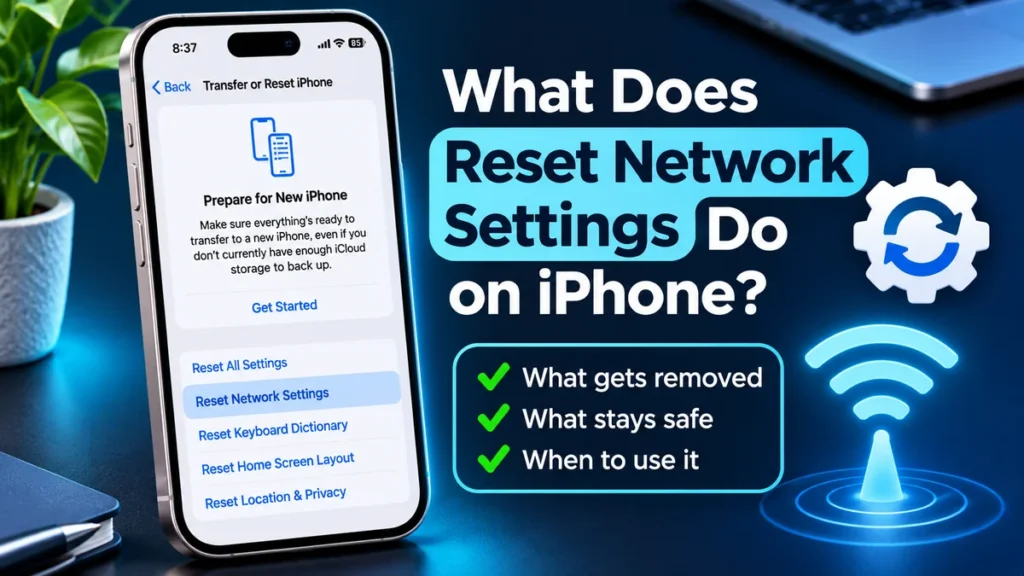
What does Reset Network Settings do on iPhone? If you’ve been troubleshooting Wi-Fi, cellular data, or internet connection problems, you’ve probably seen instructions telling you to reset your network settings.
But before pressing that button, you might wonder what actually happens.
Will your saved Wi-Fi passwords disappear? Will your iPhone lose its eSIM? What about Bluetooth devices, photos, messages, applications, and personal information?
Fortunately, Reset Network Settings is not the same as a factory reset.
It removes saved network configurations and returns certain connectivity preferences to their defaults without erasing your personal content.
However, it can still cause inconvenience because you’ll need to reconnect to wireless networks and may have to reconfigure some network services.
In this guide, we’ll explain exactly what Reset Network Settings removes, what stays safe, how it affects Wi-Fi and cellular connections, and when you should consider using it.
These instructions apply to recent iPhones, including the iPhone 17 Pro running iOS 27.
Quick Answer: What Does Reset Network Settings Do on iPhone?
Reset Network Settings removes saved network configurations from your iPhone and restores the affected settings to their defaults.
According to Apple, it resets or removes:
- Previously joined Wi-Fi networks and saved passwords
- Certain cellular network settings
- VPN settings that weren’t installed through configuration profiles or device management
- APN settings used for cellular connections
- Certain manually configured network preferences
- Manually trusted certificates, which return to an untrusted state
- Your customized device name, which returns to “iPhone”
Cellular data roaming may also be turned off.
However, the reset does not erase your photos, videos, contacts, text messages, installed apps, or personal documents.
It also doesn’t perform the separate Delete All eSIMs operation.
To find the option:
Settings → General → Transfer or Reset iPhone → Reset → Reset Network Settings
Apple recommends using this reset only after less disruptive troubleshooting steps haven’t resolved your connection problem.
For the official explanation, see Apple’s guide to resetting iPhone settings.
Table of Contents
What Does Reset Network Settings Delete on iPhone?
Although the reset doesn’t remove personal content, several important settings are affected.
Understanding these changes will help you prepare beforehand.
1. Saved Wi-Fi Networks and Passwords
Your iPhone remembers Wi-Fi networks you’ve connected to previously.
For example, you may have saved networks for your home, office, university, or another regularly visited location.
Reset Network Settings removes previously used network configurations and their stored connection information.
Afterward, you’ll generally need to select your Wi-Fi network and enter the password again.
This is one of the most noticeable effects.
2. Cellular Network Settings
The reset also affects cellular network settings.
These settings help your iPhone communicate with your mobile carrier.
Some carrier-provided configurations may be restored automatically when the phone reconnects, but custom settings can require attention.
Cellular data roaming may be disabled.
If you previously changed carrier-specific settings, review them after the reset.
3. VPN Configurations
VPN stands for Virtual Private Network.
A VPN can route traffic through a private or managed connection.
Reset Network Settings removes VPN settings that weren’t installed through a configuration profile or mobile device management.
However, Apple notes that managed VPN configurations may remain.
That distinction matters for people using work or school iPhones.
4. APN Settings
APN stands for Access Point Name.
APN settings help configure certain cellular data connections.
Most people never need to edit them manually because their carrier provides the appropriate configuration.
But if you’ve entered custom APN details, resetting network settings can remove those values.
You may need your carrier’s instructions to restore them.
5. Certain Trusted Certificates
Apple states that manually trusted certificates are changed to untrusted when you reset network settings.
Certificates can be involved in website security and some network authentication configurations.
This may matter if you use a workplace, school, or specialized network.
6. Your Customized iPhone Name
This is a less obvious change.
If you’ve renamed your iPhone, Reset Network Settings returns the device name to iPhone.
For example, a custom name such as “Office iPhone” may be replaced.
You can change it again afterward through:
Settings → General → About → Name
7. Certain Network Preferences
Previously configured network options may need to be set up again.
These can include settings such as custom network DNS or proxy configurations associated with removed Wi-Fi networks.
The exact impact depends on your existing setup.
If you use unusual network configurations, record the relevant settings before resetting.
What Does Reset Network Settings Not Delete?
This is the most important reassurance for people worried about losing personal information.
Reset Network Settings isn’t designed to erase your personal files.
Your Photos and Videos
Your saved photographs and videos remain on the iPhone.
The reset doesn’t clear your Photos library.
Your Installed Applications
Applications remain installed.
You don’t need to reinstall Gmail, WhatsApp, Instagram, Safari, or your other applications merely because you reset network settings.
Your Contacts
Saved contact information remains available.
The reset doesn’t intentionally delete contact cards, phone numbers, or email addresses.
Your Text Messages
SMS, iMessage conversations, and other locally stored Messages content aren’t erased by a network settings reset.
Your Personal Documents
Files stored in supported local applications aren’t deleted by this operation.
Your Apple Account
Reset Network Settings isn’t a command to sign out of your Apple Account.
However, services requiring an internet connection may be temporarily unavailable until you reconnect.
Your General Phone Settings
Unlike Reset All Settings, Reset Network Settings isn’t intended to restore all display, accessibility, sound, privacy, and personalization preferences to defaults.
It’s targeted at connectivity-related configurations.
Important: Don’t confuse Reset Network Settings with Erase All Content and Settings. The latter is a substantially different operation that removes personal content.
Does Reset Network Settings Delete Wi-Fi Passwords?
Yes.
Apple explicitly states that the reset removes previously used Wi-Fi networks and their passwords.
That means your iPhone may no longer automatically reconnect to networks whose saved configurations were removed.
What Should You Do Before Resetting?
Make sure you can access the passwords for important networks.
For example:
- Identify your home Wi-Fi network.
- Confirm you know its password.
- Save any workplace network instructions somewhere secure.
- Check whether your network requires special login credentials.
- Make sure you can access another internet connection if necessary.
Will Wi-Fi Turn Off Permanently?
No.
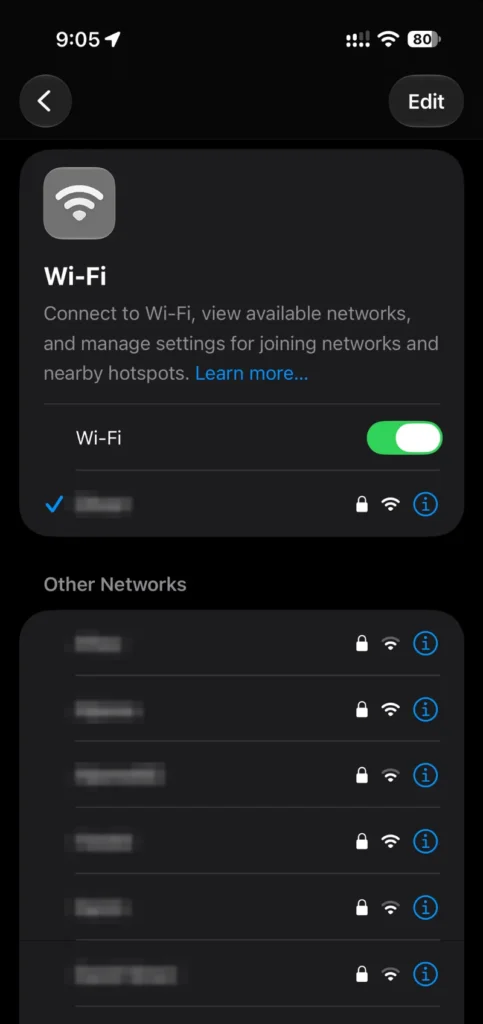
Apple explains that Wi-Fi turns off and then back on during the reset.
The Wi-Fi and Ask to Join Networks settings remain enabled.
However, you may be disconnected from your current network.
How Do You Reconnect?
After the reset:
- Open Settings → Wi-Fi.
- Select the network you want to join.
- Enter its password.
- Confirm that a checkmark appears.
- Open Safari and test your internet connection.
If your iPhone connects to Wi-Fi but still cannot access websites, follow our iPhone Connected to Wi-Fi but No Internet troubleshooting guide.
That guide covers router problems, DNS issues, and other possible causes.
Does Reset Network Settings Delete Your eSIM?
No. Reset Network Settings is different from Delete All eSIMs.
Apple provides a separate reset-menu option specifically for deleting eSIM profiles.
That means you shouldn’t confuse the two operations.
What Happens to Cellular Service?
Your cellular settings can be reset.
Depending on the carrier and device configuration, the iPhone may need to reconnect or restore applicable settings.
However, resetting network settings doesn’t automatically mean your cellular subscription has been canceled.
Why Is This Important?
Reactivating an eSIM can require assistance from your mobile carrier.
Some carriers may require additional verification, a QR code, or a new activation process if an eSIM is deliberately deleted.
Don’t choose Delete All eSIMs unless that’s specifically what you intend to do.
Should You Reset Network Settings to Fix an eSIM Problem?
Not necessarily.
First check:
- Whether your cellular line is enabled
- Whether your carrier reports a service outage
- Whether Airplane Mode is off
- Whether an iOS or carrier settings update is available
- Whether the problem affects all cellular services
For broader connectivity troubleshooting, see our iPhone Cellular Data Not Working guide.
If your carrier manages special settings, consult it before resetting.
Does Reset Network Settings Remove Bluetooth Devices?
This question is more complicated than many tutorials suggest.
Several third-party guides say a network reset removes Bluetooth pairings.
However, Apple’s current description of Reset Network Settings does not explicitly list all Bluetooth pairings among the items it removes.
Apple does explicitly list Bluetooth pairings under the broader Reset All Settings operation.
Therefore, don’t assume Reset Network Settings is guaranteed to remove every Bluetooth pairing on every supported iOS version.
What Should You Expect?
A connected accessory may temporarily disconnect when connectivity settings change.
If an accessory fails to reconnect afterward, you may need to pair it again.
However, you shouldn’t perform a network reset solely because you want to remove one Bluetooth device.
How to Reset One Bluetooth Connection Instead
- Open Settings → Bluetooth.
- Find the affected accessory.
- Tap the information button beside it.
- Choose Forget This Device, if available.
- Put the accessory into pairing mode.
- Pair it again.
This is more targeted than clearing unrelated Wi-Fi and cellular configurations.
What About AirPods and Apple Watch?
Don’t reset your whole network simply because an accessory isn’t connecting.
Use that accessory’s supported troubleshooting procedure first.
Apple Watch has additional pairing and device-management behavior that shouldn’t be treated as identical to an ordinary Bluetooth speaker.
What Happens to VPN and APN Settings?
Reset Network Settings removes certain VPN and APN configurations.
However, not every VPN configuration is treated identically.
Manually Configured VPN Connections
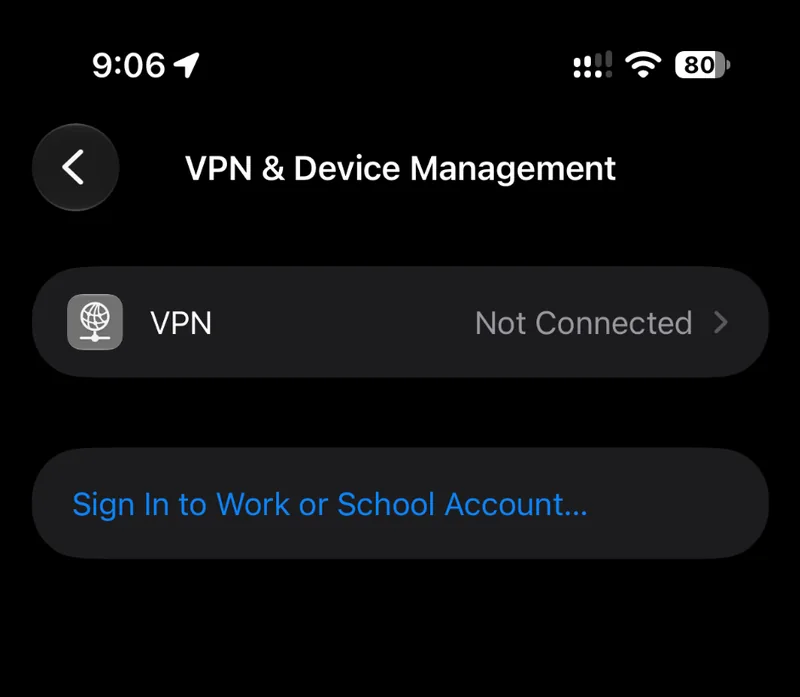
VPN settings that you entered yourself and that weren’t installed through a configuration profile or device management can be removed.
You may need to recreate the configuration afterward.
Managed VPN Connections
Apple states that VPN configurations installed by configuration profiles or mobile device management may remain.
If your organization manages the device, consult its IT department before resetting.
APN Settings
APN configurations used by your cellular provider can also be reset.
If you entered custom APN settings, record them before proceeding.
Don’t invent APN values or copy values from another carrier.
Use information provided by your own carrier.
How to Reset Network Settings on iPhone
If you’ve decided that resetting is appropriate, follow these steps.
The process is similar across recent iPhone models.
Step 1: Open Settings
Unlock your iPhone.
Open the Settings app.
Step 2: Go to Transfer or Reset iPhone
- Tap General.
- Scroll down.
- Select Transfer or Reset iPhone.
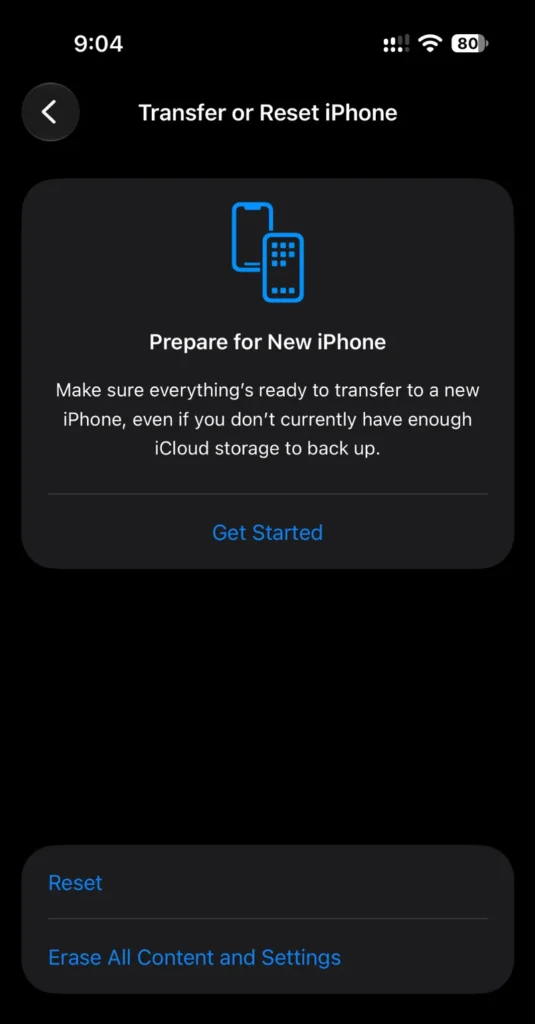
You’ll see options relating to resetting or preparing the device for transfer.
Be careful to distinguish between them.
Step 3: Select Reset Network Settings
- Tap Reset.
- Review the available reset options.
- Select Reset Network Settings.
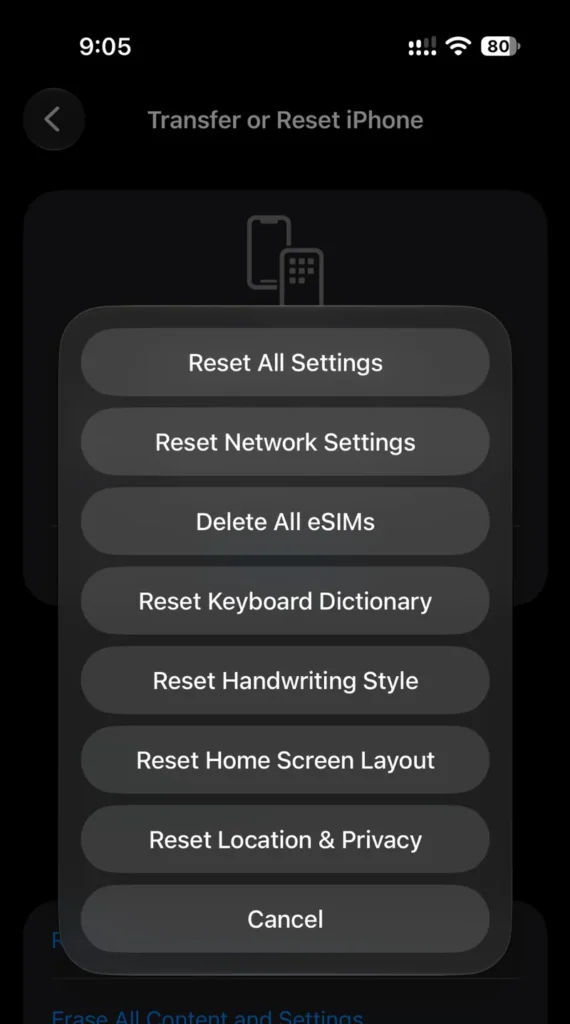
Don’t select Erase All Content and Settings.
Also don’t select Delete All eSIMs.
These perform different operations.
Step 4: Confirm the Reset
Your iPhone may request its passcode.
Follow the on-screen confirmation instructions only if you’ve decided to proceed.
The phone will clear the applicable network settings and disconnect from saved networks.
Step 5: Reconnect to Your Network
Once the operation finishes:
- Open Settings.
- Select Wi-Fi.
- Choose your network.
- Enter its password.
- Test the connection.
If you use a custom VPN or carrier configuration, review those settings too.
Note: You don’t need to carry out the actual reset to understand this guide or capture its screenshots.
Apple documents these steps in its Wi-Fi troubleshooting instructions.
What Should You Do Before Resetting Network Settings?
Although this reset doesn’t erase ordinary personal content, preparation can make the process less disruptive.
Save Important Wi-Fi Passwords
Check that you can reconnect to networks you use regularly.
Avoid storing passwords in publicly accessible documents or screenshots.
Record Custom Network Settings
If you use manual DNS, proxy, VPN, or APN configurations, save the required settings securely.
Check Work or School Device Management
Some devices use organization-managed network profiles.
Apple advises consulting the network administrator before performing the reset on devices configured by a school or business.
Make Sure Another Connection Is Available
If you need internet access to retrieve passwords or configuration instructions, arrange that before resetting.
Consider a Backup
A backup isn’t generally required to protect personal content from Reset Network Settings.
However, Apple recommends backing up if you want to preserve existing settings and potentially restore them later.
The reset itself shouldn’t be treated as a substitute for regular backups.
When Should You Reset Network Settings on iPhone?
Reset Network Settings is most appropriate after simpler troubleshooting fails.
Possible situations include:
Wi-Fi Keeps Disconnecting
If your iPhone repeatedly disconnects from several otherwise working Wi-Fi networks, a network reset may be worth considering.
But first try restarting the iPhone, checking the router, and forgetting the affected network.
Our iPhone Wi-Fi Keeps Disconnecting guide covers those preliminary steps.
Cellular Data Won’t Connect
If mobile data remains unavailable despite normal signal and carrier service, resetting network settings may help resolve certain configuration problems.
However, it won’t fix a carrier outage, exhausted data allowance, or damaged cellular hardware.
Personal Hotspot Doesn’t Work
Apple includes Reset Network Settings as a later troubleshooting step for certain Personal Hotspot problems.
Before resetting, confirm that your carrier supports Personal Hotspot and that the relevant settings are enabled.
Network Configuration Problems After an Update
Some network problems appear after software changes.
Restart the device and review updated carrier or network settings first.
If the problem persists and other causes have been ruled out, consider a reset.
Wi-Fi Is Greyed Out
If you cannot enable Wi-Fi at all, start by restarting the iPhone.
Apple specifically recommends restarting when the Wi-Fi setting appears dimmed or unavailable.
A network reset isn’t guaranteed to fix hardware-related Wi-Fi problems.
See our iPhone Wi-Fi Greyed Out guide for additional troubleshooting.
When Should You Avoid Resetting Network Settings?
A reset isn’t necessary for every internet or app problem.
Only One Website Doesn’t Load
If Safari and other sites work normally, investigate the specific website first.
One App Can’t Connect
If the issue affects only one application, check that app’s connection permissions, update status, and service availability.
Your Router Is Offline
Resetting the iPhone cannot restore an internet connection that the router or provider isn’t supplying.
Your Carrier Has an Outage
If mobile service is unavailable because of a carrier outage, changing iPhone network settings won’t restore the carrier’s network.
Your iPhone Has Physical Damage
Software resets cannot repair damaged antennas, cellular components, or other physical hardware.
Apple recommends treating Reset Network Settings as a later troubleshooting step, not the first solution.
Reset Network Settings vs Reset All Settings vs Factory Reset
These three options have different effects.
Reset Network Settings
Focuses on network-related configurations.
It removes saved Wi-Fi networks and certain cellular, VPN, APN, and other network settings.
Personal files remain intact.
Reset All Settings
Resets a much broader range of preferences.
Apple lists settings such as network configurations, display preferences, privacy controls, keyboard dictionary, Bluetooth pairings, and Apple Pay cards among those affected.
However, it doesn’t erase personal photos, videos, and documents.
Erase All Content and Settings
This is the factory-reset operation.
It removes personal information and content from the iPhone as part of preparing the device for a fresh setup.
Don’t confuse it with Reset Network Settings.
Which One Should You Use?
If your problem involves ordinary connectivity, try targeted network troubleshooting first.
If that fails, Reset Network Settings may be appropriate.
Reset All Settings is broader and should only be considered when justified.
Erase All Content and Settings is not an appropriate first response to a routine Wi-Fi problem.
Apple explains the differences in its official reset options guide.
What Happens Immediately After Reset Network Settings?
Your iPhone may briefly disconnect from the current network.
According to Apple, Wi-Fi is turned off and back on during the operation.
Previously saved Wi-Fi networks may no longer be available for automatic connection.
Will My iPhone Restart?
The reset process may include a brief interruption or restart depending on the device and software.
Follow the on-screen instructions and allow the process to complete.
Will Cellular Data Work Immediately?
It may reconnect using carrier-provided configurations, but custom settings can need attention.
Check the cellular connection afterward.
If necessary, consult your carrier.
Will My Apps Still Be There?
Yes.
Your installed apps remain on the device.
They may temporarily appear offline until your internet connection is restored.
Do I Need to Sign In to Every App Again?
Reset Network Settings doesn’t intentionally erase normal application login sessions.
However, certain apps or services may require you to reconnect to the internet or complete network-related authentication again.
Reset Network Settings Didn’t Fix My iPhone. What Next?
If the problem remains, determine whether it affects one network, several networks, or the entire device.
Test Another Wi-Fi Network
If one network fails but another works, investigate the router, network configuration, or internet service provider.
Test Another Device
Try connecting another device to the same Wi-Fi network.
If several devices cannot access the internet, the issue may be outside your iPhone.
Check Your Cellular Carrier
If cellular data remains unavailable, contact the carrier and ask whether your account or local service is affected.
Review VPN and Security Software
Some VPN or security applications can affect connectivity.
Review their configurations or contact their support provider if needed.
Check for Hardware Symptoms
If Wi-Fi remains unavailable across networks or the setting is consistently grayed out, professional inspection may be necessary.
Don’t repeatedly reset the same settings when the results indicate a different underlying cause.
Frequently Asked Questions
What does Reset Network Settings do on iPhone?
It removes previously saved network configurations and restores certain Wi-Fi, cellular, VPN, APN, and related settings to their defaults without erasing your personal files.
Does Reset Network Settings delete photos?
No. Your saved photos and videos aren’t deleted by this reset.
Will I lose my Wi-Fi passwords?
Yes. Previously used Wi-Fi networks and their saved passwords are removed, so you may need to enter passwords again.
Does Reset Network Settings delete eSIM?
No. Apple provides a separate Delete All eSIMs option. Reset Network Settings does affect certain cellular configurations.
Does Reset Network Settings remove Bluetooth connections?
Apple’s current network-reset description doesn’t explicitly guarantee that every Bluetooth pairing is deleted. Bluetooth devices may require reconnection, and Reset All Settings is a separate, broader operation.
Will I lose my text messages?
No. Reset Network Settings doesn’t erase your SMS or iMessage conversation history.
Does Reset Network Settings delete apps?
No. Installed apps and their ordinary stored data aren’t erased by this operation.
Does Reset Network Settings affect cellular data?
Yes. Cellular network settings can be reset. Your phone may need to restore carrier settings or reconnect to cellular service.
Does Reset Network Settings delete VPN?
It removes VPN settings that weren’t installed through device-management or configuration profiles. Managed VPN settings may remain.
Will Reset Network Settings delete my Apple Account?
No. It isn’t an Apple Account sign-out operation.
Does Reset Network Settings change my iPhone name?
Yes. Apple states that the device name returns to “iPhone.”
Can resetting network settings fix Wi-Fi problems?
It can resolve certain configuration-related problems, but it isn’t guaranteed to fix router outages, ISP problems, or hardware failures.
Do I need to back up before resetting network settings?
A backup isn’t normally necessary to protect personal content from this specific reset, but Apple recommends backing up if you want to preserve your settings.
How often should I reset network settings?
There is no reason to reset them on a regular schedule. Use the option only when troubleshooting justifies it.
Final Thoughts
Now you know what Reset Network Settings does on iPhone and why Apple includes the feature.
It removes saved Wi-Fi networks and passwords, resets certain cellular and VPN configurations, and returns related network preferences to their defaults.
However, it doesn’t erase your photos, videos, messages, apps, or personal documents.
It also doesn’t perform the separate Delete All eSIMs operation.
Before using it, make sure you know your important Wi-Fi passwords and have any necessary VPN or carrier configuration details.
Start with simpler troubleshooting steps, such as restarting your iPhone, checking your router, and reconnecting to the affected network.
Reset Network Settings can be useful for persistent connection problems, but it should be a carefully chosen troubleshooting step rather than a routine fix.