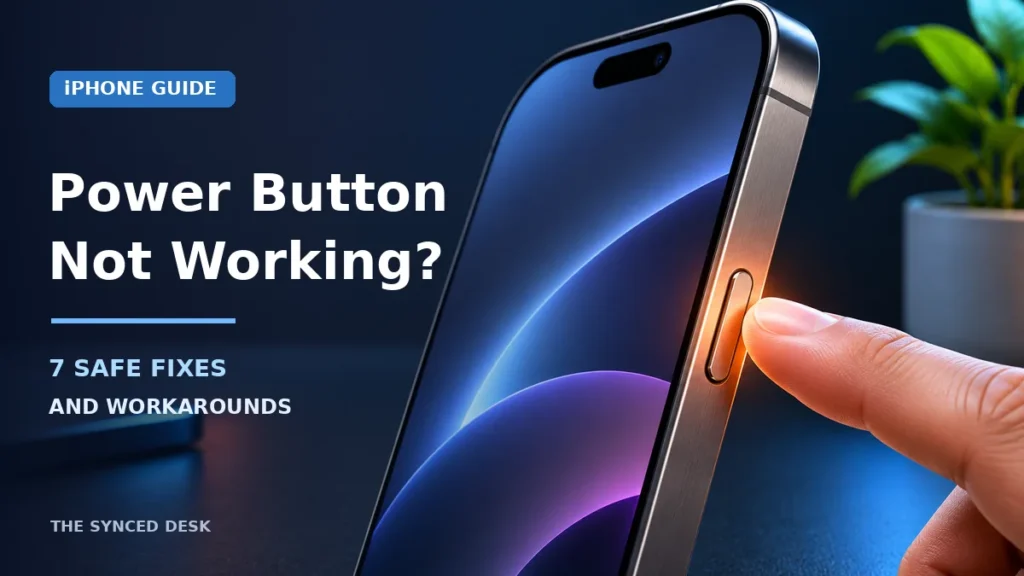
iPhone power button not working? Maybe your iPhone won’t lock when you press the button, the Side button feels stuck, or nothing happens when you try to turn off your device.
You might also notice that the button works occasionally but doesn’t respond consistently. Sometimes it clicks normally without triggering anything, while in other cases it feels unusually stiff or loose.
Fortunately, an unresponsive power button doesn’t always mean your iPhone needs an expensive repair.
A tight phone case, dust around the button, incorrect expectations about how the Side button works, or a temporary software issue can sometimes explain the problem.
However, physical damage or a failed button mechanism may require professional service.
In this guide, we’ll explain 7 safe fixes for an iPhone power button not working, including how to inspect the button, use AssistiveTouch, lock your screen without pressing anything, restart your device, and determine when repair is necessary.
These instructions apply to recent models, including the iPhone 17 Pro, although some menu options vary by iOS version.
Quick Answer: How to Fix an iPhone Power Button Not Working
If your iPhone Side button isn’t responding, try these steps:
- Remove your phone case or protective film.
- Inspect the Side button for dust, debris, or physical damage.
- Test whether the button responds correctly to a single press.
- Enable AssistiveTouch to lock the screen without using the button.
- Use AssistiveTouch or supported on-screen controls to restart or shut down the device.
- Review Side Button accessibility settings if double-click or triple-click actions aren’t working.
- Check for software updates and seek Apple service if the physical button remains faulty.
Important: If your Side button is completely broken, avoid deliberately turning off your iPhone unless necessary. Restarting or shutting down a phone with a nonfunctional power button may make it harder to turn back on.
Apple recommends removing obstructive cases, inspecting the button for debris, cleaning with a soft cloth, and requesting service if the problem continues.
See Apple’s official Side button troubleshooting guide.
Table of Contents
Why Is My iPhone Power Button Not Working?
The iPhone power button is officially called the Side button on recent models.
It performs several functions, including locking the screen, waking the device, activating Siri when configured, and confirming certain transactions.
Depending on the action, the button may respond to a short press, double-click, or long press.
If it stops functioning normally, several explanations are possible.
1. Your iPhone Case Is Blocking the Button
Some protective cases have stiff button covers or don’t fit perfectly around the device.
A case can make the Side button difficult to press, especially when it is slightly misaligned.
This is one of the easiest problems to investigate.
2. Dirt or Debris Is Affecting the Button
Pocket lint, dust, and other debris can accumulate around the Side button.
This may affect how the button feels or moves.
Avoid using sharp tools to remove debris from narrow gaps.
3. The Button Is Physically Damaged
A drop or impact can affect the Side button mechanism even when the screen and frame appear undamaged.
If the button feels sunken, unusually loose, or completely stuck, physical damage becomes a possibility.
4. The iPhone Is Temporarily Unresponsive
Sometimes the issue isn’t the button itself.
If iOS has frozen or the display isn’t responding, pressing the Side button may appear to do nothing.
You need to distinguish a device-wide problem from a genuinely defective button.
5. You’re Using the Wrong Button Combination
On Face ID iPhones, holding the Side button alone normally doesn’t display the standard power-off slider.
The usual hardware shutdown method requires the Side button and either Volume button.
That distinction can make a functioning button appear faulty.
6. Accessibility Settings Affect Multiple Clicks
iOS allows users to adjust how quickly a double-click or triple-click must occur.
If Apple Pay or another multiple-click action doesn’t respond reliably, click-speed settings may be relevant.
However, they won’t repair a physically broken switch.
Fix 1: Remove Your Case and Check for Obstructions
Before changing any software settings, remove your iPhone case.
This is especially important if the problem started after installing a new case or protective accessory.
How to Check the Side Button
- Remove the iPhone from its case.
- Look at the Side button on the right edge.
- Inspect the surrounding frame.
- Check whether anything covers or presses against the button.
- If the button doesn’t look damaged, press it gently once.
- Observe whether the screen locks or wakes.
Insert genuine Image 1 here: Close-up photograph of your iPhone 17 Pro Side button.
What If the Button Works Without the Case?
The case may be interfering with the button.
Check whether the case is the correct model and whether its button cover is properly aligned.
If it repeatedly causes the problem, use a better-fitting case.
What If Nothing Changes?
If the button remains unresponsive without a case, continue with the next checks.
Don’t repeatedly press harder in an attempt to force it to work.
Fix 2: Inspect and Clean the Side Button Safely
A dirty or obstructed button may not move normally.
Apple recommends checking for dirt or debris around unresponsive buttons and cleaning with a soft cloth.
Safe Cleaning Steps
- Disconnect charging cables.
- Turn off your iPhone only if the button situation allows you to restart it safely afterward.
- Inspect the button and surrounding frame.
- Use a clean, soft, lint-free cloth.
- Gently wipe the outside of the button and frame.
- Avoid pushing debris into the gap.
- Test the button again if it is safe to do so.
What Should You Avoid?
Don’t use:
- Sharp pins or needles
- Metal tools
- Excessive pressure
- Compressed air
- Liquid sprayed into the button gap
- Glue, oil, or unapproved lubricants
- Heat from a hair dryer
These methods can damage the device or introduce additional problems.
What If the Button Feels Stuck?
If the button remains physically stuck after removing the case and gently cleaning the exterior, stop attempting to force it.
A jammed or damaged button mechanism may require professional inspection.
If the issue followed a drop or liquid exposure, tell the technician when the problem began.
Fix 3: Check Whether the Side Button Is Actually Responding
Before assuming the hardware is damaged, verify which action isn’t working.
A single press and a long press do different things.
Test a Single Press
On a working iPhone with Face ID:
- Unlock your iPhone.
- Press the Side button once.
- Check whether the display locks.
- Wake the iPhone by tapping the screen or lifting it.
- Press the Side button once again.
If the screen locks and wakes normally, the basic Side button function is working.
What Happens When You Hold the Side Button?
Depending on your Siri settings, pressing and holding the Side button may activate Siri.
It doesn’t necessarily open the power-off slider.
On an iPhone with Face ID, the normal hardware shutdown procedure is:
Press and hold the Side button and either Volume button, then drag the power-off slider.
If you were holding only the Side button and expecting the shutdown menu, the button may not be faulty.
Check the Correct Button on iPhone 17 Pro
The iPhone 17 Pro has several physical controls.
The Side button is different from the Camera Control and Action button.
If Camera Control doesn’t work, that’s a separate issue.
See our iPhone Camera Control Button Not Working guide for that specific control.
What If the Entire iPhone Doesn’t Respond?
If the screen remains black, the problem may involve power, battery, or display hardware.
A black screen doesn’t automatically mean the Side button is damaged.
Our iPhone Black Screen but Still On guide explains how to distinguish those situations.
Fix 4: Use AssistiveTouch Instead of the Power Button
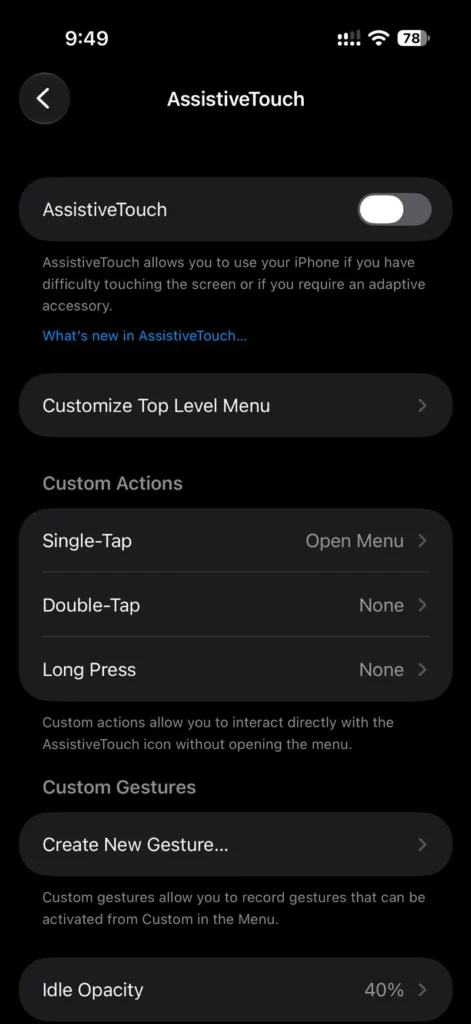
If your physical Side button isn’t working but the touchscreen still responds, AssistiveTouch is one of the most useful workarounds.
AssistiveTouch is an official Apple accessibility feature that provides an on-screen control for functions normally accessed through buttons or gestures.
It can help you lock the screen, restart the phone, access Siri, and perform other supported actions.
How to Enable AssistiveTouch
- Open Settings.
- Select Accessibility.
- Tap Touch.
- Open AssistiveTouch.
- Turn on AssistiveTouch.
A floating button should appear on the screen.
How to Lock the Screen Without the Power Button
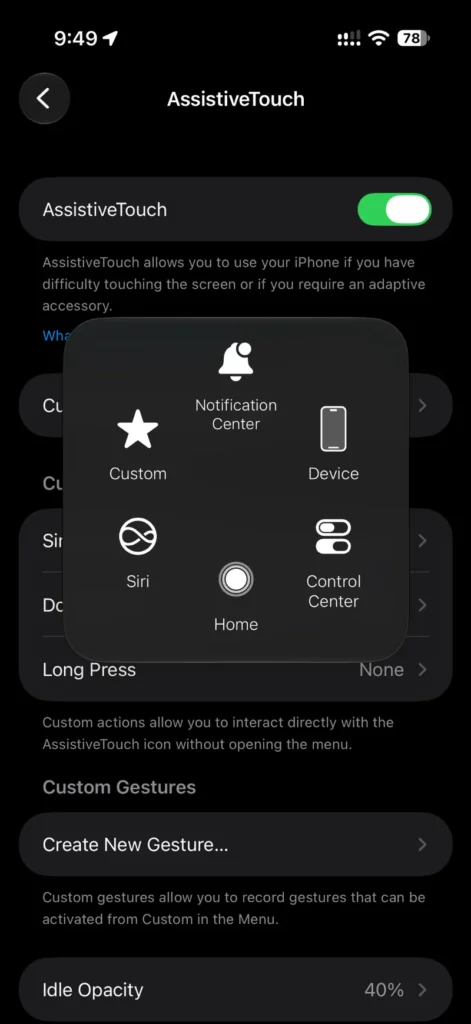
- Tap the floating AssistiveTouch button.
- Select Device.
- Tap Lock Screen.
Your iPhone should lock without requiring the physical Side button.
Can You Customize AssistiveTouch?
Yes.
Open:
Settings → Accessibility → Touch → AssistiveTouch
You can customize the top-level menu or assign certain actions to single-tap, double-tap, or long-press gestures.
For example, you may prefer assigning Lock Screen to a convenient gesture.
This can make everyday use easier while the Side button is unreliable.
Apple explains the supported controls in its official AssistiveTouch guide.
Can AssistiveTouch Repair the Button?
No.
AssistiveTouch provides an alternative way to perform certain actions.
It doesn’t repair the physical button mechanism.
If the Side button is physically damaged, consider it a temporary accessibility workaround while arranging the appropriate repair.
Fix 5: Restart or Turn Off iPhone Without the Power Button
You can access supported restart and shutdown controls without pressing the physical Side button.
However, there’s an important distinction between Restart and Shut Down.
If the Side button is completely broken, use the on-screen Restart function rather than deliberately switching the phone off, when possible.
Method 1: Restart Using AssistiveTouch
- Open Settings → Accessibility → Touch → AssistiveTouch.
- Enable AssistiveTouch.
- Tap the floating button.
- Select Device.
- Tap More.
- Select Restart, if available.
- Confirm the action.
This is an ordinary software restart.
It’s useful when the touchscreen and iOS are responsive.
Apple lists Restart as a supported AssistiveTouch function.
What If the Restart Option Doesn’t Appear?
You can customize the AssistiveTouch menu and review available actions.
The interface may differ slightly across iOS versions.
Don’t rely on third-party applications that claim to physically repair the Side button.
Method 2: Shut Down Through Settings
Apple also provides a button-free shutdown option.
- Open Settings.
- Tap General.
- Scroll to the bottom.
- Select Shut Down.
- Drag the power-off slider.
This turns off your iPhone without using the physical Side button.
Warning: If your Side button is completely nonfunctional, don’t use this method casually. Turning the phone on again normally requires the Side button, and you should not assume that connecting a charger will always solve the problem.
Method 3: Shut Down Through Control Center
On recent iPhones:
- Swipe down from the upper-right corner.
- Open Control Center.
- Find the Power icon near the upper-right corner.
- Touch and hold the icon.
- Drag the power-off slider when it appears.
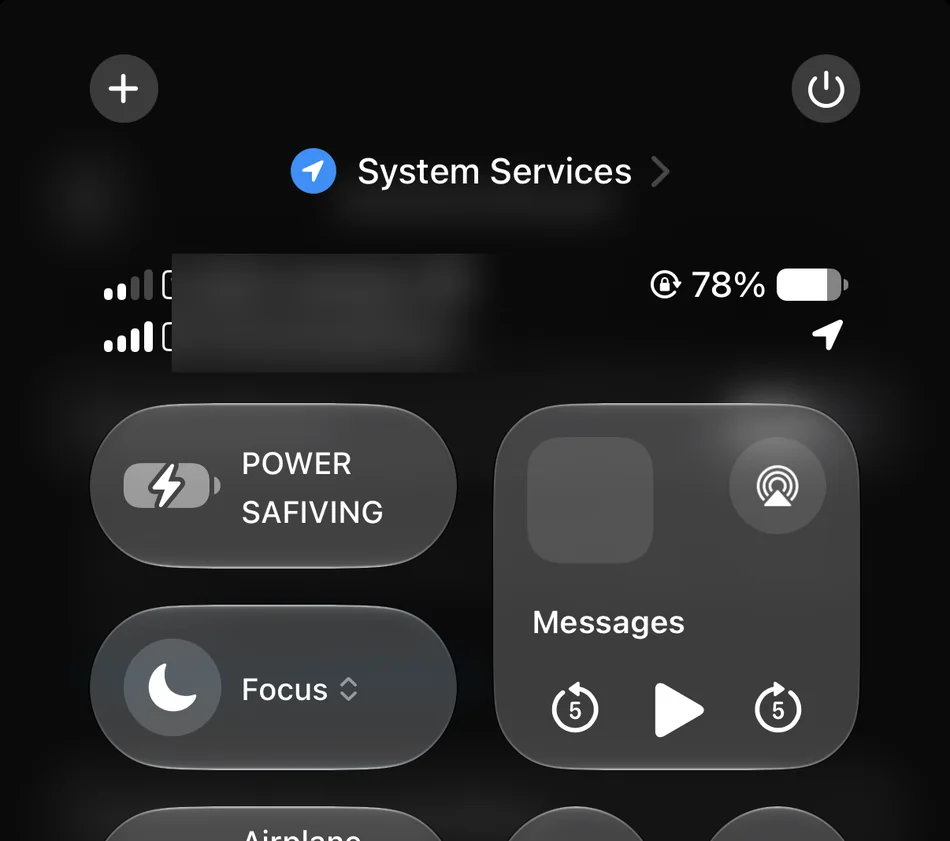
This is another official shutdown method.
It can be useful if the physical button responds unreliably but you have a safe plan for restarting the device.

Which Option Should You Choose?
If you need to restart a working iPhone with a damaged Side button, prefer the supported AssistiveTouch Restart action.
If you need to turn off the phone completely, Settings or Control Center can do that.
But remember that turning off and turning back on are different operations.
An on-screen shutdown option doesn’t guarantee you’ll be able to power on a device whose Side button has failed.
Fix 6: Adjust Side Button Click Speed
If the Side button works for normal single presses but doesn’t respond reliably to double-clicks or triple-clicks, check its accessibility settings.
This is especially relevant for people who have difficulty pressing the button quickly.
How to Change Side Button Click Speed
- Open Settings.
- Tap Accessibility.
- Select Side Button.
- Find Click Speed.
- Choose Default, Slow, or Slowest.
- Test the affected double-click or triple-click action.
Insert optional Screenshot 5 here: Side Button click speed options.
What Does Click Speed Change?
It changes how quickly consecutive button presses must occur for supported actions.
For example, a slower setting may make a double-click easier to perform.
Will This Fix a Button That Doesn’t Click at All?
No.
Click Speed won’t repair:
- A jammed physical switch
- A button that has broken internally
- Impact damage
- A button that no longer produces any input
It’s an accessibility adjustment for recognizing multiple presses.
What If Apple Pay Double-Click Isn’t Working?
On supported Face ID iPhones, Apple provides an accessibility option for confirming actions through AssistiveTouch or Switch Control.
Review Settings → Accessibility → Side Button for the available confirmation options.
This may help people who cannot reliably double-click the physical Side button.
For further information, see Apple’s Side Button accessibility settings guide.
Fix 7: Update iOS and Arrange Repair If Necessary
If the physical button still doesn’t work after checking the case, cleaning the exterior, and testing its normal behavior, determine whether software or hardware is more likely responsible.
Check for iOS Updates
If your iPhone is otherwise working:
- Open Settings.
- Tap General.
- Select Software Update.
- Check for a compatible update.
- Back up important information before installing.
- Install the update if appropriate.
- Test the Side button again.
A software update may resolve certain system problems.
However, it cannot repair a physically damaged switch.
What If the Side Button Is Intermittent?
An intermittent button may work some of the time and fail at other times.
If it remains unreliable without a case, especially after a drop, it may require professional inspection.
Avoid relying on it for essential functions when its behavior is unpredictable.
When Should You Contact Apple?
Apple recommends arranging repair when a button:
- Doesn’t work after basic checks
- Is visibly damaged
- Remains stuck
- Responds intermittently
The appropriate repair depends on the model, fault, warranty coverage, and service location.
Start with Apple’s official button repair guidance.
Should You Reset Your iPhone?
A factory reset isn’t the recommended first response to a physically unresponsive Side button.
It deletes device content and doesn’t repair damaged hardware.
If your button is stuck or mechanically defective, professional inspection is more appropriate than repeatedly erasing the device.
How to Lock an iPhone Without the Power Button
If the Side button is broken, you don’t need to leave the screen permanently unlocked.
You have two useful options.
Option 1: AssistiveTouch
Open the floating AssistiveTouch menu.
Select Device → Lock Screen.
This is the most convenient button-free locking method for many users.
Option 2: Automatic Lock
Your iPhone can lock automatically after a period of inactivity.
Open:
Settings → Display & Brightness → Auto-Lock
Choose an available interval that suits your needs.
For example, a short Auto-Lock period can help keep your phone secured without requiring the Side button for every lock.
The available choices may depend on Low Power Mode or other settings.
How Do You Wake the Screen?
On supported iPhones, including iPhone 17 Pro, you can wake the display by tapping it or lifting the device.
Apple documents both Tap to Wake and Raise to Wake as alternatives to pressing the Side button.
This means a broken Side button doesn’t necessarily prevent you from unlocking the phone while it remains powered on.
How to Turn On iPhone When the Power Button Is Broken
This is more complicated than locking the screen or shutting down.
Apple’s normal procedure for turning on an iPhone requires pressing and holding the Side button until the Apple logo appears.
If the Side button is physically broken, you may not have a reliable way to perform that action.
Should You Connect the Charger?
Connecting power is a reasonable check if your iPhone is off or the battery is depleted.
However, don’t assume it will reliably power on every iPhone with a damaged Side button.
If your iPhone won’t turn on, Apple recommends checking the battery and charging system.
Our iPhone Not Charging guide covers charging-related symptoms.
What If the Phone Still Won’t Turn On?
If the battery has charge but the device cannot be started using its normal controls, seek professional assistance.
Don’t attempt to open the device or short the button contacts.
iPhone Power Button Not Working After a Drop
A drop can damage a button without cracking the display.
Possible warning signs include:
- The button sits deeper than before.
- It feels unusually loose.
- It no longer produces a normal click.
- It requires excessive pressure.
- It responds only at certain angles.
- The surrounding frame is bent.
If you notice any of these symptoms, stop forcing the button.
External cleaning and accessibility settings won’t correct mechanical damage.
A repair technician can assess the mechanism and surrounding components.
iPhone Side Button Stuck or Constantly Pressed
A Side button that is stuck in a pressed position needs particular care.
Depending on the situation, unwanted button inputs can interfere with normal phone use.
Repeated or combined button presses may also trigger unintended system actions.
What Should You Do?
- Remove the case.
- Check whether anything is pressing the button.
- Avoid repeated forceful presses.
- Don’t use sharp tools to pull the button outward.
- Arrange inspection if it remains stuck.
If the problem follows a significant impact, professional service is the safer choice.
iPhone Power Button Not Working but Volume Buttons Work
This symptom can help narrow down the problem.
If both volume buttons respond normally while the Side button doesn’t, the issue may be limited to the Side button or its associated functions.
However, it doesn’t prove the cause.
What Should You Check?
Confirm whether:
- The touchscreen responds normally.
- The volume buttons work.
- AssistiveTouch can lock the screen.
- The Side button works without a case.
- The device recently suffered an impact.
If the rest of the iPhone works and the Side button remains mechanically unresponsive, professional diagnosis is appropriate.
Side Button Not Working for Siri
If the Side button locks the screen but doesn’t activate Siri when held, it may not be physically damaged.
Check your Siri settings and accessibility configuration.
Review Press and Hold to Speak
Open:
Settings → Accessibility → Side Button
Review the available Press and Hold to Speak setting.
The configured behavior may affect whether holding the button activates Siri.
You can also check the Siri settings for your iOS version.
If Siri itself is malfunctioning, follow our iPhone Siri Not Working troubleshooting guide.
That problem is separate from a Side button that cannot physically register a press.
Does a Broken Power Button Affect Force Restart?
Yes.
On modern iPhones, the standard hardware force-restart sequence requires pressing Volume Up, Volume Down, and then holding the Side button.
If the Side button cannot register presses, that sequence may not work.
AssistiveTouch provides an ordinary software restart while iOS is responsive, but it isn’t a reliable replacement for a hardware force restart when the phone is completely frozen.
If you’re struggling with the force-restart sequence rather than a broken Side button, follow the specific instructions in our upcoming iPhone Force Restart Not Working guide.
Don’t repeatedly force the hardware controls if the button is visibly damaged.
Can You Use iPhone Normally with a Broken Power Button?
In some cases, yes, temporarily.
If the display, touchscreen, and other essential functions still work, AssistiveTouch can help with everyday activities.
You can use supported on-screen controls to lock the device, adjust volume, access certain system functions, and restart a responsive iPhone.
However, a broken Side button may affect important actions that normally depend on physical button input.
That makes professional repair worth considering, especially when the button is completely unresponsive.
Frequently Asked Questions
Why is my iPhone power button not working?
Possible causes include a tight case, dirt around the button, physical damage, incorrect button combinations, or a software problem. Start with safe external checks.
How do I lock my iPhone without the power button?
Enable AssistiveTouch through Settings → Accessibility → Touch → AssistiveTouch, then tap Device → Lock Screen.
How do I restart my iPhone if the Side button is broken?
If the touchscreen and iOS are responding, use AssistiveTouch → Device → More → Restart, if available.
Can I turn off iPhone without using the power button?
Yes. Use Settings → General → Shut Down or the power control in Control Center. Be careful if the Side button is broken, because turning the phone back on may be difficult.
Why does my Side button click but not work?
The issue may involve a software response, an accessory, or a hardware fault. Test its basic screen-lock function without a case.
Can AssistiveTouch replace the iPhone power button?
AssistiveTouch can replace several everyday button actions, including locking the screen and restarting a responsive device. It doesn’t repair the physical button or fully replace every hardware function.
How do I wake iPhone 17 Pro without the Side button?
Tap the screen or raise the iPhone. Both methods are supported for waking a compatible iPhone.
Does changing Click Speed fix the power button?
It may help with double-click or triple-click recognition, but it won’t repair a button that is stuck or physically damaged.
Why doesn’t holding the power button turn off my iPhone?
On recent Face ID models, the standard physical shutdown procedure uses the Side button together with either Volume button.
Will updating iOS fix a broken Side button?
An update may address certain software problems, but it won’t repair mechanical damage.
Can I use Apple Pay if the Side button is broken?
Supported Face ID iPhones offer accessibility alternatives, such as AssistiveTouch or Switch Control, for certain actions normally requiring a Side button double-click.
Should I factory reset my iPhone to repair the Side button?
Not as a first step. A factory reset erases content and cannot repair a damaged physical switch.
What if the iPhone Side button is stuck after a drop?
Remove the case, avoid forcing the button, and arrange professional inspection if it remains stuck or damaged.
How much does iPhone power button repair cost?
Costs depend on the model, diagnosed fault, warranty status, and service provider. Get an estimate from Apple or an authorized repair provider.
Final Thoughts
If your iPhone power button is not working, start by checking for the simplest possible causes.
Remove the case, inspect the Side button, and clean the surrounding area gently with a soft cloth.
Next, verify that you’re using the correct button action.
If the touchscreen still works, AssistiveTouch is the most useful temporary workaround. It can help you lock the screen and restart the phone without using the physical button.
You can also access on-screen shutdown controls through Settings and Control Center, although you should avoid turning off a device that you may struggle to restart.
If the Side button is damaged, jammed, or continues to work intermittently, professional service is the appropriate next step.
You can often keep using an iPhone temporarily without its Side button, but accessibility workarounds are not a substitute for repairing failed hardware.