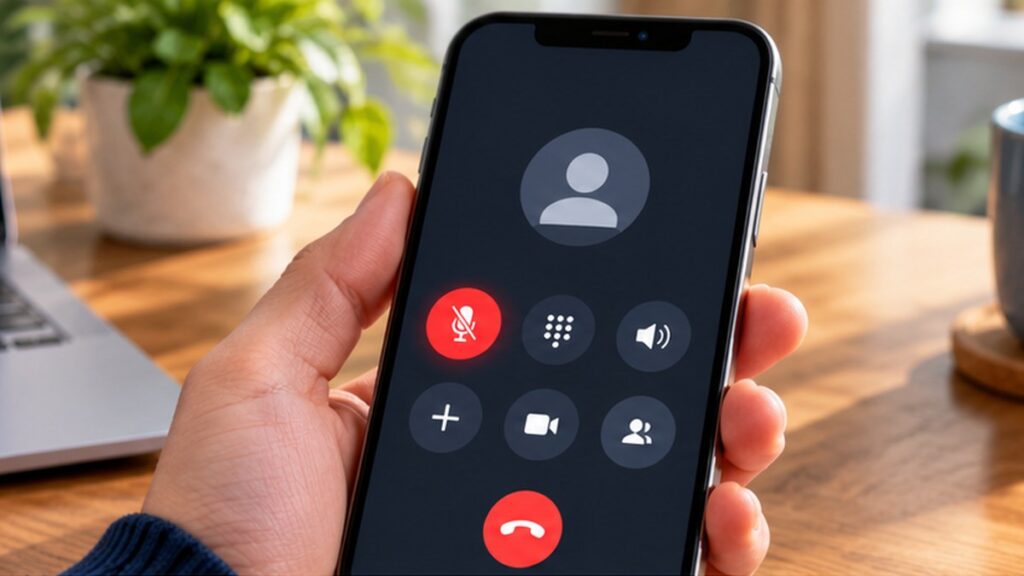
iPhone microphone not working on calls? Maybe people cannot hear you during phone calls, your voice sounds muffled, or the microphone works in one app but fails in another.
These problems can be frustrating, especially when you need to make an important call. Sometimes the cause is as simple as a muted microphone, a connected Bluetooth accessory, or a case covering a microphone opening.
Other times, software settings, network problems, or physical microphone damage may be involved.
Fortunately, there are several ways to investigate an iPhone microphone problem before considering a repair.
In this guide, we’ll explain 10 practical fixes for an iPhone microphone not working on calls, including how to test the microphones, check audio settings, and determine when professional service may be necessary.
Quick Answer: How to Fix iPhone Microphone Not Working on Calls
If callers cannot hear you on your iPhone, start with these checks:
- Make sure the microphone isn’t muted during the call.
- Open Voice Memos and record a short voice clip.
- Record videos using both iPhone cameras to test microphone performance.
- Remove any case or accessory that may obstruct the microphone openings.
- Disconnect Bluetooth headphones or other audio devices.
- Check microphone permissions if the problem happens in a specific app.
- Try a different microphone mode during a call.
- Restart your iPhone and check for available updates.
If the problem continues, compare normal calls, speakerphone calls, and recordings to identify the likely cause.
Important: Don’t insert sharp objects, liquids, or cleaning tools into the microphone openings. Improper cleaning can cause additional damage.
Why Is My iPhone Microphone Not Working?
Your iPhone uses built-in microphones for different activities, including calls, video recordings, and voice memos.
A microphone problem doesn’t always affect every feature in the same way.
Common symptoms include:
People cannot hear you during regular calls: The microphone may be muted, obstructed, or experiencing an audio-routing problem.
Your voice sounds muffled: Debris near a microphone opening, a case, or a damaged component may be affecting sound quality.
Microphone works in Voice Memos but not in an app: The application may have a permission or configuration problem.
Speakerphone calls sound different from normal calls: The device may be using a different microphone configuration.
Your Bluetooth headset works but the iPhone microphone doesn’t: The problem may involve the built-in microphones or the selected audio input.
All calls sound distorted: A cellular network problem may sometimes affect voice quality even when the microphone itself is functioning.
The first step is determining whether the problem involves the microphone hardware, a particular application, or the call connection.
1. Make Sure Your Microphone Isn’t Muted
Before changing any settings, check the microphone control on the call screen.
During an active phone call, your iPhone provides a Mute button that prevents the other person from hearing your voice.
If Mute is enabled accidentally, you may still hear the caller even though they cannot hear you.
To check:
- Start or answer a phone call.
- Look at the call controls on the screen.
- Find Mute.
- If the microphone is muted, tap the control to unmute it.
- Speak and ask whether the other person can hear you.
Make sure you’re looking at the correct call controls, especially if you’re using Bluetooth headphones or another connected device.
If callers can hear you immediately after unmuting, the problem is resolved.
If not, continue with the microphone tests below.
Note: Muting during a call is different from putting the iPhone into Silent mode. Silent mode primarily affects alerts and ringtone sounds.
2. Test Your Microphone With Voice Memos
One of the most useful ways to investigate microphone problems is to record your voice.
Apple recommends using Voice Memos when people cannot hear you clearly during phone or FaceTime calls.
This test can help determine whether the microphone is capable of recording speech.
Follow these steps:
- Open the Voice Memos app.
- Tap the Record button.
- Speak clearly near the bottom of your iPhone.
- Record a short sentence.
- Stop the recording.
- Play it back.
Your voice should be clearly audible.
If the recording sounds normal but phone calls don’t, the issue may involve call settings, audio routing, or cellular voice quality rather than a completely failed microphone.
If the recording is extremely quiet, distorted, or silent, inspect the microphone openings and continue with the other checks.
You can also test with a supported headset or external microphone, if available, to compare the results.
A clear recording doesn’t guarantee that every built-in microphone is working correctly because different features can use different microphones.
If people can hear you during phone calls but you cannot hear them, the issue may involve your iPhone’s speaker rather than its microphone. Read our guide, iPhone Speaker Not Working? 12 Fixes to Try (2026), for troubleshooting steps.
3. Test Your Microphone Using the Camera App
The Camera app provides another useful microphone test.
This is particularly helpful if callers cannot hear you while using speakerphone.
Apple recommends testing video recordings using both camera directions.
To perform the test:
- Open the Camera app.
- Switch to Video.
- Record a short video while speaking near the top of the iPhone.
- Stop recording.
- Switch to the other camera.
- Record another video while speaking.
- Play both videos.
Listen carefully to your recorded voice.
If both videos capture clear audio, the microphones used during those recordings appear to be functioning.
If one recording sounds normal but the other is distorted, the results may help Apple Support identify the problem.
Compare these results with your Voice Memos recording.
Important: The iPhone may use multiple microphones for video recording, depending on the model and settings. These tests provide useful clues, not a definitive hardware diagnosis.
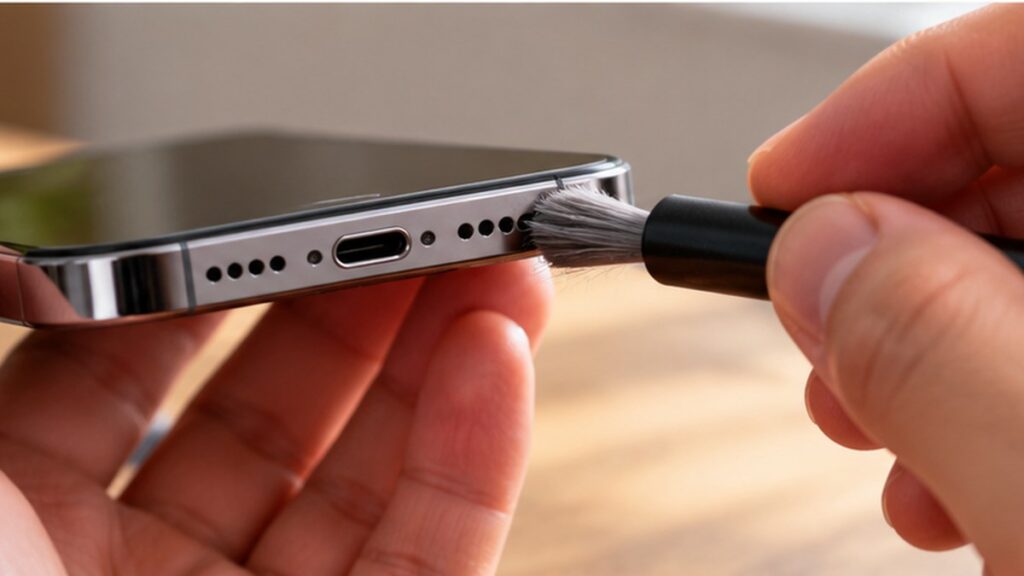
4. Remove Your Case and Check the Microphone Openings
Phone cases, screen protectors, dust, and debris can sometimes interfere with microphone performance.
Apple recommends removing cases and checking for obstructions when microphone sound is unclear.
Start with the simplest checks.
- Remove your protective case.
- Inspect the microphone openings for visible obstructions.
- Remove any film or accessory that covers the relevant area.
- Turn off the iPhone before cleaning its exterior.
- Use a soft, lint-free cloth to gently wipe the exterior.
- Test the microphone again.
Avoid introducing moisture into the openings.
Don’t use compressed air, needles, pins, or metal tools to clear microphone holes.
If debris appears embedded inside an opening, don’t force it deeper. Seek professional assistance if necessary.
It’s also worth checking whether a poorly fitted case obstructs a microphone when the phone is held in a certain position.
After removing the case, make another Voice Memos recording.
If the audio becomes clearer, the accessory or obstruction may have contributed to the problem.
5. Disconnect Bluetooth Headphones and Audio Accessories
Sometimes your iPhone isn’t using the microphone you expect.
For example, when AirPods, Bluetooth headphones, or another audio accessory is connected, a call may use the accessory’s microphone.
If that microphone has a problem, the other person may hear distorted or silent audio even though the iPhone itself is functioning normally.
Try disconnecting the accessory:
- Open Settings.
- Tap Bluetooth.
- Find any connected headset or audio device.
- Disconnect the accessory.
- Make a new call using the iPhone directly.
You can also review the selected audio destination during a call.
If you have multiple audio inputs connected, compatible iOS versions may allow you to change the audio input through the application’s controls in Control Center.
Test your voice again.
If callers can hear you clearly without the Bluetooth device, the problem may involve the accessory’s microphone, connection, or configuration.
If you regularly use AirPods or other wireless headphones, also check their microphone openings and connection settings according to the manufacturer’s instructions.
Related Reading: iPhone Bluetooth Not Finding Devices? 11 Fixes to Try (2026).
That guide covers Bluetooth discovery, connections, compatibility, and accessory troubleshooting.
6. Check Microphone Permissions for Individual Apps
If the microphone works during normal calls but fails in WhatsApp, Telegram, or another application, check the app’s microphone permission.
iOS requires applications to request access before using the microphone.
If access has been denied, the app may not be able to record or transmit your voice.
To check:
- Open Settings.
- Tap Privacy & Security.
- Select Microphone.
- Find the affected application.
- Make sure microphone access is enabled if you trust the app.
If the app doesn’t appear, it may not have requested microphone access yet.
Open the application and try starting its audio or calling feature.
Review any permission prompt that appears.
If permission is already enabled, check the application’s own audio settings and look for an available update.
You can also close and reopen the app.
If the microphone works in Voice Memos and the Phone app but continues to fail in one specific application, contact the application’s developer.
Important: Microphone permission controls primarily concern third-party applications. They aren’t a universal fix for normal cellular phone calls.
7. Check Voice Isolation and Microphone Mode
Your iPhone may provide different microphone processing options during compatible calls.
These settings control how voice and background sound are handled.
For example, Voice Isolation prioritizes your voice and reduces background noise.
Automatic Mic Mode can select an appropriate processing mode depending on the call.
If your voice sounds unnatural, too quiet, or excessively filtered, you can compare modes.
During a supported call:
- Open Control Center.
- Tap the current application’s controls near the top.
- Find Audio & Video.
- Look for Mic Mode.
- Compare Standard, Automatic, or Voice Isolation, where available.
- Ask the other person whether your voice sounds clearer.
Standard uses ordinary audio processing.
Voice Isolation is intended to prioritize speech over surrounding sounds.
Automatic can switch between suitable processing options on supported versions of iOS.
Available options depend on the iPhone model, software version, and application.
For ordinary phone calls, Wide Spectrum isn’t available in the same way as in certain supported FaceTime or third-party calling experiences.
Changing microphone processing won’t repair a physically damaged microphone, but it may help explain sound-quality differences between calls.
If your iPhone microphone works during calls but your screen recordings have no voice audio, the problem may be related to the screen recording microphone setting. Read our guide, iPhone Screen Recording Not Working? 12 Fixes to Try (2026), for detailed troubleshooting steps.
8. Restart Your iPhone and Update iOS
Temporary software issues can sometimes affect calling or audio behavior.
Restarting your iPhone is a straightforward troubleshooting step.
For an iPhone with Face ID:
- Press and hold the Side button and either Volume button.
- Wait for the power-off slider.
- Slide to turn off the device.
- Wait approximately 30 seconds.
- Turn the iPhone back on.
After restarting, test the microphone in Voice Memos and during a call.
If the issue continues, check whether an appropriate iOS update is available.
Open Settings → General → Software Update.
Review the update information and back up important data before installing.
If the problem appeared immediately after a software update, record which iOS version you’re using.
This information may be useful when contacting Apple Support.
Avoid erasing the phone or resetting all settings before identifying whether the issue affects apps, recordings, or only calls.
9. Compare Cellular Calls, Wi-Fi Calling, and App Calls
If Voice Memos and video recordings sound normal but people cannot hear you during cellular calls, the problem may involve the call connection.
Poor reception or carrier-related problems can sometimes affect transmitted voice quality.
Try the following:
- Make a normal cellular call.
- Ask the caller to describe the sound.
- Repeat the call from another location with better cellular coverage.
- If your carrier supports Wi-Fi Calling, test using a reliable Wi-Fi connection.
- Compare with a supported internet calling app.
The results may help distinguish microphone problems from network-related audio issues.
If ordinary cellular calls fail but internet calls and recordings work normally, contact your carrier to investigate service or call-quality problems.
If audio is unclear in every application and recording, the microphone hardware becomes a stronger possibility.
Related Reading: iPhone Calls Going Straight to Voicemail? 12 Fixes to Try (2026).
That guide focuses on incoming-call handling and cellular settings. It may be useful if you’re also experiencing problems receiving calls.
Another related guide is iPhone Cellular Data Not Working? 12 Fixes to Try (2026), which covers mobile connection problems.
Remember that a working mobile data connection doesn’t prove that cellular voice calling is functioning correctly.
10. Contact Apple Support if the Microphone Still Fails
If the microphone remains unclear or silent after testing recordings, removing accessories, checking permissions, and restarting, professional diagnosis may be necessary.
Apple notes that an iPhone may need service when microphones continue to malfunction.
Before contacting support, gather useful information:
- Your iPhone model.
- Your current iOS version.
- Whether Voice Memos records your voice clearly.
- Whether videos recorded with both cameras have clear audio.
- Whether the problem occurs during regular calls, speakerphone calls, or both.
- Whether Bluetooth accessories work normally.
- Whether the phone has been dropped or exposed to liquid.
These details can help narrow down the issue.
On compatible iPhone models and iOS versions, the Apple Support app may offer additional diagnostic options.
Use Apple’s official support channels or an Apple Authorized Service Provider.
If the phone has experienced liquid exposure or physical damage, avoid attempting a home repair.
Don’t insert objects into microphone openings or disassemble the phone yourself.
If the issue requires hardware repair, a qualified technician can evaluate the device safely.
Why Can Nobody Hear Me on My iPhone but I Can Hear Them?
If you can hear the other person but they cannot hear you, the problem concerns outgoing audio rather than the speaker you listen through.
Start by checking the Mute control.
Then record a Voice Memo and listen to it.
If the recording is silent or distorted, check for obstructions and possible hardware problems.
If the recording sounds normal, investigate Bluetooth audio routing, microphone processing, and the call connection.
Also ask whether the problem happens with every caller or only with one person.
If only one person is affected, their device or network may contribute to the issue.
iPhone Microphone Not Working on Speakerphone?
If the microphone works during ordinary calls but fails on speakerphone, test video recordings using both cameras.
Apple recommends this comparison when people cannot hear you through speakerphone.
Speak near the top of the iPhone while recording.
Then play the recordings and compare the audio.
If one test fails consistently, document the result before contacting Apple Support.
Don’t assume that the loudspeaker itself is broken. The microphone captures your outgoing voice, while the speaker plays incoming audio.
They perform different functions.
iPhone Microphone Working in Voice Memos but Not Calls?
A working Voice Memos recording is useful evidence that at least one microphone path is functioning.
If normal phone calls still have problems, investigate the selected audio input, Bluetooth connections, microphone mode, and cellular call quality.
Try calling from another location.
If the issue occurs only in a third-party app, check that application’s microphone permission.
If the same problem continues during cellular calls despite clear recordings, contact your carrier or Apple Support for further diagnosis.
Frequently Asked Questions
Why is my iPhone microphone not working during calls?
Common causes include accidental muting, blocked microphone openings, connected audio accessories, app permissions, temporary software problems, or microphone hardware faults.
How do I test my iPhone microphone?
Open Voice Memos, record a short sentence near the bottom of your phone, and play it back. You can also record videos using both cameras to compare microphone performance.
Why can I hear people but they cannot hear me?
Your iPhone may be muted, using an incorrect microphone input, or experiencing an outgoing audio problem. Check the Mute control and test Voice Memos first.
Can a phone case block the iPhone microphone?
Yes. A poorly fitted case, protective film, or debris can obstruct microphone openings and interfere with sound capture.
Does Silent mode turn off the microphone?
No. Silent mode primarily affects ringtone and alert sounds. It doesn’t normally disable the microphone used for calls.
Why does my microphone work on speakerphone but not normally?
Different calling modes can use different microphone configurations. Test Voice Memos and video recordings, then compare the results before assuming hardware failure.
Can Bluetooth headphones cause microphone problems?
Yes. A connected headset may become the selected audio input. If its microphone isn’t functioning correctly, callers may struggle to hear you.
How do I enable microphone permission for WhatsApp or another app?
Open Settings → Privacy & Security → Microphone and enable access for the affected application, if it appears in the list.
Does Voice Isolation improve microphone quality?
Voice Isolation can reduce background noise and prioritize your voice on supported devices and applications. It doesn’t repair a damaged microphone.
Will resetting my iPhone fix a microphone problem?
Not necessarily. A complete reset is not an appropriate first step. Test the microphones and review audio settings before considering major troubleshooting changes.
How do I clean the microphone openings safely?
Remove the case, turn off the iPhone, and gently clean its exterior with a soft, lint-free cloth. Avoid compressed air, sharp tools, moisture inside openings, and aggressive brushing.
When should I contact Apple Support?
Contact Apple Support if recordings remain silent or distorted after basic troubleshooting, or if the microphone problem began after physical or liquid damage.
Final Thoughts
If your iPhone microphone is not working on calls, begin with the simplest possible checks.
Make sure the microphone isn’t muted and test your voice using Voice Memos.
If the recording is unclear, remove the case and inspect the microphone openings for obstructions.
If recordings sound normal but callers cannot hear you, investiga