Want to enable Google Pixel WiFi Calling but can’t find the setting? Or maybe Wi-Fi calling is already switched on, yet your Pixel continues dropping calls, displays an activation error, or refuses to make calls over Wi-Fi.
Wi-Fi calling is particularly useful when cellular reception is weak inside your home, office, or another building.
Instead of relying entirely on a mobile tower, a supported Pixel can route regular phone calls through a Wi-Fi connection using your mobile carrier’s service.
However, Google Pixel WiFi Calling doesn’t work automatically on every carrier or mobile plan. Your carrier must support the feature, and some networks require additional activation or emergency-address verification.
In this guide, you’ll learn how to turn on Wi-Fi calling on Google Pixel, how to check whether it is working, and nine practical fixes for missing settings, connection errors, and dropped Wi-Fi calls.
The instructions apply to compatible Google Pixel devices. Available settings vary by model, Android version, carrier, and country.
Quick Answer: How to Enable Google Pixel WiFi Calling
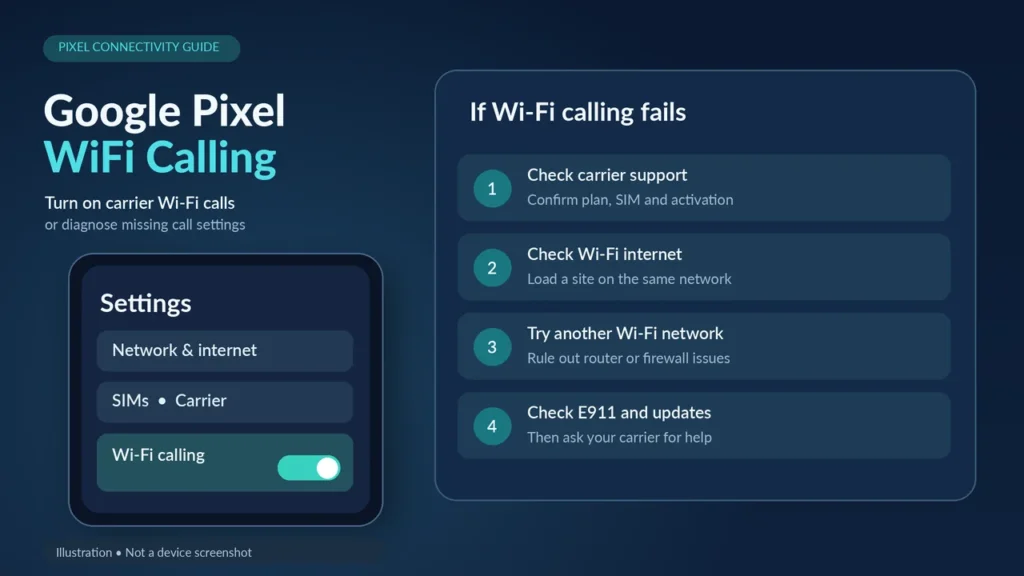
To enable Wi-Fi calling on a supported Google Pixel:
- Open Settings.
- Tap Network & internet.
- Select SIMs.
- Choose your active mobile carrier.
- Tap Wi-Fi calling.
- Turn on Use Wi-Fi calling.
- Complete any required carrier verification or emergency-address setup.
- Connect to a working Wi-Fi network.
- Place a test phone call.
If you can’t find the Wi-Fi calling option, your carrier may not support or enable the feature on your current phone and plan.
Google confirms this setup path in its official Wi-Fi calling instructions.
Important: Turning on Wi-Fi calling doesn’t guarantee that every call will use Wi-Fi. Your Pixel or carrier may choose the cellular network when it offers a better connection.
Table of Contents
What Is Google Pixel WiFi Calling?
Google Pixel WiFi Calling is a carrier-supported feature that allows you to make and receive regular phone calls using a Wi-Fi internet connection.
It can be especially helpful in locations where cellular reception is weak but Wi-Fi coverage is reliable.
For example, imagine you have almost no mobile signal in your apartment.
If your carrier supports Wi-Fi calling and the feature is activated, your Pixel may be able to place calls using your home Wi-Fi connection.
How Is It Different From WhatsApp Calling?
Wi-Fi calling uses your regular mobile phone number and the calling service provided by your mobile carrier.
WhatsApp, Messenger, and similar apps use their own internet-based calling systems.
With carrier Wi-Fi calling, you generally don’t need the person you’re calling to install a special application.
You can use your normal Phone app.
However, charges, international calling rules, and emergency-call behavior depend on your carrier.
How to Turn On Google Pixel WiFi Calling
The standard process is straightforward once your mobile carrier has enabled the necessary service.
Method 1: Enable Wi-Fi Calling Through Pixel Settings
- Open the Settings application.
- Select Network & internet.
- Tap SIMs.
- Choose the SIM or eSIM associated with your mobile number.
- Find Wi-Fi calling.
- Turn on Use Wi-Fi calling.
- Follow any activation instructions.
- Connect to a Wi-Fi network and make a test call.
Some carriers may ask you to register or confirm an emergency-service address.
Complete that process accurately using your carrier’s official instructions.
If the Wi-Fi calling menu is missing, don’t assume your phone is defective. Your mobile carrier may control whether the setting is visible.
Method 2: Enable Wi-Fi Calling Through the Phone App
On certain supported carrier configurations, Wi-Fi calling settings are accessible through the Phone app.
For example, Verizon documents a Phone app method for Pixel 11 models.
- Open the Phone app.
- Open the app’s menu.
- Select Settings.
- Tap Calling accounts.
- Choose your SIM or carrier.
- Select Wi-Fi calling.
- Enable the feature.
- Complete the carrier’s activation process if prompted.
This alternative isn’t available on every Pixel.
Verizon also documents the normal Settings → Network & internet → SIMs method for supported Pixel 10 devices.
For model-specific steps, see Verizon’s official Pixel Wi-Fi calling instructions.
Method 3: Turn On Wi-Fi Calling With Google Fi
If your Pixel uses Google Fi Wireless, the setup process can be different.
Google Fi provides a Wi-Fi calling control inside its mobile app.
- Open the Google Fi app.
- Select the relevant profile.
- Scroll to Phone settings.
- Tap Wi-Fi calling.
- Enable the feature.
- Connect to Wi-Fi.
- Place a test call.
Google Fi automatically selects between available cellular and Wi-Fi connections based on which is expected to provide a better experience.
If Wi-Fi calling is enabled but a call still uses cellular service, that behavior isn’t necessarily a malfunction.
See Google Fi’s official Wi-Fi calling setup guide.
How to Check if Wi-Fi Calling Is Working on Your Pixel
After enabling the feature, verify that your Pixel can actually place calls through Wi-Fi.
Check the Call Indicator
- Connect to a reliable Wi-Fi network.
- Open the Phone app.
- Call someone who agrees to help you test.
- Look for an available Wi-Fi calling indicator.
- Check whether the call connects and sounds normal.
Depending on the software and carrier, you may see Wi-Fi calling, Internet Call, or another carrier-specific indication.
The presence of a Wi-Fi icon by itself doesn’t always prove that the active phone call is routed over Wi-Fi.
Optional Diagnostic Test
Some carriers support placing a Wi-Fi call while Airplane mode is enabled and Wi-Fi is manually turned back on.
If your carrier supports this behavior, it can help isolate a Wi-Fi calling problem from ordinary cellular calling.
Don’t rely on this test for emergency calls, and turn Airplane mode off afterward.
If your carrier does not support Wi-Fi calling in that configuration, the test may fail even though normal Wi-Fi calling works.
Why Is Google Pixel WiFi Calling Not Working?
If Google Pixel WiFi Calling fails, several possible causes are worth checking.
Carrier restrictions: Your mobile provider might not support the feature on your device, SIM, or plan.
Missing activation: The carrier may need to activate Wi-Fi calling or verify emergency-address information.
Unstable Wi-Fi: A weak or interrupted connection can make calls unreliable.
SIM or eSIM issues: Incorrect carrier provisioning or an incomplete number transfer may interfere with activation.
Outdated software: A Phone app, system, or carrier-service problem can affect connectivity.
Network restrictions: Some routers, corporate networks, or VPN configurations may interfere with the connection.
Calling preferences: Your phone may choose cellular instead of Wi-Fi when the cellular connection is stronger.
Temporary connectivity problems: A device or network restart may restore normal operation.
Let’s work through the fixes from least disruptive to more advanced.
Fix 1: Confirm That Your Carrier Supports Wi-Fi Calling
The first thing to check is whether your mobile service provider actually supports Wi-Fi calling on your Pixel.
Not every carrier enables this feature on every device.
What to Check
- Identify your active carrier.
- Visit the carrier’s official support website.
- Search for Wi-Fi calling eligibility.
- Confirm that your Pixel model is supported.
- Check whether your mobile plan includes the feature.
- Ask whether additional activation is required.
If you’re in the United States, major carriers such as Verizon, T-Mobile, and AT&T provide Wi-Fi calling on supported devices and plans.
However, eligibility can depend on the particular Pixel model, software configuration, and how the device was obtained.
Why the Setting May Be Missing
Carrier provisioning can influence whether the Wi-Fi calling option appears in Android.
If the setting is absent, contact your carrier to confirm that Wi-Fi calling is enabled for your line.
Don’t download unofficial apps or modify hidden Android settings to force activation.
Tip: If you recently switched mobile providers, the new carrier may need to update your SIM or eSIM provisioning before Wi-Fi calling becomes available.
Fix 2: Check Your Wi-Fi Connection
Wi-Fi calling requires a usable internet connection.
A Pixel can show that it is connected to Wi-Fi even when the network has lost internet access.
Steps
- Open Settings → Network & internet.
- Select Internet.
- Confirm that Wi-Fi is enabled.
- Connect to your preferred network.
- Open Chrome.
- Load a website that you haven’t recently visited.
- Check whether the page opens normally.
- Try placing a Wi-Fi call again.
If webpages fail to load, investigate the Wi-Fi network before changing your phone’s calling settings.
Try Another Wi-Fi Network
If possible, connect your Pixel to another trusted Wi-Fi network.
If calls work on the second network but not the first, the problem may involve the original router, internet connection, or network restrictions.
Google recommends testing another network when Wi-Fi connectivity problems persist.
Read Google’s official Pixel Wi-Fi troubleshooting guide.
Remember: Wi-Fi calling and an Android mobile hotspot are different features. If you’re trying to share your phone’s internet with another device, see our Android Hotspot Not Working guide.
Fix 3: Turn Wi-Fi Calling Off and Back On
If the feature previously worked but suddenly stopped, restarting the Wi-Fi calling connection may help.
Steps
- Open Settings.
- Select Network & internet → SIMs.
- Choose your active carrier.
- Tap Wi-Fi calling.
- Turn off Use Wi-Fi calling.
- Wait briefly.
- Turn the feature back on.
- Complete any required activation prompts.
- Place a new test call.
This can help with a temporary setting or connection problem.
However, it won’t solve a carrier account that hasn’t been provisioned correctly.
What if the Toggle Won’t Stay On?
Google explains that Android may automatically disable Wi-Fi calling when it detects certain problems.
If the issue continues, your phone may display a notification explaining that Wi-Fi calling has been turned off.
In that situation, restart the device and contact your carrier if reactivation fails.
Don’t repeatedly force the toggle without investigating the reason for the failure.
Fix 4: Restart Your Pixel and Wi-Fi Router
Temporary software and network problems can sometimes interfere with Wi-Fi calling.
Restarting your phone and home router can help determine whether the issue is temporary.
Restart Your Google Pixel
- Save any unfinished work.
- Open the power menu.
- On many recent Pixels, press Power + Volume Up.
- Select Restart.
- Wait for the phone to finish restarting.
- Connect to Wi-Fi.
- Test another call.
Restart Your Home Router
If you own or administer the router:
- Make sure no one is relying on the connection for an important activity.
- Disconnect the router’s power using the manufacturer’s recommended procedure.
- Wait approximately 15 seconds.
- Reconnect the power.
- Allow the router to establish internet access.
- Reconnect your Pixel.
- Test Wi-Fi calling again.
Don’t restart a public, workplace, or shared router without permission.
If the problem occurs on several devices, contact your internet service provider.
Fix 5: Update Android, Phone by Google, and Carrier Services
Updates sometimes address connectivity problems, software compatibility, and bugs.
If Google Pixel WiFi Calling stopped working after a software change, checking for newer updates is reasonable.
Update Your Pixel
- Open Settings.
- Select System.
- Open Software updates or the relevant system-update option.
- Check for available updates.
- Install an appropriate supported update.
- Restart when requested.
Update Phone by Google
- Open Google Play Store.
- Tap your profile picture.
- Select Manage apps & device.
- Open Updates available.
- Find Phone by Google.
- Install an available update.
Update Google Fi or Carrier Services
If you use Google Fi, check whether the Google Fi app needs updating.
Google also recommends keeping the Carrier Services app updated when troubleshooting Fi Wi-Fi calls.
Search for the app in Google Play and install an update if one is offered for your device.
If Google Play Store refuses to open, follow our Google Play Store Not Opening guide.
Avoid downloading unknown APK files or using third-party mobile-network repair applications.
Fix 6: Check Your SIM, eSIM, and Calling Settings
Wi-Fi calling depends on the mobile account associated with your phone number.
If the SIM is inactive or the carrier hasn’t completed provisioning, Wi-Fi calling may fail.
Check the Active SIM
- Open Settings → Network & internet.
- Select SIMs.
- Find the SIM or eSIM you use for normal phone calls.
- Confirm that the line is enabled.
- Check whether regular cellular calls work when coverage is available.
- Open the Wi-Fi calling setting for the correct line.
If You Use Dual SIM
On supported dual-SIM Pixels, make sure you’re looking at the Wi-Fi calling settings for the correct carrier.
One line may support Wi-Fi calling while the other doesn’t.
If You Recently Transferred Your Number
A recent SIM change, eSIM activation, or mobile-number transfer can sometimes affect calling services.
Contact your carrier and ask whether Wi-Fi calling is properly provisioned.
Important: Don’t delete your eSIM merely because Wi-Fi calling isn’t working. Reinstalling an eSIM can require carrier assistance or a new activation process.
Fix 7: Temporarily Disable VPN and Check Network Restrictions
Some VPN configurations and restricted networks can interfere with Wi-Fi calling.
This doesn’t mean VPNs always prevent Wi-Fi calling.
However, temporarily testing without one can help isolate the cause.
Steps
- Open your VPN application.
- Disconnect it temporarily, if appropriate.
- Confirm you’re still connected to Wi-Fi.
- Place a test call.
- Compare the results.
- Reconnect your VPN after testing.
If calls work only while the VPN is disconnected, check whether your VPN supports carrier Wi-Fi calling.
Google Fi specifically advises checking VPN settings when Wi-Fi calls fail.
What About Office and Public Wi-Fi?
Some business, hotel, or public networks restrict traffic required by carrier calling services.
A captive portal may also require you to sign in before internet access works.
If Wi-Fi calling fails only on a specific network, contact the network administrator.
Avoid attempting to bypass organizational network restrictions.
Fix 8: Check Calling Preference and E911 Activation
Some mobile carriers offer a preference between Wi-Fi and cellular calling.
Others control network selection automatically.
Check Calling Preference
- Open the Wi-Fi calling settings for your active SIM.
- Look for a calling preference option, if available.
- Review whether Wi-Fi or cellular is preferred.
- Select your preferred option if your carrier allows it.
- Place another test call.
Don’t assume this option appears on every Pixel.
For example, Google Fi automatically routes calls according to network conditions.
Check Your Emergency Address
US carriers may require an E911 emergency address when Wi-Fi calling is first activated.
For example, T-Mobile requires customers to register an E911 address for Wi-Fi calling.
If activation fails during this step:
- Visit your carrier’s official account or support portal.
- Find its Wi-Fi calling or emergency-address settings.
- Verify your registered address.
- Save any required changes.
- Complete the activation process again.
Use accurate information and follow your carrier’s rules for updating the address when using the service elsewhere.
Emergency calling warning: Emergency calls made over Wi-Fi may use different location information from ordinary cellular emergency calls. A registered address does not guarantee that responders know your actual location. Give emergency services your precise current location whenever possible.
For US-specific details, see T-Mobile’s official Wi-Fi calling and E911 guidance.
Fix 9: Reset Network Settings as a Last Resort
If none of the earlier solutions works, resetting selected network settings may help with persistent connection problems.
This is more disruptive than restarting your phone.
Reset Bluetooth and Wi-Fi Settings
- Open Settings.
- Select System.
- Tap Reset options.
- Choose Reset Bluetooth & Wi-Fi.
- Review the confirmation.
- Tap Reset settings if you’re prepared to proceed.
- Reconnect to your Wi-Fi network.
- Try Wi-Fi calling again.
This can remove saved Wi-Fi connections and Bluetooth pairings.
What About Mobile Network Settings?
Pixel also provides a separate Reset mobile network settings option on supported versions.
Use this only when the problem appears to involve mobile-network configuration and you’re comfortable restoring any affected settings.
Read the confirmation screen carefully, particularly when using eSIM.
Don’t select an option to erase an eSIM.
When Resetting Doesn’t Help
If Wi-Fi calling remains unavailable after network troubleshooting, ask your carrier to verify:
- Wi-Fi calling provisioning.
- SIM or eSIM activation.
- Device compatibility.
- Emergency-address requirements.
- Account restrictions.
- Known calling-service outages.
A full factory reset should not be your first response to a carrier-managed feature failing.
Google documents the network reset options in its official Pixel connectivity troubleshooting guide.
Google Pixel WiFi Calling Option Missing
A missing Wi-Fi calling toggle is a common source of confusion.
Google Pixel phones don’t necessarily display identical carrier calling settings.
If you can’t find Wi-Fi calling:
- Open Settings and search for Wi-Fi calling.
- Check Network & internet → SIMs.
- Select the correct SIM.
- Check the Phone app’s Calling accounts settings if supported by your carrier.
- If you use Google Fi, check the Fi app.
- Confirm support with your carrier.
If the option remains missing, your carrier may have disabled or not provisioned it.
Don’t assume that purchasing a newer Pixel automatically guarantees the feature on every network.
Google Pixel WiFi Calling Not Working on Verizon
If you use Verizon, check the settings supported by your specific Pixel model.
Verizon documents Wi-Fi calling setup for supported Pixel 10 and Pixel 11 devices, but the menu paths can differ.
Make sure Wi-Fi is connected and complete any required E911 registration.
If the setting is visible but activation fails, check your Verizon account and device eligibility.
Avoid applying instructions from a different Pixel generation without confirming they match your device.
Google Pixel WiFi Calling Not Working on T-Mobile
T-Mobile supports Wi-Fi calling on compatible devices and active plans.
If activation fails, check your Wi-Fi connection, carrier compatibility, and E911 registered address.
T-Mobile also documents minimum connection requirements and notes that some network environments aren’t supported.
If Wi-Fi calling works at home but fails on a particular public or company network, investigate the network rather than repeatedly resetting your Pixel.
Google Pixel WiFi Calling Not Working on AT&T
AT&T customers should verify that their Pixel model, mobile line, and account configuration support Wi-Fi calling.
If the feature doesn’t appear in Settings, ask AT&T whether Wi-Fi calling is enabled for that specific device and number.
If Wi-Fi calling was previously working, check for app updates and test a second Wi-Fi connection before requesting carrier assistance.
Carrier support details may change, so use AT&T’s current device-specific instructions.
Google Pixel WiFi Calling Not Working on Google Fi
Google Fi uses its own Wi-Fi calling management features.
If calls fail:
- Confirm that the Google Fi app is activated.
- Make sure your phone number transfer is complete.
- Check the Wi-Fi calling option inside the Fi app.
- Update Google Fi and Carrier Services if updates are available.
- Test a different Wi-Fi network.
- Temporarily test without a VPN when appropriate.
- Run Google Fi’s connection troubleshooter if the problem continues.
Google Fi provides a dedicated troubleshooting process under its app’s Support section.
Read Google Fi’s official guide to phone and Wi-Fi calling issues.
Why Is Google Pixel WiFi Calling Dropping Calls?
Dropped Wi-Fi calls can occur when the internet connection becomes unstable.
Your router may still show a strong Wi-Fi signal even when the internet connection is experiencing interruptions.
Try making a call while sitting near your router.
Then test another trusted network.
If calls drop only on one network, investigate router performance, internet stability, and network restrictions.
If calls drop on every network, ask your mobile carrier whether there is a known Wi-Fi calling problem affecting your account or device.
Google Fi supports switching between Wi-Fi and cellular during calls in compatible conditions, but a seamless handoff isn’t guaranteed across every provider and configuration.
Does Google Pixel WiFi Calling Work Without Cellular Signal?
It can, provided your carrier supports Wi-Fi calling in that situation and the service is properly activated.
A usable Wi-Fi connection may allow regular calls even where cellular coverage is weak or unavailable.
However, your mobile carrier generally still needs to authorize the service for your account.
Wi-Fi calling isn’t the same as having free, unrestricted phone service without a carrier.
If you have no mobile signal and need to test calling, first verify that Wi-Fi calling is activated and supported by your carrier.
Don’t rely on an untested Wi-Fi calling setup as your only way to reach emergency services.
Does Google Pixel WiFi Calling Work Internationally?
Some US mobile carriers support Wi-Fi calling while traveling internationally.
However, availability and billing vary.
A call made over Wi-Fi while outside the United States may be charged according to your carrier’s international calling rules.
A Wi-Fi connection doesn’t automatically make international calls free.
Google Fi publishes separate guidance for Wi-Fi calling and international rates.
Before traveling, verify the supported countries, emergency-call limitations, and applicable charges for your carrier.
Google Pixel WiFi Calling vs. Mobile Data Calling
Wi-Fi calling and ordinary cellular calling both use your carrier’s phone service, but they rely on different connections.
With Wi-Fi calling, the call may be carried over a compatible Wi-Fi internet connection.
With cellular calling, the phone uses the mobile carrier’s radio network.
Your Pixel may choose between the two when both are available.
The actual behavior depends on network conditions and your carrier’s implementation.
This is different from WhatsApp or Messenger, which provide internet-based voice calls through their own applications.
Frequently Asked Questions
How do I turn on Google Pixel WiFi Calling?
Open Settings → Network & internet → SIMs, select your carrier, and enable Wi-Fi calling if the feature is available. Google Fi users may need to enable it through the Fi app.
Why is Wi-Fi calling missing on my Google Pixel?
Your carrier may not support the feature on your device or may not have enabled it for your line. Check the correct SIM settings and ask your carrier to verify eligibility.
Is Google Pixel WiFi Calling free?
Some carriers include domestic Wi-Fi calling in their plans, but international calls and other situations may involve charges. Check your carrier’s rates.
Can I use Wi-Fi calling without a SIM card?
Carrier Wi-Fi calling normally requires eligible service associated with a mobile line, such as an active SIM or eSIM. It shouldn’t be confused with internet calling applications that operate independently of a carrier phone number.
Does Google Pixel Wi-Fi calling need mobile data?
Wi-Fi calling generally uses the connected Wi-Fi internet service rather than ordinary mobile data for the call itself. However, an eligible mobile carrier account is normally required.
Why is my Pixel using cellular instead of Wi-Fi?
Your carrier may automatically choose the stronger connection. The Wi-Fi calling setting being enabled doesn’t guarantee every call will travel over Wi-Fi.
Can I receive calls over Wi-Fi on a Google Pixel?
Yes, supported carrier Wi-Fi calling can allow incoming and outgoing calls through Wi-Fi. The feature must be activated and supported by your provider.
Does Wi-Fi calling work with Airplane mode?
Some supported carriers permit Wi-Fi calls when Airplane mode is on and Wi-Fi is manually re-enabled. Others may behave differently. This is an optional test, not a universal requirement.
Will resetting network settings delete my photos?
Resetting Wi-Fi and Bluetooth settings doesn’t normally delete photos or documents, but it may erase saved network connections and Bluetooth pairings. Mobile network reset options can have additional consequences.
Does Google Pixel WiFi Calling work on public Wi-Fi?
It may work on compatible networks that provide sufficient connectivity and don’t block the necessary traffic. Some public and workplace networks may restrict it.
Does Wi-Fi calling affect voicemail?
Wi-Fi calling and voicemail are related carrier services, but they aren’t identical. A voicemail issue may involve carrier provisioning, visual voicemail settings, or Phone app behavior rather than Wi-Fi calling itself.
Final Thoughts
Google Pixel WiFi Calling can improve your ability to make and receive regular phone calls when cellular reception is unreliable.
To enable it, start with Settings → Network & internet → SIMs → Wi-Fi calling, or use your carrier’s supported alternative setup method.
If the feature is missing, verify carrier compatibility and account activation before changing advanced settings.
For calls that fail or disconnect, check Wi-Fi stability, restart the device, update supported software, and test a different network.
If the problem continues, your carrier is usually the right place to verify service provisioning and emergency-address activation.
Most importantly, avoid unnecessary factory resets or unofficial Android configuration tools. Simple, targeted troubleshooting is a better way to restore reliable calling.
Last reviewed: November 13, 2026.