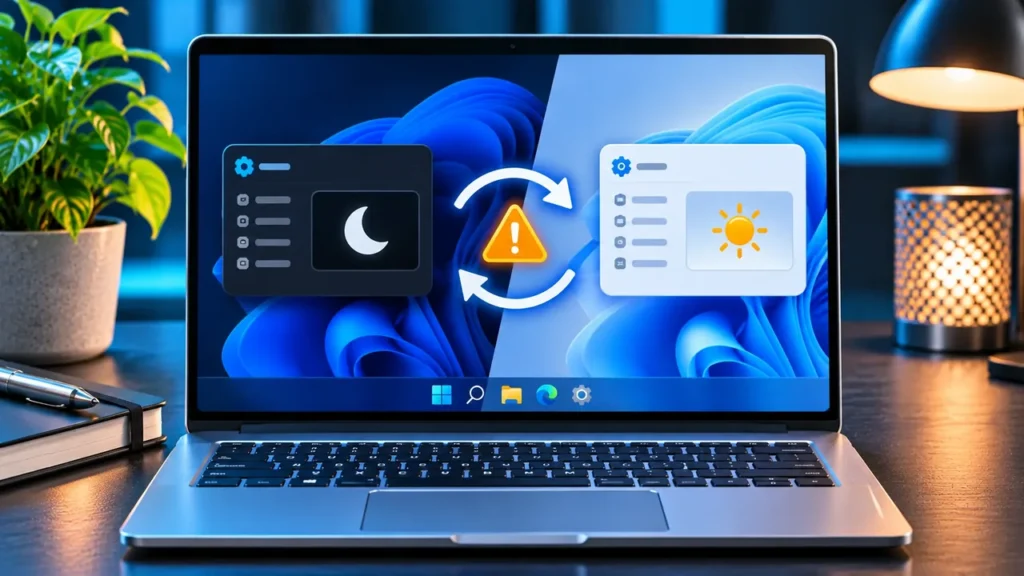
Windows 11 keeps switching to light mode even though you’ve selected dark mode in Settings? Maybe your taskbar suddenly turns white, File Explorer changes appearance after restarting, or Windows switches back to a light theme every morning.
This can be frustrating, especially when you prefer using dark mode throughout the day.
The problem isn’t always a Windows bug. In some cases, a scheduled theme utility, saved Windows theme, Microsoft account synchronization, or application-specific setting may be responsible.
Microsoft PowerToys also includes a feature called Light Switch, which can automatically alternate between light and dark modes based on a schedule.
Fortunately, you can investigate these possibilities without reinstalling Windows or making risky registry changes.
This guide covers 9 practical fixes for Windows 11 automatically switching to light mode, including how to keep dark mode enabled after restarting your computer.
Quick Fix: Windows 11 Keeps Switching to Light Mode
If your Windows 11 computer keeps reverting to light mode, start here:
- Press Windows + I to open Settings.
- Select Personalization → Colors.
- Set Choose your mode to Dark.
- If you use PowerToys, check whether Light Switch is enabled.
- Disable any automatic theme-changing schedule that you don’t want.
- Check whether you’ve applied a light Windows theme.
- Review personalization synchronization under Windows Backup.
- Restart Windows and check whether your dark mode setting remains active.
If the problem continues, follow the detailed troubleshooting steps below.
Important: Windows 11’s normal color settings let you choose Light, Dark, or Custom. Scheduled switching can be provided by additional utilities such as Microsoft PowerToys Light Switch.
Table of Contents
Why Does Windows 11 Keep Switching to Light Mode?
There are several possible explanations for an unexpected change in your Windows appearance.
PowerToys Light Switch: Microsoft’s utility can switch between light and dark themes based on sunrise, sunset, custom hours, or the Night Light schedule.
Third-party theme utilities: Applications that automatically manage appearance may override your manual selection.
Custom color settings: Windows 11 allows the operating system and supported applications to use different color modes.
Saved Windows themes: Applying a theme can change colors and other personalization settings.
Synchronized preferences: Windows Backup can remember and restore certain personalization preferences across devices.
Accessibility settings: Contrast themes can substantially change the appearance of Windows.
Application-specific themes: A browser or other application may have its own light/dark setting independent of Windows.
Software conflicts: Startup applications or other utilities may alter appearance settings when you sign in.
Before applying advanced fixes, identify whether the entire Windows interface changes or just one application.
That distinction will help determine what to investigate.
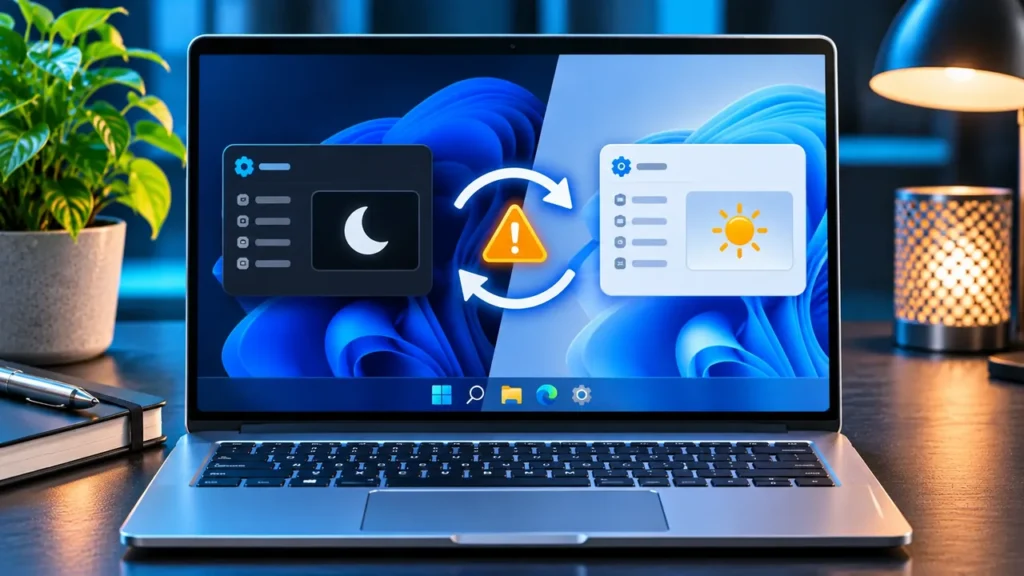
Fix 1: Set Windows 11 to Dark Mode Instead of Custom or Light
The first step is to verify the actual Windows color-mode setting.
Microsoft provides three choices: Light, Dark, and Custom.
How to Keep Windows 11 in Dark Mode
- Press Windows + I.
- Select Personalization.
- Click Colors.
- Find Choose your mode.
- Select Dark.
- Close Settings.
- Open File Explorer and check its appearance.
If the setting remains selected but File Explorer still uses a light interface, the problem may involve that application or another Windows component.
Check Custom Mode
If Choose your mode is set to Custom, Windows allows separate color settings.
These generally include:
- Choose your default Windows mode
- Choose your default app mode
If you want both the Windows interface and supported applications to use dark mode, choose Dark for both.
This distinction matters because a dark taskbar doesn’t necessarily mean every application will also appear dark.
Microsoft explains these options in its official Windows color personalization guide.
Expected result: Windows should use your chosen dark appearance until another setting or application changes it.
Fix 2: Disable PowerToys Light Switch Scheduling
This is one of the most important checks if Windows 11 changes appearance at predictable times.
Microsoft PowerToys includes a feature named Light Switch.
Light Switch can automatically switch Windows between light and dark themes.
It supports several scheduling methods, including:
- Sunrise and sunset.
- Fixed hours.
- Following the Night Light schedule.
If your PC changes to light mode every morning, check this feature first.
How to Check PowerToys Light Switch
- Open Microsoft PowerToys if it’s installed.
- Open PowerToys Settings.
- Find Light Switch in the utilities list.
- Check whether Enable Light Switch is turned on.
- If you don’t want automatic theme changes, turn it off.
- Alternatively, review the schedule and choose Off where supported.
- Return to Windows Settings and select Dark mode.
- Observe whether Windows changes appearance again.
Why This Matters
PowerToys Light Switch can control system and supported application color modes.
It can also change the theme according to a stored schedule even after you manually choose another appearance.
This behavior is intentional when scheduling is active.
Microsoft documents the feature in its official PowerToys Light Switch guide.
Note: PowerToys is optional software. If it’s not installed on your computer, skip this fix.
Fix 3: Check Third-Party Automatic Theme Applications
PowerToys isn’t the only software capable of changing Windows appearance automatically.
Some users install applications specifically designed to switch between light and dark themes.
Others install customization utilities that manage Windows colors, desktop themes, or appearance settings.
For example, Auto Dark Mode and certain desktop customization utilities can change appearance automatically.
Identify Theme-Related Software
- Open Settings.
- Select Apps → Installed apps.
- Review applications related to Windows themes or appearance.
- Open any relevant application.
- Look for automatic color-mode switching.
- Disable an unwanted schedule using the app’s own settings.
- Restart your computer.
- Test whether Dark mode remains enabled.
Check Startup Apps
Some customization tools automatically start when Windows loads.
To review them:
- Press Ctrl + Shift + Esc.
- Select Startup apps.
- Look for theme-changing or desktop customization utilities.
- If you identify a nonessential app that may be responsible, temporarily disable its automatic startup.
- Restart and test again.
Disabling startup doesn’t uninstall the application.
Important: Don’t randomly disable Windows services or unfamiliar security software. Change only applications you recognize and are authorized to manage.
If dark mode stops resetting after disabling a particular application, review its documentation for a permanent solution.
Fix 4: Reapply and Save Your Preferred Windows Theme
Windows themes include several personalization elements, including backgrounds, colors, and sounds.
Applying a different theme may change the appearance you’ve previously selected.
If you recently installed or switched themes, this is worth checking.
Steps
- Press Windows + I.
- Open Personalization → Themes.
- Review the currently selected theme.
- Select an appropriate Windows theme.
- Return to Personalization → Colors.
- Set Choose your mode to Dark.
- Return to Themes.
- Save your customized theme if the option is available.
The available themes and saving controls can vary depending on your Windows version.
Check Downloaded Themes
If you installed a theme from the Microsoft Store or another source, temporarily switch to a built-in Windows theme.
Then manually choose Dark mode again.
If Windows no longer changes appearance, the previous theme or its associated software may have contributed.
You don’t need to delete your desktop wallpaper or personal files to perform this test.
Read Microsoft’s official Windows themes guide.
Fix 5: Check Windows Backup Personalization Sync
Windows 11 can remember certain settings through your Microsoft account.
Microsoft’s Windows Backup feature includes personalization preferences such as themes and colors.
If you use several Windows computers with the same account, checking these settings may help isolate unexpected changes.
How to Check Personalization Sync
- Open Settings.
- Select Accounts.
- Click Windows backup.
- Find Remember my preferences, if available.
- Expand the preferences.
- Check whether Personalization is enabled.
- Temporarily turn off personalization syncing if you want to test whether it is involved.
- Return to Personalization → Colors.
- Set your preferred Dark mode.
- Restart and monitor the result.
Does Sync Automatically Cause Light Mode?
Not necessarily.
Windows Backup is intended to remember and restore settings, not deliberately switch your theme every morning.
However, if unexpected changes occur when restoring settings or using multiple devices, reviewing synchronized preferences is reasonable.
If disabling personalization sync makes no difference, you can re-enable it.
Microsoft documents synchronized appearance settings in its Windows Backup settings catalog.
Important: Don’t turn off your entire Microsoft account or OneDrive synchronization just to troubleshoot a theme setting. Change only the relevant preference for testing.
Fix 6: Check Contrast Themes and Application-Specific Appearance
Sometimes Windows 11 appears to switch away from dark mode even though the actual Windows color setting hasn’t changed.
Two different features can explain this.
Check Contrast Themes
Windows provides accessibility contrast themes that change the appearance of interface elements.
To check:
- Open Settings.
- Select Accessibility.
- Click Contrast themes.
- Review the selected theme.
- If you don’t want a contrast theme, select None.
- Click Apply.
- Return to Personalization and check Dark mode.
Contrast themes are different from ordinary Windows dark mode.
Don’t disable an accessibility configuration someone relies on without their permission.
See Microsoft’s contrast-theme instructions.
Check Whether Only One App Changes to Light Mode
Some applications maintain their own theme settings.
For example, Microsoft Edge, Chrome, certain Microsoft Office applications, and other desktop software may allow independent appearance preferences.
If your taskbar and Settings remain dark but one app becomes light:
- Open the affected application.
- Find its appearance or theme settings.
- Review whether Light mode is selected.
- Choose Dark or System default as appropriate.
- Restart the application.
- Check whether the problem returns.
This helps distinguish an application-specific problem from Windows changing its system-wide color mode.
Fix 7: Restart Windows Explorer and Check When the Theme Changes
If Windows switches appearance unpredictably, pay attention to exactly when it happens.
Does it occur immediately after signing in, only after the PC wakes from sleep, or at a particular time?
This information can help identify the trigger.
Restart Windows Explorer
- Press Ctrl + Shift + Esc.
- Open Processes.
- Find Windows Explorer.
- Right-click it.
- Select Restart.
- Wait for the taskbar and desktop to reload.
- Reopen Personalization settings.
Restarting Explorer can refresh the desktop interface, but it won’t permanently disable a theme-switching application or scheduled utility.
Check the Timing
Changes at a predictable hour: Investigate PowerToys Light Switch and other scheduled theme utilities.
Changes immediately after login: Check startup apps, theme utilities, and account preferences.
Changes only after applying a theme: Review your saved Windows themes.
Changes in one application: Check that application’s own appearance setting.
Changes after an update: Check for additional Windows updates and whether a theme utility is compatible with the current build.
If the Start menu or taskbar also becomes unresponsive, our Start Menu Not Working Windows 11 guide covers separate desktop-interface problems.
Fix 8: Install Windows Updates and Restart the Computer
If Windows keeps losing your selected theme and you’ve ruled out automatic switching software, check for available Windows updates.
Microsoft regularly releases fixes for operating-system bugs and application compatibility.
Steps
- Open Settings.
- Select Windows Update.
- Click Check for updates.
- Review available updates.
- Install appropriate supported updates.
- Restart when required.
- Open Personalization → Colors.
- Set Dark again.
- Test whether the setting is preserved after another normal restart.
What if the Problem Started After a Windows Update?
Check the installed update history and the timing of the issue.
However, an update occurring before the problem doesn’t necessarily mean the update caused it.
Also check whether your theme-management utility received its own update.
Avoid uninstalling security updates without a specific reason and reliable troubleshooting guidance.
If your Windows 11 computer is also running slowly, see our Why Is Windows 11 So Slow? guide.
For Windows installations with broader update errors, our Windows 11 Version 25H2 Failed to Install article covers installation-related troubleshooting.
Fix 9: Test Another Windows Account or Perform a Clean Boot
If the previous fixes don’t identify the cause, the issue may involve account-specific preferences or third-party software running in the background.
These are more advanced checks and shouldn’t be necessary for most users.
Test Another Windows Account
If you have another authorized Windows account:
- Save your work.
- Sign out.
- Sign in to the other account.
- Select Dark mode.
- Observe whether it changes unexpectedly.
If Dark mode works in the other account but not your regular account, account-specific settings or utilities may be involved.
Don’t delete your original account or profile to troubleshoot this.
Perform a Clean Boot
A clean boot starts Windows with a reduced set of third-party services and startup applications.
Microsoft recommends this approach when investigating software conflicts.
It can help determine whether an installed utility is changing your Windows theme.
Before proceeding, review the complete Microsoft clean boot instructions.
A clean boot requires administrative access and may temporarily disable some third-party functionality.
If the theme remains stable in a clean-boot environment, re-enable disabled applications and services systematically to identify the cause.
After troubleshooting, restore normal startup.
For work or school PCs: Contact your administrator before changing startup services or managed settings.
Windows 11 Dark Mode Keeps Turning Off After Restart
If your dark mode works until you restart, focus on settings and software that initialize when Windows starts.
Check the following:
- Whether Dark mode was saved under Personalization → Colors.
- Whether a saved theme is being reapplied.
- Whether PowerToys Light Switch is enabled.
- Whether another theme utility starts automatically.
- Whether personalization settings are being restored.
- Whether the issue occurs only in a particular Windows account.
If the appearance changes immediately after signing in, test disabling a recognized theme-management application from Startup apps.
If Windows Settings still shows Dark while only File Explorer or another application appears light, investigate that component rather than treating it as a system-wide theme reset.
Windows 11 Automatically Switches to Light Mode in the Morning
If Windows becomes light every morning and returns to dark at night, check for scheduled theme software.
PowerToys Light Switch can follow sunrise and sunset or use custom switching hours.
It can also follow the Windows Night Light schedule.
Open PowerToys Settings and inspect Light Switch.
If you prefer Dark mode all day, disable automatic switching.
If you want automatic changes but dislike the current timing, adjust the Light Switch schedule instead.
The feature is designed for automatic appearance changes, so disabling its schedule is more appropriate than repeatedly resetting Windows colors.
Windows 11 Taskbar Is Light but Apps Are Dark
This can happen when Windows is using Custom color mode.
Open Settings → Personalization → Colors.
Select Custom and inspect the two separate default mode settings.
Set both Windows mode and app mode to Dark if you want a consistent appearance.
Some applications may still use their own settings.
This behavior doesn’t automatically indicate a Windows defect.
Windows 11 Keeps Changing Themes on a Work Computer
Organization-managed devices may have settings controlled by IT policies or management software.
If your computer is managed by an employer or school, certain appearance preferences may be restricted or restored.
If you see a message indicating that some settings are managed by your organization, don’t attempt to bypass those restrictions.
Contact your IT administrator and explain when the appearance changes.
Provide the Windows version, the affected applications, and whether the issue occurs after login or at a scheduled time.
Frequently Asked Questions
Why does Windows 11 keep switching to light mode?
Possible causes include PowerToys Light Switch schedules, other theme-changing applications, saved Windows themes, personalization preferences, and software conflicts. Identify when the change occurs before troubleshooting.
How do I stop Windows 11 from automatically changing to light mode?
Set Dark under Settings → Personalization → Colors, then check whether PowerToys Light Switch or another automatic theme utility is enabled. Disable unwanted schedules and test after restarting.
Does Windows 11 automatically switch between light and dark mode?
The standard Windows 11 color settings provide Light, Dark, and Custom choices. Scheduled changes can be provided by utilities such as Microsoft PowerToys Light Switch.
Why does Windows 11 dark mode reset after restarting?
A startup application, theme utility, saved personalization preference, or account-specific configuration may be involved. Check whether the change happens immediately after signing in.
Can PowerToys change Windows 11 themes automatically?
Yes. Microsoft’s Light Switch utility supports scheduled transitions between light and dark themes, including custom hours and sunrise/sunset scheduling.
Is Windows Night Light the same as dark mode?
No. Night Light adjusts the display’s color temperature. Dark mode changes interface colors. However, PowerToys Light Switch can optionally follow the Night Light schedule.
Why is File Explorer light when Windows is in dark mode?
Check whether you’re using Custom mode with different Windows and application settings. Restart File Explorer if the appearance seems temporarily inconsistent.
Can Microsoft account synchronization affect Windows themes?
Windows Backup can remember and restore personalization preferences. If you suspect account preferences are involved, temporarily disable personalization synchronization for testing.
Does reinstalling Windows fix dark mode switching?
Reinstallation is not a sensible first step for this issue. Check color settings, theme utilities, saved themes, and account preferences before considering disruptive recovery methods.
Will switching Windows themes delete my files?
No. Changing ordinary Windows color and theme settings doesn’t normally remove personal documents or installed applications.
Final Thoughts
If Windows 11 keeps switching to light mode, don’t immediately assume your Windows installation is damaged.
Start with the normal Dark and Custom color settings.
Then check whether PowerToys Light Switch or another application is scheduling theme changes.
If the problem happens after restarting, investigate saved themes, startup applications, and account personalization preferences.
For persistent problems, Windows Update and targeted software-conflict testing may help identify the cause.
Most importantly, avoid risky registry modifications, unknown theme-repair tools, or reinstalling Windows just to fix appearance settings.
With the right checks, you can usually identify what’s changing your theme and keep Windows 11 using your preferred appearance.
Last reviewed: November 13, 2026.