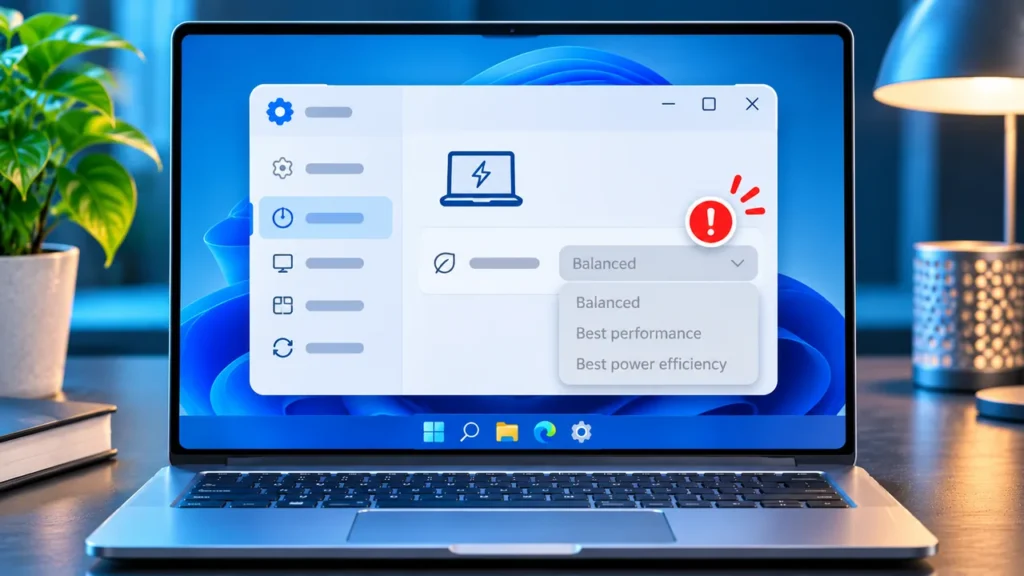
Is Power Mode greyed out Windows 11, preventing you from selecting Best performance, Balanced, or Best power efficiency? Maybe the dropdown is disabled, Windows says you can’t change the setting, or your laptop refuses to switch performance modes.
This problem can happen even when your computer is otherwise working normally.
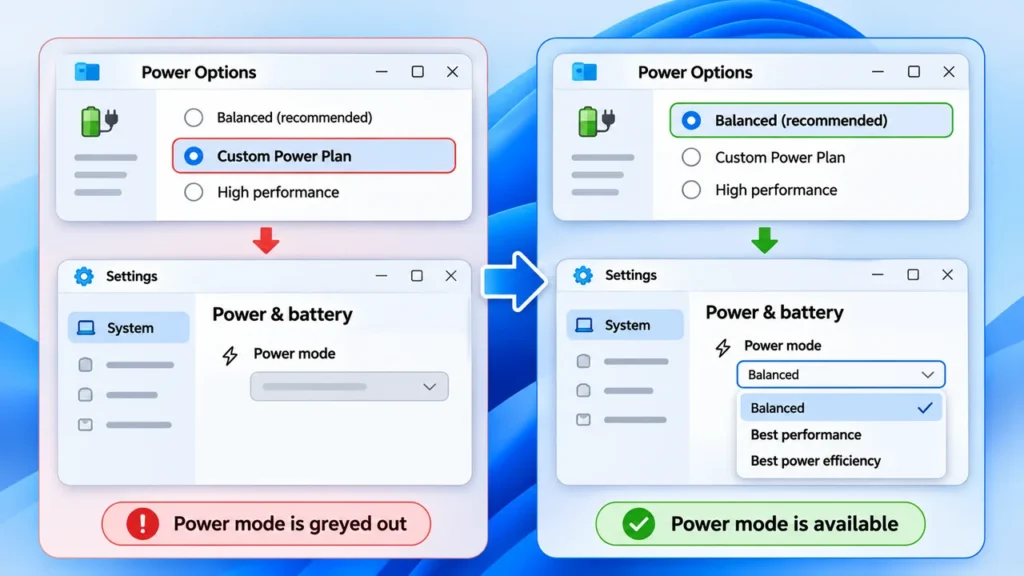
One of the most common causes is a custom power plan selected through Control Panel. Microsoft specifically recommends switching to the Balanced plan when the Windows 11 Power mode setting cannot be changed.
However, manufacturer-specific power utilities, account restrictions, and hardware configurations can also affect which options are available.
In this guide, we’ll walk through 9 practical fixes for Windows 11 power mode being greyed out, starting with Microsoft’s recommended solution and progressing to advanced checks that don’t require risky registry edits.
The instructions apply to supported Windows 11 laptops and desktops. Available power settings may differ depending on your hardware, Windows version, and manufacturer.
Quick Fix: Power Mode Greyed Out Windows 11
If the Power mode dropdown is disabled, try this first:
- Press Windows + R.
- Type
powercfg.cpl. - Press Enter.
- In Control Panel, find Balanced (recommended).
- Select Balanced instead of a custom or High performance power plan.
- Close Control Panel.
- Open Settings → System → Power & battery.
- Check whether the Power mode dropdown is available.
- Try selecting Best performance, Balanced, or Best power efficiency.
On some desktop computers, the settings page is labeled Power rather than Power & battery.
Why this works: Microsoft’s documentation explains that selecting a custom power plan can prevent users from changing Power mode through the modern Windows Settings interface.
If this doesn’t fix the issue, continue with the troubleshooting steps below.
Why Is Power Mode Greyed Out in Windows 11?
Windows 11 provides power-management features that balance performance, battery life, and energy efficiency.
The Power mode setting offers three common options:
Best power efficiency: Prioritizes reduced energy consumption and can limit some background activity.
Balanced: Provides a compromise between performance and efficiency.
Best performance: Prioritizes performance when the computer needs additional processing capability.
However, your device’s hardware, power plan, and manufacturer settings influence how these options behave.
Common Reasons the Power Mode Setting Is Disabled
- A custom power plan is active.
- High performance or another legacy power plan is selected.
- A manufacturer-specific power utility controls the device.
- Windows power settings are restricted by an organization.
- The device supports a different set of power-management controls.
- A temporary Windows settings problem is interfering.
- Power-management drivers or firmware need attention.
- The user is looking for a battery-specific setting on a desktop computer.
Before changing anything, it’s important to understand the difference between Windows Power mode and traditional power plans.
Windows 11 Power Mode vs. Power Plan: What’s the Difference?
Although the terms sound similar, Windows Power mode and a traditional Control Panel power plan are not identical.
Power mode is the modern Windows Settings control that lets you prioritize performance, balanced operation, or power efficiency.
Power plans are collections of power settings managed through Control Panel or the Windows powercfg utility.
Traditional power plans can include Balanced, High performance, Power saver, and manufacturer-created configurations.
A computer can have a traditional High performance power plan selected while the modern Power mode dropdown is unavailable.
Microsoft explains that the modern power-selection interface is associated with the Balanced plan on supported configurations.
That distinction is central to fixing this issue.
Fix 1: Switch to the Balanced Power Plan in Control Panel
This should be your first troubleshooting step.
Microsoft explicitly states that a custom power plan can prevent Windows from changing the Power mode setting.
Selecting Balanced often restores the modern dropdown on compatible devices.
Steps
- Press Windows + R.
- Enter
powercfg.cpl. - Press Enter.
- Wait for the Control Panel Power Options window.
- Review the available power plans.
- Locate Balanced (recommended).
- Select the radio button beside Balanced.
- Close Control Panel.
- Open Settings → System → Power & battery.
- Check the Power mode dropdown again.
If Balanced is hidden under Show additional plans, expand that section.
What If You Were Using High Performance?
Changing from the traditional High performance plan to Balanced does not necessarily mean you must sacrifice performance.
Once the modern Power mode dropdown becomes available, you can try selecting Best performance while remaining on the Balanced power plan.
These controls work at different levels of Windows power management.
What If Balanced Isn’t Available?
Don’t delete your existing power plan immediately.
Check the available configurations using the read-only Powercfg commands in Fix 7.
If your PC manufacturer manages its own power profiles, consult its documentation before replacing or resetting them.
For Microsoft’s recommended procedure, see the official Windows power mode guide.
Fix 2: Check the Correct Power Settings Page
Windows 11 presents some power settings differently depending on whether you’re using a laptop, desktop, or supported hardware configuration.
Before assuming the feature is broken, make sure you’re checking the correct control.
Steps
- Press Windows + I.
- Open System.
- Select Power & battery or Power.
- Look for Power mode.
- Review the available options.
- If your device supports separate settings, check both Plugged in and On battery.
- Try changing an available setting.
On compatible laptops, you may be able to choose different performance preferences for plugged-in and battery-powered operation.
On desktops, battery-specific controls won’t normally be present.
What if Power Mode Is Missing Entirely?
A missing control is different from a visible but disabled dropdown.
Your PC’s hardware, firmware, manufacturer software, or power configuration may determine which options Windows exposes.
Microsoft notes that not all power settings are available on every computer.
If the option is missing entirely, check your device manufacturer’s support information rather than assuming the operating system is corrupted.
Fix 3: Restart Windows and Check Your Power Connection
If the Power mode setting became unavailable unexpectedly, a temporary Windows or device-management problem may be involved.
Restarting can refresh system services and the interface.
Restart Your Computer
- Save your work.
- Open the Start menu.
- Select Power → Restart.
- Wait for Windows to restart.
- Sign in.
- Open Settings → System → Power & battery.
- Check the Power mode setting.
Use Restart rather than simply putting the laptop to sleep.
Test Plugged-In and Battery Operation
If you’re using a laptop:
- Connect its compatible power adapter.
- Check that Windows recognizes the charger.
- Review the Power mode options while plugged in.
- If appropriate, disconnect the charger.
- Check whether the available settings change.
Some computers apply different manufacturer performance limits depending on the power source.
These differences are not automatically Windows errors.
If Windows doesn’t recognize the charger, investigate the charger or power connection separately.
Avoid repeatedly unplugging the charger if the laptop battery is critically low or the device is updating.
Fix 4: Check Energy Saver and Related Battery Settings
Windows 11 includes Energy saver, a feature intended to reduce power consumption.
On supported devices, it can reduce background activity and adjust certain display or energy settings.
Energy saver isn’t the same as the Power mode dropdown, but reviewing its status can help explain unexpected performance behavior.
Steps
- Open Settings.
- Select System → Power & battery.
- Find Energy saver, if available.
- Check whether it’s active.
- Review any automatic activation threshold.
- If appropriate, temporarily turn it off for testing.
- Return to the Power mode setting.
- Check whether your preferred option is available.
Will Turning Off Energy Saver Fix the Greyed-Out Dropdown?
Not necessarily.
Microsoft identifies custom power plans as a specific reason Power mode cannot be changed.
Energy saver is a separate power-management feature and may not be responsible for the disabled control.
However, if your main complaint is that your laptop feels unusually slow, Energy saver is worth checking.
Also remember that disabling energy-saving features can increase power use and reduce battery life.
For broader performance troubleshooting, read our Why Is Windows 11 So Slow? 12 Powerful Fixes.
Fix 5: Check Manufacturer Power Management Software
Many laptop manufacturers provide applications that control power, thermal behavior, and performance.
Examples include software from Lenovo, Dell, HP, ASUS, Acer, and other manufacturers.
These applications may provide profiles such as:
- Quiet or Silent.
- Balanced.
- Performance.
- Battery saving.
- Thermal management.
Some profiles affect performance in ways that are separate from Windows Power mode.
What to Check
- Identify your computer’s exact model.
- Open its installed manufacturer utility.
- Find performance, power, or thermal settings.
- Review the active profile.
- Check whether automatic or managed modes are enabled.
- Consult the manufacturer’s documentation.
- Try an appropriate supported profile.
- Recheck Windows Power mode.
Could Manufacturer Software Be the Cause?
Possibly.
Some manufacturer utilities apply custom power configurations or restore them automatically.
If Windows Power mode becomes unavailable every time the manufacturer utility starts, the utility’s settings deserve investigation.
However, the existence of manufacturer power software alone doesn’t prove it caused the issue.
Avoid uninstalling system utilities, disabling thermal protection, or forcing high-performance configurations without understanding the device’s requirements.
If the software is supplied by your employer or school, contact your IT administrator first.
Fix 6: Run the Built-In Windows Power Troubleshooter
Windows includes troubleshooting tools for some common power-related problems.
These may help when power settings behave unexpectedly.
Steps
- Press Windows + I.
- Select System.
- Open Troubleshoot.
- Click Other troubleshooters.
- Find Power, if it is available.
- Click Run.
- Follow the instructions.
- Apply any recommended changes you understand.
- Restart if requested.
- Check Power mode again.
The Power troubleshooter isn’t available through exactly the same interface on every Windows 11 build.
If you don’t see it, use Microsoft’s Get Help support resources instead.
What Does the Power Troubleshooter Do?
It can help identify certain power-management problems, such as energy-related settings or device behavior.
However, it isn’t guaranteed to restore a disabled Power mode dropdown.
If a custom power plan is active, Microsoft’s documented Balanced-plan fix remains the better starting point.
Microsoft includes the Power troubleshooter in its Windows battery saving and power settings guidance.
Fix 7: Check Your Active Power Plan With Powercfg
If the Power mode dropdown is still unavailable, you can use Microsoft’s built-in Powercfg utility to inspect the current configuration.
Powercfg is included with Windows.
It can display available power plans and identify which plan is currently active.
For this diagnostic step, we’ll use read-only commands.
Step 1: Open Command Prompt
- Open Start.
- Search for Command Prompt.
- Select the application.
- Open it with administrator privileges if required for further investigation.
Step 2: Display Available Power Plans
Enter:
powercfg /listPress Enter.
Windows displays the available power schemes.
You may see Balanced, High performance, Power saver, or manufacturer-specific plans.
An asterisk indicates the active plan.
Step 3: Check the Active Plan
Enter:
powercfg /getactiveschemePress Enter.
This reports the current active power scheme.
If you see a custom or High performance plan rather than Balanced, that may explain why Windows Power mode is unavailable.
Step 4: Return to Control Panel
Instead of immediately forcing a command-line change, return to:
Control Panel → System and Security → Power Options
Select Balanced when available and appropriate.
Then reopen the Windows 11 Power mode dropdown.
Important Precautions
Don’t run commands that delete power schemes or restore every default plan without understanding the consequences.
In particular, avoid copying random Powercfg reset commands from online forums.
Some commands can remove customized configurations and manufacturer-provided settings.
Microsoft documents the supported commands in its official Powercfg reference.
Fix 8: Install Relevant Windows and Manufacturer Updates
If the Power mode setting remains disabled after checking the active power plan, investigate whether the system needs an update.
Windows updates can include operating-system improvements, compatibility changes, and fixes.
Manufacturers may also provide firmware or drivers related to chipset and platform power management.
Check Windows Updates
- Open Settings.
- Select Windows Update.
- Click Check for updates.
- Install available supported updates.
- Restart if required.
- Return to System → Power & battery.
- Check the Power mode control.
Check Manufacturer Support
If you use a laptop or desktop from a major manufacturer:
- Identify its exact model.
- Visit the official support website.
- Review power-management or chipset driver updates.
- Check the release notes.
- Install only an appropriate supported update.
- Restart if instructed.
Do not install an unrelated driver package simply because it contains the word power.
Should You Update BIOS or UEFI?
Only when there’s a documented reason.
Firmware updates can affect power-management behavior, but they also require care.
Follow the manufacturer’s instructions precisely, ensure reliable power, and make sure necessary recovery keys and backups are available.
If Windows Update itself is failing, see our Windows 11 Version 25H2 Failed to Install guide for update-specific troubleshooting.
Fix 9: Check Account Restrictions and Managed Power Policies
If the Power mode setting remains unavailable, the computer may be subject to account or device-management restrictions.
This is particularly relevant for work and school computers.
Organizations can use Windows management tools and policies to control certain device configurations.
Check Whether Your PC Is Managed
- Open Settings.
- Select Accounts.
- Open Access work or school.
- Check whether the device is connected to an organization.
- Review any messages indicating that settings are managed by an administrator.
A connected work or school account doesn’t automatically prove that Power mode is restricted.
However, it can help explain why some system settings cannot be changed.
What Should You Do?
If you’re using a company or school computer, contact the administrator.
Explain that the Power mode setting is disabled and mention the current power plan shown in Control Panel.
If this is your personal computer, check the previous fixes and your manufacturer’s supported configuration.
Don’t remove management profiles, modify security policies, or edit the Windows registry merely to unlock a power setting.
What If Nothing Works?
If Balanced is active, updates are installed, and your computer is not organization-managed, the remaining limitation may involve the device’s hardware, firmware, or manufacturer power design.
Contact the PC manufacturer or Microsoft Support for model-specific guidance.
Power Mode Greyed Out Windows 11 After an Update
If the setting became unavailable immediately after a Windows update, the update may have changed how your device reports or handles power options.
However, timing alone doesn’t prove that the update caused the problem.
Check the active power plan first.
If a manufacturer-specific plan is now selected, return to Balanced when appropriate.
Then review whether the manufacturer has released any relevant driver or utility updates.
Avoid uninstalling security updates without a confirmed reason.
Also check whether the device is still receiving normal Windows updates.
Best Performance Greyed Out Windows 11
If Best performance is unavailable, first determine whether the entire Power mode control is disabled.
If all modes are inaccessible, check the active Control Panel power plan.
If only certain modes are missing or restricted, investigate the device’s power configuration and manufacturer controls.
Recommended Checks
- Open
powercfg.cpl. - Select Balanced, if available.
- Return to Windows Settings.
- Review the Power mode dropdown.
- Check whether the behavior changes when plugged in.
- Review manufacturer performance profiles.
Not every computer exposes identical performance controls.
Even when Best performance is available, selecting it won’t overcome thermal limits or hardware bottlenecks.
For additional PC performance issues, see our Windows 11 slow performance troubleshooting guide.
Windows 11 Power Mode Greyed Out When Plugged In
If Power mode works on battery but becomes disabled when plugged in, inspect both the Windows settings and manufacturer power utility.
Some laptops use different performance configurations for AC and battery operation.
Check whether the power adapter is correctly recognized and whether a manufacturer performance profile becomes active.
If the computer uses a custom plan when plugged in, returning to Balanced may help restore the Windows Power mode options.
Avoid changing charger or thermal settings through unsupported tools.
Power Mode Greyed Out on a Windows 11 Desktop
Desktop computers don’t have the same battery-management requirements as laptops.
You may see System → Power instead of Power & battery.
Some settings described in laptop troubleshooting guides won’t apply.
Start by checking the active power plan through Control Panel.
Then confirm whether your desktop manufacturer’s software applies a custom performance or power configuration.
If the modern Power mode option remains unavailable, check the supported hardware and firmware configuration.
The absence of laptop battery options is expected on a desktop computer.
Windows 11 Balanced Power Plan Missing
If Balanced doesn’t appear in Control Panel, avoid immediately running commands intended to recreate or reset all Windows power schemes.
First, list the available plans using:
powercfg /listCheck whether your computer uses a manufacturer-provided configuration.
Some modern Windows devices expose fewer traditional power plans than older PCs.
If you need to restore the default plan, consult the device manufacturer’s support instructions or Microsoft’s official guidance.
A missing Balanced plan may be connected to the device’s power-management design rather than a simple Windows bug.
Power Mode vs. Energy Saver in Windows 11
Power mode determines a preference for efficiency or performance.
Energy saver is a separate feature that helps reduce energy consumption.
You can also configure screen and sleep timeouts independently.
Changing Energy saver doesn’t necessarily change the active traditional power plan.
Likewise, choosing Balanced in Control Panel doesn’t mean you cannot use the modern Best performance option on supported hardware.
Understanding these differences helps avoid changing the wrong setting.
Frequently Asked Questions
Why is Power Mode greyed out on Windows 11?
Microsoft identifies an active custom power plan as a common cause. Other possible reasons include manufacturer-specific power configurations, hardware limitations, or managed device settings.
How do I unlock Power Mode in Windows 11?
Open Control Panel → System and Security → Power Options, select Balanced, then return to Settings → System → Power & battery. This is Microsoft’s recommended first fix.
Why can’t I select Best performance in Windows 11?
Your active power plan or device configuration may prevent access to the modern power modes. Check the Balanced plan, manufacturer utility, and relevant hardware settings.
Is Balanced power plan the same as Balanced power mode?
No. The traditional Balanced power plan is managed through Control Panel, while Balanced power mode is a selection within the modern Windows Settings interface.
Can I use Best performance while the Balanced power plan is active?
Yes, on supported Windows 11 configurations. Selecting Balanced in Control Panel can make the modern Power mode dropdown available, allowing you to select Best performance.
Does changing Power mode delete files?
No. Changing ordinary Windows power plans or power modes doesn’t normally erase personal documents or applications.
Why is Power mode missing on my desktop?
The available controls can depend on hardware and manufacturer configuration. Also, desktop PCs may display System → Power instead of Power & battery.
Can Energy saver make Power mode unavailable?
Energy saver can affect power usage and performance behavior, but it isn’t necessarily the cause of a greyed-out Power mode dropdown. Microsoft’s main documented check is the active power plan.
Should I use Powercfg to reset every power plan?
Not as a first step. Certain Powercfg commands can remove customized schemes. Start with read-only commands to identify the active plan and use supported Control Panel options.
Can Windows updates affect power settings?
Updates may change compatibility and device behavior. If a power problem appears after an update, check the active plan, available manufacturer updates, and current Windows settings.
Why is Power mode greyed out on my work laptop?
The device may use organization-managed power policies or manufacturer profiles. Contact your IT administrator before changing managed configurations.
Final Thoughts
If Power Mode is greyed out in Windows 11, start with Microsoft’s recommended fix: open Control Panel and select the Balanced power plan.
This can restore access to the modern Power mode dropdown without requiring a Windows reinstall.
If the setting remains unavailable, check the correct settings page, power connection, manufacturer utilities, and active power plan using Powercfg.
For persistent problems, investigate supported driver updates and any organization-managed settings.
Avoid risky registry edits, unnecessary firmware changes, and commands that delete existing power plans.
By identifying which component controls your computer’s power configuration, you can troubleshoot the disabled setting while preserving system stability.
Last reviewed: November 13, 2026.