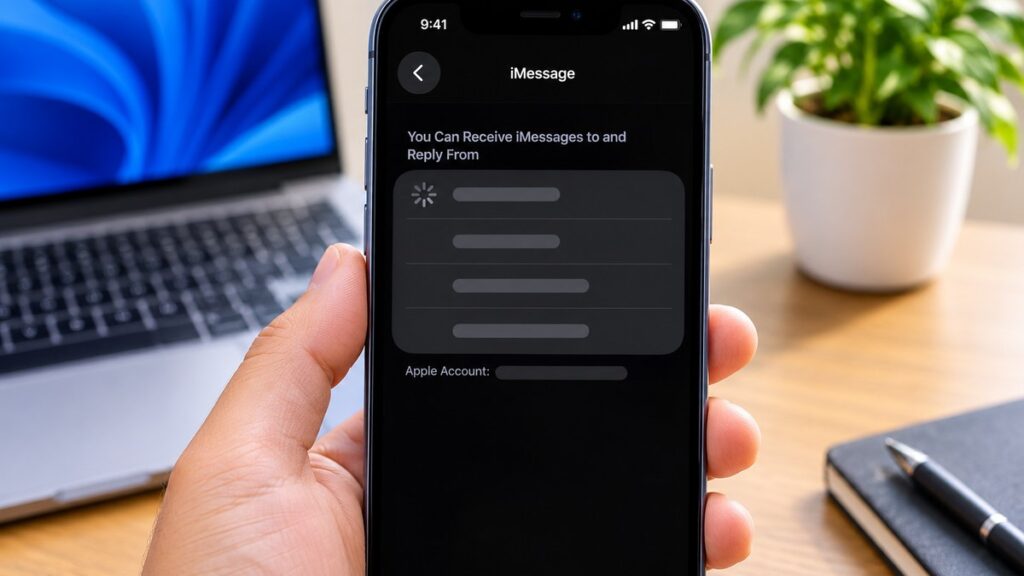
iMessage phone number spinning? Maybe you’re trying to select your phone number in iMessage, but a loading icon keeps spinning beside it. Your email address may work, yet your phone number never gets a checkmark.
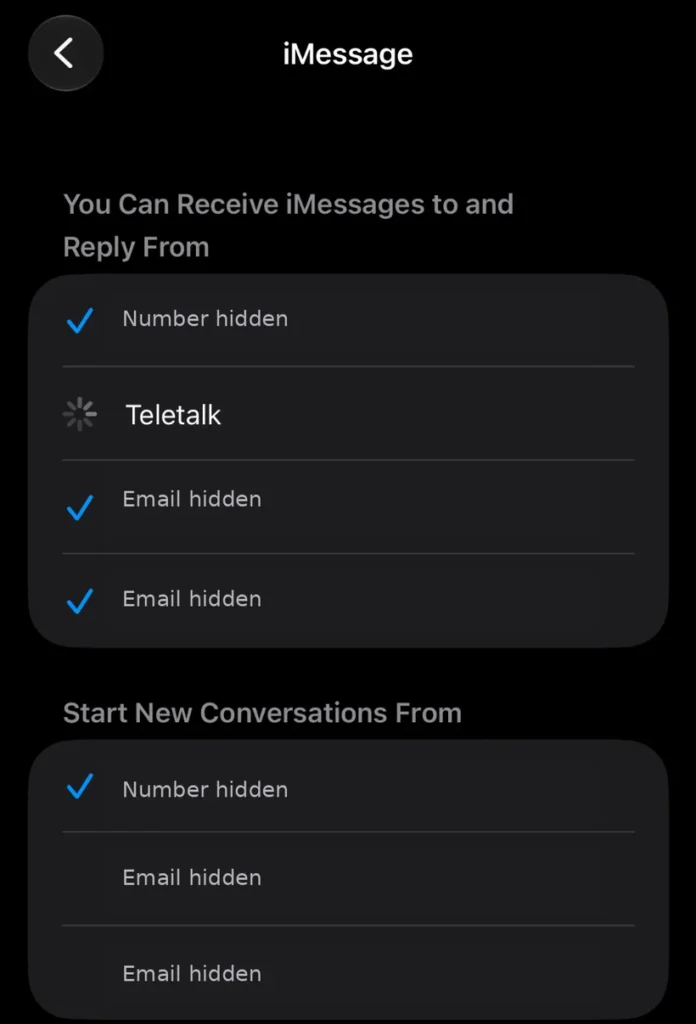
This issue commonly appears under Settings → Apps → Messages → Send & Receive. You might see your number listed under “You Can Receive iMessages To and Reply From,” but the iPhone keeps trying to activate it.
The same problem can occur when setting up a new iPhone, switching to an eSIM, using two SIM cards, or activating iMessage with an international phone number.
The good news is that a spinning icon doesn’t automatically mean your iPhone or Apple Account is damaged.
According to Apple, the spinner means your device is attempting to verify your phone number. The process can take up to 24 hours, and your mobile carrier plays an important role.
In this guide, we’ll explain 10 practical fixes for an iMessage phone number spinning or stuck on activation, including SMS verification, Dual SIM settings, eSIM activation, and what to do when the number still won’t activate.
Table of Contents
Quick Answer: How to Fix iMessage Phone Number Spinning
If your iMessage phone number keeps loading, start with these checks:
- Confirm that the SIM or eSIM for the number is active.
- Check whether your mobile carrier supports international SMS.
- Connect to working Wi-Fi or cellular data.
- Set the correct date, time, and time zone.
- Install the latest compatible iOS update.
- If you haven’t already done so, restart iMessage and FaceTime once.
- Allow up to 24 hours for number verification.
- Check whether a newly installed eSIM requires iMessage activation.
- Look for an inactive duplicate SIM with the same number.
- Try Apple’s activation assistance or contact your carrier.
Important: If iMessage is already enabled and a spinning indicator appears next to your number, Apple says the device is automatically attempting verification. Don’t repeatedly switch iMessage off and on.
Why Does My iMessage Phone Number Keep Spinning?
When you activate iMessage with a phone number, your iPhone must complete a verification process.
iMessage uses internet connectivity for messaging, but activating a phone number also requires SMS support from your mobile carrier.
Your carrier may charge for an activation SMS.
While this verification is in progress, the iPhone may display a spinning icon beside the phone number rather than a selectable checkmark.
Several factors can delay or prevent successful activation.
Carrier SMS restrictions: Your mobile plan might not support the international SMS required for verification.
Inactive SIM or eSIM: The phone number may appear in settings even though its associated mobile plan is not active.
Network problems: Poor internet connectivity can interfere with the activation process.
Incorrect time settings: An inaccurate time zone may cause activation difficulties.
Recent eSIM setup: iMessage may require activation after an eSIM is configured on a new iPhone.
Duplicate SIM records: On iOS 26, an inactive SIM with the same number as an active SIM can cause a specific activation issue.
Verification delay: Sometimes the process simply hasn’t finished yet.
Understanding which of these situations applies is more useful than repeatedly changing unrelated settings.
1. Check That the Correct SIM or eSIM Is Active
The first step is to confirm that the phone number you’re trying to activate belongs to an active mobile line on your iPhone.
This is particularly important for people using Dual SIM.
For example, an iPhone might have a US phone number and a Bangladesh phone number listed in its messaging settings.
That doesn’t automatically mean both lines have completed iMessage activation.
To check your mobile lines:
- Open Settings.
- Tap Cellular, Mobile Data, or Mobile Service, depending on your region.
- Look at the installed SIM and eSIM plans.
- Select the line corresponding to the number you want to use with iMessage.
- Confirm that the plan is active and enabled.
- Check that the line has service and can send ordinary SMS messages.
If the number belongs to a travel eSIM that provides data only, ask the provider whether it actually supports a phone number and SMS.
A data-only eSIM generally cannot verify a separate phone number through its own SMS service.
You can use Wi-Fi or data from another active line for internet access, but the number being registered still needs the required carrier SMS capability.
Related Reading: iPhone eSIM Not Activating? 10 Fixes to Try (2026).
That guide explains how to investigate eSIM setup and cellular-plan activation problems.
2. Confirm That Your Carrier Supports International SMS
This is one of the most important checks.
Apple states that iPhone phone-number activation for iMessage and FaceTime requires SMS messaging.
Depending on your carrier, the activation message may involve a charge.
If you use a prepaid SIM, make sure the account has sufficient balance for any applicable SMS fees.
If you’re using a foreign number while travelling, confirm that the line still has the necessary SMS capabilities.
Contact your mobile carrier and ask:
- Can this number send and receive international SMS?
- Is outgoing international SMS restricted?
- Does the plan support iMessage and FaceTime activation SMS?
- Is SMS service available while roaming?
- Are there account or activation restrictions on this line?
Important: Receiving SMS locally doesn’t necessarily prove that international SMS verification is available.
Likewise, an active Wi-Fi connection cannot replace the carrier SMS requirement for activating a phone number.
If the carrier confirms that SMS is blocked or unavailable, ask them to resolve that issue before attempting further activation.
3. Check Your Internet Connection
Your iPhone also needs a working internet connection to communicate with Apple’s services.
Apple recommends using cellular data or Wi-Fi during activation.
To test the connection:
- Open Safari.
- Visit a reliable website.
- Confirm that it loads correctly.
- If you’re using Wi-Fi, try another trusted network if available.
- If your mobile data plan is active, test cellular data.
- Return to iMessage settings after checking connectivity.
Simply seeing the Wi-Fi symbol doesn’t guarantee that the connection has working internet access.
Public networks may require you to sign in through a browser.
If your iPhone connects to Wi-Fi but websites won’t load, fix that connection first.
Related Reading: iPhone Connected to Wi-Fi but No Internet? 10 Fixes to Try (2026).
You can also see our guide, iPhone Cellular Data Not Working? 12 Fixes to Try (2026), if the problem is limited to mobile internet access.
Do not reset all your network settings as an initial step. First determine whether the internet connection is actually failing.
4. Set the Correct Date and Time
Incorrect date, time, or time-zone settings can cause account activation problems.
Apple specifically recommends checking the time zone when iMessage or FaceTime cannot activate.
To review the settings:
- Open Settings.
- Tap General.
- Select Date & Time.
- Enable Set Automatically, if available.
- Confirm that the displayed time and time zone are correct.
If automatic settings aren’t available because of a device restriction, make sure the time zone is configured correctly through the permitted settings.
After confirming the date and time, return to the iMessage activation screen.
This is a simple check that doesn’t require deleting messages, removing SIM cards, or signing out of your Apple Account.
5. Update Your iPhone to the Latest Compatible iOS Version
Outdated software may contribute to activation problems, and Apple recommends keeping iOS updated.
To check for an update:
- Open Settings.
- Go to General.
- Tap Software Update.
- Wait while the iPhone checks for updates.
- Review any compatible update that appears.
- Back up important information before installing.
- Follow the installation instructions.
After the update and restart, check Messages → Send & Receive again.
This step is particularly important if you’re using iOS 26 and have encountered the inactive duplicate-SIM issue described later in this guide.
Apple identified a specific situation in which a duplicate inactive SIM prevents a number from activating, and recommends iOS 26.1 or later for that issue.
However, updating iOS doesn’t guarantee that every carrier or SMS verification problem will disappear.
If the number is still spinning, continue with the next checks.
6. Restart iMessage and FaceTime Once
If you haven’t already tried restarting the activation services, Apple provides a specific troubleshooting procedure.
This is different from repeatedly toggling the iMessage switch every few minutes.
Follow these steps:
- Open Settings → Apps → Messages.
- Turn off iMessage.
- Return to Settings → Apps → FaceTime.
- Turn off FaceTime.
- Restart your iPhone normally.
- Return to Messages and turn iMessage back on.
- Turn FaceTime back on if you use it.
On older versions of iOS, Messages and FaceTime may appear directly within Settings instead of under Apps.
After restarting the services, open Send & Receive and check your phone number.
If the spinner appears, verification may be underway.
Don’t keep repeating this procedure. Apple explains that a spinning icon represents an automatic verification attempt and that repeatedly disabling and enabling iMessage is unnecessary.
If you’ve already completed this restart process, move to the next step instead of doing it again.
7. Wait Up to 24 Hours for Phone Number Verification
Sometimes the best troubleshooting step is allowing the activation request to finish.
Apple says it can take up to 24 hours for your mobile carrier to verify your number with iMessage.
During that time:
- Keep the relevant cellular plan active.
- Maintain an internet connection.
- Avoid repeatedly turning iMessage off and on.
- Keep the time and time zone correct.
- Allow any required carrier SMS charges.
You may continue using other functions of your iPhone while verification is in progress.
An Apple Account email address may be usable with iMessage even while phone-number activation is incomplete.
However, email-based messaging is not the same as successfully registering your phone number.
After the waiting period, return to Settings → Apps → Messages → Send & Receive.
Look for a checkmark beside the phone number.
If it still hasn’t appeared after 24 hours, contact your mobile carrier to investigate international SMS support and verification restrictions.
8. Recheck iMessage After Setting Up a New eSIM
If you recently configured a new eSIM, the activation sequence matters.
Apple documents a specific case involving new iPhones running iOS 26.
If iMessage wasn’t activated during initial setup and the eSIM was installed later through Settings, iMessage might not activate automatically.
Possible symptoms include:
- Messages showing Not Delivered.
- Conversations using green SMS or RCS bubbles.
- Messages being sent from an email address rather than the expected phone number.
- The phone number remaining unavailable for iMessage.
In this particular situation, Apple’s recommended procedure is:
- Open Settings.
- Tap Apps.
- Open Messages.
- Turn iMessage off and back on once.
Then review Send & Receive.
If you’ve already completed the earlier iMessage restart procedure after installing the eSIM, there’s no need to repeat it simply because the spinner remains visible.
You should instead check carrier SMS support and allow the verification period to finish.
If your eSIM is working but your phone number keeps showing a spinning icon in iMessage Send & Receive, the issue may involve phone-number verification rather than eSIM activation. Read our guide, iMessage Phone Number Spinning? 10 Fixes to Try (2026), for detailed troubleshooting steps.
9. Check for an Inactive Duplicate SIM on iOS 26
Apple has documented a specific iOS 26 issue involving duplicate SIM entries.
The issue can occur when an inactive SIM has the same phone number as an active SIM.
For example, someone may have transferred a phone number from a physical SIM to an eSIM but still have an inactive SIM record associated with that same number.
Possible symptoms include:
- Phone-number activation failure.
- iMessages failing to send.
- Messages using an email address unexpectedly.
- The same phone number appearing twice in Send & Receive.
Apple recommends updating to iOS 26.1 or later.
If the problem persists, check whether the device contains an inactive SIM with the same number.
To investigate:
- Open Settings → Cellular.
- Review the installed SIM and eSIM plans.
- Check whether the exact same phone number appears on two plans.
- Determine whether one of those plans is inactive.
- Contact the carrier if you aren’t sure which plan is valid.
Apple also documents removing the inactive duplicate SIM as a solution.
Warning: Don’t delete an eSIM casually. Deleting it may require the carrier to issue a new activation or restore the plan.
Make sure the eSIM is genuinely inactive, confirm that you can recover it, and follow your carrier’s instructions before removal.
Also, having two different phone numbers on the same iPhone is not itself this duplicate-SIM problem.
A US phone number and a Bangladesh phone number, for example, are different numbers. Their presence alone doesn’t establish that an inactive duplicate SIM is causing activation to fail.
10. Try Apple Account Activation Assistance or Contact Support
If the number still cannot be activated, there are a few final options.
Try Apple’s online account activation assistance
Apple provides an online procedure for certain iMessage and FaceTime account-activation problems.
Visit:
Apple iMessage and FaceTime activation assistance
Follow the instructions to enable your Apple Account for iMessage and FaceTime.
This can help with certain account-related activation issues, but it doesn’t replace the carrier SMS verification required to register a phone number.
Use your Apple Account email address temporarily
If your verified email address is available in Send & Receive, you may be able to use iMessage with that address while your phone number is still being verified.
Open:
Settings → Apps → Messages → Send & Receive
Choose a verified email address you want to use.
Remember that conversations started from an email address may appear separately from conversations associated with a phone number.
Contact your carrier or Apple Support
If more than 24 hours have passed and the phone number still isn’t verified, contact the carrier first to confirm SMS and activation support.
If the carrier confirms there are no SMS restrictions and the issue persists, contact Apple Support.
Provide the iPhone model, iOS version, carrier, and the exact activation message or behavior.
Avoid sharing screenshots containing unmasked phone numbers, email addresses, or other personal details publicly.
iMessage Spinning With Two Phone Numbers: Is Dual SIM the Problem?
Seeing two phone numbers in iMessage settings doesn’t automatically indicate a fault.
Supported iPhones can use Dual SIM with a physical SIM and eSIM or with two eSIMs, depending on the model.
Both lines may be eligible for iMessage, provided the plans and activation requirements are met.
For example, an iPhone might display:
- A US number on one cellular plan.
- A Bangladesh number on another cellular plan.
- One or more Apple Account email addresses.
If the US number has a spinning indicator while the Bangladesh number is listed normally, the key question is whether the US mobile line is active and can complete the required SMS verification.
Using mobile data from the Bangladesh line doesn’t automatically verify the US phone number.
Similarly, having two different country codes does not mean you should delete either SIM.
Check the intended line, international SMS support, roaming arrangements, and activation status before changing anything.
Why Does My Email Work but My Phone Number Won’t Activate?
iMessage supports communication using phone numbers and verified Apple Account email addresses.
These methods aren’t identical from an activation perspective.
Your Apple Account email may already be verified, while your mobile number still requires carrier-assisted SMS verification.
As a result, you might be able to send iMessages using an email address even though the phone number remains unavailable.
To fix phone-number activation, focus on the relevant SIM, carrier SMS service, internet access, and verification period.
Selecting your email address may provide temporary messaging access, but it doesn’t complete phone-number verification.
Why Is My Phone Number Spinning Under “You Can Receive iMessages To and Reply From”?
If your phone number keeps spinning under Settings > Apps > Messages > Send & Receive, your iPhone may still be trying to verify the number for iMessage activation.
According to Apple, phone-number verification can take up to 24 hours. While the spinning indicator appears, you do not need to repeatedly turn iMessage off and on.
Make sure your cellular line is active, your iPhone has an internet connection, and your carrier allows international SMS messages. If your phone number still isn’t verified after 24 hours, contact your carrier.
For Apple’s instructions, see the official iMessage activation troubleshooting guide.
How Do I Know When iMessage Activation Is Successful?
Open Settings → Apps → Messages → Send & Receive.
If your phone number has been successfully activated, it should become available as a selectable address.
You can choose it under the options for receiving and replying to iMessages.
You may also be able to select the phone number under Start New Conversations From.
A successful activation is different from simply seeing the number listed with a spinning indicator.
Don’t rely only on the color of a message bubble to judge activation.
Green bubbles can represent SMS or RCS messages, which may be used for reasons unrelated to a broken iMessage setup.
If FaceTime is also stuck on the “Waiting for activation” screen, the problem may involve the same phone-number verification process. Read our guide, FaceTime Waiting for Activation? 10 Fixes to Try (2026), for detailed troubleshooting steps.
Frequently Asked Questions
Why is my iMessage phone number spinning?
The spinning indicator usually means your iPhone is attempting to verify the phone number with Apple’s iMessage service. Apple says this process can take up to 24 hours.
How long does iMessage phone number activation take?
Apple advises allowing up to 24 hours for carrier-assisted phone-number verification.
Why can’t I select my number in iMessage Send & Receive?
The number may still be undergoing verification. Check that its SIM or eSIM is active and that the carrier supports the required SMS messages.
Does iMessage activation require international SMS?
Phone-number activation requires SMS support, and Apple recommends confirming that your carrier can send and receive international SMS if activation does not complete.
Can I activate iMessage over Wi-Fi without a SIM?
You can use iMessage with a verified Apple Account email address over Wi-Fi. Registering a cellular phone number requires the corresponding phone-number and SMS activation capability.
Why is my US number not activating while I am abroad?
The carrier may require working SMS service or roaming arrangements for activation. Check whether your US line is active and supports the required verification messages.
Can I use iMessage with two phone numbers?
Yes. Supported Dual SIM iPhones can use iMessage with either or both eligible phone numbers, subject to activation and carrier requirements.
Why does iMessage work with email but not my phone number?
Your Apple Account email may already be verified while phone-number activation remains incomplete. Carrier SMS verification may still be required.
Should I keep turning iMessage off and on?
No. If a spinning indicator is already present, Apple says the iPhone is automatically trying to verify the number. Repeatedly switching iMessage off and on is unnecessary.
Will deleting my eSIM fix iMessage activation?
Only a specific inactive duplicate-SIM situation is addressed by Apple’s iOS 26 guidance. Do not remove an active eSIM or delete a line without verifying its status and recovery options.
What if iMessage is still spinning after 24 hours?
Contact your carrier to confirm international SMS capability and remove any account restrictions. If the issue remains unresolved, contact Apple Support.
Will resetting my iPhone fix the spinning iMessage number?
A factory reset is not a suitable first step and does not guarantee a solution to carrier-related activation problems. Check SMS service, the active line, connectivity, and Apple’s recommended steps first.
Final Thoughts
If your iMessage phone number keeps spinning, the most important thing is to determine whether verification is simply pending or whether something is preventing it from completing.
Start by confirming that the correct SIM or eSIM is active.
Next, check the carrier’s international SMS support, your internet connection, and your iPhone’s date and time.
If you haven’t done so already, Apple’s recommended restart procedure for iMessage and FaceTime may help.
After that, allow up to 24 hours for verification rather than repeatedly restarting activation.
For Dual SIM or eSIM users, check which phone number is affected and whether a specific iOS 26 duplicate-SIM issue applies.
Avoid deleting active cellular plans, resetting the entire iPhone, or changing unrelated settings without identifying the cause.
If activation still fails after the waiting period, your carrier and Apple Support can help investigate the remaining problem.
Official Apple Support Resources
- If you can’t turn on or sign in to iMessage or FaceTime
- If you can’t activate iMessage with your phone number in iOS 26
- Using Dual SIM with an eSIM
The Synced Desk | Practical solutions for everyday technology problems.