Want to capture an entire webpage on your iPhone instead of taking several screenshots? Apple’s built-in Full Page feature can help.
Learning how to take a long screenshot on iPhone is surprisingly simple. You can capture a webpage that extends far beyond your screen, review the entire image, and save it as a photo or PDF without downloading a third-party application.
The feature is especially useful for saving long articles, online instructions, recipes, research material, and documents.
However, it doesn’t work in every application. That’s why it’s important to understand where the Full Page option is available and what alternatives you can use when it isn’t.
In this guide, we’ll cover the five steps for taking a long screenshot on iPhone, how to save it, and what to do if Full Page is missing.
Table of Contents
Quick Answer: How to Take a Long Screenshot on iPhone
To capture an entire webpage on an iPhone:
- Open Safari and visit the webpage you want to capture.
- Press the Side button and Volume Up button simultaneously.
- Open the screenshot editor if it doesn’t appear automatically.
- Tap Full Page and review the entire webpage.
- Save the capture to Photos or as a PDF in Files, depending on your preferred format and available options.
That’s it. You now have a screenshot that can include content extending beyond your iPhone’s visible screen.
On recent iOS versions, including iOS 27, screenshots can open directly in a full-screen editor. On other configurations, a thumbnail appears in the lower-left corner.
Important: The Full Page option appears only when the content and app support full-page capture. It is reliable for supported Safari webpages but isn’t a universal scrolling screenshot tool for every app.
Apple documents this feature in its official iPhone screenshot guide.
What Is a Long Screenshot on iPhone?
A long screenshot, also called a scrolling screenshot or full-page screenshot, captures more content than is currently visible on your display.
A regular screenshot records the content shown within the screen boundaries.
A full-page screenshot can include additional content that would normally require scrolling.
For example, imagine you’re reading a long article in Safari.
A standard screenshot might capture only the title and first few paragraphs.
A full-page screenshot can include the rest of the article, allowing you to save a much larger portion of the page in one capture.
What Can You Use Long Screenshots For?
Long screenshots are useful when you want to:
- Save an entire webpage for later reference.
- Capture step-by-step instructions.
- Keep a copy of a long recipe.
- Preserve an online guide or document.
- Share lengthy information with someone.
- Add website content to a research or study collection.
However, full-page screenshots aren’t always suitable for capturing videos, interactive content, or continuously loading feeds.
The supported content determines what the screenshot includes.
Step 1: Open the Webpage in Safari
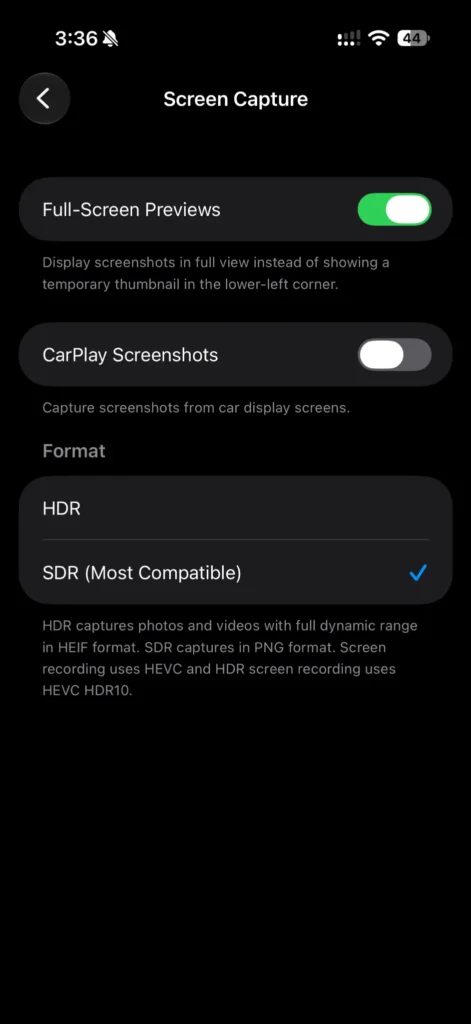
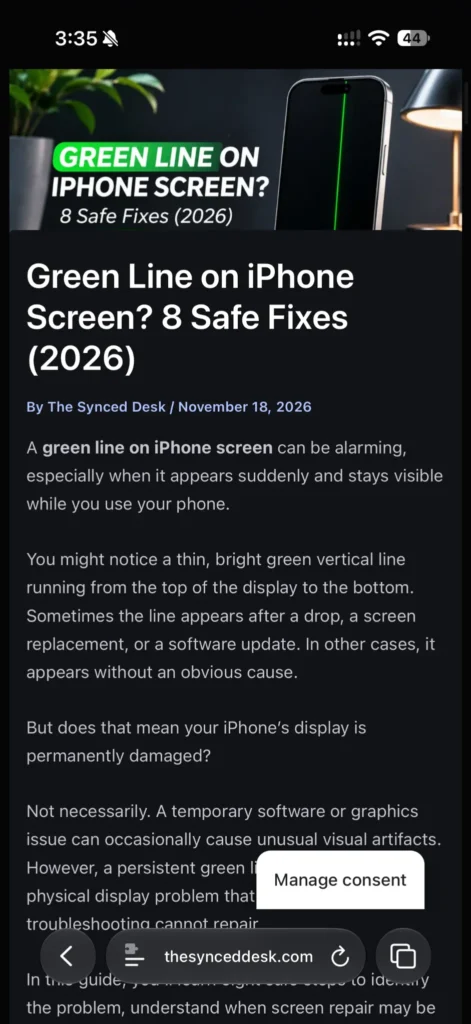
Start by opening Apple’s Safari browser.
Safari is the most straightforward place to demonstrate full-page screenshots because Apple officially supports capturing entire webpages there.
Follow these steps:
- Unlock your iPhone.
- Open Safari.
- Enter the address of the webpage you want to capture.
- Wait for the page to load.
- Confirm that the content extends beyond the visible screen.
For example, try opening a long article or an instructional webpage.
You can practice with an article from The Synced Desk.
Avoid using sensitive websites, banking pages, or documents containing private information when creating demonstration screenshots.
Why Use Safari?
Safari supports Apple’s Full Page screenshot functionality for compatible webpages.
Other browsers and applications may provide different screenshot capabilities.
If you’re using a webpage inside an app’s built-in browser, opening the same address directly in Safari is a useful first step when Full Page doesn’t appear.
Step 2: Take a Normal Screenshot
Once the webpage is open, capture a screenshot using your iPhone’s buttons.
On iPhones With Face ID
This includes models such as the iPhone 17 Pro and other recent iPhones.
- Locate the Side button.
- Locate the Volume Up button.
- Press both buttons at the same time.
- Quickly release them.
Your iPhone captures the screen.
On iPhones With a Home Button
On supported models with a Home button:
- Press the Side button and Home button simultaneously.
- Quickly release both.
Older models may have a differently positioned power button.
What Happens After Taking a Screenshot?
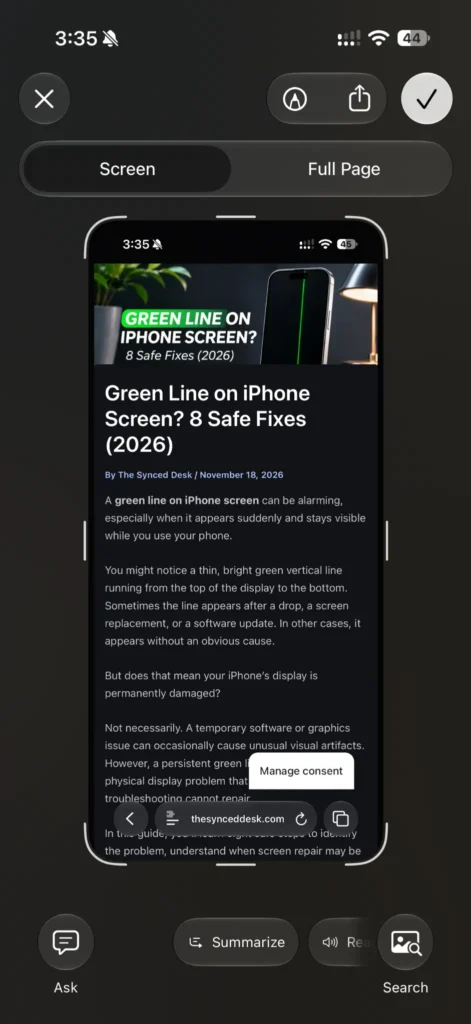
On recent iOS versions, the screenshot editor may open automatically.
If your iPhone instead displays a small thumbnail in the lower-left corner, tap it before it disappears.
You should now be able to review or edit the screenshot.
Step 3: Select the Full Page Option
This is the most important step.
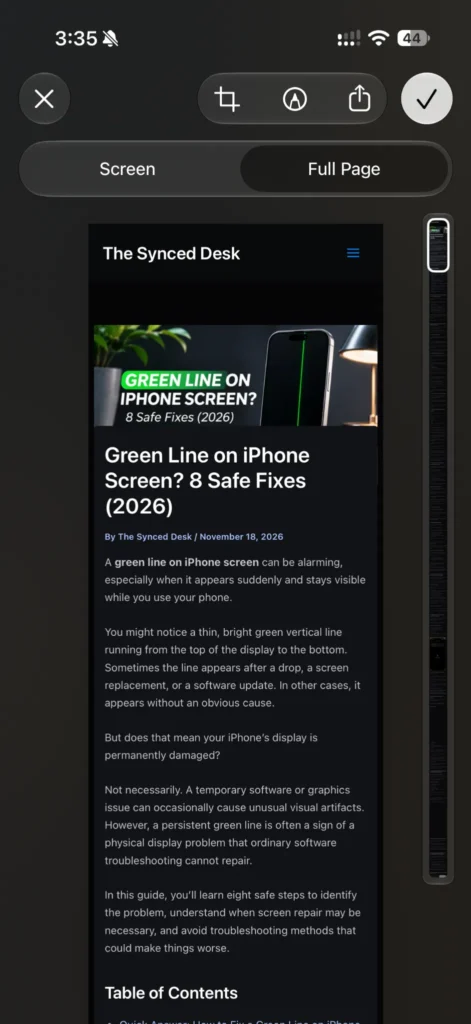
When the screenshot editor opens for supported content, look for Full Page.
- Find the Full Page option.
- Tap it.
- Allow the full-page preview to appear.
- Use the preview navigation to examine the content.
On compatible webpages, you can view content that extends beyond the original screenshot.
Apple provides a preview strip that allows you to navigate through the captured page.
Why Is Full Page Important?
Without this option, you’re working with a normal screenshot.
Selecting Full Page tells iOS to capture supported content beyond the visible display.
The result can include substantially more information than a regular screenshot.
Note: The feature does not guarantee that every element of a webpage will be included. Interactive elements, embedded media, and dynamically loaded sections may behave differently.
Step 4: Review, Scroll, and Crop the Screenshot
Before saving your long screenshot, check that it contains the information you need.
Apple allows you to review the full-page preview and crop it.
Review the Captured Page
Drag your finger along the preview on the right side of the screenshot editor to navigate through the capture.
Inspect the beginning, middle, and end of the content.
This can help you identify incomplete sections or unwanted information.
Crop the Full-Page Screenshot
You might want to save only part of a long webpage.
To do that:
- Open the full-page screenshot in the editor.
- Tap the Crop tool.
- Adjust the available crop handles.
- Keep the section you want.
- Confirm your changes.
Cropping is useful when a webpage contains a large header, advertisements, navigation menus, or unrelated sections.
Be careful not to remove important information you intended to preserve.
Can You Annotate a Long Screenshot?
The screenshot editor includes Markup tools that can be used with supported captures.
You may be able to add drawings or highlights before saving.
For example, you could highlight a paragraph in a research article or mark an important instruction.
Tool availability can vary depending on the current editing mode and iOS version.
Step 5: Save Your Long Screenshot to Photos or Files
After reviewing the screenshot, save it in a format that suits your needs.
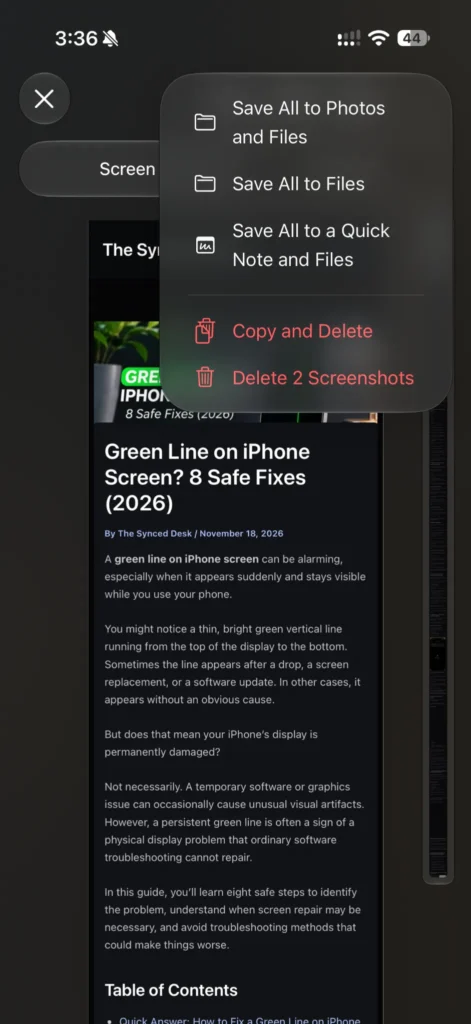
Option A: Save to Photos
When available, choose Save to Photos from the screenshot editor’s save menu.
This creates an image you can view in your photo library.
Saving as an image is convenient when you want to:
- Share a long screenshot in a chat.
- View it alongside your other photos.
- Edit the image later.
- Upload it to a website or document.
Keep in mind that extremely long images can be difficult to view on smaller screens.
Some apps may also resize or compress tall images when you share them.
Option B: Save as a PDF
For long articles and documents, PDF can be a practical format.
Where available:
- Open the screenshot editor’s save menu.
- Choose Save PDF to Files.
- Select a folder in Files or iCloud Drive.
- Save the document.
The PDF can then be opened from Files.
This is useful for keeping reference materials, study notes, or professional documents.
Where Do Saved Long Screenshots Go?
It depends on how you saved them.
Photos: Open Photos → Collections → Media Types → Screenshots, or find the image in your library.
Files: Open the Files app, navigate to the folder you selected, and locate the PDF.
If you can’t find the screenshot, verify which save option you selected.
Apple’s iPhone screenshot instructions explain the available save options.
Full Page Option Missing on iPhone? 7 Things to Check
Sometimes you take a screenshot but cannot find the Full Page option.
That doesn’t automatically mean your iPhone is defective.
Here are seven troubleshooting checks.
1. Make Sure the Content Supports Full-Page Capture
The Full Page option isn’t available for every screen in iOS.
Start with a normal webpage in Safari.
If Full Page appears there but not in another application, the difference may be due to that application’s screenshot capabilities.
Don’t assume you can force every application to support scrolling captures through iPhone settings.
2. Open the Page Directly in Safari
A webpage opened inside a social media app or another app’s built-in browser may not behave the same way as a page opened directly in Safari.
Try this:
- Copy the webpage address.
- Open Safari.
- Paste the address into the address field.
- Load the webpage.
- Take another screenshot.
- Check for Full Page.
If the website fails to load in Safari, our iPhone Safari Not Loading Websites guide explains how to troubleshoot that separate problem.
3. Check the Screenshot Preview
On newer versions of iOS, Apple uses a full-screen screenshot preview by default.
Older interfaces may display a temporary thumbnail.
If you expect a thumbnail but see the screenshot editor immediately, that may be normal behavior.
To switch to thumbnail previews on supported versions:
- Open Settings.
- Tap General.
- Select Screen Capture.
- Turn off Full-Screen Previews.
This changes how the preview appears. It does not enable Full Page for unsupported applications.
4. Wait for the Webpage to Finish Loading
Some webpages load text, images, and other elements gradually.
If important content is still loading, wait before taking the screenshot.
Try scrolling through the webpage to confirm that the required content is visible.
Return to the beginning and take another screenshot.
This does not guarantee that dynamically generated content will be captured, but it helps ensure the page is ready.
5. Restart Your iPhone
If Full Page previously worked on supported webpages but suddenly stops appearing, try restarting your iPhone.
On an iPhone with Face ID:
- Hold the Side button and either Volume button.
- Drag the power-off slider.
- Wait for the phone to shut down.
- Press and hold the Side button to restart.
- Open Safari and try again.
A restart may help with temporary interface problems.
However, restarting will not add full-page screenshot support to an incompatible app.
6. Check for an iOS Update
Keeping your iPhone updated may resolve certain software issues.
To check:
- Open Settings.
- Tap General.
- Select Software Update.
- Review any available compatible update.
- Back up important information before installing.
After the update, test Full Page using a Safari webpage.
Don’t factory reset your iPhone just because a screenshot option is unavailable in one application.
7. Check for App Restrictions
Some applications restrict screenshots or screen recording for privacy, security, or content protection.
These restrictions may prevent certain information from being captured.
If the issue affects only one application, check its documentation or support resources.
Trying to bypass an app’s restrictions is not a reliable screenshot troubleshooting method.
How to Take a Scrolling Screenshot in WhatsApp, Messages, or Instagram
This is an important limitation to understand.
Apple’s built-in Full Page capture is not a universal tool for recording every continuously scrolling screen.
Long Screenshot in WhatsApp
If you want to capture a lengthy conversation, check whether Full Page is available.
If it is not, you can take multiple ordinary screenshots while scrolling through the conversation.
Make sure each screenshot overlaps slightly with the previous one.
You can then combine the images using a suitable editing or stitching tool.
Remember that conversations can contain private information about other people. Avoid uploading sensitive screenshots to unknown third-party services.
Long Screenshot in iMessage
The Messages app may not offer the same Full Page functionality as Safari.
For a long conversation, you can capture consecutive screenshots and combine them when necessary.
If you need to preserve important communications, remember that screenshots are not a complete backup of your message history.
Long Screenshot in Instagram
Instagram and similar applications often use dynamic feeds rather than fixed documents.
The standard Full Page feature may not be available.
For permitted content, multiple screenshots or an authorized screen recording may be alternatives.
However, a screen recording creates a video, not a single long image.
If your recording fails, see our iPhone Screen Recording Not Working guide.
How to Combine Multiple iPhone Screenshots Into One Long Image
When Full Page isn’t available, image stitching is another option.
The basic process is:
- Open the content you want to capture.
- Take a regular screenshot.
- Scroll downward.
- Leave a small amount of previously captured content visible.
- Take the next screenshot.
- Repeat until you’ve captured the entire section.
- Combine the images using an editor that supports vertical image stitching.
The overlapping sections help you align the screenshots correctly.
Check the final image for repeated or missing lines of text.
Do You Need a Third-Party App?
Not for supported Safari full-page captures.
However, combining multiple screenshots into one long image may require additional editing tools.
Choose tools carefully, particularly when your screenshots contain private messages, financial information, or sensitive documents.
Where possible, use an editor that processes images locally.
How to Take a Screenshot Without Using iPhone Buttons
If pressing the Side and Volume Up buttons is inconvenient, Apple offers alternative screenshot methods.
These can trigger a regular screenshot, after which Full Page can be selected when the content supports it.
Option 1: Use Back Tap
On compatible iPhones:
- Open Settings.
- Tap Accessibility.
- Select Touch.
- Open Back Tap.
- Choose Double Tap or Triple Tap.
- Select Screenshot.
You can then use the selected gesture to trigger a screenshot.
Option 2: Use AssistiveTouch
AssistiveTouch provides onscreen controls for certain device actions.
To enable it:
- Open Settings.
- Tap Accessibility.
- Select Touch.
- Tap AssistiveTouch.
- Turn on AssistiveTouch.
- Configure an available screenshot action.
This may be useful if the physical buttons are difficult to operate.
Option 3: Use Siri
Apple also lists Siri as an alternative way to request a screenshot.
Availability and behavior may vary based on your device configuration and supported Siri features.
These alternative methods do not change which content is eligible for Full Page capture.
Long Screenshot vs. Screen Recording: Which Should You Use?
Both features capture information from your iPhone, but they serve different purposes.
Long screenshot: Produces a still image or document of supported content that extends beyond the visible screen.
Screen recording: Produces a video showing screen activity over time.
Choose a long screenshot when you need a readable reference copy of a webpage or document.
Choose screen recording when you need to demonstrate a sequence of actions, navigation, or an interactive process.
Remember that some apps restrict screen recording and that protected media may not be captured.
Tips for Taking Better Long Screenshots on iPhone
A few simple habits can improve the final result.
Use a fully loaded webpage. Wait until important images and text are visible.
Remove unrelated information. Crop the screenshot to focus on what you need.
Choose the right format. Photos are convenient for image sharing, while PDFs can be better for archiving long documents.
Check for missing sections. Review the entire capture before assuming the page was saved completely.
Protect private information. Inspect screenshots before sharing them publicly.
Avoid unnecessary apps. Apple’s built-in Full Page feature is sufficient for many ordinary webpage captures.
Frequently Asked Questions
How do I take a long screenshot on iPhone without an app?
Open a supported webpage in Safari, take a normal screenshot, select Full Page in the screenshot editor, and save the result. You don’t need a third-party app for this method.
Why can’t I find Full Page on my iPhone?
The content or application may not support full-page screenshot capture. Try opening a standard webpage directly in Safari and taking another screenshot.
Can I take a scrolling screenshot on iPhone 17 Pro?
Yes. The iPhone 17 Pro supports Apple’s screenshot functionality. Full Page capture is available for supported content, such as compatible Safari webpages.
Can I save a long screenshot as a picture instead of a PDF?
Yes, when the screenshot editor provides the Save to Photos option. PDF saving is also available for supported full-page captures.
Can I take a long screenshot of WhatsApp chats?
Apple’s Full Page feature is not guaranteed in WhatsApp. You may need to take multiple screenshots and combine them using an appropriate editing method.
Does Full Page capture an entire website?
No. It captures supported content from the current page, not every page of a website. Extremely long, interactive, or dynamically loaded content may also have limitations.
Where are long screenshots saved on iPhone?
Images saved to Photos appear in your photo library. PDFs saved to Files appear in the folder you selected.
Why does my screenshot open in full screen automatically?
Recent iOS versions use full-screen screenshot previews by default. You can change this under Settings → General → Screen Capture → Full-Screen Previews.
Can I take a long screenshot in Chrome on iPhone?
Screenshot options can vary by browser and version. If the built-in Full Page control isn’t available, open the webpage in Safari or use another supported capture method.
Is a long screenshot the same as a PDF?
Not necessarily. A long screenshot is a capture of content extending beyond the visible display. Depending on the available save options, it can be saved as an image or PDF.
Final Thoughts
Now you know how to take a long screenshot on iPhone using Apple’s built-in Full Page feature.
The easiest method is to open a webpage in Safari, capture a normal screenshot, select Full Page, and save the result to Photos or Files.
For unsupported apps such as messaging platforms and social media feeds, multiple screenshots or other appropriate capture methods may be necessary.
There’s no need to install extra software for ordinary Safari full-page screenshots.
Just remember to review the captured content and protect personal information before sharing.
Last reviewed: November 18, 2026.