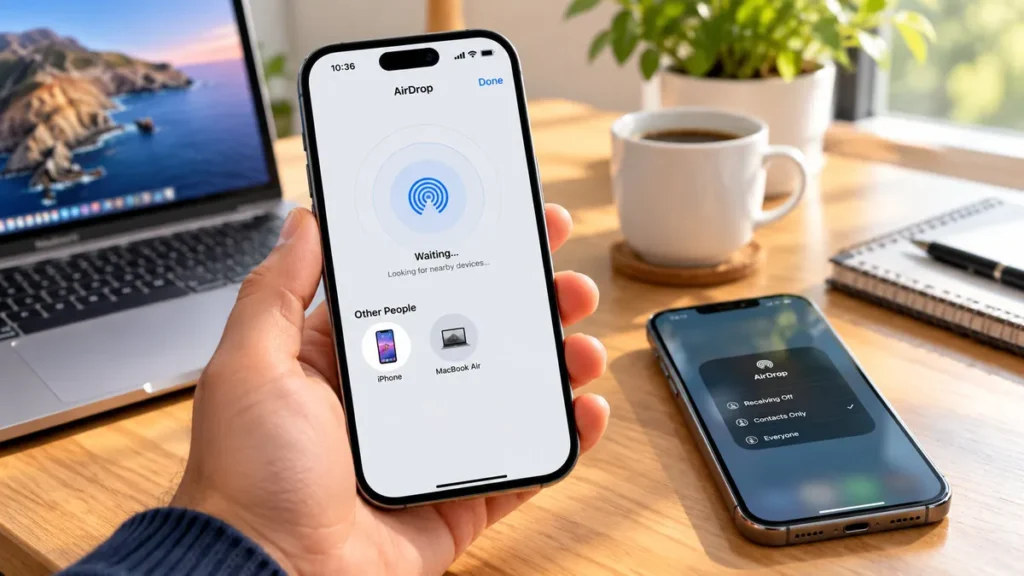
AirDrop not working on your iPhone? Maybe another iPhone doesn’t appear when sharing photos, a transfer stays on Waiting, or the receiving device never gets a notification.
These symptoms can have different causes. A missing device often points to discoverability settings, while a transfer stuck on Waiting may involve recipient approval or AirDrop-code verification.
This guide focuses on iPhone AirDrop not working, especially when sharing with another iPhone or iPad. We’ll explain how to identify the problem, test the connection, and choose the right fix.
If your AirDrop problem occurs specifically between an iPhone and Mac, follow our separate AirDrop Between iPhone and Mac guide.
Table of Contents
Quick Answer: How to Fix iPhone AirDrop Not Working
If your iPhone AirDrop isn’t working, start with these checks:
- Move the two Apple devices closer together.
- Turn on Wi-Fi and Bluetooth on both devices.
- Set the receiving device to Everyone for 10 Minutes.
- Confirm the sender’s contact information if using Contacts Only.
- Follow any AirDrop-code verification prompt.
- Disconnect Personal Hotspot on both devices.
- Keep the receiving device awake and ready to accept transfers.
- Try sending one small photo.
- Restart both devices.
- Update iOS, iPadOS, or macOS.
- Check Mac AirDrop settings and Screen Time restrictions.
- Consider resetting network settings only if simpler fixes fail.
Start with the visibility settings before changing more advanced options.
AirDrop Keeps Saying Failed? What to Check
If your iPhone discovers another Apple device but the AirDrop transfer fails, the problem may involve the wireless connection, receiving settings, or the file being transferred.
Try these checks:
- Send one small photo first. This helps determine whether the failure affects every transfer or only certain files.
- Check both devices’ connections. Keep Wi-Fi and Bluetooth enabled, move the devices closer together, and disconnect Personal Hotspot.
- Verify the recipient’s AirDrop settings. Use Everyone for 10 Minutes temporarily if the recipient isn’t recognized in Contacts.
- Complete any AirDrop code verification. On supported software, sharing with an unknown contact may require a code from the receiving device.
- Restart both devices. Then try the same small photo again.
- Check available storage. If smaller transfers succeed but larger files repeatedly fail, review the receiving device’s free space and test another file.
If AirDrop continues failing between multiple compatible Apple devices, check for available software updates and consult Apple’s official AirDrop instructions.
Avoid factory-resetting your iPhone just because one AirDrop transfer fails.
Why Is AirDrop Not Working on My iPhone?
AirDrop allows nearby compatible Apple devices to share files wirelessly.
It uses Bluetooth for discovery and peer-to-peer Wi-Fi for data transfer.
If either connection isn’t functioning correctly, nearby devices may not appear or transfers may fail.
Several issues can interfere with AirDrop.
AirDrop receiving is disabled: The receiving device may be set to Receiving Off.
Contacts Only restrictions: The recipient’s device may not recognize the sender’s Apple Account contact information.
Wi-Fi or Bluetooth is disabled: Both technologies are needed for normal nearby AirDrop operation.
Personal Hotspot is active: Apple recommends disconnecting Personal Hotspot before sharing through AirDrop.
Devices are too far apart: AirDrop works best when the devices are nearby.
Transfer acceptance is pending: A recipient may need to accept the incoming file.
AirDrop-code verification: Newer supported software may require a code when sharing with someone who isn’t in your contacts.
Temporary software problems: A restart or compatible software update may resolve certain issues.
Before troubleshooting, determine whether the receiving device is missing entirely or whether the transfer fails after the device is selected.
These two symptoms can have different causes.
1. Move the Devices Closer Together
AirDrop is designed primarily for sharing files between nearby Apple devices.
Apple recommends keeping the devices within approximately 10 metres, or 30 feet, of one another.
Walls, distance, and nearby wireless interference can affect discovery.
To test:
- Place both devices in the same room.
- Bring them within a few feet of one another.
- Unlock the receiving device.
- Open Photos on the sending iPhone.
- Select a photo.
- Tap Share → AirDrop.
- Check whether the receiving device appears.
For supported iPhones running iOS 17 or later, bringing devices close together can also help initiate sharing.
If AirDrop works at close range, the original problem may have involved distance or wireless interference.
If the other device still doesn’t appear, continue with the next fix.
2. Turn On Wi-Fi and Bluetooth on Both Devices
Apple requires Wi-Fi and Bluetooth to be enabled for normal nearby AirDrop discovery.
Check both devices, not just the sender.
On iPhone:
- Open Settings.
- Tap Wi-Fi.
- Confirm Wi-Fi is enabled.
- Return to Settings.
- Tap Bluetooth.
- Confirm Bluetooth is enabled.
Repeat the checks on the receiving iPhone or iPad.
For a Mac, open System Settings and check Wi-Fi and Bluetooth.
AirDrop generally doesn’t require both devices to be connected to the same Wi-Fi network.
However, Wi-Fi and Bluetooth should be enabled.
If you suspect the wireless radios are temporarily unresponsive, switch them off and back on using Settings.
Related Reading: iPhone Bluetooth Not Finding Devices? 11 Fixes to Try (2026).
If your iPhone connects to Wi-Fi but cannot access the internet, read our iPhone Connected to Wi-Fi but No Internet troubleshooting guide.
An internet outage is not automatically an AirDrop failure, because nearby AirDrop can transfer files directly between devices.
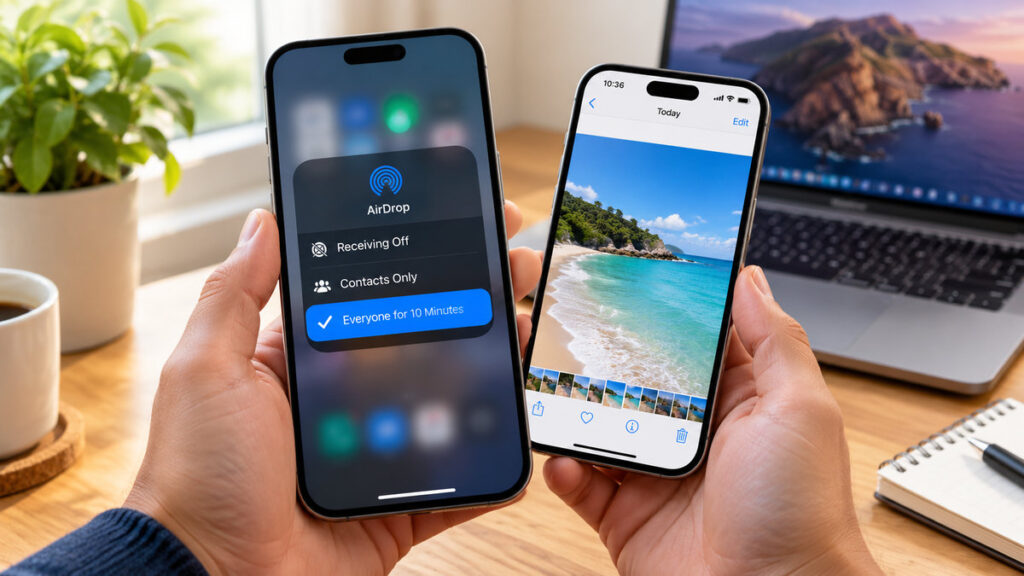
3. Choose Everyone for 10 Minutes
One of the most common reasons an iPhone doesn’t appear in AirDrop is that receiving is disabled or limited.
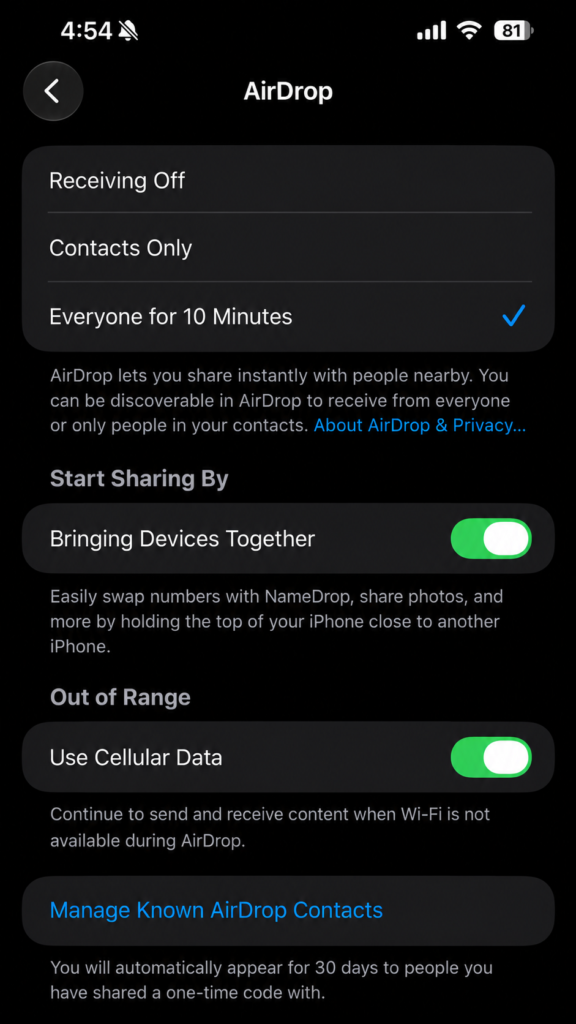
AirDrop includes receiving options such as:
- Receiving Off
- Contacts Only
- Everyone for 10 Minutes
To change the receiving setting:
- Open Control Center.
- Touch and hold the connectivity controls.
- Tap AirDrop.
- Select Everyone for 10 Minutes.
- Try the transfer again.
You can also check the available AirDrop controls under Settings → General → AirDrop.
Important: Everyone for 10 Minutes is temporary. On supported iOS versions, the setting automatically changes back after ten minutes.
If you’re signed into your Apple Account, it generally returns to Contacts Only. Otherwise, it may return to Receiving Off.
This is a useful troubleshooting option when the recipient isn’t saved in your contacts.
For privacy, don’t leave unnecessary receiving permissions enabled longer than needed.
4. Check Contacts Only and Contact Information
If the recipient is using Contacts Only, the sender may not appear unless their identity matches the information saved in Contacts.
Apple explains that the receiving device needs the sender’s Apple Account email address or associated phone number in the appropriate contact card.
To investigate:
- Open Contacts on the receiving iPhone.
- Find the sender’s contact.
- Check the saved phone number and email address.
- Confirm that the details match the sender’s Apple Account information.
- Save any corrections.
- Try AirDrop again.
Don’t share passwords or sensitive Apple Account information to complete this check.
If you don’t want to modify contacts, using Everyone for 10 Minutes is often easier for a one-time transfer.
If the receiving device becomes visible after switching from Contacts Only, contact recognition may have contributed to the original problem.
5. Complete AirDrop-Code Verification When Required
Newer Apple software introduces an additional verification step for sharing with people who aren’t in your contacts.
On supported devices running iOS 26.2, iPadOS 26.2, macOS 26.2, or later, AirDrop may require a code for sharing between people who aren’t already recognized contacts.
If prompted:
- Choose the receiving device in AirDrop.
- Ask the recipient to continue with the incoming transfer.
- Have the recipient select the option to get an AirDrop code.
- Ask the recipient to share that code directly with you.
- Enter the code on your device.
- Complete the file transfer.
After verification, the devices can continue sharing with each other for a limited period without repeating the same process.
This feature is intended to protect users from unwanted sharing requests.
Important: An AirDrop-code prompt is not necessarily an error. Follow the on-screen instructions rather than attempting to bypass verification.
If the expected code doesn’t appear, check both devices’ software versions and AirDrop visibility settings.
6. Disconnect Personal Hotspot
Apple specifically recommends disconnecting Personal Hotspot before attempting nearby AirDrop transfers.
Personal Hotspot allows other devices to share an iPhone’s cellular data connection.
However, an active hotspot connection may interfere with AirDrop availability.
To check:
- Open Settings on the iPhone.
- Tap Personal Hotspot.
- Turn off Allow Others to Join, if enabled.
- Disconnect devices actively using that hotspot.
- Repeat the check on the other iPhone if necessary.
- Try AirDrop again.
You don’t need to erase or reset the cellular plan.
If you normally rely on Personal Hotspot for internet access, you can re-enable it after completing the transfer.
Related Reading: Phone Personal Hotspot Not Working? 12 Fixes to Try (2026).
That guide covers problems with sharing cellular internet, which is different from transferring a file through AirDrop.
7. Keep the Receiving Device Awake and Accept the Transfer
Sometimes AirDrop discovers the device correctly, but the transfer doesn’t complete.
The receiving device may need the user to accept the incoming file.
To test:
- Unlock the receiving iPhone.
- Keep it awake.
- Open the file on the sending iPhone.
- Tap Share → AirDrop.
- Select the recipient.
- Look for an incoming sharing request.
- Tap Accept when prompted.
If both devices are signed into the same Apple Account, a transfer may be accepted automatically.
Check the relevant app for the received content.
Photos generally appear in Photos, while some documents may appear in Files or another app.
If a transfer is automatically accepted but you cannot find the file, the problem may be its saved location rather than an AirDrop connection failure.
8. Try Sending One Small Photo
AirDrop is useful for photos, videos, and documents, but troubleshooting is easier when you begin with a small file.
If a large video transfer fails, test a single photo first.
Follow these steps:
- Open Photos on the sending iPhone.
- Select one ordinary photo.
- Tap Share.
- Choose AirDrop.
- Select the receiving device.
- Wait for the transfer.
If a single photo succeeds but a large group of files fails, investigate transfer size, storage availability, and the specific content you’re sending.
Check whether the receiving device has sufficient free storage.
You can review available storage under Settings → General → iPhone Storage.
AirDrop is generally intended for nearby file sharing rather than serving as a complete backup solution for hundreds of gigabytes of data.
For large transfers, a wired connection or another supported transfer method may be more appropriate.
9. Restart Both Apple Devices
Restarting can help resolve temporary software issues affecting wireless discovery or file transfers.
For an iPhone with Face ID:
- Press and hold the Side button and either Volume button.
- Wait for the power-off slider.
- Slide to turn the device off.
- Wait approximately 30 seconds.
- Press and hold the Side button to restart it.
Restart the other iPhone, iPad, or Mac as well.
After restarting:
- Enable Wi-Fi and Bluetooth.
- Check AirDrop receiving permissions.
- Disconnect Personal Hotspot.
- Try sending a photo again.
A normal restart doesn’t erase photos, messages, or installed applications.
If restarting resolves the issue, you probably don’t need to change additional settings.
10. Install Compatible Software Updates
Apple recommends keeping your devices updated when AirDrop isn’t functioning correctly.
To update an iPhone:
- Open Settings.
- Tap General.
- Select Software Update.
- Wait for the update check.
- Review any available compatible update.
- Back up important data before installing.
- Follow the on-screen instructions.
If you’re transferring files to a Mac, also check for available macOS updates.
Not every AirDrop problem requires a software update.
However, having compatible versions can help avoid certain feature differences, especially when new verification methods are involved.
Avoid installing unofficial software or attempting unsupported changes to resolve AirDrop problems.
11. Check AirDrop on Your Mac and Screen Time Restrictions
Screen Time can restrict access to built-in iPhone features, including AirDrop. This is particularly relevant on devices managed through parental controls.
On iOS 27:
- Open Settings.
- Tap Screen Time.
- Select Content & Privacy Restrictions.
- Open Other Features.
- Find AirDrop.
- Confirm that AirDrop is allowed, if you’re authorized to change the setting.
For a child’s device, the parent or guardian may need to manage this setting through Family Sharing.
On older iOS versions, the setting may appear under Allowed Apps & Features.
Expected result: When AirDrop is permitted, the device should allow you to access its normal AirDrop receiving controls.
If AirDrop is already allowed but nearby devices are still missing, check Wi-Fi, Bluetooth, Contacts Only and the recipient’s receiving settings.
If your iPhone can find other iPhones but not your Mac, use our dedicated iPhone-to-Mac AirDrop troubleshooting guide instead.
12. Reset Network Settings Only as a Last Resort
If AirDrop still fails across multiple compatible Apple devices despite the previous checks, you can consider resetting network settings.
This is a more disruptive step and shouldn’t be your first solution.
To reset network settings on an iPhone:
- Open Settings.
- Tap General.
- Select Transfer or Reset iPhone.
- Tap Reset.
- Choose Reset Network Settings.
- Confirm the action if you decide to proceed.
Important: Resetting network settings removes saved Wi-Fi network configurations and passwords, and resets certain cellular, VPN, and APN settings.
It doesn’t normally erase personal photos or documents, but you may need to reconnect to networks and reconfigure affected services afterward.
If your iPhone is managed by a school or organization, contact the administrator before resetting network settings.
After the reset, reconnect to a trusted network, enable Bluetooth, and test AirDrop again.
If the problem continues, contact Apple Support rather than repeatedly resetting the same settings.
AirDrop Not Finding Anyone Nearby?
If no devices appear in the AirDrop sharing menu, focus on discovery rather than file size.
First, confirm both devices are compatible Apple devices.
Next, turn on Wi-Fi and Bluetooth on both.
Keep the recipient nearby, awake, and available to receive AirDrop requests.
Set the receiving device to Everyone for 10 Minutes temporarily.
If you use Contacts Only, verify the sender’s contact information.
Finally, disconnect Personal Hotspot and restart the devices if necessary.
These checks address common reasons nearby recipients aren’t shown.
AirDrop Stuck on Waiting: What Does It Mean?
If AirDrop shows a recipient but remains on Waiting, the connection or acceptance process may not have completed.
Check whether the recipient has received an incoming request.
Ask them to unlock the device and review the prompt.
If the devices use a newer AirDrop-code verification process, complete that step.
If no request appears, check the receiving settings, Bluetooth, Wi-Fi, and Personal Hotspot.
Then try one small photo instead of a large group of files.
Waiting doesn’t automatically mean the sending phone is damaged.
AirDrop Not Working From iPhone to Mac?
If AirDrop works between iPhones but fails when sending to your Mac, check the Mac’s receiving permissions, Finder settings, and wireless connectivity.
We’ve covered those Mac-specific checks separately in our AirDrop Not Working Between iPhone and Mac guide.
AirDrop Not Working After an iOS Update?
If AirDrop stopped working after an iOS update, don’t assume the update permanently damaged the wireless hardware.
Begin by checking AirDrop receiving permissions and whether Wi-Fi and Bluetooth remain enabled.
Verify that Personal Hotspot isn’t interfering.
If the update introduced changes to AirDrop verification or receiving settings, follow the newer on-screen instructions.
Restart both devices and check for another compatible software update if the issue continues.
Avoid resetting the whole iPhone without first checking the simpler possibilities.
Frequently Asked Questions
Why is AirDrop not working on my iPhone?
Possible causes include disabled Wi-Fi or Bluetooth, Receiving Off, Contacts Only restrictions, an active Personal Hotspot, distance, temporary software problems, or incomplete transfer verification.
How do I fix AirDrop not finding devices?
Enable Wi-Fi and Bluetooth on both devices, move them closer, unlock the receiver, and temporarily select Everyone for 10 Minutes.
Why is AirDrop stuck on Waiting?
The recipient may not have accepted the transfer, the devices may not have completed discovery, or an AirDrop-code step may be required.
Does AirDrop require Wi-Fi?
AirDrop uses Wi-Fi and Bluetooth for nearby discovery and file transfer, but the devices generally don’t need to be connected to the same Wi-Fi network.
Does AirDrop need internet access?
Nearby AirDrop transfers can use a direct connection without requiring ordinary internet access. Some supported transfers may continue over the internet after the initial nearby connection.
Why can’t I AirDrop to my Mac?
Check that the Mac has Wi-Fi and Bluetooth enabled, AirDrop receiving is allowed, and both devices are nearby. Also verify whether a transfer request needs to be accepted.
Why does AirDrop say Receiving Off?
The receiving device’s AirDrop setting is disabled. Open Control Center or Settings → General → AirDrop and choose an appropriate receiving option.
What does Everyone for 10 Minutes mean?
It temporarily allows the device to be discoverable to nearby people outside your contacts. The setting changes back automatically after ten minutes.
Why does AirDrop ask for a code?
On supported newer Apple software, AirDrop may require a verification code when sharing with someone who isn’t in your contacts.
Can Personal Hotspot stop AirDrop from working?
An active Personal Hotspot can interfere with AirDrop. Apple recommends disconnecting the hotspot before attempting nearby transfers.
Will restarting my iPhone fix AirDrop?
Restarting can resolve temporary software issues but won’t necessarily correct contact permissions or device compatibility problems.
Should I reset my iPhone to fix AirDrop?
A factory reset isn’t a recommended first step. Even Reset Network Settings should be considered only after simpler troubleshooting because it removes saved network configurations.
Final Thoughts
If your iPhone AirDrop is not working, start with the most common causes rather than resetting your device immediately.
Make sure both devices have Wi-Fi and Bluetooth turned on.
Keep them close together, choose the correct AirDrop receiving permission, and disconnect Personal Hotspot.
When sharing with someone who isn’t in your contacts, remember that certain newer software versions use AirDrop-code verification.
If a transfer remains stuck on Waiting, check the receiving device’s acceptance prompt and test with a small photo.
Restarting and updating compatible devices may help with temporary issues.
If the problem continues across multiple devices after these checks, Apple Support can help investigate the remaining cause.
Official Apple Support Resources
- Apple: How to use AirDrop on your iPhone or iPad
- Apple: Use AirDrop to send items to nearby Apple devices
- Apple: Block features or content with Screen Time
- Apple: If you can’t connect to Wi-Fi on your iPhone
The Synced Desk | Practical solutions for everyday technology problems.