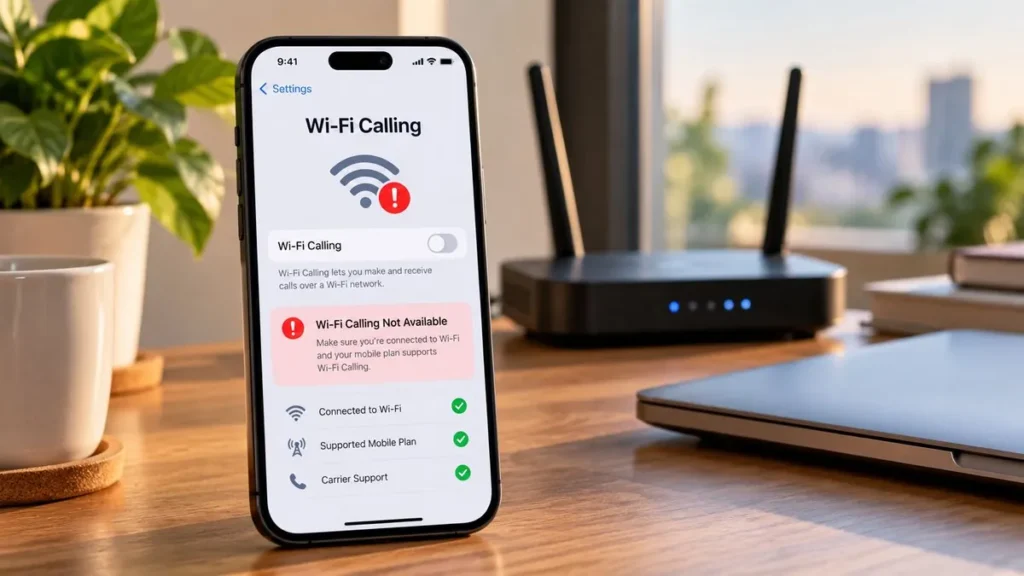
iPhone Wi-Fi Calling not working? Perhaps the option is missing from Settings, your iPhone refuses to enable it, or ordinary phone calls still fail even though you’re connected to Wi-Fi. You may also see Wi-Fi Calling stop working when you travel or switch to another SIM or eSIM.
Wi-Fi Calling can be especially useful at home, in an office, or anywhere a mobile signal is weak. But a strong Wi-Fi signal doesn’t guarantee that your mobile carrier supports the feature or that the network allows it.
The good news is that many Wi-Fi Calling problems can be investigated without erasing your iPhone or removing your cellular plan. This guide walks through 12 practical fixes for iPhone Wi-Fi Calling not working, from checking carrier support to testing another network and updating carrier settings.
Important: Wi-Fi Calling is a carrier service for regular calls using your phone number. It isn’t the same as FaceTime Audio, WhatsApp calling, or other internet calling apps. Emergency calling behavior and availability can differ by carrier and region. Do not rely on Wi-Fi Calling as your only way to reach emergency services.
Quick Answer: How to Fix iPhone Wi-Fi Calling Not Working
Try these steps in order:
- Check whether your carrier and mobile plan support Wi-Fi Calling.
- Turn on Wi-Fi Calling for the correct phone line.
- Complete any emergency-address confirmation requested by your carrier.
- Confirm that your Wi-Fi connection actually works.
- Try another Wi-Fi network.
- Restart your iPhone and router if appropriate.
- Turn Wi-Fi Calling off and back on once.
- Install an available compatible iOS update.
- Check for a carrier-settings update.
- Confirm that the correct SIM or eSIM line is active.
- Test without an interfering VPN or restrictive network, where permitted.
- Consider Reset Network Settings only after the simpler checks fail.
If the Wi-Fi Calling switch is missing, start with Fix 1, not a factory reset. If the switch is on but calls still fail, focus on the network and carrier-related steps.
What Is Wi-Fi Calling on iPhone?
Wi-Fi Calling lets you make and receive regular cellular voice calls over a supported Wi-Fi connection when your mobile signal is poor. It uses the phone number and service provided by your carrier.
Apple says you can enable the feature in Settings → Cellular (or Mobile Data) → your line, if using Dual SIM → Wi-Fi Calling. When Wi-Fi Calling is active, you may see Wi-Fi displayed alongside the carrier name when you open Control Center.
Not every carrier, phone plan, country, or region supports Wi-Fi Calling. Some carriers may also require account provisioning, compatible devices, and an emergency-services address.
A working FaceTime call is not proof that carrier Wi-Fi Calling is active. FaceTime can use internet data independently of the carrier’s Wi-Fi Calling feature.
Why Is Wi-Fi Calling Not Working on My iPhone?
Before trying fixes, identify the symptom:
- Wi-Fi Calling option missing: Your carrier, plan, regional configuration, or line may not offer the setting.
- Can’t enable Wi-Fi Calling: The carrier may require activation, emergency-address confirmation, or an updated account setting.
- Switch is on but calls fail: Your Wi-Fi network may be incompatible, restricted, unstable, or unable to reach the carrier’s service.
- Works at home but not elsewhere: Some public, office, hotel, and filtered networks may block required connections.
- Works with one line but not the other: Wi-Fi Calling support is specific to each cellular line and carrier.
- Stopped working after a change: A SIM transfer, carrier update, software update, or network configuration change could be involved.
Use those clues to decide which step matters most.
1. Confirm Your Carrier and Plan Support Wi-Fi Calling
This is the most important first check. Wi-Fi Calling isn’t available through every carrier or plan, and it isn’t universally supported in every country.
Contact your carrier or check its official website. Ask:
- Is Wi-Fi Calling available for my phone number and plan?
- Does my iPhone model support your Wi-Fi Calling service?
- Is the feature already enabled on my account, or does it require provisioning?
- Are there restrictions while roaming or using it abroad?
- Does the carrier require an emergency address or other registration?
If the carrier doesn’t support Wi-Fi Calling, toggling iPhone settings won’t enable the service. Likewise, a SIM that offers only data may not provide ordinary phone-number calling.
Tip: Don’t confuse a VoLTE setting with Wi-Fi Calling. Both involve voice services, but they use different network connections.
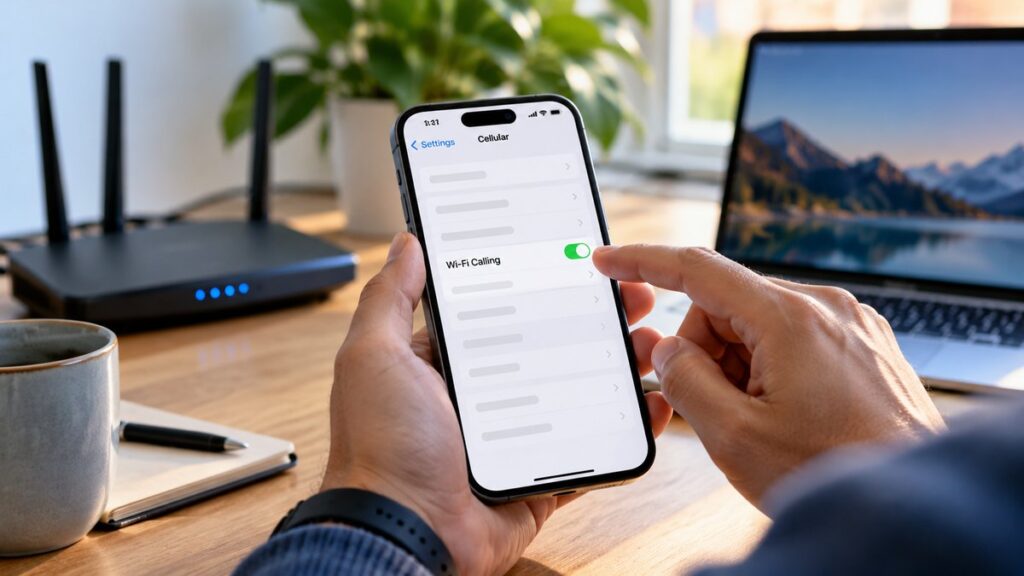
2. Enable Wi-Fi Calling for the Correct Line
If your plan supports it, verify the actual switch on your iPhone.
- Open Settings.
- Tap Cellular or Mobile Data.
- If you use Dual SIM, choose the line you want to call from.
- Tap Wi-Fi Calling.
- Turn on Wi-Fi Calling on This iPhone (wording can vary slightly).
- Tap Enable, then follow any instructions.
If the switch is already enabled, don’t repeatedly toggle it yet. Continue checking the network and account first.
If the option isn’t visible at all, check Fix 1 and Fix 9, then speak with your carrier. The correct answer may be account support, not a phone repair.
3. Complete Any Emergency-Address Confirmation
Some carriers require you to enter or confirm an address for emergency services before activating Wi-Fi Calling.
When enabling the feature, read the carrier’s prompt carefully and enter the requested information accurately. If you recently moved, ask whether the carrier needs the emergency address updated.
Never use an invented address simply to force activation. The address may affect emergency-service routing when the carrier uses it.
Apple explains that emergency calls ordinarily use cellular service when available. When cellular service is unavailable, an emergency call may use Wi-Fi Calling, and the carrier or device may use location or registered-address information. Availability and reliability vary, so keep other emergency communication options available.
If an address-verification screen displays an error, contact your carrier and mention the exact message.
4. Verify Your Wi-Fi Connection Actually Works
A Wi-Fi symbol only tells you that the iPhone is connected to a wireless network. It doesn’t guarantee that the internet connection is usable.
- Open Settings → Wi-Fi and confirm you’re connected.
- Open Safari and load a new website.
- If a captive-portal sign-in appears, complete the network’s login.
- Try a simple normal voice call after verifying the connection.
- If other devices on that network also can’t connect, troubleshoot the router or internet service.
If your connection is unstable, move closer to the router or check with your internet provider.
Related reading: iPhone eSIM Not Activating? 10 Fixes to Try iPhone eSIM Not Activating? 10 Fixes to Try (2026). This is a separate internet-connectivity issue worth resolving before you test Wi-Fi Calling again.
5. Try a Different Wi-Fi Network
Apple specifically recommends trying another Wi-Fi network when Wi-Fi Calling fails. Not all Wi-Fi networks work with Wi-Fi Calling.
If possible, test a trusted home network or another network you are authorized to use. Avoid testing only on a hotel, campus, or company network that may have restrictions.
If Wi-Fi Calling works on one network but fails on another, the problem is likely related to the original network rather than the phone itself. Ask that network’s administrator or provider whether it blocks services required by the carrier.
Do not change router firewall or security settings at work or school without permission.
6. Restart Your iPhone and Check the Router
A regular restart may help clear a temporary connection or configuration issue.
For a modern iPhone with Face ID:
- Hold the Side button and either Volume button.
- Drag the power-off slider.
- Wait about 30 seconds.
- Hold the Side button to start the iPhone again.
- Reconnect to Wi-Fi and test a normal call.
If the Wi-Fi itself is unreliable, restart your own router using its normal restart procedure. Don’t reset the router to factory defaults just to troubleshoot a single call.
If other family members depend on the connection, warn them before restarting it.
7. Switch Wi-Fi Calling Off and Back On Once
If your carrier supports the feature, your network works, and restarting hasn’t helped, try re-enabling Wi-Fi Calling.
- Go to Settings → Cellular.
- Choose the relevant line if you have Dual SIM.
- Tap Wi-Fi Calling.
- Turn it off.
- Wait briefly, then turn it back on.
- Follow any carrier prompts and retest.
Apple recommends allowing a short interval between troubleshooting changes, rather than rapidly cycling settings. If the switch won’t stay enabled or displays an activation error, record the message and contact your carrier.
8. Update iOS to a Compatible Version
An available iOS update may correct software defects or improve carrier compatibility.
- Back up important information.
- Open Settings → General → Software Update.
- Check for a compatible update.
- Install it when you have enough power, storage, and reliable connectivity.
- After installation, check Wi-Fi Calling again.
An update does not guarantee success if the carrier hasn’t activated Wi-Fi Calling on your account. Avoid installing unofficial software to bypass carrier restrictions.
9. Check for a Carrier-Settings Update
Carrier-settings updates can change network-related capabilities and configurations on iPhone.
- Connect your iPhone to Wi-Fi or cellular data.
- Open Settings → General → About.
- Wait briefly.
- If a carrier-settings update prompt appears, review it and choose Update.
- Restart if instructed, then test Wi-Fi Calling.
If no prompt appears, there may be no update available. Don’t assume the absence of a prompt means something is broken.
For persistent problems, the carrier can verify account provisioning and compatible network settings.
10. Check the Right SIM or eSIM When Using Dual SIM
A dual-SIM iPhone can have two different phone numbers, each with its own carrier and feature support. Wi-Fi Calling might work for one line and not the other.
- Open Settings → Cellular.
- Check that the intended voice line is enabled and active.
- Select that specific line.
- Look for its Wi-Fi Calling option.
- Check with its carrier whether the service is supported.
- Review Default Voice Line if calls are going out on an unexpected number.
If one line is in use and you expect calls on the other, Apple’s Dual SIM instructions also discuss Allow Cellular Data Switching and carrier Wi-Fi Calling support. These settings can affect how incoming calls behave while the other line is busy.
Never delete an eSIM simply because Wi-Fi Calling is missing. You may need carrier assistance to reactivate it.
Related reading: iPhone eSIM Not Activating? 10 Fixes to Try (2026).
11. Check VPN, Filters, and Router Restrictions
Some networks restrict traffic that Wi-Fi Calling needs. A VPN, network filter, security app, or restrictive firewall may also affect connectivity.
To isolate the problem:
- Test Wi-Fi Calling on a different trusted Wi-Fi network.
- If you manage your own VPN, temporarily disconnect it to compare results, then restore it afterward.
- If you’re using an office, school, or managed network, ask the administrator about Wi-Fi Calling compatibility.
- If a network change fixes the problem, avoid altering unrelated iPhone settings.
Do not disable employer-managed security tools or change someone else’s router without authorization.
If the issue appears only on one connection, the router or network provider may need to help.
12. Reset Network Settings Only as a Last Resort
Apple includes Reset Network Settings among its later troubleshooting steps. Use it only after you’ve checked carrier support, tried another network, restarted, and tested the simpler fixes.
Before proceeding, know that this reset removes saved Wi-Fi networks and passwords, and resets some cellular, VPN, and APN settings. You’ll need to reconnect to networks afterward.
To reset:
- Open Settings.
- Tap General.
- Choose Transfer or Reset iPhone.
- Tap Reset.
- Select Reset Network Settings.
- Follow the confirmation prompts.
This normally does not erase your personal photos or messages, but it does change network configurations. If your iPhone is managed by an employer or school, consult its administrator first.
If Wi-Fi Calling still doesn’t work, stop repeating resets. Contact your carrier, who controls whether the service is provisioned for your number.
How to Tell If Your iPhone Is Actually Using Wi-Fi Calling
After activation, connect to a supported Wi-Fi network and open Control Center. Apple says Wi-Fi may appear after the carrier name when Wi-Fi Calling is available.
The exact indicator can depend on the iPhone model, carrier, and software. Keep in mind that a strong cellular signal may cause regular calling to use the cellular network instead.
Make a normal, non-emergency phone call to a willing contact to test whether calling works. Don’t call emergency services just to test Wi-Fi Calling.
A FaceTime or WhatsApp call working over Wi-Fi isn’t sufficient evidence that carrier Wi-Fi Calling has been activated.
Wi-Fi Calling Option Missing on iPhone
If the switch is absent entirely, don’t start by resetting the phone. Check:
- Is the line active and the carrier Wi-Fi Calling-compatible?
- Does your plan include the service?
- Did you select the correct line on a dual-SIM device?
- Is iOS updated and are carrier settings current?
- Is the feature supported where you’re using the line?
If you’re unsure, your carrier is the most useful first contact. It can check whether Wi-Fi Calling is enabled on the account.
Wi-Fi Calling Works at Home but Not at Work or a Hotel
This pattern suggests network-specific interference. Public and managed networks sometimes require sign-in pages or restrict certain types of traffic.
Connect to the network fully, complete any sign-in, and test basic internet access. If Wi-Fi Calling still fails there but works on a trusted home network, contact the network administrator. Avoid weakening your device’s security settings to force a connection.
Wi-Fi Calling Not Working Abroad or While Roaming
Wi-Fi Calling availability when abroad depends on the carrier and its terms. Certain providers restrict activation or usage outside their home market. Charges can also vary with the destination and number dialed.
Before travelling, ask the carrier whether Wi-Fi Calling is supported at the destination and what it costs. If the mobile line cannot activate Wi-Fi Calling abroad, changing the Wi-Fi network alone may not resolve it.
For dual-SIM travelers, also confirm that you’re trying to use the intended number, not just the data line.
Wi-Fi Calling vs. FaceTime Audio: What’s the Difference?
Wi-Fi Calling is a carrier-supported way to place ordinary phone calls using your mobile number over Wi-Fi. FaceTime Audio is an Apple internet calling service that uses Apple Account or phone-number registration through FaceTime.
FaceTime working doesn’t prove that Wi-Fi Calling is available on your mobile plan. Conversely, a Wi-Fi Calling problem doesn’t automatically mean FaceTime is broken.
Related reading: FaceTime Waiting for Activation? 10 Fixes to Try (2026), if FaceTime itself cannot complete activation.
Frequently Asked Questions
Why is Wi-Fi Calling not working on my iPhone?
The most common areas to check are carrier support, the Wi-Fi Calling switch for the correct line, emergency-address setup, and whether the Wi-Fi network permits the service. Software or carrier-settings issues can also contribute.
Why is there no Wi-Fi Calling option in Settings?
The feature may be unavailable for your carrier, phone line, plan, device, or region. Check for updates, then contact the carrier to verify support and provisioning.
Does Wi-Fi Calling work without cellular signal?
It can, if your carrier supports Wi-Fi Calling, the service is already configured, and the Wi-Fi network is usable. Availability varies by carrier and region.
Do I need to be connected to the same Wi-Fi as someone I call?
No. Wi-Fi Calling uses your carrier’s voice service. The person you’re calling does not need to be connected to your Wi-Fi network.
Is Wi-Fi Calling free?
It depends on the carrier, plan, destination, and whether you are roaming. Ask your carrier about call charges and any conditions.
Why does Wi-Fi Calling work on one network but not another?
Some networks limit or block the connections required by Wi-Fi Calling. Try another trusted Wi-Fi network and contact the affected network’s provider or administrator.
Is Wi-Fi Calling the same as WhatsApp or FaceTime?
No. Wi-Fi Calling is provided through your carrier for regular phone calls. WhatsApp and FaceTime use different internet calling systems.
Can I use Wi-Fi Calling with two SIMs?
Possibly. Each cellular line needs carrier support and the relevant setting enabled. Check both lines separately.
Why do calls still use cellular service when Wi-Fi Calling is enabled?
Depending on carrier behavior and signal conditions, your iPhone may use cellular service when it’s available. The Wi-Fi Calling switch being on does not necessarily mean every call is using Wi-Fi.
Will Reset Network Settings erase my photos?
Reset Network Settings doesn’t normally erase photos or messages. It removes saved Wi-Fi configurations and resets certain mobile network, VPN, and APN settings.
Should I use Wi-Fi Calling to test emergency services?
No. Never place a test call to emergency services without authorization. Emergency-call routing and reliability can differ depending on network and carrier availability.
What if nothing fixes Wi-Fi Calling?
Contact your carrier and explain whether the setting is missing, won’t enable, or fails only on particular Wi-Fi networks. If the carrier confirms proper activation and compatibility, Apple Support can help investigate your device.
Final Thoughts
If your iPhone Wi-Fi Calling is not working, the smartest place to begin is with carrier support and the setting for your actual phone line. Then test the Wi-Fi network, try another connection, restart, and check for available software or carrier updates.
For dual-SIM and eSIM users, verify each line separately. Remember that an ordinary internet connection doesn’t guarantee the carrier’s Wi-Fi Calling service is available.
Avoid deleting your eSIM or resetting the entire iPhone. If simpler steps fail, Reset Network Settings can be considered, but your carrier is the right place to check account provisioning and compatibility.
Official Apple Support References
- Apple: Make a call with Wi-Fi Calling
- Apple: Make calls using Wi-Fi on iPhone
- Apple: Using Dual SIM with an eSIM
- Apple: If you can’t connect to Wi-Fi on your iPhone
The Synced Desk | Practical solutions for everyday technology problems.