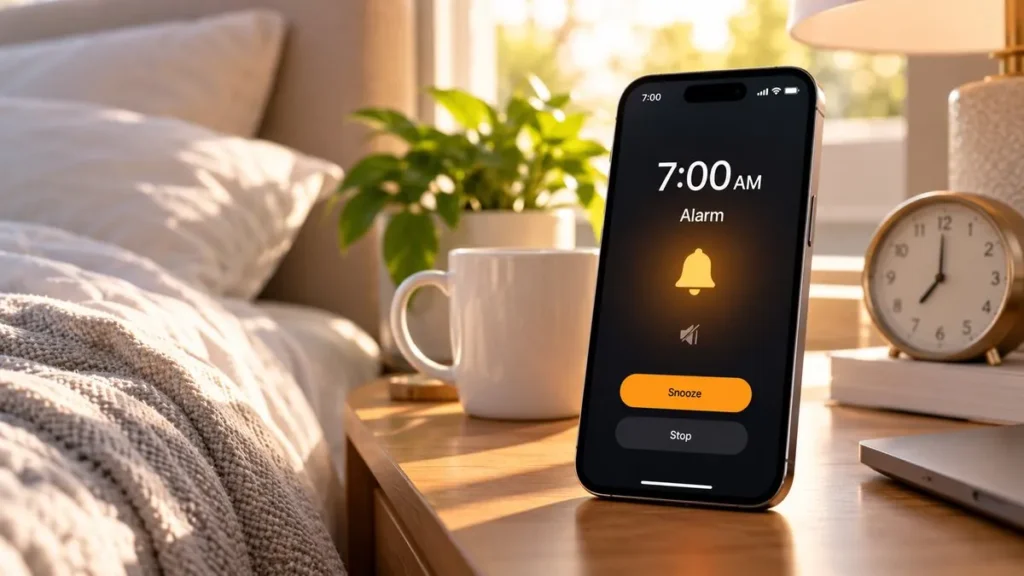
iPhone alarm not going off? Maybe you set an alarm before bed but woke up late because it never made a sound. Sometimes the alarm screen appears with no audible ringtone, the iPhone only vibrates, or the volume is so low that you sleep through it.
An unreliable alarm can cause missed meetings, classes, and appointments. Fortunately, many alarm problems come from a setting rather than a broken iPhone. The Clock app, the separate Sleep wake-up alarm, ringtone selection, volume controls, and time settings are all worth checking.
In this guide, you’ll find 12 practical fixes for an iPhone alarm not going off, plus answers about Silent mode, Do Not Disturb, Bluetooth headphones, StandBy, and recent iOS updates. We’ll start with the easiest and least disruptive checks.
Table of Contents
Quick Answer: How to Fix iPhone Alarm Not Going Off
If your alarm fails to ring, try these checks in order:
- Confirm the alarm is enabled for the correct day and AM or PM.
- Choose a real alarm sound instead of None.
- Raise the alarm volume in Settings → Sounds & Haptics.
- Check whether the side volume buttons are changing your alarm volume.
- Create a test alarm two minutes ahead.
- Delete and recreate a specific alarm that repeatedly fails.
- Review the separate Sleep schedule and wake-up alarm.
- Check StandBy and alarm vibration expectations.
- Test your iPhone’s built-in speaker and any connected headphones.
- Review Attention Aware Features if alerts seem unexpectedly quiet.
- Set the date and time automatically and confirm your time zone.
- Restart your iPhone, install updates, and contact Apple if the issue persists.
Important: Apple’s built-in Clock alarms should still sound when Silent mode, Do Not Disturb, or another Focus is on. Don’t turn off Focus as your first fix unless you are troubleshooting something other than the Clock alarm.
Why Is My iPhone Alarm Not Going Off?
Several different symptoms are commonly described as an alarm “not working.” It’s useful to separate them.
- No alarm at all: The alarm may be turned off, scheduled for a different day, or configured for the wrong AM/PM time.
- Alarm appears but is silent: The chosen alarm sound might be None, or the alarm volume may be set too low.
- Alarm only vibrates: A sound may not be selected, or StandBy may change expected haptic behavior.
- Regular alarm works but wake-up alarm fails: The Sleep schedule has its own options and may need to be checked separately.
- Alarm seems quieter near your face: Attention Aware Features can lower some alert volumes when the iPhone detects attention. Test carefully rather than assuming that feature caused a missed alarm.
- All audio sounds weak: The issue might involve the speaker rather than only the Clock app.
Start by making a short test alarm while you’re awake. This is faster and safer than making changes and waiting until tomorrow morning to find out whether they worked.
1. Make Sure the Alarm Is Enabled for the Correct Time
Open Clock → Alarms and look for the alarm you expected to hear. Make sure its switch is enabled. Tap the alarm to check its time, especially the AM/PM setting if your iPhone uses a 12-hour clock.
If it’s a recurring alarm, tap Repeat and confirm the correct weekdays are selected. A Monday-to-Friday alarm will not ring on Saturday unless Saturday is included.
Check whether you accidentally created a one-time alarm for a time that has already passed. Create a new alarm for a few minutes from now if you’re unsure.
Tip: Name important alarms so you can distinguish your regular morning alarm from occasional reminders or appointments.
2. Check That the Alarm Sound Isn’t Set to None
A surprisingly common cause of silent alarms is an alarm sound set to None.
To check it:
- Open Clock → Alarms.
- Tap the affected alarm or choose Edit, depending on your iOS version.
- Tap Sound.
- Choose a built-in tone that you can clearly hear.
- Save the alarm and test it.
A reliable built-in tone is a useful starting point if a custom sound or music track isn’t behaving as expected. Don’t assume that a selected vibration pattern also means an audible sound is enabled.
3. Raise the Alarm Volume in Sounds & Haptics
The iPhone’s media volume and alarm volume aren’t always the same thing. Raising the volume while watching a video may change media playback without fixing a quiet alarm.
Open Settings → Sounds & Haptics. The exact layout depends on the software version:
- On newer versions of iOS, look under Alarms and Timers. If Match Ringtone Volume is off, adjust the separate alarm volume slider.
- On older versions, use the Ringtone and Alerts volume slider.
Move the relevant slider to a clearly audible level and listen to the preview. Test a new alarm rather than relying on the slider alone.
Avoid keeping alarm volume uncomfortably high, especially if you sleep with the phone close to your ears.
4. Check Whether Volume Buttons Are Lowering Your Alarm Volume
If alarm volume seems to change from day to day, review Change with Buttons under Settings → Sounds & Haptics.
When enabled, the side buttons can change certain alert volumes while no media is playing. Depending on your iOS layout, the alarm may match ringtone volume or use its own slider.
If you often press the side buttons accidentally, consider turning off Change with Buttons and setting a consistent alert or alarm volume manually. This doesn’t disable the buttons for ordinary media playback.
After making the change, run a test alarm to confirm its loudness.
5. Create a New Two-Minute Test Alarm
Testing is the quickest way to tell whether the iPhone can play an alarm right now.
- Open Clock → Alarms.
- Tap the + button.
- Choose a time about two minutes from now.
- Select a clear built-in sound.
- Confirm the alarm is enabled and save it.
- Leave the iPhone locked and wait for the alarm.
Listen for a sound and look at the screen. If this test succeeds but your regular morning alarm doesn’t, focus on that alarm’s repeat, time, and sound settings rather than resetting the whole phone.
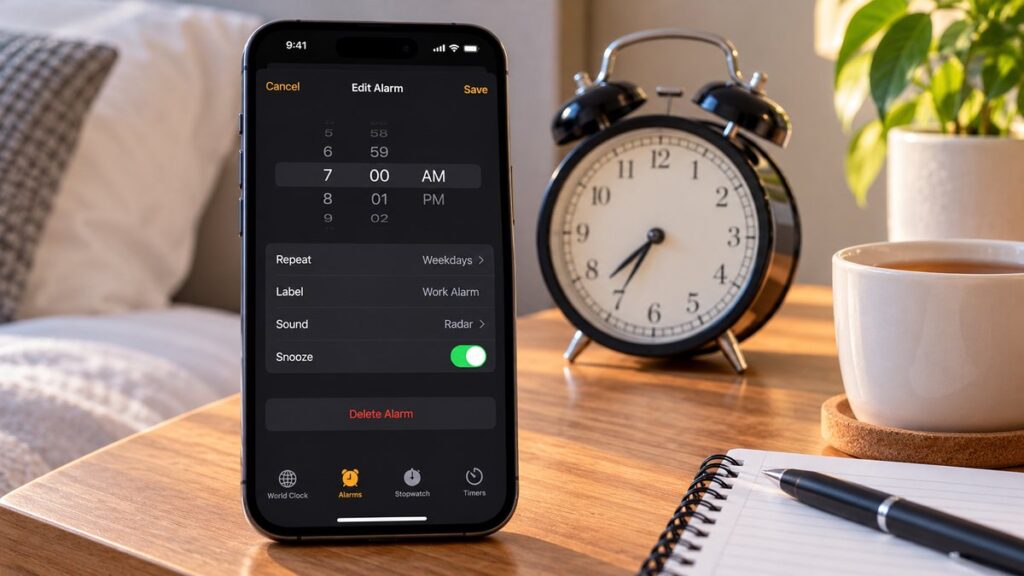
6. Delete and Recreate the Problem Alarm
If one specific alarm repeatedly fails despite the correct settings, recreate it from scratch.
Open Clock → Alarms, find the affected alarm, and swipe left to delete it. You can also open its edit screen and choose Delete Alarm when available.
Then create a new alarm with the same time, repeat days, label, and a built-in sound. Save it and run a short test.
Deleting an individual alarm is much less disruptive than resetting iPhone settings, and it helps determine whether the problem is tied to one saved alarm.
7. Check the Separate Sleep Wake-Up Alarm
The regular Clock alarms and the wake-up alarm tied to a Sleep schedule are related but not identical.
If you use a Sleep schedule in the Health app, open Clock → Alarms and look for the Sleep wake-up section. Tap Change and review:
- Whether Alarm is turned on.
- The wake-up time for the next day.
- The selected Sounds & Haptics option.
- The Alarm volume setting.
- Whether your sleep schedule repeats on the intended days.
You may see options to change only the next wake-up alarm or update the entire repeating schedule. Choose carefully: changing only tomorrow’s alarm won’t necessarily fix recurring settings for the following week.
You can also review the schedule in Health → Sleep. Apple documents these wake-up options separately from standard alarms in Clock.
8. Understand StandBy and Alarm Haptics
If you put your iPhone on a charger in landscape orientation at night, you may use StandBy mode. Apple notes that alarm haptics are disabled in StandBy.
This matters if you rely on vibration instead of sound to wake up. A silent alarm with no haptic feedback can appear to have failed entirely.
For an alarm you depend on, choose an audible alarm sound rather than vibration alone. Test the alarm in the same position and charging setup you normally use overnight.
StandBy doesn’t mean all alarm sounds are disabled. The important distinction is that its haptic behavior differs.
9. Test the Built-In Speaker and Connected Headphones
Apple says an alarm should play through the iPhone’s built-in speakers at a set volume even when wired or wireless headphones are connected. You don’t normally need to disconnect Bluetooth just to make a Clock alarm audible.
To investigate a broader sound issue, play a ringtone preview under Settings → Sounds & Haptics and listen to a short audio clip through the built-in speaker. If these sounds are also extremely quiet or distorted, check whether the speaker openings are obstructed by debris or a case.
Avoid inserting sharp objects, liquids, or compressed air into the speaker. If all sounds are affected, the issue may deserve hardware inspection.
Related reading: iPhone Speaker Not Working? 12 Fixes to Try (2026).
10. Review Attention Aware Features if Alerts Seem Too Quiet
On supported iPhones with Face ID, Attention Aware Features can detect when you’re looking at the device and lower the volume of some alerts.
This isn’t proof that Attention Aware caused your alarm to be missed. But if sounds become noticeably quieter while you look at the phone, it can be worth comparing behavior.
Open Settings → Face ID & Passcode or, on supported versions, Settings → Accessibility → Face ID & Attention, and look for Attention Aware Features.
You can temporarily switch the feature off as a controlled test, then restore your preferred setting. It may change other convenient behavior, such as keeping the display awake while you’re looking at it.
Only change it after testing the actual alarm sound and volume first.
11. Set Date, Time, and Time Zone Automatically
An alarm relies on your iPhone’s clock. Incorrect manual time settings or unexpected time-zone changes can cause alarms to fire at an unintended local time.
Go to Settings → General → Date & Time and enable Set Automatically if the option is available and appropriate for your device. Confirm that the time zone and local time are correct.
Apple specifically discourages manually changing iPhone time to manipulate app behavior because doing so can affect alarms.
If you travel frequently, review recurring alarm times after moving between time zones. Also verify AM/PM and repeat-day settings after any time adjustment.
12. Restart, Update iOS, and Ask Apple for Help if Needed
If multiple correctly configured alarms fail even after a short test, restart the iPhone normally. A restart can help with a temporary software problem.
Then check Settings → General → Software Update for a compatible update. Back up important information before installing a major update.
Create another two-minute test alarm after restarting or updating. If the problem persists across different alarms and the built-in speaker works normally, contact Apple Support and describe the exact behavior, iPhone model, iOS version, and whether the issue occurs with standard Clock alarms, the Sleep wake-up alarm, or both.
A factory reset is not a sensible first response to one missed alarm. Keep a separate backup alarm device until the issue is reliably resolved.
Why Is My iPhone Alarm Silent but Still Showing on the Screen?
If the alarm banner appears but you hear no sound, check Sound → None first, followed by the correct alarm volume slider. Try a built-in tone and create a short test alarm.
If the screen shows the alarm and the phone vibrates, the alarm may be triggering correctly while its audio configuration needs adjustment.
If an alarm fails only in StandBy and you depend on vibration, remember that Apple disables alarm haptics in that mode.
Does Do Not Disturb or Silent Mode Stop iPhone Alarms?
No. For Apple’s built-in Clock alarms, Silent mode, the Ring/Silent switch, and Do Not Disturb or other Focus modes don’t normally prevent the alarm sound. Apple explicitly documents this.
If a Clock alarm doesn’t ring, start with its enabled status, chosen tone, volume, and schedule rather than disabling your Focus automation.
Third-party alarm apps may have their own behavior and notification permissions, so troubleshoot those according to the app developer’s instructions.
Related reading: iPhone Notifications Not Working? 12 Fixes to Try (2026). Notification behavior is a separate problem from the built-in Clock alarm.
Why Does My iPhone Alarm Only Vibrate?
The alarm’s Sound option may be set to None. Choose an audible tone and test it. If you’re using StandBy, vibration behavior is different because alarm haptics are disabled in that mode.
If you intentionally need a vibration-only alarm, don’t assume it will work the same way in every orientation or mode.
Frequently Asked Questions
Why is my iPhone alarm not going off even though it is set?
The alarm may be disabled, set for the wrong AM/PM time or repeat days, configured with no sound, or too quiet to hear. Test a new alarm two minutes ahead to narrow down the cause.
Does Silent mode mute iPhone alarms?
No. Apple’s built-in Clock alarms should still sound in Silent mode, provided an audible alarm sound is selected and the appropriate volume is not too low.
Can Do Not Disturb stop my morning alarm?
No. Apple’s built-in Clock alarms should still sound while Do Not Disturb or another Focus is enabled. Third-party alarm apps may behave differently.
Why is my iPhone alarm volume so low?
Check Settings → Sounds & Haptics. Depending on your iOS version, adjust Alarms and Timers or Ringtone and Alerts. Test after adjusting it.
Why does my alarm only vibrate?
Open the alarm in Clock and ensure Sound isn’t set to None. Also check whether you’re relying on StandBy haptics, which Apple says are disabled.
Does an iPhone alarm ring with Bluetooth headphones connected?
Apple says Clock alarms play through the built-in speakers at a set volume as well as connected wired or wireless headphones. If the speaker seems silent, test its general audio output.
Will an alarm ring if the iPhone is powered off?
No. The built-in Clock app can’t run an alarm while the iPhone is completely powered off. Keep the phone charged and powered on overnight.
Does an iPhone alarm need Wi-Fi or mobile data?
A standard built-in Clock alarm doesn’t require an active internet connection after it’s configured. Network-based services or third-party apps may have different requirements.
What’s the difference between a Sleep alarm and a regular alarm?
Regular alarms are configured in Clock. Sleep wake-up alarms are associated with Sleep schedules and have separate wake-up options, including sound and volume.
Why did my weekday alarm not ring on the weekend?
The Repeat setting may exclude Saturday and Sunday. Edit the alarm and select the days you want it to ring.
Can Attention Aware Features make my alarm quieter?
Apple documents that the feature lowers some alert volumes when attention is detected. It isn’t a confirmed explanation for every quiet alarm; compare behavior carefully before changing the setting permanently.
Should I factory-reset my iPhone to fix alarms?
Not initially. Check the alarm’s time, days, sound, volume, and Sleep settings, then test, restart, and update if needed. Contact Apple Support for persistent problems.
Final Thoughts
If your iPhone alarm is not going off, don’t start with a factory reset or assume Silent mode is to blame. First make sure the alarm is enabled at the correct time, has an audible sound selected, and uses a suitable volume.
Next, test a new alarm, review any separate Sleep wake-up schedule, and check whether StandBy changes the vibration behavior you expected. If several correctly configured alarms still fail, test the speaker, restart the phone, and check for compatible updates.
Most importantly, keep a separate backup alarm for important early starts until your iPhone reliably passes repeated tests.
Official Apple Support Resources
- How to set and change alarms on your iPhone
- Set an alarm in Clock on iPhone
- Change your wake up alarm in Clock on iPhone
- Turn Attention Aware Features on or off
The Synced Desk | Practical solutions for everyday technology problems.