Is the flashlight on iPhone not working when you need it? Maybe the flashlight icon is greyed out, tapping it does nothing, or the LED light suddenly stopped turning on after an iOS update.
Sometimes the flashlight works from the Camera app but not from Control Center. In other situations, the flashlight button disappears from the Lock Screen, or the light appears unusually dim.
These problems can be frustrating, especially when you rely on your iPhone’s flashlight in dark environments.
Fortunately, a flashlight problem doesn’t always mean your iPhone has a damaged LED.
Temporary software problems, camera activity, device temperature, and incorrectly configured controls can sometimes explain why the flashlight isn’t working.
In this guide, we’ll explain 10 practical fixes for the flashlight on iPhone not working, including greyed-out controls, missing flashlight buttons, camera flash problems, and issues after iOS updates.
Table of Contents
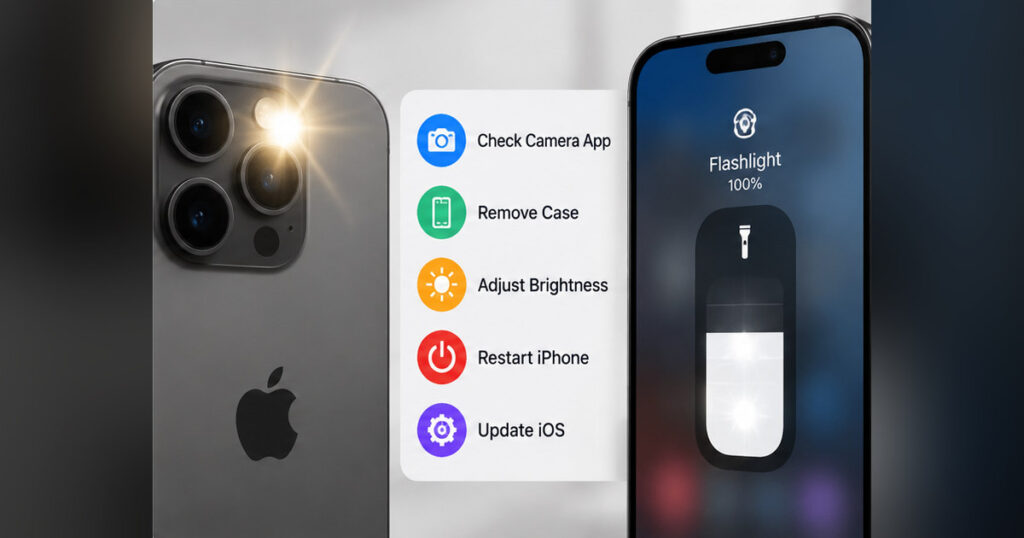
Quick Answer
If your iPhone flashlight isn’t working, try these steps first:
- Test the flashlight through Control Center.
- Check whether the flashlight brightness is too low.
- Restore the flashlight control if it’s missing.
- Close the Camera app and other camera-related apps.
- Allow your iPhone to cool down if it’s unusually hot.
- Remove accessories that may cover the flash.
- Test the LED through the Camera app.
- Restart your iPhone.
- Check charging and available iOS updates.
- Contact Apple Support if the flashlight still fails.
Important: If the flashlight and camera flash both stop working after physical damage or liquid exposure, the problem may require professional diagnosis.
Why Is My Flashlight on iPhone Not Working?
Your iPhone uses an LED near the rear camera for flashlight illumination.
The Camera app also uses the flash system when additional lighting is needed for photographs.
Several different issues can affect its operation.
Camera Activity
If another application is actively using the camera or related hardware resources, the flashlight may temporarily become unavailable.
This doesn’t happen with every camera application, but it is worth checking.
Software Problems
Temporary iOS or application issues can sometimes prevent a control from responding.
A normal restart may resolve certain software-related problems.
Overheating
Apple confirms that the camera flash and other camera features can be temporarily disabled when an iPhone becomes too warm.
This is part of the device’s temperature protection system.
Missing Controls
Sometimes the flashlight button hasn’t stopped working at all.
It may simply have been removed from Control Center or replaced with another Lock Screen control.
Physical Damage
If the flashlight LED, camera assembly, or a related component is damaged, software troubleshooting may not resolve the problem.
The first step is identifying which situation applies to your iPhone.
1. Test the Flashlight
Before changing settings, determine whether the flashlight is actually unavailable or whether a particular shortcut isn’t working.
Apple provides several ways to activate the flashlight.
Use Control Center
- Unlock your iPhone.
- Open Control Center.
- Find the flashlight icon.
- Tap it once to turn on the light.
- Tap it again to turn it off.
On Face ID iPhones, open Control Center by swiping down from the upper-right corner.
On iPhones with a Home button, swipe up from the bottom of the screen.
Try Siri
Ask Siri to turn on the flashlight.
For example, say:
“Siri, turn on the flashlight.”
If Siri successfully activates the LED while the Control Center button doesn’t respond, the problem may involve a shortcut or interface issue.
Try the Lock Screen
On supported configurations, a flashlight control appears near the bottom of the Lock Screen.
Press and hold the control to activate it.
If one method works but another doesn’t, the LED is capable of functioning.
That distinction can save unnecessary troubleshooting.
2. Check Flashlight Brightness
Sometimes the flashlight works but appears unusually dim.
Before assuming there’s a fault, check its brightness.
Recent iPhone models allow you to adjust flashlight intensity through the flashlight interface.
To try this:
- Open Control Center.
- Touch and hold the Flashlight control.
- Review the available brightness adjustment.
- Increase the brightness gradually.
- Check whether the LED becomes brighter.
The controls may look different depending on your iPhone model and iOS version.
Apple’s current iPhone guide explains that you can adjust flashlight brightness by dragging the onscreen brightness control.
If the flashlight becomes brighter after adjusting it, the problem may simply have been its previous brightness setting.
However, if the LED doesn’t illuminate at all, changing brightness won’t necessarily solve the underlying issue.
What If the Button Is Missing?
Open Control Center and enter its customization mode.
Choose Add a Control, then search for Flashlight and add it.
You can also customize the Lock Screen controls on supported iOS versions.
If the flashlight is missing only from the Lock Screen, that doesn’t mean the LED has stopped working.
3. Close Camera Applications
If the flashlight on iPhone is not working, check whether the Camera app or another application is currently using camera features.
Your flashlight and photographic flash use related hardware.
In some circumstances, active camera use can make the flashlight temporarily unavailable.
Try these steps:
- Open the App Switcher.
- Find the Camera app.
- Swipe upward on its preview to close it.
- Check other applications currently using the camera.
- Close the affected camera session or application if appropriate.
- Return to Control Center.
- Test the flashlight again.
Applications worth checking include video-calling tools, document scanners, and social media apps using live camera features.
However, don’t force-close every application on your iPhone unnecessarily.
Focus on applications that are actively using the camera or behaving incorrectly.
What If This Fix Works?
If the flashlight starts working after you close a camera application, the problem may have involved temporary competition for camera resources.
You probably don’t need to reset your phone.
If the issue keeps returning, update the affected application and check whether it behaves correctly afterward.
For recurring application failures, see our iPhone Apps Keep Crashing guide.
4. Let Your iPhone Cool Down
An unusually hot iPhone can temporarily disable certain features.
Apple confirms that when an iPhone’s internal temperature exceeds its normal operating range, iOS may limit charging, dim the display, or temporarily disable the camera flash.
This is an important possibility if your flashlight stops working after gaming, recording video, charging, or using your phone outside on a hot day.
Check whether your iPhone feels unusually warm.
If it does:
- Stop demanding applications.
- Move the iPhone out of direct sunlight.
- Disconnect charging if appropriate.
- Put the device somewhere cool and dry.
- Allow it to return to a normal temperature.
- Try the flashlight again.
If a temperature warning appears, follow the onscreen instructions.
Never put your iPhone in a refrigerator or freezer to cool it quickly.
Sudden temperature changes and moisture can cause additional damage.
If your iPhone cools down and the flashlight begins working again, temperature protection may have contributed to the problem.
If the flashlight repeatedly stops working at normal temperatures, investigate further.
5. Remove Cases and Accessories
Some accessories can cover the flashlight LED or interfere with the camera area.
This is particularly possible with bulky cases, camera attachments, lens covers, or poorly fitted accessories.
Apple recommends removing accessories that might block the camera or flash when troubleshooting.
Try this:
- Remove your iPhone case.
- Check the area around the rear camera.
- Look for protective films or accessories covering the LED.
- Make sure nothing is obstructing the flashlight.
- Test the light again.
If the LED appears dirty, gently clean the surrounding exterior surface with an appropriate soft, lint-free cloth.
Avoid abrasive materials and sharp tools.
Don’t insert anything into small openings around the camera.
Also avoid using liquids directly around the camera assembly.
What If the Flashlight Still Doesn’t Work?
If removing accessories doesn’t help, the problem may involve another cause.
Move on to testing the flash through the Camera app.
6. Test the Camera Flash
This is one of the most useful diagnostic steps when your flashlight on iPhone is not working.
Apple recommends testing the LED flash and camera as part of troubleshooting.
To investigate:
- Open the Camera app.
- Switch to a standard photo mode.
- Find the flash controls.
- Select On if the option is available.
- Take a test photo.
- Observe whether the LED flash activates.
The exact flash control location may differ between iPhone models and iOS versions.
If the Camera Flash Works
This shows that the LED can illuminate.
The issue may involve the flashlight control, software behavior, or another temporary condition.
Test the flashlight again using Control Center.
If the Camera Flash Also Fails
That suggests the problem may extend beyond a single flashlight shortcut.
Possible explanations include temperature protection, a software issue, or a hardware problem.
It does not automatically prove the LED is permanently damaged.
Check for other camera symptoms.
For example, does the Camera app show a black preview? Does it freeze? Is the rear camera also failing?
Our iPhone Camera Black Screen guide covers related troubleshooting.
If both the camera and flash remain unreliable after basic checks, consider professional support.
7. Restart Your iPhone
Restarting your iPhone is another reasonable step if the flashlight remains unavailable.
A restart can resolve certain temporary software problems without deleting your personal information.
Face ID iPhones
- Press and hold the Side button and either Volume button.
- Wait for the power-off slider.
- Slide to turn off the iPhone.
- Wait approximately 30 seconds.
- Press and hold the Side button to turn it on again.
iPhones With a Home Button
Use the appropriate Side or Top power button to display the power-off slider.
Turn off the device, wait briefly, and restart it.
After the phone starts:
- Unlock your iPhone.
- Open Control Center.
- Tap the flashlight icon.
- Check whether the LED illuminates.
If your flashlight on iPhone was not working because of a temporary software issue, restarting may help.
However, it won’t repair physically damaged hardware.
There’s also no need to repeatedly perform force restarts when a normal restart has already failed to change the symptoms.
8. Check Battery and Charging
If your iPhone has extremely little remaining battery power or is having broader power-related problems, check its charging status.
However, Low Power Mode itself does not normally disable the flashlight.
Don’t assume that switching off Low Power Mode will automatically fix a greyed-out flashlight control.
Start by reviewing the battery:
- Open Settings.
- Tap Battery.
- Check the remaining battery percentage.
- Connect a reliable charger if the battery is nearly empty.
- Let the phone charge appropriately.
- Test the flashlight again.
If the iPhone is overheating, allow it to cool before charging or continue following any temperature warnings.
Does Low Power Mode Cause Flashlight Problems?
Low Power Mode reduces certain background activity and power consumption.
The flashlight should ordinarily remain available.
If you notice the flashlight problem appearing only in a particular power configuration, you can compare the behavior, but this alone does not identify a confirmed fault.
If your phone also fails to charge normally, investigate that issue separately.
Avoid resetting all device settings merely because the flashlight stopped working while the battery was low.
9. Update Your iPhone
If your flashlight on iPhone is not working after an update, it’s reasonable to check whether another compatible software update is available.
Apple sometimes releases iOS updates that address software bugs or improve stability.
However, a flashlight problem following an update doesn’t necessarily mean the update caused it.
First, check the simpler explanations described earlier.
Then review your software version.
To check:
- Open Settings.
- Tap General.
- Select Software Update.
- Wait while iOS checks for updates.
- Review any available compatible version.
- Back up important information before a major update.
- Follow Apple’s installation instructions.
Make sure your iPhone has enough power and a reliable network connection before updating.
After installation, open Control Center and test the flashlight again.
What If the Problem Began After iOS 27?
If your flashlight stopped working immediately after installing iOS 27 or another update, record the exact software version and symptoms.
Check whether the camera flash works separately.
If the flashlight control is missing, review Control Center customization.
If the problem affects multiple camera features, consult Apple’s camera troubleshooting instructions.
Don’t factory reset your iPhone simply because the problem appeared after an update.
A factory reset deletes local data and does not guarantee that a hardware problem will disappear.
10. Contact Apple Support
If none of the previous steps helps, consider contacting Apple Support or an Apple Authorized Service Provider.
This is especially appropriate if:
- The flashlight never illuminates.
- The camera flash also fails.
- The phone recently suffered physical damage.
- The problem began after liquid exposure.
- The flashlight behaves unpredictably at normal temperatures.
- The Camera app has persistent problems.
- iOS updates and a normal restart haven’t helped.
Before contacting support, write down the tests you’ve already performed.
You can explain whether the flashlight is greyed out, missing, dim, or completely unresponsive.
Also mention whether the camera flash works.
If the iPhone is covered by Apple’s limited warranty or AppleCare, ask about applicable service options.
Repair eligibility and cost depend on the device, diagnosis, coverage, and cause of damage.
Do not attempt to open the phone or replace internal camera components unless you have appropriate professional training and equipment.
Start with Apple Support.
Flashlight Icon Greyed Out?
A greyed-out flashlight control is different from a missing button.
The control may be visible but temporarily unavailable.
Possible contributing factors include camera activity, device temperature, or an operating-system problem.
Try this sequence:
- Check whether the Camera app is actively using the camera.
- Stop an active camera session.
- Check whether the iPhone is unusually warm.
- Allow it to cool if necessary.
- Restart the iPhone if the problem continues.
- Test the camera flash separately.
If the icon remains unavailable and the camera also malfunctions, contact Apple Support.
A greyed-out button by itself is not enough to diagnose a hardware failure.
Flashlight Not Working From Lock Screen?
If the flashlight works from Control Center but not from the Lock Screen, check whether the Lock Screen control is still configured.
Modern iOS versions allow users to customize Lock Screen shortcuts.
To investigate:
- Wake and unlock your iPhone.
- Open Lock Screen customization.
- Select the Lock Screen you use.
- Review the controls at the bottom.
- Add the flashlight control if needed.
- Save the configuration.
- Test the shortcut.
On supported devices, you can also configure the Action button to activate the flashlight.
If the Action button performs another task, that doesn’t indicate a broken flashlight.
The key is determining whether the LED works through a different method.
Flashlight Not Working After an Update?
If the issue began after installing iOS, start with a normal restart and basic camera testing.
Check whether the flashlight icon is still available in Control Center.
Review any available iOS updates.
Avoid following advice that requires installing unknown profiles, downloading unauthorized system modifications, or repeatedly resetting the entire device.
If the flashlight and camera flash both fail, Apple’s official troubleshooting guidance is a better starting point.
Flashlight Is Too Dim?
If the flashlight turns on but produces very little light, check the brightness adjustment and make sure the LED isn’t obstructed.
Look for a case or accessory covering the flash.
If the brightness control responds but the actual LED remains unusually weak, compare its behavior across different brightness levels.
Persistent flickering, unexpected dimming, or unreliable operation may warrant professional diagnosis.
Do not stare directly into the LED during testing.
Frequently Asked Questions
Why is my flashlight on iPhone not working?
Possible causes include unavailable flashlight controls, active camera use, overheating, temporary software problems, or hardware damage. Start by testing the flashlight through Control Center and checking the camera flash separately.
Why is my iPhone flashlight greyed out?
The flashlight may be temporarily unavailable because of camera activity, temperature protection, or another software issue. A greyed-out control doesn’t automatically mean the LED is broken.
Can an iOS update fix the flashlight?
Sometimes. Software updates can address bugs and stability problems. However, installing an update cannot physically repair a damaged LED or camera component.
Does Low Power Mode disable the flashlight?
Normally, no. Low Power Mode changes certain performance and background behaviors, but the flashlight should generally remain available.
Why does the flashlight work in Camera but not Control Center?
The LED is functioning, so the issue may involve a shortcut or software behavior. Check Control Center, restart the phone, and review available updates.
Can overheating stop the iPhone flashlight?
Yes. Apple confirms that the camera flash can become temporarily unavailable when the iPhone becomes too warm. Allow the phone to cool naturally before testing again.
Will restarting my iPhone delete my photos?
No. A normal restart does not ordinarily erase your photos, apps, messages, or other personal information.
Should I factory reset my iPhone?
A factory reset should not be an early troubleshooting step for flashlight problems. It erases local information and cannot repair damaged hardware.
Is a broken flashlight covered by warranty?
Coverage depends on the cause of the failure and the applicable warranty or AppleCare terms. Apple can assess the issue and explain available service options.
Final Thoughts
If the flashlight on iPhone is not working, don’t immediately assume the LED is damaged.
Start by testing the flashlight using Control Center, Siri, or the Lock Screen.
Then review brightness, camera activity, and device temperature.
If the flashlight still fails, remove any accessories that might block the LED and test the flash through the Camera app.
A normal restart or available iOS update may help with temporary software problems.
However, if the camera flash and flashlight both remain unresponsive, professional support may be necessary.
The best approach is to identify the exact symptom before making changes.
This helps you avoid unnecessary resets and gives you useful information if your iPhone eventually needs service.
Official References
- Apple Support: If the Camera or Flash Isn’t Working
- Apple Support: Turn the iPhone Flashlight On or Off
- Apple Support: Customize Control Center
- Apple Support: If Your iPhone Gets Too Hot or Too Cold
- Apple Support: iPhone Service and Repair
Last reviewed: October 22, 2026. Available controls and menu labels may differ by iPhone model and iOS version.