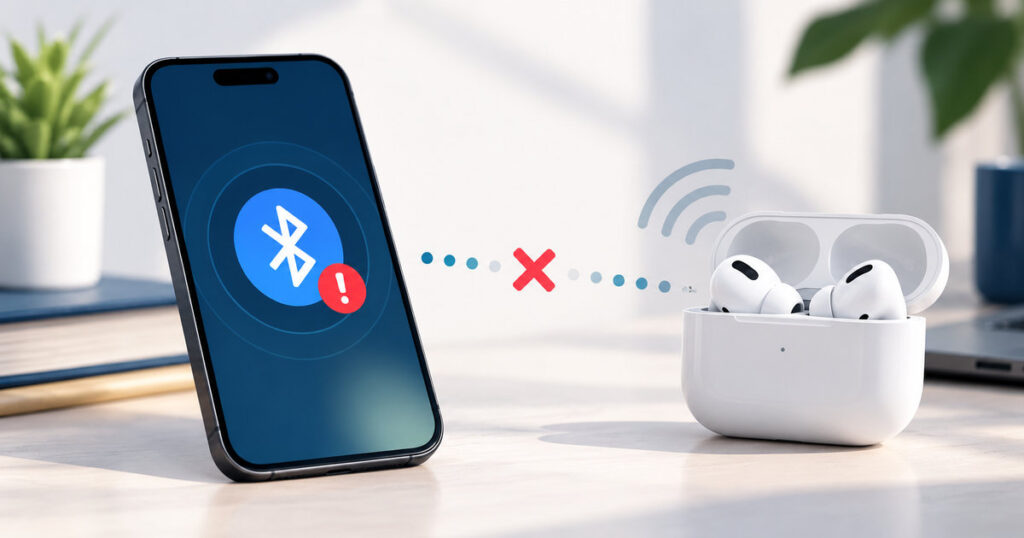
Are your AirPods not connecting to iPhone even though Bluetooth is turned on? Maybe your AirPods don’t appear in the Bluetooth list, the setup animation never appears, or your iPhone shows a connection error whenever you try to pair them.
Sometimes AirPods connect successfully but play audio through the iPhone speaker instead. Other times, they work with your Mac or iPad but refuse to connect to your phone.
These problems can happen with standard AirPods and AirPods Pro, including newer models that use different charging-case controls.
Fortunately, a failed connection doesn’t necessarily mean your AirPods or iPhone are damaged.
Low battery, incorrect pairing mode, outdated software, saved Bluetooth connections, and automatic device switching can all contribute to connection problems.
In this guide, we’ll explain 12 practical fixes for AirPods not connecting to iPhone, including Bluetooth troubleshooting, missing pairing popups, charging issues, AirPods Pro connection errors, and model-specific reset procedures.
We’ll begin with simple checks and leave resetting your AirPods until the later steps.
Table of Contents
Quick Answer
If your AirPods won’t connect to your iPhone, try these steps:
- Identify whether the AirPods are missing, refusing to connect, or connected without audio.
- Make sure Bluetooth is enabled and select the correct audio output.
- Charge both AirPods and their charging case.
- Put your AirPods into pairing mode manually.
- Restart your iPhone.
- Restart your AirPods using the charging case.
- Forget the previous Bluetooth connection and pair again.
- Check whether your AirPods are switching to another Apple device.
- Update iOS and check AirPods compatibility.
- Inspect the charging case and earbuds.
- Reset your AirPods using the correct model-specific method.
- Test another compatible device or contact Apple Support.
Important: AirPods 4, AirPods 5, and AirPods Pro 3 use different pairing and reset controls from older AirPods models. Follow the instructions for the exact AirPods you own.
Why Are AirPods Not Connecting to iPhone?
AirPods communicate with your iPhone using Bluetooth.
After successful pairing, supported AirPods can also work across compatible Apple devices signed in to the same Apple Account.
However, several things must work correctly for a connection to succeed.
Bluetooth Is Disabled
If Bluetooth is turned off in iPhone Settings, the AirPods cannot establish a normal Bluetooth connection.
The AirPods Need Charging
If an earbud or its case has insufficient battery power, setup and reconnection may fail.
Incorrect Pairing Mode
Opening the charging case isn’t always enough when the AirPods need to be paired manually.
The correct pairing control depends on the model.
Saved Connection Problems
An outdated or incorrect saved Bluetooth pairing can cause repeated connection failures.
Automatic Device Switching
Supported AirPods can switch between an iPhone, iPad, and Mac. Occasionally, audio may be routed to another device instead of the iPhone you’re using.
Software or Hardware Problems
Outdated software, charging-contact problems, or a fault with the AirPods can also affect pairing.
The most useful approach is identifying exactly what happens before making changes.
If your iPhone cannot detect your AirPods or other Bluetooth accessories, follow our iPhone Bluetooth Not Finding Devices guide for additional troubleshooting steps.
1. Identify the Connection Problem
When your AirPods are not connecting to iPhone, the first step is checking the symptoms.
Different connection failures need different solutions.
AirPods Don’t Appear in Bluetooth
Open Settings → Bluetooth.
If your AirPods aren’t listed, they may not be in pairing mode, may need charging, or may be connecting to another device.
Start with the charging and manual-pairing checks.
AirPods Appear but Won’t Connect
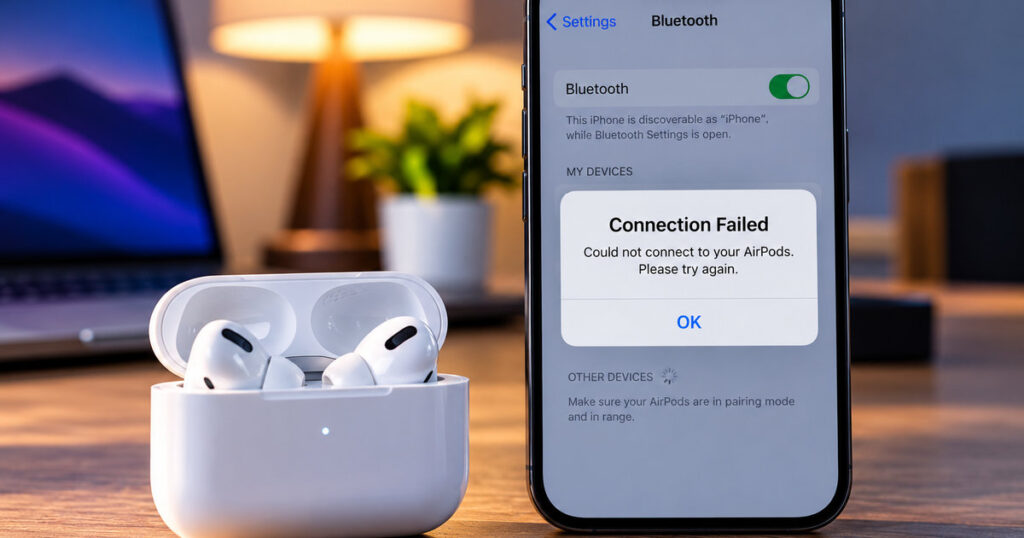
If your AirPods appear in the Bluetooth list but selecting them produces an error, there may be a problem with the saved connection.
Try restarting and reconnecting before performing a reset.
AirPods Connect but Have No Sound
If Bluetooth says Connected but sound plays through the iPhone speaker, the connection may be working.
You may simply need to select the AirPods as the active audio output.
Only One AirPod Works
If one earbud connects while the other remains silent, check the charge level of each earbud.
A problem involving only one earbud is different from both AirPods failing to pair.
AirPods Keep Disconnecting
If your AirPods connect and then disconnect, investigate battery levels, distance, automatic device switching, and software compatibility.
What to do next: Identify which symptom matches your situation and follow the relevant checks below.
2. Check Bluetooth and Audio Output
Apple recommends confirming that Bluetooth is enabled before troubleshooting AirPods pairing.
Turn On Bluetooth
- Open Settings on your iPhone.
- Tap Bluetooth.
- Make sure Bluetooth is enabled.
- Keep the Bluetooth settings screen open.
- Bring your AirPods and charging case near the iPhone.
- Check whether they appear under My Devices or Other Devices.
If Bluetooth is already enabled, you can turn it off in Settings, wait briefly, and turn it back on before testing.
Use the Settings app rather than relying only on the Bluetooth button in Control Center.
The Control Center button may disconnect accessories without completely disabling Bluetooth.
Check the Audio Destination
If your AirPods are already connected but audio is silent:
- Put the AirPods in your ears.
- Start playing music or another supported audio source.
- Open Control Center.
- Find the audio playback controls.
- Tap the AirPlay or audio-output selection icon.
- Select your AirPods.
- Check the volume.
If audio begins playing through your AirPods, the problem was audio routing rather than Bluetooth pairing.
For other Bluetooth discovery problems, read our iPhone Bluetooth Not Finding Devices guide.
3. Charge the AirPods and Case
Low battery power can prevent your AirPods from connecting or entering pairing mode correctly.
Apple recommends confirming that both earbuds are charging.
Charge Both AirPods
- Place both AirPods inside their charging case.
- Make sure they are seated correctly.
- Close the lid.
- Connect the case to a compatible charger.
- Allow the AirPods and case some time to charge.
- Open the case near your iPhone and try connecting again.
You can use a compatible cable to charge the case.
Wireless charging is available only on charging cases that support it.
Check the Case Light
The charging case’s status light helps indicate its charging state.
On many AirPods models, a green indicator means the relevant battery is charged, while an amber indicator can indicate that charging is needed or incomplete.
The exact light behavior varies by model and firmware.
Don’t assume that a flashing amber light always means a Bluetooth error.
Check Battery Levels on iPhone
If your AirPods connect even briefly, you may be able to view their battery levels through the iPhone battery widget or the AirPods controls.
Check the left earbud, right earbud, and case separately when those readings are available.
What If the Case Shows No Light?
Connect the case to a reliable power source.
Check the charging cable, connector, and power adapter.
If the case remains unresponsive, consult Apple’s official charging instructions.
Don’t attempt to open or repair a charging case battery yourself.
4. Try Manual Pairing
If your AirPods are not connecting to iPhone and the automatic setup popup never appears, try pairing them manually.
Apple provides different pairing procedures depending on the AirPods model.
AirPods 1, 2, 3, and AirPods Pro 1 or 2
For these models:
- Place both AirPods in their charging case.
- Open the charging-case lid.
- Keep the case near your iPhone.
- Press and hold the setup button on the back of the case.
- Release the button when the status light flashes white.
- Open Settings → Bluetooth on your iPhone.
- Select your AirPods when they appear.
- Follow the onscreen instructions.
A flashing white light indicates that the case is ready for pairing.
AirPods 4, AirPods 5, and AirPods Pro 3
Newer models use a different control.
- Place both AirPods in their charging case.
- Open the lid.
- Keep the case near your iPhone.
- Double-tap the front of the charging case until the status light flashes white.
- Open Settings → Bluetooth.
- Choose your AirPods when they appear.
- Complete the pairing process.
Do not search for a rear setup button on a model designed to use the front-tap pairing method.
If your AirPods connect to your iPhone but don’t appear in Apple’s Find My app, follow our AirPods Not Showing in Find My troubleshooting guide to check pairing, Apple Account settings, and Find My network configuration.
What If the Setup Animation Doesn’t Appear?
You don’t always need the automatic animation to complete pairing.
If your AirPods appear in Settings → Bluetooth while in pairing mode, select them manually.
If they still don’t appear, close the case and continue with the next fix.
5. Restart Your iPhone
A normal iPhone restart can help clear a temporary Bluetooth or software problem.
Restarting doesn’t ordinarily erase your photos, applications, or personal files.
Restart an iPhone With Face ID
- Press and hold the Side button and either Volume button.
- Wait for the power-off slider.
- Drag the slider to turn off the iPhone.
- Wait approximately 30 seconds.
- Press and hold the Side button until the Apple logo appears.
- Unlock your iPhone.
- Open Settings → Bluetooth.
- Try connecting the AirPods again.
For older iPhone models, follow the appropriate power-button method.
After Restarting
Keep the AirPods near the iPhone.
Open their charging case and check whether the automatic connection prompt appears.
If they are already listed under My Devices, tap their name to connect.
If restarting doesn’t help, focus on the AirPods themselves.
6. Restart Your AirPods
Restarting AirPods is different from resetting them to factory settings.
A restart should be attempted before removing the saved pairing.
Restart AirPods or AirPods Pro
For standard AirPods and AirPods Pro:
- Put both earbuds inside the charging case.
- Close the lid.
- Wait at least 10 to 15 seconds.
- Open the lid again.
- Bring the case near your iPhone.
- Try reconnecting.
Apple’s troubleshooting guidance includes closing the charging case, waiting briefly, and reopening it before trying the connection again.
Why This Can Help
Placing the AirPods back in their case and closing the lid lets them stop their current use session.
When you reopen the case, they can attempt to reconnect.
If the problem involves a temporary connection state, this may be enough.
What About AirPods Max?
AirPods Max use different controls.
Apple provides a separate restart procedure using the Digital Crown and the listening-mode button.
Don’t follow charging-case instructions intended for regular earbuds.
We’ll cover AirPods Max separately later in this article.
7. Forget and Pair Again
If the AirPods appear in Bluetooth but repeatedly fail to connect, removing the old pairing may help.
This is particularly useful when your iPhone has remembered an incorrect or outdated connection.
Forget the AirPods
- Open Settings.
- Tap Bluetooth.
- Find your AirPods under My Devices.
- Tap the information button beside their name.
- Choose Forget This Device.
- Confirm the action.
Reconnect Your AirPods
Place both earbuds inside their charging case.
Open the lid and activate pairing mode using the appropriate model-specific method.
Then select the AirPods under Settings → Bluetooth.
What Happens After Forgetting?
Forgetting the AirPods removes their saved connection.
Apple notes that unpairing AirPods can affect their pairing across other supported devices signed in to the same Apple Account.
You may need to reconnect them on those devices.
It does not ordinarily delete the photos, messages, documents, or applications stored on your iPhone.
Important Precaution
Make sure you know how to put your particular AirPods model into pairing mode before forgetting the old connection.
If you’ve already tried this step several times, don’t keep repeating it without investigating the underlying issue.
8. Check Automatic Device Switching
Some supported AirPods automatically switch between Apple devices signed in to the same Apple Account.
For example, the AirPods may move from your iPhone to your Mac when audio starts playing on the computer.
This can make them appear disconnected from your iPhone even though they’re working normally with another device.
Check Other Devices
If you regularly use a Mac, iPad, or Apple Watch:
- Check whether the AirPods are currently playing audio on another device.
- Stop playback on that device temporarily.
- Return to your iPhone.
- Open Control Center.
- Select the AirPods as the audio destination.
- Try playing audio again.
Adjust Automatic Switching
On supported iOS versions and AirPods models:
- Connect the AirPods to your iPhone.
- Open Settings.
- Tap the name of your AirPods near the top, if shown.
- Find Connect to This iPhone, sometimes under additional audio settings.
- Review the available choices.
- Select When Last Connected to This iPhone if you prefer less automatic switching.
The exact wording and location may differ depending on your software and AirPods model.
Do You Need to Disable Bluetooth on Every Device?
No.
First, identify which device is receiving the audio.
Manually choosing your AirPods on the iPhone is usually a better diagnostic step than disconnecting every Bluetooth device in your home.
9. Update iOS and Check Compatibility
Apple recommends using an appropriate updated iOS version when troubleshooting AirPods.
Newer AirPods models may require newer versions of iOS to pair or access supported features.
Check for iOS Updates
- Open Settings.
- Tap General.
- Select Software Update.
- Review available compatible updates.
- Back up important information before a major update.
- Install an appropriate official update.
After installation, restart your iPhone if required and try pairing again.
Check Your AirPods Model
Compatibility requirements vary.
For example, AirPods 4 require a compatible iPhone running iOS 18 or later, while AirPods Pro 3 require iOS 26 or later.
AirPods 5 require iOS 27 according to Apple’s current compatibility guidance.
If your older iPhone cannot install the required software, it may not support pairing with a newer AirPods model.
Check Apple’s compatibility information for your exact AirPods and iPhone.
What About AirPods Firmware?
AirPods receive firmware updates through Apple’s supported process.
There isn’t a normal manual firmware installation button comparable to iPhone Software Update.
Apple’s firmware instructions generally involve keeping the AirPods in their charging case, connected to power when appropriate, and near a compatible Apple device with the required connections.
Use Apple’s official instructions for the specific model.
Don’t download third-party firmware files claiming to repair AirPods.
10. Inspect the Charging Case
If your AirPods continue failing to connect, inspect the charging case and earbuds for physical problems.
This doesn’t mean you should open or repair the electronics yourself.
Check the Earbuds
Look for visible dirt or debris around the earbuds and their charging contacts.
Make sure both earbuds fit properly inside the case.
If an earbud doesn’t sit correctly, it may not charge.
Check the Case
Inspect the charging port and case interior for obvious debris or damage.
Use Apple’s official cleaning instructions for your model.
Avoid inserting sharp metal objects into the charging contacts or charging port.
Don’t pour water or cleaning liquid into the case.
Check for Damage
If the charging case was dropped, exposed to liquid, or physically damaged, a hardware problem may be involved.
A status light that never responds even after charging can be another reason to seek professional diagnosis.
Test Both Earbuds
If one AirPod charges and the other doesn’t, the issue may involve the individual earbud or its charging contact.
Apple provides separate troubleshooting guidance for situations where only the left or right AirPod works.
Don’t reset your entire iPhone to solve an obvious charging-case problem.
11. Reset Your AirPods Correctly
If the earlier fixes haven’t worked, Apple recommends resetting AirPods and pairing them again.
Reset procedures vary by model. Using the wrong procedure may leave your AirPods in pairing mode without completing a reset.
Reset AirPods 1, 2, 3, and AirPods Pro 1 or 2
- Place both AirPods in their charging case.
- Close the lid for approximately 30 seconds.
- On your iPhone, open Settings → Bluetooth.
- If the AirPods are listed, tap the information button and select Forget This Device.
- Open the charging-case lid.
- Press and hold the setup button on the back of the case for approximately 15 seconds.
- Wait for the status light to flash amber and then white.
- Hold the open case near your iPhone.
- Follow the pairing instructions.
If the AirPods aren’t listed in Bluetooth, continue with the charging-case reset steps.
Reset AirPods 4, AirPods 5, and AirPods Pro 3
These models use a front-tap reset sequence instead of the older rear-button method.
- Put both AirPods in their charging case.
- Close the lid for approximately 30 seconds.
- Forget the AirPods from iPhone Bluetooth settings if they are listed.
- Open the charging-case lid.
- Double-tap the front of the case while the status light is on.
- Double-tap again when the light flashes white.
- Double-tap a third time when the light flashes faster.
- Wait until the status light flashes amber and then white.
- Bring the case near your iPhone and reconnect.
Follow the light sequence carefully.
What If the Status Light Never Flashes White?
Make sure the AirPods and case have enough charge.
Close the lid briefly and try the correct reset sequence again.
If the case doesn’t respond, consult Apple Support instead of repeatedly forcing the reset.
Does Resetting AirPods Delete iPhone Data?
No. Resetting your AirPods doesn’t ordinarily delete personal information from your iPhone.
However, it removes the earbuds’ saved pairing information, so you’ll need to reconnect them.
12. Test Another Device and Get Support
If your AirPods are not connecting to iPhone after the recommended checks, use another compatible device to help identify the cause.
Try Another iPhone
If available, attempt to pair the AirPods with another compatible iPhone that you’re authorized to use.
If they connect to the second iPhone normally, focus on the original iPhone’s Bluetooth settings and software.
If they fail on both phones, the AirPods or charging case may need further investigation.
Test Another Bluetooth Accessory
Try connecting a different known-working Bluetooth headset or speaker to your iPhone.
If your iPhone cannot connect to any compatible Bluetooth accessory, the problem may not be specific to AirPods.
If other accessories work normally, focus on the AirPods pairing state, compatibility, or hardware.
Contact Apple Support
Contact Apple when:
- The AirPods won’t enter pairing mode.
- The charging case remains unresponsive.
- Resetting fails repeatedly.
- One or both earbuds will not charge.
- The AirPods cannot connect to multiple compatible Apple devices.
- You suspect physical or battery damage.
Have your AirPods model, iPhone model, iOS version, and troubleshooting results ready.
Apple can help determine whether service or replacement is necessary.
AirPods Pro Not Connecting to iPhone?
If your AirPods Pro won’t connect, begin with Bluetooth, charging, and pairing mode.
For AirPods Pro 1 and 2, use the setup button on the back of the case.
For AirPods Pro 3, follow the front-tap pairing method.
If your AirPods Pro were previously paired, try forgetting the old connection and pairing again.
If only one AirPod Pro works, check the charge status of each earbud separately.
Avoid confusing an audio or noise-control setting with a connection failure.
New AirPods Not Connecting?
If your AirPods are new and won’t connect during initial setup, check their compatibility with your iPhone.
Make sure you’re using a supported iOS version.
Then:
- Turn on Bluetooth.
- Open your iPhone Home Screen.
- Place the AirPods inside their case.
- Open the lid near the iPhone.
- Follow the setup animation if it appears.
- If it doesn’t appear, use the manual pairing method for your model.
If you purchased secondhand AirPods that are still associated with someone else’s Apple Account, the previous owner may need to remove them from their account for full setup and Find My functionality.
Don’t use third-party software claiming to bypass someone else’s Apple Account security.
AirPods Connected but No Sound?
Sometimes AirPods are connected through Bluetooth but don’t play audio.
This may be an audio-output issue rather than a pairing problem.
Start playing a song or another supported audio source.
Open Control Center and choose your AirPods from the available audio destinations.
Check that the volume is turned up.
If the AirPods appear correctly but one earbud is silent, check its battery level and charging status.
If no sound is coming from the iPhone speaker either, that may be a separate problem. See our iPhone Speaker Not Working guide.
For audio-routing and device-selection troubleshooting, our AirPlay Not Working guide may also help.
AirPods Keep Connecting to Mac Instead of iPhone?
If your AirPods keep switching to a Mac, check the automatic-switching settings.
Apple allows supported AirPods to change audio sources between devices using the same Apple Account.
On the iPhone, select your AirPods manually from the audio-output menu.
When the AirPods are connected, review the Connect to This iPhone setting.
Choose the less automatic connection option if that suits your preferences.
You can also adjust the corresponding connection behavior on supported Macs.
Don’t sign out of your Apple Account just to troubleshoot this issue.
AirPods Not Connecting After iOS Update?
If your AirPods stopped connecting after an iOS update, start with a normal iPhone restart.
Then check Bluetooth and the audio-output destination.
Put the AirPods back in their case and reopen it.
If necessary, forget the saved Bluetooth connection and pair again.
Also review whether a newer compatible iOS update is available.
The timing of a connection failure after an update doesn’t automatically prove that the update damaged the AirPods.
If the problem affects multiple Bluetooth accessories, contact Apple Support for further troubleshooting.
AirPods Max Not Connecting to iPhone?
AirPods Max have different controls from standard AirPods and AirPods Pro.
If they won’t connect:
- Make sure AirPods Max have sufficient charge.
- Enable Bluetooth on your iPhone.
- Bring AirPods Max close to the phone.
- Follow the supported pairing procedure.
- If necessary, press and hold the noise-control button until the pairing light flashes white.
- Select AirPods Max in Settings → Bluetooth.
For a restart, Apple recommends holding the Digital Crown and listening-mode button until the indicator flashes amber, then releasing.
Holding the controls longer can trigger the reset procedure, so follow Apple’s separate AirPods Max instructions carefully.
Don’t use the charging-case reset steps described for ordinary AirPods.
Do AirPods Need Wi-Fi to Connect?
AirPods normally connect to an iPhone through Bluetooth.
You do not need an active Wi-Fi internet connection merely to establish a standard local Bluetooth pairing.
However, internet access may be needed for certain services, software updates, account functions, or online music streaming.
If your AirPods pair successfully but an online music app refuses to load, investigate the app or internet connection separately.
Don’t reset Wi-Fi settings when Bluetooth pairing is the actual problem.
What Not to Do
When AirPods won’t connect, avoid making unnecessary changes.
Don’t:
- Factory reset your iPhone as a first troubleshooting step.
- Download unofficial AirPods firmware or unlocking utilities.
- Insert metal tools into the charging case.
- Apply liquids directly to charging contacts.
- Repeatedly erase Bluetooth settings without checking pairing mode.
- Assume AirPods 4 or AirPods Pro 3 use the older rear setup button.
- Share Apple Account passwords with unknown repair services.
If the case is physically damaged or won’t charge, contact an authorized service provider.
Frequently Asked Questions
Why are my AirPods not connecting to iPhone?
Common causes include disabled Bluetooth, low battery, incorrect pairing mode, outdated iOS, saved connection problems, and automatic device switching. Check power and Bluetooth first.
How do I fix AirPods not connecting to iPhone?
Charge the earbuds and case, enable Bluetooth, put the AirPods in pairing mode, and try reconnecting. If necessary, restart the devices, forget the saved pairing, and perform the correct model-specific reset.
Why won’t my AirPods show up in Bluetooth?
They may not be in pairing mode or may have insufficient battery power. Activate pairing mode using your model’s setup button or front-tap control.
Why won’t my new AirPods connect?
Check iPhone compatibility, iOS version, charging status, and pairing mode. Newer AirPods models may require a more recent version of iOS.
Why do my AirPods say Connected but not play sound?
Audio may be routed to another device or speaker. Open Control Center and select your AirPods as the active audio destination.
Does resetting AirPods delete anything from my iPhone?
Resetting AirPods doesn’t ordinarily delete iPhone photos, messages, or applications. It removes the AirPods’ pairing configuration, so you’ll need to reconnect them.
How do I reset AirPods Pro?
AirPods Pro 1 and 2 use the rear setup-button reset. AirPods Pro 3 use a front-tap reset sequence. Follow Apple’s instructions for your exact model.
Why do my AirPods connect to my Mac but not my iPhone?
Supported AirPods can automatically switch between devices signed in to the same Apple Account. Manually select your AirPods on the iPhone and review automatic-switching settings.
Can low battery stop AirPods from connecting?
Yes. If the earbuds or charging case have insufficient power, pairing or reconnection may fail. Charge both the case and earbuds before troubleshooting further.
Do AirPods need Wi-Fi?
No. Standard AirPods pairing uses Bluetooth. Wi-Fi or internet access may be relevant for software updates or online services, but not basic Bluetooth pairing.
Why is only one AirPod connecting?
One earbud may not be charging properly or may have another hardware or software problem. Check the battery level of each earbud, inspect the case, and follow Apple’s one-AirPod troubleshooting guidance.
Should I reset network settings to fix AirPods?
Usually not. Start with Bluetooth, charging, pairing mode, audio output, and AirPods-specific resets. A broad iPhone settings reset is unnecessarily disruptive for most AirPods connection problems.
Final Thoughts
If your AirPods are not connecting to iPhone, begin by identifying the exact problem.
Check whether your AirPods are missing from Bluetooth, refusing to pair, or connected without playing sound.
Make sure both earbuds and the charging case have enough charge.
Then confirm that Bluetooth is enabled and use the correct pairing method for your AirPods model.
If the connection still fails, restart the devices and review the saved Bluetooth pairing.
Automatic switching can also explain why AirPods seem to disconnect from an iPhone while working normally with a Mac or iPad.
Only perform a factory reset after the simpler checks fail, and always follow the model-specific instructions.
The goal is to restore a reliable AirPods connection without unnecessarily resetting your iPhone or risking damage to your earbuds.
Official Apple References
- Apple Support: If Your AirPods or AirPods Pro Won’t Connect
- Apple Support: Connect AirPods to iPhone
- Apple Support: Reset AirPods and AirPods Pro
- Apple Support: Charge Your AirPods
- Apple Support: Switch AirPods Between Devices
- Apple Support: If One AirPod Isn’t Working
- Apple Support: Restart, Unpair or Reset AirPods
Last reviewed: October 23, 2026. Pairing controls, software requirements and menu labels vary by AirPods model, iPhone model and iOS version.